Disclosure: As an Amazon Associate, ilcastellomenu.com earns from qualifying purchases. Links on this page are affiliate links; they cost you nothing extra. Prices and availability change often, so check the current Amazon listing before you buy.
Reading stylus pen reviews is harder than it should be, because most stylus pen reviews quietly assume one tablet and judge every pen against it. These stylus pen reviews take the opposite approach: each pen is reviewed inside the ecosystem it was built for — iPad, Samsung Galaxy, Windows Ink or universal capacitive — so an Apple Pencil is never marked down for failing on a Galaxy, and an S Pen is never praised for tricks an iPad cannot use. Start with the entry for your own device, then read across the others to see what each world does better.
Key Takeaways
- Buy for your ecosystem first: iPad, Samsung Galaxy, Windows Ink and universal capacitive pens are different families, not interchangeable versions of one product.
- A worn nib can scratch a screen; inspect the tip regularly, replace it when it flattens or feels rough, and use a suitable screen protector.
- Comfort, palm rejection and clean light-pressure strokes matter more day to day than headline features you may never use.
- Charge the pen the way its manufacturer instructs, and keep its cable, spare nibs and the pen itself together in one case.
In this guide
How These Stylus Pen Reviews Are Judged
Every pen below is judged on the same five things: whether it starts a light stroke cleanly, whether your palm can rest while you write, whether the barrel survives a long session without cramping your hand, whether its charging and storage fit a real routine, and whether its nib story is honest, meaning spares exist and wear is easy to spot before it can threaten a screen.
Palm rejection is the feature that turns a stylus from a novelty into a writing tool. With it working, you can rest your hand on the glass the way you would on paper, and the tablet ignores your palm while following the pen. Without it, every stroke becomes a hovering, cramped exercise that no one sustains for a full meeting. Palm rejection comes from the pen-and-tablet system, not from a glove, although a drawing glove can help on setups where rejection is imperfect. When you test a new pen, write a full paragraph with your hand resting naturally. If stray marks appear or the page jumps, something in the chain is wrong, and no amount of careful hovering will fix it.
Pressure sensitivity is what lets a light touch make a faint line and a firmer press make a bold one, without opening a menu. For handwriting it adds natural variation that makes digital notes feel personal rather than typed. For drawing it is close to essential. What matters in practice is not a headline number but the low end of the range: a good pen registers a feather-light stroke cleanly, without needing a heavy press to wake up, and it does not blot when you press for emphasis. When comparing pens, scribble slowly at the lightest pressure you can manage. A pen that starts and stops cleanly at that whisper level will feel responsive in everything else you do.
How a pen feels matters more over a month than any feature list. Weight distribution decides whether your hand tires during a long lecture or a full page of edits; a pen that is balanced toward the tip feels precise for drawing, while an evenly balanced pen feels calmer for writing. Barrel shape matters too. Round barrels roll off desks and can twist in the fingers, subtly faceted barrels stay put and give your grip a reference point, and a soft-touch finish helps during long sessions but can show wear sooner. None of these qualities appears in a headline, yet they are what you will notice every single day, long after the novelty of pairing has faded.
Latency is the gap between moving the pen and seeing the line appear, and it shapes whether digital ink feels like writing or like dragging a line behind you. Modern active pens on matched tablets have narrowed that gap so much that, for notes and ordinary sketching, most people stop noticing it entirely. You are most likely to notice lag on older tablets, in very large documents, or when an app is busy with heavy brushes and many layers. The fix is rarely a different pen; it is usually a lighter brush, a smaller canvas, or a newer tablet. Judge latency in your heaviest real app, not in a blank demo page designed to flatter the hardware.
Stylus Pen Reviews by Ecosystem
Work through the six entries with your own tablet in mind. The verdict line under each name tells you who the pen suits and who should walk past it, and the ecosystem label matters more than the brand: two pens for the same screen are rivals, while pens for different screens are simply answers to different questions.

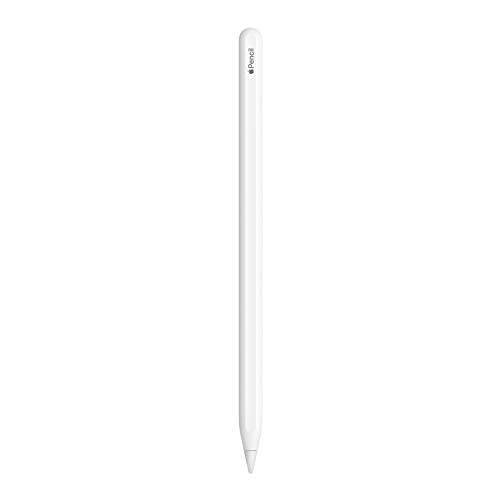
Apple Pencil (2nd Generation)
Best for: iPad users who want a premium pen matched to that ecosystem. Not suited for: anyone hoping to use the same pen across a different ecosystem, because active pens are matched to the display technology of their own family of devices.
This is the pen most iPad owners picture first: it lives magnetically on the side of supported iPads, pairs and charges there, and supports the hover and double-tap style interactions Apple built into its pen system on supported models. For iPad note-taking and drawing it is the reference experience against which iPad alternatives are measured. Its limits are the limits of its ecosystem: it does nothing for a Galaxy tablet or a Windows convertible, and support varies across iPad generations, so the exact iPad model check is not optional.
Judge this pen inside your own apps, with your hand resting on the glass the way you naturally write. Check price on Amazon once you have confirmed it supports your exact device model, and keep the correct spare nibs for it from the start rather than after the first tip wears down.
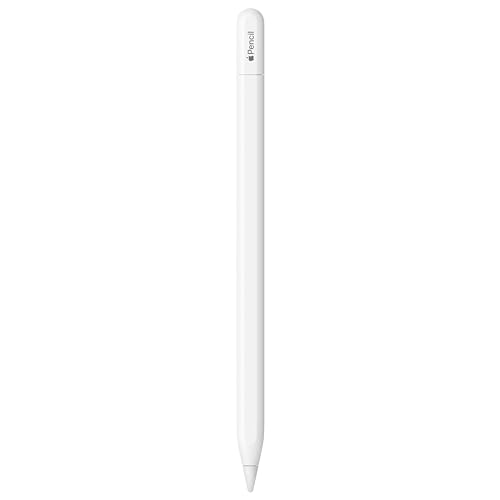
Apple Pencil (USB-C)
Best for: iPad users who want a mid-range pen matched to that ecosystem. Not suited for: anyone hoping to use the same pen across a different ecosystem, because active pens are matched to the display technology of their own family of devices.
This model trades some of the flagship interactions for a simpler, cable-charged design that suits a wider spread of USB-C iPads and tighter budgets. It still gives iPad users proper palm rejection and a precise, pen-like line for notes, markup and everyday sketching, which is where most owners spend their time. Buyers who draw seriously should compare its feature set carefully against the flagship pen on their specific iPad, while students and annotators will often find it covers their whole workload without fuss.
Judge this pen inside your own apps, with your hand resting on the glass the way you naturally write. Check price on Amazon once you have confirmed it supports your exact device model, and keep the correct spare nibs for it from the start rather than after the first tip wears down.

Samsung S Pen Pro
Best for: Samsung Galaxy users who want a premium pen matched to that ecosystem. Not suited for: anyone hoping to use the same pen across a different ecosystem, because active pens are matched to the display technology of their own family of devices.
The larger, more pen-like member of Samsung’s family is aimed at Galaxy users who write and draw for long stretches and want a fuller barrel than the slim pen that ships with many devices. It belongs entirely to the Galaxy world of supported phones and tablets, where its display-powered writing means the pen itself is not another battery to manage for ordinary inking. Galaxy Tab owners who annotate, sketch and take notes daily will feel the difference in hand comfort first, long before they notice anything technical.
Judge this pen inside your own apps, with your hand resting on the glass the way you naturally write. Check price on Amazon once you have confirmed it supports your exact device model, and keep the correct spare nibs for it from the start rather than after the first tip wears down.
Wacom Bamboo Ink Plus
Best for: Windows Ink users who want a premium pen matched to that ecosystem. Not suited for: anyone hoping to use the same pen across a different ecosystem, because active pens are matched to the display technology of their own family of devices.
Wacom brings decades of pen experience to Windows Ink, and this rechargeable pen is built for the convertible-and-tablet side of Windows, where checking your exact machine against the compatibility list is the whole game. On a supported device it delivers the pressure-sensitive inking that note apps and drawing software on Windows are built around, in a barrel shaped by people who think about pens all day. It is a considered buy, not an impulse one: confirm protocol support for your model first, then enjoy one of the most pen-focused designs in the Windows world.
Judge this pen inside your own apps, with your hand resting on the glass the way you naturally write. Check price on Amazon once you have confirmed it supports your exact device model, and keep the correct spare nibs for it from the start rather than after the first tip wears down.
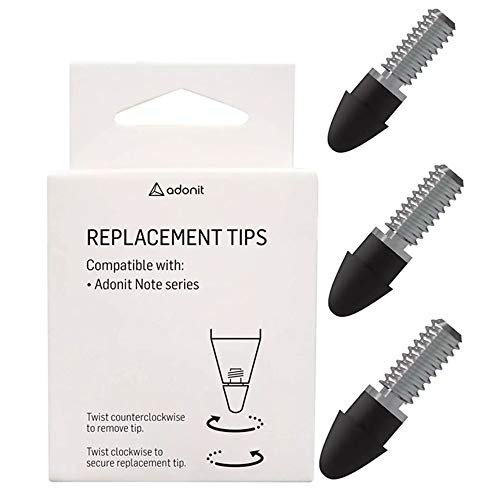
Adonit Note+
Best for: iPad users who want a mid-range pen matched to that ecosystem. Not suited for: anyone hoping to use the same pen across a different ecosystem, because active pens are matched to the display technology of their own family of devices.
Adonit has built its name on iPad pens for people who want an alternative to Apple’s own, and this model targets iPad writers and sketchers who want features like a shortcut button and a familiar, pen-like body. It works within the iPad pen system on supported iPad models, so the same model-check discipline applies. For iPad owners comparing within the ecosystem, it is a reminder that the choice is not only which Apple pen, but whether a well-made third-party pen fits your grip and your apps better.
Judge this pen inside your own apps, with your hand resting on the glass the way you naturally write. Check price on Amazon once you have confirmed it supports your exact device model, and keep the correct spare nibs for it from the start rather than after the first tip wears down.

Logitech Crayon
Best for: iPad users who want a entry-level pen matched to that ecosystem. Not suited for: anyone hoping to use the same pen across a different ecosystem, because active pens are matched to the display technology of their own family of devices.
Logitech’s pen takes a deliberately different shape: a flat, chunky body that does not roll off a desk, charges simply, and is built to survive classrooms and family life as much as studio work. On supported iPads it gives a precise line for notes, homework and markup, with a design that younger hands and shared-device households tend to prefer. It is the pragmatic pick of this group: less about artist features, more about being grabbed, used and put back a dozen times a day without drama.
Judge this pen inside your own apps, with your hand resting on the glass the way you naturally write. Check price on Amazon once you have confirmed it supports your exact device model, and keep the correct spare nibs for it from the start rather than after the first tip wears down.
What the Reviews Agree On: Compatibility Comes First
An iPad stylus lives or dies by its pairing with the tablet itself. Pens built for iPad communicate with the display through Apple’s own pencil technology, which is why an Apple Pencil or a licensed alternative can offer palm rejection, pressure response and tilt shading that a plain capacitive tip never will. The practical catch is fragmentation inside the iPad range itself: different iPad models support different generations of pen, and a pen that pairs magnetically with one model may only charge from a cable on another, or may not be supported at all. Before anything else, match the pen to your exact iPad model and its connector, because compatibility charts, not brand loyalty, decide whether the pen works on day one.
Samsung’s S Pen family follows a completely different philosophy. The pen is powered by technology in the display itself rather than by a battery in the pen, which is why many S Pen models never need charging for writing at all, even though some add a small battery for remote-control gestures. The benefit is a pen that is always ready, often stored inside or against the device, with pressure and tilt behaviour tuned by Samsung for its own tablets and phones. The limitation is just as clear: an S Pen is for Samsung Galaxy devices that were built with that display layer. It will not become an iPad pen or a Windows pen, no matter how good it feels in the hand.
Windows Ink is the most open of the active-pen worlds, and the most confusing. Many Windows tablets, convertibles and pen displays support an active pen, but they do not all speak the same pen protocol, and a pen that works beautifully on one convertible may not register at all on another machine from a different brand. The golden rule on Windows is to check your exact laptop or tablet model against the pen maker’s compatibility list before buying, and to prefer pens that let you switch between protocols where the maker offers that option. When the match is right, Windows Ink gives you pressure-sensitive inking in note apps, markup tools built into the system, and strong support in drawing software.
Universal capacitive pens are the simplest option of all: they imitate a fingertip, so they work on almost any touch screen, from an old tablet to a phone to a kiosk. That universality is also their ceiling. A capacitive pen cannot offer true palm rejection by itself, cannot vary line weight with pressure, and cannot shade with tilt, because the screen only knows where the tip touched, not how the pen behaved. Disc-tip and mesh-tip capacitive pens are genuinely useful for tapping, signing, scrolling and rough highlighting, and they are a sensible spare for a shared family tablet. Just buy one knowing it is a better fingertip, not a drawing instrument, and you will judge it fairly.
Multi-device households need a labelling habit, not wishful thinking. If your home holds an iPad, a Galaxy tablet and a Windows convertible, you may well own three pens that look similar and behave completely differently on each other’s screens. A small label, a different coloured grip, or a rule that each pen lives with its own tablet prevents the daily frustration of grabbing the wrong one. Teach family members the rule too: a pen that only makes fat lines on a device is not broken, it is just a guest on the wrong screen. The one exception to keep in the drawer is the universal capacitive spare, which works everywhere at fingertip level for guests and emergencies.
What the Reviews Agree On: Feel Beats Features
Grip diameter is the quiet deal-breaker for many buyers. A very slim pen looks elegant and suits small hands and precise work, but it can cramp a larger hand during an hour of notes. A thicker pen relaxes the fingers and suits drawing and anyone who grips hard without meaning to, at the cost of feeling less like a familiar ballpoint. If you can, hold your current favourite ordinary pen and compare: most people are happiest when the stylus is close in thickness to the pen they already write with for hours. Accessories like a simple grip sleeve can rescue a slim pen, but it is better to start with a shape your hand already likes.
Tilt support lets you lay the pen over, like shading with the side of a pencil lead, and have the stroke broaden or soften accordingly. Illustrators use it constantly; note-takers may never use it at all. That split is why tilt should be a priority only if your apps and your style actually use it. Check two things before paying for tilt: that your tablet and pen both support it, and that your main drawing app responds to it in a way you like. A pen can support tilt in the listing while your favourite app ignores the signal. For pure handwriting, annotation and diagram work, pressure response and comfort will serve you far better than tilt ever will.
Hover is the ability of some pen systems to sense the tip just above the glass, showing a cursor, a brush preview or a menu before you commit to a stroke. Artists use it to aim precisely and to preview brush size; presenters and teachers use pen cursors to point without touching. It is a genuine pleasure where it exists, and its absence is not a flaw in pens that never promised it. If you move between devices, hover is one of the differences you will feel immediately, because your hand expects the preview it learned on the other screen. Test for it if it matters to you, inside your main app, since app support decides whether the preview actually appears.
Buttons, taps and gestures are the garnish on a pen, not the meal, but they can still shape daily convenience. Some pens let you double-tap or squeeze to switch between pen and eraser, some carry a side button for right-click style actions or app shortcuts, and some Galaxy pens add air gestures for presenting or controlling media. Learn whichever shortcut your pen offers for the eraser first; that single gesture saves more time than every other trick combined. Beyond that, be honest about your habits: if you never customise shortcuts on any other device, you will not start with a pen, so do not pay a premium for gesture features you will leave switched off.
The glass-versus-paper question shapes every stylus purchase more than buyers admit. Writing on bare glass is fast, smooth and precise, but some people find it slippery and noisy, with the tip clicking and skating in a way that makes handwriting messier than on paper. Friction, from a matte protector or a softer nib, slows the stroke slightly and gives the hand the feedback it learned from paper, at the cost of faster nib wear. Neither answer is correct for everyone. If your handwriting falls apart on glass, choose friction and budget for nibs. If you draw with long, sweeping strokes, you may love the glide. Your handwriting sample, not a reviewer’s preference, should decide.
Notes, Drawing and Markup: Where Pens Separate
For note-taking, the pen is only half the system; the app is the other half. Good note apps turn handwriting into searchable text, straighten your diagrams, record audio in step with your strokes, and sync pages to your other devices before you have closed the cover. When you choose a pen, open your intended note app and test the whole loop: write a page, search for a word you wrote, export the page, and check the result on your phone or laptop. A pen that feels wonderful but lives in an app that traps your notes is a bad purchase. Students should also check how the app handles long PDFs, because annotating readings is where school pens earn their keep.
Drawing apps expose differences between pens that notes never will. Brush engines respond to pressure curves and tilt in their own ways, and the same pen can feel expressive in one app and blunt in another. Before blaming hardware, spend an evening with brush settings: a softer pressure curve often transforms a pen that felt unresponsive. Artists working in layers on large canvases should also watch how the tablet, not just the pen, handles the load. The honest summary is that any current active pen from the major ecosystems can produce professional work in skilled hands; the differences that matter are comfort, reliability and how naturally the pen disappears while you think about the picture instead.
Annotation is the use case that converts the most sceptics. Marking up a PDF contract, circling a figure in a paper, sketching over a photo or signing a form all feel clumsy with a finger and natural with a pen. The pen wins because it is precise at small sizes and because your hand can rest while you work. If annotation is your main job, prioritise a pen that pairs instantly, a tip fine enough for margin notes, and an app that flattens or exports your marked files the way your colleagues need them. You may not need tilt or an artist’s pressure range at all, and skipping those can move you to a simpler, sturdier pen that suits the work better.
Signing documents deserves a special word, because it is the task where even a basic pen shines and where people most often overbuy. Any pen that gives you a fine, controlled line will produce a signature that looks like yours rather than a fingertip scrawl, and most signing apps care about the app’s own security and audit features far more than about which pen you hold. If signing is genuinely your only pen task, a simple, reliable option inside your device’s ecosystem is enough, and the money saved is better spent on the document workflow itself. If you sign and annotate and write, step up to the pen that makes the writing feel effortless, because that is the use you will feel daily.
Strengths and Trade-Offs Across the Range
Strengths
- Natural handwriting and drawing on a tablet you already own, with your hand resting on the glass thanks to palm rejection on matched active-pen systems.
- Precision a fingertip cannot match: margin notes, diagrams, signatures and detailed markup all become practical.
- Pressure and, where supported, tilt response that make digital ink feel expressive rather than typed, especially in drawing and calligraphy.
- Instant, always-with-you markup of PDFs, photos, slides and screenshots, removing print-sign-scan loops from your week.
Trade-offs
- Ecosystem lock-in: an active pen serves one family of devices, so a mixed household may need more than one pen.
- Ongoing consumables and care: nibs wear and must be inspected and replaced, and a worn nib left too long can scratch a screen.
- Charging and storage discipline: battery pens need a routine, and a pen stored loose in a bag is a pen on its way to being lost or damaged.
- Not every app uses every feature: pressure, tilt and shortcuts only exist where your software supports them.
The Ecosystem Table Behind These Reviews
| Ecosystem | How the pen works | Choose it when | Watch out for |
|---|---|---|---|
| iPad | Pen and iPad use Apple’s pencil system on supported models, with palm rejection, pressure and, on many combinations, tilt and hover-style preview. | Your main device is an iPad and your apps are note, markup or drawing apps from the iPad world. | Support differs by iPad generation and connector; check your exact model before buying any iPad pen. |
| Samsung Galaxy | The display powers the S Pen for writing on supported Galaxy phones and tablets, with Samsung’s own hover and shortcut behaviours. | Your main device is a Galaxy Tab or a Galaxy phone built with S Pen support. | An S Pen only works on Galaxy devices built for it; it is not a general pen for other brands. |
| Windows Ink | Active pens work with Windows devices that support their pen protocol, giving pressure-sensitive inking across system tools and drawing software. | Your main device is a pen-ready Windows tablet, convertible or pen display. | Protocols differ between machines; verify your exact model on the pen maker’s compatibility list. |
| Universal capacitive | The tip imitates a fingertip, so it works on almost any touch screen at fingertip level. | You need a simple spare for tapping, signing, scrolling or a shared family tablet. | No true palm rejection, pressure or tilt; it is a better fingertip, not a drawing instrument. |
Inside the iPad ecosystem the experience also depends on the apps you open. Note apps, sketching apps and PDF annotators all read the same pen signals, but they interpret pressure and tilt differently, so a line that feels soft and pencil-like in one app can feel firm and pen-like in the next. That is not a fault in the hardware; it is a reminder to test a new pen inside the two or three apps you actually use during the return window. iPad pens also tend to assume you live in Apple’s accessory world, with magnetic storage on the tablet edge or a charging routine built around the tablet itself, which is convenient at a desk and slightly less convenient when the tablet stays home.
The Windows route rewards people who like choice. You can pick a slim pen for travel, a chunkier pen for drawing, or a rechargeable model that tops up from the same cable as your other gear. You also take on more responsibility: keeping the pen charged, keeping a spare nib in the case, and checking that a Windows update or a new app still treats the pen the way you expect. None of that is difficult, but it is different from the sealed, automatic experience of an iPad or Galaxy pen. Shoppers who want one pen for a mixed desk should read compatibility lists literally, model number by model number, rather than trusting a generic works-with-Windows badge.
The capacitive category is where misleading listings multiply. Words like active and fine point are sometimes attached to pens that still only mimic a finger, with a small battery powering nothing more than a finer contact point. A quick test protects you: if a pen claims to work on every device ever made and also claims pressure sensitivity, be sceptical, because real pressure sensitivity requires a matched pen-and-screen system. Keep one honest capacitive pen in a drawer for guests, kids and signing forms, and keep your serious writing and drawing on the active pen your main device was designed for. That two-pen reality sounds wasteful until you compare it with one compromised pen that disappoints everywhere.
Ownership: Charging, Nibs and Screen Safety
Charging is the least glamorous and most annoying part of active-pen ownership. Depending on the model, a pen may charge magnetically against the tablet, from a cable, or not need charging for writing at all. Follow the manufacturer’s own guidance for your model: use the charging method and cable type the maker specifies, avoid leaving any pen battery sitting empty for months, and top up before a trip or an exam rather than during it. A pen that dies mid-session teaches the lesson once. Build a tiny routine around it, the same way you charge your tablet, and the issue disappears. If a pen will sit unused for a long season, store it partly charged rather than flat, as the maker advises for its battery.
The nib is a consumable, and treating it as one protects both your lines and your screen. A nib wears down with use, faster on textured screen protectors and matte drawing films than on bare glass. A worn nib develops a flat or sharp edge, and that edge is the problem: dragged across the display, a damaged or gritty nib can scratch the screen surface or its protector. Inspect the tip regularly by sight and by fingertip; if it feels rough, looks flattened or starts to feel scratchy as you write, replace it with the correct nib for your pen model, following the manufacturer’s fitting instructions. A fresh nib is a small, routine cost compared with a marked display.
A screen protector is cheap insurance and a feel decision at the same time. A smooth glass protector preserves the glide of writing on glass and guards against the scratches a worn nib or trapped grit can cause. A matte, paper-feel film adds friction that many writers and artists love, making the pen feel controlled rather than slippery, but that friction wears nibs noticeably faster, so budget for replacements and inspect the tip more often. Whichever you choose, fit it carefully on a clean screen in a dust-free moment, because a protector installed over dust protects the dust too. Replace a protector that is itself scratched or lifting; a damaged protector makes every pen feel worse.
A two-minute monthly routine keeps a pen feeling new. Wipe the tip and barrel with a soft, dry or barely damp cloth, following any cleaning guidance from the maker and keeping moisture away from charging contacts. Inspect the nib under good light and replace it at the first sign of a flat or sharp edge. Check the screen protector for scratches and lifting corners. Top up the battery if your pen has one, and confirm the pen still pairs and writes in your main apps after system updates. Store the pen attached to the tablet or in its case, never loose in a bag pocket with keys and coins. That is the whole ritual; pens fail from neglect far more often than from defects.
When a pen misbehaves, work through the boring causes first, because they explain most problems. Check the pen is charged, or, for display-powered pens, that you are using it on a device that supports it. Re-pair or re-seat the pen as the maker instructs. Inspect the nib for wear or damage and replace it if it looks flattened or feels rough. Remove a thick or damaged screen protector temporarily to see whether it is interfering. Restart the tablet, update the app, and test in a second app to learn whether the fault follows the pen or stays with one program. Only after those steps should you suspect hardware failure and contact the maker’s support with your model numbers ready.
Who Each Kind of Review Reader Should Buy
Consider the student with a mid-range iPad, a term of lectures and a tight budget. Her real tasks are handwritten notes, annotated slides and the occasional diagram. She does not need tilt, and she will never open a professional drawing app. The right answer is the iPad pen whose charging matches her iPad and whose price leaves room for a case, a protector and spare nibs, because the protector and nibs protect the tablet she cannot afford to replace. Judged against her actual week, the simpler pen is not a compromise; it is the correct tool, and the flagship’s extra gestures would have been decoration.
Consider the teacher marking work on a school tablet every evening. Her priorities are a pen that is always charged, a tip fine enough for margin comments, and a body that survives being dropped, borrowed and left in classrooms. She fits a protector on day one, keeps spare nibs in her desk, and checks the tip each Friday because thirty students’ worth of enthusiastic use wears a nib quickly. She does not need an artist’s feature set, and paying for one would be waste. What she needs is reliability, and reliability here is mostly habits: charge nightly, inspect weekly, replace the nib at the first roughness.
Consider the illustrator working on a Galaxy tablet in the morning and a Windows convertible at a studio desk in the afternoon. He needs pressure response that starts at a whisper, tilt his brushes actually use, and a barrel he can hold for six hours. He will, reluctantly, own two pens, because no single pen speaks both systems, and he will keep each with its device. His money goes first to comfort and nib supply, not gestures. His example shows why ecosystem loyalty is not brand fan behaviour; it is physics. The pen is half of a matched system, and professionals buy the system, not the stick.
Buying a stylus as a gift is kind, risky and very fixable. The risk is compatibility: a beautiful pen for the wrong tablet is a beautiful paperweight. The fix is to identify the recipient’s exact tablet model first, from the device itself or its settings screen, and buy strictly inside that ecosystem. If you cannot identify the model, a quality universal capacitive pen or a gift card aimed at the right ecosystem beats a confident guess. Include spare nibs and a note about checking the nib before it wears, and you have given not just a pen but the knowledge that keeps both pen and screen happy. Artists and students, in particular, tend to use a gifted pen daily once it matches their device.
Final Verdict
Let the reviews narrow you to one ecosystem first and one barrel shape second; the model choice after that is pleasantly small. iPad owners choose between Apple’s own pens and well-made alternatives for supported models, Galaxy owners choose their S Pen size, Windows owners verify their protocol and pick a pen-shaped answer, and everyone keeps one honest capacitive spare. That is the whole map, and it will not steer you wrong.
Buying Used or Buying as a Gift
Second-hand pens can be sensible, with three checks. First, confirm the exact model and its device compatibility, because generations look alike and support differs. Second, inspect the nib and budget for a fresh one immediately; a used pen’s tip has an unknown history and a worn tip is the one part that can harm your screen. Third, for battery models, ask about charging and test a full session before the return window closes, since an ageing battery is the most likely hidden fault. Clean the barrel as the maker allows, pair it fresh to your device, and you have a perfectly good pen. Skip any listing that cannot name the model precisely.
Buying a stylus as a gift is kind, risky and very fixable. The risk is compatibility: a beautiful pen for the wrong tablet is a beautiful paperweight. The fix is to identify the recipient’s exact tablet model first, from the device itself or its settings screen, and buy strictly inside that ecosystem. If you cannot identify the model, a quality universal capacitive pen or a gift card aimed at the right ecosystem beats a confident guess. Include spare nibs and a note about checking the nib before it wears, and you have given not just a pen but the knowledge that keeps both pen and screen happy. Artists and students, in particular, tend to use a gifted pen daily once it matches their device.
What a Longer Look Reveals: Verification Checks and Listing Details
Consistency is the quiet test
Single impressive results are easy; a good stylus pen repeats them on an ordinary day, with ordinary materials, when you are in a hurry. Across the picks in this review, the models that earned their place did so by being predictable: the same setup producing the same outcome, with controls that behave identically every time. In a small rented room where drilling, permanent fixings and bulky extras are off the table, predictability is worth more than a peak performance figure you will rarely reach. When you read the individual assessments above, treat consistency comments as the highest-value signal in each one.
Fit and feel, judged honestly
Specifications can tell you a stylus pen will fit; only handling tells you whether it feels right doing it. Weight distribution, control placement, surface finish and the force needed for routine adjustments all shape whether you reach for the product gladly or work around it. When picks such as Adonit Note+, Logitech Crayon and Apple Pencil (2nd Generation) are on your shortlist, run this check against each listing in turn. If your shortlist comes down to two similar models, this tactile layer is usually the honest tie-breaker, and it is personal: a control layout one reviewer calls cramped, a smaller-handed owner may call perfect. Where possible, judge fit against your own hands, desk and habits, not the reviewer’s.
The detail that dates a design
Every Keyboards generation has a detail that quietly dates it: a port standard on its way out, a control app that has stopped receiving updates, a consumable format being phased away. When reviewing a stylus pen, that detail matters because it decides how gracefully the product ages. A model built on current standards and widely stocked consumables will still be serviceable when a flashier rival is orphaned by its own ecosystem. Check the age of the design, not just its feature list, and favour the product whose supporting ecosystem is still actively maintained.
What the box should contain — and what it should not need
Unboxing is a small but telling review checkpoint for a stylus pen: the essentials for the first session should be in the box, the instructions should match the actual unit, and nothing vital should depend on an immediate second purchase. If a pick requires an accessory to perform its core job, that dependency is flagged in its assessment above, because it changes both the real cost and the first-day experience. Equally, beware bundles padded with extras you will never use; in a small rented room where drilling, permanent fixings and bulky extras are off the table, unused bundle clutter is a cost paid in storage, not a bonus.
Reading the assessments against your own routine
These reviews were written against a general routine, and your routine is the final filter. Map each pick’s stated strengths onto your busiest realistic day with a stylus pen: if a pick’s best quality serves a task you do rarely, it is not the pick for you, however strong the assessment. If a pick’s noted limitation sits in a corner of the workflow you never visit, discount it. This translation step — from review conditions to your conditions in a small rented room where drilling, permanent fixings and bulky extras are off the table — is where a good review becomes a good decision rather than a borrowed opinion.
Frequently Asked Questions
Will one stylus pen work on my iPad, Galaxy tablet and Windows laptop?
Almost certainly not, and this is the single most important fact in this whole topic. Active pens are matched to the pen technology built into a specific family of displays: iPad pens work within Apple’s system on supported iPads, S Pen models work on Galaxy devices built for them, and Windows Ink pens work on Windows machines that support their protocol. A universal capacitive pen will make marks on all three, but only as a fingertip substitute, without palm rejection or pressure. Plan on one proper pen per ecosystem you actually use.
Can a stylus pen scratch my tablet screen?
The pen itself is designed not to, but a worn or damaged nib can. As a tip wears it can develop a flat or sharp edge, and grit trapped under that edge can mark glass or a protector. Protect yourself with three habits: inspect the nib regularly and replace it when it looks flattened or feels rough, wipe the tip before long sessions, and fit a suitable screen protector, replacing the protector itself if it becomes scratched. Follow the pen manufacturer’s guidance on approved replacement nibs for your model.
Do I need a screen protector if I use a stylus?
It is strongly worth it. A smooth protector preserves the writing feel of glass while guarding against scratches from a worn nib or trapped grit, and a matte paper-feel protector adds friction that many writers and artists prefer. The trade-off is that matte films wear nibs faster, so check the tip more often and keep spares. Whichever style you choose, fit it to a clean screen and replace it when it is scratched or lifting, because a tired protector makes every pen feel scratchy and imprecise.
How do I know when to replace the nib?
Look and feel tell you. By sight, the tip has lost its rounded shape, looks flattened on one side, or shows a sharp edge. By feel, strokes that were smooth start to feel scratchy, gritty or uneven, or the pen needs more pressure to start a line. At the first clear sign, fit the correct replacement nib for your pen model, following the manufacturer’s instructions; nibs are inexpensive consumables, while screens are not. If you use a matte protector, expect to replace nibs more often and inspect the tip on a regular schedule rather than waiting for symptoms.
Does a stylus pen need charging?
It depends on the family. Many active pens carry a battery and charge magnetically on the tablet or from a cable; Samsung’s S Pen writes using power from the display on supported Galaxy devices, so ordinary writing does not depend on a pen battery, though some models add one for extra remote features. Follow the manufacturer’s charging guidance for your exact model, keep its charging accessory with the pen, and avoid storing a battery-powered pen empty for long periods. A simple routine, charging alongside your tablet, removes the issue entirely.
Why do stylus pen reviews disagree with each other so often?
Usually because the reviewers used different tablets and different apps. A pen judged on an iPad tells you nothing about Galaxy or Windows performance, and a pen judged in a light note app may feel different in a heavy drawing app with big brushes and many layers. Read any review, including this one, by first checking that the reviewer’s device and apps match yours, then weighting comfort, palm rejection and nib care more heavily than headline features.
Related Reading
stylus pen pros and cons in full
stylus options for touch screen monitors
keyboards that pair well with an iPad Pro