Disclosure: As an Amazon Associate, ilcastellomenu.com earns from qualifying purchases. Links on this page are affiliate links; they cost you nothing extra. Prices and availability change often, so check the current Amazon listing before you buy.
Learning how to set up usb sound card properly takes about five minutes, and most of that time is spent on one step people skip: telling the system, separately, to listen and to speak through the new device. The short version is plug it in, connect your headset, choose the adapter for output, choose it again for input, and test with a real call before the real call matters. This guide walks through each step slowly, flags the mistake that hides inside each one, and finishes with the troubleshooting sequence that resolves nearly everything.
Key Takeaways
Plug into the machine directly for the first setup, even if the adapter will live on a dock later. Set playback and recording defaults separately; they do not follow each other. Confirm the jack layout matches your headset before blaming the adapter. Test the microphone with the level meter moving, not with hope. And once it works, leave the arrangement alone — most later problems trace back to a setting changed by an update, a new app, or a different device plugged in.
In this guide
What You Need
Headset plugs add one more wrinkle worth understanding before you buy. A combined headset plug carries an extra contact for the microphone, and a combined-jack adapter expects exactly that plug. A separate-jack headset has two plugs, and a combined adapter cannot accept both at once without a splitter. Checking your headset takes ten seconds: count the plugs, look at what your current setup uses, and match the adapter to it. That tiny check prevents the most common disappointment with these products, which is not sound quality at all but a microphone that silently does nothing on the first important call.
Plug-and-play behaviour is the norm on current systems, and it is one of the category’s genuine strengths. On a modern laptop or desktop you normally plug the adapter in, wait a few seconds while the system recognises it as a standard audio device, and then choose it as the output and input in your sound settings. No disc, no hunting for downloads, and usually no restart. The step people forget is the choosing: many a supposedly broken adapter was simply never selected as the default device, while the computer kept cheerfully playing through its speakers.
Consoles and other devices deserve a cautious word. Some adapters work happily when plugged into a game console or another host, and some do not, because support depends on the host rather than the adapter. If your plan involves anything other than a computer, check that specific pairing before relying on it, and treat forum reports about your exact console and model as more useful than general promises. On a computer, by contrast, you can be reasonably confident: standard USB audio support is built into every current mainstream operating system.
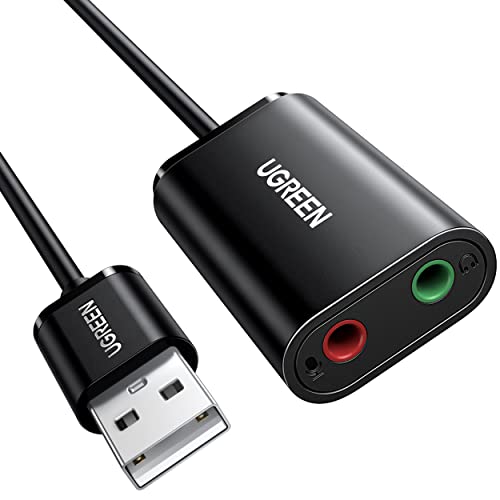
UGREEN USB Sound Card
UGREEN USB Sound Card is a straightforward, widely available adapter that suits everyday headset and speaker use. In daily use what matters is the unglamorous list: the jack layout matches your headset, the plug sits firmly, the housing does not flex when you swap cables, and the system recognises it the moment it is plugged in. Judge it on those things and on how it behaves in your calls and your games, not on promises printed on a box.
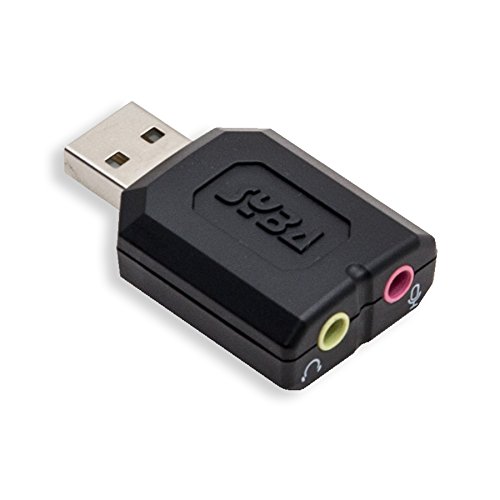
Syba USB Sound Card
Syba USB Sound Card is a practical adapter often chosen when separate microphone and headphone jacks matter. In daily use what matters is the unglamorous list: the jack layout matches your headset, the plug sits firmly, the housing does not flex when you swap cables, and the system recognises it the moment it is plugged in. Judge it on those things and on how it behaves in your calls and your games, not on promises printed on a box.
Safety and Before You Start: How to Set Up USB Sound Card Without the Usual Detours
Cable style is a small decision with daily consequences. A short rigid stick is tidy and travels well, but it puts the jack right against the side of the laptop, where a stiff headphone plug can lever against the port when the cable gets tugged. An adapter on a short flexible lead moves the jack away from the machine and is kinder to both ports and plugs, at the cost of a little more desk clutter. People who have already lost one jack to mechanical wear often prefer the lead, and their reasoning is sound.
Build quality in this category is modest by design, and expectations should be set accordingly. These are small, inexpensive accessories, not heirloom hardware. What you want is a housing that does not flex alarmingly, a plug that sits firmly without wobbling, strain relief where a cable meets the body, and jacks that grip a plug with a reassuring click rather than letting it drift out during a call. A metal shell can feel nicer than plastic, but grip, fit, and strain relief matter more to lifespan than the material on the outside.
Microphone quality is where modest expectations pay off most. For calls, classes, meetings, and casual voice chat, the microphone input on a typical adapter is entirely adequate: clear, intelligible, and usually better than a laptop’s built-in microphone simply because your headset microphone sits near your mouth. For anything beyond that — streaming to an audience, recording narration, podcasting — the honest advice is to step up to a proper interface or a dedicated USB microphone. A dongle that makes your voice clear in a meeting has done its job; asking it to be a studio chain is asking the wrong product.
The Setup Steps in Order
Step 1: Plug the adapter into a USB port on the machine itself
A USB sound card is, at heart, a tiny audio device that lives outside your computer instead of inside it. Your machine sends digital audio out through a USB port, and the adapter turns that signal into sound you can hear through headphones or speakers, while also carrying a microphone signal back the other way. Because the conversion happens outside the case, the adapter does not care whether your built-in audio hardware is healthy, missing, or simply not wired to a jack you can reach. That independence is the whole appeal: one small device, plugged into a port almost every computer has, gives you a working place to plug in a headset.
The most common reason people buy one of these adapters is embarrassingly simple: the headphone jack on their laptop or desktop has stopped working. Jacks wear out. They get loose, they crackle when the plug turns, they fill with lint, or one channel quietly disappears. Replacing a jack inside a laptop is rarely a sensible repair for most owners, and on a desktop the front-panel jack is often connected with a flimsy cable that fails long before the rest of the machine. A USB adapter sidesteps all of that in about a minute, with no tools and no opening the case.
Step 2: Wait for the system to recognise it
Plug-and-play behaviour is the norm on current systems, and it is one of the category’s genuine strengths. On a modern laptop or desktop you normally plug the adapter in, wait a few seconds while the system recognises it as a standard audio device, and then choose it as the output and input in your sound settings. No disc, no hunting for downloads, and usually no restart. The step people forget is the choosing: many a supposedly broken adapter was simply never selected as the default device, while the computer kept cheerfully playing through its speakers.
Consoles and other devices deserve a cautious word. Some adapters work happily when plugged into a game console or another host, and some do not, because support depends on the host rather than the adapter. If your plan involves anything other than a computer, check that specific pairing before relying on it, and treat forum reports about your exact console and model as more useful than general promises. On a computer, by contrast, you can be reasonably confident: standard USB audio support is built into every current mainstream operating system.
Step 3: Connect your headset or speakers to the correct jack
The single most practical buying decision is the jack layout. Some adapters offer one combined jack that carries both headphone sound and microphone signal on a single plug, matching the headsets made for phones and game controllers. Others offer two separate jacks, one for headphones and one for a microphone, matching older headsets and separate desk microphones. Neither layout is better in the abstract; the right one is simply the one that matches the headset you already own. Buying the wrong layout means adapters on adapters, which is exactly the clutter this purchase was supposed to remove.
Headset plugs add one more wrinkle worth understanding before you buy. A combined headset plug carries an extra contact for the microphone, and a combined-jack adapter expects exactly that plug. A separate-jack headset has two plugs, and a combined adapter cannot accept both at once without a splitter. Checking your headset takes ten seconds: count the plugs, look at what your current setup uses, and match the adapter to it. That tiny check prevents the most common disappointment with these products, which is not sound quality at all but a microphone that silently does nothing on the first important call.
Step 4: Set the adapter as the default playback device
Volume and controls vary more than people expect. Some adapters are plain pass-through sticks with no buttons at all, leaving volume entirely to the system and your apps. Others add a small volume wheel, a mute switch, or buttons along the cable. Neither approach is automatically better. Desk users who adjust volume constantly may love a wheel within reach, while laptop users who carry the adapter in a bag may prefer nothing that can snag or turn by accident. Think about where the adapter will live, not just what it does on day one.
Cable style is a small decision with daily consequences. A short rigid stick is tidy and travels well, but it puts the jack right against the side of the laptop, where a stiff headphone plug can lever against the port when the cable gets tugged. An adapter on a short flexible lead moves the jack away from the machine and is kinder to both ports and plugs, at the cost of a little more desk clutter. People who have already lost one jack to mechanical wear often prefer the lead, and their reasoning is sound.
Step 5: Set the adapter as the default recording device
Latency, the tiny delay between action and sound, is rarely a problem for the things these adapters are bought for. Music, films, meetings, and ordinary gaming all tolerate the small delays involved without anyone noticing. The exception is performing or recording music, where you need to hear yourself at the exact moment you play or sing. That is another situation where the correct answer is a proper audio interface with direct monitoring, not a general-purpose adapter. Knowing which side of that line your use sits on saves both money and frustration.
Sharing one adapter between machines is an underrated pattern. Because the device is recognised automatically, you can move it from a work laptop to a home desktop in seconds, carrying your headset setup with it. People who hot-desk, who split time between two computers, or who keep a spare machine for calls often end up valuing this more than any specification. It also makes the adapter a useful diagnostic tool: if sound works through the adapter but not the built-in jack, you have learned something important about where your problem actually lives.
Step 6: Test playback and microphone with a real call or recording
Troubleshooting these adapters is mercifully short, because there is so little to go wrong. If there is no sound, confirm the adapter is selected for output. If people cannot hear you, confirm it is selected for input, because systems happily let you listen through one device and record through another. Try a different USB port, ideally one directly on the machine rather than through a hub, and try the headset in a phone to confirm the headset itself still works. That short sequence resolves the overwhelming majority of problems people report with this category.
Keeping an adapter working is mostly about not abusing it. Avoid hanging heavy headphone cables from a rigid stick plugged into a laptop, coil leads loosely rather than wrapping them tightly around the body, and pull plugs out by the plug rather than the cable. If an adapter lives in a bag, a small pouch keeps lint out of the jacks, and lint, once again, is the quiet enemy of every small audio connection. None of this is demanding; it is the same care you would give any small accessory you rely on daily.
Step 7: Adjust levels and app-level settings
There is also a fair question about whether to repair instead of adapt. If a desktop’s rear jack still works and only the front one has failed, a cable or a setting may solve the problem for free. If a laptop is under warranty, a dead jack is the manufacturer’s problem, not yours. The adapter earns its place when repair is impractical, too slow, too expensive relative to the machine’s age, or simply not worth opening the device for. It is a workaround, proudly so, and a good workaround is often the smartest purchase in the whole setup.
For people with hearing or accessibility needs, an adapter can quietly solve real problems. It can put a jack within reach on a machine whose ports are at the back of a desk, let a preferred headset be used with a machine that otherwise excludes it, and provide a consistent connection that does not depend on a worn socket. Volume controls on the adapter itself can also help when system controls are buried in menus. These are unglamorous benefits, and for the people who need them, they are the entire point of the product.
Step 8: Make the arrangement permanent and tidy
Build quality in this category is modest by design, and expectations should be set accordingly. These are small, inexpensive accessories, not heirloom hardware. What you want is a housing that does not flex alarmingly, a plug that sits firmly without wobbling, strain relief where a cable meets the body, and jacks that grip a plug with a reassuring click rather than letting it drift out during a call. A metal shell can feel nicer than plastic, but grip, fit, and strain relief matter more to lifespan than the material on the outside.
Microphone quality is where modest expectations pay off most. For calls, classes, meetings, and casual voice chat, the microphone input on a typical adapter is entirely adequate: clear, intelligible, and usually better than a laptop’s built-in microphone simply because your headset microphone sits near your mouth. For anything beyond that — streaming to an audience, recording narration, podcasting — the honest advice is to step up to a proper interface or a dedicated USB microphone. A dongle that makes your voice clear in a meeting has done its job; asking it to be a studio chain is asking the wrong product.
Troubleshooting and Common Mistakes
Keeping an adapter working is mostly about not abusing it. Avoid hanging heavy headphone cables from a rigid stick plugged into a laptop, coil leads loosely rather than wrapping them tightly around the body, and pull plugs out by the plug rather than the cable. If an adapter lives in a bag, a small pouch keeps lint out of the jacks, and lint, once again, is the quiet enemy of every small audio connection. None of this is demanding; it is the same care you would give any small accessory you rely on daily.
There is also a fair question about whether to repair instead of adapt. If a desktop’s rear jack still works and only the front one has failed, a cable or a setting may solve the problem for free. If a laptop is under warranty, a dead jack is the manufacturer’s problem, not yours. The adapter earns its place when repair is impractical, too slow, too expensive relative to the machine’s age, or simply not worth opening the device for. It is a workaround, proudly so, and a good workaround is often the smartest purchase in the whole setup.
For people with hearing or accessibility needs, an adapter can quietly solve real problems. It can put a jack within reach on a machine whose ports are at the back of a desk, let a preferred headset be used with a machine that otherwise excludes it, and provide a consistent connection that does not depend on a worn socket. Volume controls on the adapter itself can also help when system controls are buried in menus. These are unglamorous benefits, and for the people who need them, they are the entire point of the product.
Finally, a word about spares. Because these adapters are small, inexpensive, and instantly useful when a jack fails at the worst moment, many experienced users simply keep one spare in a drawer or travel kit. It is the audio equivalent of a spare charging cable: unexciting right up until the morning it saves a presentation, an exam, an interview, or a call that could not be rescheduled. If you rely on a headset for work, that insurance logic is worth taking seriously when you decide how many to buy.
Maintenance and Keeping It Working
Finally, a word about spares. Because these adapters are small, inexpensive, and instantly useful when a jack fails at the worst moment, many experienced users simply keep one spare in a drawer or travel kit. It is the audio equivalent of a spare charging cable: unexciting right up until the morning it saves a presentation, an exam, an interview, or a call that could not be rescheduled. If you rely on a headset for work, that insurance logic is worth taking seriously when you decide how many to buy.
A USB sound card is, at heart, a tiny audio device that lives outside your computer instead of inside it. Your machine sends digital audio out through a USB port, and the adapter turns that signal into sound you can hear through headphones or speakers, while also carrying a microphone signal back the other way. Because the conversion happens outside the case, the adapter does not care whether your built-in audio hardware is healthy, missing, or simply not wired to a jack you can reach. That independence is the whole appeal: one small device, plugged into a port almost every computer has, gives you a working place to plug in a headset.
The most common reason people buy one of these adapters is embarrassingly simple: the headphone jack on their laptop or desktop has stopped working. Jacks wear out. They get loose, they crackle when the plug turns, they fill with lint, or one channel quietly disappears. Replacing a jack inside a laptop is rarely a sensible repair for most owners, and on a desktop the front-panel jack is often connected with a flimsy cable that fails long before the rest of the machine. A USB adapter sidesteps all of that in about a minute, with no tools and no opening the case.
Final Word
Setup is the whole product experience with a device like this, and the good news is that it is genuinely simple when done in order. Work through the steps once, carefully, and the adapter should become the most forgettable part of your desk — which, for a piece of audio plumbing, is the highest praise available.
Living With the Adapter Day to Day
Sharing one adapter between machines is an underrated pattern. Because the device is recognised automatically, you can move it from a work laptop to a home desktop in seconds, carrying your headset setup with it. People who hot-desk, who split time between two computers, or who keep a spare machine for calls often end up valuing this more than any specification. It also makes the adapter a useful diagnostic tool: if sound works through the adapter but not the built-in jack, you have learned something important about where your problem actually lives.
Troubleshooting these adapters is mercifully short, because there is so little to go wrong. If there is no sound, confirm the adapter is selected for output. If people cannot hear you, confirm it is selected for input, because systems happily let you listen through one device and record through another. Try a different USB port, ideally one directly on the machine rather than through a hub, and try the headset in a phone to confirm the headset itself still works. That short sequence resolves the overwhelming majority of problems people report with this category.
Keeping an adapter working is mostly about not abusing it. Avoid hanging heavy headphone cables from a rigid stick plugged into a laptop, coil leads loosely rather than wrapping them tightly around the body, and pull plugs out by the plug rather than the cable. If an adapter lives in a bag, a small pouch keeps lint out of the jacks, and lint, once again, is the quiet enemy of every small audio connection. None of this is demanding; it is the same care you would give any small accessory you rely on daily.
There is also a fair question about whether to repair instead of adapt. If a desktop’s rear jack still works and only the front one has failed, a cable or a setting may solve the problem for free. If a laptop is under warranty, a dead jack is the manufacturer’s problem, not yours. The adapter earns its place when repair is impractical, too slow, too expensive relative to the machine’s age, or simply not worth opening the device for. It is a workaround, proudly so, and a good workaround is often the smartest purchase in the whole setup.
For people with hearing or accessibility needs, an adapter can quietly solve real problems. It can put a jack within reach on a machine whose ports are at the back of a desk, let a preferred headset be used with a machine that otherwise excludes it, and provide a consistent connection that does not depend on a worn socket. Volume controls on the adapter itself can also help when system controls are buried in menus. These are unglamorous benefits, and for the people who need them, they are the entire point of the product.
Finally, a word about spares. Because these adapters are small, inexpensive, and instantly useful when a jack fails at the worst moment, many experienced users simply keep one spare in a drawer or travel kit. It is the audio equivalent of a spare charging cable: unexciting right up until the morning it saves a presentation, an exam, an interview, or a call that could not be rescheduled. If you rely on a headset for work, that insurance logic is worth taking seriously when you decide how many to buy.
Small Details That Decide Satisfaction
There is also a fair question about whether to repair instead of adapt. If a desktop’s rear jack still works and only the front one has failed, a cable or a setting may solve the problem for free. If a laptop is under warranty, a dead jack is the manufacturer’s problem, not yours. The adapter earns its place when repair is impractical, too slow, too expensive relative to the machine’s age, or simply not worth opening the device for. It is a workaround, proudly so, and a good workaround is often the smartest purchase in the whole setup.
For people with hearing or accessibility needs, an adapter can quietly solve real problems. It can put a jack within reach on a machine whose ports are at the back of a desk, let a preferred headset be used with a machine that otherwise excludes it, and provide a consistent connection that does not depend on a worn socket. Volume controls on the adapter itself can also help when system controls are buried in menus. These are unglamorous benefits, and for the people who need them, they are the entire point of the product.
Finally, a word about spares. Because these adapters are small, inexpensive, and instantly useful when a jack fails at the worst moment, many experienced users simply keep one spare in a drawer or travel kit. It is the audio equivalent of a spare charging cable: unexciting right up until the morning it saves a presentation, an exam, an interview, or a call that could not be rescheduled. If you rely on a headset for work, that insurance logic is worth taking seriously when you decide how many to buy.
A USB sound card is, at heart, a tiny audio device that lives outside your computer instead of inside it. Your machine sends digital audio out through a USB port, and the adapter turns that signal into sound you can hear through headphones or speakers, while also carrying a microphone signal back the other way. Because the conversion happens outside the case, the adapter does not care whether your built-in audio hardware is healthy, missing, or simply not wired to a jack you can reach. That independence is the whole appeal: one small device, plugged into a port almost every computer has, gives you a working place to plug in a headset.
The most common reason people buy one of these adapters is embarrassingly simple: the headphone jack on their laptop or desktop has stopped working. Jacks wear out. They get loose, they crackle when the plug turns, they fill with lint, or one channel quietly disappears. Replacing a jack inside a laptop is rarely a sensible repair for most owners, and on a desktop the front-panel jack is often connected with a flimsy cable that fails long before the rest of the machine. A USB adapter sidesteps all of that in about a minute, with no tools and no opening the case.
A second, equally practical job is adding a jack where there never was one. Plenty of modern laptops ship with a single combined port or none at all, some small desktops hide their audio connections awkwardly at the back, and many people work through a dock that sits out of easy reach. An adapter plugged into a front port, a hub, or the side of a laptop puts a headphone and microphone connection exactly where your hand expects it to be. For people who join calls all day, that convenience alone can justify keeping one in a desk drawer permanently.
What Experience Teaches About This Category
A USB sound card is, at heart, a tiny audio device that lives outside your computer instead of inside it. Your machine sends digital audio out through a USB port, and the adapter turns that signal into sound you can hear through headphones or speakers, while also carrying a microphone signal back the other way. Because the conversion happens outside the case, the adapter does not care whether your built-in audio hardware is healthy, missing, or simply not wired to a jack you can reach. That independence is the whole appeal: one small device, plugged into a port almost every computer has, gives you a working place to plug in a headset.
The most common reason people buy one of these adapters is embarrassingly simple: the headphone jack on their laptop or desktop has stopped working. Jacks wear out. They get loose, they crackle when the plug turns, they fill with lint, or one channel quietly disappears. Replacing a jack inside a laptop is rarely a sensible repair for most owners, and on a desktop the front-panel jack is often connected with a flimsy cable that fails long before the rest of the machine. A USB adapter sidesteps all of that in about a minute, with no tools and no opening the case.
A second, equally practical job is adding a jack where there never was one. Plenty of modern laptops ship with a single combined port or none at all, some small desktops hide their audio connections awkwardly at the back, and many people work through a dock that sits out of easy reach. An adapter plugged into a front port, a hub, or the side of a laptop puts a headphone and microphone connection exactly where your hand expects it to be. For people who join calls all day, that convenience alone can justify keeping one in a desk drawer permanently.
The third job people hope for is escaping the hum, buzz, and faint whining that some built-in audio produces. Noise from inside a computer case can leak into sensitive headphone outputs, and the symptom is familiar: a soft buzz that changes when you move the mouse or when the graphics card works hard. Moving the conversion outside the case sometimes helps a great deal, and sometimes helps only a little, because noise can also arrive through the USB connection itself or from a ground loop elsewhere in the setup. Honesty matters here: an adapter is a reasonable thing to try, not a guaranteed cure.
It is just as important to say what one of these adapters will not do. It will not turn budget headphones into studio headphones, because the headphones themselves are doing most of what you hear. It will not rescue a bad microphone, fix a damaged cable, or make a noisy room sound quiet on a call. And it is not a recording studio in a stick: anyone who wants to record instruments, use a professional microphone, or monitor themselves while recording should be looking at a proper audio interface instead, which is a different and larger category of device built for exactly that work.
The single most practical buying decision is the jack layout. Some adapters offer one combined jack that carries both headphone sound and microphone signal on a single plug, matching the headsets made for phones and game controllers. Others offer two separate jacks, one for headphones and one for a microphone, matching older headsets and separate desk microphones. Neither layout is better in the abstract; the right one is simply the one that matches the headset you already own. Buying the wrong layout means adapters on adapters, which is exactly the clutter this purchase was supposed to remove.
The Long View: Owning a Simple Adapter
The third job people hope for is escaping the hum, buzz, and faint whining that some built-in audio produces. Noise from inside a computer case can leak into sensitive headphone outputs, and the symptom is familiar: a soft buzz that changes when you move the mouse or when the graphics card works hard. Moving the conversion outside the case sometimes helps a great deal, and sometimes helps only a little, because noise can also arrive through the USB connection itself or from a ground loop elsewhere in the setup. Honesty matters here: an adapter is a reasonable thing to try, not a guaranteed cure.
It is just as important to say what one of these adapters will not do. It will not turn budget headphones into studio headphones, because the headphones themselves are doing most of what you hear. It will not rescue a bad microphone, fix a damaged cable, or make a noisy room sound quiet on a call. And it is not a recording studio in a stick: anyone who wants to record instruments, use a professional microphone, or monitor themselves while recording should be looking at a proper audio interface instead, which is a different and larger category of device built for exactly that work.
The single most practical buying decision is the jack layout. Some adapters offer one combined jack that carries both headphone sound and microphone signal on a single plug, matching the headsets made for phones and game controllers. Others offer two separate jacks, one for headphones and one for a microphone, matching older headsets and separate desk microphones. Neither layout is better in the abstract; the right one is simply the one that matches the headset you already own. Buying the wrong layout means adapters on adapters, which is exactly the clutter this purchase was supposed to remove.
Headset plugs add one more wrinkle worth understanding before you buy. A combined headset plug carries an extra contact for the microphone, and a combined-jack adapter expects exactly that plug. A separate-jack headset has two plugs, and a combined adapter cannot accept both at once without a splitter. Checking your headset takes ten seconds: count the plugs, look at what your current setup uses, and match the adapter to it. That tiny check prevents the most common disappointment with these products, which is not sound quality at all but a microphone that silently does nothing on the first important call.
Plug-and-play behaviour is the norm on current systems, and it is one of the category’s genuine strengths. On a modern laptop or desktop you normally plug the adapter in, wait a few seconds while the system recognises it as a standard audio device, and then choose it as the output and input in your sound settings. No disc, no hunting for downloads, and usually no restart. The step people forget is the choosing: many a supposedly broken adapter was simply never selected as the default device, while the computer kept cheerfully playing through its speakers.
Practical Notes From Real Desks
Headset plugs add one more wrinkle worth understanding before you buy. A combined headset plug carries an extra contact for the microphone, and a combined-jack adapter expects exactly that plug. A separate-jack headset has two plugs, and a combined adapter cannot accept both at once without a splitter. Checking your headset takes ten seconds: count the plugs, look at what your current setup uses, and match the adapter to it. That tiny check prevents the most common disappointment with these products, which is not sound quality at all but a microphone that silently does nothing on the first important call.
Plug-and-play behaviour is the norm on current systems, and it is one of the category’s genuine strengths. On a modern laptop or desktop you normally plug the adapter in, wait a few seconds while the system recognises it as a standard audio device, and then choose it as the output and input in your sound settings. No disc, no hunting for downloads, and usually no restart. The step people forget is the choosing: many a supposedly broken adapter was simply never selected as the default device, while the computer kept cheerfully playing through its speakers.
When It Does Not Go to Plan: Troubleshooting and Recovery Steps
Small calibrations, repeated on schedule
Most usb sound card techniques drift gradually rather than failing suddenly, which means small scheduled checks beat occasional heroic fixes. Pick the two or three quick checks relevant to your setup — alignment, cleanliness, tightness, levels, or whatever your model’s manual names — and attach them to a rhythm you already keep, such as the start of the month or the end of a big job. In a busy shared workspace where several people use the same setup across the day, a two-minute check on schedule prevents the slow decline that owners often misread as the product wearing out, when it is really just an adjustment that was never made.
Document your working settings
The moment a usb sound card job goes exactly right, write down the settings, materials and steps that produced it — on paper, in a note on your phone, anywhere you will actually find it again. Memory rewrites these details within weeks, and the next difficult job will have you guessing at a recipe you once knew. A personal settings log is the single highest-value habit in the whole Sound Cards category: it turns one success into a repeatable process and turns troubleshooting into comparison against a known-good baseline instead of guesswork.
Know when the problem is not technique
Some failures are the product telling you something: a part at the end of its life, a consumable past its best, or a task beyond the model’s design limits. If the same failure survives correct setup, fresh consumables and careful settings, stop refining your technique and inspect the hardware, or check whether the job needs a heavier-duty usb sound card than the one you own. Recognising that boundary is a skill in itself. Persisting with technique fixes for a hardware problem is how an afternoon disappears, and how a basically sound product earns an unfair reputation.
Teach the second user
In a busy shared workspace where several people use the same setup across the day, you may not be the only person who operates the usb sound card, and a technique that lives only in your head is a fragile one. Once your process is stable, walk the other user through it once, then let them run it while you watch for the step where your instructions were ambiguous. Their mistakes are diagnostic gold: they show exactly which step depends on tacit knowledge you have not written down. Fix the written version, not just the user, and the whole household’s results become as consistent as your own.
Diagnose before you adjust
When a usb sound card task goes wrong, the temptation is to change three things at once and hope. Resist it. Work through the likely causes in order of probability — setup, materials or media, settings, then the hardware itself — and change one variable at a time, noting what each change does. In a busy shared workspace where several people use the same setup across the day, most failures trace back to the first two categories, which are free to fix. This ordered approach feels slower for ten minutes and saves hours across the life of the product, because you build a personal map of cause and effect instead of a pile of superstitions.
If a candidate fails this check, strike it from the list without regret and let the remaining options compete on merit.
Frequently Asked Questions
Does it work for gaming headsets?
Usually, yes, provided the jack layout matches. A headset with a single combined plug wants a combined-jack adapter; a headset with separate headphone and microphone plugs wants separate jacks or a suitable splitter. Once connected and selected as the default device, voice chat and game sound behave exactly as they would through a working built-in jack. Console use is less predictable than computer use, so check support for your specific console before counting on it there.
Can I record music or a podcast with one?
For rough demos, voice notes, and spoken practice, the microphone input is serviceable. For anything you intend to publish or perform, no: you want a proper audio interface or a dedicated USB microphone, with better inputs, gain control, and the ability to hear yourself while recording. A general-purpose adapter is built for clear calls, not for a recording chain, and being honest about that boundary will save you from buying the wrong tool and blaming it for the mismatch.
Do I need to install drivers?
On current versions of the major desktop operating systems, normally not. These adapters present themselves as standard USB audio devices, and the system handles them automatically within seconds of plugging in. What you do need to do is select the adapter in your sound settings as the output and input device, because most systems will not switch your microphone automatically even when they switch playback. If an adapter ships with optional software, it is an extra, not a requirement.
Why can people not hear me even though I can hear them?
Because playback and recording are chosen separately, and your system has probably kept your old microphone — often the laptop’s built-in one, or nothing useful at all — as the recording device while sending sound to your headset. Open the input or recording settings, choose the adapter, and watch the level meter respond when you speak. Also confirm your headset plug is fully seated and that a combined plug is in a combined jack. This one setting explains most microphone complaints with these adapters.
Is a combined jack or separate jacks better?
Neither is better; they serve different headsets. Combined jacks suit the single-plug headsets made for phones, controllers, and modern laptops. Separate jacks suit older headsets with two plugs and setups with a standalone desk microphone. The mistake is not choosing one style over the other, it is choosing without looking at your own headset first. Count your plugs before you order, and the question answers itself in about ten seconds.
Can I leave it plugged in all the time?
Yes, and many people do, especially on desktops and docks where it becomes the permanent audio connection. Just be sensible about strain: a rigid stick with a heavy cable hanging from it puts leverage on the port, so route the cable so its weight is supported, or choose an adapter on a short lead for a permanent desk position. On a laptop that travels daily, unplugging it for the bag is kinder to both the adapter and the port.
Related Reading
whether one is worth buying at all
installing a USB Bluetooth adapter