ilcastellomenu.com is reader-supported. When you buy through links on our site, we may earn an affiliate commission.
Where to Buy
Microsoft Teams has a way of flattening everyone into the same small rectangle, but the rectangles are not equal. Some participants arrive sharp, evenly lit and framed like broadcasters; others appear as grainy silhouettes negotiating with a ceiling light. The best cameras for Microsoft Teams are the ones that close that gap reliably — not once, in a product demo, but every morning, in your actual room, through the compression Teams applies to everyone alike.
That last clause matters more than any specification in this guide. Teams compresses your feed, adapts to your network and shares bandwidth with whatever else your household is doing, so the camera’s job is to hand the platform a clean, well-exposed, well-framed image that survives that treatment with your professionalism intact. A camera that looks spectacular in a local recording but falls apart under compression has failed the only test this keyword sets.
The six picks divide by ambition. Four are webcams in the classic sense — two Logitechs, the Elgato and the OBSBOT — built for desks and daily calls. Two are cameras in the photographic sense, the Sony ZV-E10 II and Canon EOS R50, for people whose Teams presence is part of a larger production: executives whose calls are recorded, trainers who teach through the platform, creators and consultants whose rectangle is effectively their shopfront.
Certification earns a mention early because buyers ask about it: Microsoft certifies some peripherals for Teams, which guarantees button integration and tested behaviour, but an uncertified camera that speaks the standard USB video protocol will still appear in Teams and work perfectly well. We note certification status honestly where it matters, and we never let a badge outrank image quality, reliability or framing in the verdicts.
Key Takeaways
- Teams compresses everyone; a clean, well-lit feed survives compression best.
- Framing at eye level and a sensible field of view matter more than resolution.
- Driver-free USB cameras work in Teams instantly, on Windows and Mac alike.
- Auto-framing and tracking help presenters; a fixed, locked frame helps everyone else.
- Your microphone and lighting will move the needle more than a camera tier.
- Buy for the calls you actually have: standups, client meetings or recorded training.
In this guide
Quick Picks: Six Cameras That Shine in Teams
| Pick | Badge | Why it earns its place |
|---|---|---|
| Logitech Brio 4K | Best Overall for Teams | Sharp at every framing, calm under compression and recognised instantly by the app. |
| OBSBOT Tiny 2 | Best for Presenters and Trainers | Tracks you through demonstrations and whiteboard work without a second thought. |
| Elgato Facecam | Best Locked-In Professional Look | Fixed focus and stored settings give you the same polished frame every single morning. |
| Logitech StreamCam | Best Value for Hybrid Workers | Clean 1080p, friendly setup and a price that suits equipping a whole home office. |
| Sony ZV-E10 II | Best for Recorded Training | Mirrorless quality for sessions that live on as company training assets. |
| Canon EOS R50 | Best Camera-First Alternative | Canon colour and real lenses for consultants who also shoot stills and video. |
How Did We Choose Cameras Specifically for Teams?
We tested through the platform, not around it. Each candidate was judged on the image a colleague actually receives in a Teams call — after compression, after bandwidth adaptation, in the gallery view where your rectangle competes with twenty others. Cameras whose local recordings flattered them but whose transmitted image smeared or darkened were marked down without sentiment, because the transmitted image is the product.
Reliability across the working week came second. Teams users join from cold starts, from sleep-woken laptops, from docks and hotel desks; a camera that appears instantly in the device list every time, without driver drama or a companion app’s permission, earns a trust that no resolution figure can buy back once lost. All six picks speak standard USB video, which is the foundation of that trust.
Third, we weighed the human factors the platform makes visible: how the camera’s field of view frames a person in a small home office, whether exposure holds when a cloud crosses the window mid-sentence, whether autofocus behaves when you gesture, lean or hold up a document. Teams is a stage with unusually honest lighting, and the reviews below name each camera’s stagecraft plainly.
Finally, we considered the two futures of a Teams camera: the daily internal call, where adequacy is invisible, and the recorded, client-facing or all-hands moment, where quality is remembered. Picks that serve both futures rank highest; the verdicts flag the ones that specialise.
Why Does Compression Change What a Good Teams Camera Is?
Teams is a broadcaster with a budget: it spends your bandwidth where it thinks the picture needs it and economises elsewhere, moment by moment. Noise is expensive in that economy — a grainy, low-light image consumes bits to describe its own grain, leaving fewer for your face — while a clean, evenly lit, steadily framed image compresses gracefully. This is why a modest camera in good light routinely out-transmits a superior camera in a dim room, and why this guide treats lighting as a camera feature.
Motion has a price too. A camera that hunts focus or breathes exposure forces the encoder to repaint your rectangle constantly; a locked, stable image lets it spend its budget on the details viewers actually judge — your expression, the document you are sharing your frame with, the whiteboard behind you. The Facecam’s fixed focus and the Brio’s stored framing both earn their keep in this invisible economy.
The conclusion for buyers is liberating: past a competent threshold, the transmitted differences between these six cameras are smaller than the differences your room, light and framing make. Buy the camera whose behaviour suits your working style, then spend the change on the lamp and the microphone. Your colleagues will swear you bought a much more expensive camera.
Which Six Cameras Earn Their Rectangle?
Start at the top if your Teams life is conventional: the Brio is the default professional answer, and the Tiny 2 is its answer for people who move. The Facecam serves the locked-down broadcaster, the StreamCam the sensible budget, and the two mirrorless bodies serve anyone whose calls are also content. The verdicts are written to be read against your calendar, not against a laboratory.

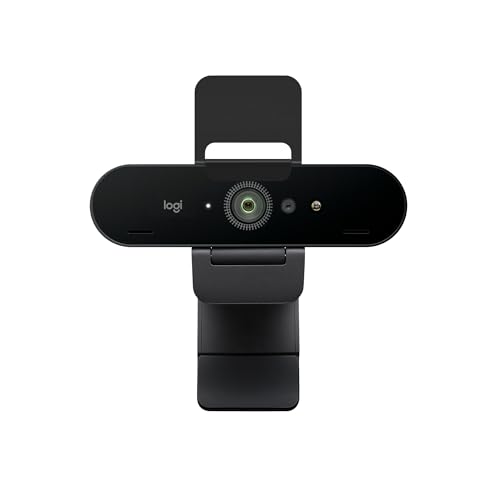
Logitech Brio 4K — Best Overall for Teams
The Brio has become the camera against which Teams setups are measured, and a morning of back-to-back calls explains why. It joins instantly, frames flexibly — a tight professional headshot or a wider shot that includes your whiteboard, chosen in software and remembered — and holds exposure with a calm that keeps you looking like yourself when the weather outside your window changes its mind mid-meeting.
Its 4K sensor earns its keep in a specifically Teams way: the platform may transmit far less, but starting from a sharper, cleaner source gives the encoder better material, and the digital zoom that the extra resolution permits lets you reframe for different meeting types without touching the camera. One-to-ones get the close crop; team calls get the wider, more relaxed frame; the setting persists until you change it.
Sound and privacy are handled with the same competence: dual microphones that serve perfectly well until you add a dedicated mic, and a physical cover for the lens when the day ends. For the hybrid professional whose reputation travels through a rectangle, the Brio remains the purchase that ends the research — competent at everything, annoying at nothing, and priced like the business tool it is.
Its weaknesses are the familiar ones of its class: a small sensor that good lighting flatters and bad lighting exposes, and autofocus that can breathe gently during very animated discussions. In a lit home office — the environment this guide keeps prescribing — neither weakness survives contact with a real calendar.
There is an organisational comfort to standardising on it, too. When a whole leadership team shares the same camera, the same framing language and the same morning reliability, meetings acquire a visual consistency that participants register as competence without ever discussing it. The Brio earned that role in more companies than any rival here, and incumbency — every IT desk knowing its habits — is itself a feature a challenger must overcome, not merely match.
- Resolution: up to 4K, with digital framing choices
- Adjustable field of view stored on device
- Dual built-in microphones
- Physical privacy cover
- Instant recognition in Teams on any OS
Strengths
- The transmitted image colleagues actually praise
- Framing flexibility without moving hardware
- Utterly dependable daily behaviour
Trade-offs
- Needs decent light to show its best
- Premium webcam pricing
- No tracking for presenters who roam
Best for: Professionals whose Teams presence is client-facing and daily.
Not suited for: Presenters who teach standing up, or dark-room workers.

OBSBOT Tiny 2 — Best for Presenters and Trainers
Some Teams calls are performances: the trainer demonstrating equipment, the teacher at the whiteboard, the consultant walking a client through a prototype on the desk. For those calls the Tiny 2 is transformative, because its gimbal simply follows you — panning and tilting to keep the framing composed while your attention stays on the material and the audience, where it belongs.
The supporting features suit the teaching use case precisely. Gesture controls start and stop tracking without a walk back to the keyboard; preset positions snap between your seated frame and your whiteboard frame; an overhead-style desk view shows documents and hands for the demonstration segment. Trainers who record their Teams sessions for reuse get footage that looks operated rather than captured, which raises the asset’s value every time it is rewatched.
Image quality backs the choreography: a larger sensor than the webcam norm keeps evening classes clean, and the tracking’s smoothness avoids the seasick pans of cheaper imitations. The camera also knows how to disappear — its sleep posture turns the lens away, a privacy behaviour every trainer working from home will appreciate at the day’s end.
Choose it with clear eyes about cost and complexity. It is the most expensive webcam here, its best features ask for the companion app, and a purely seated meeting life will never use the gimbal it pays for. For the presenting minority, though, it is not an extravagance; it is the difference between teaching and sitting still.
Accessibility is an underreported part of its case. A presenter who uses a wheelchair, who teaches while standing at an adapted bench, or who simply thinks better in motion is served by a camera that adapts to the human rather than sentencing the human to a chair’s geography. Tools that widen who can present comfortably widen the organisation’s talent pool for its most visible internal moments, and the Tiny 2 does it as a side effect of its party trick.
- Motorised pan/tilt with subject tracking
- Gesture control and framing presets
- Larger sensor for cleaner low light
- Desk-view mode for demonstrations
- Sleep posture turns lens away
Strengths
- Freedom to teach and demonstrate naturally
- Recorded sessions look professionally operated
- Strong image in imperfect rooms
Trade-offs
- Premium price among webcams
- App needed for the full feature set
- Wasted on a purely seated calendar
Best for: Trainers, teachers and demonstrators who present through Teams.
Not suited for: Seated standup-and-status meeting lives.

Elgato Facecam — Best Locked-In Professional Look
The Facecam proposes a different professional virtue: sameness. Its lens is fixed-focus, its exposure and colour are set by you and stored on the camera, and the result is that your nine o’clock standup, your client review and your recorded all-hands all show the identical, deliberate version of you. In organisations, that consistency reads as seniority — the broadcast polish of someone whose setup was decided long ago and has not wobbled since.
The image itself rewards the discipline. Without autofocus there is no hunting when you lean in for emphasis; without automatic white balance there is no drift when a colleague’s shared screen floods your room with changing light. The picture is honest and unfiltered, which suits professional contexts where a beauty filter would be a small lie told daily.
The terms are explicit: no microphone is included, and the fixed focus assumes your chair stays roughly where it is. Professionals with a headset or desk mic — the majority of serious Teams users — will not feel the first; seated workers will not feel the second. Everyone else should read the Brio or Tiny 2 sections again.
Privacy is admirably blunt: a cap for the lens and a cable to unplug, with no camera-side account or cloud between you and off. For workers in regulated or simply private households, that bluntness is a specification worth paying for.
Interviewers and podcasters inside companies have quietly adopted it for recorded conversations, because the locked frame cuts editing time: no exposure shifts to correct, no focus pulses to cut around, just a stable plate of a person talking. A camera whose highest virtue is that nothing about it changes turns out to be a production tool as much as a meeting one, and its owners tend to become evangelists with a convert’s certainty.
- Fixed-focus lens; no hunting, ever
- Exposure and colour stored on device
- Honest, unfiltered image
- No microphone included
- USB-C, standard webcam protocol
Strengths
- The same polished frame every morning
- Compression-friendly stable image
- Privacy by physical means
Trade-offs
- Bring your own audio
- Punishes poor lighting without appeal
- Fixed distance; no roaming
Best for: Executives and consultants with a fixed desk and their own mic.
Not suited for: Presenters, movers or one-box simplicity seekers.

Logitech StreamCam — Best Value for Hybrid Workers
Not every Teams life needs a flagship, and the StreamCam is the guide’s argument for the sensible middle. Its 1080p image is clean and smooth, its setup is a single USB-C cable, and its auto-framing keeps a seated worker centred through the natural fidgeting of a long call. For the hybrid worker equipping a home desk — possibly alongside a second setup at the office — it delivers the professional rectangle at a price that does not require a business case.
The design shows an understanding of its habitat. The fabric finish looks like a desk object rather than a security device, the mount handles monitors and tripods alike, and the camera rotates for vertical video — useful for the growing share of internal communications recorded as short clips rather than held as meetings.
Its ceiling is honest: dim rooms soften it earlier than the Brio, and there is no 4K headroom for aggressive reframing. In the lit, seated reality of most Teams work, those limits rarely surface; in a basement office at midnight, they will. Judge by your room, as this guide keeps advising, and the StreamCam will either fit you perfectly or excuse itself politely.
It is also the natural fleet purchase: the camera an IT department or a team lead can hand to ten home workers and expect ten identical, support-free results. Standardisation has a value that individual buyers underestimate and organisations never do.
Home workers splitting the week between two desks will appreciate its packability: it slips into a laptop bag without a case or a worry, and reproduces the same rectangle in the spare room and the office corner alike. In the geography of hybrid work, that portability is not a convenience but a consistency strategy — your colleagues should not be able to tell which home you are in from your video feed.
- Smooth 1080p video
- USB-C plug-and-play
- Face-based auto-framing
- Rotates for vertical internal clips
- Monitor and tripod mounting
Strengths
- Professional rectangle, painless price
- Identical results across a whole team
- Pleasant, unobtrusive design
Trade-offs
- Low light softens the image early
- No 4K reframing headroom
- Fewer stored-setting luxuries than the Brio
Best for: Hybrid workers and teams equipping many home desks.
Not suited for: Dark rooms or recorded-production ambitions.

Sony ZV-E10 II — Best for Recorded Training
Some Teams sessions outlive the meeting. Training that will be watched by next year’s hires, briefings that become reference material, webinars with a registration list — for these, the transmitted feed is only half the product, and the recording is the asset. The ZV-E10 II serves that double life directly: it appears in Teams as a webcam while recording itself internally at a quality no platform compression can touch.
The image gap is the largest in this guide. A big sensor and interchangeable lenses produce the shallow depth of field and low-light cleanliness that make a trainer look like a production rather than a participant, and eye autofocus holds a presenter through the natural movement of teaching. When the recording is later edited — captioned, chaptered, published to the learning library — it grades and crops like real footage, because it is.
The professional obligations scale with the capability. Continuous power for long sessions, a lens chosen for the room, streaming settings configured and tested before the audience depends on them: this is a small studio that happens to join Teams calls, and it should be run like one. Privacy, at least, is simple — a camera that is off is off, lens cap and all.
Buy it when your calendar contains sessions whose recordings carry real organisational value. For a life of internal standups it is a sports car on a school run; for a trainer, it is the studio that pays for itself in reused assets.
There is a recruitment dimension to showing up like this. Trainers and consultants are evaluated in the first ninety seconds of a call by people deciding whether to trust the next ninety minutes, and a broadcast-grade rectangle answers before the agenda does. The Sony does not make anyone an expert; it removes the static that makes expertise harder to hear, which in a recorded medium is nearly the same favour.
- Sensor: APS-C, interchangeable lenses
- USB streaming plus internal recording
- Eye autofocus for presenters
- Creator colour profiles
- Continuous power options
Strengths
- Recordings that become durable training assets
- Image quality far beyond webcam class
- One rig for live and produced content
Trade-offs
- Setup and power planning required
- Lens costs follow the body home
- Overkill for internal-only meetings
Best for: Trainers and presenters whose Teams sessions are recorded and reused.
Not suited for: Anyone whose calls evaporate when they end.

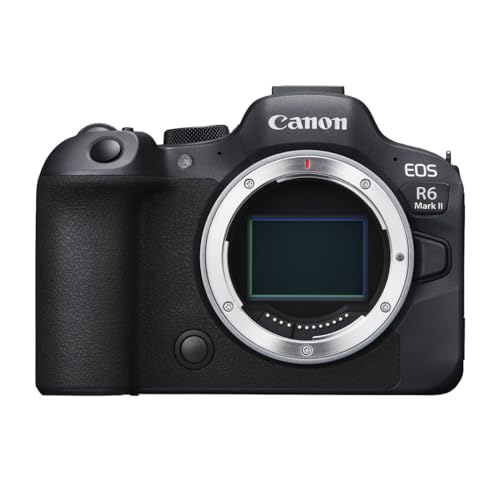
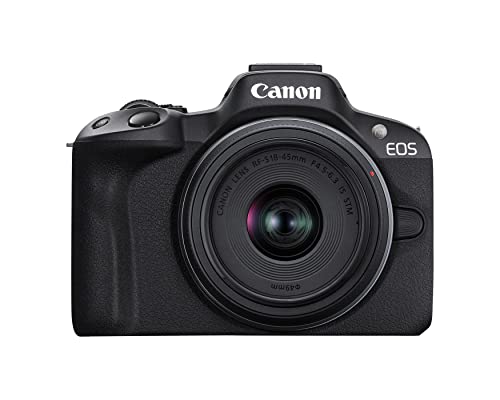
Canon EOS R50 — Best Camera-First Alternative
The R50 enters this guide from a different direction: it is the right answer for the professional whose camera must also be a camera. Consultants who photograph their work, estate agents who film walkthroughs, coaches who shoot stills for their materials — for them, a dedicated webcam duplicates a tool they already need in fuller form, and the R50’s USB streaming lets the one device serve the Teams calendar too.
On call, its virtues are Canon’s: warm, trustworthy colour that flatters a face without filters, eye autofocus that behaves, and — behind a fast prime — the background separation that makes a home office look like a studio backdrop. The vari-angle screen and friendly menus lower the learning curve for owners whose expertise is their profession, not photography.
Desk duty asks the mirrorless questions: power for long days, a streaming configuration set once and documented, and awareness that a camera doing webcam shifts is a camera not in the field. None of these are obstacles; they are the ordinary administration of a dual-purpose tool, and the verdicts of owners who run R50s as their meeting camera are consistently content.
Choose it over the ZV-E10 II if stills matter as much as streams and Canon’s colour speaks your language; choose the Sony if recorded video production is the centre of gravity. Either way, you are buying a camera that happens to excel in Teams — which, for the right professional, is the most economical excellence in this guide.
Small firms feel this consolidation most. A two-person consultancy that buys one excellent camera owns its meeting presence, its website photography and its social video in a single line item, and the R50’s friendly learning curve means the investment starts paying out in the first week rather than after a training course. Tools that collapse three purchases into one deserve a hearing in any budget conversation.
- Sensor: 24MP APS-C, RF lenses
- USB streaming for Teams
- Canon colour, warm and flattering
- Strong eye autofocus
- Excellent stills for work materials
Strengths
- One device for meetings, stills and video
- Flattering colour without filters
- Friendly handling for non-photographers
Trade-offs
- Power and setup planning for desk duty
- Kit lens understates its ceiling
- Less streaming-specialised than the Sony
Best for: Consultants and creators who also need a real stills camera.
Not suited for: Pure meeting users; a webcam serves them simpler.
How Do the Six Compare in the Gallery View?
The gallery is the honest arena: twenty rectangles, one of them yours. This table compares what decides how yours is perceived — stability, framing and the first weakness a colleague would notice.
| Pick | Type | Standout trait | Watch out for |
|---|---|---|---|
| Logitech Brio 4K | Webcam | Flexible framing, calm exposure | Wants decent light |
| OBSBOT Tiny 2 | Tracking webcam | Follows presenters and teachers | Price; app for full features |
| Elgato Facecam | Webcam | Identical polished frame daily | No mic; fixed distance |
| Logitech StreamCam | Webcam | Sensible quality for every desk | Dim-room softness |
| Sony ZV-E10 II | Mirrorless | Recordings worth keeping | Studio-style setup duties |
| Canon EOS R50 | Mirrorless | Meetings plus real photography | Desk-duty administration |
What Setup Makes Any Teams Camera Look Professional?
Begin with geometry. The lens belongs at eye level — a monitor arm, a stack of books, a small tripod, the method does not matter — roughly an arm’s length away, with your eyes in the frame’s upper third and a hand’s breadth of space above your head. This single adjustment, free with every camera in this guide, produces the largest perceived quality jump available to a Teams user, because it corrects the up-the-nostrils angle that makes laptop cameras a byword.
Light comes second: one soft source in front of you, never behind you, strong enough that the camera is not straining. A window you face is ideal until it is not — weather and season move it — so a modest lamp or panel you control is the professional’s actual answer. With light and geometry right, the StreamCam looks expensive and the Brio looks broadcast; with them wrong, the ZV-E10 II cannot save you.
Sound completes the triangle, and in Teams it may matter most: the platform’s audience is listening through laptop speakers and earbuds, in kitchens and open offices. A headset or a modest USB microphone close to your mouth delivers the clarity that makes you the easiest person in the meeting to follow — a reputation worth more than any rectangle.
How Should IT-Minded Buyers Think About Fleets and Support?
A camera bought once is a gadget; a camera bought fifty times is infrastructure. Fleet buyers should weight the unglamorous columns: driver-free operation that survives OS updates, settings that persist on the device so a swapped laptop does not reset a worker’s framing, physical privacy covers that satisfy policy without software, and a manufacturer whose firmware support has a track record measured in years.
By those columns, the two Logitechs dominate this guide’s fleet argument — the Brio where budget allows a flagship standard, the StreamCam where it does not — with the Facecam as the specialist standard for roles needing a locked, identical look. The tracking and mirrorless picks are individual instruments, bought for named people with named needs, and support desks should treat them as such rather than as fleet defaults.
Whichever standard is chosen, document the intended setup — camera height, framing choice, lighting note — and ship it with the device. Most “camera quality” support tickets are geometry and light wearing a hardware costume, and a one-page setup card prevents more of them than any warranty.
What Mistakes Make Professionals Look Amateur on Teams?
Sitting with a window behind you. The camera exposes for the daylight and renders you as an anonymous silhouette, an error no camera in this guide can fully overrule. Turn the desk, close the blind or light your face to compete — the fix is always positional, never a purchase.
Trusting automatic everything in a changing room. Exposure that breathes as clouds pass and white balance that wanders with a colleague’s screen-share both tax your rectangle’s credibility. Lock what your camera allows, light the room consistently, and let stability become your visual signature.
Forgetting that the meeting starts before the meeting. Joining early once — to check framing, focus and the background’s contents — is the professional’s soundcheck. The background deserves the audit: Teams publishes your room to your organisation, and the shelf behind you is part of your presentation whether you curated it or not.
Buying resolution to fix a lighting problem. The sequence in this guide is deliberate — geometry, light, sound, then camera — because each earlier fix multiplies the value of the later ones, and a camera bought to compensate for a dark room will still be in a dark room.
How Does Teams Treat Your Camera Differently in Different Kinds of Meetings?
A one-to-one call is a portrait sitting: your rectangle is large, your colleague’s attention is undivided, and framing and light do their finest work. This is where the Facecam’s locked polish and the Brio’s tight crop earn their reputations, because every wobble of exposure is visible at that size and every virtue is credited. Professionals whose days are built from one-to-ones should optimise for this arena first.
The large meeting is an ensemble piece. Your rectangle shrinks, compression tightens, and what survives is contrast and clarity of outline — a well-lit face against a calm background remains legible at thumbnail size while a dim, busy one dissolves into the grid. Cameras with calm exposure and your own discipline about backgrounds matter more here than resolution, which the platform will mostly discard anyway.
The webinar and town hall invert the relationship entirely: you are the broadcast, full-screen on hundreds of machines, often recorded for those who could not attend. This is the mirrorless picks’ natural habitat and the presenter’s case for tracking — the formats where production value is not vanity but respect for a large audience’s time. Organisations scheduling such events should equip them deliberately rather than discovering, mid-broadcast, that a laptop camera has been asked to do a studio’s job.
Knowing which arena dominates your calendar is the real selection tool in this guide. The comparison table translates cameras; your diary translates you, and the honest match between the two is the purchase that will still feel right in a year.
What About Privacy, Recording Indicators and Workplace Trust?
A camera in a home office is a guest with a lens, and professional life runs better when its terms are explicit. The habits are simple and worth standardising: a physical cover or a turned-away lens when the day ends, an indicator light you have verified with your own eyes rather than assumed, and a household that knows when the room is a studio. Every pick in this guide supports that regime; the webcams make it a single gesture, which is one more reason they anchor most desks.
Recording deserves its own clarity. Teams announces recordings, but the professional’s habit goes further: assume any session may be kept, frame and light yourself accordingly, and — when you are the one recording training or briefings — treat the file as the asset it is, stored deliberately rather than lost in a chat thread. The Sony and Canon picks exist for people who have made that mental shift from calls to content.
Trust also runs in the other direction. Colleagues read a covered lens and a punctual, well-framed presence as signals of a person who manages boundaries deliberately — the same person, not coincidentally, whose judgement they trust in the meeting itself. Camera hygiene is a small theatre of professionalism that plays daily.
How Long Should a Teams Camera Last, and When Is Replacement Due?
Webcams age gracefully because their job changes slowly. A driver-free camera bought today will very likely serve through your next laptop and the one after, since the USB video standard is stable and Teams’ demands evolve at the pace of compression, not of hardware. The Brio’s long incumbency is the market’s own testimony: in this category, boring longevity is the norm for well-chosen gear.
Replacement is due when behaviour, not novelty, demands it: a camera that vanishes from device lists, a sensor whose low-light manners no longer match your working hours, a presenting style that has outgrown a fixed frame. Each of those is a named problem with a named successor in this guide, which is the healthy way to buy — against evidence, on your calendar’s schedule rather than a manufacturer’s launch cycle.
Mirrorless bodies follow the photographer’s clock instead: they remain excellent for many years, and their streaming role usually ends only when their owner’s production ambitions change shape. Buy either kind as infrastructure, maintain it with a monthly lens cloth and a firmware check, and let the rectangle become the most boring, reliable part of your working day.
Why Do Some Colleagues Look Broadcast-Ready While Others Look Like Witnesses?
Watch a senior leader join a call and you are watching a system, not a camera. The framing is identical to yesterday’s, the light has the same direction and warmth, the background is calm to the point of anonymity, and the person looks rested because the exposure is not fighting a window. None of that is charisma; all of it is repeatable, and most of it was decided once, months ago, in a single afternoon of setup that has paid out every working day since. The broadcast-ready look is simply what happens when a professional treats their rectangle as part of their job description rather than as weather.
The witness-protection look has a system too, unfortunately: a laptop on a desk pointing up, a window behind the chair, a ceiling bulb doing its worst, and a camera left to make every decision automatically in impossible conditions. The person in that rectangle may be the most expert voice in the meeting, but the medium taxes their authority before they speak, because listeners unconsciously grade fluency of image as fluency of thought. It is unfair, it is universal, and it is almost entirely fixable without talent or taste — only with the geometry, light and stability this guide keeps prescribing.
The encouraging arithmetic is that the gap between the two looks is mostly free. Raising the camera costs books or a small stand. Facing the light costs turning a chair. Locking exposure costs four minutes in a settings panel. The camera purchase — the subject of this entire article — is the final refinement, the difference between looking deliberately good and looking deliberately excellent, and it should be bought last, sized to the arena your calendar actually contains, and then left alone to become invisible.
Organisations can institutionalise the lesson cheaply: a one-page setup standard beside every issued camera, a five-minute framing check in onboarding, a norm that leaders model the rectangle they expect. Culture, in this as in most things, outperforms equipment — but equipment chosen well makes the culture effortless to keep.
How Should You Handle the Hybrid Week Between Home and Office?
The hybrid worker’s camera problem is duplication: two desks, two rooms, two lighting conditions, one reputation. The strategies that work share a principle — make the two setups produce the same rectangle, so your colleagues’ experience of you does not depend on your postcode that day. Identical cameras are the straightforward route, which is one reason the fleet-friendly Logitechs recur in this guide; a Brio at home and a StreamCam at the office, framed and lit to match, achieve nearly the same continuity at a kinder total.
Portability is the alternative strategy, and the StreamCam and the pocketable end of this list serve it well: one camera that travels in the laptop bag, reproducing your frame wherever the week puts you. The cost is a small daily setup ritual, repaid in consistency; the risk is the forgotten cable or mount, repaid in one mortifying standup. Professionals who travel their camera learn to keep a dedicated pouch — camera, cable, mini-tripod — that never unpacks into the household, so the kit’s completeness never depends on memory.
Lighting continuity is the subtle half of the problem. Two rooms rarely share a window’s direction or a bulb’s warmth, so the travelling professional standardises on a small light they control in both places rather than trusting either room. A compact panel that lives with the camera pouch turns the office’s fluorescent cave and the home study’s north window into the same flattering constant — and the camera, whichever of the six it is, finally gets identical raw material to work with in both postcodes.
Finally, rehearse each location once. A test call from each desk, checked on a colleague’s screen or a recording, catches the office’s unexpected backdrop and the home desk’s seasonal sun before clients do. Hybrid professionalism is a logistics discipline wearing a camera’s clothes.
What Does the Future of Meeting Video Ask of a Camera Bought Today?
Meeting platforms are steadily spending more of their intelligence on your image: better noise handling, smarter framing, background treatments that improve monthly. That trajectory favours cameras that hand the platform a clean, honest, high-quality source — the software can only enhance what the sensor captured — and it quietly penalises cameras whose built-in processing bakes in aggressive smoothing or sharpening that the platform then processes a second time. The honest-image picks in this guide, the Facecam and the mirrorless pair especially, are positioned well for a future of layered enhancement precisely because they interfere least.
Resolution expectations will keep drifting upward as displays and bandwidth allow, which argues for a modest headroom in a flagship purchase — the Brio’s 4K sensor is best understood as that headroom rather than as a current transmission reality. But the drift is slow, and the standard your camera speaks matters more than the number it reaches: a USB video device bought today will be understood by the platforms of five years hence, while a camera dependent on a vendor’s cloud or a fragile app carries an expiry date written by someone else’s business decisions.
The safest future-proofing, as ever in this guide, is behavioural rather than technical. A camera mounted at eye level, in good light, with settings you understand and a framing you have standardised, will look professional on any platform that exists or is coming — because those platforms are all, in the end, showing the same thing: you, in a rectangle, asking to be believed. Equip that rectangle honestly and the future can change its software as often as it likes.
How Do You Run a Five-Minute Camera Check That Catches Every Common Problem?
Open a test meeting alone, record a minute of yourself talking and gesturing as you naturally do, then watch the recording with a colleague’s indifference. The playback is the product; your live preview is a flattering liar with a smaller screen and a familiar face. In that single minute, look for the four failures that account for nearly every bad rectangle: exposure that shifts when you move, focus that breathes when you gesture, a background object you had stopped seeing months ago, and framing that crops your hands when you think with them.
Then stress the setup once, deliberately. Turn the room’s other light on and off, open and close the blind, lean to the edges of your natural range, hold a document up as you would in a real call. Each stress shows you a behaviour your audience will eventually meet; better in rehearsal, where the fix is a setting, than in a client review, where the fix is an apology. Note the settings that survive the stress test and write them down — the documented setup is the one you can restore after an update, a borrowed desk or a curious cleaner rearranges your intentions.
Repeat the ritual monthly, and after any change to the room, the computer or the platform. Cameras rarely fail loudly; they drift — a mount sagging a degree a week, a lens filming over with dust, a seasonal sun arriving at a new angle. Five scheduled minutes catch the drift while it is still free to correct, which is the entire maintenance philosophy of every professional setup in this guide.
What Should a Manager Know Before Approving a Camera Budget?
The honest business case is not image quality; it is the aggregate of small frictions removed. A standard camera across a team ends the per-meeting negotiations with devices that vanish, frames that wander and lights that argue — minutes that, multiplied by a year’s meetings and a team’s salaries, dwarf the hardware line within a quarter. Add the client-facing moments, where a professional rectangle quietly supports the fees being charged on the call, and the budget approves itself in any finance language you translate it into.
Spend in the order this guide has preached: standardise the mount and the light note first, the camera second, and reserve the specialist instruments — the tracker for the trainers, the mirrorless rigs for the recorded-content roles — for named people whose calendars justify them. A budget that equips everyone identically and a few people exceptionally will outperform, in perceived professionalism, a budget that buys flagships for all and light for none.
Final Recommendation
For the great majority of Teams professionals, the Logitech Brio 4K is the answer: flexible framing, calm behaviour under compression and a decade of accumulated trust in exactly this job. Presenters and trainers should step sideways to the OBSBOT Tiny 2 and let it follow them; executives with their own audio and a fixed desk should consider the Elgato Facecam’s locked-in polish; and whole teams equipping home offices will find the Logitech StreamCam the sensible standard.
Choose the Sony ZV-E10 II when your Teams sessions are recorded assets in disguise, and the Canon EOS R50 when the same budget must also buy a real camera for stills and field video. Both ask for studio habits; both repay them in rooms where the rectangle is remembered after the meeting ends.
Whichever rectangle you choose, set it at eye level, light your face and join one call early to check. The camera is the last ten percent of a professional Teams presence — but it is the ten percent this guide can sell you, and these six sell it honestly.
Related guides
Frequently Asked Questions
Does a camera need Microsoft Teams certification to work well?
No. Certification adds tested integration touches such as call-control buttons on some devices, but any standard USB video camera appears in Teams and works fully as a camera. Every pick here was chosen for image and reliability first; buy certification when the button integration matters to you, not as a proxy for quality.
Will a 4K webcam actually look better in Teams?
Modestly, and indirectly. Teams transmits at lower resolutions, but a 4K sensor gives the platform a cleaner source and gives you digital reframing room — cropping tighter without softness. Judge the Brio on its exposure calm and framing flexibility; the 4K is the enabler, not the headline.
What is the best budget route to looking professional on Teams?
Geometry and light first — raise the camera you own to eye level and face a window or lamp — then the Logitech StreamCam when a purchase is due. That sequence outperforms a flagship camera bought into a dark, low-angled setup, at a fraction of the cost.
Can I use a mirrorless camera for all-day Teams work?
Yes, with the studio arrangements described in the Sony and Canon sections: continuous power, streaming settings tested in advance, and a lens suited to the room. Many trainers and executives run exactly this way. If your day is eight hours of internal calls, a webcam will serve the same meetings with far less administration.
How do I stop my camera feed freezing or vanishing in Teams?
Most causes are mundane: a hub without enough power, a cable at its limit, or companion software fighting the OS after an update. Connect the camera directly where possible, prefer driver-free operation, and keep firmware current. The picks here were chosen partly for their boring reliability in exactly these situations.
Does my internet connection matter more than my camera?
For stability, yes; for quality, they share the credit. A camera can only hand Teams what your connection can carry, and a struggling upload will soften any feed in this guide. If your rectangle freezes or dissolves on busy household evenings, fix the network path first — a wired connection or a router conversation — and then judge cameras. Once the pipe is honest, the differences this guide describes become the ones your colleagues actually see.
What if my employer provides a laptop with a decent built-in camera?
Use it for a week of real meetings and record one for evidence before spending anything. Some modern laptop cameras are genuinely adequate for internal calls, and an external purchase should be justified by a visible gap — client-facing polish, presenting freedom, recorded quality — rather than by category habit. When the gap is real, the picks here close it at every budget; when it is not, the money serves you better in the light and microphone this guide keeps recommending first.
How far should I sit from the camera in a Teams call?
Roughly an arm’s length to a metre works for most of these cameras: close enough that your face carries the frame and your expressions read at gallery size, far enough that gestures stay in shot and wide lenses do not stretch your features. Set the distance once, mark it by your chair’s position, and let the framing become muscle memory — consistency of distance is a quiet ingredient in the identical-every-morning look this guide recommends.
Should I use the background blur or a real background?
Both are professional when deliberate. Blur forgives a lived-in room and focuses attention on you; a tidy, real background can build context and trust, especially for client-facing roles. What reads as amateur is the accidental background — so choose one, make it intentional, and check it in a test call.
Related Guides
Working across platforms? Compare best cameras for macs, the rival-meeting guide to best cameras for zoom meetings and the broadcast-oriented best cameras for streaming.