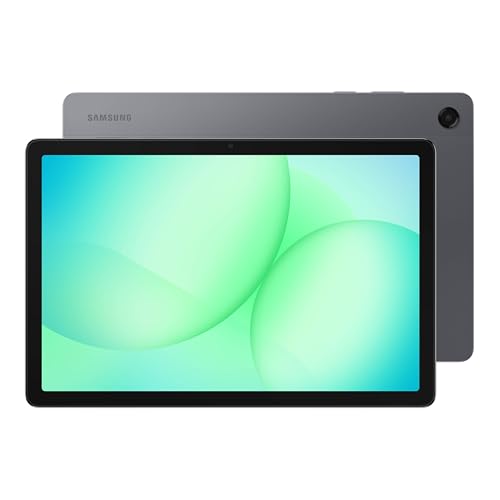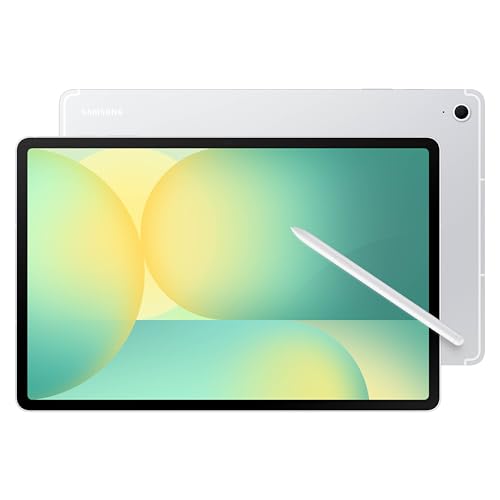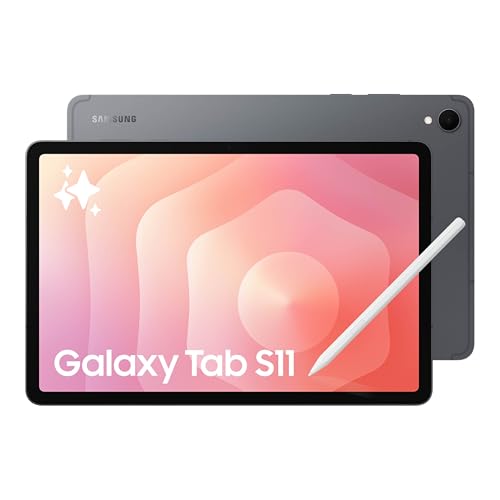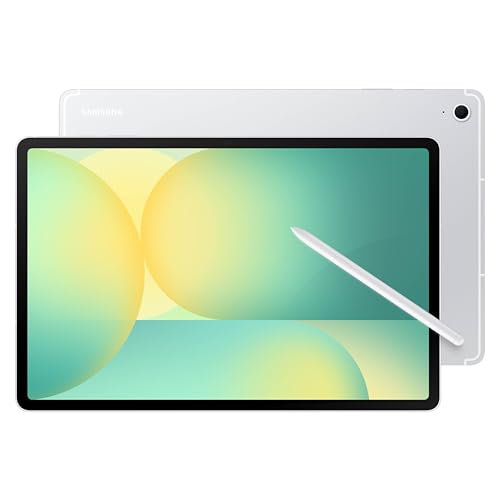
The best tablet for viewing SD cards is a tablet that lets you look at photos straight from a memory card, and this guide compares the best ones. Photographers, trail camera users, and travellers all face the same problem: the photos are on an SD card, and the only way to see them is to find a computer. A tablet with a microSD card slot solves it — you put the card in the tablet, or connect the card through a reader, and you can view, sort, and share photos on a large screen, in the field, without a laptop. The tablets in this guide cover the two ways to view SD cards on a tablet. The first way is a normal Android tablet with a microSD card slot: Samsung makes the Tab S10 FE, the Tab S10 FE+, the Tab S9 FE+, and the Tab A11+, all of which take microSD cards, and Lenovo makes the Tab M11, which does the same. The second way is a dedicated viewer: the WILDGAME Trail Pad is a tablet made for viewing SD cards from trail cameras, with dual SD slots built in. The ECOPAD tablet is a budget Android tablet with SD expansion for buyers who want the cheapest way to view photos on a large screen. This guide compares seven tablets for viewing SD cards, from the budget ECOPAD 10.1-inch tablet to the large Samsung Galaxy Tab S10 FE+. Each one below is a complete tablet — screen, battery, and card slot or viewer function included — not a card reader, a microSD card, or a phone accessory on its own. Every model was checked against its current Amazon listing. Read the comparison table for a fast overview, then dig into the individual sections for the strengths and trade-offs that matter for your photos, your cards, and the way you work in the field. One practical note before the list: most tablets take microSD cards, not full-size SD cards, so a full-size SD card from a camera needs a small adapter or a USB card reader. The WILDGAME Trail Pad is the exception: it has full-size SD slots built in. Check which card size your camera uses, and keep the adapter in your camera bag.
In this guide
Quick picks: best tablet for viewing sd cards
| # | Product | Where to buy |
|---|---|---|
| 1 | Samsung Galaxy Tab S10 FE, 128GB WiFi | Check on Amazon |
| 2 | Samsung Galaxy Tab S10 FE+, 13.1-Inch, 128GB WiFi | Check on Amazon |
| 3 | Samsung Galaxy Tab S9 FE+ Plus, 12.4-Inch | Check on Amazon |
| 4 | Samsung Galaxy Tab A11+, 6GB RAM, 128GB Storage | Check on Amazon |
| 5 | Lenovo Tab M11, 11-Inch, 4GB RAM, 128GB | Check on Amazon |
| 6 | ECOPAD 10.1-Inch Tablet, Android 15 | Check on Amazon |
| 7 | WILDGAME INNOVATIONS Trail Pad Tablet VU70 Dual SD Card Viewer | Check on Amazon |
Quick comparison
| Product | Key traits |
|---|---|
| Samsung Galaxy Tab S10 FE, 128GB WiFi | 10.9-inch, microSD slot, 128GB, Exynos |
| Samsung Galaxy Tab S10 FE+, 13.1-Inch, 128GB WiFi | 13.1-inch, microSD slot, 128GB, large display |
| Samsung Galaxy Tab S9 FE+ Plus, 12.4-Inch | 12.4-inch, microSD slot, 256GB, S Pen |
| Samsung Galaxy Tab A11+, 6GB RAM, 128GB Storage | 8.7-inch, microSD slot, 128GB, expandable |
| Lenovo Tab M11, 11-Inch, 4GB RAM, 128GB | 11-inch, microSD slot, 128GB, Helio G88 |
| ECOPAD 10.1-Inch Tablet, Android 15 | 10.1-inch, 1TB SD expansion, Android 15 |
| WILDGAME INNOVATIONS Trail Pad Tablet VU70 Dual SD Card Viewer | Dual SD slots, trail camera viewer, weather resistant |

1. Samsung Galaxy Tab S10 FE, 128GB WiFi
What stands out
The Samsung Galaxy Tab S10 FE is the best tablet for viewing SD cards in this guide, and its balance of screen, slot, and software is the reason. It has a large 10.9-inch display that shows photos clearly, a microSD card slot for expanding storage and viewing photos from a card, and Samsung software that makes browsing photos easy. The Exynos processor handles photo viewing and light editing smoothly, and the battery lasts a full day in the field. For photographers who want a modern tablet for reviewing photos from a card, this is the pick.
Trade-offs to weigh
The trade-offs are the card size and the cost. It takes microSD cards, so a full-size SD card from a camera needs an adapter or a USB reader, and it costs more than the budget tablets here. The 128GB of built-in storage is also modest if you keep many photos on the tablet itself. If you want a larger screen, the Tab S10 FE+ below is the upgrade; if you want the best balance for viewing SD cards, the S10 FE is it.
Who it fits best
Best for photographers who want a modern tablet with a microSD slot for reviewing photos.
In daily use
In everyday use, the Samsung Galaxy Tab S10 FE, 128GB WiFi settles into a routine quickly. Set it up once, the way you like it, and give yourself a few days to adjust before judging it. The first session is about learning the layout and the feel; the second and third are where it starts to feel natural. Keep it clean, keep it in the conditions it was designed for, and it will stay consistent. If it has parts that wear — cables, surfaces, moving components — a quick check now and then keeps small issues from becoming real ones, and keeping the packaging and documentation for the first weeks makes any return or exchange far simpler. Pay attention to the small details in the first week, like how it feels after an hour of use and whether anything needs adjusting, because those early impressions usually predict how happy you will be with it in six months.
Before you buy
Before buying the Samsung Galaxy Tab S10 FE, 128GB WiFi, check two practical things. First, measure and compare: check the dimensions, the capacity, and the compatibility details listed on the product page against what you already own and the space you have. A product that does not fit your setup will never feel right, whatever its specifications say. Second, think about your routine — where it will live, how it will be stored, and what it needs to connect to. None of this is difficult, but all of it is easier to plan before the product arrives than after. Finally, check the reviews for long-term reports rather than first impressions, because a product that still earns praise after six months is a safer buy than one that only impresses on the first day.
Check price on Amazon: Samsung Galaxy Tab S10 FE, 128GB WiFi
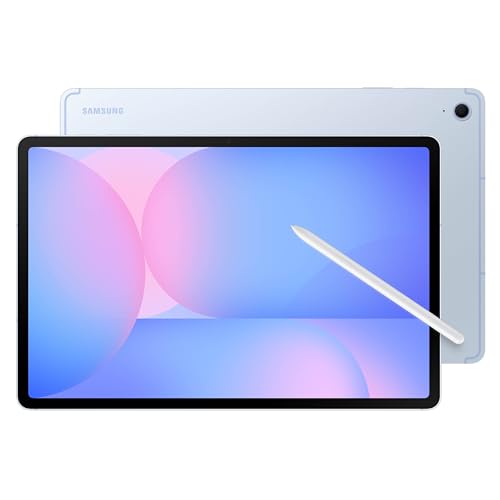
2. Samsung Galaxy Tab S10 FE+, 13.1-Inch, 128GB WiFi
What stands out
The Samsung Galaxy Tab S10 FE+ is the largest tablet in this guide, and its 13.1-inch display is the reason. A larger screen shows photos bigger, which makes it easier to check focus, composition, and detail in the field, and the microSD slot lets you view photos straight from a card. It has the same Samsung software and long battery life as the smaller S10 FE, with more room for photo apps, editing tools, and side-by-side viewing. For buyers who review photos seriously and want the biggest screen, this is the tablet.
Trade-offs to weigh
The trade-offs are size, weight, and cost. Thirteen inches is large to carry in a camera bag, it is heavier than the other tablets here, and it costs more than the S10 FE. It also takes microSD cards, so a full-size SD card still needs an adapter. If you want a tablet that is easy to carry, the S10 FE is better; if you want the biggest screen for reviewing photos, the S10 FE+ is the pick.
Who it fits best
Best for photographers who want the largest screen for reviewing photos from an SD card.
In daily use
Day to day, the Samsung Galaxy Tab S10 FE+, 13.1-Inch, 128GB WiFi is the kind of product you stop thinking about, which is the highest praise it can earn. It does its job the same way every time, without quirks or surprises, and lets you focus on the work or the game instead of the hardware. That consistency matters more than any single feature. Treat it reasonably — a clean desk, a suitable surface, and storage that protects it when it is not in use — and it will keep that consistency for a long time. The best products are the ones that fade into the background. If you use it in different places, try it in each one during the first week, because a product that works well on a desk can feel different in a bag, in a car, or in a shared room.
Before you buy
A few checks before you order the Samsung Galaxy Tab S10 FE+, 13.1-Inch, 128GB WiFi will save disappointment. Confirm the key details on the listing match what you expect — the exact model name, the included accessories, and the variant — since similar-looking models can differ in important ways. Check the return policy and the warranty terms so you know your options if it arrives damaged or does not suit you. And if you are replacing something you already own, compare the new product with the old one on the points that mattered most, rather than on headline features you may never use. Also check what is not included in the box, like cables, mounts, or adapters, since those extras can add cost and delay if you need to order them separately after the product arrives.
Check price on Amazon: Samsung Galaxy Tab S10 FE+, 13.1-Inch, 128GB WiFi
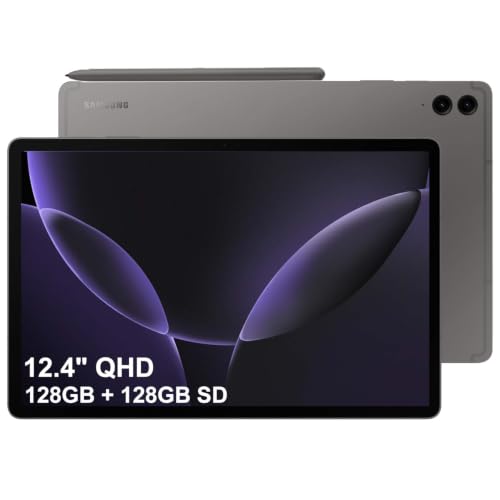
3. Samsung Galaxy Tab S9 FE+ Plus, 12.4-Inch
What stands out
The Samsung Galaxy Tab S9 FE+ Plus is the best tablet here for editing photos from an SD card, and its S Pen is the reason. It has a 12.4-inch touchscreen, a microSD slot, 256GB of storage, and an S Pen included, so you can view photos from a card and then edit them with a pen, marking, cropping, and retouching on the tablet itself. The large screen shows detail well, and the extra storage holds more photos before you need the card. For buyers who view and edit photos in the field, this is the most capable tablet here.
Trade-offs to weigh
The trade-offs are age and the card size. It is a previous-generation model, so its processor is a step behind the S10 FE, and it takes microSD cards, so a full-size SD card needs an adapter. The S Pen is also easy to lose in the field. If you only view photos and do not edit them, the S10 FE is newer and cheaper; if you edit with a pen, the S9 FE+ is the pick.
Who it fits best
Best for photographers who view and edit photos from an SD card with a pen.
In daily use
Over a full week of use, the Samsung Galaxy Tab S9 FE+ Plus, 12.4-Inch shows its character in small ways. The feel stays the same from the first day to the last, nothing loosens or rattles, and the finish holds up to regular handling. If you switch between tasks, you will appreciate that it does not need a different setup for each one: configure it once for the way you actually use it and leave it alone. If you share the space with work or family, the same product should handle those jobs without feeling out of place, which is a useful bonus for a single-product setup. Notice how it handles the edges of its job too, not just the middle: the first and last minutes of a session, the switch between tasks, and the moment you put it away all tell you more than the headline features do.
Before you buy
When the Samsung Galaxy Tab S9 FE+ Plus, 12.4-Inch arrives, spend a little time setting it up properly. Follow the included instructions, check that everything listed as included is actually in the box, and test the main functions within the first day or two. Then leave the settings alone for a week. Constant tweaking is the enemy of getting used to a product, and most people get better results from a stable setup than from a perfect one. If something feels wrong after a few days, change one thing at a time so you know what actually helped. Write down the settings that work best for you once you find them, so you can return to them quickly if the product is ever reset or if you need to set up a second one the same way.
Check price on Amazon: Samsung Galaxy Tab S9 FE+ Plus, 12.4-Inch

4. Samsung Galaxy Tab A11+, 6GB RAM, 128GB Storage
What stands out
The Samsung Galaxy Tab A11+ is the best budget Samsung tablet in this guide, and its expandable storage is the reason. It has a microSD slot, 128GB of built-in storage, and a compact size that fits easily in a camera bag or a jacket pocket, so it is the tablet you can carry everywhere for quick photo checks. It runs the same Samsung photo apps as the larger tablets, and the battery lasts well. For buyers who want a Samsung tablet for viewing SD cards at the lowest cost, this is the sensible choice.
Trade-offs to weigh
The trade-offs are the screen and the size. The display is smaller than the S10 FE, so photos are harder to check in detail, and the tablet is less powerful, so heavy editing is slower. It also takes microSD cards, so a full-size SD card needs an adapter. If you review photos seriously, take the S10 FE; if you want a compact, cheap tablet for quick checks, the A11+ is the pick.
Who it fits best
Best for buyers who want a compact, affordable Samsung tablet for quick photo checks from a card.
In daily use
In everyday use, the Samsung Galaxy Tab A11+, 6GB RAM, 128GB Storage settles into a routine quickly. Set it up once, the way you like it, and give yourself a few days to adjust before judging it. The first session is about learning the layout and the feel; the second and third are where it starts to feel natural. Keep it clean, keep it in the conditions it was designed for, and it will stay consistent. If it has parts that wear — cables, surfaces, moving components — a quick check now and then keeps small issues from becoming real ones, and keeping the packaging and documentation for the first weeks makes any return or exchange far simpler. Pay attention to the small details in the first week, like how it feels after an hour of use and whether anything needs adjusting, because those early impressions usually predict how happy you will be with it in six months.
Before you buy
Before buying the Samsung Galaxy Tab A11+, 6GB RAM, 128GB Storage, check two practical things. First, measure and compare: check the dimensions, the capacity, and the compatibility details listed on the product page against what you already own and the space you have. A product that does not fit your setup will never feel right, whatever its specifications say. Second, think about your routine — where it will live, how it will be stored, and what it needs to connect to. None of this is difficult, but all of it is easier to plan before the product arrives than after. Finally, check the reviews for long-term reports rather than first impressions, because a product that still earns praise after six months is a safer buy than one that only impresses on the first day.
Check price on Amazon: Samsung Galaxy Tab A11+, 6GB RAM, 128GB Storage

5. Lenovo Tab M11, 11-Inch, 4GB RAM, 128GB
What stands out
The Lenovo Tab M11 is the best-value tablet in this guide, and its price is the reason. It is an 11-inch tablet with a microSD slot, 128GB of storage, and a clear 1920×1200 display that shows photos well, and it costs less than the Samsung tablets here. The Helio G88 processor handles photo viewing smoothly, the battery lasts around ten hours, and the ambient light sensor adjusts the screen for outdoor viewing. For buyers who want a capable tablet for viewing SD cards without paying for a Samsung, this is the pick.
Trade-offs to weigh
The trade-offs are the software and the card size. Lenovo software is simpler than Samsung software, with fewer photo tools, and the tablet takes microSD cards, so a full-size SD card needs an adapter. It is also less powerful than the Samsung tablets for editing. If you want the best photo software, take a Samsung; if you want the best value for viewing photos from a card, the Tab M11 is hard to beat.
Who it fits best
Best for budget buyers who want a good-value 11-inch tablet for viewing photos from a card.
In daily use
Day to day, the Lenovo Tab M11, 11-Inch, 4GB RAM, 128GB is the kind of product you stop thinking about, which is the highest praise it can earn. It does its job the same way every time, without quirks or surprises, and lets you focus on the work or the game instead of the hardware. That consistency matters more than any single feature. Treat it reasonably — a clean desk, a suitable surface, and storage that protects it when it is not in use — and it will keep that consistency for a long time. The best products are the ones that fade into the background. If you use it in different places, try it in each one during the first week, because a product that works well on a desk can feel different in a bag, in a car, or in a shared room.
Before you buy
A few checks before you order the Lenovo Tab M11, 11-Inch, 4GB RAM, 128GB will save disappointment. Confirm the key details on the listing match what you expect — the exact model name, the included accessories, and the variant — since similar-looking models can differ in important ways. Check the return policy and the warranty terms so you know your options if it arrives damaged or does not suit you. And if you are replacing something you already own, compare the new product with the old one on the points that mattered most, rather than on headline features you may never use. Also check what is not included in the box, like cables, mounts, or adapters, since those extras can add cost and delay if you need to order them separately after the product arrives.
Check price on Amazon: Lenovo Tab M11, 11-Inch, 4GB RAM, 128GB
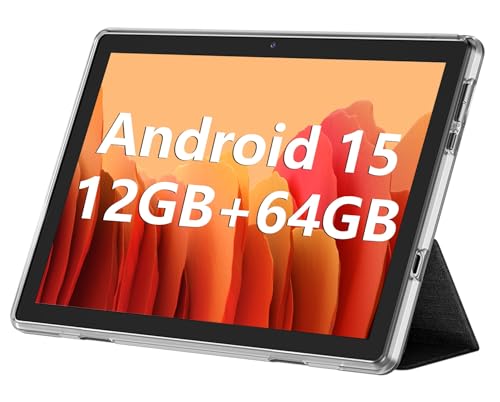
6. ECOPAD 10.1-Inch Tablet, Android 15
What stands out
The ECOPAD 10.1-Inch Tablet is the cheapest tablet in this guide, and its 1TB SD expansion is the reason it earns a place. It runs Android 15, it has a 10.1-inch touchscreen, and it supports SD card expansion up to 1TB, which means you can load a huge photo library onto a card and view it on the tablet. It is a budget tablet, so it does the basics — viewing photos, browsing, and light apps — at the lowest cost here. For buyers who want the cheapest possible large screen for viewing photos from a card, this is the one.
Trade-offs to weigh
The trade-offs are quality and performance. It is a budget tablet with a basic display and a slower processor, so photo viewing is fine but editing is slow, and the build and software support are less proven than Samsung or Lenovo. The 1TB expansion is a headline number, and you will need to buy a large card to use it. If you want a reliable tablet, take the Lenovo Tab M11; if you want the cheapest screen for viewing photos, take the ECOPAD.
Who it fits best
Best for buyers who want the cheapest tablet with large SD expansion for viewing photos.
In daily use
Over a full week of use, the ECOPAD 10.1-Inch Tablet, Android 15 shows its character in small ways. The feel stays the same from the first day to the last, nothing loosens or rattles, and the finish holds up to regular handling. If you switch between tasks, you will appreciate that it does not need a different setup for each one: configure it once for the way you actually use it and leave it alone. If you share the space with work or family, the same product should handle those jobs without feeling out of place, which is a useful bonus for a single-product setup. Notice how it handles the edges of its job too, not just the middle: the first and last minutes of a session, the switch between tasks, and the moment you put it away all tell you more than the headline features do.
Before you buy
When the ECOPAD 10.1-Inch Tablet, Android 15 arrives, spend a little time setting it up properly. Follow the included instructions, check that everything listed as included is actually in the box, and test the main functions within the first day or two. Then leave the settings alone for a week. Constant tweaking is the enemy of getting used to a product, and most people get better results from a stable setup than from a perfect one. If something feels wrong after a few days, change one thing at a time so you know what actually helped. Write down the settings that work best for you once you find them, so you can return to them quickly if the product is ever reset or if you need to set up a second one the same way.
Check price on Amazon: ECOPAD 10.1-Inch Tablet, Android 15

7. WILDGAME INNOVATIONS Trail Pad Tablet VU70 Dual SD Card Viewer
What stands out
The WILDGAME INNOVATIONS Trail Pad Tablet VU70 is the only dedicated SD card viewer in this guide, and its dual SD slots are the reason. It is a tablet made for viewing SD cards from trail cameras: it has two full-size SD card slots built in, so you put the card from a trail camera straight into the tablet and view the photos and videos on its screen, with no adapter, no reader, and no computer. It is weather resistant for outdoor use, which suits hunters and wildlife watchers who check cameras in the field. For trail camera users, this is the only product here made for exactly that job.
Trade-offs to weigh
The trade-offs are that it is not a general tablet. It is built for viewing trail camera photos, not for apps, browsing, or editing, so it does less than the Samsung and Lenovo tablets here. The screen is also smaller and simpler than a modern tablet display. If you use trail cameras, this is the right tool; if you want a general tablet for photos, take one of the Samsung or Lenovo models instead.
Who it fits best
Best for trail camera users who want to view SD cards in the field with no adapter or computer.
In daily use
In everyday use, the WILDGAME INNOVATIONS Trail Pad Tablet VU70 Dual SD Card Viewer settles into a routine quickly. Set it up once, the way you like it, and give yourself a few days to adjust before judging it. The first session is about learning the layout and the feel; the second and third are where it starts to feel natural. Keep it clean, keep it in the conditions it was designed for, and it will stay consistent. If it has parts that wear — cables, surfaces, moving components — a quick check now and then keeps small issues from becoming real ones, and keeping the packaging and documentation for the first weeks makes any return or exchange far simpler. Pay attention to the small details in the first week, like how it feels after an hour of use and whether anything needs adjusting, because those early impressions usually predict how happy you will be with it in six months.
Before you buy
Before buying the WILDGAME INNOVATIONS Trail Pad Tablet VU70 Dual SD Card Viewer, check two practical things. First, measure and compare: check the dimensions, the capacity, and the compatibility details listed on the product page against what you already own and the space you have. A product that does not fit your setup will never feel right, whatever its specifications say. Second, think about your routine — where it will live, how it will be stored, and what it needs to connect to. None of this is difficult, but all of it is easier to plan before the product arrives than after. Finally, check the reviews for long-term reports rather than first impressions, because a product that still earns praise after six months is a safer buy than one that only impresses on the first day.
Check price on Amazon: WILDGAME INNOVATIONS Trail Pad Tablet VU70 Dual SD Card Viewer
Buying guide
microSD or full-size SD: know your card
Most cameras use full-size SD cards, while most tablets take microSD cards, which are smaller. A full-size SD card fits a microSD slot only with an adapter, which is a small plastic holder that costs little and fits in a camera bag. The WILDGAME Trail Pad is the exception: it takes full-size SD cards directly. Check your camera card size before you buy, and keep the adapter with the tablet.
Viewing photos: the gallery app matters
A good gallery app makes viewing photos from a card fast and pleasant: thumbnails, sorting by date, zoom, and slideshow. Samsung tablets have a strong gallery app, and Lenovo tablets have a simpler one. Test the gallery app with a card before a trip, and check that the tablet can read your card format. If the tablet cannot see the card, try reformatting the card in the camera, not on a computer.
Screen size: bigger is better for checking focus
A larger screen shows photos bigger, which makes it easier to check focus, sharpness, and detail. The 13.1-inch Tab S10 FE+ is the best for serious review, while the 10.9-inch S10 FE and the 11-inch Tab M11 are good all-round sizes. A small tablet like the Tab A11+ is fine for quick checks but harder for detail. Match the screen to how carefully you review photos.
Storage: the card is the library
The tablet storage matters less than the card, because the photos live on the SD card. A tablet with 128GB of built-in storage is enough for apps and a working set of photos, and the card slot lets you swap cards for different shoots. The ECOPAD supports expansion up to 1TB, which suits a large library, but you will need to buy a large card to use it.
Battery life: a full day in the field
A tablet for viewing SD cards needs to last a full day in the field, because there may be no power socket. The tablets here last around ten hours or more of viewing, which is enough for a day of checking cameras or reviewing a shoot. Charge the tablet the night before, carry a power bank for a long day, and lower the screen brightness to save power.
Trail cameras: the dedicated viewer wins
Trail cameras record to full-size SD cards, and checking them means pulling the card and viewing it somewhere. The WILDGAME Trail Pad is made for this: dual SD slots, weather resistance, and a screen built for the job. A normal tablet with an adapter also works, but it is slower and more fiddly in the field. If you check trail cameras often, the dedicated viewer is worth it.
Frequently asked questions
What is the best tablet for viewing SD cards?
For most photographers, the Samsung Galaxy Tab S10 FE is the best tablet for viewing SD cards: a large screen, a microSD slot, and good photo software. If you use trail cameras, the WILDGAME Trail Pad is the best choice, because it has full-size SD slots built in.
Do tablets take full-size SD cards?
Most tablets take microSD cards, which are smaller, so a full-size SD card from a camera needs an adapter or a USB card reader. The WILDGAME Trail Pad is the exception in this guide: it has full-size SD slots built in for trail camera cards.
Can I view photos from an SD card on a Samsung tablet?
Yes. Samsung tablets in this guide have a microSD slot, so you put the microSD card in the tablet and open the gallery app to view photos. A full-size SD card needs a small adapter that fits the card into the microSD slot.
What is the best tablet for trail cameras?
The WILDGAME Trail Pad VU70 is the best tablet for trail cameras, because it is made for that job: dual full-size SD slots, weather resistance, and a screen for viewing photos and videos in the field, with no adapter or computer needed.
How much storage do I need on a tablet for photos?
The photos live on the SD card, so the tablet storage matters less. 128GB is enough for apps and a working set of photos, and the card slot lets you swap cards for different shoots. Buy a large microSD card if you want to keep a library on the tablet itself.
Can I edit photos from an SD card on a tablet?
Yes, especially on the Samsung Galaxy Tab S9 FE+, which includes an S Pen for editing. View the photos from the card, copy the ones you want to the tablet, and edit them in a photo app. Editing on a tablet is slower than on a computer, but it works well in the field.
Conclusion
The best tablet for viewing SD cards is the one that matches your cards, your photos, and your field work. The Samsung Galaxy Tab S10 FE is the best all-round choice, the Tab S10 FE+ is the pick for the largest screen, and the Tab S9 FE+ is the pick for editing with a pen. The Samsung Galaxy Tab A11+ is the compact budget choice, the Lenovo Tab M11 is the best-value choice, and the ECOPAD is the cheapest choice with large SD expansion. The WILDGAME Trail Pad is the pick for trail camera users who need full-size SD slots. Check your card size first, keep an adapter in your bag, and test the gallery app before your next shoot.