Knowing how to restart a router properly sounds trivial, yet it is done wrong constantly: people jab the reset button (which erases everything), flip the power off and on in two seconds (which the router barely notices), or restart only the router when the modem needed it too. A correct restart — power fully off, wait, power back on in the right order — clears the router’s memory, forces a fresh connection to your provider, and resolves a large share of everyday glitches. This guide covers the right procedure, how it differs from a reset, how long to wait, the order for modem and router, and when restarting is a bandage rather than a fix.
If the problem that sent you here is a connection that drops repeatedly, restart first, then work through How to Fix a Router that Keeps Disconnecting. If there is no internet at all, How to Fix a Router with No Internet is the fuller diagnostic.
Disclosure: As an Amazon Associate, ilcastellomenu.com earns from qualifying purchases. Links to Amazon on this page are affiliate links; they cost you nothing extra. Listing details such as price and availability change often, so check the current Amazon listing before you buy.
Restart vs reset: the distinction that saves your settings
A restart (also called a reboot or power cycle) turns the router off and on again. All your settings — network name, passwords, everything — survive untouched, because they are stored in non-volatile memory. A reset is a different operation entirely: holding the recessed reset button restores factory defaults and wipes every setting, returning the router to its out-of-box state so you must set it up again from scratch. Reset is a last resort for forgotten admin passwords or a router being sold — never the first response to a glitch. Confusing the two is the most expensive mistake in home networking, measured in hours of re-setup.
In this guide
How to restart a router: the correct procedure
- Unplug the router’s power cable (or switch it off at the wall). Using the power button is fine too, but unplugging guarantees the power is truly cut.
- If the modem is a separate box, unplug it as well. Restarting both together, in the right order, fixes more than restarting either alone.
- Wait at least 30 seconds. This is the step everyone skips. Capacitors inside hold enough charge to keep the memory alive for several seconds; the wait lets the router fully discharge, clears its state properly, and gives the provider’s equipment time to register that you disconnected.
- Power the modem back on first and wait until its online light is solid — up to five minutes on some connections.
- Then power the router and give it two to three minutes to boot, reconnect, and restart the Wi-Fi.
- Test on a device that was having trouble, in the room where the trouble happened.
That is the whole procedure. It mirrors the power-up order in How to Set Up a Router for the same reason: the router can only get an internet connection from a modem that is already online and ready to hand one out.
Restarting from the app or admin page
Most routers also offer a reboot option in their app or web interface, sometimes with scheduling. A software reboot is gentler and fine for routine use — it restarts the router’s processes without a power cut — but for a genuinely wedged router whose interface no longer responds, only unplugging works. Scheduled automatic reboots (say, weekly at 4 a.m.) are offered by some models and liked by some users; they are harmless but should not be necessary on a healthy router, and needing them weekly is itself a symptom worth investigating.
What a restart actually fixes
A restart clears the router’s working memory, ends stuck processes, forces devices to reconnect and renegotiate, obtains a fresh address from the provider, and lets a hot router cool and start clean. That is why it resolves so many vague symptoms: a device that will not join, speeds that have decayed over days, a band that has vanished, a smart gadget gone deaf. It does not fix a failing internet line, an overloaded plan, interference from a neighbour’s new router, failing hardware, or bugs that only a firmware change addresses — which is why the next section matters.
How often should you restart your router?
There is no maintenance schedule that requires routine restarts on a healthy modern router; many run for months without one. Restart when symptoms appear, after a power cut (which can leave modem and router out of sync), after changing cabling, and after a firmware update if the router does not reboot itself. If you find yourself restarting weekly or daily to keep the connection usable, treat that as a diagnosis, not a routine: work through the causes in How to Fix a Router that Keeps Disconnecting, check the firmware is current via How to Update Firmware on a Router, and consider heat — a router cooking inside a closed cabinet degrades exactly like this. Chronic restarting in an ageing router is often the first sign it is time to replace it; Router Buying Guide covers what to look for in a successor.
Restart etiquette in a busy household
A restart takes the whole home offline for about five minutes, including things people forget are connected: the doorbell camera, the smart TV mid-film, someone’s work call, a cloud backup. Warn the household, pick a quiet moment, and remember that some devices — older smart plugs, some cameras — occasionally fail to reconnect on their own and need a nudge afterwards. If a particular device never reconnects after restarts, that is a device quirk to solve once (a reserved IP address in the router’s settings often cures it), not a reason to avoid restarting.
Common mistakes
- Pressing the reset button instead of restarting. Settings gone; full setup required. The reset pinhole is not a power button.
- The two-second power flick. Too fast for the memory to clear or the provider to notice; wait the full thirty seconds.
- Restarting the router but not the modem when the fault sits between modem and provider.
- Restarting during a firmware update. Never — an interrupted update can corrupt the router.
- Restarting five times in a row. If two clean restarts do not help, the fault is elsewhere; move to diagnosis rather than repetition.
Restarting mesh systems and provider gateways
Mesh systems restart as a fleet rather than a single box. Use the app’s reboot option where offered — it sequences the main unit and nodes sensibly — and then be patient: nodes rejoin one by one over several minutes, and a node showing offline at minute two is usually just still booting. If you power-cycle manually, start with the main unit (the one wired to the modem), let it come fully online, then restore power to nodes; nodes powered before the main unit sit waiting and sometimes need a second nudge. Provider gateways — the combined modem-router boxes — restart exactly like a modem and router pair in one case: unplug, wait the full thirty seconds (longer if yours has a battery backup, which keeps it alive through short outages and short waits alike), plug back in, and allow up to five minutes for the provider connection to renegotiate before judging the result. If your own router sits behind the gateway, the order is gateway first until online, then your router.
What happens to your devices while the router is down
Knowing the blast radius prevents panic. Everything that uses the internet pauses: streams buffer out, calls drop, cloud backups stall and resume later. Local things mostly survive in place — a film playing from a local server may continue if it never needed the router mid-stream, and wired devices keep their connections to each other only if the switch function stayed up, which on a rebooting router it does not. The interesting behaviour is at reconnection: nearly all devices rejoin automatically within a minute or two of the Wi-Fi returning. The exceptions are predictable — some older smart plugs, cameras and printers occasionally need a power nudge of their own, and devices with a fixed (static) address misconfigured outside the router’s range can vanish until corrected. If one device reliably fails to return after every restart, fix that device once — reserve its address in the router’s DHCP settings — rather than dreading every future reboot. Door and security sensors on battery typically buffer and catch up; if your alarm or camera system is critical, check its behaviour during one planned restart rather than discovering it during an unplanned one.
Power cuts, surges and the restart you did not choose
An uncontrolled power cut is a restart done badly: power can flicker several times, and modem and router come back in whatever order the grid gives them, which is why ‘the internet has been odd since the power cut’ is such a common report. The cure is the same controlled restart from this guide, done once, in order. If your area suffers frequent cuts or flickers, two protections are worth considering: a surge-protected socket for the networking gear (cheap insurance for the devices everything else depends on), and, for households that cannot afford downtime — home workers, medical or security devices online — a small uninterruptible power supply that keeps modem and router alive through short cuts. Size it for the networking gear only and it will carry them far longer than the same unit trying to run a desktop PC.
Keeping a tiny log turns restarts into evidence
If you restart more than occasionally, spend ten seconds noting it: date, time, symptom, whether it worked, anything that changed recently. Three entries transform troubleshooting. A pattern of evening drops points at congestion or a neighbour; drops after a specific device wakes point at that device; drops that a restart fixes for a shrinking number of days point at dying hardware. When you eventually call the provider or replace the router, that log is the difference between evidence and vibes — and it is exactly what support lines and the diagnostic guides in this series will ask you to reconstruct from memory otherwise.
Restarting when you cannot reach the router
Routers live in awkward places — on top of wardrobes, in lofts, behind the TV in a relative’s house you are helping by phone. A few legitimate workarounds exist. A smart plug on the router’s power lets you cut and restore power remotely or by voice; if you use one, choose a plug that defaults to ON after a power cut, and accept the small irony that the plug itself needs the Wi-Fi to be told anything — schedule its off/on cycle in advance or use its local timer rather than a live command you cannot send once the router is down. Some routers can be rebooted from the provider-style app over the internet even when the home network is sulking, because the app talks to the router through the maker’s cloud; worth trying before the ladder comes out. And for the relative-by-phone scenario: the power cable is the one with the barrel connector, the wait is a slow count to thirty, and the modem is the other box — patience and plain description beat technical vocabulary every time.
The restart as a diagnostic instrument
Used deliberately, a restart is not just a fix but a measurement. Time how long the network stays healthy afterwards. Weeks of health after each restart, needed a few times a year, is an ordinary router living its life. Days of health suggests something accumulates — memory pressure from many devices, a buggy service, heat building in a closed space. Hours suggests an active fault that a restart barely dents: a line problem, a hostile device, failing hardware. The shrinking-interval pattern is the single most useful observation in home networking, because it converts ‘the internet is flaky’ into a prognosis. Pair it with the tiny log suggested earlier in this guide and you hold, in four lines of notes, the evidence that decides between settings archaeology, a provider call, and a replacement — without guessing.
What a restart cannot do, stated plainly
It cannot repair a failing line, un-congest a band your neighbours have filled, patch a security hole, resurrect a dying power supply, or make an obsolete router modern. It cannot improve a slow plan or fix a device whose own Wi-Fi is broken. Listing these is not pedantry: the restart’s reputation suffers from being asked to do them, repeatedly, by hopeful owners, until ‘have you tried turning it off and on’ sounds like a dismissal. It is a precise tool for a specific class of fault — temporary state gone wrong — and inside that class it is close to magic. Outside it, the honest move is diagnosis, and this site’s troubleshooting guides exist to walk it in order.
Restarting someone else’s network
Sooner or later you become the support line for a parent, a neighbour or a friend, and the restart is your main remote tool. Make it succeed by respecting its constraints over the phone: you cannot see the lights, so ask for them to be described before anything is unplugged (‘which lights are on, and are any red?’), because that description is the diagnosis you will lose the moment power is cut. Narrate the wait — thirty seconds feels endless in silence, and an un-narrated wait gets shortcut. Have them plug the modem or gateway in first and describe the lights returning, one by one, before the router is touched. Agree in advance what success looks like (‘your tablet shows the Wi-Fi name and a page loads’) so the call can end on evidence. And if two clean restarts fail, stop: the fault needs eyes, hands or the provider, and a third restart by phone helps no one.
Why the wait works: a little discharge physics
The thirty-second wait is not superstition, and understanding it makes people actually observe it. A router’s power supply and board hold residual charge in capacitors after the plug is pulled; for the first seconds, that charge keeps memory and circuits in a twilight state — off, but not reset. Draining fully forces every chip to start from its true power-on state, which is the clean slate the restart exists to create. The wait also serves the other end: the provider’s equipment and the modem notice the session’s end and clear it, so the returning router negotiates fresh rather than arguing with a ghost of its previous connection. Ten seconds is sometimes enough; thirty is cheap insurance; several minutes costs nothing but patience. The people who flick power in two seconds are not restarting their router — they are blinking at it.
Restarting after changing something
One more occasion belongs on the list of right moments: after you change the network itself. A new router, a moved router, a swapped cable, a changed setting that ‘should not need’ a reboot — in each case, one clean restart in the correct order establishes the new arrangement as the network’s known-good state and flushes the half-remembered old one. Devices rejoin against fresh information, addresses are handed out coherently, and if something then misbehaves you know it misbehaves in the new configuration, not in the overlap between two. It costs five minutes and it converts a change from a hope into a baseline — the same reason a photograph of the healthy lights belongs in the household records. Change, restart, verify: a rhythm worth making habitual.
One sentence to carry away from all of this: a restart is the cheapest experiment in networking, and like all good experiments it rewards being done deliberately — right order, full wait, one change at a time, result observed. Do it that way and even when it does not fix the problem, it has still done its second job: it has told you something true about where the problem is not.
The short version
Unplug, wait thirty seconds, modem on first until it is fully online, then the router, then test. Restart is safe, settings-preserving, and genuinely effective against transient glitches — and needing it constantly is your router telling you something else is wrong.
Gear mentioned in this guide
You do not need new hardware for most of the steps in this guide, but the products below are the ones referenced above. Each was verified against Amazon’s Creators API product data for this site, so the link matches the exact model named.

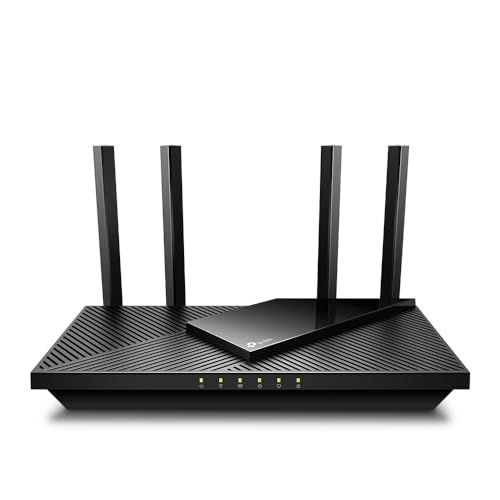
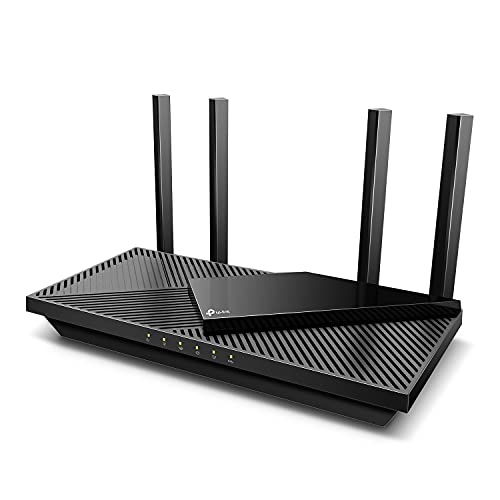
TP-Link AX1800 WiFi 6 Router (Archer AX21 V5)
The TP-Link Archer AX21 can be rebooted or scheduled from the Tether app, and its EasyMesh compatibility means a later mesh node inherits the same management — handy if chronic restarts push you toward upgrading coverage rather than hardware.
The full-stack restart: when the whole shelf needs to go down in order
The basic procedure in this guide restarts the router, and most of the time that is the right scope. But homes accumulate layers — a modem or fibre terminal, the router, a network switch, mesh nodes, perhaps a separate access point — and some faults live in the relationships between those layers rather than inside any one box. A switch that has been running for two years can wedge in ways that make the router look guilty; a modem that negotiated a poor connection after a neighbourhood outage will keep handing that poor connection to a freshly restarted router. When a simple router restart changes nothing, the full-stack restart is the next rung: everything network-related goes off, and comes back in dependency order, from the street towards your devices.
The order matters and is easy to remember if you think in terms of who needs whom. Switch everything off: modem or fibre terminal, router, switches, nodes, access points. Wait a full minute with the shelf dark — longer than the router-only pause, because you are clearing the state of several devices at once. Then power the modem or fibre terminal first, and let it finish its startup completely, which can take several minutes of blinking before its lights settle into their connected pattern. Only then power the router, and let it settle in turn. Switches next, then mesh nodes and access points, working outwards from the centre. Finally, if a particular device still refuses to join, restart that device — not the network again. Each layer is given a finished, stable layer beneath it to connect to, which removes the race conditions where two half-awake boxes negotiate badly and remember the bad negotiation.
Resist performing the full-stack restart as a first resort, for two reasons. It takes the whole house offline for ten minutes or more, which in a home with remote workers, a monitored alarm or a houseful of streaming children is a real cost. And it destroys evidence: if the fault was in one layer, restarting everything at once fixes it without telling you which layer, so when the fault returns — faults of this kind usually do — you are no wiser. Escalate in stages. Router first, on its own, with a note of what happened. Modem and router together next time. The full stack when the staged approach has failed or the pattern clearly involves several boxes at once. Your little log, mentioned in the main guide, is what makes this escalation rational rather than superstitious.
Scheduled restarts and timer plugs: the honest pros and cons
Somewhere in every router owner’s journey, they meet the suggestion to restart the router automatically — weekly, nightly, at 4 a.m. — using the router’s own schedule setting or a timer plug on its power supply. The idea has a genuine kernel: a device that is restarted regularly never accumulates months of runtime state, and a household plagued by a router with a slow memory leak may find scheduled restarts transform its reliability. If your router demonstrably degrades over weeks of uptime — you have the log entries to prove the pattern — a scheduled restart in the dead of night is a legitimate management strategy, and the router’s built-in scheduler is the cleanest way to do it, because the router shuts its own processes down gracefully rather than having the power cut mid-write.
The timer plug version deserves more caution. Cutting power with a mechanical or smart timer is electrically the same as pulling the plug, which modern routers tolerate, but it introduces failure modes of its own: a smart plug that loses its own Wi-Fi connection cannot be told to turn back on, and a timer mis-set by an hour after the clocks change can take the network down in the middle of a working morning. If you use one, use a dumb mechanical timer in preference to a Wi-Fi smart plug for this job, set it for the smallest off-window that reliably restarts the router, and tell the household it exists. A network that vanishes at 4 a.m. once a week is a quirk; a network that vanishes mysteriously is a haunting, and hauntings get “fixed” by people unplugging things at random.
What scheduled restarts cannot do is substitute for diagnosis. A healthy modern router should run for months without needing a restart, and if yours cannot, the schedule is a plaster on a symptom — acceptable, even sensible, but worth naming as such. When replacement time comes, that history is a buying criterion: the models in roundups like Best Routers for Home Use earn their places partly on long, boring uptime. Schedule restarts if your router needs them; do not schedule them out of ritual on a router that has never asked.
Restarting from somewhere else: remote restarts and their risks
The call usually comes when you are not home: the internet is down, the household is stuck, and you are the only one who knows where anything is. Remote restarting has three tiers of legitimacy. The first is the router’s own app, where the manufacturer offers remote management: a restart command issued there is the cleanest option, because the router performs its own orderly reboot, and you can watch it come back. The second tier is a person in the house acting as your hands — which is why the written network note and labelled cables matter — talking them through “the black box with the blue lights, switch on the back, count to thirty” is a workable, if undignified, support channel. The third tier, a smart plug on the router’s power that you control from your phone, works but carries the trap described above: the plug needs the network to hear your command to turn back on. Some plugs can be set to restore power automatically after a cut, or to follow a schedule independent of Wi-Fi; only a plug with that behaviour belongs on a router you intend to cycle remotely.
What you should never do is restart a router remotely while it might be updating its firmware. An update in progress plus a power cut is the one combination that can genuinely damage a router, and from a distance you cannot be certain no update is running — the router may have begun an automatic update an hour before the household noticed a problem. If the network is down but the router’s lights suggest life, the safer remote instruction is patience and a local pair of eyes: ask someone to describe the lights before anything is switched off. The light patterns listed in the main guide exist precisely for this conversation. A restart performed blind, from another city, on a router that was mid-update, turns a bad evening into a replacement purchase.
Households that genuinely depend on remote recovery — a second home with cameras, a relative’s house you support — should build the capability deliberately rather than improvising it during a crisis: remote management enabled on the router’s account with two-factor protection, a plug that restores power on its own, and the whole arrangement tested once while you are standing in the room, phone in hand, watching it work. Tested remote recovery is a system; untested remote recovery is a hope.
What comes back, and in what order: the smart home after a restart
In a house full of connected devices, the restart is not finished when the router’s lights settle — it is finished when the household’s systems have all found their way back. Most devices reconnect within a few minutes, but they do so in a scramble, and the scramble occasionally strands the least powerful gadgets: the smart plug behind the sofa, the camera at the edge of coverage, the elderly printer. Walk the house once, an hour after a restart, with a mental checklist of the things that matter: heating controls responding, cameras recording, door lock reachable, any medical or security devices confirmed with their own apps rather than assumed. Devices with safety roles deserve explicit confirmation every time; “the Wi-Fi is back” is not evidence that the alarm panel has reconnected.
Order can help here too. If your router lets you bring the network back in stages — some mesh systems restart node by node — the devices nearest the main router rejoin first and the scramble thins out. Where you cannot stage it, patience substitutes: a device that has not rejoined after five minutes usually will after fifteen, as the initial storm of reconnections subsides and the router works through the queue. Intervene with individual stubborn devices only after that window, and intervene at the device — a power cycle of the plug or camera itself — rather than restarting the router a second time and sending the whole house back into the scramble. The second restart is the classic way a ten-minute job becomes an evening.
There is one category that never rejoins by itself and should be planned for: devices configured with the old assumption that the network never changes — anything you set up with a fixed address typed in by hand, some older cameras and recorders, and game consoles in the middle of downloads. Know which of yours they are, keep the list in the network note, and check them off after any restart that involved more than the router alone. Households replacing an ageing router partly to escape restart-related fragility will find the current options compared in Best Routers for Multiple Devices, where juggling a houseful of reconnecting gadgets is part of the test.
After the restart: verifying it actually helped
A restart that “fixed it” often fixed nothing — the provider’s outage ended during your thirty-second wait, or the neighbour’s interfering equipment switched off. Verification takes two minutes and turns superstition into knowledge. As soon as the network is back, run the same test that was failing: the wired speed test if you have a baseline, the video call from the problem room, the camera feed that would not load. Then note three things in the log: the time, what the symptom was, and what the test shows now. If the symptom is gone and the numbers match your baseline, the restart earned its keep. If the symptom persists unchanged, you have learned something equally valuable — the fault is not the kind a restart clears — and you can move to the next diagnostic step immediately instead of restarting again on a loop of hope.
Pay particular attention to partial recoveries, because they are the most informative outcome of all. If speeds return but one room stays dead, the restart cleared a router state problem and exposed a coverage problem that was there all along. If everything works for an hour and then degrades, note the interval; a fault that returns on a timer — every evening, every few hours — points at heat, interference on a schedule, or a device that misbehaves when it wakes, and that timing is the clue a support engineer or a forum will ask you for first. A restart followed by honest observation is a diagnostic instrument, which is the main guide’s argument; the verification habit is what makes the instrument read true. Without it, every household accumulates restart folklore — “it always works if you wait a minute”, “you have to do it twice” — and folklore, unlike a log, cannot tell you when the router has finally earned its replacement.
When restarts keep “fixing” it for exactly one day
A restart that restores the network for weeks is a maintenance event. A restart that restores it for a day, every day, is a message, and the interval is the most diagnostic fact you own. Faults that return on a roughly daily cycle have a short list of usual authors. Heat is the first: a router that works when cool in the morning and falters by evening, especially one in a cabinet, in sunlight, or stacked on other warm equipment, is describing its own temperature curve, and moving it into open air is a test that costs nothing. The second author is a scheduled something — a cloud backup that saturates the upload each night, a device that wakes and misbehaves on a timer, the provider’s own maintenance window — and your log’s timestamps will show the correlation if you keep them for a week. The third is a slow resource leak in the router itself, the one legitimate case for the scheduled-restart strategy discussed above, recognisable because the degradation is gradual and total uptime predicts it better than time of day does.
Work the list in order of test cost. Ventilate and relocate for heat, and give it three days. Read the log against the household’s schedule for the timed culprit, and test by pausing the suspect backup or device for two nights. If neither explains it, note the router’s age and update status honestly: a unit that needs daily resurrection in its sixth year, on firmware its maker no longer maintains, is not suffering a mystery — it is retiring in public. At that point the restart ritual has done its real job, which was never to keep the old router alive forever. It was to give you clean, dated evidence that the fault is in the box, so the replacement decision — the models in Best Routers for Beginners suit households that want the successor to simply never need this chapter — is made on facts rather than frustration.
A note on restarting other people’s routers while travelling
The main guide covers restarting someone else’s network in their home; the travelling version adds one wrinkle, which is permission across distance and time. If you are the guest who knows how routers work, you will be handed other people’s network problems in holiday rentals, relatives’ spare rooms and friends’ new flats. The restart itself is the same kind act everywhere, but ask before you touch settings, and never let a helpful restart slide into reconfiguring a network you will not be there to support. In a rental, restart only the provider’s box as the property’s own instructions describe, and report a persistent fault to the host rather than attempting resets or firmware adventures on equipment you do not own. The line is simple: a restart returns a network to the state its owner chose; anything beyond it chooses a new state on their behalf, and that choice belongs to them.
Keep that distinction in mind and you can be genuinely helpful in any house on earth: restart freely, reconfigure never, and leave every network you touch exactly as its owner set it up — only working again.
Frequently asked questions
Does restarting a router delete anything?
No. A restart preserves every setting. Only a factory reset — holding the recessed reset button — erases your configuration, which is why the two should never be confused.
How long should I leave the router unplugged?
Thirty seconds is the standard advice and enough for the memory to clear and the provider’s side to register the disconnect. Waiting longer does no harm.
Why does restarting fix so many problems?
It clears accumulated state: stuck processes end, memory is freed, devices renegotiate fresh connections, and the router takes a new address from the provider. Any fault stored in that temporary state disappears with it.
Is it bad to restart a router every day?
The restart itself does no harm, but needing one daily means something is wrong — heat, firmware, an overloaded router, or a line fault. Treat the pattern as a symptom and diagnose it rather than normalising the workaround.
Should I restart the modem or the router first?
Unplug both, then power the modem first and let it come fully online before powering the router. A router booted before its modem is ready often ends up with no connection and needs a second restart.
Is it bad for a router to be restarted every day?
It will not wear the router out — routers have no moving parts to fatigue, and their electronics are designed for continuous power cycling over a normal lifespan. The costs are practical rather than physical: a minute or two of household downtime each cycle, a small chance that a marginal device fails to rejoin and needs attention, and the risk that a daily power cut coincides with an automatic firmware update. If a router genuinely needs daily restarts to behave, the restart schedule is masking a fault or an end-of-life decline, and the better response is diagnosis or replacement rather than an ever-more-elaborate restart ritual.
The router restarted itself in the middle of the night. Should I worry?
Usually not. The two common causes are benign: an automatic firmware update completing its installation, which involves a reboot by design, and a brief power interruption too short to notice on clocks but long enough to restart the router. Check the firmware version in the morning — if it changed, you have your explanation. Worry only if unexplained restarts become frequent, because a pattern of them can indicate a failing power supply, overheating, or a provider-side electrical issue, and the pattern is exactly what your restart log exists to reveal.
Should I restart the modem as well, or just the router?
Start with the router alone when the symptom is inside the house — one room, one band, Wi-Fi oddities — because it is faster and preserves evidence. Include the modem or fibre terminal when the symptom is the internet connection itself: no connection at all, speeds far below your baseline on a wired test, or a modem light pattern suggesting it lost its link to the street. When you do restart both, observe the order from the full-stack section: modem fully settled first, router second, so the router wakes to a working connection rather than negotiating with a half-started modem and remembering a failure.
How long should I actually wait with the router unplugged?
Thirty seconds is the honest answer for almost every home router, and a full minute does no harm. The wait lets the power stored in the unit’s capacitors drain so its memory genuinely clears, and it lets your provider’s equipment register that the connection dropped, which occasionally matters for the fresh session that follows. Waiting ten minutes, as some advice suggests, adds nothing electrical — it only helps if the real problem was a provider outage that needed time to end, which is a coincidence, not a technique. Count to thirty, plug back in, and spend the saved minutes on verification instead.
Related Guides
- How to Fix a Router that Keeps Disconnecting — the diagnosis to run when restarts stop being enough
- How to Fix a Router with No Internet — the no-internet walkthrough, in safe order
- How to Update Firmware on a Router — the other maintenance task worth doing while you are in the settings
- How to Set Up a Router — what a reset forces you to redo — and how