Working out how to fix a router that keeps disconnecting starts with one question: what exactly is disconnecting? Devices dropping off Wi-Fi while the internet is fine, the router losing its internet connection entirely, and the router rebooting itself are three different faults with three different fix lists — and confusing them wastes hours. This guide helps you identify which pattern you have, then works through the causes in order from most common and safest to check: placement and interference, band and channel problems, firmware and settings, overheating, and finally failing hardware or a line fault. Start at the top; most cases resolve in the first three sections.
If the symptom is actually ‘connected but no internet at all’, switch to How to Fix a Router with No Internet. If a single clean restart already fixes it for weeks at a time, you may not have a fault at all — but read the section on restart frequency below before deciding.
Disclosure: As an Amazon Associate, ilcastellomenu.com earns from qualifying purchases. Links to Amazon on this page are affiliate links; they cost you nothing extra. Listing details such as price and availability change often, so check the current Amazon listing before you buy.
How to fix a router that keeps disconnecting: first, pin down the pattern
- One device drops, others are fine: suspect the device — its Wi-Fi driver, power saving, or its distance from the router. Test it near the router; update its drivers/OS.
- All devices drop off Wi-Fi together, internet light stays healthy: a Wi-Fi-side fault — interference, channel trouble, a band failing, or the router’s wireless crashing.
- Wi-Fi stays up but ‘no internet’: the router-to-modem or line side — see the no-internet guide linked above.
- The router’s lights cycle as if rebooting: power or hardware — check the adapter, the socket, heat, and its age.
- Drops at the same times daily: interference on a schedule (a neighbour’s usage, a microwave at lunch) or an ISP-side pattern; note the times before changing anything.
Two minutes of observation here targets everything that follows. Also note whether the drops began after a change — new router position, new neighbour, new appliance, a firmware update — since the newest change is the prime suspect.
In this guide
Fix 1: Restart properly, then watch
Do one clean restart the correct way — unplug, wait thirty seconds, modem first, then router, per How to Restart a Router — and then simply observe for a day. A router whose memory or processes had degraded often runs cleanly for weeks after. If the drops return within hours or days, you have a persistent cause below, and restarting repeatedly is masking, not fixing.
Fix 2: Placement, heat and interference
Routers stuffed in cabinets, stacked on other warm electronics, or left in direct sun overheat, and overheating electronics throttle, glitch and reboot. Move the router into open air with space around it, off the top of the modem or AV receiver it may be sitting on, and re-test. Placement for signal matters too: a device at the ragged edge of coverage ‘disconnects’ constantly while reporting Wi-Fi as the problem — if drops happen mostly in one room, that room’s signal is the fault, and How to Position a Router plus, if needed, a node or extender from a companion extender roundup is the cure rather than any setting.
For interference: the 2.4 GHz band is shared with microwaves, baby monitors and every neighbour. If drops correlate with the microwave running, you have your answer — move the router or use 5 GHz for the affected device. In flats, congested channels cause similar drops; the next fix addresses that.
Fix 3: Channels, bands and settings
Routers set to automatic channel selection occasionally land on — or drift onto — a channel a neighbour is hammering. In the wireless settings, check both bands: for 2.4 GHz, channels 1, 6 and 11 are the only non-overlapping choices; for 5 GHz, try a different channel group if drops cluster. If one band drops and the other is rock solid, suspect that band specifically — a failing radio is possible, but first try separating the bands into two network names temporarily to test cleanly. Also disable experimental or beta features, and if the router offers band steering that seems to bounce a particular device between bands, pin that device by connecting it to the band-specific name. Households with many devices contending can also see drop-like behaviour under load; capacity is a dual-band versus tri-band question at replacement time.
Fix 4: Update the firmware
Disconnect bugs are classic firmware bugs, and manufacturers fix them in updates that many routers never receive. Check for an update and install it following How to Update Firmware on a Router, then enable automatic updates. Note the version before and after; if your drops began immediately after an update rather than before, check the manufacturer’s release notes and support forums for that version — occasionally the fix is the next update, or a settings reset after a major version jump (back up your configuration first if the router offers export).
Fix 5: Check the wired foundations
A loose or damaged Ethernet cable between modem and router causes exactly this symptom and is checked in one minute: reseat both ends until they click, and swap in the spare cable from the router box if drops continue. If the router is fed by a power strip shared with a fridge or heater, try a wall socket directly — marginal power makes routers reboot under load. If you use your provider’s gateway in front of your router, confirm it is in bridge mode; two routers both trying to manage the connection (double NAT) can produce periodic drops, as explained in Modem vs Router.
When it is the line or the hardware
If wired devices also lose internet while the modem’s lights show it resyncing, the fault is the line or the modem — that is your provider’s problem to fix, and your evidence (times, light behaviour, that wired devices drop too) will speed their work. If the router itself reboots, runs very hot despite open air, is old enough to have stopped receiving firmware updates, or drops worsen steadily over months, the hardware is failing or obsolete. At that point further settings archaeology has poor returns; Router Buying Guide and current shortlists such as the current home-router shortlists are the productive next step, and anything you buy should be secured per the router security checklist from day one.
Prevention: keeping it fixed
- Automatic firmware updates on; admin password changed; settings backed up if supported.
- Router in open air, sensibly placed, on a sound power socket.
- Spare Ethernet cable kept with the router — the cheapest diagnostic tool in networking.
- A note of what changed when drops start: new device, new position, new update. Future-you will be grateful.
The one-band failure pattern, in depth
When drops affect only devices on one band — typically everything on 5 GHz vanishes while 2.4 GHz soldiers on, or the reverse — you have unusually good evidence, so use it methodically. First, rule out steering confusion: create a temporary band-specific network name for the failing band and connect a test device to it directly; if it is stable there, the band is fine and the steering logic was bouncing devices. Second, change that band’s channel manually to a different, uncongested one and retest for a day; a single hostile neighbour network or a radar-related channel evacuation on 5 GHz can present exactly as random drops. Third, check the client list while it misbehaves: if one elderly device joins and the band destabilises, that device’s behaviour is the trigger, and updating or retiring it beats replacing the router. Only after those three should failing radio hardware climb the suspect list — and by then you will have the notes to be confident about it.
Intermittent line faults: proving it to the provider
Some disconnects are born outside the house: a corroded junction, water in a street cabinet, a line that degrades when it rains or when the neighbourhood comes home. Providers fix these fastest when you arrive with evidence rather than adjectives. Build it cheaply: note the date and time of each drop for a week (your router’s log, if it keeps one, does this for you — look for WAN connection uptime resetting). Record whether wired devices dropped too — if they did, Wi-Fi is innocent. Photograph the modem’s lights mid-fault once. Note weather correlation if any. Then, when you call, lead with the pattern: ‘wired and wireless drop together, modem resyncs, fourteen events this week, worse in rain’ gets an engineer; ‘my Wi-Fi is bad’ gets a script. If the first response is a replacement modem, accept it cheerfully — it eliminates a suspect either way.
Smart-home devices as the canary
The first reporters of a flaky network are rarely the humans. A camera that misses events at the same hour, a doorbell that goes offline nightly, plugs that need re-pairing monthly — these are instruments already installed in the hardest coverage spots in the house, and their complaint pattern maps your network’s weak places better than your phone does. Before replacing a ‘faulty’ gadget, check its signal strength in its app or in the router’s client list: a device clinging on at the edge of coverage will disconnect in a way that looks exactly like product failure. Improving that one spot — a node, an extender, a few metres of router movement — often resurrects several ‘broken’ gadgets at once. Conversely, if every smart device is happy and only your laptop drops, believe them: the fault is the laptop’s, and the router has been innocent all along.
The device that poisons the well
Occasionally the culprit is not the router, the line or the airwaves but one misbehaving device on the network. The signatures: drops that begin when a particular gadget wakes, a printer that floods the network with discovery chatter, an old tablet whose Wi-Fi stack crashes its band’s party, a cheap camera that reconnects so aggressively it crowds out others. Hunt it by subtraction: power down the suspects — start with the oldest and cheapest smart devices — and give the network a day. If stability returns, restore them one at a time. A confirmed poisoner has three fates: update its firmware (many gadgets hide the option in their app), move it to the guest or IoT network where its blast radius shrinks, or retire it. Households resist this diagnosis because the router is the visible suspect, but the router is also the room where the crime happened, not always the criminal.
Heat, dust and the slow decline
Routers are passively cooled and live in dusty places, and the combination degrades them on a years-long slope: vents clog, internal temperatures creep up, and marginal components start failing at peak load or on hot afternoons first — which is why some disconnect sagas are seasonal. The remedies are humble: vacuum the vents gently from outside (never open the case; these are mains-powered devices with nothing inside for you to service), relocate out of the sun patch and off the top of other warm equipment, and give the unit air on all sides. If a router’s drops track the weather and its case runs hot in open air with clean vents, the hardware is telling you its remaining life is short. Believe it, and let the replacement be chosen calmly — with the buying guidance in this series — rather than in a panic mid-outage.
Keeping perspective: how much flakiness is normal?
A word of calibration to end on. Home Wi-Fi is radio in an uncontrolled environment shared with neighbours, weather radar and microwave ovens; a network that hiccups a few times a year is not broken, and chasing perfection produces households that reboot weekly out of superstition. The threshold for action is pattern and impact: drops that interrupt work or calls, that cluster detectably, or that are plainly worsening. Below that threshold, note the event and carry on. Above it, this guide’s order — pattern, restart, placement, channels, firmware, cables, line, hardware — will find the cause with something approaching certainty. Either way, you will know more about your network than the fault expected you to.
Keeping a fault diary that actually convicts
Several sections of this guide ask you to note things; here is the diary format that makes those notes decisive, because vague recollection convinces neither providers nor yourself. For each event record five things: the time, which devices dropped (one, some, all), whether wired devices dropped too, what the modem and router lights showed, and what fixed it (or did not). Ten lines of this outweigh a month of impressions. Patterns leap out of columns: all-wireless-but-never-wired convicts the Wi-Fi side; wired-too convicts the line or modem; same-hour entries convict a schedule; single-device entries acquit the network entirely. When you reach the provider or the replacement decision, this page is your evidence, and it is also your protection against the most common troubleshooting failure of all — fixing the wrong thing confidently, repeatedly, at retail prices.
When to stop fixing and start replacing: the checklist
Replacement is a conclusion, and conclusions deserve criteria. Replace when several of these hold: the router no longer receives firmware updates; drops persist through a factory reset on current firmware with good placement and verified cables; the unit runs hot in open air or reboots itself; its Wi-Fi generation is two or more behind your devices; or its repair-by-settings has consumed more evenings than a new unit costs in patience. Any single item is arguable; three together are a verdict. When you do replace, keep the old unit for a fortnight as a diagnostic spare — swapping it back for one test can acquit or convict the new setup — and set the replacement up with the same network name and password so the household’s devices migrate without a pairing party.
A closing note on confidence
Troubleshooting guides can leave an aftertaste of inadequacy — a sense that the network is a mystery other people understand. It is worth saying plainly that disconnect faults are diagnosed by professional engineers with exactly the method in this guide: observe the pattern, change one variable, note the result. There is no secret tier of knowledge above that; there is only the discipline to do it in order and write it down. A household that works this list methodically knows more about its own network, by the end, than most support lines will ever ask. Whatever the outcome — a moved router, a replaced cable, an engineer dispatched with evidence in hand — it will be a conclusion rather than a guess, and conclusions stay fixed.
And if the diary convicts nothing and the drops remain rare, random and brief — accept the network you have. Not every mystery repays its investigation, and a router that glitches twice a quarter in a home full of radios is performing within the honest tolerances of the technology. Save your determination for the patterns; they are the ones that were always going to be fixable.
The short version
Identify the pattern, restart once cleanly, then work through heat and placement, channels and bands, firmware, and cables — in that order, changing one thing at a time. Most disconnecting routers are cured by one of those five. The rest are telling you the line is faulty or the hardware is done, and both of those have their own right next step.
Gear mentioned in this guide
You do not need new hardware for most of the steps in this guide, but the products below are the ones referenced above. Each was verified against Amazon’s Creators API product data for this site, so the link matches the exact model named.

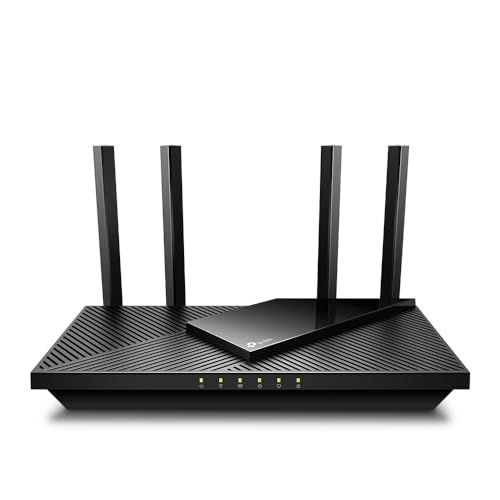
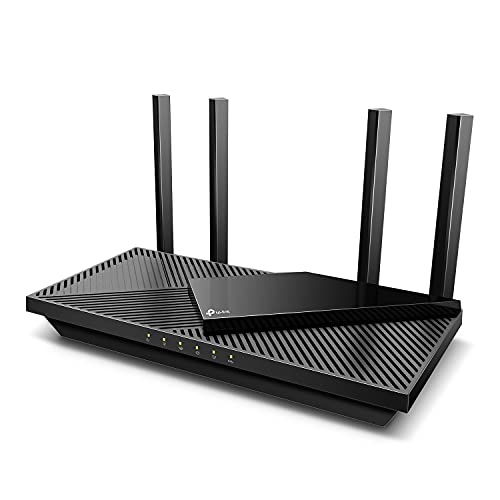
TP-Link AX1800 WiFi 6 Router (Archer AX21 V5)
If the diagnosis ends at replacement, the TP-Link Archer AX21 is the low-drama option: current Wi-Fi 6 firmware with automatic updates via the app, and EasyMesh so a coverage-related ‘disconnect’ problem can be solved by adding a node later.
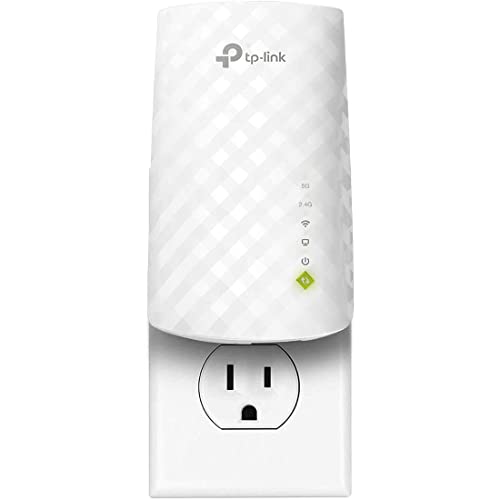
TP-Link WiFi Extender (RE220) with Ethernet Port, Dual Band 5GHz/2.4GHz
The TP-Link RE220 extender addresses the most common root cause found in this guide — one room at the edge of coverage dropping constantly — by moving a radio closer to that room, with an Ethernet port for a fixed device there.
The master split: a diagnostic flow that halves the problem at every step
Every disconnection investigation goes faster if you run it as a series of splits, each one dividing the possible causes in half, instead of trying fixes in the order you think of them. The first and most valuable split is wired against wireless. When the drops happen, is a computer connected to the router by cable also losing the internet, or is it sailing on while the Wi-Fi devices fall? If wired survives, the router’s brain, the modem and the line are all exonerated in one stroke, and your problem lives in the radios, the bands, the channels or the air between the router and the devices — the territory of the placement, channel and interference fixes in the main guide. If wired drops too, stop touching Wi-Fi settings entirely: the fault is in the router as a whole, the modem, the line or the power feeding them, and the investigation moves to the wired foundations and the provider.
The second split, inside whichever half survived, is scope: everything or one thing. All wireless devices dropping together at the same instant points at the router’s radio or its power — a reboot you can often confirm in the router’s uptime counter, which resets to zero when the unit restarts itself. One device dropping while others hold points at that device: its position, its drivers, its power-saving behaviour, its relationship with one particular band. The third split is time: drops that follow a rhythm — every evening, every hour on the hour, whenever the microwave runs, whenever the heating fires — are describing their cause in their schedule, and the fault diary from the main guide is how you read the description. Rhythm-less drops, scattered randomly, more often indict heat, ageing power supplies and failing hardware. Run the three splits before changing any setting, write down the three answers, and the remaining fixes in this article arrange themselves into a short, ordered list instead of a fog of possibilities.
The clockwork dropout: lease times and other interval faults
A disconnection that arrives with suspicious regularity — devices dropping and rejoining every hour, or every day at the same minute — deserves its own investigation, because interval faults have interval causes, and the commonest is the address lease. Your router lends each device its local address for a set period, the lease time, and devices normally renew the loan silently long before it expires. When something in that renewal breaks — an old router with a buggy renewal process, a device whose clock or power-saving sleeps through the renewal moment — the device reaches the end of its lease, loses its address, and must rejoin from scratch, which looks exactly like a random dropout except for its metronome timing. The test is arithmetic: note the times of three consecutive drops and see whether the interval matches a plausible lease setting. The fixes are equally specific: lengthen the lease time in the router’s LAN settings from hours to a week, or give the chronically affected device a reserved address, which removes its dependence on renewal altogether. Either change takes two minutes, and either is invisible to the rest of the household.
Other interval culprits announce themselves the same way. A router scheduled to reboot — by a forgotten timer plug, an old automatic-restart setting, a provider gateway’s maintenance habit — drops everything on its schedule. A neighbouring network’s equipment that wakes at set times can crowd your channel on a rhythm. Even some smart home devices poll or back up on the hour, and a marginal one can spend its polling moment knocking at the network hard enough to disturb a weak router. The diary is what separates these: three dated, timed entries convert “it keeps disconnecting” into “it disconnects at 21:00, 22:00 and 23:00”, and a fault that precise is already half diagnosed. When you speak to support — the router maker’s or the provider’s — lead with the interval. It is the single most useful sentence you can say.
The tired power supply: the cause nobody suspects
Routers almost never fail through their electronics first; they fail through the humble power adapter in the wall. Adapters age, their output sags, and a router fed slightly low voltage behaves in a particularly maddening way: it works at idle, browses happily all morning, and reboots or drops its radios under load — the evening’s streaming, a big download, a houseful of devices arriving home — because load is when the router draws the most power and the tired adapter falls furthest behind. The symptoms impersonate overheating and firmware faults so well that owners replace routers whose only crime was being plugged into a dying adapter. The test costs nothing if you have the discipline to do it properly: check whether the disconnections correlate with busy periods rather than with time of day, feel whether the adapter runs unusually hot, and confirm the adapter in use is the one that came with the router — the drawer of orphaned adapters in most homes contains several with the right plug and the wrong output, swapped during some past tidy-up and silently underfeeding the router ever since.
If a substitute adapter is needed, match the specification printed on the original — the voltage must match exactly, and the current rating must meet or exceed the original’s — and treat it as a diagnostic loan rather than a permanent arrangement unless it comes from the router’s maker. A week of stability on a known-good adapter convicts the old one; the disconnections returning exonerates it and moves the investigation on, with one more suspect eliminated honestly. Providers will often supply a replacement adapter for their gateway on request, and router makers sell them, which makes this among the cheapest possible endings to a disconnection story — when it is the ending. Power strips deserve a sentence here too: a router plugged into a strip with a failing switch, or one that a cleaner’s knee switches off weekly, produces disconnections with a human rhythm that no log will explain. Plug the router into the wall, or a strip you trust, before suspecting its soul.
Reading the router’s log at the moment of failure
The main guide recommends keeping a fault diary; the router keeps one too, and the two read together are formidable. Most routers record events with timestamps — clients joining and leaving, the internet connection dropping and renegotiating, the unit restarting — in a system log inside the admin pages. The skill is not reading the whole log, which is mostly noise, but arriving at it promptly after a disconnection and finding the minute in question. Three patterns cover most of what you will see. A restart entry, or an uptime counter that has reset, tells you the router itself went down — power, heat, firmware or failing hardware, in that order of likelihood. A line or WAN entry showing the internet connection renegotiating while the router stayed up tells you the fault walked in from the street, and your diary plus this log line are exactly the evidence a provider cannot wave away. A flurry of one device’s join-and-leave entries while everything else sits quiet names the poison device the main guide describes, with a timestamp and an identity.
Two habits make the log useful rather than decorative. First, make sure the router’s clock is correct — logs with the wrong time are evidence against nobody — which usually means letting it synchronise automatically. Second, screenshot or copy the relevant lines into your diary entry for that incident, because logs rotate and the lines from Tuesday’s failure will be gone by the time the provider asks about them on Friday. Armed with three or four documented incidents — diary on one side, log lines on the other — you are no longer a customer with a feeling; you are a witness with a record, and both router makers and providers respond to records with replacements and line engineers rather than with scripts.
The week after the fix: proving the cure instead of hoping
Intermittent faults create a cruel epistemology: any change you make is followed by some good days, because good days happen anyway, and households declare victory after forty-eight quiet hours only to meet the fault again on day five. Protect yourself with a monitoring week. When you apply the fix you believe in, write down what it was and what pattern it is meant to kill — the diary entry format from the main guide serves — and then simply live normally, noting each day whether the pattern recurred, without changing anything else. One variable at a time is the rule that makes the week mean something: the owner who moves the router, changes the channel and updates the firmware in one afternoon and enjoys a quiet week has learned only that something helped, and when the fault returns in a month, the search restarts from zero.
Set the victory condition in advance, in numbers: if the fault was striking daily, a clean fortnight is a cure; if it struck weekly, allow a month before full confidence, and treat one recurrence inside the window not as total failure but as data — does the recurrence match the old pattern exactly, or is it a different animal wearing the same name? Households that run this discipline discover something reassuring: most disconnection faults, honestly split and patiently isolated, end with a specific cause and a specific fix, and the router that emerges from the process — correctly powered, sensibly placed, freshly updated, its log understood — usually serves quietly for years afterwards. The monitoring week’s notes join the household network record, where they will save the next investigation, should one ever be needed, from repeating this one. If the week instead proves the fault survives every fix, you hold the complete, dated case for the replacement decision the main guide’s checklist describes — and the replacements in Best Routers for Home Use can be shopped with the confidence of a household that knows exactly what it is replacing, and why.
When only one activity breaks: calls, games and the big upload
Some disconnections are not of devices but of activities: the network looks connected, browsing works, yet the video call freezes, the game ejects you, or the video stream collapses to a blur at the same point each evening. These partial failures have their own shortlist, and it is headed by the upload path. Calls and games send as much as they receive, and a household upload saturated by a cloud backup, a camera uploading clips or a teenager’s stream leaves the call’s packets queuing behind bulk traffic until the call’s software gives up — an application-level disconnection on a network that never technically dropped. The test is subtraction: pause the backups and uploads for one evening and see whether the calls heal. The durable fixes are scheduling the elephants for the small hours and enabling the router’s queue management or quality-of-service settings, which exist precisely to protect small urgent flows from large patient ones.
The second suspect for activity-specific failure is the band handover. A call taken on a phone or laptop that moves — or that sits exactly on the boundary where the router keeps reassigning it between bands or nodes — can stutter at each reassignment, and a game console clinging to a distant band experiences the same in place. Pinning the affected device to the nearer band for a day, or splitting the band names temporarily as a diagnostic, separates this cause from the upload story cleanly. The third suspect is the application’s own path through security features: a router’s strict firewall settings occasionally mishandle the connections a particular game or work VPN needs, producing a failure that follows the application across rooms and bands while everything else thrives. If the pattern matches one application exactly, search the router maker’s support pages for that application’s name before changing anything — you are unlikely to be the first household to meet the pairing.
Asking the street: neighbourhood patterns and shared infrastructure
Some disconnection faults are not yours at all, and the fastest way to discover that is embarrassingly low-tech: ask the neighbours. Cable networks, in particular, are shared infrastructure — a street or a building hangs from common equipment — and a degrading amplifier, a waterlogged junction box or an overloaded segment produces the same evening dropouts in every house it feeds. If the family two doors down loses their connection at the same times you do, your diary has just acquired a witness, and the provider conversation changes character entirely: you are reporting a network fault with corroboration, not requesting help with your Wi-Fi. Providers can also see more than they sometimes volunteer — neighbourhood error rates, node congestion, the history of the cabinet — and a report that arrives with matching times from two households is routed differently from a single complaint.
Weather is the neighbourhood pattern’s accomplice. Connections that fail when it rains and heal when it dries are describing water in a connector or a cable jacket somewhere between you and the cabinet, and connections that fail on hot afternoons may be describing a street cabinet cooking in the sun. Note the weather in the diary for outdoor-pattern faults; it feels unscientific until the third rainy-day entry lines up, at which point it becomes the most persuasive line in the document. None of this replaces the in-home splits — run those first, because the provider will ask — but it completes the map. A fault can live in a device, a router, a line or a street, and the household that has honestly eliminated the first two and documented the rest will get the street fixed faster than the household still rebooting its router in the rain.
Hold both thoughts at once and you have the troubleshooter’s whole temperament: suspect your own house first because it is the part you can inspect tonight, and suspect the street second because it is the part your evidence can move. Between the diary, the log and the neighbours, there is very little left for a disconnection to hide behind.
That temperament, practised once, stays with you for every network you ever live with — which is the quiet dividend of fixing this one properly instead of merely making it stop for now.
Frequently asked questions
Why does my router disconnect at the same time every day?
Scheduled patterns point to scheduled causes: a neighbour’s heavy use on your channel, an appliance on a timer, your provider’s overnight maintenance, or the router’s own scheduled reboot or update setting. Check the router’s schedule settings first, then correlate with household appliances.
Why does only my laptop disconnect?
Device-specific drops are usually the device: outdated Wi-Fi drivers, aggressive power saving that sleeps the adapter, or a band it handles badly. Update its drivers, disable adapter power saving for a test, and try it on the other band before blaming the router.
Can too many devices cause disconnects?
Yes, at the margins: very full budget routers can buckle under dozens of active devices, and overloaded bands feel like drops. Reducing load (wiring stationary devices) or upgrading to a current-generation router with better device handling both help.
Should I factory reset my router to fix disconnects?
As a late step, yes — after noting your settings, since a reset erases them. A reset cures corrupted configuration, which does happen. If drops persist on a clean, updated, reset router, the cause is environmental, the line, or failing hardware.
My router is hot to the touch. Is that the problem?
Warm is normal; uncomfortably hot, especially with drops that improve after a restart and return as it heats up, points to a heat problem. Open air and space around it first; a router that still cooks itself is a router near the end.
Only one device keeps disconnecting while everything else is fine. Where do I start?
With the device, not the router — the master split in this guide exonerates the network when other devices hold their connections through the same moments. Work the device’s own list in order: its position relative to the router (does it fail in one room or everywhere?), its band (try it on the other band for a day), its power-saving and sleep settings, which commonly suspend Wi-Fi aggressively on laptops and phones, and its software or driver updates. If the device is a smart gadget that drops at exact intervals, suspect the lease renewal issue described above and give it a reserved address. A device that fails everywhere, on both bands, while siblings of the same kind thrive, is usually a device with a hardware fault of its own.
The disconnections started right after I changed something. Should I undo it?
Probably, and promptly — temporal coincidence is strong evidence in a system that was stable before. Undo the change completely rather than partially: restore the previous channel, band arrangement or firmware state, and observe for the period the fault used to take to appear. If stability returns, reintroduce the change later only if you still want it, one element at a time, so the culprit identifies itself. The exception is a security-driven change, such as a firmware update closing a known flaw; there, prefer to troubleshoot forward — placement, channels, the affected device — rather than retreating to vulnerable software.
My router’s uptime counter keeps resetting even though I never restart it. What does that mean?
It means the router is restarting itself, and the counter is the confession. Work the causes in order of likelihood: power first — the adapter’s health, the strip it plugs into, the socket itself — because a momentary power sag restarts a router without leaving any other trace in the house. Heat second: an enclosed or sun-warmed router can hit its limits and reboot under load. Firmware third: a specific version with a known crash, which the maker’s support pages and a subsequent update will confirm. Hardware last: a unit that reboots on clean power, in open air, on current firmware, is a unit in decline, and the counter’s steady testimony is exactly what a warranty claim or a replacement decision needs.
Is it worth paying for a provider visit for intermittent disconnections?
Let the evidence decide. If your splits show the wired connection dropping, your log shows the line renegotiating, and your diary shows a pattern over weeks, a provider visit is not a gamble — it is the correct escalation, and in many cases the provider bears the cost when the fault proves to be on their side of the demarcation. If the evidence still points inside the house, spend the visit money on the home side first: an adapter, a cable, a mesh node for the impossible room. Arrive at any paid visit with the diary and log extracts printed; engineers work faster, and advocate for you more readily, when the household has already done the observation half of their job.
Related Guides
- How to Restart a Router — the correct restart, and what needing it often means
- How to Update Firmware on a Router — the firmware fix, done safely
- How to Position a Router — when the ‘fault’ is really a coverage edge
- How to Fix a Router with No Internet — the sibling guide for connected-but-offline faults