Disclosure: As an Amazon Associate, ilcastellomenu.com earns from qualifying purchases. Links to Amazon on this page are affiliate links; they cost you nothing extra. Listing details such as price and availability change often, so check the current Amazon listing before you buy.
Getting graphics card power consumption explained properly matters for three practical reasons: it decides whether your power supply can run the card at all, it decides how much heat your case must get rid of, and — over years of gaming — it quietly decides real money on your electricity bill. This explainer translates the alphabet soup (TBP, TDP, recommended PSU) into plain decisions: how much power cards actually draw, why the ‘recommended PSU’ number is bigger than the card’s draw, and how to measure your own system’s appetite.
The one-sentence version: a graphics card’s board power ranges from a few dozen watts for entry models to several hundred for flagships; your power supply should exceed your whole system’s peak draw with comfortable headroom; and every watt the card consumes becomes heat in your room. Everything below is the working-out. If you are sizing a PSU for a specific purchase, this pairs with the power step in How to Choose a Graphics Card.
The key terms, decoded
- TBP / TDP (board power): the card’s own maximum typical draw under gaming load — the number that matters most. NVIDIA calls it TGP/TBP, AMD calls it TBP; treat them as the same idea.
- Recommended PSU wattage: the card maker’s suggested power-supply size for a typical whole system containing that card. It is deliberately conservative and assumes an average CPU and drives.
- Transient spikes: millisecond bursts where a card can draw well above its rated board power. Modern, quality PSUs handle these; they are a major reason headroom exists, and why some older or weaker PSUs trip their protection with powerful cards despite ‘enough’ rated watts.
- Idle / desktop draw: what the card sips outside games — usually a small fraction of its gaming draw on modern cards, though multi-monitor high-refresh setups can raise it noticeably.
- PCIe power connectors: power arrives via the slot (up to 75 W) plus cables: 6-pin (75 W), 8-pin (150 W), or the high-power 12VHPWR/12V-2×6 connector on recent high-end cards. The connector count on a card tells you its appetite at a glance.
In this guide
How much power do graphics cards actually use?
| Card class | Typical board power under gaming load | Typical recommended PSU |
|---|---|---|
| Entry (1080p light) | Roughly 75–120 W | 450–550 W |
| Mid-range (1080p/1440p) | Roughly 150–220 W | 550–650 W |
| Upper mid-range (1440p) | Roughly 220–290 W | 650–750 W |
| High-end (4K) | Roughly 300–350 W | 750–850 W |
| Flagship | 350 W and beyond | 850–1000 W+ |
Treat these as orientation ranges, not promises about a specific model — always check the exact card’s specification, because factory-overclocked partner models can exceed reference figures. The pattern to absorb is the shape: each performance tier costs more watts, and the flagship tier’s appetite grows much faster than its performance. Efficiency — performance per watt — usually peaks in the mid-range, which is one hidden reason mid-range cards are such satisfying purchases: most of the experience, a fraction of the power, heat, and PSU demands. The value shortlists in Best Graphics Cards for the Money reflect that curve even when they do not say so.
Why the recommended PSU is bigger than the card’s draw
Because the PSU feeds everything: CPU (which can draw as much as a mid-range GPU under load), motherboard, drives, fans, USB devices — plus those transient spikes, plus the reality that PSUs are happiest and most efficient running in the middle of their range rather than at their limit, plus ageing. The recommendation bundles all of that into one safe number for a typical system. If your system is not typical — a very high-end CPU, lots of drives, or plans to overclock — aim above the recommendation rather than at it. Conversely, a quality PSU slightly under the recommendation with a modest CPU often works, but ‘often works’ is a poor design goal for the component that can take every other component with it if it fails badly.
Connector reality matters as much as wattage. A card needing three 8-pin cables or the high-power connector needs a PSU that actually provides them, ideally as separate cable runs rather than one daisy-chained lead for high-draw cards. Adapters exist (and ship with many high-end cards), but they are a bridge, not a lifestyle: if you are buying a powerful card, budget for a PSU that feeds it natively. This is also why the testing routine in How to Test a Graphics Card includes watching board power — a card that cannot reach its expected draw may be cable- or PSU-limited, not faulty.
Power becomes heat — and noise
Physics keeps the books: essentially all electrical power a card consumes leaves as heat. A 250 W card is a 250 W space heater that also renders games. Your case airflow must exhaust that heat or the card throttles and the fans scream — the direct link between this explainer and How to Fix Graphics Card Overheating. It also heats your room, which gamers in warm climates feel literally. Efficiency is therefore a comfort feature, not just a bill feature: a card delivering your target frame rate at 170 W makes for a quieter, cooler PC than one needing 260 W for the same frames, a comparison worth making between the models in roundups like Best Graphics Cards for 1440p Gaming.
What it costs to run
The maths is simple and worth doing once: watts × hours ÷ 1000 = kilowatt-hours; multiply by your electricity price. A card drawing 200 W through a three-hour session uses 0.6 kWh — at typical household rates, a modest sum per session that adds up to a noticeable but hardly alarming annual figure for regular players. The honest conclusion cuts both ways: efficiency differences between rival cards are worth a few units of currency a month at most for typical play, so never choose a worse card purely for the electricity — but at flagship power levels and heavy daily use, the efficient choice genuinely pays. Idle draw matters too for PCs left on all day; a card that idles high because of a multi-monitor high-refresh setup can quietly out-consume its gaming sessions.
Measuring your own card’s consumption
Software first: HWiNFO64 and GPU-Z report board power live, per the sensor workflow in our testing guide — perfect for seeing gaming draw, idle draw, and the effect of settings. For whole-system truth, a plug-in power meter (the kind that sits between wall socket and PSU) shows what the entire PC pulls from the wall, which is the number your bill sees; expect it to exceed the sum of component figures slightly because PSUs are not perfectly efficient (their 80 Plus rating describes exactly that loss). Measure once at idle and once in your favourite game and you will understand your system better than any spec sheet can teach you.
Reducing consumption without replacing the card
- Frame-rate caps: capping frames at (or just below) your monitor’s refresh rate stops the card rendering frames nobody sees — often the single biggest saver in light games, where uncapped menus and esports titles can pin a card at full draw for no benefit.
- Undervolting: the mirror image of overclocking — coaxing the card to run stock speeds at lower voltage. Done carefully it cuts heat, noise, and draw with little or no performance loss; it is an enthusiast tweak, so research your exact model and test stability as rigorously as in how to overclock safely a graphics card.
- Power-limit sliders: both vendor suites let you set a reduced power target. A modest reduction typically costs a few percent of performance for a much larger percentage of power saved — the efficiency curve working in your favour for once.
- Settings sanity: upscaling (DLSS/FSR) renders fewer pixels for similar visuals, and some settings (volumetrics at ultra, uncapped physics) cost watts wildly out of proportion to their visual payoff.
Common misconceptions
- ‘A bigger PSU uses more electricity.’ A PSU delivers what the system asks for; a larger unit idling along does not consume its rating. (Efficiency varies slightly by load level, but the effect is small.)
- ‘The card draws its rated power constantly.’ Board power is a gaming-load figure. Desktop, video, and light games draw far less; only demanding 3D loads approach the rating.
- ‘Undervolting/underclocking is dangerous.’ Reducing power is the gentle direction — the risks are instability (fixable by reverting), not damage. It is raising voltage that deserves caution.
- ‘Laptop and desktop versions of a card use the same power.’ Same name, very different power envelopes. Laptop variants are capped far lower and perform accordingly.
Graphics card power consumption explained with a worked example
Make it concrete. Imagine a mid-range build: a card rated around 200 W board power, a mainstream CPU that draws roughly 100–125 W under gaming load, and perhaps 50 W for the motherboard, memory, drives, and fans combined. The honest sustained total is roughly 350–375 W, with transient spikes above it. Now the PSU recommendation of 550–650 W for such a card stops looking like upselling: it places the system in the PSU’s efficient, quiet middle range, absorbs spikes without tripping protection, tolerates the PSU’s own ageing, and leaves room for the next upgrade. Run the same maths at flagship level — a card in the 350 W-plus class beside a high-end CPU — and the 850–1000 W recommendations explain themselves the same way. The method matters more than the numbers: add the real parts, respect the spikes, buy headroom once.
The worked example also exposes the two failure stories behind most ‘my PSU is fine on paper’ forum threads. Story one: the wattage was summed optimistically (the CPU’s ‘rated’ figure rather than its real boost draw, the card’s reference figure rather than the factory-overclocked model’s), leaving no room for transients — result, shutdowns in games. Story two: the wattage was fine but the cabling was not — a high-draw card fed from a single daisy-chained lead, starving or overheating the connector — result, shutdowns in games. Same symptom, different ledgers. Power is a system, and it fails at its weakest entry.
Efficiency curves: why the mid-range is the sweet spot
Plot performance against watts for any generation and the same shape emerges: performance rises eagerly at first, then each additional frame costs disproportionately more power. Designers exploit this by clocking flagship cards far up the expensive end of the curve — the last ten percent of performance can cost thirty percent more power — while mid-range cards sit near the curve’s knee, where the exchange rate is kindest. Two practical corollaries follow. First, a modest power-limit reduction on a high-end card typically surrenders very little performance, because you are retreating from the curve’s most wasteful region. Second, generational efficiency gains are real purchasing value even when raw performance looks similar: the newer card delivers the same frames cooler, quieter, and on a smaller PSU — a better ownership experience that benchmark charts do not capture. When reviews publish performance-per-watt figures, they are measuring exactly this, and for PCs that live in bedrooms and studies it deserves more weight than it gets.
Power questions to settle before any upgrade
- What is my PSU’s true wattage, age, and tier — and does it have the native connectors this card wants?
- What does my whole system draw in my heaviest game today (measured at the wall, if possible)?
- Does my case airflow budget match the new card’s heat output, or am I importing a cooling problem?
- If I undervolt or cap power later, do I know the settings and the stability routine? (Yes — they are in this series.)
- Am I leaving headroom for the upgrade after this one, or buying a PSU twice?
Power limits, boost behaviour, and why two identical cards can differ
A subtlety that explains many confusing reviews: the same GPU model from different board partners can carry different power limits, and the same card can behave differently in different cases, because boost clocks are opportunistic — the card spends whatever power and thermal headroom it finds. A model with a higher factory power limit and a large cooler will sustain higher clocks in a warm case than a compact model with a conservative limit, even though both boxes name the same GPU. This is why ‘which partner model?’ is a real question and ‘which GPU?’ is only the first one, and why a card transplanted into a stuffy case can appear to lose performance it demonstrably had on a test bench. Power, cooling, and clocks are one system wearing three names; every guide in this series that treats them separately does so only to explain them, never because they act separately in your machine.
The PSU itself: quality, curves, and quiet
Since power supplies have entered the story, give them their paragraph. A PSU’s efficiency rating (the 80 Plus tiers) describes how much wall power becomes component power versus heat inside the PSU — a few percent between tiers, worth having, not worth obsessing over. More important is the efficiency curve: units are most efficient in the middle of their range, which is the engineering root of the ‘headroom’ advice repeated throughout this guide — an oversized PSU loafing at twenty percent and an undersized one straining at ninety-five are both operating at their worst, in efficiency and in fan noise. Quality shows elsewhere too: protection circuits that actually protect, capacitors rated for a decade of heat, a fan that stays quiet under load, and cables with honest connectors. The PSU is the one component whose failure can invoice you for every other component; buy it like insurance, from a maker whose name is the warranty, and keep it across builds — a good unit outlives two graphics cards easily, which amortises its premium into the cheapest money in the system.
Power consumption across a card’s lifetime
Finally, the long view. A card’s draw is not a fixed constant of its life: driver updates occasionally change power behaviour, dust raises temperatures and therefore fan power, and ageing thermal paste can push a card to spend more of its budget on cooling the same work. Your own habits move the number most — the games of year three are heavier than the games of year one, and a card bought with headroom absorbs that growth silently while a card bought at its limit announces it. When you measure your system (as this guide urges) on day one, you are not just learning a number; you are opening a ledger. Entries added over the years — after the dusty summer, after the big upgrade, after the new game — turn power from a spec you once read into a story you actually know, and systems you know are systems you can keep fast, cool, and alive for a very long time.
Your power questions, answered in one place
‘The card’s box recommends a 750 W PSU but my quality 650 W unit runs it fine — am I in danger?’ Probably not: recommendations assume a thirsty CPU and a mediocre unit, and a quality PSU below the recommendation with a modest system is a common, sane configuration — just know you have spent the headroom that absorbs spikes and future upgrades. ‘Does a second monitor really raise idle power?’ It can, noticeably, when the combination of resolution and refresh rate keeps the memory clocks from idling down; measure yours before blaming it. ‘Will a power limit hurt my card?’ No — limits are a control the card is designed around, and running cooler is gentler in every respect. ‘Why does my UPS complain when I game?’ Because gaming load plus transient spikes can exceed a small UPS’s rating even when average draw looks safe — size a UPS for peak system draw, not averages. ‘Is liquid cooling more power-efficient?’ It moves heat better; it does not reduce the watts the card consumes, and the pump itself draws a little. Efficiency lives in the silicon and the settings, not in the plumbing.
Every one of those answers is the same answer wearing different clothes: power is a budget with peaks, averages, and conversion losses, and the owners who measure theirs stop being surprised by it. Put the meter on, learn your system’s two numbers — idle and gaming — and the entire subject of this explainer becomes a pair of facts you own rather than a fog of forum anxiety.

Gear mentioned in this guide
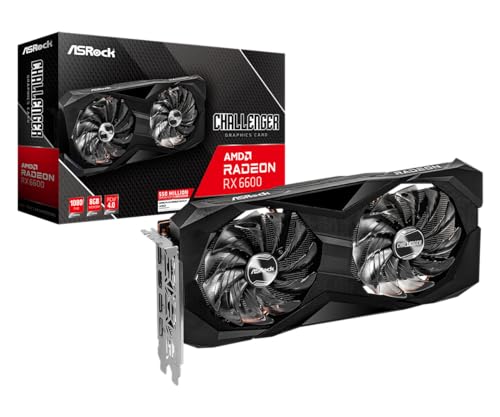
Two cards known for modest appetites — an RX 6600-class card and an RTX 4060-class card — illustrating how much performance modern efficiency delivers per watt.
- ASRock AMD Radeon RX 6600 Challenger D 8GB — Check on Amazon
- MSI GeForce RTX 4060 Ventus 2X Black 8G OC — Check on Amazon

A worked example with real arithmetic: sizing a supply for a mid-range build
Terms become decisions when you run one complete example. Take a typical mid-range gaming PC: a modern six-core processor, a mid-range graphics card rated around the middle of the current market, two storage drives, several fans and the usual USB devices. Start with the graphics card’s board power figure from its specification page — the number this article calls TBP or TDP depending on the vendor — because that is the card’s sustained design draw under full load. Add the processor’s realistic gaming draw, which for most mainstream chips is well below its headline maximum because games rarely pin every core at once; the motherboard maker’s guidance and reviews of your specific chip give a fair figure. Add a modest allowance for everything else — drives, fans, memory, USB — which in a normal build is a smaller slice than people fear. The sum is your honest sustained load, typically landing in the middle hundreds of watts for such a system.
Now apply the two adjustments this article has explained. Leave headroom above that sum — roughly a third again is a comfortable rule — because power supplies are most efficient and quietest in the middle of their range, because components age, and because your next card should not require a new supply by default. Then check the transient question separately: brief spikes above the sustained figure are normal for modern cards, and a quality supply of the headroom-adjusted size absorbs them without drama, while a bargain unit of the same nominal wattage may not. Finish by verifying connectors — the count and type your specific card needs, on separate cables where the guidance calls for it — because a supply can be powerful enough and still be the wrong supply. That five-minute exercise, done with your actual parts, replaces every generic wattage argument on the internet.
Reading the label and the fine print like an electrician
Power supply specifications reward close reading. The headline wattage is the unit’s total across all its rails, but a graphics card feeds almost entirely from the 12-volt rail, so the current rating for that rail — printed on the label and in proper specification tables — is the number that describes your usable capacity. Quality units deliver nearly all their wattage there; vague units pad the total with rails modern PCs barely use. Efficiency certification tells you how much of what the wall provides becomes useful power rather than heat inside the supply itself, and it correlates, imperfectly but usefully, with component quality and fan behaviour. Protection features deserve a glance as well: a good supply watches for over-current, over-voltage and short circuits and sacrifices itself before your components, which is precisely the behaviour you are paying for in a part whose failures are otherwise expensive.
Two label habits protect buyers. First, distrust any unit whose maker will not publish a full specification table and protection list; the absence is information. Second, match the unit’s physical cables to your card before purchase, including the newer high-power connector on recent high-end cards and whether the supply provides it natively or through an adapter. Our graphics card choosing guide treats the supply check as a formal step for exactly these reasons.
Idle, desktop and multi-monitor draw: the consumption nobody benchmarks
Launch reviews measure full load, but most PCs spend most hours far from it, and the differences there shape your electricity use and your room’s warmth more than any benchmark. A well-behaved modern system idles at a small fraction of its gaming draw, with the card dropping into deep low-power states between tasks. Certain configurations disturb that calm: multiple high-refresh monitors can keep a card’s memory clocks raised around the clock, older displays with unusual timings can prevent the deepest idle states, and some software — a browser with many hardware-accelerated tabs, a wallpaper engine, a forgotten recording overlay — holds the card at a working simmer indefinitely. If your card’s fans spin at the desktop or its idle temperature looks like a light gaming session, the cause is almost always one of these, and the fix is configuration rather than hardware.
Measure before you conclude. A monitoring tool showing clock speeds and draw at the desktop, compared before and after closing suspect applications and after setting all monitors to a standard refresh, will identify the culprit in minutes. This matters beyond the bill: a card that never rests runs its fans more, gathers dust faster and ages its thermal paste sooner, which connects this article directly to the maintenance habits in our overheating guide. Efficiency, in other words, is not only about the watts at full speed; it is about how completely the machine relaxes when you do.
Undervolting and power limits: the owner’s two dials, explained carefully
The main article introduces reducing consumption; here is the fuller account of the two methods and when each suits. A power limit is the blunt, safe dial: you tell the card the maximum it may draw, and its boost algorithm does the rest, trading a small amount of peak performance for a proportionally larger saving in power, heat and noise. It takes a minute, reverses instantly, and is the right first experiment for a hot room, a small case or a supply you want to treat gently. Undervolting is the finer dial: you ask the card to reach its usual speeds at lower voltage, exploiting the safety margin built into stock settings. Done carefully and validated with the testing method in our safe tuning guide, it can preserve nearly all performance while cutting draw and temperature noticeably; done carelessly, it produces the classic crash-under-load that owners then blame on the card.
Frame-rate caps are the third, forgotten dial, and often the most effective. A card rendering a menu at several hundred frames per second, or pushing far beyond your monitor’s refresh in an easy game, is converting electricity into heat for frames nobody sees. A sensible cap — at or just below the display’s refresh — can cut draw dramatically in exactly the titles where you play longest. Combine a cap with a modest power limit and most systems reach a state their owners describe as the same PC, only calmer. That calm is measurable in the log: same games, same settings, lower sustained watts, lower temperatures, quieter fans. Record it, and you have turned this article’s theory into your machine’s settings.
When the supply is the suspect: symptoms that point away from the card
Power problems are masters of disguise, presenting as graphics faults, so learn the tells that redirect suspicion. Shutdowns or restarts under load — the whole machine, instantly, without a blue screen — are the signature of a supply protecting itself or failing, especially when they cluster at scene transitions and loading moments when draw swings hardest. Crashes that began when a more powerful card was installed, on a supply that was adequate for the old one, tell the same story. So do faults that move with the electrical environment: a PC that misbehaves on one circuit, through one ageing power strip, or when other heavy appliances run. The disciplined response is to test at stock settings with a reduced power limit; if stability returns when draw is capped, you have learned something important about the supply’s remaining strength, and the remedy is a properly sized quality replacement, not a permanently hobbled card. Never open a power supply yourself — it can hold a dangerous charge long after unplugging — and treat a unit that smells of hot electronics, makes new noises or shows any physical damage as retired, whatever the budget says.
Electricity cost in perspective: doing the household maths once
Fear of the electricity bill distorts more purchases than the bill itself ever justifies, so run the arithmetic once with your own tariff and habits, in the abstract way this article’s cost section frames it. A gaming PC’s draw while playing is the wall figure — card, processor, everything, including supply losses — not the card’s headline number alone. Multiply that draw by your realistic gaming hours per week and your tariff’s unit cost, and the result for typical players is a modest line in the household budget, smaller than most expect and far smaller than the cost of the hardware itself over its life. The exercise matters because it redirects attention to where money genuinely leaks: a machine left running at a raised idle around the clock, a second PC used as a server without its power states configured, or a household of several gaming systems in daily use. Those patterns, not the choice between two adjacent card tiers, are what a meter finds. If the numbers still trouble you after measuring, the remedies are the ones already covered — frame caps, power limits, sleep discipline — applied to the measured problem rather than to an imagined one.
Planning power for the whole upgrade path, not just this card
The supply is the longest-lived active component in most PCs, routinely serving two or three graphics cards across its life, so buy it as infrastructure. A quality unit sized with comfortable headroom over today’s system, with the connector types current cards use and a warranty that reflects the maker’s confidence, will quietly accommodate the next upgrade and the one after, while a minimal unit forces a second purchase — and a full re-cabling of the machine — at the least convenient moment. When you shop, think in terms of the most powerful card you might plausibly install in this case within the supply’s life, and size for that with the method in the worked example. Keep the spare cables a modular unit ships with, labelled, in the case box; the owner who does this treats a future card swap as a twenty-minute job, while the owner who discards them discovers the cost of a missing cable on the evening of an upgrade. Power, handled this way, stops being a recurring anxiety of PC ownership and becomes what it should be: the solved foundation everything else stands on. Readers mid-upgrade will find the same philosophy in the card choosing guide, where the supply check comes before the shortlist, not after it.
Summer, small rooms and shared circuits: the environmental fine print
Power behaviour is partly a property of the room. A card’s heat has nowhere to go except into your space, so a high-draw system in a small, sun-facing room changes the room itself across a long session — which feeds back into the PC, whose intake air is now warmer, whose fans work harder, and whose draw creeps up as efficiency falls with temperature. Owners in warm climates learn to treat the efficient tier, the power limit and the frame cap as comfort features, not concessions. Shared circuits add an electrical footnote: a gaming PC alongside a heater, kettle or air conditioner on one household circuit can approach the circuit’s comfort zone during coincident peaks, and the remedy is the electrician’s, not the gamer’s — distribute loads across circuits and avoid chains of ageing power strips. None of this is cause for alarm; it is the ordinary physics of putting a small, honest space heater that also plays games into a real home, and planning for it once beats discovering it every summer.
The upgrade-day power checklist, in the order to do it
When a new card arrives, power questions are best settled in a fixed order before the first game, not discovered during it. Confirm the supply’s wattage and 12-volt capacity against the card maker’s recommendation. Confirm each power connector the card needs exists, and plan the cable runs so separate connectors come from separate cables where the guidance calls for it. Seat every connector until its latch clicks, because a nearly-seated plug is a classic cause of load-only crashes that masquerade as a faulty card. Route cables clear of fans and of the card’s intake. On first boot, check the monitoring readout at idle — a new card should settle to a low, quiet idle — then run one demanding game while watching draw and temperatures together, since the two rise as a pair and either one misbehaving is information. Note the figures in your PC log beside the card’s model and the supply’s age. Ten minutes of this turns the electrical side of an upgrade from a hope into a verified state, and the log entry becomes the baseline every future symptom gets compared against.
A word on measuring honestly, and on not measuring at all
Close with proportion. Most owners need exactly three numbers, gathered once: the system’s idle draw, its typical gaming draw at the wall, and the card’s peak temperature in their longest session. Those three describe the machine’s electrical character completely enough for every decision in this article — supply adequacy, running cost, comfort, headroom for the next card. Beyond them lies a hobby of measurement that is enjoyable but optional, and owners should feel no obligation to chase it. What is not optional is honesty in the other direction: if shutdowns, smells, scorch marks or a supply too hot to touch enter the story, stop measuring and start replacing, with the machine off. Electricity rewards respect and punishes improvisation, and the line between the two is exactly where this article has tried to keep you — informed, methodical, and entirely unbothered by a subject that only becomes dramatic when it is ignored.
Keep those three numbers with the rest of the PC’s records, alongside the driver versions and benchmark results this site’s other guides ask you to log. Together they form the machine’s service history, and a PC with a service history is easier to upgrade, easier to troubleshoot and easier to sell — because every claim about it, including its appetite, can be shown rather than asserted.
And if a future upgrade ever makes you revisit every figure in this article, treat that as the system working as intended. Power is the one specification that touches safety, cost, noise, heat and longevity at once, which is why it repays an hour of attention each time the machine changes — and why, once that hour is spent, it should disappear from your thoughts entirely, leaving a PC that simply runs, quietly and within its means, for years.
Frequently asked questions
What size PSU do I need for a mid-range graphics card?
For most mid-range cards in a typical system, a quality 550–650 W unit covers the card maker’s recommendation with sensible headroom. Check the specific card’s recommendation and connector requirements, and favour a reputable model over a no-name unit with a bigger number on the box.
Can a weak PSU damage my graphics card?
A failing or badly overloaded PSU can cause crashes, shutdowns under load, and in the worst cases component damage — which is why shutdowns that happen only in games are a PSU red flag. A merely modest but healthy PSU more often causes instability than damage; either way, it is the wrong component to economise on.
Why does my PC shut down only when gaming?
Gaming is when total system draw peaks and when transient spikes hit. Classic causes: a PSU that cannot sustain the combined CPU+GPU load, a daisy-chained power cable where separate runs are needed, or overheating. Work through power cables and temperatures first; the pattern (instant off, no error) points at power more than software.
Does a more powerful card always use more electricity in old games?
Not necessarily — in a light game with a frame-rate cap, a big card may loaf along at low utilisation and modest draw. Uncapped, it will happily render 600 frames per second at full power. Caps are the difference, which is why they headline the saving tips above.
What is a transient spike and should I worry?
A transient is a millisecond-scale surge above rated draw that modern GPUs produce when load changes suddenly. Quality modern PSUs are designed for them. Worry only if you pair a high-draw card with an old or budget PSU and see load shutdowns — that combination is the known failure story.
Does a bigger power supply make my PC use more electricity?
No. Components draw what they need; the supply’s rating is a ceiling, not a dose. A larger quality unit often uses slightly less from the wall than a strained smaller one, because supplies are most efficient in the middle of their range. Buy capacity for headroom, transients and future cards, and your consumption will still be decided by the components and your settings, not by the number on the box.
Why does my card draw power when I am only watching a video?
Video playback uses the card’s dedicated decode hardware, which is far more efficient than decoding on the CPU but not free, and the display itself must be driven continuously. High-resolution, high-refresh playback costs more than standard video, and a browser with many animated tabs can add a background load of its own. The figures involved are modest next to gaming; if desktop draw looks like gaming draw, suspect a configuration issue of the kind described in this article rather than normal playback.
Is it safe to run a card below its recommended supply wattage if I set a power limit?
It can work as a temporary, deliberate experiment — a power limit genuinely caps sustained draw — but it is not a recommended long-term arrangement. Transient behaviour, ageing and the rest of the system’s needs all argue for the maker’s recommendation, and a supply run permanently at its edge is a supply whose failure you are scheduling. Use a cap to diagnose or to bridge a few weeks, then fit the supply the system actually needs.
How can I tell how much power my whole PC is drawing?
The accurate way is a plug-in power meter between the wall socket and the PC, which shows the whole system’s real consumption including supply losses, and lets you compare idle, desktop and gaming states honestly. Software readings for the card and processor are useful for component-level questions but never sum to the wall figure. One evening with a meter, noting the three states in your PC log, will teach you more about your machine’s appetite than any specification sheet.
The bottom line
Power consumption is the spec that connects everything: it sizes your PSU, sets your case’s cooling workload, shapes your electricity bill, and explains half the ‘mystery shutdown’ stories on the internet. Read board power for the card, follow the maker’s PSU recommendation with headroom, feed the card with proper cables, and cap your frame rates — then the numbers stop being scary and start being useful, especially alongside the buying framework in graphics card buying guide.