Disclosure: As an Amazon Associate, ilcastellomenu.com earns from qualifying purchases. Links on this page are affiliate links; they cost you nothing extra. Prices and availability change often, so check the current Amazon listing before you buy.
This guide is a complete how to set up capture card resource for console players, streamers, video makers, and camera users who want straight answers before they spend. The how to set up capture card question always comes back to fit: fit between the card and your source, fit between the card and your computer, and fit between the whole setup and the way you actually record. You will find the picks, the buying guidance, the practical how-to help, and the honest limits in one place, so you can decide calmly and set up once, properly.
Key Takeaways
- A capture card passes through and records what your source outputs; it does not improve the source picture itself.
- Match the card to your source output and to your recording or streaming goal, in that order.
- External USB cards favour portability; internal cards favour a tidy, permanent desk.
- Protected content cannot be captured; a card is for your own gameplay and your own cameras.
- Built-in console and computer capture is a sensible free starting point for many people.
In this guide
What You Need Before You Start
Waiting is a legitimate buying strategy. If you record only occasionally, if your source is about to change, or if built-in capture still meets your needs, there is no prize for buying early. Prices, bundles, and line-ups change, and your own requirements will be clearer after a few more months of recording the simple way. Set a concrete trigger for revisiting the decision, such as publishing weekly, adding a camera to your layout, or moving to a two-computer setup. A trigger turns vague someday-thinking into a clean decision, and it protects you from buying capable hardware that sits in a drawer.
Recording creates large files quickly, and a card is only as useful as the storage routine behind it. Decide where recordings land, how they are named, and when they move to longer-term storage or get deleted. Check free space before long sessions, not during them. Keep project files, finished edits, and raw captures in clearly separate places so a tidy-up never deletes the only copy of something you need. This unglamorous discipline is what turns occasional recording into a reliable archive, and it matters more to your long-term output than small differences between otherwise suitable cards.
Viewers forgive modest video far more readily than bad audio, so give sound a plan of its own. Decide where commentary comes from, how game or camera audio travels, and how you will listen while you record without sending your own monitoring back into the recording. Make one short test recording and listen to all of it on headphones before any real session. Note where voices sit against the source audio, whether any hum or echo appears, and whether anything clips when the action gets loud. Fixing one audio problem in a calm test is far easier than rescuing a long recording afterwards.
The happiest owners share a pattern: they had one clear job in mind, they matched the card to a source they understood, and they built a simple routine around it. They record regularly, so the setup stays familiar. They do not chase every new model, because their current chain already does the job they bought it for. Unhappy owners often bought for an imagined future setup, or expected the card to improve a weak source, or never settled a repeatable software routine. None of that is about intelligence; it is about fit, expectations, and habit, all of which you can get right before you spend.
Safety and Before-You-Start Checks
A capture card sits between a source and a computer and turns the video signal from a console, a second computer, or a camera into something recording and streaming software can use. It does not improve the source’s own picture, and it is important to say that plainly: the card passes through and records what the source outputs, nothing more. If a game renders softly, if a camera sensor struggles in low light, or if a console is set to a modest output, the recording will faithfully show all of that. What the card adds is a bridge, a clean way to get that signal into software where you can record it, stream it, add commentary, and archive it.
The happiest owners share a pattern: they had one clear job in mind, they matched the card to a source they understood, and they built a simple routine around it. They record regularly, so the setup stays familiar. They do not chase every new model, because their current chain already does the job they bought it for. Unhappy owners often bought for an imagined future setup, or expected the card to improve a weak source, or never settled a repeatable software routine. None of that is about intelligence; it is about fit, expectations, and habit, all of which you can get right before you spend.
Viewers forgive modest video far more readily than bad audio, so give sound a plan of its own. Decide where commentary comes from, how game or camera audio travels, and how you will listen while you record without sending your own monitoring back into the recording. Make one short test recording and listen to all of it on headphones before any real session. Note where voices sit against the source audio, whether any hum or echo appears, and whether anything clips when the action gets loud. Fixing one audio problem in a calm test is far easier than rescuing a long recording afterwards.
How to Set Up Capture Card, Step by Step
Passthrough is the part of the chain you actually play or present on. The source signal continues to your television or monitor so you can respond in real time, while a second copy travels to the computer for recording. That split is the whole reason the device exists, and it is also why matching matters so much. Cards differ in the passthrough and capture resolutions they support, and in how they handle faster-refresh signals, so the sensible question is never which card sounds most impressive in isolation. The sensible question is whether the card matches the output your source actually produces and the result you actually intend to publish.
External cards that connect over USB are portable, easy to move between computers, and easy to lend, borrow, or pack away when a desk needs to become a desk again. Internal cards that sit in a desktop expansion slot are tidier, stay permanently wired, and suit a fixed studio where nothing moves. Neither approach is automatically better, and neither changes what the source itself produces. Choose based on how stationary your setup really is. A creator who records in two rooms will value portability every week, while a creator with one permanent streaming desk will value a clean, always-ready installation just as often.
Professionals test in short, boring, repeatable ways. Record a brief clip, play it back fully, check picture, sound, and sync, then change one setting and repeat. Keep a small notebook of what worked: source settings, card input, software settings, and file locations. That notebook becomes gold the day something changes after an update or a tidy desk. Resist the urge to adjust five things at once before a real session. A setup you understand beats a setup that merely worked once, because understanding is what lets you recover quickly when, not if, something drifts.
Waiting is a legitimate buying strategy. If you record only occasionally, if your source is about to change, or if built-in capture still meets your needs, there is no prize for buying early. Prices, bundles, and line-ups change, and your own requirements will be clearer after a few more months of recording the simple way. Set a concrete trigger for revisiting the decision, such as publishing weekly, adding a camera to your layout, or moving to a two-computer setup. A trigger turns vague someday-thinking into a clean decision, and it protects you from buying capable hardware that sits in a drawer.
Viewers forgive modest video far more readily than bad audio, so give sound a plan of its own. Decide where commentary comes from, how game or camera audio travels, and how you will listen while you record without sending your own monitoring back into the recording. Make one short test recording and listen to all of it on headphones before any real session. Note where voices sit against the source audio, whether any hum or echo appears, and whether anything clips when the action gets loud. Fixing one audio problem in a calm test is far easier than rescuing a long recording afterwards.
Recording creates large files quickly, and a card is only as useful as the storage routine behind it. Decide where recordings land, how they are named, and when they move to longer-term storage or get deleted. Check free space before long sessions, not during them. Keep project files, finished edits, and raw captures in clearly separate places so a tidy-up never deletes the only copy of something you need. This unglamorous discipline is what turns occasional recording into a reliable archive, and it matters more to your long-term output than small differences between otherwise suitable cards.
The happiest owners share a pattern: they had one clear job in mind, they matched the card to a source they understood, and they built a simple routine around it. They record regularly, so the setup stays familiar. They do not chase every new model, because their current chain already does the job they bought it for. Unhappy owners often bought for an imagined future setup, or expected the card to improve a weak source, or never settled a repeatable software routine. None of that is about intelligence; it is about fit, expectations, and habit, all of which you can get right before you spend.
Start every decision with the source, not with the card. Note what your console, gaming computer, or camera is set to output, how it connects, and whether you ever change those settings between sessions. A card that matches a fixed, well-understood source is easy to live with for years. A card bought for a hypothetical future source often brings compromises in the present, in cost, in desk space, and in setup complexity. Write the source details down before you shop, keep that note beside you while you compare models, and let it overrule marketing language whenever the two disagree about what you need.
A capture card sits between a source and a computer and turns the video signal from a console, a second computer, or a camera into something recording and streaming software can use. It does not improve the source’s own picture, and it is important to say that plainly: the card passes through and records what the source outputs, nothing more. If a game renders softly, if a camera sensor struggles in low light, or if a console is set to a modest output, the recording will faithfully show all of that. What the card adds is a bridge, a clean way to get that signal into software where you can record it, stream it, add commentary, and archive it.
Troubleshooting and Common Mistakes
Professionals test in short, boring, repeatable ways. Record a brief clip, play it back fully, check picture, sound, and sync, then change one setting and repeat. Keep a small notebook of what worked: source settings, card input, software settings, and file locations. That notebook becomes gold the day something changes after an update or a tidy desk. Resist the urge to adjust five things at once before a real session. A setup you understand beats a setup that merely worked once, because understanding is what lets you recover quickly when, not if, something drifts.
A capture card sits between a source and a computer and turns the video signal from a console, a second computer, or a camera into something recording and streaming software can use. It does not improve the source’s own picture, and it is important to say that plainly: the card passes through and records what the source outputs, nothing more. If a game renders softly, if a camera sensor struggles in low light, or if a console is set to a modest output, the recording will faithfully show all of that. What the card adds is a bridge, a clean way to get that signal into software where you can record it, stream it, add commentary, and archive it.
Viewers forgive modest video far more readily than bad audio, so give sound a plan of its own. Decide where commentary comes from, how game or camera audio travels, and how you will listen while you record without sending your own monitoring back into the recording. Make one short test recording and listen to all of it on headphones before any real session. Note where voices sit against the source audio, whether any hum or echo appears, and whether anything clips when the action gets loud. Fixing one audio problem in a calm test is far easier than rescuing a long recording afterwards.
Recording creates large files quickly, and a card is only as useful as the storage routine behind it. Decide where recordings land, how they are named, and when they move to longer-term storage or get deleted. Check free space before long sessions, not during them. Keep project files, finished edits, and raw captures in clearly separate places so a tidy-up never deletes the only copy of something you need. This unglamorous discipline is what turns occasional recording into a reliable archive, and it matters more to your long-term output than small differences between otherwise suitable cards.
Start every decision with the source, not with the card. Note what your console, gaming computer, or camera is set to output, how it connects, and whether you ever change those settings between sessions. A card that matches a fixed, well-understood source is easy to live with for years. A card bought for a hypothetical future source often brings compromises in the present, in cost, in desk space, and in setup complexity. Write the source details down before you shop, keep that note beside you while you compare models, and let it overrule marketing language whenever the two disagree about what you need.
Maintenance and Keeping It Working
Many consoles and computers can already record clips and even stream without any extra hardware, and for a lot of people that built-in route is genuinely enough. It costs nothing, adds no cables, and teaches you the basics of framing, commentary, and file handling. The honest case for a separate card begins where built-in tools stop: when you want a camera alongside gameplay, when you want longer or cleaner recordings under your own control, when you want one computer to handle the stream while another runs the game, or when you publish on a schedule that rewards a dedicated, predictable workflow.
Recording creates large files quickly, and a card is only as useful as the storage routine behind it. Decide where recordings land, how they are named, and when they move to longer-term storage or get deleted. Check free space before long sessions, not during them. Keep project files, finished edits, and raw captures in clearly separate places so a tidy-up never deletes the only copy of something you need. This unglamorous discipline is what turns occasional recording into a reliable archive, and it matters more to your long-term output than small differences between otherwise suitable cards.
The happiest owners share a pattern: they had one clear job in mind, they matched the card to a source they understood, and they built a simple routine around it. They record regularly, so the setup stays familiar. They do not chase every new model, because their current chain already does the job they bought it for. Unhappy owners often bought for an imagined future setup, or expected the card to improve a weak source, or never settled a repeatable software routine. None of that is about intelligence; it is about fit, expectations, and habit, all of which you can get right before you spend.
Professionals test in short, boring, repeatable ways. Record a brief clip, play it back fully, check picture, sound, and sync, then change one setting and repeat. Keep a small notebook of what worked: source settings, card input, software settings, and file locations. That notebook becomes gold the day something changes after an update or a tidy desk. Resist the urge to adjust five things at once before a real session. A setup you understand beats a setup that merely worked once, because understanding is what lets you recover quickly when, not if, something drifts.
Models Worth a Closer Look
The models below are named in prose only while independent verification is pending, so there are deliberately no purchase links or prices in this section. Treat each short profile as a starting point for your own shortlist, judged against the source-first checklist in this guide rather than against marketing order. Each model sits in a qualitative tier based on its intended audience, not on any claim that one card can rescue a weak source or a rushed setup.
Elgato HD60 X
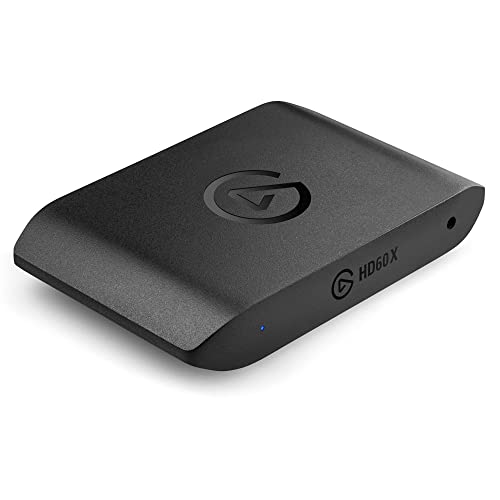
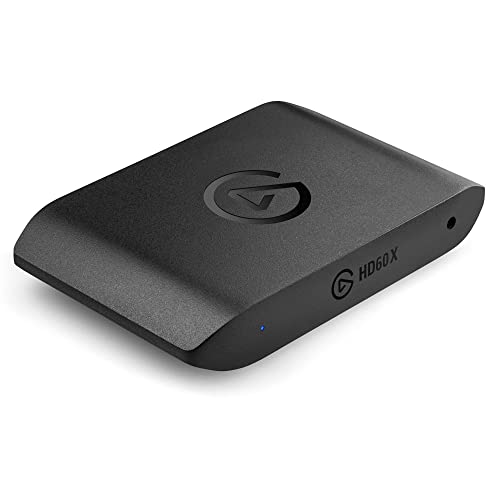
The Elgato HD60 X is a widely chosen starting point in this product family, and it earns a place on a shortlist by being considered against your source, your computer, and your routine rather than by headline claims. Ask whether its connection style suits a portable or a permanent desk, whether it matches the output your source is actually set to, and whether its maker’s software and support suit the way you work. Best for: a buyer whose source and goals line up with its intended class. Not suited for: a buyer expecting any card to improve the source’s own picture, or needing to capture protected content, which no card in this guide is for.
Strengths / Trade-offs: a recognised name with a clear intended audience and a place in a balanced setup, balanced against the need to verify current details on the maker’s own listing and the reality that accessories, cables, and storage still sit with you.

Elgato 4K X
The Elgato 4K X is a step-up option for demanding sources in this product family, and it earns a place on a shortlist by being considered against your source, your computer, and your routine rather than by headline claims. Ask whether its connection style suits a portable or a permanent desk, whether it matches the output your source is actually set to, and whether its maker’s software and support suit the way you work. Best for: a buyer whose source and goals line up with its intended class. Not suited for: a buyer expecting any card to improve the source’s own picture, or needing to capture protected content, which no card in this guide is for.
Strengths / Trade-offs: a recognised name with a clear intended audience and a place in a balanced setup, balanced against the need to verify current details on the maker’s own listing and the reality that accessories, cables, and storage still sit with you.

AVerMedia Live Gamer
The AVerMedia Live Gamer is an alternative worth comparing on connection style in this product family, and it earns a place on a shortlist by being considered against your source, your computer, and your routine rather than by headline claims. Ask whether its connection style suits a portable or a permanent desk, whether it matches the output your source is actually set to, and whether its maker’s software and support suit the way you work. Best for: a buyer whose source and goals line up with its intended class. Not suited for: a buyer expecting any card to improve the source’s own picture, or needing to capture protected content, which no card in this guide is for.
Strengths / Trade-offs: a recognised name with a clear intended audience and a place in a balanced setup, balanced against the need to verify current details on the maker’s own listing and the reality that accessories, cables, and storage still sit with you.

Razer Ripsaw
The Razer Ripsaw is a compact option for simpler desks in this product family, and it earns a place on a shortlist by being considered against your source, your computer, and your routine rather than by headline claims. Ask whether its connection style suits a portable or a permanent desk, whether it matches the output your source is actually set to, and whether its maker’s software and support suit the way you work. Best for: a buyer whose source and goals line up with its intended class. Not suited for: a buyer expecting any card to improve the source’s own picture, or needing to capture protected content, which no card in this guide is for.
Strengths / Trade-offs: a recognised name with a clear intended audience and a place in a balanced setup, balanced against the need to verify current details on the maker’s own listing and the reality that accessories, cables, and storage still sit with you.
Related Reading on This Site
Capture work touches the rest of your desk, so these companion guides round out the picture on displays, controls, storage, and sound.
capture card review guide capture card reviews compared capture card buying guide capture card pros and cons monitors for gaming and streaming keyboards for streaming setups webcams for your monitor setup SD cards for videography
Deeper Discussion: Living With the Setup
The card delivers a signal, but software does the visible work of recording and streaming, and your experience will be shaped as much by that software as by the hardware. Before you buy, think about which application you will open every session, how you will name and store files, and how you will check levels and framing before you go live. A simple, repeatable software routine beats a powerful but fiddly one for most people, because the routine is what you will actually follow on a tired evening. Test the workflow with built-in capture first if you can, so you learn what you like before spending anything.
Professionals test in short, boring, repeatable ways. Record a brief clip, play it back fully, check picture, sound, and sync, then change one setting and repeat. Keep a small notebook of what worked: source settings, card input, software settings, and file locations. That notebook becomes gold the day something changes after an update or a tidy desk. Resist the urge to adjust five things at once before a real session. A setup you understand beats a setup that merely worked once, because understanding is what lets you recover quickly when, not if, something drifts.
Some content is protected, and protected content cannot be captured. That is a firm boundary, not a puzzle to work around, and this guide offers no circumvention instructions of any kind. A capture card is for your own gameplay, your own cameras, and material you have the right to record. If a source shows a blank or blocked image when protection is active, the correct response is to record something else you own or to use the source exactly as its maker intended for viewing. Building your plans around your own content from the start avoids disappointment and keeps the whole hobby on solid, respectful ground.
Waiting is a legitimate buying strategy. If you record only occasionally, if your source is about to change, or if built-in capture still meets your needs, there is no prize for buying early. Prices, bundles, and line-ups change, and your own requirements will be clearer after a few more months of recording the simple way. Set a concrete trigger for revisiting the decision, such as publishing weekly, adding a camera to your layout, or moving to a two-computer setup. A trigger turns vague someday-thinking into a clean decision, and it protects you from buying capable hardware that sits in a drawer.
The happiest owners share a pattern: they had one clear job in mind, they matched the card to a source they understood, and they built a simple routine around it. They record regularly, so the setup stays familiar. They do not chase every new model, because their current chain already does the job they bought it for. Unhappy owners often bought for an imagined future setup, or expected the card to improve a weak source, or never settled a repeatable software routine. None of that is about intelligence; it is about fit, expectations, and habit, all of which you can get right before you spend.
A capture card sits between a source and a computer and turns the video signal from a console, a second computer, or a camera into something recording and streaming software can use. It does not improve the source’s own picture, and it is important to say that plainly: the card passes through and records what the source outputs, nothing more. If a game renders softly, if a camera sensor struggles in low light, or if a console is set to a modest output, the recording will faithfully show all of that. What the card adds is a bridge, a clean way to get that signal into software where you can record it, stream it, add commentary, and archive it.
Most capture frustration is really cable frustration in disguise. Use sound, well-seated cables of sensible length, connect them in a calm order, and label both ends once the setup works. A loose connection can imitate a faulty card, and a cable swapped during tidying can quietly change which signal arrives where. Keep one known-good spare cable in the drawer, because swapping a cable is the fastest diagnostic you own. When something fails, change one thing at a time and test again, so you learn which change mattered instead of ending up with a working setup you cannot explain or repeat.
Judge value across the life of the setup, not on the day of unboxing. A card that you use weekly for years, that starts reliably, and that fits sources you actually own earns its place many times over. A more ambitious card that complicates every session quietly taxes you in time and motivation. Consider also the wider chain: a suitable card with a decent microphone and tidy lighting for a camera feed usually serves an audience better than an ambitious card paired with neglected audio and light. Spend in the order your audience will notice, and let the card be one considered part of a balanced whole.
Viewers forgive modest video far more readily than bad audio, so give sound a plan of its own. Decide where commentary comes from, how game or camera audio travels, and how you will listen while you record without sending your own monitoring back into the recording. Make one short test recording and listen to all of it on headphones before any real session. Note where voices sit against the source audio, whether any hum or echo appears, and whether anything clips when the action gets loud. Fixing one audio problem in a calm test is far easier than rescuing a long recording afterwards.
External cards that connect over USB are portable, easy to move between computers, and easy to lend, borrow, or pack away when a desk needs to become a desk again. Internal cards that sit in a desktop expansion slot are tidier, stay permanently wired, and suit a fixed studio where nothing moves. Neither approach is automatically better, and neither changes what the source itself produces. Choose based on how stationary your setup really is. A creator who records in two rooms will value portability every week, while a creator with one permanent streaming desk will value a clean, always-ready installation just as often.
The preview inside recording software is not always instant, which is why passthrough to your own screen matters for anything fast or interactive. Play, present, and perform to the passthrough screen, and treat the software preview as a framing and levels check rather than as your live view. If you follow that one habit, small delays in the preview stop mattering in practice. New users often blame a card for delay that is really preview behaviour, so test the passthrough path first, arrange your screens so the real screen is the natural one to watch, and the problem usually disappears.
Start every decision with the source, not with the card. Note what your console, gaming computer, or camera is set to output, how it connects, and whether you ever change those settings between sessions. A card that matches a fixed, well-understood source is easy to live with for years. A card bought for a hypothetical future source often brings compromises in the present, in cost, in desk space, and in setup complexity. Write the source details down before you shop, keep that note beside you while you compare models, and let it overrule marketing language whenever the two disagree about what you need.
Recording creates large files quickly, and a card is only as useful as the storage routine behind it. Decide where recordings land, how they are named, and when they move to longer-term storage or get deleted. Check free space before long sessions, not during them. Keep project files, finished edits, and raw captures in clearly separate places so a tidy-up never deletes the only copy of something you need. This unglamorous discipline is what turns occasional recording into a reliable archive, and it matters more to your long-term output than small differences between otherwise suitable cards.
A capture setup lives on a real desk in a real room. Leave air around devices, keep cables from pulling at connectors, and arrange things so a long session does not mean a hot, noisy, tangled workspace. External cards should sit where their indicator lights are visible and their cables are not strained. Internal cards should be installed with the computer off and properly shut down, following the maker’s own instructions. Small physical kindnesses like these prevent a surprising share of intermittent faults, and intermittent faults are the hardest kind to diagnose because they hide whenever you go looking for them.
More Practical Notes Before You Decide
Some content is protected, and protected content cannot be captured. That is a firm boundary, not a puzzle to work around, and this guide offers no circumvention instructions of any kind. A capture card is for your own gameplay, your own cameras, and material you have the right to record. If a source shows a blank or blocked image when protection is active, the correct response is to record something else you own or to use the source exactly as its maker intended for viewing. Building your plans around your own content from the start avoids disappointment and keeps the whole hobby on solid, respectful ground.
The happiest owners share a pattern: they had one clear job in mind, they matched the card to a source they understood, and they built a simple routine around it. They record regularly, so the setup stays familiar. They do not chase every new model, because their current chain already does the job they bought it for. Unhappy owners often bought for an imagined future setup, or expected the card to improve a weak source, or never settled a repeatable software routine. None of that is about intelligence; it is about fit, expectations, and habit, all of which you can get right before you spend.
Passthrough is the part of the chain you actually play or present on. The source signal continues to your television or monitor so you can respond in real time, while a second copy travels to the computer for recording. That split is the whole reason the device exists, and it is also why matching matters so much. Cards differ in the passthrough and capture resolutions they support, and in how they handle faster-refresh signals, so the sensible question is never which card sounds most impressive in isolation. The sensible question is whether the card matches the output your source actually produces and the result you actually intend to publish.
Waiting is a legitimate buying strategy. If you record only occasionally, if your source is about to change, or if built-in capture still meets your needs, there is no prize for buying early. Prices, bundles, and line-ups change, and your own requirements will be clearer after a few more months of recording the simple way. Set a concrete trigger for revisiting the decision, such as publishing weekly, adding a camera to your layout, or moving to a two-computer setup. A trigger turns vague someday-thinking into a clean decision, and it protects you from buying capable hardware that sits in a drawer.
Recording creates large files quickly, and a card is only as useful as the storage routine behind it. Decide where recordings land, how they are named, and when they move to longer-term storage or get deleted. Check free space before long sessions, not during them. Keep project files, finished edits, and raw captures in clearly separate places so a tidy-up never deletes the only copy of something you need. This unglamorous discipline is what turns occasional recording into a reliable archive, and it matters more to your long-term output than small differences between otherwise suitable cards.
A capture card sits between a source and a computer and turns the video signal from a console, a second computer, or a camera into something recording and streaming software can use. It does not improve the source’s own picture, and it is important to say that plainly: the card passes through and records what the source outputs, nothing more. If a game renders softly, if a camera sensor struggles in low light, or if a console is set to a modest output, the recording will faithfully show all of that. What the card adds is a bridge, a clean way to get that signal into software where you can record it, stream it, add commentary, and archive it.
Professionals test in short, boring, repeatable ways. Record a brief clip, play it back fully, check picture, sound, and sync, then change one setting and repeat. Keep a small notebook of what worked: source settings, card input, software settings, and file locations. That notebook becomes gold the day something changes after an update or a tidy desk. Resist the urge to adjust five things at once before a real session. A setup you understand beats a setup that merely worked once, because understanding is what lets you recover quickly when, not if, something drifts.
Most capture frustration is really cable frustration in disguise. Use sound, well-seated cables of sensible length, connect them in a calm order, and label both ends once the setup works. A loose connection can imitate a faulty card, and a cable swapped during tidying can quietly change which signal arrives where. Keep one known-good spare cable in the drawer, because swapping a cable is the fastest diagnostic you own. When something fails, change one thing at a time and test again, so you learn which change mattered instead of ending up with a working setup you cannot explain or repeat.
Start every decision with the source, not with the card. Note what your console, gaming computer, or camera is set to output, how it connects, and whether you ever change those settings between sessions. A card that matches a fixed, well-understood source is easy to live with for years. A card bought for a hypothetical future source often brings compromises in the present, in cost, in desk space, and in setup complexity. Write the source details down before you shop, keep that note beside you while you compare models, and let it overrule marketing language whenever the two disagree about what you need.
Viewers forgive modest video far more readily than bad audio, so give sound a plan of its own. Decide where commentary comes from, how game or camera audio travels, and how you will listen while you record without sending your own monitoring back into the recording. Make one short test recording and listen to all of it on headphones before any real session. Note where voices sit against the source audio, whether any hum or echo appears, and whether anything clips when the action gets loud. Fixing one audio problem in a calm test is far easier than rescuing a long recording afterwards.
Frequently Asked Questions
Does a capture card improve picture quality?
No, and this is the most important expectation to set. A capture card passes through and records what your console, computer, or camera outputs. If the source picture is soft, dark, or modest, the recording will show exactly that. Improve the source first: set its output sensibly, light a camera scene properly, and only then judge what the card delivers. People who understand this before buying are consistently happier, because they judge the card on the job it actually does, which is moving a signal cleanly into software.
Can I capture protected content?
No. Content protected by HDCP cannot be captured, and this guide gives no instructions for getting around that protection. A capture card is for your own gameplay, your own cameras, and material you have the right to record. If a protected source shows a blank image in your software, that is the protection working as designed. Plan your recording around content you own and create, and treat any buying decision that depends on capturing protected material as a decision to reconsider before you spend anything.
Should I choose a USB or an internal card?
Choose by how stationary your setup is. An external USB card is portable, moves between computers easily, and packs away when the desk is needed for other work. An internal card suits a fixed desktop studio where everything stays wired and tidy. Neither improves the source picture, and neither is automatically more capable for every source. Match the form to your room and habits first, then match the specific model to your source output and your recording goal, and you will have made the decision in the right order.
Do I need a capture card to start streaming?
Often, no. Many consoles and computers offer built-in recording and streaming that is entirely good enough to learn with, and starting there costs nothing and adds no cables. A separate card earns its place when you want a camera alongside gameplay, longer recordings under your own control, a second computer handling the stream, or a dedicated routine you repeat every week. Try the built-in route honestly first. If it meets your needs, keep your money. If it frustrates you in specific, nameable ways, those frustrations become your shopping list.
Why is my software preview delayed?
A small delay in the recording software preview is common and is not, by itself, a fault. Play or present using the passthrough signal on your television or monitor, which is there precisely so you can respond in real time. Use the software preview to check framing, levels, and overlays. Arrange your screens so the passthrough display is the one you naturally watch during a session. Once that habit is in place, preview delay stops being a practical problem for most people, including in fast games.
What should I test before my first real session?
Record a short test, watch and listen to all of it, and check picture, sound, and sync together. Confirm the source is set as you expect, confirm commentary sits sensibly against the source audio, and confirm the file landed where you intended with a name you will recognise later. Note the settings that worked. That ten-minute ritual, repeated calmly, prevents nearly every common first-session disaster, and it turns your setup from something that worked once into something you understand and can rebuild after any change.