Disclosure: As an Amazon Associate, ilcastellomenu.com earns from qualifying purchases. Links on this page are affiliate links; they cost you nothing extra. Prices and availability change often, so check the current Amazon listing before you buy.
Most nvme ssd enclosure reviews read like a spec sheet recital, so this roundup is built differently: every enclosure here is judged on the four things that decide ownership — the interface class it honestly belongs to, the thermal design that decides its sustained pace, the build you will feel every day, and the life it fits. The field is represented by four real product lines that between them cover the territory: the Acasis TBU405 for the Thunderbolt desk, the Sabrent Rocket Nano for the pocket, the ASUS ROG Strix Arion for the gaming-flavoured all-rounder, and UGREEN’s aluminium enclosures for the sensible middle. If you want the single-subject deep dive instead, start with our nvme ssd enclosure review; if you want the buying steps, go to how to choose an nvme ssd enclosure.
A note on method, because it shapes every judgement below. These are class reviews written from the products’ designs, stated specifications and ownership patterns — not a laboratory league table, and deliberately not a list of benchmark numbers, because a benchmark number without your port, your cable and your workload attached to it is a number about somebody else’s desk. Where a model sits in a tier, the tier is given in words. Check the current listing for the model that interests you, and read the interface section of this roundup before any model’s section, because it will tell you which models are even eligible for your machines.
Key Takeaways
- There is no best enclosure — there are four good answers to four different lives: Thunderbolt desk, pocket carry, gaming all-round, and sensible middle.
- Interface class is eligibility, not preference: a Thunderbolt enclosure on a non-Thunderbolt machine is money spent on a locked door.
- Sustained-write behaviour separates the field more honestly than any headline speed; shells and thermal pads are the deciding hardware.
- The bundled cable is part of the product; judge and troubleshoot with it before judging anything else.
- Every model here is prose-reviewed with tier positioning in words — no invented figures, no borrowed benchmark theatre.
In this guide
How These Reviews Were Put Together
Each enclosure was assessed against the same rubric so the verdicts can be compared across the page. Interface and eligibility: which host ports let the enclosure show its real pace, and which leave it ordinary. Thermal design: shell material and construction, how the drive’s heat is invited out, and what that implies for long transfers. Build and handling: how the shell opens, how the drive mounts, how the whole thing survives a bag. Daily manners: connection behaviour, sleep behaviour, cable practicality. And fit: the specific owner whose life this design serves, stated as plainly as the owner it does not serve.
Two rubric decisions deserve defending. First, no star-style scores: a single number would pretend that a pocket enclosure and a Thunderbolt desk enclosure are running the same race, and they are not. Second, sustained behaviour outranks burst behaviour in every verdict, because bursts flatter everything. A two-minute copy makes heroes of the whole shelf; a thirty-minute ingest tells the truth. If your own transfers are all short, mentally promote the compact models one place in your personal ranking — the rubric says so openly rather than hiding the assumption.
Why the Interface, Not the Enclosure, Sets Your Speed Ceiling
Every NVMe drive is fast on paper, and almost none of that paper speed survives the trip through a cable. The reason is simple: an enclosure is a translator. On one side it speaks to the NVMe stick over PCIe lanes; on the other side it speaks to your computer over USB or Thunderbolt. The slower of those two conversations is the speed you actually get, no matter what the drive inside could do on a motherboard. This is the single most misunderstood point in the whole category, and it is why two enclosures holding the exact same drive can feel completely different in daily use.
USB generations are the first trap. A port described loosely as USB-C might carry an older, slower USB generation, a mid-tier generation, or one of the genuinely fast modern ones, and the connector shape tells you nothing by itself. Enclosure listings lean into that confusion with big drive-side numbers, but the honest figure is always the host-side generation the bridge chip supports, matched against the generation your computer’s port supports. The chain runs at the speed of its weakest link: drive, bridge chip, cable, and host port all vote, and the slowest vote wins.
The practical takeaway is to shop backwards. Start with the ports you actually own, on the machines you actually use, and let that decide which class of enclosure makes sense. Buying a faster class than your ports can feed is not future-proofing so much as paying for headroom you may never open, while buying a slower class than your ports can feed leaves real performance on the table every single day. Neither mistake breaks anything; both are simply money and speed quietly misaligned.
The Reviews
Acasis TBU405 — Best for the Thunderbolt Desk
The Acasis TBU405 is what happens when an enclosure is designed around a single conviction: that the owner’s time is worth more than the hardware. It belongs to the Thunderbolt class, housed in metal, aimed squarely at machines with Thunderbolt ports and owners whose transfers are measured in hundreds of gigabytes — footage, disk images, project archives. In that habitat it is the reference design of this roundup: the widest path for the drive, a shell built to work as a heatsink through long sessions, and a general air of an instrument rather than an accessory. Its tier is premium, and for its intended owner the tier is defensible in the only currency that matters, which is minutes returned daily.
Outside that habitat the verdict inverts, and honesty requires saying so in the review rather than the fine print. On a machine without a Thunderbolt port, the TBU405’s reason to exist evaporates; you would own a well-made enclosure performing an ordinary job at an extraordinary tier. It is also a desk-first design: not the thing you forget in a jacket pocket, but the thing that lives beside a workstation. Best for: video editors, developers and power users on Thunderbolt machines with daily heavy transfers. Not suited for: anyone whose ports cannot feed it, or whose transfers are weekly and light.
Sabrent Rocket Nano — Best for the Pocket
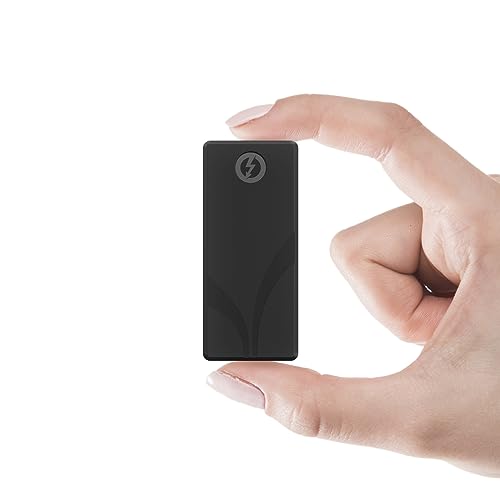
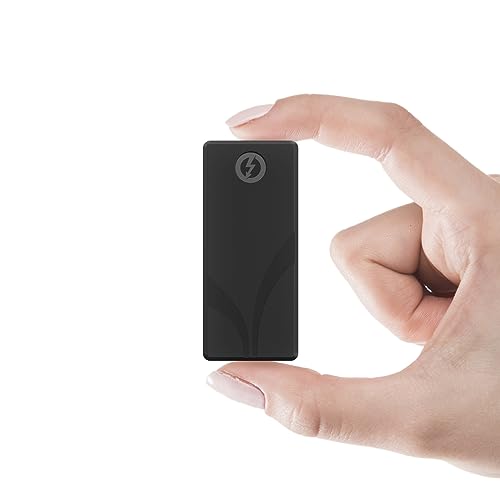
The Sabrent Rocket Nano starts from the opposite conviction: that the best storage is the storage that is actually with you. The Nano line shrinks the enclosure toward the dimensions of the drive inside it, in an aluminium shell, and the result is the most carryable design in this roundup — the one that lives in the same pouch as its cable and is therefore present for the unscheduled copy, the borrowed machine, the hotel-room backup. In burst-sized real life — documents, photo batches, project folders — it feels every bit as quick as its larger rivals, because bursts are where small enclosures pay no tax.
The tax arrives on marathons. A tiny shell has little metal to absorb heat and little surface to shed it, so sustained writes lean on the drive’s own throttling sooner than in the bigger designs here. That is not a flaw in the Nano’s execution; it is the physics its size signed up for, and Sabrent’s audience — travellers, field workers, students, anyone whose desk is wherever they are — rarely writes for thirty unbroken minutes. Its tier is the mid range, which for this much portability is the right neighbourhood. Best for: mobile workers whose transfers are frequent and short. Not suited for: sustained ingest work or as a permanently-attached desktop drive.
ASUS ROG Strix Arion — Best Gaming-Flavoured All-Rounder
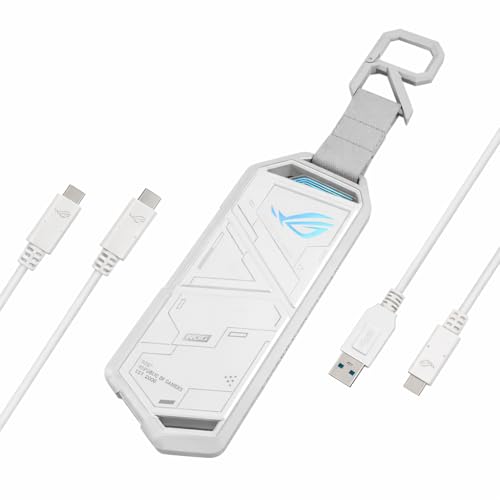
The ASUS ROG Strix Arion is the enclosure as a piece of gaming kit: an aluminium shell with a tool-free design, a detachable protective frame in the box, and the Republic of Gamers styling — including lighting — that makes it belong beside a gaming laptop rather than apologise for existing. Strip the styling away and the fundamentals are respectable: metal construction for heat, easy drive swaps for people who treat game libraries like cartridges, and a mainstream USB interface class that plugs happily into the machines gamers actually own, consoles’ storage rules permitting. It sits in the mid-to-premium tier, the premium bought with design and extras rather than a faster interface class.
That last sentence is the honest core of its review. If you strip your buying decisions to cost per capability, the Arion’s lighting and armour are indulgences. If your setup is a curated gaming desk where objects earn their place visually as well as functionally, those indulgences are the point, and the enclosure underneath them is genuinely competent rather than a toy. Its swap-friendly design also makes it the roundup’s natural pick for the household with several drives and one enclosure. Best for: gamers who move libraries between machines and care how the desk looks. Not suited for: minimalists, or Thunderbolt owners chasing the widest path. Readers weighing console libraries should also see the best external SSDs for PS5 for the sealed alternative.
UGREEN NVMe Enclosure — Best Sensible Default
UGREEN’s aluminium NVMe enclosures are the roundup’s default recommendation for the reader who has no special circumstance — which is most readers. The formula is unglamorous and correct: a metal shell that works as a heatsink, a mainstream USB interface class matched to the ports most machines actually have, straightforward drive installation, and pricing in the entry-to-mid tier where an accessory for a spare drive belongs. It is the enclosure you buy when the drive was free — rescued from an upgraded laptop — and the whole project should stay proportionate. Nothing about it will headline a desk setup, and nothing about it will embarrass one either.
Its limits are the limits of its brief. It is not the widest path for a Thunderbolt desk, not the smallest object for a pocket, and its thermal design, while honest metal, is not the finned heavyweight a daily ingest station wants. But defaults are not supposed to win specialist contests; they are supposed to be right for the median week, and for the median week — mixed files, mixed machines, a backup on Sunday — this archetype is right with money left over for the drive, where money does more good. Best for: first-time enclosure buyers and spare-drive rescues. Not suited for: professionals billing by the hour or minimalists counting grams.
Nvme Ssd Enclosure Reviews Compared, in Words
Side by side, the four divide cleanly. On interface ambition, the Acasis stands alone in the Thunderbolt class while the other three share the mainstream USB class and compete on everything else. On portability, the order reverses: the Sabrent is the pocket design, the UGREEN and ASUS travel adequately, and the Acasis is desk furniture. On sustained-write temperament, metal mass is destiny — the larger, heatsink-minded shells hold their pace longest, the Nano trades that away for size with open eyes. On swaps, the ASUS’s tool-free friendliness leads; on value, the UGREEN’s tier leads. There is no column in which one model wins everything, which is the surest sign the roundup is describing real products rather than a coronation.
Notice what is not in that comparison: a row of speed figures. That absence is the roundup’s thesis. The figures that would fill such a row belong to specific drives, ports and cables, and printing them here would mislead more than silence does. What can be promised in print is the ordering logic — interface class first, thermal design second, fit third — and it is the same logic formalised in how to choose an nvme ssd enclosure and stress-tested against your wallet in is an nvme ssd enclosure worth it.
Heat, Throttling and the Sustained-Write Problem
NVMe drives are sprinters that get asked to run marathons. Inside a computer, a stick sits in open air, often under a motherboard heatsink, and it can shed heat between bursts of work. Inside a sealed enclosure the same stick works in a tiny metal room with almost no airflow, and during a long sustained write — a big backup, a footage ingest, a game library move — its controller heats up until it protects itself the only way it can: by slowing down. That slowdown is called throttling, and every enclosure buyer meets it eventually.
Throttling is not a defect and it is not the enclosure cheating you. It is physics being enforced by firmware. What separates good enclosures from poor ones is how long the sprint lasts before the slowdown arrives and how gracefully speeds settle afterwards. A shell that conducts heat away from the drive stretches the fast period; a shell that insulates the drive, however pretty, shortens it. Short transfers hide the issue completely, which is why first impressions and quick benchmarks flatter almost every enclosure ever sold.
Judge an enclosure by your longest regular transfer, not your shortest. If your biggest routine job finishes in a couple of minutes, heat is a minor character in your story. If you routinely write for ten, twenty or thirty minutes at a stretch, thermal design becomes the main character, and it deserves more of your budget than connector fashion or bundled extras. Warm to the touch during a long copy is normal and even reassuring — it means the shell is doing its job as a radiator. Too hot to hold comfortably, paired with collapsing speeds, is the design telling you it has run out of answers.
The Cable in the Box Deserves More Respect
More enclosure disappointment traces back to cables than to enclosures. A cable that is charge-only, or built for an older and slower USB generation, will quietly cap a fast enclosure at a fraction of its pace, and nothing in the system will warn you — the drive simply feels mediocre. The short cable bundled with a good enclosure is usually chosen to match its speed class, which is why the first rule of troubleshooting a slow enclosure is to go back to the bundled cable before blaming anything else.
Length matters too. High-speed signals degrade over distance, so the comically long cable that is convenient for a desk setup may be exactly what drags a connection down a generation. If you need reach, buy a cable that is explicitly rated for the data generation you are using, keep it as short as the desk honestly allows, and treat bargain-bin cables as accessories for charging, not for data. A cable is a component of the storage system, not an afterthought, and it should be budgeted and chosen with the same care as the enclosure itself.
Adapters deserve the same suspicion. A USB-C to USB-A adapter can be perfectly fine, but it inserts another negotiation into the chain and another possible ceiling. When an enclosure underperforms, the diagnostic order that saves the most time is: bundled cable first, direct port second, no hub third, and only then questions about the drive or the enclosure. Most mysteries surrender at step one.
What the Reviews Agree On
Four different designs, four different audiences — and a striking amount of common ground, which is worth collecting because it amounts to the category’s constitution. All four are metal, because the shell is the cooling system and every serious maker knows it. All four live or die by their bundled cable. All four are capped by the host port, not by their own ambition. And all four become dramatically better purchases when the buyer has verified the three compatibility gates — protocol, length, keying — before checkout. When every competitor in a roundup agrees on the physics, the physics is the review.
Drive Compatibility: Lengths, Keys and the SATA Trap
Not every stick that looks like an NVMe drive is one, and not every NVMe drive fits every enclosure. Compatibility has three separate gates, and a drive must pass all of them. The first gate is protocol: most enclosures in this class accept NVMe drives only, while older M.2 SATA drives use a different language despite sharing a similar connector family. A SATA stick in an NVMe-only enclosure is not slow — it is silent, unrecognised, a drive that simply never appears. Listings that support both protocols exist, but you must confirm that support explicitly rather than assume it.
The second gate is physical length. M.2 drives come in several lengths, with the longest desktop-style format being the most common and shorter formats appearing in handhelds, tablets and compact laptops. Enclosures state which lengths they accept and hold the drive with a mounting post or clip at the right position. A drive that is too long for the shell is an obvious problem; a drive shorter than the only mounting point is the subtler one, wobbling on its connector and stressing it every time the enclosure is moved.
The third gate is keying — the notch pattern on the connector edge — which exists precisely to stop incompatible combinations, and which should be respected rather than forced. The calm way through all three gates is to read your drive’s own label and listing, confirm protocol, length and key against the enclosure’s stated support, and only then buy. Five minutes of label-reading prevents the single most common return in this entire category.
Buying-Guide Layer: Matching a Reviewed Enclosure to Your Life
Work through three questions in order and the roundup selects itself. First, eligibility: list your machines’ best ports. If Thunderbolt is present and your transfers are heavy and daily, the Acasis is your shortlist of one. Second, habitat: if the enclosure will live in a bag, the Sabrent’s size outranks everything else on this page; if it will live on a gaming desk and be opened often, the ASUS earns its tier. Third, proportion: if neither special case is yours, the UGREEN default is not a compromise but the correct answer, and the savings belong in the drive. Readers whose real question is whether to enter the category at all should detour to portable ssd vs usb flash drive before spending anything.
Burst Speed Versus Sustained Speed: Which One Is Your Life?
Almost every glowing impression of a fast enclosure is a burst impression: a few gigabytes copied, a benchmark run, a large file that lands quickly. Bursts are real and they matter — most daily transfers are bursts. But some lives are not made of bursts. The video editor ingesting a day of footage, the photographer offloading a wedding, the player moving an entire game library to a new machine: these are sustained workloads, long continuous writes where heat accumulates and the enclosure’s true character shows itself.
Knowing which life is yours changes what a good purchase looks like. Burst-dominant users should weight compatibility, size, build and price, because nearly any competent enclosure will feel quick in their hands. Sustained-dominant users should weight thermal design, shell material and pad contact above almost everything, because those decide whether minute fifteen looks anything like minute one. Both users are right; they are simply shopping for different products that happen to share a shelf.
A simple self-test settles it: think of the largest file movement you did last month and how long it took. If you cannot remember one longer than a coffee break, you are a burst user and can buy with a light heart. If you can picture yourself watching a progress bar while doing something else, you are a sustained user, and the enclosure’s cooling deserves the same seriousness you would give the drive inside it.
How-To Layer: Getting Any of These Running Well
Whichever model you choose, the first hour decides the ownership. Install the drive with the care the full guide in how to install nvme ssd enclosure lays out — static-aware handling, thermal pad contact confirmed, shell closed without force. Format with the filesystem your machines share, name the volume something you will recognise in a year, and run one deliberately long test transfer while the enclosure is still returnable: that single act verifies the cable, the port, the pad contact and the thermal behaviour in one pass. Then set up the second copy — because the fastest enclosure in this roundup is still one drive, and one drive is not a backup, a point the owners of the best external hard drives for long-term storage learned before you.
Travel, Pockets and the Physics of Being Carried
A portable drive’s real environment is not a desk; it is a pocket, a bag, a car console in summer, a hotel room in a hurry. Enclosures earn their keep there by being boring under abuse: a shell that does not creak or separate, a connector that is not strained by the cable’s weight, a size that disappears into the same pouch as the cable it needs. The most elegant enclosure in the world fails the travel test if its cable lives in a different bag.
Solid-state storage is inherently good at this life — no moving parts, tolerant of bumps that would frighten a spinning disk — but the enclosure still decides how the bumps arrive. A slightly rubberised or textured shell survives drops and grips surfaces; a polished shell looks wonderful in photographs and slides off hotel desks. Heat matters here too: a sealed bag pocket is a warm place, and an enclosure that has just finished a long backup should get a minute of open air before it is zipped away to cook gently among the chargers.
The travel habit that matters most is the oldest one: the drive in your bag is the copy, not the archive. Whatever it holds should also exist at home or in the cloud, because bags get left in taxis with a reliability that no product design can fix. Carry the enclosure boldly, use it everywhere — and let its loss be a story about a good shell, not about the only copy of anything.
Final Verdict
Buy the Acasis TBU405 if your ports and your workload can honour it. Buy the Sabrent Rocket Nano if your storage life happens away from a desk. Buy the ASUS ROG Strix Arion if your desk is a gaming setup and drive swaps are a hobby rhythm. Buy the UGREEN if none of those sentences described you — and know that ‘none of those’ is the majority, well served by the sensible default. The category’s only true failure mode is not picking the wrong one of these four; it is buying any enclosure before checking your ports, your drive’s protocol and length, and your backup plan. Check those, and every model in this roundup will do its job for years.
The Aluminium Shell Is a Heatsink, Not a Costume
Look at two enclosures side by side and the metal one can seem like a style choice. It is not. In a fanless enclosure — and nearly all of them are fanless — the shell is the cooling system. Heat travels from the drive’s controller into a thermal pad, from the pad into the shell, and from the shell’s outer surface into the room. Aluminium does this job well because it conducts heat readily and gives it a large area to leave from. Plastic shells, by contrast, hold heat in, which is why the cheapest enclosures so often pair the fastest marketing claims with the earliest throttling.
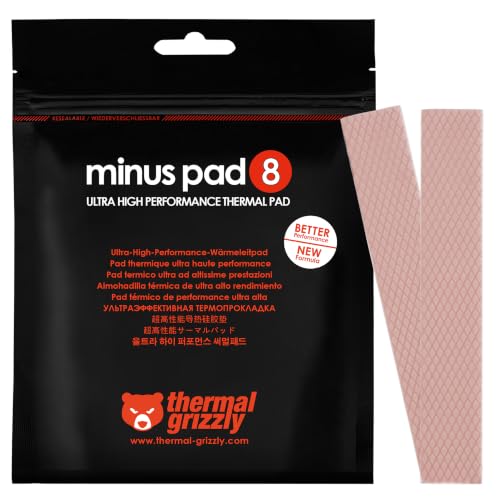
The thermal pad is the unsung part of that chain. It must actually touch both the drive and the shell, with even pressure and no air gap, to conduct anything at all. A pad that is too thin, misaligned, or left with its protective film on is a broken link that no amount of aluminium can rescue. When you install a drive, that small moment of care — pad placed flat, film removed, shell closed so contact is firm — decides more of your sustained performance than any specification printed on the box.
Ribbed and finned shells deserve their slightly industrial looks for the same reason: more surface area sheds more heat. A smooth minimalist shell can still perform well if the internal contact is good, but treat extreme slimness as a thermal compromise you are choosing knowingly. For desk-bound use, where the enclosure sits still for long transfers, a slightly chunkier finned design is often the quietly smarter buy. For pocket carry, you accept the compromise and simply plan around shorter bursts.
Formatting and Filesystems, Decided Once and Done Right
A freshly installed drive usually arrives blank, and the enclosure cannot fix the one decision you must make before it becomes useful: how it is formatted. The filesystem decides which of your devices can read and write the drive, and the right answer depends entirely on your household of machines. A drive that lives on one operating system can use that system’s native format and enjoy its best behaviour. A drive that travels between different systems needs one of the shared formats that all of them understand, accepting a few compromises in exchange for never being turned away at a foreign machine.
Two habits protect you here. First, format the drive in the enclosure it will live in, connected the way it will normally be connected, so the setup you test is the setup you keep. Second, remember that formatting erases: if the stick came out of a laptop with anything on it that matters, copy that material somewhere safe before the format, not after the sinking feeling. The format dialog will warn you, but warnings are easy to click through at midnight and impossible to appeal to in the morning.
Partition style is the quieter half of the same decision, and modern defaults handle it well — let the operating system’s disk tool choose its current standard unless you have a specific legacy device to satisfy. Once formatted, give the drive a recognisable name. Months later, among a drawer of identical-looking volumes, the name you chose in thirty seconds is what tells you which drive holds the photo archive and which one is safe to wipe.
Data Safety: An Enclosure Is Not a Backup
This needs saying plainly because enclosures invite the misunderstanding: putting a drive in an enclosure does not back anything up. A backup means your data exists in more than one place, so that the loss, failure or theft of one device is an inconvenience rather than a bereavement. A single drive in a handsome aluminium shell is still a single drive. It can be dropped, drowned, left in a taxi, corrupted by a bad ejection, or simply reach the end of its electronic life at an unhelpful moment, and everything on it goes with it.
The moments of greatest danger are the transitions this whole category is built around. Before you pull a working drive out of a laptop and install it in an enclosure, copy everything that matters to somewhere else first — another drive, a cloud account, anywhere that is not the drive being moved. Before you format a newly installed drive, check twice what is actually on it. Before you lend the enclosure, remember what else lives on it besides the file you are sharing. Transitions are where data dies, and they are entirely survivable with ten minutes of copying beforehand.
Once the enclosure is in service, build the pairing habit: the enclosure is the working or travelling copy, and something at home — a larger desktop drive, a network volume, a cloud sync — is the quiet second copy that makes the first one safe to use boldly. That pairing, not the enclosure’s build quality, is what actually protects a photo library, a thesis, or a decade of client work. Buy the enclosure for speed and convenience; build the backup for survival.
Handling a Bare NVMe Stick Without Hurting It
An NVMe drive outside a computer looks sturdy, and mostly it is, but it deserves the handling you would give any bare circuit board. The controller and memory chips on its surface can be damaged by static discharge — the same tiny spark that jumps from a fingertip to a doorknob in winter — and the damage is invisible, announcing itself later as a drive that never appears or fails early. You do not need a laboratory to be safe. You need a few seconds of principle-level care at exactly the moment of installation.
Work on a plain table rather than a bed or carpet, and touch something metal and grounded — the enclosure shell itself, a radiator, a plugged-in appliance’s casing — before you pick the drive up, so any charge on you equalises harmlessly. Hold the stick by its edges, the way you would hold a photograph you cared about, keeping fingers off the gold connector contacts and off the chips. Keep the drive in its anti-static bag or on its packaging until the moment it goes in, and do not stack other components on top of it while it waits.
None of this is ceremony for its own sake. It takes under a minute, it costs nothing, and it removes an entire category of mysterious dead-on-arrival stories. The same care applies in reverse months later when you swap drives: power down, unplug, equalise, edges only. Bare electronics reward gentle hands with long, boring, reliable lives — which is exactly what storage is supposed to have.
What Ages, What Lasts: Owning an Enclosure for Years
An enclosure has almost nothing in it to wear out: a bridge chip, a connector, a shell. That simplicity is why good ones last for years and quietly outlive the drives inside them. What ages is the context around it — ports evolve, your machines change, the drive you install today becomes the small drive you upgrade past tomorrow. Buying with one eye on that evolution means favouring standard, honestly-specified interfaces over exotic ones, and keeping the bundled cable and any spare thermal pads somewhere findable rather than in the box that went to recycling.
Thermal pads are the one consumable. A pad that has been compressed through one installation may not make perfect contact in a second enclosure or under a replacement drive, and fresh pads are cheap, generic and easy to keep. If you swap drives often, a small stock of pads in the desk drawer is the difference between a five-minute job and a week of running warm while a delivery crawls toward you. Screws, too, deserve a home: one small labelled envelope has saved more installations than any tool.
The drive inside keeps its own ledger. Solid-state drives track their health and remaining life through standard reporting that the maker’s software can read, and an annual glance at that report — painless while the drive lives in an enclosure you can plug into anything — turns surprise failures into planned upgrades. Longevity in storage is rarely about buying the toughest product. It is about small acts of attention, spaced widely, performed before they are urgent.
TRIM, UASP and the Background Housekeeping You Never See
Solid-state drives stay fast by tidying up after themselves, and the tidying depends on the host being able to tell the drive which blocks are no longer in use — the housekeeping instruction commonly called TRIM. Across a USB bridge, that instruction does not always pass through; it depends on the bridge chip, the enclosure’s firmware and the operating system cooperating. Enclosures whose bridges support the relevant USB protocol features let the drive maintain itself properly, which matters most for drives that are filled and emptied repeatedly.
For the way most people use an enclosure — a working drive for projects, media or game libraries — the practical effect is modest but real: a drive that can tidy itself holds its write pace better over months of churn, while a drive that cannot may gradually feel less eager on writes even though nothing is broken. It is not a reason to panic about any particular model, but it is a legitimate tiebreaker between two otherwise equal enclosures, and it is one of the few specification lines worth reading all the way to the end.
The related habit is simply to leave a little free space. A nearly full SSD has nowhere to shuffle data, and its housekeeping slows no matter how good the bridge is. Keeping a sensible margin of empty room on an enclosure drive is free performance insurance, and it pairs with the oldest advice in storage: the fuller and busier a drive is, the more it deserves a proper backup standing behind it.
Tool-Less Designs Versus Screws: A Small Choice With Daily Consequences
Enclosures open in one of two philosophies. Tool-less designs use sliding shells, clips or rubber mounts so a drive can be swapped in seconds with bare hands. Screwed designs ask for a small screwdriver and a minute of patience, and in exchange they typically clamp the drive and its thermal pad with firmer, more consistent pressure. Neither philosophy is wrong; they are answers to different lives. The question is how often you honestly expect to open the thing.
If the enclosure is a permanent home for one drive — installed once, used for years — the opening mechanism barely matters, and the screwed design’s firmer thermal contact is arguably the better trade. If the enclosure is a workbench tool that hosts a rotating cast of drives — cloning a laptop this week, rescuing files from a retired machine next week — tool-less access pays for itself in the first month, and fiddly screws become the tax you resent every single time.
The middle path many good designs take is a tool-less shell with a positive locking feel and a pad sized generously enough to make contact forgiving. Whichever you choose, do a dry run: open and close the empty enclosure once when it arrives, so the mechanism is familiar before a real drive is in your other hand. Small fumbles are how connector edges get stressed and screws get lost into carpets, and both are optional experiences.
Checking a Nvme Ssd Enclosure Listing Against Reality: Variant, Contents and First Use: Comparing the Field
The strongest sign in a hands-on check is consistency: the same input should produce the same result on the first attempt and on the twentieth. Think about storage for the accessories this nvme ssd enclosure brings with it, so spare parts and tools end up in one known place instead of scattered across drawers. Check that nothing you place on, under or beside the nvme ssd enclosure blocks airflow, movement, visibility or access that the design quietly depends on. Write the exact model name and variant from the packaging into your notes, so replacement parts, accessories and support conversations start from certainty rather than guesswork.
As a concrete listing check, take the Acasis TBU405 and the Sabrent Rocket Nano named earlier in this article and confirm, line by line, that each variant offered matches the size, connection and contents described for it here. Measure the place where a nvme ssd enclosure will actually live, including the clearance you need to reach cables, doors, trays, vents or controls without moving everything else first. Recheck the return window and the condition requirements before you discard any packaging, especially for a nvme ssd enclosure whose fit only becomes clear after several real sessions. A calm final test is to walk away mid-task, come back later, and see whether the setup still makes sense at a glance without reconstructing what you were doing. When you check a single nvme ssd enclosure closely, work from the outside in: condition and finish first, then controls and connections, then behaviour during a real task from start to finish.
Notice how the nvme ssd enclosure behaves when you are tired or in a hurry, since products that demand perfect technique tend to fail exactly when you have least patience. Consider who else will use, move or clean around this nvme ssd enclosure, because a choice that only works for one careful owner often frustrates everyone else in the household or team. Give a new nvme ssd enclosure a fair trial in the position it was bought for before improvising workarounds, since many early complaints disappear once placement is corrected. Start this final check away from the listings, with the space, the equipment and the routine you already have written down in plain terms.
Plan where the cables or materials connected to this nvme ssd enclosure will run when the room is tidy, not just while you are testing on an empty surface. Take a quick photo of the working setup before you change anything, so cable routes, positions and settings can be restored exactly if the new arrangement disappoints. Judge the controls by whether you can use them without looking down or stopping your task, because that is how they will be used for most of their life. If two options look identical on paper, choose the one whose controls, layout or handling you understood fastest, since clarity in daily use beats a longer feature list you never touch. When you compare notes with other owners, match their comments to setups like yours, because advice from a very different room, workload or routine can mislead.
If you work in more than one place, decide whether this nvme ssd enclosure stays fixed in one spot or travels, and judge its size, weight and setup time accordingly. When a specification is stated in unfamiliar terms, translate it into your own routine: how long, how often, how far, how loud in practice, before letting it sway you. Check the connection points you rely on every day, and note which ones are already occupied, shared or awkward to reach once furniture is back in place.
Ask what you would do on the day this nvme ssd enclosure stops working as expected, and whether you could swap, reset, clean or return it without dismantling half your setup.
Frequently Asked Questions
Which enclosure in this roundup is fastest?
On the right machine, the Thunderbolt-class Acasis gives its drive the widest path and is the fastest here in sustained heavy work. On machines without Thunderbolt ports, that advantage disappears entirely, and the USB-class models perform as their interface allows. Fastest is therefore a property of the pairing between enclosure and computer, not of the enclosure alone — which is why this roundup ranks by fit rather than by a single speed figure.
Which one should a first-time buyer get?
For most first-time buyers, the sensible middle — represented here by UGREEN’s aluminium enclosures — is the right start: metal shell, mainstream interface, proportionate tier, forgiving installation. It covers the common jobs (spare-drive rescue, backups, project storage) without paying for a specialist ceiling. Graduate to a Thunderbolt or ultra-compact model later if your workload proves you need one; the drive inside moves with you.
Do I need a different enclosure for gaming?
Not for the storage itself — a game library is files like any other, and any model here can hold one. The gaming-flavoured design, represented by the ASUS ROG Strix Arion, earns its place through swap-friendly access, protective extras and desk styling rather than a different interface. Check your console’s own rules for external game storage before assuming any external drive can play titles directly rather than store them.
Why do these reviews avoid benchmark numbers?
Because a benchmark belongs to a whole chain — a specific drive, port, cable and workload — and printing one chain’s numbers as a product’s property misleads everyone whose chain differs. What transfers honestly between desks is the ordering logic: interface class caps speed, thermal design decides sustained pace, and fit decides satisfaction. Judge models by those, and test your own chain with one long transfer while returns are still easy.
Can one enclosure serve several drives?
Yes, and swap-friendly designs make it pleasant — the enclosure becomes a reader for a small library of sticks: a clone drive, a media drive, a rescue drive. Two cautions keep it pleasant. Thermal pads compress with use, so keep spares for a good seal on each swap, and label every bare stick the day it comes out of a machine, because unlabelled drives become mystery drives, and mystery drives eventually get formatted by optimists.
What should I check before ordering any of these?
Three gates and one plan. Confirm your drive is NVMe rather than M.2 SATA, confirm its length matches the enclosure’s mounting, and confirm the keying fits. Then confirm the plan: which ports it will use, which filesystem your machines share, and where the second copy of the data will live. Ten minutes of checking prevents nearly every return and every data scare this category produces.
Related Guides
Continue with the nvme ssd enclosure review deep dive, how to install nvme ssd enclosure, .