Disclosure: As an Amazon Associate, ilcastellomenu.com earns from qualifying purchases. Product links on this page may earn a commission at no extra cost to you.
The 5400 vs 7200 RPM hard drive debate is about how fast the platters spin: 7,200 revolutions per minute versus 5,400. Faster spin generally means data passes under the heads sooner, so a 7200 RPM drive usually feels a little more responsive — but it also tends to draw more power, run warmer and make more noise, which is why both speeds survive in the market.
This comparison explains where the difference is real, where it disappears, and which jobs suit each speed. If you are choosing a drive right now, the shortlist approach in How to Choose a Hard Drive puts RPM in its proper place: a secondary factor after job, capacity, form factor and recording technology.

Gear mentioned in this guide
The products below are examples that fit the situations described in this article. They are mentioned so you can picture the kind of hardware involved, not as a claim that one model suits every computer, console or NAS. Check the form factor, interface and capacity against your own system before you buy anything.
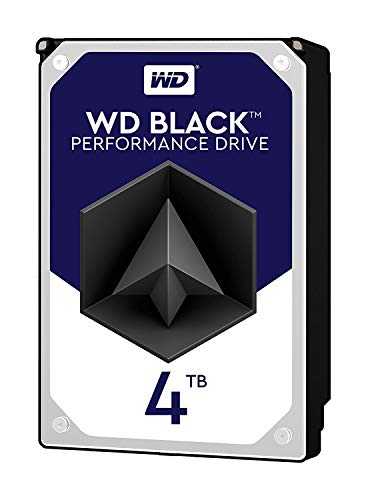
WD Black 4TB Performance HDD — Western Digital 4TB WD Black Performance Internal Hard Drive HDD – 7200 RPM, SATA 6 Gb/s, 256 MB Cache, 3.5″ – WD4005FZBX. Check on Amazon

Seagate BarraCuda 2TB HDD — Seagate BarraCuda 2TB Internal Hard Drive HDD – 3.5 Inch SATA 6Gb/s 7200 RPM 256MB Cache – Frustration Free Packaging (ST2000DM008/ST2000DMZ08). Check on Amazon

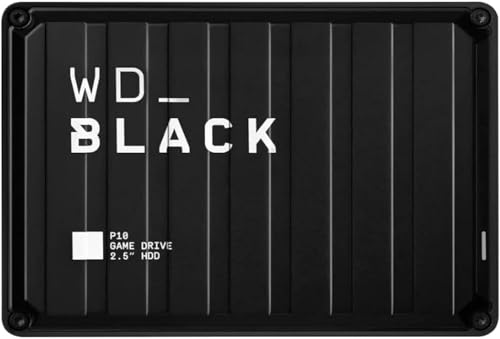
WD_BLACK P10 5TB Game Drive — WD_BLACK 5TB P10 Game Drive, Portable External Hard Drive, Works with Playstation, Xbox, & PC – WDBA3A0050BBK-WESN. Check on Amazon
In this guide
Quick verdict
Choose 7200 RPM for a desktop drive that will run an operating system, applications or games directly, where its snappier response is worth a little extra noise and heat. Choose 5400 RPM for bulk storage, backups, media archives and portable drives, where capacity, quiet running, lower power and cooler operation matter more than split-second responsiveness. In a NAS, either can work, but check the drive line’s intended duty first: a NAS-rated 5400-class drive is a better NAS citizen than a desktop 7200 drive used outside its design brief.
The honest summary is that RPM is a real but modest difference. It will not make a hard drive feel like an SSD, and it will not make a 5400 drive feel broken. The table and criteria below show exactly what you gain and give up with each choice.
Side-by-side comparison
| Criterion | 5400 RPM | 7200 RPM |
|---|---|---|
| Responsiveness | Adequate for files and media | Noticeably snappier for system and program use |
| Sequential transfers | Good; large modern drives are fast spinners’ close rivals | Generally higher |
| Noise | Quieter | More audible, especially several together |
| Power and heat | Lower; suits portables and enclosures | Higher; needs reasonable airflow |
| Typical homes | Portables, backup drives, media storage, many NAS lines | Desktop performance drives, gaming storage |
| Price pattern | Often the capacity bargain | Often a premium at the same capacity |
Performance: what the numbers mean in practice
Rotational speed affects two things: how long the drive waits for the right data to arrive under the heads, and how fast data streams past once it is there. The waiting part — latency — is why 7200 RPM drives feel more responsive when a program loads many small pieces. The streaming part matters for large sequential files, where modern high-density platters have narrowed the gap: a recent 5400 drive with dense platters can stream large files surprisingly close to an older 7200 model, because more data passes per revolution.
Cache size and recording technology muddy simple comparisons further. A generous cache smooths bursts for either speed, as the cache explainer in this batch details, and SMR recording can slow sustained writes regardless of RPM. Judge a specific drive by its full specification — speed, cache, recording type and product line — rather than treating RPM as a complete description. Two drives at the same RPM from different lines can behave quite differently under a long backup or a RAID rebuild.
Noise, heat and power: the daily-life criteria
A single 7200 RPM drive in a desktop under a desk is rarely intrusive, but several in a NAS in a quiet room add up, and a 7200 portable on a desk at night is plainly audible. The 5400 class earned its place in portables and living-room devices by being easy to live with: quieter seeks, gentler spin-up, less vibration through a desk. If the drive will live where people sleep, watch films or record audio, quiet is not a luxury specification; it is the specification.
Power follows the same pattern. Lower spin speed generally means lower consumption and less heat to remove, which helps laptop battery life, bus-powered portables that must live within a USB power budget, and sealed enclosures with limited cooling. Desktop 3.5-inch drives of either speed need their own power arrangements in enclosures, but inside a PC the practical difference is heat: a case full of fast drives wants airflow planned rather than assumed.
Which jobs suit which speed
System and application duty in a desktop: 7200 RPM, if an HDD must do this job at all — though an SSD is the better answer where budget allows, as the hdd vs ssd comparison explains. Game storage: 7200 helps loading feel a touch keener, but capacity usually matters more, and many players happily run libraries from 5400 externals. Media and archives: 5400 is entirely sufficient, because streaming a film asks very little of a drive. Backups: 5400, because the backup runs on a schedule, not on your patience.
NAS duty deserves its own sentence, because people assume faster is better and buy desktop 7200 drives for enclosures. NAS lines — at either speed — bring vibration tolerance, continuous-duty ratings and firmware tuned for arrays. The comparison NAS Drive vs Regular Hard Drive shows why the line matters more than the spin speed. In a NAS, choose the NAS line first and let its designed speed be what it is.
Picking your speed in four checks
Work through these checks with your actual use in mind. They are ordered so the decisive factors come first and RPM settles itself by the end.
Step 1: Will an operating system or programs run from it?
If yes and an SSD is not an option, lean 7200 RPM for the responsiveness. If the drive only stores files, media or backups, this check already points to 5400, and the remaining checks merely confirm it. Be honest about ‘only stores’: a drive that quietly becomes the system drive later inherits the wrong specification.
Step 2: Where will the drive live and who will hear it?
Bedrooms, living rooms, recording spaces and desks you sit beside all reward 5400-class quiet. Workshops, offices and cupboard NAS installations forgive 7200 noise. Multiply by the number of drives: one fast drive is a murmur, four are a chorus, and the room decides whether that matters.
Step 3: Is power or cooling constrained?
Laptops, bus-powered portables and sealed enclosures all favour the cooler, thriftier 5400 class. A desktop with good airflow imposes no such constraint. If a portable drive must run from a single USB port on an older laptop, lower power draw is not a preference; it is the difference between working and intermittently disconnecting.
Step 4: What do the full specifications say?
Compare finalists on recording technology, cache, warranty and product line alongside RPM. A CMR 5400 NAS drive will out-behave an SMR desktop 7200 drive in an array every day of the week. RPM is one line in the specification, and treating it as the whole story is how mismatched drives get bought with confidence.
Common mistakes to avoid
Assuming 7200 RPM makes an HDD feel like an SSD
It does not. The gap between any hard drive and an SSD on scattered small reads is far larger than the gap between the two spin speeds. If responsiveness is the goal, budget for an SSD for the system and let the HDD do bulk work at whichever speed suits the room.
Buying desktop 7200 drives for a NAS to get speed
The array’s real needs are continuous-duty design, vibration handling and predictable sustained writes. A NAS line at a lower spin speed serves those needs better than a desktop line spinning faster. Speed you cannot use is not a feature; design fit is.
Ignoring noise until the drive is installed
Noise complaints arrive after purchase and are hard to fix afterwards. If the machine lives in a quiet space, weigh the acoustic criterion before ordering, read the product line’s intended environment, and remember that drive noise in reviews is relative to the reviewer’s room, not yours.
Practical tips that make a real difference
Match speed to the backup schedule, not your impatience
Backups run unattended, so a quieter, cooler 5400 backup drive that you never hear is doing its job perfectly. Spending more for speed in a drive whose work happens while you sleep is budget that capacity would have used better.
Check what your console or recorder expects
Some devices favour the lower-power characteristics of 5400-class drives, especially in enclosures. The round-ups such as Best Hard Drives for Ps4 reflect what works well with each platform, which is a more reliable guide than spin speed alone.
5400 vs 7200 RPM hard drive behaviour in real workloads
Abstract comparisons sharpen when you attach them to tasks. Starting a computer from a hard drive is a storm of small reads, and here the faster spin’s lower latency is felt most clearly: the 7200 drive simply begins work sooner, hundreds of times in a minute. Loading a game level mixes large sequential reads with scattered small ones, so the advantage narrows but persists. Copying a finished project to an archive drive is nearly pure sequential work, where platter density and recording technology matter more than spin, and a modern 5400 drive can finish within sight of its faster sibling. Backing up overnight, the difference vanishes entirely, because nobody is awake to experience it.
This workload-dependence is why blanket statements about the two speeds mislead. A reviewer who benchmarks game loads will crown the 7200; a reviewer who measures a media server’s noise and power will crown the 5400; both are reporting honestly on different Tuesdays. Your task is to identify which Tuesday resembles your life. If your drive’s day is interactive — programs, projects, play — weight responsiveness. If its day is custodial — holding, streaming, backing up — weight quiet, cool thrift, and spend the difference on the capacity or the second copy that custodial work actually rewards.
Why some product lines hide their spin speed
Shoppers occasionally find a drive whose listing never mentions RPM, particularly among NAS and external lines. Sometimes this is mere marketing economy, but it can also signal a variable-speed design or a manufacturer declining to compete on a number it considers secondary to the line’s real specification: duty, acoustics and power. NAS lines in particular are engineered as systems of compromises for enclosure life, and a maker may tune spin behaviour for thermals rather than headline responsiveness. The absence of the number is a prompt to read the full specification sheet, where duty cycle, workload rating and acoustic figures will tell you more about living with the drive than RPM alone ever did.
External drives hide the number for a simpler reason: the buyer is purchasing an outcome — portable capacity — and the internal specification is the maker’s business. That is acceptable when the outcome is what you need, and unacceptable when you intend to shuck the drive from its enclosure for array duty, a practice that voids warranties and inherits unknown specifications. Buy externals as externals and internals as internals, read the sheet for anything destined for an array, and the missing number stops being a mystery and becomes what it usually is: a sign the maker thinks, often correctly, that your job does not turn on it.
Spin speed, heat and the small-enclosure problem
Every watt a drive consumes becomes heat in its enclosure, and small enclosures shed heat poorly. This is why portable drives settled on the slower class almost universally, and why a desktop external in a sealed, fanless case deserves a moment’s thought about its tier before purchase. Inside a PC, a fast drive in a case with honest airflow is perfectly content; the same drive in a cramped, cable-stuffed small-form-factor build may run warm for years, and warmth is a lifespan tax collected silently. The fix is rarely a different spin speed; it is airflow, spacing and dust discipline, which cost nothing but attention.
NAS owners meet the same physics multiplied. Four or six drives in a compact chassis share one thermal budget, and the enclosure’s fans work against the combined output. Choosing a NAS line — whose acoustic and thermal behaviour was designed for exactly that crowd — matters more than shaving individual spin speeds, and monitoring the dashboard’s temperature trend catches the fan failure or blocked vent that no purchase decision can prevent. Heat is the tax collector for every specification in this guide; spin speed merely sets one line of the bill.
A brief detour: 10,000 RPM, enterprise speeds and why they stayed at work
The spin-speed story has a louder chapter that home buyers occasionally meet in second-hand listings: drives spinning at ten thousand revolutions and beyond, built for servers where latency once ruled purchasing. They are fast for spinning media, and they are also loud, hot, power-hungry and small by modern standards, designed for cooled racks and short, intense careers. Flash storage took their job so completely that their category has effectively ended, which is why they surface cheaply in surplus channels. For home use they are a museum piece with a power bill: the honest verdict is admiration, from a distance, while your money goes to the two living speeds this guide compares.
The chapter is worth knowing because it proves the guide’s central point from the extreme end. Even when an industry optimised purely for spin-driven speed, the winning answer turned out not to be more spin but a different technology for the fast tier, with the two moderate speeds surviving exactly where their balance of quiet, cost and capacity fits real work. Speed classes in storage are ecological niches, not league tables. The 5400 and 7200 classes persist because their niches — calm bulk storage and responsive desktop duty — persist, and your job, as ever, is simply to know which niche your drive will live in.
Before leaving the subject, a word about product names, because they cause real confusion at the shelf. Manufacturers decorate lines with words like performance, pro, plus and max that sound like speed promises but describe tiers within a family, not revolutions per minute. Two drives can share a heroic name at different speeds in different capacities, and a modestly named NAS drive can be the correct high-end answer for an array. The specification sheet’s RPM line — or its deliberate absence, discussed earlier — is the only authority, and it takes less than a minute to consult by exact model number. Names are how drives are sold; numbers are how they behave. Buy on the numbers, and let the names be whatever poetry the marketing department needed that quarter.
If you take nothing else from this comparison, take the ordering: job first, room second, power third, and spin speed as the tiebreaker it honestly is. A drive chosen in that order will satisfy you in the ways you actually experience — in the work it does, the noise it makes and the heat it sheds — long after the specification that decided a hurried purchase has been forgotten. The two speeds have coexisted for decades because both orders of priority describe real households. Yours is one of them; the checks above exist to tell you which.
Frequently asked questions
Is 7200 RPM always faster than 5400 RPM?
In latency and responsiveness, generally yes. In large sequential transfers, modern dense-platter 5400 drives can come close to or match older 7200 models. Overall system feel still favours 7200, but the difference is modest, and other specifications — cache, recording technology, product line — can matter as much in real workloads.
Does 5400 RPM save much power?
Enough to matter in portables, laptops and sealed enclosures, where power budgets and cooling are tight. In a desktop with a healthy power supply the saving is minor. Judge it by context: the same wattage that is irrelevant in a tower decides whether a bus-powered portable stays connected to an older laptop.
Which speed is better for gaming?
7200 RPM loads a little keener and is the traditional choice for internal game storage, but capacity usually wins more happiness than spin speed, and an SSD beats both for current titles. Many players run large libraries from 5400 externals without complaint. Choose capacity first, then speed, then consider an SSD for favourites.
Are 5400 RPM drives less reliable?
No. Reliability follows product line, duty cycle and handling far more than spin speed. NAS and enterprise lines exist at various speeds with high workload ratings, and a 5400 drive used within its design brief is a dependable device. Heat and vibration — the environment — influence lifespan more than the number on the RPM line.
What speed are portable external drives?
Most are built around 5400-class 2.5-inch drives, chosen for low power, quiet running and cool operation in a small sealed case. That is a deliberate fit for the job, not a corner cut. Desktop externals vary, and at archive capacities the distinction matters even less, because the work is sequential and patient.
My drive’s speed is not printed anywhere. How do I check?
Look up the exact model number on the manufacturer’s specification page. Retail listings often omit RPM, cache size and recording technology, which are precisely the details worth confirming before a NAS or RAID purchase. The model number from your system information or the drive label is the key that unlocks the real specification sheet.
The bottom line
5400 vs 7200 RPM is a modest, honest trade: a little responsiveness against a little quiet, cool thrift. Let the job decide — system duty leans fast, storage duty leans calm — and never let one specification line outrank the drive’s product line, recording technology and the room it will live in.
Spin speed inside a NAS: the multi-drive twist
Everything about rotational speed changes when drives stop working alone. A single faster drive in a desktop answers to one user; four drives in a NAS answer to a household, a backup schedule and each other, and the arithmetic of the array rearranges the comparison. In a mirrored or parity array, read performance can draw on several drives at once, which narrows the practical gap a single slower drive would show on its own, while the costs of speed multiply instead: every drive in the array contributes its heat, its noise and its vibration to a small enclosure that must shed all of it, around the clock. This is why so many NAS product lines settle at the slower speed or decline to advertise speed at all — in an array that never sleeps, the virtues that matter are cool operation, vibration manners and endurance, and the speed difference that would headline a desktop comparison becomes a footnote the array’s parallelism has already answered.
The rebuild tells the same story from the other side. When an array member fails and a replacement begins resilvering, the array reads everything and writes the new drive completely, a marathon in which sustained throughput matters and the faster drive finishes sooner — but also a marathon the slower, cooler drive completes without cooking its neighbours in a cramped bay during the hottest week of the year. Owners who have watched both agree the difference is hours on an event measured in a day, not a difference in kind. Choose the array’s drives for the 364 days of ordinary service, not the one day of rebuild, and the slower speed’s case in a NAS becomes very strong indeed.
Spin speed and the recording technologies hiding beneath it
Rotational speed never acts alone, because the same product lines that choose a speed also choose a recording method, a cache size and a platter density, and those companions can matter more than the headline number. A modern high-density slower drive can out-transfer an older, sparser faster drive in sequential work, simply because more data passes under the heads per revolution — a fact that embarrasses spec-sheet comparisons and rewards anyone who reads actual transfer figures for the exact models in question. Similarly, the shingled recording used in some capacity-focused lines trades write behaviour for density in ways that swamp any speed difference during sustained writing, while conventional recording keeps its pace regardless of how full the drive becomes.
The practical method is to treat spin speed as a clue to a drive’s intended character rather than a measurement of it. The number tells you which family the drive belongs to and what its designers prioritised; the transfer rates, the recording method and the workload rating tell you what it will actually do in your machine. When the two disagree — a nominally faster drive with figures that trail a slower rival — believe the figures. Marketing prints the speed on the box because it fits; engineering prints the transfer curve in the datasheet because it is true.
The laptop and portable chapter of the speed question
In portable drives the slower speed holds a near-monopoly, and the reasons are a compact summary of its virtues. A drive in a laptop bag or a bus-powered enclosure lives on rationed power, in restricted air, subject to movement; slower rotation draws less, heats less and tolerates the portable life with less complaint. Manufacturers voted on this comparison with their product lines years ago, which is why the portable shelf is effectively a single-speed shelf, and why the remaining question for a portable purchase is never speed but capacity, ruggedness and the enclosure’s manners. If you are choosing a drive to carry, you may consider this comparison settled by the market and spend your attention where it still buys something: the backup discipline that makes any portable drive’s contents survivable.
Scenario head-to-heads: where each speed actually wins
Put the two speeds to work in the jobs readers actually assign. As a desktop’s secondary drive holding a game library, the faster drive trims loading and texture-streaming stutters in the titles that read in bursts, and the difference, while not transformative, is the kind a player notices across a hundred evenings. As the same desktop’s backup target, the faster drive’s advantage evaporates — backups are scheduled, sequential and usually run while nobody watches — while its extra heat sits in the case all day for a benefit nobody collects. In a media server feeding a household’s televisions, the slower drive streams everything asked of it without breaking stride, because a video stream is a gentle, sequential sip compared with what any modern drive pours; the faster drive in that role is unmeasurably better and measurably warmer. In a small office’s shared drive, where several users open documents and a database all day, the faster drive’s snappier random access is the one the staff will feel, and its costs are the ones a ventilated cupboard absorbs without comment.
The pattern across the scenarios is consistent enough to state as a rule: the faster speed earns its keep where a human waits on random access, and wastes it where machines move data sequentially on a schedule. Audit your drive’s actual job against that sentence before paying for revolutions you will never feel.
Long-term ownership: living with the choice for five years
Ownership softens most speed differences and sharpens the others. The faster drive’s noise, trivial in a new machine on a desk, can become the sound a household reorganises itself around when the machine migrates to a bedroom or a studio. The slower drive’s patience, invisible in year one, becomes its reputation by year four, when it is still quietly holding the archive while faster contemporaries have been replaced around it. Neither trajectory is a reason to override the workload rule — a drive too slow for its job annoys daily, which no longevity excuses — but within the band of drives that can do the job, the ownership qualities deserve the deciding vote: the heat your enclosure must shed, the noise your room must host, the power your always-on system must buy, every hour, for years.
There is also the matter of what the drive’s speed says to the rest of the system over time. A fast bulk drive invites you to keep workloads on mechanical storage that a later solid-state upgrade would do better, while a deliberately patient archive drive clarifies the system’s tiers from the day it is installed. Choose the speed as part of the architecture, and the machine stays coherent as it grows; choose it as aisolated spec-sheet victory, and you may spend years routing around a decision made in an afternoon. Our round-up of internal hard drives for gaming shows where the faster class earns its place most clearly, if your workload points that way.
Questions the speed debate always produces
Can I feel the difference in ordinary file copying?
In large, sequential copies, modestly at most: both speeds stream well, and the source drive, the connection or the destination usually sets the pace. In folders of thousands of small files — a photo library’s working copy, a code tree, a documents archive — the faster drive’s snappier seeking accumulates into a difference you can feel without a stopwatch. Match the expectation to the file shape and you will rarely be disappointed by either.
Does the faster drive wear out sooner?
Not by virtue of its speed alone. Wear follows workload, temperature and duty cycle far more than revolutions, and a faster drive in a cool, intermittent desktop role may outlive a slower drive cooking in continuous NAS service. The honest predictors are the product line’s ratings and the environment you provide, which is why this guide keeps returning the question to the drive’s job and its home rather than its headline number.
My drive’s speed is not printed anywhere. How do I find out?
Search the exact model number from the drive’s label or its health report; the datasheet states the speed, and where a manufacturer declines to state it, that silence usually identifies a variable-speed or efficiency-focused line whose behaviour is managed rather than fixed. Treat the discovery as character information, not a scandal: the drive was designed to be judged by its results.
Should a matched NAS set all share one speed?
Ideally, yes — matched drives keep an array’s behaviour predictable, its rebuild times uniform and its acoustics simple. A single different-speed replacement will work, and arrays tolerate it, but the array inherits a slightly split personality for the rest of its service. If you are buying a set, buy a set; if you are replacing one member under pressure, replace it with its twin whenever the twin can still be had.
Measuring your own drives: a weekend experiment
Most households own both speeds already, scattered across machines and enclosures, and a single weekend experiment teaches more than a month of reviews. Choose a large, mixed folder — a photo library is ideal, with its blend of big files and thousands of small ones — and time its copy to each drive in turn, over the same connection, from the same source. Then time a purely sequential transfer, one enormous video file, the same way. The two timings per drive draw your personal version of this comparison’s whole argument: the small-file test will separate the speeds clearly, the single-file test will nearly erase the separation, and the ratio between your two results tells you which kind of work dominates your storage life. Write the numbers in your system notes with the drives’ model names attached.
Repeat the experiment’s second half — listening. During each copy, note the drive’s audibility from your chair, and again from the next room with the door open, because drives are heard by households, not by reviewers. Several readers who run this experiment discover their preference had been miscategorised for years: the speed they thought they wanted was worth less than the quiet they had not priced, or the reverse, a tolerance for noise they did not know they had in exchange for transfers that finish while the kettle boils. Either discovery is a successful experiment. The comparison’s purpose was never to crown a speed; it was to match a reader to a drive, and your own desk is the only laboratory where that match is finally tested.
Power, heat and the small print of always-on life
The slower speed’s efficiency advantage compounds in the places drives live longest. A drive that runs continuously converts every watt of difference into heat inside an enclosure and money on a meter, hour after hour, year after year — small numbers with a very long multiplication table. In a desktop that sleeps nightly, the same difference is nearly fictional, which is why efficiency arguments should always be quoted against a duty cycle: ask not how much a drive draws, but how many hours a year yours will draw it. The faster drive’s defenders answer correctly that its work finishes sooner, letting systems sleep earlier, and in bursty desktop life that race-to-idle effect is real. In continuous service there is no idle to race to, and the arithmetic reverts to the slower drive’s favour. Duty cycle decides, again — the same sentence this comparison has reached from every direction, because it happens to be the truth about rotating storage: context is not a caveat on the answer, context is the answer.
The console and media-centre verdict, in detail
Game consoles built the largest natural experiment in this comparison, because millions of identical machines accept external drives and their owners report back in forums with unusual honesty. The pattern those reports draw is consistent: for libraries of games that must load worlds quickly and stream assets in bursts, the faster class trims the waits players actually complain about, while for the far larger population of drives holding back-catalogue titles, recordings and media, the slower class serves indistinguishably and runs cooler inside the cramped, fan-shared spaces consoles inhabit. Media centres draw the same map with the volume turned down — a drive beside a television is heard by an audience, and the slower drive’s quieter signature is a feature the spec sheet buries and the sofa notices immediately.
The practical synthesis for entertainment duty is to split by impatience. The handful of titles in current rotation deserve the fastest home you can give them, ideally the console’s internal storage; the archive of everything else belongs on the patient, capacious, quieter drive, from which a title can be promoted when its turn comes again. Managed that way, the speed question stops being a purchase and becomes a filing system, and filing systems, unlike purchases, can be rearranged free of charge whenever your habits change.
A closing note on specifications that age
Spin speed is one of the oldest specifications in storage, and like all old specifications it accumulates mythology: that faster is simply better, that slower is simply cheaper, that the number on a drive from a decade ago means what it means today. Platter densities have multiplied, caches have grown, recording methods have multiplied the variables, and the honest modern reading of the number is the modest one this guide has argued throughout — a statement of design intent, to be weighed alongside transfer figures, workload ratings and the acoustics of your own room. Readers who internalise that reading will find it transfers to every other specification they meet, which is the real dividend of understanding one comparison properly.
One last population should hear its verdict directly: the upgrader replacing a failed drive in an older machine, standing in a shop with both speeds in hand and a household waiting at home. Replace like with the machine’s design where you can — the laptop built around a cool, frugal drive wants its descendant, not a hotter transplant its battery and vents never budgeted for — and where the machine is a desktop with air to spare, let the failed drive’s job decide, not the shelf’s arrangement. Then record the new drive’s baseline, restore from the backup the failure just argued for, and let the machine return to the invisibility that good storage provides. The speed debate, for the working household, ends not with a winner but with a fitted drive and a quiet room.
How the two speeds age inside the same household
Follow two drives bought on the same day, one of each speed, into a typical household’s decade. The faster drive starts in the gaming PC, where its virtues are collected nightly; in year three it is demoted to library duty when a solid-state drive takes the performance role, and there, in a job that never asked for its speed, its extra heat and voice become its whole personality. The slower drive starts in the NAS, unnoticed, and is still there in year eight, holding the family’s third archive expansion, its health log a model of boredom. Neither story is an argument; they are the same argument at different addresses, which is that a drive’s speed matters intensely in the job that uses it and not at all in the jobs that do not — and since drives migrate downward through a household’s roles as they age, the wisest purchase anticipates the second job as well as the first. Buy the faster drive when its first job will feel it, knowing its retirement will be in patient work it does adequately. Buy the slower drive when patience is the job from day one, and it may never need to retire at all.
Keep the experiment, the listening test and the workload rule together and the specification loses its power to intimidate. A number that once decided purchases in a shop aisle becomes what it always was underneath the marketing: one honest fact about a drive’s design, waiting to be combined with the facts about your machine, your room and your patience. That combination — never the number alone — is the purchase. Make it deliberately, record it, and get back to the work the drive was bought to hold, which is the only place storage speed has ever truly been measured.
And if the decision still feels finely balanced after all of this, take that as the answer it is: when two speeds both serve the job, the job was never really about speed, and you are free to decide on the qualities that remain — the warranty’s length, the retailer’s returns, the drive your enclosure’s other residents will live beside most peacefully. Finely balanced decisions deserve to be made quickly and recorded honestly, so that the household’s energy goes to the data the drive will hold rather than the dial it spins at.
Decide, install, record the baseline, and let the room go quiet again — at whichever speed your work honestly requires.
Future drives will blur this line further — variable speeds, denser platters, smarter power management — and the reader who learned to ask about workload, environment and duty rather than a single number will read those drives fluently too. Specifications change; the questions do not.
Choose well, and the subject need never trouble you again until the next drive, years from now, asks the same good questions.