Disclosure: As an Amazon Associate, ilcastellomenu.com earns from qualifying purchases. Links on this page are affiliate links; they cost you nothing extra. Prices and availability change often, so check the current Amazon listing before you buy.
This usb bluetooth adapter review starts with a simple promise and a simple warning. The promise: if your desktop PC has no Bluetooth, or your laptop’s built-in radio has given up, a small USB dongle can restore wireless headphones, speakers, keyboards, mice and controllers in minutes, without opening the case or replacing the machine. The warning, which shapes every verdict in this review: an adapter adds a missing radio, it does not upgrade a working one, and it cannot outrun walls, poor placement or the limits of Bluetooth audio. Judged on those honest terms, the right adapter is one of the best-value accessories in computing. Judged on marketing terms, it disappoints. This review judges it on the honest ones.
Key Takeaways
- Buy an adapter for a genuine gap: a PC with no Bluetooth, or a built-in radio that has failed or become unreliable.
- Placement beats specifications — an adapter in the open, away from the case and busy ports, outperforms a hidden premium dongle.
- The adapter’s Bluetooth version only helps when the device at the other end supports it too.
- For competitive gaming audio, wired remains the benchmark; Bluetooth is bought for freedom, not for zero delay.
- Choose a named maker with a real support page; the driver and returns route are part of the product.
In this guide
What a USB Bluetooth Adapter Is and Where It Fits
A USB Bluetooth adapter, often called a dongle, is a small radio that plugs into a USB port and gives a computer a Bluetooth connection it did not have, or replaces a Bluetooth radio that has stopped working properly. Once it is recognised by the operating system, the computer can pair with wireless headphones, speakers, keyboards, mice, game controllers and other Bluetooth devices in much the same way a laptop with built-in Bluetooth does. The adapter itself does not make sound, store files or boost anything else about the machine. It simply adds the missing wireless link, and everything else — the pairing menus, the audio settings, the device list — is handled by the computer and its operating system. That narrow, honest job description is the right starting point for every judgement in this guide, because most disappointment with these tiny devices comes from expecting them to do more than add a radio.
The humble desktop PC is the adapter’s natural home. Many desktops, including capable gaming and office towers, were built without any Bluetooth radio at all, because the motherboard choice prioritised other features. For those machines a dongle is not a workaround; it is the missing component, added in seconds without opening the case. Once fitted, the desktop gains the whole wireless accessory world: headphones for late calls, a speaker for video, a controller for games, a keyboard and mouse that can move freely, and easy transfers from nearby devices where the operating system supports them. If you are building or refreshing a desk setup, treat the adapter as part of the setup rather than an emergency purchase. Fit it early, place it well, pair your core devices calmly, and the desktop stops feeling like the one tethered machine in a wireless house.
Laptops need a more careful conversation. A modern laptop almost certainly has Bluetooth built in, and if that built-in radio works, an adapter adds nothing except a occupied port and potential confusion. The genuine laptop cases are narrower: an internal radio that has failed or become unreliable, an older laptop that predates common Bluetooth inclusion or has a version too old for a device you need, or a machine where the internal card cannot be replaced sensibly. In those cases a tiny nano-style adapter that sits nearly flush with the side of the laptop is the practical shape, because it can stay in place while the laptop moves between bags and desks. Even then, go in with the right expectation: you are replacing a broken function, not upgrading a healthy one, and disabling the faulty internal radio cleanly is part of doing the job properly.
Design, Build and Setup
Adapters come in two broad shapes, and the shape should follow the machine. Tiny nano adapters sit almost flush in the port, which suits a laptop that travels, because there is little to catch or snap. Slightly larger adapters, some with a small antenna, suit a desktop that never moves, where a bit of size in the open air is no hardship at all. Build quality in this category is less about luxury materials than about a firm fit in the port, a casing that does not flex, and a maker who will still have a support page when you need a driver next year. Setup, on a current system, is mostly a matter of plugging in, confirming Bluetooth appears in settings, and pairing calmly — the detailed walk-through later in this article covers each step and the mistakes that interrupt it.
Driver reality is refreshingly dull on a current Windows PC, and it is worth understanding before you buy. On up-to-date Windows, most mainstream adapters are plug-and-play: you insert the dongle, the operating system supplies a standard driver, a Bluetooth section appears in settings, and you pair your devices from there. Older Windows versions, unusual chipsets and some feature-specific adapters may still need the driver supplied by the maker, either from an included disc or, far more sensibly, from the support page for that exact model. Two habits protect you here. First, check that the maker supports your operating system before ordering, especially on older machines. Second, if your computer already has a built-in Bluetooth radio, disable that internal radio in the operating system before relying on the dongle, so the computer is not trying to run two Bluetooth stacks at once. That single step prevents a large share of the pairing confusion people report.
Pairing itself follows the same calm pattern on almost every setup, and learning it once removes most of the mystery. You insert the adapter, confirm that Bluetooth appears in the computer’s settings, switch Bluetooth on, then put the accessory — not the computer — into pairing mode, usually with a long press on a button until a light changes its pattern. The accessory’s name appears in the computer’s list of available devices, you select it, wait for the confirmation, and then test it properly rather than assuming success: type a sentence, play a song, take a short call, or move through a game menu. Pair one device, test it, and only then pair the next. That unglamorous sequence matters because stacking several untested pairings at once makes any later problem impossible to trace. A setup built one verified device at a time almost always stays reliable, while a setup built in a rush tends to be rebuilt from scratch within the week.
Performance in Real Use
Headphones, Speakers and Everyday Audio
For everyday listening, a good adapter paired with a decent set of headphones or a speaker is genuinely liberating. You can stand up, make coffee and keep listening to a call. You can move a keyboard and mouse off cables and reclaim the desk. You can connect a controller and play from the sofa side of the room. The experience depends on the whole chain, though: the adapter, the operating system, the device at the other end and the physical space between them all share the credit or the blame. That is why sensible setup habits — pairing one device at a time, keeping the adapter in the open, removing very old pairings you no longer use — produce a smoother result than chasing specifications. Bluetooth rewards a tidy setup far more than it rewards the most expensive dongle in the drawer, and most satisfied owners are simply people whose expectations and placement were realistic from the start.
Speakers and soundbars make the range discussion concrete. A Bluetooth speaker across the room from a desktop is a friendly test: no wall in between, a clear line across open space, and a device that mostly stays in one place. That arrangement usually works beautifully, and it is the right way to enjoy films, background music and podcasts from a PC that lives on a desk. Problems begin when the expectation quietly grows — the speaker moves to another room, a door closes, the listener wanders with headphones into the kitchen — and the connection is asked to behave like a whole-home audio system, which Bluetooth was never designed to be. Judge an adapter by the room it serves. If your real ambition is music that follows you through every room, that is a different product category altogether, and recognising that early saves the cost of an adapter bought to do a job outside its nature.
Calls and the Home Office
For work calls, a Bluetooth connection changes the posture of the whole day. You can stand, stretch, fetch water and stay in the conversation, and a headset paired to the desktop stops you being chained to the chair by a cable that is always slightly too short. The honest caveats are about microphones and switching. The microphone in many wireless headphones is serviceable rather than superb, and a computer juggling several audio devices can occasionally route a call to the wrong output until you correct it in settings. Test your call setup before an important meeting, not during its first minute: join a practice call, confirm colleagues can hear you clearly, and confirm the ringing and the voices land in the same device. Once that routine is proven, the adapter quietly becomes part of how the home office works, and most owners only think about it again on the rare day they use a different computer.
Spend five minutes in the operating system’s Bluetooth and sound settings after pairing, because that is where the long-term experience is decided. Set the headphones or speaker you actually use as the default output, check which device owns the microphone for calls, and rename or remove devices you no longer own so the list stays readable. On a desktop that also has wired speakers, decide deliberately which output you want for music and which for calls, rather than letting the computer guess each time something connects. If the machine previously had a built-in radio, confirm that the old radio is disabled and that your devices are paired to the adapter, not stranded on a connection that no longer exists. These are small administrative acts, but they are the difference between a dongle that feels integrated and one that feels like a permanent side project demanding attention every morning.
Controllers and Gaming
Game controllers are one of the most satisfying reasons to add Bluetooth to a desktop. A controller paired wirelessly frees you from playing tethered close to a tower, lets you lean back at a sensible viewing distance, and makes a PC in the living room feel like a proper games setup rather than an office machine pressed into service. Keep expectations grounded in two places. First, the controller itself must support Bluetooth pairing with a PC, which most modern controllers do but some older or platform-specific models do not. Second, the adapter should sit where the signal can reach your hands without passing through the case, the desk and your own body all at once — the extension-cable trick described in this guide earns its keep here. For relaxed and mid-paced games the result is excellent. For the most demanding competitive play, many players still keep a cable nearby, and that is a preference about margins, not a failure of the adapter.
Audio latency deserves plain language, because it decides whether Bluetooth feels magical or mildly annoying. For music, podcasts, films and ordinary video calls, the small delay in a Bluetooth audio connection is rarely a problem, and most people stop noticing it within minutes. Fast, competitive gaming is different. When the action on screen and the sound in your headset drift apart, even slightly, footsteps, cues and voice timing can feel off, and no USB adapter can fully erase that gap because the delay is part of how Bluetooth audio is encoded and sent. Some adapters and headsets handle the delay better than others, and keeping the connection clean and close helps at the margins, but the honest comparison remains simple: a wired headset connection has no radio delay at all. If split-second audio is the whole point of your setup, wired is still the benchmark, and a dongle should be bought for convenience, not as a latency cure.
Keyboards, Mice and the Cable-Free Desk
Keyboards and mice are the least demanding and most immediately rewarding Bluetooth devices. They send small, occasional messages, sip power, and forgive a great deal of imperfect placement, which is why a cable-free desk usually works well even on a modest adapter. The gains are ergonomic as much as aesthetic: a keyboard that can sit exactly where your shoulders want it, a mouse that never drags a cable across the desk edge, and a workspace that can be cleared for writing or drawing in seconds. When you shop for desk gear to pair with an adapter, the keyboard and mouse deserve as much research as the dongle itself, because their switches, shape and layout are what your hands will judge every day. Readers comparing options will find our related guides listed at the end of this article useful alongside the adapter advice here.
Think carefully about how many devices you expect to use at once. Pairing a keyboard, a mouse and a pair of headphones to one adapter is a normal desk arrangement and a reasonable expectation for a mainstream adapter from a known maker. Pushing further — several audio devices, controllers, a printer and assorted accessories all active together — asks more of the radio, the driver and the computer, and the experience can become uneven even when each individual pairing worked on its own. Audio is the most demanding common job, because it needs a steady stream rather than occasional small messages. A practical approach is to decide your real simultaneous set before you buy: the devices that must work together every day, not every Bluetooth gadget you own. Buy for that set, test that set first when the adapter arrives, and add extras one at a time so that if something becomes unreliable you know exactly which addition caused it.
Strengths and Trade-Offs of a USB Bluetooth Adapter
Strengths
- Adds Bluetooth to a desktop in seconds, with no need to open the case or replace internal parts.
- Frees headphones, speakers, controllers and desk gear from cables in one inexpensive step.
- Plug-and-play on current Windows for mainstream models, with a pairing process most people learn once.
- Tiny and portable, so the same fix moves easily between machines when a radio fails.
Trade-offs
- Does nothing for a computer whose built-in Bluetooth already works, and can conflict with it.
- Range is a room-scale promise; walls and hidden placement cause stutters that specifications cannot prevent.
- Bluetooth audio delay is real for fast competitive gaming compared with a wired headset.
- Unbranded versions can leave you without a matching driver or a working support route.
How It Compares: The Models Worth Considering
No single adapter is right for every machine, so treat the models below as roles rather than a podium. A mainstream nano adapter suits the laptop rescue and the tidy desktop. An audio-leaning adapter suits the buyer whose day is headphones and calls. A larger or antenna-style adapter suits the awkward room where the PC lives in a corner. The comparison that matters is against your gap, your operating system and your accessories — not against the boldest claim in the category. Each pick below is presented in prose only in this edition, with its role stated plainly, so you can match the role to your desk before checking the current listing.
TP-Link UB500
The TP-Link UB500 earns its place in this discussion as a mainstream, plug-and-play choice for a desktop that simply needs Bluetooth added cleanly. Judge it by the job described in this article — adding Bluetooth to a machine with a genuine gap — rather than by the boldest line on its packaging. In prose terms it sits as a sensible option for buyers whose computer has a genuine Bluetooth gap and whose accessories are the ordinary desk and living-room devices most people actually own. Check the current listing for the exact model name, confirm that the maker supports your operating system, and make sure any driver you download later comes from the maker’s own support page for this model. Position it in the open, ideally away from crowded high-speed USB ports, pair your core device first, and test it from the chair and the distance you will really use. If it handles that honest test calmly, it has done everything this category can reasonably promise.

ASUS USB-BT500
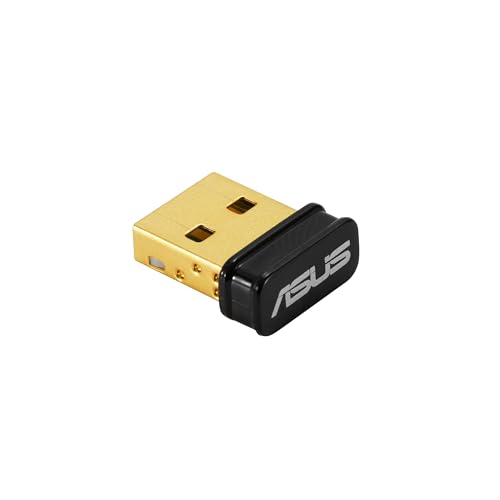
The ASUS USB-BT500 earns its place in this discussion as a compact option from a maker with a clear support page and tidy driver story. Judge it by the job described in this article — adding Bluetooth to a machine with a genuine gap — rather than by the boldest line on its packaging. In prose terms it sits as a sensible option for buyers whose computer has a genuine Bluetooth gap and whose accessories are the ordinary desk and living-room devices most people actually own. Check the current listing for the exact model name, confirm that the maker supports your operating system, and make sure any driver you download later comes from the maker’s own support page for this model. Position it in the open, ideally away from crowded high-speed USB ports, pair your core device first, and test it from the chair and the distance you will really use. If it handles that honest test calmly, it has done everything this category can reasonably promise.

UGREEN Bluetooth Adapter
The UGREEN Bluetooth Adapter earns its place in this discussion as a straightforward mid-tier pick from an accessories maker many desk owners already know. Judge it by the job described in this article — adding Bluetooth to a machine with a genuine gap — rather than by the boldest line on its packaging. In prose terms it sits as a sensible option for buyers whose computer has a genuine Bluetooth gap and whose accessories are the ordinary desk and living-room devices most people actually own. Check the current listing for the exact model name, confirm that the maker supports your operating system, and make sure any driver you download later comes from the maker’s own support page for this model. Position it in the open, ideally away from crowded high-speed USB ports, pair your core device first, and test it from the chair and the distance you will really use. If it handles that honest test calmly, it has done everything this category can reasonably promise.

Avantree Bluetooth Adapter
The Avantree Bluetooth Adapter earns its place in this discussion as a audio-leaning choice to consider when headphones and calls are the main job. Judge it by the job described in this article — adding Bluetooth to a machine with a genuine gap — rather than by the boldest line on its packaging. In prose terms it sits as a sensible option for buyers whose computer has a genuine Bluetooth gap and whose accessories are the ordinary desk and living-room devices most people actually own. Check the current listing for the exact model name, confirm that the maker supports your operating system, and make sure any driver you download later comes from the maker’s own support page for this model. Position it in the open, ideally away from crowded high-speed USB ports, pair your core device first, and test it from the chair and the distance you will really use. If it handles that honest test calmly, it has done everything this category can reasonably promise.
Who Should Buy It and Who Should Skip It
Here is the limitation that matters most, and the one sales pages rarely state plainly: a dongle does not upgrade a computer whose built-in Bluetooth already works. If your laptop pairs reliably with your headphones and keyboard today, plugging in a second Bluetooth radio will not make that connection faster, longer-ranged or better sounding, and having two radios active at once can actually confuse the operating system about which one should manage your devices. The sensible cases for buying an adapter are clear ones — a desktop PC with no Bluetooth at all, a laptop whose internal radio has failed, an older machine whose Bluetooth is missing or unreliable, or a work computer you are not allowed to open up and modify. Outside those cases, the honest advice is to keep your money, fix the setting or driver that is actually misbehaving, and leave the working radio alone.
Judged purely as value, a USB Bluetooth adapter is one of the cheapest capability upgrades in computing when it is bought for the right machine. For a modest outlay, a desktop that could not speak to any wireless accessory gains headphones, speakers, controllers and cable-free desk gear in one step. That value collapses just as quickly when the purchase is wrong: bought for a laptop that already works, bought to chase range through walls it cannot deliver, or bought to eliminate gaming latency it cannot remove. The worth-it question is therefore never really about the adapter in the abstract. It is about the gap in front of you. A real gap — no Bluetooth, a broken radio, a device you cannot connect — makes the purchase easy to defend. An imagined gap, created by marketing language about upgrades and boosts, makes the same small box a small waste of money.
The common buying mistakes in this category are remarkably consistent. The first is buying an adapter for a computer that already has working Bluetooth, in the hope of an upgrade that a second radio cannot deliver. The second is ignoring the other end of the connection: ordering a dongle for a printer, speaker or accessory that has no Bluetooth of its own. The third is choosing purely on the boldest range language on the box, when placement and walls will decide the real result. The fourth is neglecting the driver and support page, especially for older operating systems. The fifth is hiding the adapter behind a metal case beside busy high-speed ports and then blaming the radio for the resulting stutter. Every one of these mistakes is avoidable with ten minutes of checking before you order, which is why this guide returns to them so often: in a category this inexpensive, information is worth more than money.
Before you order, run a short checklist in your head. Confirm the computer really lacks working Bluetooth. Confirm every accessory you care about actually has Bluetooth of its own. Confirm the maker supports your operating system. Decide where the adapter will physically sit, and whether a short extension cable should be part of the same order. Decide your everyday combination of devices. If those five answers are clear, the purchase is very likely to satisfy. If several are vague, the honest move is to pause, because vagueness before buying becomes troubleshooting after buying, and this category rewards ten minutes of clarity more than any other accessory we cover.
Setup, Care and Maintenance Essentials
When an adapter arrives, give it a fair, structured first hour rather than a scattered first week. Start with placement: an open port or a short extension onto the desk. Pair your single most important device first and test it thoroughly from the places you will really use it — your chair, your standing spot, the sofa. Then add devices one at a time, testing after each addition, and finish with the combination you will use together every day, such as headphones during a call while the keyboard and mouse are active. Walk the honest boundary of the room so you know where the connection starts to thin out, rather than discovering it mid-call. If something misbehaves, change one thing at a time — position first, then the pairing, then the driver — and note what fixed it. An adapter that passes that first hour will very likely serve quietly for years.
Looking after an adapter is mostly about not abusing a very small piece of hardware. Avoid using a protruding dongle as a handle when moving a tower, and be careful with adapters left in laptop ports during transport, because a knock can damage both the adapter and the port itself. Keep the contacts clean and dry, and do not force the adapter into a port at an angle. On the software side, accept operating system updates normally, and only revisit the maker’s driver page if an update changes behaviour or you move the adapter to a different machine. If you use an extension cable to position the adapter on the desk, choose a short, sound one and keep the adapter somewhere it will not be buried under papers or pushed behind metal objects. None of this is demanding, which is part of the appeal: a well-placed adapter mostly disappears into the setup and asks for almost nothing in return.
When a pairing fails, work through the boring causes before blaming the hardware. Confirm the adapter is fully inserted and recognised, with a Bluetooth section visible in settings. Put the accessory into its pairing mode properly — many failed pairings are simply a device that was never actually discoverable. Remove an old pairing entry for the same device and pair again from scratch, because stale entries cause a surprising amount of stubborn behaviour. Move the device close to the adapter for the first pairing, then test it from where you will really use it. Restarting the computer after a driver change is unfashionable advice that still works. And if one device will not behave while others pair happily, suspect that device — its battery, its firmware, its own pairing list being full — before replacing an adapter that is demonstrably working with everything else in the room.
Final Verdict
A USB Bluetooth adapter is a small product with an unusually clear verdict. For a desktop with no Bluetooth, or a machine whose radio has failed, a well-supported adapter placed in the open is an easy recommendation: inexpensive, quick and genuinely enabling. For a computer whose Bluetooth already works, the verdict is equally clear in the other direction — skip it, because there is nothing to upgrade. Buy the role that fits your desk, test it properly in its first hour, keep the pairing list tidy, and this little radio will do its one job quietly for years. That restraint, more than any specification, is what separates a satisfying purchase from a returned one.
Usb Bluetooth Adapter Review: A Deeper Look at Daily Use
A day living with a well-fitted adapter is the fairest test of the whole idea, so it is worth picturing honestly. In the morning the headphones connect as the computer wakes, and a call happens standing up, away from the desk, without any thought about the radio making it possible. Midday, a keyboard and mouse work through documents with no cable crossing the notebook that shares the desk. In the evening a controller pairs for a game from the sofa, and a speaker carries a film from across the room. Nothing in that day is dramatic, and that is precisely the point: the adapter succeeds by disappearing. The days it gets noticed are the days placement, pairing or expectations were neglected, which is why this guide spends so much of its length on those unglamorous subjects rather than on the thirty seconds of plugging the thing in.
The hybrid setup deserves a mention, because it is how many experienced owners actually live. Bluetooth handles the daily work — the calls, the music, the controller, the cable-free desk — while a wired connection stays within reach for the specific jobs where it is simply better, above all competitive gaming audio and the occasional large, impatient task that was never Bluetooth’s strength. Owning an adapter does not oblige you to use it for everything, and judging it as one tool among several, rather than as a replacement for every cable you own, is the mindset that produces satisfied owners. The dongle earns its place by being the right tool often, not by pretending to be the right tool always.
Accessory turnover is the quiet long game. Headphones are replaced, a keyboard wears out, a controller is upgraded, and through all of that churn the adapter stays, pairing with each new arrival in turn. That is another reason the maker’s support page matters more than the launch-day listing: the adapter you buy today will be asked to work with devices and operating system updates that do not exist yet, and a maker who maintains drivers gives it a future. When a new accessory arrives, pair it the same calm way as the first — one device, a proper test, then normal life — and the setup absorbs the change without drama. Bluetooth setups age well when they are administered lightly and consistently, and badly when every new gadget triggers a pile of simultaneous, untested pairings.
Shared and family computers add one more wrinkle worth planning for. Several people may pair their own headphones or controllers to the same machine, and the pairing list grows into a small crowd. That is manageable when each device is named clearly and old pairings are removed as accessories leave the house, and it becomes confusing when nobody curates the list and the computer keeps trying to reconnect to a headset that moved out with a student last year. If the machine is shared, agree on the tidy-list habit as a household rule. It takes a minute, it prevents the classic argument about whose device ‘broke’ the Bluetooth, and it keeps the adapter’s one job simple: connecting the people in the room to the accessories actually in the room.
Diagnosing audio crackle is a small skill that saves adapters from unfair blame, so here is the order an experienced troubleshooter follows. First, position: is the adapter in the open, or hidden behind the case beside busy ports? Second, distance and obstacles: did the listening spot move, or a door start closing between rooms? Third, company: is a high-speed drive working hard beside the adapter right now? Fourth, the pairing: does removing and re-pairing the headphones clean it up? Fifth, the accessory itself: does the crackle follow the headphones to a phone, in which case the adapter was never the problem? Worked in that order, most crackle is explained by the first two questions, and the fix is a short extension cable and a better listening position rather than a replacement purchase.
There is also a budgeting lesson hiding in this small category. Because the adapter itself is inexpensive, the temptation is to spend the savings immediately on the boldest accessory claims instead — and the same honesty applies there. Headphones, keyboards and controllers are where your ears, hands and hours will live, so they deserve the larger share of research and money, bought for comfort and fit rather than for version labels they share with the adapter. The healthiest total purchase in this whole topic usually looks like this: a mainstream, well-supported adapter bought without drama, placed properly on a short extension if the desk demands it, and the real budget spent on the accessory you will touch every day. Readers who allocate that way rarely regret any part of the order.
Finally, a note on patience as a feature. Bluetooth problems feel urgent because they interrupt a call, a game or a film, and urgency pushes people toward the biggest available action: new drivers from strange sites, a replacement adapter ordered in frustration, a full reset of everything. Almost every fault described in this guide yields to the smallest available action instead — a moved adapter, a removed and renewed pairing, a disabled internal radio, a default reset in sound settings. Try the small action first, test it honestly, and only escalate when the evidence says the small action was not the cause. That temperament, more than any particular model choice, is what separates the owners who describe their adapter as invisible from the owners who describe it as temperamental.
Consider, too, what a good outcome actually sounds like six months later. It sounds like nothing. The owner cannot tell you when they last opened the Bluetooth settings, cannot remember a pairing failing, and has stopped thinking of the desktop as the tethered machine. That invisibility is the product working as intended, and it is worth naming because it explains why this category generates such puzzling reviews in the wild: the satisfied majority has almost nothing to report, while the frustrated minority usually shares a placement, a conflicting radio or an expectation that was never the adapter’s to meet. If you set yours up by the method in this guide, plan to join the silent majority, and treat that silence as the success metric it is.
One more practical scene is worth rehearsing: moving the adapter to a different computer. Perhaps the desktop is replaced, or a laptop at home develops the failed radio your desktop never had. The adapter itself travels happily — unplug, insert, confirm the settings appear — but the pairings do not travel with it, because pairings live in each computer, not in the dongle. Expect to pair your devices fresh on the new machine, disable any conflicting internal radio there, and run the same first-hour test. Owners who know this in advance find the move trivial. Owners who expect the dongle to carry their setup with it like a storage drive find the same move baffling, which is one more reason this guide keeps returning to what the little radio is and is not.
And a closing thought on timing. The best moment to fit an adapter is when you are already building or refreshing the desk — ports accessible, settings open, accessories arriving one by one — rather than in the frustrated middle of a failed call. Bought calmly and fitted deliberately, it becomes infrastructure. Bought in a panic and plugged into the nearest hidden port, it becomes a suspect. The hardware is identical in both stories; only the method differs. Everything in this article exists to put you in the first story.
The Second-Pass Review: Consistency, Fit and Fine Print
What the box should contain — and what it should not need
Unboxing is a small but telling review checkpoint for a usb bluetooth adapter: the essentials for the first session should be in the box, the instructions should match the actual unit, and nothing vital should depend on an immediate second purchase. If a pick requires an accessory to perform its core job, that dependency is flagged in its assessment above, because it changes both the real cost and the first-day experience. Equally, beware bundles padded with extras you will never use; in a busy shared workspace where several people use the same setup across the day, unused bundle clutter is a cost paid in storage, not a bonus.
Reading the assessments against your own routine
These reviews were written against a general routine, and your routine is the final filter. Map each pick’s stated strengths onto your busiest realistic day with a usb bluetooth adapter: if a pick’s best quality serves a task you do rarely, it is not the pick for you, however strong the assessment. If a pick’s noted limitation sits in a corner of the workflow you never visit, discount it. This translation step — from review conditions to your conditions in a busy shared workspace where several people use the same setup across the day — is where a good review becomes a good decision rather than a borrowed opinion.
Verify the listing, not just the product
A review can only judge the usb bluetooth adapter in front of it, but what arrives at your door depends on the listing you order from. Before choosing, confirm that the listing names the exact model, generation and bundle contents you think you are buying, because Motherboards listings often group variants under one page. When picks such as Avantree Bluetooth Adapter, TP-Link USB Bluetooth Adapter and ASUS USB Bluetooth Adapter are on your shortlist, run this check against each listing in turn. Check which accessories are in the box and which are sold separately, and note the seller’s returns terms while you are there. Ten minutes of listing hygiene prevents the most common review-versus-reality mismatch: a good product judged by the wrong variant.
Consistency is the quiet test
Single impressive results are easy; a good usb bluetooth adapter repeats them on an ordinary day, with ordinary materials, when you are in a hurry. Across the picks in this review, the models that earned their place did so by being predictable: the same setup producing the same outcome, with controls that behave identically every time. In a busy shared workspace where several people use the same setup across the day, predictability is worth more than a peak performance figure you will rarely reach. When you read the individual assessments above, treat consistency comments as the highest-value signal in each one.
Fit and feel, judged honestly
Specifications can tell you a usb bluetooth adapter will fit; only handling tells you whether it feels right doing it. Weight distribution, control placement, surface finish and the force needed for routine adjustments all shape whether you reach for the product gladly or work around it. When picks such as Avantree Bluetooth Adapter, TP-Link USB Bluetooth Adapter and ASUS USB Bluetooth Adapter are on your shortlist, run this check against each listing in turn. If your shortlist comes down to two similar models, this tactile layer is usually the honest tie-breaker, and it is personal: a control layout one reviewer calls cramped, a smaller-handed owner may call perfect. Where possible, judge fit against your own hands, desk and habits, not the reviewer’s.
Frequently Asked Questions
Is one adapter better than another if both use a recent Bluetooth version?
Often the real differences are support, fit and intended role rather than the version label. The version only helps when the device at the other end supports it too, so a well-supported mainstream adapter placed in the open will usually serve you better than a lesser-known model with a grander claim hidden behind a tower case. Compare makers, driver pages and returns routes, confirm support for your operating system, and match the shape — nano for a travelling laptop, larger for a fixed desktop — to the machine it will live in.
Will a USB Bluetooth adapter upgrade a PC that already has Bluetooth?
No, and this is the most important expectation to set before buying. An adapter adds Bluetooth to a computer that lacks it, or replaces a radio that has failed. If your built-in Bluetooth already pairs reliably with your headphones, keyboard and controller, a second radio brings no improvement and can confuse the operating system. Spend the money only when there is a genuine gap: no Bluetooth at all, a broken internal radio, or an older machine that cannot connect to a device you need.
Why does my connection stutter even though I am close to the PC?
Proximity on its own does not guarantee a clean signal. An adapter hidden behind a metal tower case, under a desk or beside busy high-speed USB ports starts at a disadvantage, and walls or your own body between the adapter and the device make things worse. Move the adapter into the open, ideally on a short USB extension cable resting on the desk, then re-test. For many stuttering setups that simple change of position fixes more than replacing the adapter ever would.
Do I need to install a driver?
On a current Windows PC, most mainstream adapters work as soon as they are plugged in, because the operating system supplies a standard driver and the Bluetooth controls appear in settings. Older operating systems and some specific models still need the maker’s driver, which you should always download from the support page for the exact model rather than from a generic driver site. If your computer has a built-in radio as well, disable that internal radio so the system is not running two Bluetooth connections at once.
Is Bluetooth audio good enough for gaming?
For most games, films and calls it is perfectly enjoyable, but fast competitive gaming exposes Bluetooth audio delay in a way other uses do not. The sound can trail the action slightly, and no adapter removes that entirely because the delay is part of how Bluetooth audio works. A clean, close connection helps at the margins. If split-second audio cues decide your matches, keep a wired headset as your benchmark and treat the adapter as a convenience for everything else rather than a latency cure.
Can an adapter give Bluetooth to my printer or speaker?
No. An adapter gives Bluetooth to the computer it is plugged into, and a connection needs a radio at both ends. A printer or speaker that was never built with Bluetooth cannot gain it from a dongle in your PC. Before buying, confirm that the accessory itself offers Bluetooth pairing with a computer, rather than only working through a phone app. That one check, made before ordering, prevents the most common disappointed purchase in this whole category.
Related Guides
a Bluetooth keyboard that suits a Windows desk
Bluetooth keyboards made for PC use