Disclosure: As an Amazon Associate, ilcastellomenu.com earns from qualifying purchases. Links on this page are affiliate links; they cost you nothing extra. Prices and availability change often, so check the current Amazon listing before you buy.
A good usb bluetooth adapter buying guide should save you from the two expensive habits in this category: buying features your accessories cannot use, and buying a second radio for a computer that never needed one. This guide works in a deliberate order. First, what an adapter actually does and the honest limits that come with it. Then the questions that decide a purchase — your machine, your operating system, your devices, your room — each explained in plain language. Then the picks, presented in prose with their roles stated clearly, and the profiles that show which pick suits which buyer. By the end you should be able to choose in minutes, place the adapter well, and never think about it again, which is exactly what success looks like for a product this small.
Key Takeaways
- Start with the gap: no Bluetooth, or a failed built-in radio. Anything else is not a reason to buy.
- Match the adapter to your devices; a newer version only helps when the other end supports it.
- Plan the physical position before ordering — open air beats a hidden rear port every time.
- Named makers with clear support pages are worth more than bold packaging claims.
- Test the exact combination of devices you will use together, in the first hour after it arrives.
In this guide
What a USB Bluetooth Adapter Does and the Main Types
Nano Adapters
Nano adapters are the near-flush shape that disappears into a laptop port. They are the natural choice when the machine travels, when a protruding dongle would catch in a bag, or when you simply want the fix to be invisible. Their smallness is also their context: they rely on sensible placement and a reasonably clear path to your devices, so on a desktop buried under a desk they ask the room to be kind to them. For the ordinary desk and living-room distances Bluetooth was designed for, a nano adapter from a known maker is the default recommendation for most buyers, and the shape most people should start from unless their room or their audio ambitions argue otherwise.
Standard and Antenna-Style Adapters
Slightly larger adapters, including styles with a small external antenna, suit fixed desktops where size costs nothing. Positioned in the open — on an extension cable on the desk, or in a front port with a clear view of the room — they can be the pragmatic answer for a PC that lives in a corner or a cabinet. They are not magic range extenders, and no adapter turns Bluetooth into a whole-home system, but for a stubborn same-room setup the combination of a larger adapter and honest placement is a reasonable step. Judge these by your room, not by the most dramatic language on the listing, and remember that moving any adapter into the open usually matters more than the antenna itself.
Audio-Leaning Adapters
Some adapters are presented with audio front and centre, aimed at buyers whose day is headphones, speakers and calls. That focus can be a sensible match if music and meetings are genuinely your main job for the dongle, and if the maker supports the setup clearly. Keep the category’s honest limit in view, though: Bluetooth audio delay exists for every adapter, and fast competitive gaming remains wired territory. An audio-leaning pick is a choice about priorities within Bluetooth, not an escape from Bluetooth’s nature. If your listening is music, films, podcasts and calls, that priority is well placed. If it is split-second competitive cues, spend the money on a good wired headset instead and enjoy Bluetooth for everything else.
A USB Bluetooth adapter, often called a dongle, is a small radio that plugs into a USB port and gives a computer a Bluetooth connection it did not have, or replaces a Bluetooth radio that has stopped working properly. Once it is recognised by the operating system, the computer can pair with wireless headphones, speakers, keyboards, mice, game controllers and other Bluetooth devices in much the same way a laptop with built-in Bluetooth does. The adapter itself does not make sound, store files or boost anything else about the machine. It simply adds the missing wireless link, and everything else — the pairing menus, the audio settings, the device list — is handled by the computer and its operating system. That narrow, honest job description is the right starting point for every judgement in this guide, because most disappointment with these tiny devices comes from expecting them to do more than add a radio.
Top Picks at a Glance
The picks below are organised by role and described in prose only in this edition, with qualitative positioning rather than prices. Best Overall means the mainstream choice for the common gap. Best for a Travelling Laptop means the near-flush rescue shape. Best for Headphones and Calls means the audio-priority role. Best for an Awkward Room means the larger, placement-friendly style. Read the roles against your own desk before looking at any listing, because the right role chosen calmly beats the wrong product chosen quickly every single time in this category.
TP-Link UB500
The TP-Link UB500 earns its place in this discussion as a mainstream, plug-and-play choice for a desktop that simply needs Bluetooth added cleanly. Judge it by the job described in this article — the role described above, matched to a real gap in the buyer’s setup — rather than by the boldest line on its packaging. In prose terms it sits as a sensible option for buyers whose computer has a genuine Bluetooth gap and whose accessories are the ordinary desk and living-room devices most people actually own. Check the current listing for the exact model name, confirm that the maker supports your operating system, and make sure any driver you download later comes from the maker’s own support page for this model. Position it in the open, ideally away from crowded high-speed USB ports, pair your core device first, and test it from the chair and the distance you will really use. If it handles that honest test calmly, it has done everything this category can reasonably promise.

ASUS USB-BT500
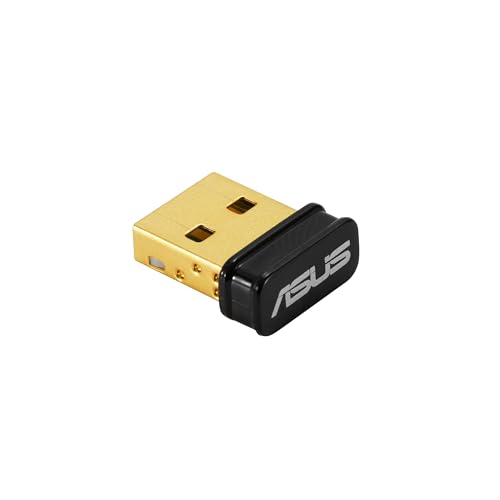
The ASUS USB-BT500 earns its place in this discussion as a compact option from a maker with a clear support page and tidy driver story. Judge it by the job described in this article — the role described above, matched to a real gap in the buyer’s setup — rather than by the boldest line on its packaging. In prose terms it sits as a sensible option for buyers whose computer has a genuine Bluetooth gap and whose accessories are the ordinary desk and living-room devices most people actually own. Check the current listing for the exact model name, confirm that the maker supports your operating system, and make sure any driver you download later comes from the maker’s own support page for this model. Position it in the open, ideally away from crowded high-speed USB ports, pair your core device first, and test it from the chair and the distance you will really use. If it handles that honest test calmly, it has done everything this category can reasonably promise.

UGREEN Bluetooth Adapter
The UGREEN Bluetooth Adapter earns its place in this discussion as a straightforward mid-tier pick from an accessories maker many desk owners already know. Judge it by the job described in this article — the role described above, matched to a real gap in the buyer’s setup — rather than by the boldest line on its packaging. In prose terms it sits as a sensible option for buyers whose computer has a genuine Bluetooth gap and whose accessories are the ordinary desk and living-room devices most people actually own. Check the current listing for the exact model name, confirm that the maker supports your operating system, and make sure any driver you download later comes from the maker’s own support page for this model. Position it in the open, ideally away from crowded high-speed USB ports, pair your core device first, and test it from the chair and the distance you will really use. If it handles that honest test calmly, it has done everything this category can reasonably promise.

ZEXMTE Bluetooth Adapter
The ZEXMTE Bluetooth Adapter earns its place in this discussion as a longer-reach style option to consider where the PC sits awkwardly in the room. Judge it by the job described in this article — the role described above, matched to a real gap in the buyer’s setup — rather than by the boldest line on its packaging. In prose terms it sits as a sensible option for buyers whose computer has a genuine Bluetooth gap and whose accessories are the ordinary desk and living-room devices most people actually own. Check the current listing for the exact model name, confirm that the maker supports your operating system, and make sure any driver you download later comes from the maker’s own support page for this model. Position it in the open, ideally away from crowded high-speed USB ports, pair your core device first, and test it from the chair and the distance you will really use. If it handles that honest test calmly, it has done everything this category can reasonably promise.
Does Your Computer Actually Need One?
Here is the limitation that matters most, and the one sales pages rarely state plainly: a dongle does not upgrade a computer whose built-in Bluetooth already works. If your laptop pairs reliably with your headphones and keyboard today, plugging in a second Bluetooth radio will not make that connection faster, longer-ranged or better sounding, and having two radios active at once can actually confuse the operating system about which one should manage your devices. The sensible cases for buying an adapter are clear ones — a desktop PC with no Bluetooth at all, a laptop whose internal radio has failed, an older machine whose Bluetooth is missing or unreliable, or a work computer you are not allowed to open up and modify. Outside those cases, the honest advice is to keep your money, fix the setting or driver that is actually misbehaving, and leave the working radio alone.
Laptops need a more careful conversation. A modern laptop almost certainly has Bluetooth built in, and if that built-in radio works, an adapter adds nothing except a occupied port and potential confusion. The genuine laptop cases are narrower: an internal radio that has failed or become unreliable, an older laptop that predates common Bluetooth inclusion or has a version too old for a device you need, or a machine where the internal card cannot be replaced sensibly. In those cases a tiny nano-style adapter that sits nearly flush with the side of the laptop is the practical shape, because it can stay in place while the laptop moves between bags and desks. Even then, go in with the right expectation: you are replacing a broken function, not upgrading a healthy one, and disabling the faulty internal radio cleanly is part of doing the job properly.
The humble desktop PC is the adapter’s natural home. Many desktops, including capable gaming and office towers, were built without any Bluetooth radio at all, because the motherboard choice prioritised other features. For those machines a dongle is not a workaround; it is the missing component, added in seconds without opening the case. Once fitted, the desktop gains the whole wireless accessory world: headphones for late calls, a speaker for video, a controller for games, a keyboard and mouse that can move freely, and easy transfers from nearby devices where the operating system supports them. If you are building or refreshing a desk setup, treat the adapter as part of the setup rather than an emergency purchase. Fit it early, place it well, pair your core devices calmly, and the desktop stops feeling like the one tethered machine in a wireless house.
Which Bluetooth Version Should You Care About?
Bluetooth versions sound like a simple ladder where a bigger number always wins, but in daily use the version only helps when both ends of the connection support it. An adapter built around a newer Bluetooth version cannot give an older pair of headphones features those headphones were never built with, and it cannot make an older device connect in a newer, more efficient way. What a newer adapter can do is be ready for the newer devices you own now or buy next, and handle several modern connections in a tidier way. So the practical question is not which adapter has the most impressive version label in isolation. The practical question is what you are pairing it with. Match the adapter to the newest devices you actually use, accept that older accessories will simply connect at the level they were designed for, and do not pay a premium for a version story that your current headphones, keyboard or controller cannot take advantage of.
Think carefully about how many devices you expect to use at once. Pairing a keyboard, a mouse and a pair of headphones to one adapter is a normal desk arrangement and a reasonable expectation for a mainstream adapter from a known maker. Pushing further — several audio devices, controllers, a printer and assorted accessories all active together — asks more of the radio, the driver and the computer, and the experience can become uneven even when each individual pairing worked on its own. Audio is the most demanding common job, because it needs a steady stream rather than occasional small messages. A practical approach is to decide your real simultaneous set before you buy: the devices that must work together every day, not every Bluetooth gadget you own. Buy for that set, test that set first when the adapter arrives, and add extras one at a time so that if something becomes unreliable you know exactly which addition caused it.
How Much Range Do You Really Need?
Range is where expectations and physics part company most often. Bluetooth is a short-range radio designed for a desk, a room and nearby devices, not for covering a whole home through several walls. Walls, floors, metal cases, filing cabinets and even the human body absorb and scatter the signal, so a connection that feels rock solid with the computer in the same room can stutter when you walk into the kitchen wearing your headphones. The position of the adapter matters as much as the adapter itself. A tiny dongle tucked into a rear port, hidden behind a large metal tower case under a desk, starts with a real handicap before it transmits anything at all. Moving the adapter into the open — a front port, a port on a monitor, or a short extension that lifts it onto the desk — often improves a weak connection more than swapping one reputable adapter for another, because the radio finally has a clear path to the device it is talking to.
There is a second placement problem that catches many desktop owners out: interference around busy USB ports. High-speed USB storage and other fast peripherals working hard right beside a small Bluetooth radio can raise the noise floor enough to cause audio crackle, mouse lag or brief dropouts, especially when the adapter sits in a crowded rear panel next to an external drive that is constantly reading and writing. The symptoms look like a faulty adapter, which is why so many perfectly good dongles get blamed and returned. The honest, practical fix costs very little and works for simple physical reasons: put a short USB extension cable between the computer and the adapter, and rest the adapter on top of the desk or on the side of the case facing the room. That small distance from the noisy ports and the metal case gives the radio cleaner air, and for many stuttering setups it is the difference between a connection you tolerate and one you forget about entirely.
Speakers and soundbars make the range discussion concrete. A Bluetooth speaker across the room from a desktop is a friendly test: no wall in between, a clear line across open space, and a device that mostly stays in one place. That arrangement usually works beautifully, and it is the right way to enjoy films, background music and podcasts from a PC that lives on a desk. Problems begin when the expectation quietly grows — the speaker moves to another room, a door closes, the listener wanders with headphones into the kitchen — and the connection is asked to behave like a whole-home audio system, which Bluetooth was never designed to be. Judge an adapter by the room it serves. If your real ambition is music that follows you through every room, that is a different product category altogether, and recognising that early saves the cost of an adapter bought to do a job outside its nature.
Will It Work With Your Operating System?
Driver reality is refreshingly dull on a current Windows PC, and it is worth understanding before you buy. On up-to-date Windows, most mainstream adapters are plug-and-play: you insert the dongle, the operating system supplies a standard driver, a Bluetooth section appears in settings, and you pair your devices from there. Older Windows versions, unusual chipsets and some feature-specific adapters may still need the driver supplied by the maker, either from an included disc or, far more sensibly, from the support page for that exact model. Two habits protect you here. First, check that the maker supports your operating system before ordering, especially on older machines. Second, if your computer already has a built-in Bluetooth radio, disable that internal radio in the operating system before relying on the dongle, so the computer is not trying to run two Bluetooth stacks at once. That single step prevents a large share of the pairing confusion people report.
Because these adapters are small and inexpensive, the market is crowded with unbranded versions that look identical to named products in photographs. The hardware inside may be broadly similar, but the ownership experience is where the difference shows: a known maker provides a clear support page, a driver that matches the model, compatibility notes for current operating systems and a returns route that actually answers. With an unbranded dongle, a driver problem can become a dead end of generic downloads and guesswork. That does not mean the most expensive adapter is the best one, and it does not mean a modest adapter from a reputable maker is a compromise. It means the brand, the support page and the clarity of the listing are legitimate buying criteria for this category — arguably more useful criteria than the bold claims printed on the box, because the day something does not pair, support is the feature you will actually use.
How to Prioritise by Use Case
If your priority is the home office, weight call reliability and a tidy settings setup most heavily: a mainstream adapter, placed well, with your headset tested before the first important meeting. If your priority is the cable-free desk, almost any well-supported adapter serves, and your research money is better spent on the keyboard and mouse themselves. If your priority is living-room gaming with a controller, weight placement and a clear path to the sofa, and keep a cable nearby for the most demanding sessions. If your priority is rescuing an older laptop, weight operating-system support and the nano shape. Notice what is absent from every profile: a reason to buy an adapter for a machine whose Bluetooth already works. That absence is the guide’s most valuable sentence.
Game controllers are one of the most satisfying reasons to add Bluetooth to a desktop. A controller paired wirelessly frees you from playing tethered close to a tower, lets you lean back at a sensible viewing distance, and makes a PC in the living room feel like a proper games setup rather than an office machine pressed into service. Keep expectations grounded in two places. First, the controller itself must support Bluetooth pairing with a PC, which most modern controllers do but some older or platform-specific models do not. Second, the adapter should sit where the signal can reach your hands without passing through the case, the desk and your own body all at once — the extension-cable trick described in this guide earns its keep here. For relaxed and mid-paced games the result is excellent. For the most demanding competitive play, many players still keep a cable nearby, and that is a preference about margins, not a failure of the adapter.
For work calls, a Bluetooth connection changes the posture of the whole day. You can stand, stretch, fetch water and stay in the conversation, and a headset paired to the desktop stops you being chained to the chair by a cable that is always slightly too short. The honest caveats are about microphones and switching. The microphone in many wireless headphones is serviceable rather than superb, and a computer juggling several audio devices can occasionally route a call to the wrong output until you correct it in settings. Test your call setup before an important meeting, not during its first minute: join a practice call, confirm colleagues can hear you clearly, and confirm the ringing and the voices land in the same device. Once that routine is proven, the adapter quietly becomes part of how the home office works, and most owners only think about it again on the rare day they use a different computer.
Keyboards and mice are the least demanding and most immediately rewarding Bluetooth devices. They send small, occasional messages, sip power, and forgive a great deal of imperfect placement, which is why a cable-free desk usually works well even on a modest adapter. The gains are ergonomic as much as aesthetic: a keyboard that can sit exactly where your shoulders want it, a mouse that never drags a cable across the desk edge, and a workspace that can be cleared for writing or drawing in seconds. When you shop for desk gear to pair with an adapter, the keyboard and mouse deserve as much research as the dongle itself, because their switches, shape and layout are what your hands will judge every day. Readers comparing options will find our related guides listed at the end of this article useful alongside the adapter advice here.
First Setup and Care Essentials
Pairing itself follows the same calm pattern on almost every setup, and learning it once removes most of the mystery. You insert the adapter, confirm that Bluetooth appears in the computer’s settings, switch Bluetooth on, then put the accessory — not the computer — into pairing mode, usually with a long press on a button until a light changes its pattern. The accessory’s name appears in the computer’s list of available devices, you select it, wait for the confirmation, and then test it properly rather than assuming success: type a sentence, play a song, take a short call, or move through a game menu. Pair one device, test it, and only then pair the next. That unglamorous sequence matters because stacking several untested pairings at once makes any later problem impossible to trace. A setup built one verified device at a time almost always stays reliable, while a setup built in a rush tends to be rebuilt from scratch within the week.
When an adapter arrives, give it a fair, structured first hour rather than a scattered first week. Start with placement: an open port or a short extension onto the desk. Pair your single most important device first and test it thoroughly from the places you will really use it — your chair, your standing spot, the sofa. Then add devices one at a time, testing after each addition, and finish with the combination you will use together every day, such as headphones during a call while the keyboard and mouse are active. Walk the honest boundary of the room so you know where the connection starts to thin out, rather than discovering it mid-call. If something misbehaves, change one thing at a time — position first, then the pairing, then the driver — and note what fixed it. An adapter that passes that first hour will very likely serve quietly for years.
Looking after an adapter is mostly about not abusing a very small piece of hardware. Avoid using a protruding dongle as a handle when moving a tower, and be careful with adapters left in laptop ports during transport, because a knock can damage both the adapter and the port itself. Keep the contacts clean and dry, and do not force the adapter into a port at an angle. On the software side, accept operating system updates normally, and only revisit the maker’s driver page if an update changes behaviour or you move the adapter to a different machine. If you use an extension cable to position the adapter on the desk, choose a short, sound one and keep the adapter somewhere it will not be buried under papers or pushed behind metal objects. None of this is demanding, which is part of the appeal: a well-placed adapter mostly disappears into the setup and asks for almost nothing in return.
Mistakes to Avoid
The common buying mistakes in this category are remarkably consistent. The first is buying an adapter for a computer that already has working Bluetooth, in the hope of an upgrade that a second radio cannot deliver. The second is ignoring the other end of the connection: ordering a dongle for a printer, speaker or accessory that has no Bluetooth of its own. The third is choosing purely on the boldest range language on the box, when placement and walls will decide the real result. The fourth is neglecting the driver and support page, especially for older operating systems. The fifth is hiding the adapter behind a metal case beside busy high-speed ports and then blaming the radio for the resulting stutter. Every one of these mistakes is avoidable with ten minutes of checking before you order, which is why this guide returns to them so often: in a category this inexpensive, information is worth more than money.
Printers and older accessories teach an important lesson about Bluetooth expectations. An adapter in your computer gives the computer Bluetooth; it does not give Bluetooth to a printer, speaker or any other device that never had it. Devices connect when both ends have the radio and a shared way of working. That sounds obvious written down, yet a steady stream of disappointed buyers discover it after ordering a dongle for a non-Bluetooth printer. Before buying, check the accessory itself: does it actually offer Bluetooth pairing, and does its maker intend it to pair with a computer rather than only with a phone app? The same check applies to fitness gear, toys and smart home gadgets, many of which use Bluetooth only to talk to their own phone applications. An adapter is a computer upgrade, not a universal translator for every gadget in the house, and confirming the other end of the connection first is the cheapest research you will ever do.
Because adapters are inexpensive and the market is crowded, your protection as a buyer is the returns route and the clarity of the listing, not the packaging. Buy from a listing that names the exact model, states the operating systems supported, and points to the maker’s own support page. Keep the packaging until your first-hour test is done. If the adapter will not pair with a device it should support, after placement, re-pairing and driver checks have been done calmly, returning it is a reasonable outcome rather than a personal failure — occasionally a specific adapter and a specific accessory simply do not get along. What you should not do is cycle through several unbranded dongles hoping the next one behaves differently, when the evidence points to placement, a conflicting internal radio or the accessory itself. Diagnose once, properly, and the category becomes simple.
The Bottom Line for Buyers
Judged purely as value, a USB Bluetooth adapter is one of the cheapest capability upgrades in computing when it is bought for the right machine. For a modest outlay, a desktop that could not speak to any wireless accessory gains headphones, speakers, controllers and cable-free desk gear in one step. That value collapses just as quickly when the purchase is wrong: bought for a laptop that already works, bought to chase range through walls it cannot deliver, or bought to eliminate gaming latency it cannot remove. The worth-it question is therefore never really about the adapter in the abstract. It is about the gap in front of you. A real gap — no Bluetooth, a broken radio, a device you cannot connect — makes the purchase easy to defend. An imagined gap, created by marketing language about upgrades and boosts, makes the same small box a small waste of money.
Finally, think about the adapter as a small piece of a changing desk. Accessories are replaced more often than computers, so an adapter bought today will probably meet several generations of headphones, keyboards and controllers over its life. That argues for buying a solid, well-supported mainstream model rather than the absolute cheapest option, and for keeping expectations anchored to the devices you own rather than promises about the future. It also argues against stockpiling adapters or buying a second one as a spare for a problem you do not have. One good adapter, placed well, with its internal-radio conflicts resolved and its pairing list kept tidy, covers the job for years in most homes. When the computer itself is eventually replaced, check whether the new machine already has Bluetooth before moving the dongle across — because, as this guide keeps returning to, the best adapter purchase is the one made for a genuine gap, and the best outcome of all is not needing one.
Usb Bluetooth Adapter Buying Guide: A Deeper Look at Daily Use
A day living with a well-fitted adapter is the fairest test of the whole idea, so it is worth picturing honestly. In the morning the headphones connect as the computer wakes, and a call happens standing up, away from the desk, without any thought about the radio making it possible. Midday, a keyboard and mouse work through documents with no cable crossing the notebook that shares the desk. In the evening a controller pairs for a game from the sofa, and a speaker carries a film from across the room. Nothing in that day is dramatic, and that is precisely the point: the adapter succeeds by disappearing. The days it gets noticed are the days placement, pairing or expectations were neglected, which is why this guide spends so much of its length on those unglamorous subjects rather than on the thirty seconds of plugging the thing in.
The hybrid setup deserves a mention, because it is how many experienced owners actually live. Bluetooth handles the daily work — the calls, the music, the controller, the cable-free desk — while a wired connection stays within reach for the specific jobs where it is simply better, above all competitive gaming audio and the occasional large, impatient task that was never Bluetooth’s strength. Owning an adapter does not oblige you to use it for everything, and judging it as one tool among several, rather than as a replacement for every cable you own, is the mindset that produces satisfied owners. The dongle earns its place by being the right tool often, not by pretending to be the right tool always.
Accessory turnover is the quiet long game. Headphones are replaced, a keyboard wears out, a controller is upgraded, and through all of that churn the adapter stays, pairing with each new arrival in turn. That is another reason the maker’s support page matters more than the launch-day listing: the adapter you buy today will be asked to work with devices and operating system updates that do not exist yet, and a maker who maintains drivers gives it a future. When a new accessory arrives, pair it the same calm way as the first — one device, a proper test, then normal life — and the setup absorbs the change without drama. Bluetooth setups age well when they are administered lightly and consistently, and badly when every new gadget triggers a pile of simultaneous, untested pairings.
Shared and family computers add one more wrinkle worth planning for. Several people may pair their own headphones or controllers to the same machine, and the pairing list grows into a small crowd. That is manageable when each device is named clearly and old pairings are removed as accessories leave the house, and it becomes confusing when nobody curates the list and the computer keeps trying to reconnect to a headset that moved out with a student last year. If the machine is shared, agree on the tidy-list habit as a household rule. It takes a minute, it prevents the classic argument about whose device ‘broke’ the Bluetooth, and it keeps the adapter’s one job simple: connecting the people in the room to the accessories actually in the room.
Diagnosing audio crackle is a small skill that saves adapters from unfair blame, so here is the order an experienced troubleshooter follows. First, position: is the adapter in the open, or hidden behind the case beside busy ports? Second, distance and obstacles: did the listening spot move, or a door start closing between rooms? Third, company: is a high-speed drive working hard beside the adapter right now? Fourth, the pairing: does removing and re-pairing the headphones clean it up? Fifth, the accessory itself: does the crackle follow the headphones to a phone, in which case the adapter was never the problem? Worked in that order, most crackle is explained by the first two questions, and the fix is a short extension cable and a better listening position rather than a replacement purchase.
There is also a budgeting lesson hiding in this small category. Because the adapter itself is inexpensive, the temptation is to spend the savings immediately on the boldest accessory claims instead — and the same honesty applies there. Headphones, keyboards and controllers are where your ears, hands and hours will live, so they deserve the larger share of research and money, bought for comfort and fit rather than for version labels they share with the adapter. The healthiest total purchase in this whole topic usually looks like this: a mainstream, well-supported adapter bought without drama, placed properly on a short extension if the desk demands it, and the real budget spent on the accessory you will touch every day. Readers who allocate that way rarely regret any part of the order.
From Shortlist to Decision: A Hands-On Fit Audit
Start with the space, not the shortlist
Before comparing a single usb bluetooth adapter, measure the space it has to live and work in, and write the numbers down. Footprint is only the start: allow for cables, ventilation, doors or lids that swing open, and the room your hands need to load, adjust or clean it. In a busy shared workspace where several people use the same setup across the day, a model that fits on paper can still fail in practice because access is blocked or a cable run has nowhere tidy to go. Measuring first turns the Motherboards shortlist from a wish list into a filtered list where every remaining option is physically plausible.
Check compatibility against what you already own
A usb bluetooth adapter rarely works alone, so list the devices, mounts, media, software or accessories it must cooperate with, and check each pairing against the listing details rather than assuming standards guarantee harmony. Connector versions, physical clearances, supported formats and control apps are the usual friction points. When picks such as ZEXMTE Bluetooth Adapter, TP-Link USB Bluetooth Adapter and ASUS USB Bluetooth Adapter are on your shortlist, run this check against each listing in turn. Where a listing is vague about a pairing you depend on, treat that silence as a risk to resolve before ordering, not a detail to discover afterwards. Compatibility failures are the most common reason a well-reviewed usb bluetooth adapter gets returned.
Separate the headline feature from the daily feature
Every Motherboards range has one headline feature that dominates the marketing and one unglamorous feature you will use every single day. For a usb bluetooth adapter, the daily feature is usually the control you touch most, the consumable you replace most, or the connection you make and break most often. Weight your shortlist by the daily feature first and let the headline feature break ties, because novelty fades within weeks while a clumsy daily interaction stays annoying for the life of the product.
Plan the consumables and spares shelf
Ownership of a usb bluetooth adapter usually involves a small ecosystem of consumables, refills, replacement parts or spares, and availability matters as much as the unit itself. Check that the refills your shortlisted models need are standard, stocked by more than one seller, and replaceable without tools you do not own. A model tied to a single obscure consumable becomes a liability the moment that line is discontinued, whereas a usb bluetooth adapter built around common refills stays useful for years. Keep one spare of the fastest-wearing part from day one.
Run the two-week test on paper
Imagine the usb bluetooth adapter arriving today and simulate the next two weeks of use in detail: where it sits, what you do with it on a normal weekday, what happens on the busiest day, and where it goes when guests arrive or the room is cleaned. This simple rehearsal exposes storage gaps, missing accessories and workflow clashes that specification tables never show. If the simulation produces friction in a busy shared workspace where several people use the same setup across the day, adjust the shortlist now, while the fix is a different model rather than a return label and a refund wait.
Frequently Asked Questions
Should I buy the adapter with the newest Bluetooth version?
Only if your devices can use it. A newer version helps when the headphones, keyboard or controller at the other end support it too; paired with older accessories, the connection simply works at the level those accessories were built for. A well-supported adapter matched to your actual devices, placed in the open, is a better purchase than a newer-labelled model from a maker with no clear support page. Buy for the desk you have, with one eye on the accessories you are genuinely likely to add.
Will a USB Bluetooth adapter upgrade a PC that already has Bluetooth?
No, and this is the most important expectation to set before buying. An adapter adds Bluetooth to a computer that lacks it, or replaces a radio that has failed. If your built-in Bluetooth already pairs reliably with your headphones, keyboard and controller, a second radio brings no improvement and can confuse the operating system. Spend the money only when there is a genuine gap: no Bluetooth at all, a broken internal radio, or an older machine that cannot connect to a device you need.
Why does my connection stutter even though I am close to the PC?
Proximity on its own does not guarantee a clean signal. An adapter hidden behind a metal tower case, under a desk or beside busy high-speed USB ports starts at a disadvantage, and walls or your own body between the adapter and the device make things worse. Move the adapter into the open, ideally on a short USB extension cable resting on the desk, then re-test. For many stuttering setups that simple change of position fixes more than replacing the adapter ever would.
Do I need to install a driver?
On a current Windows PC, most mainstream adapters work as soon as they are plugged in, because the operating system supplies a standard driver and the Bluetooth controls appear in settings. Older operating systems and some specific models still need the maker’s driver, which you should always download from the support page for the exact model rather than from a generic driver site. If your computer has a built-in radio as well, disable that internal radio so the system is not running two Bluetooth connections at once.
Is Bluetooth audio good enough for gaming?
For most games, films and calls it is perfectly enjoyable, but fast competitive gaming exposes Bluetooth audio delay in a way other uses do not. The sound can trail the action slightly, and no adapter removes that entirely because the delay is part of how Bluetooth audio works. A clean, close connection helps at the margins. If split-second audio cues decide your matches, keep a wired headset as your benchmark and treat the adapter as a convenience for everything else rather than a latency cure.
Can an adapter give Bluetooth to my printer or speaker?
No. An adapter gives Bluetooth to the computer it is plugged into, and a connection needs a radio at both ends. A printer or speaker that was never built with Bluetooth cannot gain it from a dongle in your PC. Before buying, confirm that the accessory itself offers Bluetooth pairing with a computer, rather than only working through a phone app. That one check, made before ordering, prevents the most common disappointed purchase in this whole category.
Related Guides
a Bluetooth keyboard that suits a Windows desk
Bluetooth keyboards made for PC use
a keyboard and mouse combo for gaming