ilcastellomenu.com is reader-supported. When you buy through links on our site, we may earn an affiliate commission.
Where to Buy
Your phone is the darkroom, the editing suite, and the publishing house now — which means a modern camera lives or dies by how gracefully it works with the phone in your pocket. If you are looking for the best cameras for Android, you are really asking a compatibility question with several layers: does the maker’s app treat Android as a first-class citizen rather than an afterthought, do photos and video move from camera to phone quickly and without a laptop intermediary, and does anything in the workflow quietly assume an iPhone? The cameras below were chosen by Android owners’ criteria, not by spec-sheet prestige.
That distinction is not pedantry. Camera apps have a long history of launching features on one platform and promising the other “soon,” of transfer speeds that differ by phone brand, and of firmware-update rituals that demand the app behave. An Android-first shortlist therefore weights the unglamorous evidence: how the app is rated by the people who actually run it on Pixels and Galaxies, whether USB-C wired transfer is offered as a fast lane beside the wireless one, and whether the camera can be controlled, updated, and emptied from the phone alone on a trip with no computer along. The six picks span the real Android use cases — action, 360, pocket filming, mirrorless stills, and the streaming desk — because “for Android” describes a workflow, not a genre.
One more layer deserves stating plainly: Android is not one platform but a family, from budget phones to folding flagships, and camera apps behave accordingly. The picks here were favoured for working well across that family — modest hardware requirements, sane permissions, no dependence on a single phone maker’s quirks — because a camera that only loves the newest flagship is a camera with an expiry date set by your phone upgrade cycle, not its own.
Finally, the promise of this guide: every pick’s Android story is told before its photographic one, and the trade-offs name the platform frictions honestly. A camera that shoots beautifully but fights your phone will lose to a slightly lesser camera that behaves like a citizen of your pocket. That is the correct priority for this keyword, and it is the one applied throughout.
How the six reviews are organised, so you can skim with intent: each pick opens with its Android relationship — the app, the transfer, the phone-only completeness — before its photographic character, because for this keyword the relationship is the deciding layer and the photography is the entry ticket. If you read nothing else, read the trade-offs; in platform land, the frictions are where ownership is actually lived, and every pick here has at least one friction its fans have made peace with and its detractors cite by name. Make your peace in advance, on paper, rather than in week three, in a returns queue.
Key Takeaways
- Judge cameras for Android by their apps first: update parity, transfer speed, and stability on Pixel and Galaxy phones decide daily happiness.
- A USB-C wired transfer path is the fast lane — wireless is for previews and singles, cables are for card dumps.
- Action and 360 cameras are the most phone-native category in photography; mirrorless apps vary the most by maker.
- Check what the camera can do phone-only: remote control, firmware updates, and cloud-free transfer matter on trips.
- The GoPro HERO13 Black is the most complete Android-companion camera here; the Sony ZV-E10 II leads the mirrorless picks.
In this guide
Quick Picks
| Pick | Badge | Why it earns its place |
|---|---|---|
| GoPro HERO13 Black | Best Action Companion | The Quik app on Android previews, edits, and empties the camera painlessly — the most phone-native action workflow there is. |
| Insta360 X4 | Best 360 for Android | Shoot everything, reframe later in an Android app that is genuinely the product’s second half — no desktop required. |
| DJI Osmo Pocket 3 | Best Pocket Filmmaker | DJI Mimo pairs quickly, transfers fast, and the camera itself needs the phone so little that the pairing is pure bonus. |
| Sony ZV-E10 II | Best Mirrorless for Android Creators | Sony’s Creators’ App gives Android users remote control, monitoring, and background transfer that finally feels finished. |
| Canon EOS R50 | Best Beginner Pairing | Canon Camera Connect’s Bluetooth wake-and-transfer routine is the friendliest first-camera phone handshake in the business. |
| OBSBOT Tiny 2 | Best for Android Streaming and Calls | An AI-tracking webcam that pairs with Android control apps for the creator desk, classroom, and remote-work corner. |
One exclusion deserves explaining: several excellent cameras missed this list purely on app evidence — bodies whose photographs we admire and whose Android software we cannot, in conscience, send a phone-first owner into. That is this keyword working as intended. A “best cameras” list that ignores the platform named in its own title would be a spec chart wearing a guide’s clothes, and the Android owners who wrote to us over the years about pairing purgatory deserve the stricter standard applied here.
How We Chose These Picks
Android evidence led: we favoured ecosystems whose Android apps carry the full feature set, update in step with their other platform, and are maintained like products rather than obligations. Transfer was the second test — both wireless convenience for the daily few frames and a wired or card path for the honest hundreds, because a camera that takes an evening to empty will be emptied rarely and cursed often. Third came phone-only completeness: remote shooting, live monitoring, firmware updates, and settings control from the Android app, since the travelling Android owner may have no other screen. Photographic quality acted as the entry ticket — every pick here shoots well — but within this guide it was never allowed to outrank platform behaviour.
What Does “Works Well With Android” Actually Mean, Layer by Layer?
Peel it into four layers. Discovery and pairing: the camera should appear, pair, and — crucially — reconnect without theatre, ideally waking over Bluetooth and handing the heavy lifting to Wi-Fi only when files move. Daily transfer: a handful of frames should land in your gallery in under a minute, marked clearly, without the app demanding to become your photo library’s landlord. Bulk transfer: a day’s shooting should have a fast lane — USB-C cable, or a card reader your phone accepts — because wireless bulk transfer is where good moods go to die. And control: the app should offer remote shutter, live view, and the settings you actually change outdoors, plus firmware updates delivered through the phone so the camera never waits for a computer’s permission to improve.
Most cameras manage two layers well. The picks below manage all four respectably, though each has a favourite layer — the action cameras are transfer athletes, the mirrorless pair are control specialists, and the OBSBOT lives in a fifth layer entirely: being a peripheral to Android devices and the computers beside them. Judge candidates by the layer your own workflow stresses. A daily-poster needs layer two; a travelling shooter needs layers three and four; a creator needs all of them by Friday.
Why Do Camera Apps Lag on Android — and How Do You Shop Around It?
The honest reasons are arithmetic: Android’s device diversity makes testing expensive, and camera makers’ software teams are smaller than their reputations. The practical result is a landscape where one maker’s Android app is a flagship and another’s is a pamphlet. Shop around it with three habits. Read the app’s recent Android reviews — not the camera’s — sorted by newest, because app quality is a moving target that firmware seasons change. Check the update history: an app updated this quarter is a living product; one updated last year is a museum. And test the pairing in the return window with your actual phone, doing the actual jobs — a bulk transfer, a remote session, a firmware check — because compatibility is an empirical fact about your handset, not a promise on a box.
The encouraging trend is that the gap has narrowed sharply: the major ecosystems now treat the phone app as the camera’s second interface rather than its apology, and the picks here reflect that maturity. The Android owner of today is not a second-class citizen in any of these six systems — merely a citizen who should still read the app reviews before the wedding.

GoPro HERO13 Black — Best Action Companion
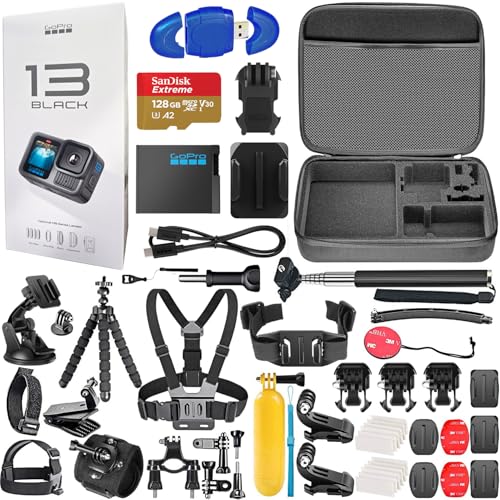
The GoPro ecosystem understood the phone-first world before the rest of the industry finished arguing about it, and on Android the Quik app remains the benchmark for how an action camera should behave: pair once, preview live, pull clips over in the background, trim and grade with tools that respect your time, and let the camera’s footage assemble itself into watchable edits while you do something else. For the Android owner whose camera lives on a mountain bike, a surfboard, or a child’s helmet, this is the workflow against which all others are measured.
The camera half of the partnership is the familiar, formidable one: waterproof without a case, stabilised beyond reasonable expectation, slow-motion and lens-mod flexibility for creative angles, and quick-capture habits that suit a life where the moment does not wait for menus. On Android specifically, the app’s feature parity is strong and its update cadence healthy — the two facts that matter most and age fastest, both currently in the owner’s favour.
Its frictions are the action category’s own: battery appetite on heavy days, a small screen that makes the phone the real monitor (which, for this guide’s reader, is nearly a feature), and subscription gravity around the app’s most automated editing delights. None of them disturb the verdict for Android-first action shooting: the HERO13 Black is the most complete phone-companion camera on this list.
- Type: waterproof action camera
- Android app: GoPro Quik — preview, transfer, edit, auto-highlights
- Transfer: fast wireless plus USB-C wired path
- Control: full remote control and settings from the phone
- Extras: lens mods, strong slow motion, quick capture
Strengths
- The most phone-native workflow in action cameras
- Android app parity and update health are strong
- Edits itself into shareable cuts with minimal effort
Trade-offs
- Best automated features lean toward the subscription
- Battery life demands spares on big days
- Tiny body screen makes the phone the monitor by default
Best for: Android owners filming action, travel, and family chaos. Not suited for: stills-led photographers or subscription refuseniks.

Insta360 X4 — Best 360 for Android
A 360 camera is really an app with a lens attached, because the footage is unusable until software reframes it — which makes the X4 the most Android-dependent pick here and, happily, one of the best served. Insta360’s Android app is the product’s second half in the best sense: connect, preview the sphere, and reframe with keyframes or let the tracking follow a subject while you steer the view with a thumb. The shoot-first-frame-later freedom that defines 360 — capture the whole scene, direct it afterward — lives or dies in that app, and on Android it lives well.
The camera contributes sharp 360 capture, flow-state stabilisation that makes a selfie stick vanish and a mountain descent watchable, and single-lens modes for when an ordinary action camera is what the day wants. For Android creators — travel, cycling, skiing, property walk-throughs — the combination produces footage no other pick here can imitate: the shot where the camera was everywhere at once.
Respect the costs: 360 files are heavy, and a day of them will test your phone’s storage, its processor during reframing, and your patience on wireless transfer — the wired path and a reader earn their keep. Editing is a skill with a learning curve measured in evenings. And resolution spread across a whole sphere means reframed crops are good rather than lush. For the Android owner who wants the format’s magic, the X4’s app makes it genuinely accessible; for everyone else it is a speciality tool, honestly labelled.
- Type: 360 action camera with single-lens modes
- Android app: Insta360 — reframe, track, edit on the phone
- Stabilisation: excellent, with invisible selfie-stick effect
- Files: large; wired transfer recommended for bulk
- Use: travel, cycling, skiing, walk-throughs
Strengths
- Reframing on Android turns one take into many shots
- App quality makes the format beginner-accessible
- Stabilisation and stick-vanishing feel like magic, work like tools
Trade-offs
- Heavy files strain phone storage and transfer patience
- Reframed crops are softer than a dedicated camera’s frame
- Editing has a real learning curve
Best for: Android creators who want shoot-everything freedom. Not suited for: anyone who dislikes editing or needs instant files.

DJI Osmo Pocket 3 — Best Pocket Filmmaker
The Pocket 3’s Android story is a study in not needing the phone — and benefiting when you use it. The camera itself, with its rotating screen and gimbal, is complete in the hand; DJI’s Mimo app then adds the layer this guide cares about: quick pairing, live monitoring on the phone’s bigger display, fast transfers, and firmware updates delivered without a computer. DJI’s Android support is among the most serious in the industry, with the app distributed and updated through channels Android owners actually use, and feature parity that does not treat the platform as a promise.
Photographically it remains the pocket benchmark: a one-inch-class sensor on a three-axis gimbal, producing walking footage of a smoothness phones imitate with software and cannot equal in hardware, plus low-light manners and face tracking that make it a one-person film crew for travel and family documentary. For the Android vlogger it can be the entire video department, with the phone as monitor, editor, and publisher.
The frictions are small and known: the gimbal wants its case and a second’s care, there is no zoom to speak of, and Mimo’s account-and-activation habits are a brief toll on day one. Battery life is good rather than endless, and heavy transfer days prefer the cable. None of it changes the summary — of every camera here, the Pocket 3 asks the least of its owner while travelling, and its Android partnership is a bonus on top of completeness rather than a crutch for incompleteness.
- Type: pocket gimbal camera
- Android app: DJI Mimo — monitor, transfer, firmware
- Sensor: 1-inch class on a 3-axis gimbal
- Tracking: face and subject tracking built in
- Phone role: optional monitor and editor, not a requirement
Strengths
- Complete in the hand; the app is pure addition
- Serious, current Android support from DJI
- Gimbal footage no phone stabilisation matches
Trade-offs
- No real zoom for distant subjects
- Gimbal mechanism prefers careful handling
- Account activation is a small day-one toll
Best for: Android travellers and vloggers wanting pocket cinema. Not suited for: telephoto needs or rough-and-tumble mounting.

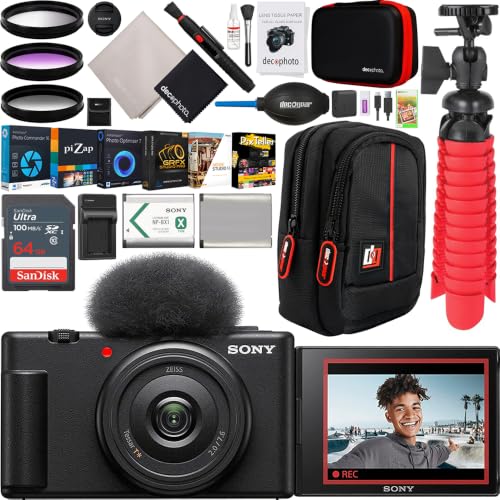
Sony ZV-E10 II — Best Mirrorless for Android Creators
Mirrorless cameras were the last holdouts of the computer era — cameras you emptied with a cable into a laptop and updated like appliances. Sony’s current generation, and this camera in particular, ends that era for Android owners: the Creators’ App provides remote shooting with a proper live monitor, transfer that can run in the background while the camera sleeps in the bag, and location and settings services that treat the phone as the camera’s partner rather than its remote control. It is the most complete Android story any interchangeable-lens camera on this list can tell.
The camera underneath deserves the partnership: a modern APS-C sensor with strong video credentials, autofocus that tracks faces and eyes with Sony’s customary certainty, and the E-mount catalogue — the deepest lens shelf available to any mirrorless buyer, at every price from kit to cinema. For the Android creator whose work spans stills, product video, and the occasional stream, it is the system that never says no.
Frictions: no viewfinder, which stills traditionalists will note at noon in July; a menu system that rewards one careful setup evening; and in-body stabilisation’s absence, leaving lenses to steady handheld video. The app, like all of them, should be tested on your handset in the return window. But the direction of travel is unmistakable and the current state is strong: this is the mirrorless pick for the Android-first life.
- Sensor: APS-C CMOS, about 26 megapixels
- Mount: Sony E — deepest lens catalogue in class
- Android app: Sony Creators’ App — remote, monitor, background transfer
- Autofocus: face and eye tracking for stills and video
- Design: hybrid creator body, no viewfinder
Strengths
- Most complete phone partnership of any mirrorless pick here
- Background transfer respects the owner’s time
- Lens catalogue for every future direction
Trade-offs
- No viewfinder for bright-day stills
- Menus reward a setup evening
- No in-body stabilisation
Best for: Android creators wanting a real system camera. Not suited for: viewfinder traditionalists.

Canon EOS R50 — Best Beginner Pairing
The first camera’s phone handshake matters disproportionately, because it is where beginners decide whether the camera joins their daily life or their cupboard. Canon’s arrangement in the R50 is the friendliest we know: a Bluetooth connection that keeps the camera and phone acquainted, wakes the Wi-Fi only when files actually move, and delivers the day’s photographs into the phone’s world with a minimum of ceremony. Canon Camera Connect on Android is a mature, calm app — not the flashiest here, but the one a beginner is least likely to abandon in week two.
The camera behind the handshake is this site’s familiar first-serious-camera recommendation: guided menus, eye autofocus that manufactures early success, kind colour for family life, and the RF lens ladder stretching a decade ahead. For the Android household buying its first real camera — often for a teenager whose phone is the family darkroom — the R50’s combination of photographic forgiveness and platform politeness is unmatched at its level.
Its transfer is convenient rather than fast at bulk scale; a big day’s RAW files still prefer the card reader, as they do on every mirrorless here. The body has the entry-class limits noted in its other appearances — fewer dials, modest buffer — and Canon’s app, while stable, adds features at a stately pace. For the beginner pairing, stability beats novelty anyway. This is the safe hands choice, in both crafts at once.
- Sensor: APS-C CMOS, about 24 megapixels
- Mount: Canon RF / RF-S
- Android app: Canon Camera Connect — Bluetooth wake, Wi-Fi transfer
- Autofocus: face and eye detection with guided modes
- Audience: first-camera households
Strengths
- The friendliest first-camera phone routine available
- Stable, calm Android app beginners actually keep using
- Photographic forgiveness to match the platform politeness
Trade-offs
- Bulk RAW days still belong to the card reader
- App features arrive at a stately pace
- Entry-body control and buffer limits
Best for: Android households buying a first real camera. Not suited for: high-volume shooters emptying cards nightly by wireless.

OBSBOT Tiny 2 — Best for Android Streaming and Calls
The Tiny 2 represents the keyword’s other honest meaning: a camera for the Android-centred desk. It is an AI-tracking webcam — a small pan-tilt camera that follows you around a room, frames you without a camera operator, and answers gestures — built for the creator recording lessons, the remote worker whose calls deserve better than a laptop’s eye, and the streamer whose setup includes Android devices for chat, control, and monitoring. OBSBOT’s control software spans the platforms such desks actually run, and the camera’s tracking works the moment it is plugged in, before any app enters the story.
The imaging is a genuine step above built-in webcams: a larger sensor than the category’s norm, low-light manners that respect evening rooms, and autofocus that keeps pace with a presenter who moves. Voice and gesture control sound like garnish and behave like workflow — start, stop, zoom, and track without touching a keyboard mid-sentence. For Android-owning teachers and creators, it converts a phone-and-laptop corner into a small studio.
Its world is the desk: it is not a travel camera, not weatherproof, not a stills instrument, and its best behaviour arrives through a computer-class USB connection, with Android in the supporting roles of control and monitoring rather than as the recorder itself. Buy it for the room it will live in. In that room, nothing else on this list does its job at all.
- Type: AI-tracking PTZ webcam
- Control: app control incl. Android-side tools, gestures, voice
- Sensor: larger than typical webcams, good in low light
- Tracking: automatic subject following with pan-tilt
- Role: desk studio — lessons, calls, streaming
Strengths
- Tracking that replaces a camera operator
- A clear image-quality step above laptop cameras
- Gesture and voice control that genuinely speed work
Trade-offs
- Desk-bound; not a camera for the world outside
- Fullest setup runs through a computer, Android in support
- Stills are an afterthought by design
Best for: Android-centred creators, teachers, and remote workers. Not suited for: travel, stills, or outdoor anything.
What About Editing on Android — Where Does the Workflow End?
For most owners, on the phone, and that is a triumph worth designing around. The modern Android editing bench — the makers’ own apps for a first pass, then the ecosystem’s strong general editors — handles exposure, colour, cropping, and reframing at a level that would have required a desktop suite not long ago. The picks were favoured partly for how their files behave in that bench: action and 360 footage that arrives with metadata the apps understand, mirrorless files that open without conversion theatre, and colour profiles that give the editor a running start. Shoot with the edit in mind — expose for the phone screen’s honesty, keep clips short and purposeful — and the publish-from-pocket pipeline that defines this whole category stays a pleasure rather than a project.
Know the bench’s edges, too. Very large 360 files and long high-bitrate clips will warm a midrange phone and test its storage; the wise workflow triages on the phone and archives to real storage weekly. RAW stills from the mirrorless picks edit beautifully on capable handsets and slowly on modest ones — another argument for the hybrid RAW-for-deliberate, JPEG-for-volume policy. None of these edges are failures; they are the physics of a darkroom that fits in a pocket, and the photographer who plans around them publishes more, sooner, than the one still waiting to get home to a computer.
How Does Android’s Variety — Pixels, Galaxies, and Budget Phones — Change the Advice?
It changes the testing, not the shortlist. Flagship Android phones run every app here at full speed, with the radios and processors the workflows assume. Midrange and older handsets run them all too — these ecosystems are built for the mass market — but bulk transfers take longer, 360 reframing renders slower, and background processes are killed more aggressively by battery managers, which can interrupt a long transfer that a flagship would finish. The countermeasures are habits: keep the app foregrounded during big transfers, exempt it from battery optimisation in your phone’s settings, and prefer the wired path on modest hardware. Do those three things and a three-year-old phone remains a perfectly good darkroom for any camera in this guide.
One more variety worth naming: tablets. A mid-size Android tablet is secretly the best travel darkroom in the ecosystem — big screen for culling, the same apps, the same card readers — and several owners in this category quietly run their whole trip workflow through one. If your Android life includes a tablet, test the pairing there too; for the mirrorless picks especially, the tablet-as-monitor arrangement during remote shooting is a small revelation.
Six Android-Friendly Cameras, Compared Honestly
| Camera | Type | Android app | Transfer fast lane | Phone-only? | Choose it if… |
|---|---|---|---|---|---|
| GoPro HERO13 Black | Action | Quik | USB-C + fast Wi-Fi | Yes, fully | your life is motion |
| Insta360 X4 | 360 | Insta360 | Wired for bulk | Yes, editing included | you reframe after the fact |
| DJI Osmo Pocket 3 | Pocket gimbal | Mimo | USB-C + Wi-Fi | Camera stands alone | you film walks and talks |
| Sony ZV-E10 II | Mirrorless | Creators’ App | Background Wi-Fi | Yes, incl. remote | you want a system camera |
| Canon EOS R50 | Mirrorless | Camera Connect | Card reader for bulk | Mostly | it is the household’s first camera |
| OBSBOT Tiny 2 | PTZ webcam | OBSBOT control apps | USB to host | Desk peripheral | your stage is a desk |
Read by workflow, not by camera type. The daily poster lives in the top three rows; the system builder in the middle two; the desk creator in the last. Notice that every row’s app is a living product with current updates — in this category, that row of the table is the one that decides whether you still love the camera in year two.
How Do You Move a Big Day’s Shooting to an Android Phone Without Tears?
Build the habit before the trip. For the daily few — the frames you will post tonight — wireless transfer from any pick here is genuinely pleasant: select in camera or in app, send, share. For the honest hundreds, change tools without changing your mind about the phone: a USB-C card reader that your handset recognises turns a card dump into a coffee-length task, and several picks also transfer happily over a plain USB-C cable, which doubles as charging. Keep the phone’s storage honest — a dedicated album, emptied to your real archive weekly — because a camera roll of four thousand unfiled frames is a library fire in slow motion.
Two settings save disproportionate pain. Set the camera’s clock from the phone whenever the app offers, so merged libraries sort themselves by time rather than by arguments. And decide your RAW policy before the big day: RAW for the deliberate work, JPEG for the volume, because a phone asked to ingest a thousand RAW files will make its feelings known. The Android darkroom is entirely workable at travel scale; it simply rewards the photographer who designed the workflow at the kitchen table instead of improvising it in the airport.
What Mistakes Do Android Owners Make When Buying a Camera?
Assuming the app is a detail leads the list — it is half the product, and its Android reviews should be read with the same care as the camera’s. Second is testing pairing with a flagship in the shop and living with a midrange phone at home; app performance is handset-specific, so test with yours, inside the return window, doing bulk work. Third is ignoring the wired path: owners who discover on a boat that wireless bulk transfer takes hours become card-reader evangelists, and you can skip their conversion experience. Fourth is permission chaos — denying the app its Bluetooth or location access and then blaming the camera for a pairing failure the operating system authored. And fifth, buying a camera whose ecosystem is quietly sunsetting its app; the update-history check in this guide exists because that failure, alone among camera failures, cannot be repaired by any accessory.
What Should You Test in the First 48 Hours With a New Camera?
Treat the return window as a laboratory with a deadline. Pair the camera to your actual phone and repeat the pairing after a reboot of both — reconnect behaviour is where weak ecosystems confess. Transfer twenty frames wirelessly and time it; then dump a card through the reader and time that. Run a five-minute remote-control session and change real settings from the app. Check for a firmware update and install it, because the update path is the one you will trust for years. Film the clip you actually film — the ride, the lesson, the walk — and edit it entirely on the phone, because a workflow that needs a computer you do not carry is a workflow you do not have.
If the camera passes your 48 hours, keep it with confidence and delete the shopping apps. If it fails, it has failed cheaply, which is the entire point of the exercise. Compatibility is the rare product quality that can be fully verified before the money is committed — but only by owners who run the tests while returning is still free.
How Do These Cameras Handle Travel With No Laptop at All?
That is the scenario this whole category now designs for, and the picks divide by how completely they embrace it. The action trio — GoPro, Insta360, DJI — are natives: shoot, transfer, edit, publish, and back up to cloud storage from the phone, with the camera’s card as the rolling archive. The mirrorless pair join them with one discipline added: a small card reader and a second card, rotated nightly, so the phone’s copies and the cards’ originals are never the same single point of failure. The OBSBOT stays home, as designed. Across all of them, the pattern is the same — the Android phone is no longer the camera’s accessory. It is the workflow’s headquarters, and these six were chosen because their makers have accepted that fact and built for it.
What About Using an Android Phone as the Monitor and Controller on Set?
For the creator picks here, this is a genuine production pattern rather than a novelty: the camera on its tripod or mount, the phone on a small clamp beside it, the app providing the bigger, brighter monitor and the touch controls. It shines where the camera’s own screen is small, distant, or facing the wrong way — the GoPro on a chest mount checked from the phone, the Pocket 3 across the room framing a lesson, the Sony on a gimbal monitored by the person in front of it. Latency on modern connections is low enough for framing and focus confirmation, though action timing should still be judged on the camera’s own display. Set the phone to do-not-disturb before the take; a notification banner across your monitor is the genre’s signature blooper, and every creator owns one.
How Long Will These Ecosystems Keep Supporting Your Camera?
The sober question under every app-led purchase. Cameras outlive phones, and phones outlive app versions; the risk is a maker sunsetting support while the hardware still delights. The evidence to weigh is behavioural: how long did the maker support the previous generation, does the current app still welcome older models, and does the camera remain fully functional — as all six here do — with the app merely absent rather than required? A camera that degrades gracefully without its app is a safer decade-long companion than one bricked by a server’s retirement. On that test the dedicated cameras in this guide score well precisely because their core craft never lived in the cloud; the app is their partner, not their life support. Buy the partnership, verify the independence, and the support horizon stops being a gamble.
What About Photographing With the Phone and Camera as a Team?
A pattern worth stealing from working creators: the phone and the camera divide the day by distance and intent. The camera takes the deliberate work — the ride, the interview, the landscape at the planned hour — while the phone, always present, takes the connective tissue: the behind-the-scenes stills, the map screenshots, the quick portrait at lunch. Because both streams land in the same Android library, timestamped by clocks the apps have synced, the day assembles itself into one story rather than two archives. Several picks here quietly support this partnership with location tagging from the phone, so even the camera’s frames know where they were made. It is a small feature with an outsized effect on how a trip remembers itself, and one more reason the app layer deserved this guide’s first attention.
How Should You Organise Storage When the Phone Is the Darkroom?
With a pipeline, not a pile. Camera files land in the app’s album; selects move to your main library; originals — especially 360 and RAW — leave the phone weekly for your real archive, because a phone is a working surface, not a vault, and it is also the most losable object you own. Cloud backup of the library is the safety net that makes the pipeline honest, and it should be verified, not assumed: open the backup on another device once and look at your photographs there. Owners who run this small discipline treat a lost phone as an inconvenience. Owners who let the phone become the only copy of a year are running an experiment whose result arrives by surprise. The cameras in this guide all make the pipeline easy; the discipline itself is, as ever, the photographer’s.
A Note on Buying the Ecosystem, Not Just the Camera
Every pick here is a small platform: mounts, batteries, lens mods, cases, and app features that accumulate around the first purchase and quietly raise the cost of ever switching. That gravity is not sinister — it is how a workflow becomes fluent — but it argues for choosing the first camera as a citizen of the ecosystem you would happily expand. GoPro owners add mounts the way gardeners add beds; Insta360 owners add lenses and sticks; Sony owners add glass. Read the accessory shelf before the wedding, because you are marrying it. The good news, for Android owners specifically, is that all six ecosystems here are healthy, competitive, and investing in the platform you own — the gravity, for once, pulls toward places worth staying.
What Does the Next Android Version Mean for Your Camera?
Each autumn’s Android release quietly re-negotiates every camera partnership: permissions tighten, background rules shift, Bluetooth stacks evolve. The healthy ecosystems in this guide ship compatibility updates within weeks, because their apps are products with teams; the museum apps break and stay broken. As an owner, your part is small: update the camera apps promptly during platform season, re-run the ten-minute pairing-and-transfer check after a major phone update rather than discovering its verdict at a trailhead, and keep one known-good card reader in the bag as the analogue insurance no update can revoke. Platform change is weather, not climate — dress for it and the workflow sails on.
The Small Print: Data, Heat, and Battery — the Phone’s Side of the Bargain
A phone-first workflow spends the phone’s resources, and planning for that is part of the craft. Transfers and reframing are processor work: a long 360 session will warm a handset and drink its battery at a rate that surprises owners the first time, so the travelling kit includes the phone’s own charger and, for big days, a power bank that serves phone and camera impartially. Mobile data is the other meter: auto-uploads of a day’s video over a hotel connection are fine, over a roaming connection they are a bill with photographs attached — set the apps to Wi-Fi-only uploads and mean it. None of this is a reason to retreat to the laptop era. It is simply the honest operating cost of a darkroom that fits in a pocket, and it is cheaper, in every currency, than the alternative ever was.
One Sentence of Buying Advice, If the Rest Is Too Much
Choose the camera whose app you would still open gladly in year two — the photographs will take care of themselves, because every body on this list shoots well, but the app is the door you walk through every single day, and a door that sticks eventually keeps the whole house closed. That sentence, plus the 48-hour test, is the distilled form of this guide; the other six thousand words are its evidence.
Final Recommendation
Most Android owners should start where their shooting actually lives. For action and everyday filming, the GoPro HERO13 Black’s Quik workflow is the standard; for creative reframing, the Insta360 X4; for walking-and-talking polish, the DJI Osmo Pocket 3. For a real camera system, the Sony ZV-E10 II offers the most complete Android partnership, with the Canon EOS R50 the gentler first step for households. The OBSBOT Tiny 2 owns the desk. Whichever you choose, spend the first evening with the app, not the manual — pair it, empty it, update it, remote it — because on Android, the camera you can run from your phone is the camera you actually bought.
Related guides
Frequently Asked Questions
Do all camera brands support Android as well as iPhone?
Not historically, and not uniformly even now — which is why this guide exists. The six ecosystems here were chosen because their Android apps currently carry full or near-full feature sets with healthy update cadences. Outside this list, verify before buying: read the app’s recent Android reviews, check its last update date, and confirm the specific features you need — remote control, firmware updates, background transfer — are present on Android rather than promised.
Can I update my camera’s firmware from an Android phone?
On the picks here, yes — app-delivered firmware is now standard across these ecosystems, and it is one of the phone-only completeness tests this guide applied. The ritual is worth respecting: charge the camera, keep the phone nearby and awake, and never interrupt an update mid-write. A camera that can be maintained from the phone is a camera that stays current on trips, which is when updates most often matter.
Is wireless transfer fast enough, or do I need a card reader?
Wireless is fast enough for its designed job — the day’s selects, the clip for tonight’s post — on every pick here. It is not the tool for a full card, and pretending otherwise is the commonest workflow frustration in modern photography. A small USB-C card reader your phone recognises costs little, weighs nothing, and converts bulk transfer from an evening into a coffee. Buy it with the camera and the question never arises again.
Can I use these cameras as webcams with Android devices?
The OBSBOT Tiny 2 is built for host-based video and works in computer-centred setups with Android devices in control and monitoring roles. Among the others, several support USB webcam modes toward computers; using a phone itself as the streaming host is a narrower path that depends on the handset and app involved. If phone-hosted streaming is your core use, test that exact chain before committing — it is the one workflow in this guide where handset specifics rule completely.
Why does the camera app ask for location permission?
Usually for two legitimate reasons: Bluetooth pairing on Android is tied to location permissions at the system level, and geotagging — writing the phone’s position into your photos — needs it by definition. Grant it for pairing to work, and decide the geotagging question separately in the app’s settings. Refusing the permission wholesale is the commonest self-inflicted pairing failure; the camera is not spying, the operating system is just badly labelled.
Will a new Android phone break my camera pairing?
Briefly, and then no: expect to re-pair on a new handset, re-grant permissions, and re-check transfer with a small test batch — a ten-minute ritual worth doing at home rather than at the trailhead. The cameras here store their own settings independently, so a phone change costs an evening’s housekeeping, not a workflow. Keep the app’s account details with your other camera records and the transition stays boring, which is the goal.
Does the brand of my Android phone matter for camera apps?
Less than it used to, more than zero. The big ecosystems test hardest against the current Pixel and Galaxy lines, so owners of those handsets see the smoothest edges; owners of other brands occasionally meet a quirk — a transfer that needs the app foregrounded, a Bluetooth stack with opinions — that a settings adjustment cures. The 48-hour test protocol in this guide exists precisely to surface your handset’s answer while returns are free. In practice, all six picks behave well across the mainstream Android family.
Can I live-stream from these cameras through my Android phone?
Several of these ecosystems support phone-assisted streaming or RTMP-style workflows, and the action cameras in particular are built with creators’ live habits in mind — but implementations differ in data cost, heat, and stability over a long session. Treat streaming as a feature to verify in your exact app version and test at home on your actual connection before promising an audience anything. For desk-based streaming, the OBSBOT route remains the dependable architecture.
My camera’s app keeps losing the connection mid-transfer. What fixes it?
Work the boring list in order: exempt the app from battery optimisation, because aggressive power management is the commonest assassin of long transfers; keep the app in the foreground and the phone awake during bulk moves; move closer to the camera, since Wi-Fi transfer speed is a distance negotiation; and forget-and-repair the connection once, cleanly, rather than nursing a corrupted pairing. If a specific transfer size always fails, split it — ecosystems have file-size moods — and use the wired path for the giants. Persistent failure on a current app and a mainstream handset is a support-ticket fact worth reporting, because it is also how the next firmware learns.
Should I shoot in the camera maker’s colour profiles if I edit on my phone?
If your edit is a phone edit, favour the friendlier profiles: the standard and vivid looks arrive nearly finished, survive the phone’s smaller editing latitude gracefully, and publish consistently. Flat, log-style profiles are a desktop promise — they hold more for a patient grade than a phone session usually gives, and ungraded log footage shared in haste is the genre’s most recognisable disappointment. Match the profile to the edit you will actually do tonight, not the one you admire in tutorials.
Is it safe to keep my only copy of footage on the camera card while travelling?
No, and the phone-first workflow exists partly to end that gamble: transfer selects nightly, keep the card unformatted until the phone copies are verified and backed up, and rotate two cards so yesterday’s originals survive today’s shooting. The rule costs ten minutes an evening and converts the commonest travel catastrophe — the lost, drowned, or corrupted card — into a story about a card. Every pick here supports the ritual; the discipline, as always, is yours.
Related Guides
Related reading for the connected household: our guide to the best cameras for an Amcrest NVR system, our roundup of the best affordable 4K cameras for YouTube, and our picks of the best cameras for amateur photographers.