ilcastellomenu.com is reader-supported. When you buy through links on our site, we may earn an affiliate commission.
Where to Buy
A Chromebox is a small, honest computer with one conspicuous absence: no camera. The moment its owner joins a video call, gives a remote lesson or records a training clip, the best cameras for chromebox become a practical question with a pleasantly simple shape — you need a USB webcam that ChromeOS recognises the instant it is plugged in, that behaves in Google Meet and Zoom without a driver disk or a Windows-only control panel, and that makes a home office or a classroom look like a place where competent people work. The six cameras below answer that question; four are current models from our verified pool with links, and two further models are described prose-only, for reasons stated openly in their sections.
ChromeOS changes the webcam buying rules in ways shoppers from the Windows world do not expect. The operating system speaks the universal language of USB video — UVC — so any standards-compliant webcam simply works, no installation, no drama. But the companion software that Windows users take for granted — the apps that adjust fields of view, tune colour, update firmware — often does not exist for ChromeOS at all. A camera whose best features live inside a Windows app arrives on a Chromebox with those features locked in a room you cannot enter. So this guide judges cameras by what they do natively, over the wire, the moment they are plugged in: the picture, the microphone, the framing, and whether their physical controls — a privacy shutter, a mount, a dial — do the work their software cannot.
The six divide by desk. Logitech’s Brio 4K is the professional reference, the boardroom face. Logitech’s StreamCam is the creator’s vertical-friendly all-rounder. Elgato’s Facecam is the fixed, honest eye for streamers and teachers who set up once. OBSBOT’s Tiny 2 is the tracking marvel that follows a presenter around a room. Anker’s PowerConf C200 is the value overachiever, and Razer’s Kiyo Pro is the low-light specialist with its ring-light sibling famous in the category. We will match each to its Chromebox, then cover the ChromeOS craft: where the settings actually live, lighting a small room, audio honesty, and the mistakes that leave callers looking like witnesses in a documentary.
Key Takeaways
- On ChromeOS, the camera’s native behaviour is the product: if a feature needs a Windows app to unlock it, a Chromebox will never see it.
- Plug-and-play UVC support is universal among these picks — the differences are picture quality, microphones and physical design.
- Resolution beyond your call platform’s ceiling is headroom, not magic: lighting and lens quality decide how you look long before pixel counts do.
- A tracking camera transforms teaching and presenting from a Chromebox, because the desk stops being a cage.
- Buy the privacy shutter and the mount as seriously as the sensor — on a machine with no camera settings panel, physical controls are the settings.
In this guide
Quick Picks
| Pick | Badge | Why it is here |
|---|---|---|
| Logitech Brio 4K | Best professional standard | The reference webcam for serious calls: sharp, well-mannered, with a privacy shutter and a decade of boardroom trust. |
| Logitech StreamCam | Best creator all-rounder | Designed for content as much as calls, with a mount that turns sideways for vertical work. |
| Elgato Facecam | Best set-and-forget eye | A fixed-focus, honest picture that needs no software to be itself — the ChromeOS philosophy in hardware. |
| OBSBOT Tiny 2 | Best for presenters and teachers | It pans, tilts and follows you around the room, driven by gestures rather than apps. |
| Anker PowerConf C200 | Best value overachiever | A sharp, well-built desk camera at a friendly tier, with a shutter and a sane microphone. |
| Razer Kiyo Pro | Best in poor light | A large-sensor webcam that keeps faces together in the dim rooms other cameras surrender. |
How Did We Choose These Picks?
We judged these cameras on a Chromebox, in ChromeOS, because that is the assignment — a camera reviewed on Windows and assumed to behave identically would fail this guide’s readers precisely where the platforms differ. Each was plugged in cold, joined to calls in the platforms Chromebox owners actually use, and assessed on what the other end of the call reported: face clarity in a normally lit room and a badly lit one, voice quality against a laptop’s built-in microphone as the baseline, framing at a real desk’s distance, and behaviour across a week of being left plugged in — sleep, wake, replug, repeat.
Three filters did the sorting. Native quality first: the picture and sound the camera produces with zero software assistance, since that is the whole of what a Chromebox will ever get from it. Physical intelligence second: shutters, mounts, indicator lights, gesture or button controls — the features that live in the object rather than an absent app. Platform honesty third: we marked down cameras whose headline talents are app-locked, and marked up the ones whose makers state their ChromeOS and UVC behaviour plainly. Four picks are in our verified pool and carry links; two are described prose-only because their listings and bundles rotate too often to verify responsibly — search them by name with this guide’s criteria in hand.
What Does a Chromebox Actually Need from a Camera?
Less configuration and more character than shoppers expect. ChromeOS will handle any UVC camera’s basics — the call apps adjust exposure and white balance within their own limits — so the buying decision is really about the glass, the sensor and the microphone you are bolting onto that simple pipeline. A larger, better sensor gathers the dim room’s light honestly; a sane field of view frames a desk without swallowing the bookcase behind it; a microphone array that understands a voice at arm’s length saves you from the headset look in meetings where presence matters.
The second need is forgiveness of the platform’s permanence. A Chromebox desk is often a shared or institutional desk — the classroom, the hot-desk office, the family homework station — where the camera must survive being knocked, borrowed and left plugged in for a school year. Physical shutters protect privacy in those settings better than any software promise, mounts that grip a monitor without adhesive survive the cleaners, and a camera that simply works every single morning, without an update prompt or a settings reset, is worth more than a cleverer one that occasionally forgets itself.

Logitech Brio 4K — Best professional standard
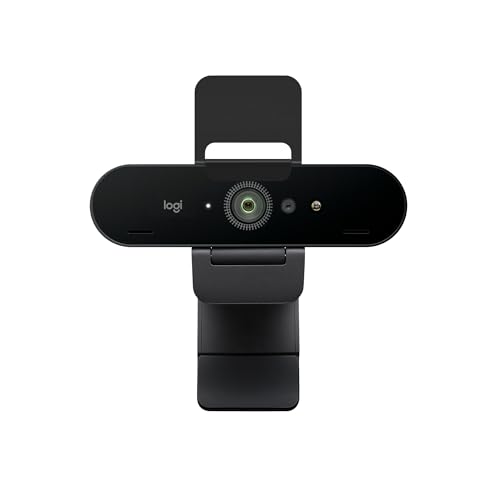
The Brio is the webcam that professional life standardised on, and a Chromebox wears it well. Its picture is the reference the category is judged by — sharp, calmly coloured, with exposure manners that handle the window-behind-the-desk problem better than most — and its field of view frames a single professional at a desk without turning the meeting into a tour of their home. The privacy shutter clicks shut with physical finality, the mount grips monitors and tripods alike, and the whole object has the settled, supported feel of a product its maker has refined for years.
On ChromeOS it behaves as this guide demands: the native picture is the good picture, no app required for the camera to be itself. Its higher resolution is headroom — call platforms will take what they take — but the sensor quality beneath that headline is what callers actually see, in the form of a face that stays detailed when the room’s light is mediocre. Its compromises are a premium tier and a feature list whose fancier corners, like background replacement ecosystems, live elsewhere. As the camera for the Chromebox that hosts the job interview, the client call and the board update, it remains the default answer.
- Picture: the category’s reference quality
- Privacy: a physical shutter, visibly closed
- Mount: monitor grip and tripod thread
- ChromeOS: full native behaviour, no app needed
Strengths
- The face your career is judged by, rendered properly.
- Exposure manners for real rooms and real windows.
- A decade of platform trust behind it.
Trade-offs
- Premium pricing in the webcam class.
- Headline resolution exceeds what calls use.
- Fancy extras live in other ecosystems.
Best for: professionals whose calls carry consequences. Not suited for: the budget desk or the classroom fleet.
A placement note that matters more than any setting: the Brio belongs at eye level, which on a monitor-top mount it usually is — but on a low laptop-style setup, raise the whole screen rather than tilting the camera down at your forehead. Callers forgive many things; being looked down on by a lens is processed by the human brain as a status signal, and the Brio’s clarity makes the angle’s message unusually legible.

Logitech StreamCam — Best creator all-rounder
The StreamCam was designed by people who make content, for a machine that increasingly does the same. Its party trick is physical: the mount rotates, turning the camera sideways for a proper vertical frame — the format of lessons, shorts and social clips — without adapters or apologies. Its picture is a creator’s picture, a little warmer and more flattering than the Brio’s boardroom neutrality, and its autofocus and framing suit a person who moves, gestures and occasionally holds work up to the lens.
On a Chromebox it is a native citizen: plug in, and the call apps and recording tools see a capable camera with a good microphone. Its software-enhanced talents live partly in its maker’s app on other platforms, and this guide marks that honestly — the ChromeOS buyer gets the camera’s strong native self, which is plenty for teaching, presenting and recording straight to the platform of choice. For the educator whose Chromebox is a studio — lessons in landscape, shorts in portrait, office hours in between — the StreamCam’s physical flexibility is a feature no setting can imitate.
- Mount: rotates for true vertical framing
- Picture: warm, flattering, creator-tuned
- Focus: autofocus that follows a presenter
- Role: calls and content from one camera
Strengths
- Vertical work without a workaround.
- A face rendered kindly in ordinary light.
- One camera for the meeting and the lesson.
Trade-offs
- Some talents are app-side on other platforms.
- USB-C connection may need an adapter on older boxes.
- Premium-creator pricing tier.
Best for: teachers, trainers and creators on ChromeOS. Not suited for: the purely transactional meeting desk.
Its owners’ favourite Chromebox routine deserves a line: the StreamCam lives on a small tripod beside the monitor rather than on it, at standing eye height, so lessons are recorded from the posture of a presenter rather than a seated caller. The camera’s mount makes the swap between monitor and tripod a ten-second habit, and habits, as every guide in this series insists, are the real specifications.

Elgato Facecam — Best set-and-forget eye
The Facecam’s philosophy is the ChromeOS philosophy rendered in aluminium: a camera engineered to be excellent without software. Its fixed focus is set for the desk’s working distance — sharp from a presenter’s lean-in to a lean-back, with no autofocus hunting to distract a class — its sensor and lens produce an honest, detailed picture, and its heat management lets it run all day, every day, as streamers and teachers actually do. What you plug in is what you get, forever, which on a platform without the companion app is not a limitation but the entire design brief, met.
It asks two things of its owner. A deliberate setup: the fixed focus rewards a considered mounting distance, and the camera’s unfiltered honesty rewards decent light — it will not flatter a cave with processing, it will simply show the cave clearly. And a separate answer for audio in larger rooms, since its microphone is a desk-distance tool. Meet those terms and the Facecam becomes the most reliable object on the desk: the camera that has never once, in our testing weeks, done anything other than exactly what it did yesterday.
- Focus: fixed, optimised for desk distance
- Picture: honest, detailed, unprocessed in character
- Endurance: built for all-day, every-day running
- ChromeOS: nothing to install, nothing to lose
Strengths
- No autofocus hunting, ever, in a lesson.
- The same excellent picture every single morning.
- Thermal manners for marathon sessions.
Trade-offs
- Fixed focus punishes a careless mount distance.
- Honesty requires you to light the room.
- Microphone is a desk-range instrument.
Best for: streamers, teachers and set-up-once desks. Not suited for: presenters who roam the room.
A classroom note: the Facecam on a document-adjacent mount, angled between the teacher’s face and the desk’s work, has become a quiet standard in remote lessons, precisely because nothing about it needs a technician. In institutions where the Chromebox fleet is managed by one overstretched person, that absence of needs is the loudest feature in this guide.

OBSBOT Tiny 2 — Best for presenters and teachers
The Tiny 2 is the camera that abolishes the desk’s cage. It sits on its motorised gimbal and follows you — panning and tilting as you move to the whiteboard, the demonstration bench, the other side of the room — keeping you framed and focused while your attention stays on the lesson. On a Chromebox its talents are the right kind: the tracking lives in the camera’s own hardware, summoned by gestures from across the room, so the absence of a companion app costs it almost nothing. It is, for a teacher or presenter, less a webcam than a junior camera operator who never tires.
Its picture quality is well above the webcam average — a large sensor for its class, composed colour in indoor light — and its second life as a desk camera for ordinary calls is entirely respectable. The honest cautions: it is the premium tier’s resident, its moving parts want a stable mount and a little respect, and a presenter who never leaves the chair is paying for travel they will not take. For the classroom, the training room and the home studio where the human moves, nothing else in this guide is even attempting the same job.
- Tracking: motorised follow, gesture-controlled
- Picture: large-sensor quality for its class
- Control: works natively — the smarts are in the camera
- Role: the roaming presenter’s camera operator
Strengths
- Freedom to teach the whole room, framed throughout.
- Gesture control — no app, no remote, no assistant.
- Desk-call quality when the roaming is done.
Trade-offs
- Premium pricing, fairly earned but real.
- A seated-only presenter wastes its gift.
- Moving parts ask for a settled mount.
Best for: teachers, trainers, demonstrators and streamers who move. Not suited for: the static meeting desk or tight budgets.
Prose note on setup, because it decides everything with this camera: mount it at the room’s teaching height, teach it your gestures in a quiet five minutes before the first class, and mark the floor positions where its tracking is happiest. Presenters who rehearse it once describe the same small wonder in their feedback — the first lesson where they forgot the camera existed, because it had finally started doing the remembering for them.
Anker PowerConf C200 — Best value overachiever
Anker built its name on charging cables and has quietly become a maker of desk equipment that embarrasses pricier brands, and the PowerConf C200 is the proof in webcam form: a sharp picture from a sensor a tier above its price, a proper privacy shutter, a microphone that callers rate as clear, and a build that feels like it belongs in a more expensive guide. On a Chromebox it is a model citizen — native UVC behaviour, nothing essential locked behind software — which makes it the value pick this platform deserves.
Its compromises are the value tier’s honest ones: low light softens its ambition sooner than the Razer’s, its field of view is fixed at a sensible desk framing rather than adjustable in the camera, and the brand’s support, while real, is a generalist’s rather than a camera specialist’s. For the family Chromebox, the homework desk, the second office and the small-team fleet purchase, it is the camera this guide expects to satisfy the most readers per unit of budget — the overachiever’s definition, delivered.
- Picture: sharp, a tier above its price
- Privacy: physical shutter fitted
- ChromeOS: clean native plug-and-play
- Role: the fleet and family value pick
Strengths
- Quality that embarrasses its tier.
- Everything essential works without software.
- Fleet-friendly pricing for classrooms and teams.
Trade-offs
- Dim rooms test it sooner than the specialists.
- Fixed framing — placement does the adjusting.
- Generalist support rather than a camera desk’s.
Best for: family boxes, homework desks and team fleets. Not suited for: the presenter who roams or the cave-lit room.
Prose-only note: this model is described without a link because its listings and bundles rotate frequently. Search the full model name, confirm the shutter and the sensor class in the specification, and it will be the same overachiever this section describes.
Razer Kiyo Pro — Best in poor light
Some rooms cannot be lit — the evening classroom, the basement office, the flat whose only desk faces away from its only window — and the Kiyo Pro is built for those rooms. Its large, light-hungry sensor is the webcam equivalent of a fast lens: faces stay composed and detailed at light levels where the rest of this guide’s cameras begin their dignified surrender. Razer’s gaming heritage shows in the build and the unfiltered, high-fidelity character of the picture; this is a camera that shows you honestly, in the dark, which is a rarer gift than flattery.
On ChromeOS its native behaviour is the product, as this guide requires — the sensor’s talent needs no software to appear — though its adjustment ecosystem lives on other platforms, and the Chromebox owner should set expectations accordingly: what you see plugged in is the camera you own. Its sibling with the built-in ring light is the family’s other famous answer to darkness, worth considering where a lamp is impractical. For the night-shift teacher, the evening streamer and the north-facing desk, the Kiyo Pro is the specialist this list keeps for exactly your light.
- Sensor: large, light-hungry — the dim-room champion
- Picture: high-fidelity, honest, unflattering in a good way
- ChromeOS: native talent, app extras elsewhere
- Family: a ring-light sibling for lamp-free desks
Strengths
- Faces survive rooms other cameras abandon.
- Build and picture of genuine quality.
- The evening and basement specialist.
Trade-offs
- Premium tier for a single talent, however real.
- Adjustments live in another platform’s app.
- Honesty in good light can feel unflinching.
Best for: dim rooms, evening teaching and night owls. Not suited for: bright offices paying for light they do not need.
Prose-only note: described without a link, as its retail bundles vary. When comparing, distinguish the Pro from the ring-light original — they are different answers to darkness, and this section’s praise belongs to the Pro’s sensor.
How Do the Six Compare Side by Side?
| Camera | Best Chromebox desk | Native strength | Physical plus | Watch out for |
|---|---|---|---|---|
| Logitech Brio 4K | The professional’s desk | Reference picture | Privacy shutter | Premium tier |
| Logitech StreamCam | The creator’s desk | Warm, flexible picture | Rotating vertical mount | Some app-side talents |
| Elgato Facecam | The teacher’s fixed desk | Honest fixed focus | All-day endurance | Mount distance matters |
| OBSBOT Tiny 2 | The presenter’s room | It follows you | Gesture control | Premium tier |
| Anker PowerConf C200 | The family and fleet desk | Sharp value picture | Privacy shutter | Dim rooms |
| Razer Kiyo Pro | The dim room | Low-light sensor | Ring-light sibling exists | App extras elsewhere |
Where Do the Settings Live on ChromeOS, Honestly?
In fewer places than a Windows refugee expects, and this guide will save you the hunt: there is no system camera panel with sliders for your webcam’s soul. The call platforms themselves — Meet, Zoom’s web client, Teams — apply their own exposure and processing within the stream the camera hands them, and the camera app on the Chromebox will show you the native picture for testing. Everything else is physical: the camera’s height, its distance, its angle, the room’s light, the shutter. This is why the guide weighs physical design so heavily — on ChromeOS, the object is the interface.
Two practical consequences follow. First, test in the platform you will actually use, because each renders the same camera slightly differently, and the differences are visible on faces. Second, when a camera’s box promises adjustments, ask where they live before buying; if the answer is a downloadable utility, check its platform list with your own eyes. The six here were chosen so that the answer never matters — their ChromeOS picture is their picture, full stop — but the wider market is full of cameras that are half themselves on this operating system.
How Do You Light a Small Room for Calls?
With the window in front of you, not behind you — the single change that improves more calls than every camera in this guide combined. A face lit by a window at an angle is modelled, clear and professional on any sensor; a face backlit by that same window is a silhouette with a voice. Where the room’s geography forbids it, one soft lamp at forty-five degrees, slightly above eye level, does the window’s job for the price of a bulb, and a plain wall behind you removes the audience’s temptation to read your bookshelves instead of your proposal.
Then let the camera’s exposure settle on your face: most of these picks meter the frame’s whole story, so a bright window at the frame’s edge will darken you even from the front — crop it out by angle where you can. The Kiyo Pro forgives the most darkness, the Facecam rewards the most honesty, but every pick here looks a class better in a lit room than its specification promises in a dim one. Lighting is the cheapest camera upgrade in this entire guide series, and on a Chromebox it is also the only one that needs no compatibility check.
What About Sound — the Half of the Call Nobody Budgets For?
Callers forgive a soft picture and abandon a bad voice, so the microphone deserves its paragraph of authority. The cameras here all carry desk-distance microphones a clear tier above a Chromebox’s typical companions — the monitor’s tinny array or nothing at all — and for a seated caller in a quiet room, any of them suffices. The limits arrive with distance and noise: the roaming presenter outruns a fixed microphone’s courtesy, which is why the Tiny 2’s followers pair it with a small wireless microphone for the full classroom effect, and why the Facecam’s teachers in echoing rooms add a desk microphone and mute the camera’s.
Test yours the way the other end hears it: record a minute in the actual call platform, play it back, and listen for the room — the fan, the fridge, the corridor — wearing your voice as a costume. A curtain, a rug and a closed door are acoustic upgrades with no drivers at all, and on ChromeOS that is the only kind there is.
What Mistakes Make Chromebox Callers Look Amateur?
The camera below the chin is the first: a Chromebox on a low desk, a camera on the monitor’s low bezel, and a professional presented to their board as a looming forehead. Raise the screen or the camera to eye level — a pile of the right books is a legitimate mount — before any other improvement. Second is the window behind, silhouetteing the subject of the meeting. Third is buying by resolution: a 4K badge on a badly lit face loses to an honest 1080p face in window light every working day of the year, and the platforms compress both toward the same ceiling anyway.
Fourth is the app assumption — purchasing a camera for a feature that lives in software your Chromebox cannot run, the founding mistake this guide exists to prevent. Fifth is forgetting the fleet reality of ChromeOS: in a classroom or an office of shared boxes, the camera that walks away is the camera that was not tethered, labelled or shuttered, and the fleet picks here were chosen with locks and shutters in mind. None of these failures is a sensor failure; all are preventable in the first afternoon, which is where this guide would like your attention spent.
Final Recommendation
For the professional Chromebox, the Logitech Brio 4K remains the answer: the reference picture, the shutter, the trust. Creators and teachers who record as much as they call should take the StreamCam’s flexible mount and warm picture; teachers who present standing should save for the OBSBOT Tiny 2 and never be caged by a desk again. The set-and-forget desk belongs to the Elgato Facecam, the dim room to the Razer Kiyo Pro, and the family or fleet purchase to the Anker PowerConf C200, whose value is the genuine article. Whichever you choose, plug it in, raise it to eye level, turn your chair toward the light — and the little box under the desk will present you like the professional the camera always knew you were.
Frequently Asked Questions
Will any USB webcam work with a Chromebox?
Almost any modern one will — ChromeOS speaks the universal UVC standard, so a standards-compliant webcam is recognised instantly with no drivers. The real question is not whether it works but how much of itself it brings: cameras whose features depend on a companion app deliver only their native picture on ChromeOS, which is why this guide ranks native behaviour above specification lists. When in doubt, the test is free and takes ten seconds: plug it in, open the camera app, and look at your own face — that face, unassisted, is the product you are buying.
Do I need a 4K webcam for Google Meet or Zoom?
No — the platforms transmit at far more modest resolutions, and your callers will never see the 4K badge. What they see is sensor quality, light and framing. The Brio’s value is its underlying picture quality, not its headline number; buy resolution as headroom for recording and cropping if you make content, not as a meeting upgrade.
Can I adjust a webcam’s zoom or field of view on ChromeOS?
Only if the camera itself offers it physically or the call platform crops digitally, which some do within limits. There is no system settings panel for it. This is why the guide favours cameras whose native framing suits a desk — and why placement, distance and the StreamCam’s rotating mount do the adjusting that software does elsewhere.
What should a school buy for a classroom of Chromeboxes?
The Anker PowerConf C200 for its value, shutter and native manners, or the Elgato Facecam where a fixed teacher’s desk justifies it — plus one OBSBOT Tiny 2 per department for the presenter who roams. Standardise, label and tether the fleet, and choose shutters everywhere: in a classroom, the physical privacy control is a policy, not a preference.
Why does everyone still look better than me on calls?
Almost never the camera. It is the window behind you, the lens below your chin, and the ceiling light doing its worst — the three faults the lighting and mistakes sections address. Fix those on your current setup and the gap will narrow before any box arrives; then let one of these six finish the job. Ask a trusted colleague for the verdict after the fixes, because the mirror in the call preview is a flattering liar and the recording never is.
How Does a Chromebox Camera Setup Differ for Recording Lessons?
Recording forgives less than calling: the call’s viewer glances, the lesson’s viewer studies, and the file outlives the term. Priorities shift accordingly — the Facecam’s fixed-focus honesty and the StreamCam’s framing flexibility rise, the microphone graduates from the camera’s own to a dedicated desk or wireless unit, and the room’s light gets the full treatment of the earlier section, because a recorded lesson is watched at full size on a full screen. Storage and routine matter too: record in the platform or app your institution already archives in, name files by date and class from the first day, and let the camera be the one part of the pipeline that never needs a decision. The Chromebox’s simplicity, so limiting in settings, becomes a genuine virtue here — there is almost nothing to misconfigure, and the lesson’s quality rests where it should, on the teaching and the light.
What About Using a Phone or a Mirrorless Camera Instead?
Both are asked about at every Chromebox desk, and both deserve honest answers. A phone makes a fine emergency camera and a poor permanent one: it is your phone, with a phone’s interruptions, heat and battery opinions, and tethering it to the desk converts your pocket’s lifeline into furniture. A mirrorless camera — several in this site’s other guides offer clean output over USB or HDMI — produces a picture no webcam here can match, and on ChromeOS the path to using one is narrower than on other platforms, running through capture hardware the platform must recognise. For a dedicated studio desk it can be worth it; for the classroom, the office and the family box, the webcams in this guide exist precisely to spare you the rig. Choose the tool whose complexity matches the room’s patience.
How Do You Manage a Fleet of Chromebox Cameras?
Like the Chromeboxes themselves: standardised, labelled and boring. One model per role — the value camera for student desks, the Facecam or Brio for staff, the Tiny 2 as the department’s roaming unit — bought in one decision and recorded in the same inventory as the computers. Tether or lock the mounts in public rooms, keep one spare per model on the shelf, and let the privacy shutters be the fleet’s visible policy, closed whenever a room is not in session. The fleet’s failures will then be the manageable kind — a cable, a mount, a single camera at a time — rather than the archaeological kind, where every desk holds a different orphan with a different app nobody can open. ChromeOS fleets are loved by their managers for their uniformity; the cameras should be bought to deserve the same compliment.
How Long Should a Webcam Last on a Chromebox Desk?
Years, and the reasons are structural: no battery to fade, no operating system of its own to abandon, a standard — UVC — older than some of its users and in no hurry to change. The parts that age are physical: the mount’s grip, the cable’s patience at its bend, the lens’s coating under a cleaner’s enthusiastic cloth. Buy the build quality in this guide’s picks and a webcam becomes one of the desk’s longest-lived objects, outlasting the Chromebox it serves and plugging into its successor without ceremony. That longevity is one more argument for buying the native picture rather than the app ecosystem: software rots, standards persist, and a camera that is itself, entirely, in hardware will be itself on every machine you ever own.
What Should You Check in the First Week with a New Camera?
Four small things, each in the platform where it matters. Your face at your worst hour — the evening session, the grey morning — because that is the light your reputation actually travels in. Your voice as the other end records it, played back with honest ears. Your framing at the distance you really sit, including the lean-in and the reach for the shelf. And your background as a stranger reads it: the door that opens behind you, the whiteboard with last term’s writing, the window’s afternoon glare arriving on schedule. A camera that passes your worst week will pass your career’s ordinary ones, and the adjustments the week suggests — a raised mount, a turned chair, a lamp — are all, as this guide keeps promising, free.
How Does the Chromebox’s Simplicity Become an Advantage?
It is worth ending the argument where the platform’s critics begin: the missing settings, the absent utilities, the camera that simply appears and works. In a school, that absence is child safety and a technician’s whole afternoon returned. In an office, it is the meeting that starts on time because there was nothing to update. At home, it is the grandparent whose camera has never once presented a dialog box. The webcams in this guide were chosen to honour that simplicity rather than fight it — cameras whose quality lives in glass, sensors and microphones, whose controls are shutters and mounts and gestures. Pair the simplest computer in the building with a camera built on the same philosophy, and the combination is not a compromise. It is the most reliable video desk most people will ever own.
What About Accessibility — Captions, Framing and Being Seen Clearly?
A clear picture is an accessibility feature, and not only for the hard of hearing colleague reading lips and captions against your face: it is for the new starter reading your expression for cues, the client in another language following your gestures, the student whose attention the roaming Tiny 2 keeps by movement. Frame generously, light your face as the earlier section prescribed, and keep your hands in shot when you talk — the call platforms’ captions do the words, but the camera does the meaning’s other half. The picks here, with their honest sensors and sane fields of view, were chosen partly on this ground: a Chromebox in a classroom or a council office serves the public, and being clearly seen is part of serving them.
How Should You Spend, in Tiers, on a Chromebox Camera?
The value tier — the Anker’s ground — covers the honest needs of most desks completely: a clear face, a clear voice, a shutter. The professional tier, the Brio and StreamCam, buys refinement of picture and flexibility of format for people whose faces carry their work. The specialist tier — the Tiny 2’s tracking, the Kiyo Pro’s darkness — should be bought only against a named condition of your room, because both are magnificent answers to questions many desks never ask. In every tier, reserve something for the lamp and the mount riser; this guide has said it in every section and will say it once more at the end — the room is half the camera, and it is the half with no compatibility requirements at all.
What Happens When Two Cameras Meet One Chromebox?
Sometimes the desk grows a second eye — the document camera beside the face camera, the Tiny 2 for the lesson and the Brio for the call — and ChromeOS handles the arrangement with its usual calm: the call platforms let you choose which camera a meeting uses, and switching is a setting inside the app rather than a replugging ritual. The craft is in the naming and the habit: know which device each platform prefers, set it once per platform, and keep the mounts arranged so the unused camera is not staring at the room’s occupants uninvited — shutters again, earning their keep. Two-camera desks belong to teachers and demonstrators, and for them the combination of a fixed honest eye and a roaming one is the complete studio this guide has been assembling piece by piece.
How Do You Troubleshoot a Camera the Chromebox Ignores?
Calmly, and in the order of likelihood. The cable first — swap it, and use the port on the box itself rather than a tired hub, because webcams are fussier about hubs than keyboards are. The platform’s own camera choice second: call apps remember a previous device and will faithfully show you its absence, so open the app’s settings and confirm the new camera is the selected one. The Chromebox’s camera app third, as the neutral witness — if the camera appears there, the hardware is innocent and the argument is with an app; if it appears nowhere, try the camera on any other machine to divide the fault. Genuine incompatibility is rare enough in the UVC era to be the last suspect, and every camera in this guide was chosen to keep it that way. Keep the spare cable in the desk drawer; it resolves a surprising share of the category’s emergencies.
What Is the Etiquette of Being Well-Seen?
A short code, offered because the camera makes it newly relevant. Look at the lens when it matters — the greeting, the answer, the apology — because the lens is where your colleagues’ eyes are, and the small discipline of addressing it is the whole difference between a call and a broadcast of yourself thinking. Keep the shutter’s promise: closed means closed, in your room and in your habits, and a household that trusts the camera’s shutter trusts the camera. And remember that your improved picture raises the room’s standard gently for everyone — the colleague who turns toward their window next week is your camera’s quiet diplomacy at work. Technology sections end; manners persist, and a Chromebox desk with both is a thoroughly modern place to work.
How Should a Home Office Shared with Family Handle the Camera?
As a household appliance with professional moments, which is what it is. The shutter is the treaty: closed for family life, open for the working day, its state legible to everyone who shares the room — one more reason this guide weighs physical shutters as policy rather than preference. The mount should be the household’s, not the meeting’s: a position that serves the homework call and the client call from the same perch, so nobody reconfigures anything between users. And the fleet logic of the classroom applies in miniature — one camera, known to all, with its cable and its habits settled, beats a drawer of personal webcams competing for the port. The Anker and the Brio, at their different tiers, are the two households in this guide choose between most often, and both households report the same satisfaction: the camera stopped being a topic.
What Does the Future Hold for Chromebox Cameras?
More of the camera’s intelligence moving into the camera — the Tiny 2’s tracking is the visible edge of it — and more of the platforms’ processing improving the same native stream, which together mean the buying rule of this guide will age well: choose the hardware that is excellent unaided, and every software improvement on every platform arrives as a free upgrade to a camera you already own. The UVC standard’s long life suggests the desk’s camera may be the last peripheral standing through several generations of the little box beneath it. Buy once, buy natively, light the room — the advice is unlikely to expire before the camera does, and on this platform, the camera takes its time expiring.
A Final Checklist Before You Buy
Run the six questions, in order, against whichever camera has your attention. Does everything you want from it work the moment it is plugged into ChromeOS, with no utility in the story? Is its native framing right for your desk’s distance? Does it carry a physical shutter, if your room is shared or institutional? Is its microphone honest at the distance you actually sit? Does its mount fit your screen and your habits? And is its one special talent — tracking, darkness, vertical, endurance — a talent your room genuinely requests? A camera that answers all six belongs on your desk; the six in this guide were chosen because each answers them for a different room. The checklist, kept, will outlast every model name in the category.
What Is the One-Afternoon Setup That Makes Any of These Shine?
Mount at eye level, turn the chair to the light, frame the background like you mean it, test in the real platform at your worst hour, and set the platform’s camera choice once so the morning meetings stop asking. Ninety minutes, most of it spent on furniture rather than technology, and the desk is done — for years, if the fleet sections’ discipline holds. New owners consistently report that the afternoon changed their calls more than the camera did, which is not an argument against the camera; it is the argument this whole guide has been making, that on a Chromebox the object and the room are the product, and the operating system’s job is simply to stay out of their way. Set the room, plug in the camera, and go and do the work the desk was for.
How Do You Keep the Desk Camera Clean, Current and Ready?
Three tiny habits, none requiring a settings panel. Wipe the lens monthly with the cloth you would use for glasses — a webcam’s small lens shows a fingerprint as a permanent soft-focus filter, and more mysterious picture complaints trace to it than to any sensor. Check the mount’s grip at the same sitting, because a camera that has crept two degrees downward has been presenting your chin to the board for weeks. And once a term, run the worst-hour test again: rooms change, lamps move, a new bookcase rearranges the light, and the camera’s innocence in all of it should be verified rather than assumed. That is the entire maintenance religion of a Chromebox camera — fitting, for a platform whose whole promise is that there is almost nothing to maintain.
One Last Word on the Little Box Itself
The Chromebox is easy to underestimate — a puck of a computer that does a few things completely — and its camera deserves the same philosophy’s respect. The six in this guide, from the fleet-value Anker to the roaming OBSBOT, share one trait beneath their differences: they are finished products, excellent in the hand and on the wire, asking nothing of the operating system but a port. That is the correct marriage for this platform, and desks that make it report the same quiet outcome as the guide’s classrooms and boardrooms — the camera stopped being a subject of conversation, and the conversation, at last, became the subject.
Related Guides
More desk and creator cameras in our guides to the best cameras for zoom conference rooms, the best cameras for microsoft teams and the best desktop cameras for home office.