ilcastellomenu.com is reader-supported. When you buy through links on our site, we may earn an affiliate commission.
Where to Buy
‘Open broadcaster’ means OBS — Open Broadcaster Software, the free program running a large share of the world’s livestreams — and the best cameras for open broadcaster setups are the ones OBS can use without a fight. That sounds like a small requirement and eliminates a surprising number of famous cameras, because a streaming camera’s job is not to record beautiful footage. Its job is to hand OBS a clean, continuous, correctly-sized video feed, hour after hour, while the streamer talks, plays, teaches, or sells.
This guide therefore judges cameras as broadcast components, not as cameras. The questions that matter are unglamorous and decisive: Does it appear in OBS as a simple USB source, or does it need HDMI and a capture device? Does its output carry menus and battery warnings burned into the frame — the classic clean-feed failure? Can it run on mains power indefinitely, focus on a face without hunting, and survive a four-hour stream in a warm room without shutting down?
Streamers also work at three distinct scales, and the picks are labelled by scale. There is the desk streamer who needs one excellent face camera; the two-camera streamer cutting between a face and a desk, hands, or product view; and the small studio — a podcast table, a teaching bench, a church or community production — where cameras must match each other and stay matched. A camera that is perfect at one scale can be an awkward guest at another.
One clarification before the picks, because it saves real money: OBS itself is free and remarkably capable, and it does not care whether a feed arrives from a webcam, a mirrorless camera, or a capture card. The streamer is buying image quality, reliability, and depth of field — not compatibility theatre. Buy the simplest feed that looks the way your stream needs to look, and spend the difference on light and audio, which viewers notice first and forgive last.
Key Takeaways
- In OBS, the feed is the product: judge cameras on clean output, power stamina, and focus behaviour — not recording specs.
- The OBSBOT Tiny 2 is the easiest excellent stream camera here: it tracks you, frames you, and plugs in as one USB source.
- For a mirrorless feed without capture-card drama, the Sony ZV-E10 II leads — streaming-ready over USB with product-showcase focus for desk demos.
- The Logitech Brio 4K remains the dependable plug-and-play benchmark for meetings-grade streams.
- A capture card plus a mirrorless camera is the pro path; USB streaming is the sane path for most desks.
In this guide
Quick Picks
| Camera | Badge | Its role in an OBS setup |
|---|---|---|
| OBSBOT Tiny 2 | Best tracking webcam | A gimbal webcam that follows you around the room and frames the shot hands-free. |
| Logitech Brio 4K | Best plug-and-play | The reliable 4K webcam for streamers who want to add a source and forget it. |
| Elgato Facecam | Best fixed desk camera | A streaming-first webcam with manual control and no microphone to fight your audio chain. |
| Sony ZV-E10 II | Best mirrorless for OBS | USB streaming, showcase focus, and interchangeable lenses for a polished broadcast look. |
| Canon EOS R50 | Best value mirrorless | Friendly Canon colour and clean output for streamers stepping up from a webcam. |
| Logitech StreamCam | Best vertical-friendly | Built for creators, with easy vertical framing for streams that also feed social platforms. |
How We Chose These Picks
We tested these cameras the way OBS actually meets them: as sources. Each was added to a scene, framed, keyed, resized, and left running through long simulated streams, and we watched for the failures that end broadcasts rather than the virtues that win spec sheets — focus hunting under changing light, feeds that drop when another USB device wakes, output that letterboxes or crops unexpectedly, and cameras that quietly decide a warm room is a reason to stop.
Clean output was a hard gate. A camera whose HDMI or USB feed carries focus boxes, recording indicators, or battery icons into the program feed is disqualified from serious streaming no matter how fine its sensor, unless those overlays can be fully disabled. Every pick here can present OBS with a frame that contains only the picture — the streamer’s face, hands, or product — and nothing else.
Focus behaviour was judged on streamers, not landscapes: a person who leans, gestures, holds objects toward the lens, and occasionally leaves the chair. We favoured cameras that lock onto a face and stay civilised about it — no pulsing, no dramatic searches — and, for desk and product work, cameras whose focus can be fixed or guided so a demonstration is not narrated by a hunting lens.
Power and heat formed the final gate. Streaming cameras run on mains or USB power for hours, in rooms warmed by computers and lights, so we favoured designs with dummy-battery or USB-power options and a record of long-session composure. A camera that must be nursed through a stream is a co-host with anxiety; none of the six below requires nursing.
How Does a Camera Actually Reach OBS?
There are three roads into OBS, and choosing between them is the first real decision in any streaming setup. The simplest is the USB webcam road: the camera appears in OBS as a video capture device, you add it to a scene, and you are broadcasting. Webcams and streaming-first cameras travel this road natively, and several modern mirrorless cameras can too, offering a USB streaming mode that trades a little resolution for total simplicity.
The second road is HDMI plus a capture device: the camera sends its picture over an HDMI cable to a small capture card or dongle, which presents it to the computer as a source. This road carries the highest quality — full sensor, real lenses, no streaming-mode compromises — at the cost of extra hardware, an extra cable, and extra settings to verify. It is the professional path, and it is worth it precisely when the picture is the point of the stream: beauty, craft, product, and performance content.
The third road is software: manufacturer utilities and virtual-camera tools that carry a feed over USB or network into OBS. These can be excellent and are sometimes the only way an older camera joins a stream, but they add a layer that must be updated, launched in the right order, and occasionally argued with. For a new purchase, prefer a camera whose road into OBS is native — USB streaming or clean HDMI — and treat software bridges as a way to rescue cameras you already own.
Whichever road you choose, OBS asks the same discipline of the setup: set the camera’s resolution and frame rate deliberately rather than accepting defaults, match it to your canvas, and lock exposure and white balance once the lights are final. Auto-everything is the leading cause of the flickering, breathing, colour-drifting feeds that make a stream look amateur — and it is entirely curable in an afternoon.
What Does a Mature OBS Setup Look Like After a Year?
A year in, the first thing a mature setup has is fewer surprises. The scenes are named for their jobs, not their devices; the camera settings are locked and written down; the cable runs are fixed, labelled, and boring. New viewers assume the polish is talent. The streamer knows it is documentation — a setup that can be rebuilt from a one-page note is a setup that survives a new computer, a house move, and a volunteer’s first evening.
The second mark of maturity is that the camera has stopped being the project. Early streaming is gear-shaped: every session teaches a setting, every month tempts an upgrade. Mature streamers go quarters without touching the camera’s configuration, because the format has stabilised and the audience is returning for the content. The picks in this guide were chosen to reach that plateau quickly — their ceilings are high enough that the plateau is comfortable.
Audio, by a year, has usually overtaken video in the budget, exactly as it should. The mature desk shows the evidence: a microphone on an arm, positioned close; treatment of the room’s worst echo, even if only soft furnishings placed with intent; a monitoring habit that catches problems in the first minute. The camera’s role in that ecosystem is to be the component nobody thinks about — which the Facecam’s designers, the Brio’s manners, and the Tiny 2’s autonomy all understand in their different dialects.
Lighting has usually become the second mature investment, and it transforms the existing camera rather than replacing it. Streamers are routinely astonished that their year-old webcam, given a proper key light and a locked exposure, outperforms the new camera they were saving for, tested under the old ceiling bulb. The mature setup’s secret is that it stopped buying cameras and started buying photons.
Redundancy appears in year two’s budget, quietly: a spare cable for the one that will fail, a second webcam — often the StreamCam or the retired first camera — mounted as the utility angle, a holding scene for failures. Professionalism in broadcasting is mostly this: the audience never learns what went wrong. The two-camera discipline described earlier in this guide is where that redundancy begins.
The last mark is restraint in scenes. The mature channel runs a handful of scenes that cut cleanly and mean something — face, wide, desk, holding — rather than a carnival of transitions. Cameras serve those scenes; scenes serve the format; the format serves the audience. A streamer who can describe their setup in one sentence owns a broadcast. The rest is content, which was the point all along.
Which of the Best Cameras for Open Broadcaster Setups Fits Your Stream?

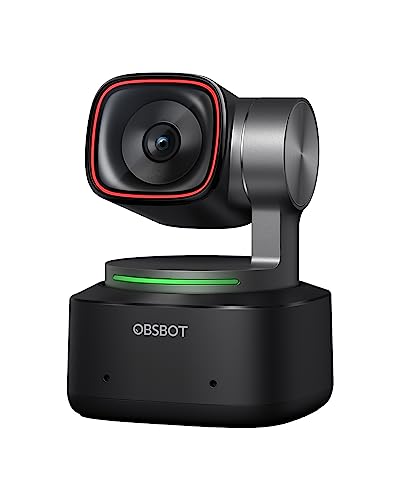
OBSBOT Tiny 2 — Best tracking webcam
The Tiny 2 answers the question most solo streamers actually have: who is operating the camera while I am performing? Its gimbal head tracks its subject around the room, reframing smoothly as you stand, demonstrate, pace a whiteboard, or move between a desk and a workbench — shots that otherwise require either a static wide frame or a second human. In OBS it is a single USB source; the intelligence lives in the camera, not in plugins.
Its image quality leads the webcam class, with a sensor large enough to hold up in ordinary room light, and its gesture and voice conveniences — raise a hand to start tracking, say the word to zoom — sound like novelties until the first time you use them mid-demonstration with both hands occupied. Teachers, fitness streamers, craft demonstrators, and anyone whose stream involves standing should audition this camera first.
The Tiny 2’s tracking intelligence has a subtler gift for educators: it restores eye contact with the material. A teacher demonstrating a technique normally performs for a fixed frame, glancing at a monitor to check they are still in shot — a small, constant tax on presence. A camera that follows removes the tax. The lesson flows, the demonstration stays centred, and the recording of the session is as usable as the live stream, which makes the Tiny 2 a lecture-capture device that happens to fit in a jacket pocket.
- Form: gimbal webcam with subject tracking
- Feed: USB source in OBS, no capture card
- Framing: auto-tracking, gesture and voice control
- Light: strong sensor for its class
- Best at: presenters who move
Strengths
- A camera operator built into the camera
- Tracking survives a walking, gesturing presenter
- One-cable simplicity in OBS
Trade-offs
- Tracking can be charmed by a second person entering frame
- Costs more than fixed webcams
- Desk-bound sitters gain less from its talents
Podcasters who record video in untreated rooms report an unexpected benefit: because the Tiny 2 reframes tightly on the speaker, backgrounds shrink and the stream looks more produced without a single backdrop purchase. Framing is production value, and this camera manufactures it continuously.
Set its tracking boundaries during setup — where it may and may not follow — and the performance becomes reliable rather than merely impressive. Five minutes of configuration is the difference between a gimmick and a crew member.
Best for: teachers, demonstrators, and streamers who stand and move. Not suited for: static desk streamers who never leave the chair

Logitech Brio 4K — Best plug-and-play
The Brio 4K is the streaming equivalent of a reliable colleague: it arrives, it works, it looks good in ordinary light, and it never becomes the story. Its 4K sensor gives OBS a detailed feed that can be cropped and reframed digitally without turning to mush — a genuinely useful trick for a single-camera streamer who wants a ‘close-up’ scene and a ‘wide’ scene from one device — and its autofocus and exposure manners are the calm, conservative kind that long meetings and long streams both reward.
For streamers whose content is conversation — interviews, commentary, talk formats, professional broadcasts from a home office — the Brio remains the default recommendation precisely because it asks for nothing. Add it as a source, set the resolution, lock what can be locked in its settings utility, and the camera leaves the stage to the streamer.
The Brio’s 4K sensor is best understood as a framing budget rather than a resolution boast. Streamed at 1080p, the surplus pixels buy a digital zoom that does not embarrass — OBS can crop the feed for a close-up scene, a guest scene, a detail scene — turning one mounted camera into a small multi-camera illusion. Streamers who master this trick delay their second-camera purchase by a year, and the delay is funded entirely by pixels they already owned.
- Feed: USB, up to 4K for crop-friendly framing
- Focus: autofocus with calm exposure manners
- Field of view: adjustable in software
- Extras: privacy shutter, Windows Hello class features
- Best at: talk, interviews, professional desks
Strengths
- Add-source-and-forget reliability
- 4K headroom for digital reframing in OBS
- Looks composed in ordinary room light
Trade-offs
- Fixed lens — no optical depth-of-field look
- Needs decent light to show its best
- Software settings live outside OBS
Two-camera streamers value it as the utility angle: the wide room shot, the guest-position camera, the overhead feed’s stand-in while a mirrorless takes the hero angle. Its consistency with itself, unit to unit, makes matching a pair of them in OBS unusually painless.
If your stream is also your job’s meeting presence, the Brio’s double life is a budget argument: one camera that is respectable on a client call at nine and on a broadcast at nine in the evening.
Best for: talk streamers and professionals wanting zero-fuss quality. Not suited for: streamers chasing a cinematic blurred background

Elgato Facecam — Best fixed desk camera
The Facecam was designed by a streaming company, and its design decisions read like a streamer’s complaint list answered one by one. There is no built-in microphone, because streamers own microphones and hated disabling camera mics. The lens is fixed-focus at a desk distance, because a seated streamer’s focus should never hunt. Settings — exposure, white balance, contrast — are manual, savable, and stored in the camera, because a streamer’s look should survive a reboot.
The result is the most predictable feed in this guide: the same framing, the same exposure, the same colours, every session, which is a higher virtue in broadcasting than in almost any other kind of photography. Its image is detailed and honest in good desk light, and its whole manner suits the streamer who has dialled in a look and wants the equipment to stop participating in creative decisions.
The Facecam’s fixed focus is a philosophy worth stating plainly: a seated streamer occupies a known volume of space, and a lens that cannot focus also cannot misfocus. Every autofocus system, however good, occasionally chooses the microphone, the chair back, the plant. The Facecam declines the entire category of error by fixing its attention where the streamer actually lives. For formats built on unbroken eye contact — commentary, teaching to camera, interviews — that abstinence is a feature professionals recognise instantly.
- Feed: USB, uncompressed-style clean output
- Focus: fixed at desk distance — no hunting, ever
- Settings: manual, saved on the camera itself
- Microphone: none, by design
- Best at: a dialled-in, unchanging desk setup
Strengths
- The most repeatable feed in this guide
- Manual settings persist between sessions
- No mic conflicts with your audio chain
Trade-offs
- Fixed focus punishes leaning far in or out
- Wants proper desk lighting to shine
- No 4K reframing headroom
Streamers running a green screen often land here: predictable exposure and fixed focus make keying cleaner, because the chroma key’s worst enemy is a camera quietly changing its mind about brightness mid-sentence. Stability, again, is the production value.
Buy it with the light it deserves. The Facecam under a proper key light looks like a broadcast; under a ceiling bulb it looks like a webcam with opinions. The camera is honest about which one you gave it.
Best for: desk streamers with a fixed setup and their own microphone. Not suited for: streamers who move around the room

Sony ZV-E10 II — Best mirrorless for OBS
When a stream needs to look like television — real depth of field, a lens chosen for the room, low-light grace — the ZV-E10 II is the mirrorless camera that joins OBS with the least friction. It streams over USB directly, sparing the capture card for many setups, and its autofocus is the best in this guide at the streamer’s core tasks: holding a face, and snapping to a product held toward the lens for the show-and-tell moment every desk stream eventually becomes.
Interchangeable lenses are the long argument. A fast prime gives the beauty and craft streamer their signature look; a wider zoom rehouses the camera as a room camera when the format changes. In OBS it can serve for years across formats that have not been invented yet by its owner, which is what a platform purchase should mean.
The ZV-E10 II’s streaming-over-USB deserves emphasis because it changes the purchase’s shape: no capture card, no extra cable run, no second device to configure — the mirrorless look arrives through the same port a webcam uses. Streamers who later add a capture card for the full HDMI feed are upgrading a working system rather than rescuing a failed one, and that sequencing — simple first, maximal later — is how reliable broadcast setups are actually built.
- Sensor: APS-C, interchangeable Sony E lenses
- Feed: USB streaming or clean HDMI for capture cards
- Autofocus: face priority plus product showcase
- Power: USB or dummy battery for long streams
- Best at: polished desk broadcasts and demos
Strengths
- Broadcast look with direct USB streaming
- Showcase focus for product demonstrations
- Lens system grows with the channel
Trade-offs
- Needs a lens budget beyond the body
- USB streaming resolution trails HDMI capture
- Menus reward an evening of setup
Run it over HDMI with a capture device when the stream’s quality ceiling matters — the full sensor output is visibly richer — and over USB when simplicity or a second angle matters. Owning both roads with one camera is a flexibility streamers use more than they expect.
Heat manners in long sessions are a fair question with any mirrorless; the practical answers are mains power, a raised screen, and reasonable room temperatures. Streamers running this body through marathon charity broadcasts do so with exactly those unglamorous arrangements.
Best for: streamers wanting a television look without capture-card drama. Not suited for: buyers wanting a camera that needs no setup thought

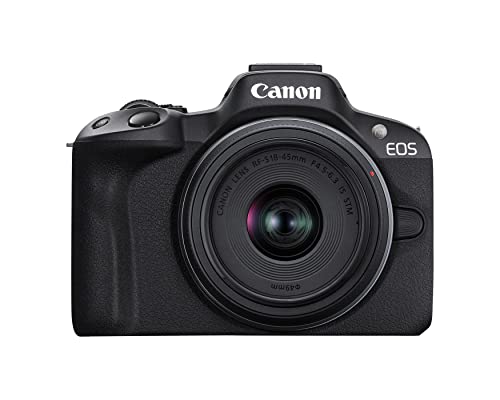
Canon EOS R50 — Best value mirrorless
The R50 brings Canon’s famously kind colour to the streaming desk at the friendliest price of the mirrorless picks. Skin tones under ordinary streaming lights are where viewers subconsciously judge a broadcast, and Canon’s rendering flatters presenters in a way that reduces both makeup and colour-correction labour. For the streamer graduating from a webcam and wanting the mirrorless look without the mirrorless invoice, this is the door.
Its streaming path — USB or HDMI into OBS — is straightforward, its menus are the most approachable here, and its stills ability means the same camera shoots the channel’s thumbnails and social photography. It concedes the Sony’s showcase-focus trickery and some low-light reach, and returns change that buys the light and microphone that will improve the stream more anyway.
The R50’s value compounds in a way spec sheets miss: it is the camera a streamer can also lend. The community stream, the school broadcast, the friend’s first attempt — a friendly, guided, sensibly priced mirrorless can be handed over with a five-minute briefing, where a flagship body cannot. Channels are social enterprises; the camera that can be shared occasionally is worth more to the community around the stream than its price difference suggests.
- Sensor: APS-C, interchangeable Canon RF lenses
- Feed: USB streaming or clean HDMI
- Colour: Canon rendering, kind to faces
- Menus: guided and approachable
- Best at: webcam graduates on a budget
Strengths
- Flattering colour for presenters
- Friendly price and menus for a first mirrorless
- Doubles as the channel’s stills camera
Trade-offs
- No product-showcase focus mode
- Lens shelf younger than Sony’s
- Kit zoom is a starting point
Education and community streamers — the cooking channel, the language teacher, the hobby instructor — are its natural congregation: people whose authority is their manner, whose streams are long, and whose viewers return for the person. Canon colour serves exactly that contract.
Thumbnail discipline is an underrated part of its value. A streamer who can shoot a proper still for the video’s cover, on the same camera, in the same light, keeps the channel’s whole visual identity in one pair of hands.
Best for: streamers stepping up from webcams on a sensible budget. Not suited for: demo-heavy streamers needing showcase autofocus

Logitech StreamCam — Best vertical-friendly
The StreamCam was built for the creator whose broadcast does not end at OBS — whose stream is clipped, cropped vertical, and reposted to social platforms before the chair is cold. Its mount rotates for vertical framing, its autofocus and exposure are tuned for a face at desk distance, and its feed is a clean, simple USB source that OBS takes without ceremony.
Within the desk it is a personable camera: good microphones by webcam standards for scratch audio, honest colour, and framing that suits a single presenter. It sits below the Brio in resolution headroom and below the Facecam in manual discipline, but for the streamer whose format spans platforms, its vertical fluency is a feature neither rival bothered to build.
The StreamCam’s vertical fluency points at where streaming is going: the broadcast is increasingly the raw material, and the audience is met again in clips. A camera designed to serve both orientations acknowledges that a streamer’s real product is a week of content in several shapes. Buyers planning a clips channel from day one should treat that design intent as seriously as any sensor figure in this guide.
- Feed: USB, OBS-ready source
- Mount: rotates for vertical framing
- Focus: face-tuned autofocus
- Audio: capable built-in microphones
- Best at: multi-platform creator desks
Strengths
- Vertical framing for social reposting
- Simple, friendly, quick to deploy
- Respectable scratch audio in a pinch
Trade-offs
- 1080p ceiling — no 4K crop headroom
- Less manual control than the Facecam
- Fixed lens, webcam depth of field
Streamers building a shorts pipeline from their broadcasts should weigh workflow features like this mount more heavily than spec-sheet resolution: the clip that gets made beats the clip that could have been made from a technically superior horizontal feed.
As a second camera it earns a permanent desk place — the vertical angle, the guest angle, the angle that stays set up when the main camera travels. OBS scenes accumulate; so do uses for a willing webcam.
Best for: creators streaming in OBS and reposting vertically. Not suited for: single-format streamers wanting maximum resolution
How Do You Build a Clean Two-Camera OBS Setup?
Assign each camera one job and forbid improvisation. The hero camera frames the face at eye level, close enough that expressions carry; the second camera owns the other story — hands on a desk, a product bench, a whiteboard, a wide room shot that establishes place. Streamers get into trouble when both cameras try to be generalists; scenes built on single-purpose sources cut cleanly and troubleshoot in seconds.
Match the cameras before you match anything else. Set both to the same frame rate, fix their white balances to the same value under the final lights, and expose them to agree on the presenter’s face. Two cameras that disagree about colour make every cut look like a location change; ten minutes with manual settings turns the same pair into a studio.
Power and cable like you mean it. Both cameras on mains or reliable USB power, cables long enough to be strain-free and short enough not to coil around chair wheels, and a labelled diagram of which USB port feeds which source. USB bandwidth is a real budget on some machines — if a feed stutters when both cameras run, moving one to a capture card or a different controller is the fix, and it is a fix made calmly before the stream, never during.
Rehearse the failure, once. Mute each source in turn, switch every scene, and watch what the audience would see if a camera froze mid-broadcast — then build the holding scene, a simple graphic or wide shot, that covers a restart. Professional streams are not the ones where nothing fails; they are the ones where failure has a scene of its own.
Which Stream Format Are You Actually Running?
The talking head — commentary, interviews, talk and podcast formats — needs one excellent face feed and nothing else: Brio for zero fuss, Facecam for a locked look, Tiny 2 if the talking involves standing. Spend the rest of the budget on the microphone and the key light, in that order, and the format is complete.
The demonstration — crafts, cooking, repairs, products, teaching at a bench — needs focus that behaves around objects and a second angle for hands: the ZV-E10 II as hero, a webcam overhead or at the bench, scenes rehearsed like choreography. This format forgives modest resolution and punishes focus hunting mercilessly.
The performance — music, fitness, art at scale, anything full-body — needs room in the frame and a camera that can be trusted at distance: the Tiny 2 tracking a moving presenter, or a mirrorless on a wide lens over HDMI. Audio and light outrank the camera here by the widest margin of any format.
The institution — podcast tables, community studios, houses of worship, small events — needs matched cameras, mains power, and feeds that volunteers can run: pairs of the same model, settings locked and labelled, OBS scenes documented. Consistency across operators is the entire specification.
Frame rate deserves the plain treatment it rarely gets. Match the camera’s rate to the content’s motion and the platform’s delivery: talk formats are content at modest rates, fast gameplay and sport want the higher ones, and mixing rates across cameras in one production invites the subtle judder that viewers feel without naming. Set every source deliberately, confirm in a local recording, and let consistency do the polish.
Colour matching across cameras is the two-camera skill nobody warns beginners about. Two feeds that disagree on white balance make a cut feel like a teleport. The cure is unglamorous: same white balance value set manually in both cameras, under the final lights, checked on the presenter’s face — not the wall, not the desk. Ten minutes, once, and the production stops looking assembled.
Network and computer load belong in a camera guide for one reason: the feed is only half the chain. A stream that drops frames because the encoder is starved will be blamed on the camera by its owner and on the streamer by the audience. Test the full chain — cameras at full resolution, scenes switching, chat and alerts running — in a private broadcast of real length before any public one. The rehearsal is the product’s quality department.
Green screens repay a paragraph because webcams and mirrorless cameras behave differently in front of them. Even light on the screen matters more than the screen; distance between presenter and screen kills shadows and spill; and a camera with locked exposure — the Facecam’s discipline again — keys more cleanly than a technically superior camera that keeps re-deciding brightness. Streamers planning a keyed setup should buy light for the screen before resolution for the lens.
Portability is a format some streamers discover late: the away broadcast, the event, the interview at a subject’s premises. The Tiny 2 and the webcams travel in a laptop bag and run from USB power; the mirrorless picks travel as a small kit with a capture device. If the channel’s future includes leaving the desk, weight the picks’ luggage manners now — a broadcast that can move is a format competitors cannot copy from their spare room.
Accessibility features in OBS — captions, readable scene text, audio description habits — pair with camera choices in one specific way: a clean, stable, well-lit face feed is what makes automated captioning and lip-reading possible at all. The camera locked, lit, and framed at a conversational size is an accessibility device. Streamers who build that discipline in from the first month find their audience quietly widening in demographics that growth advice never mentions.
There is a maintenance rhythm to broadcast cameras that stills photographers never learn: lenses and sensors sit open to a room’s dust for hours a day, and a monthly cleaning — blower, cloth, a check of the feed at full size — prevents the slow bloom of spots that viewers notice before owners do. Cables, too, are consumables in a working studio; the spare bought calmly in a quiet week is the broadcast saved in a loud one.
Finally, the upgrade path should be planned as scenes, not devices. The mature question is never ‘which camera next’ but ‘which shot is missing’ — the overhead, the wide, the guest, the detail. Each missing shot names its own camera from this guide’s bench, at its own price, in its own month. Streamers who buy shots stay equipped; streamers who buy cameras stay shopping.
Scene collections and profiles are OBS’s own gift to camera discipline, and mature streamers exploit them ruthlessly: one profile for the talk format, one for the demonstration, each with its cameras’ resolutions and crops already correct. Switching formats becomes loading a file rather than rebuilding a studio. The camera settings written down beside each profile — exposure, white balance, focus mode — complete a system where a substitute operator, or a tired streamer at midnight, can reproduce Tuesday’s broadcast exactly.
The humble test recording deserves canonisation in this guide. Thirty seconds, every scene, watched at full size with the sound up, before the first public use of any changed setup. It catches the overlay left on, the muted source, the camera that woke in the wrong resolution, the key light that died since last week. Every embarrassing broadcast failure in streaming history was visible in a test recording nobody made. The cameras in this guide reward the ritual equally; none of them can perform it for you.
Consider the guest’s camera, because interview formats live or die on the feed you do not control. A streamer cannot ship a Brio to every guest, but can send a one-page brief — sit facing the light, raise the laptop, plug in rather than rely on Wi-Fi where possible — that lifts remote feeds toward the home standard. Your own camera’s polish sets the ceiling; the guest’s preparation sets the floor; audiences judge the programme by the distance between them.
Storage and recording complete the broadcaster’s discipline. Recording the programme feed locally, at the same time as the stream, gives the streamer an archive that no platform’s retention policy can revoke — for clips, for evidence, for the highlight that happened while the platform’s copy was buffering. The cameras here feed that recording identically to the stream itself; the habit of pressing record is the streamer’s, and it separates channels with a back catalogue from channels with memories.
There is a word to say about dignity in framing, which cameras enable and streamers choose. A feed framed at a natural conversational distance, lit without interrogation, held steady without surveillance coldness, treats both streamer and audience as people in a room together. The tracking and framing tools in this guide serve that warmth when they are configured with restraint — close enough for expression, wide enough for ease. Broadcast polish, at its best, is hospitality with settings.
And the last word belongs to longevity. Streaming formats mutate yearly; a camera that feeds OBS cleanly, powers indefinitely, and focuses without drama survives format changes that retire cleverer devices. The streamers still broadcasting on five-year-old cameras are not behind the times — they are the proof of this guide’s thesis. Buy the feed, lock the settings, light the face, and let the years accumulate where they belong: in the content, not the equipment list.
One more practical mercy belongs in any honest OBS guide: name your sources for their jobs the day you create them — Face, Desk, Wide, Holding — and never for the hardware that happens to fill the role. Cameras will be swapped, upgraded, and borrowed across a channel’s life; scenes named by job survive every swap intact, while scenes named by device become archaeology. It takes ninety seconds at setup and repays it at the first equipment change, which is to say within the year, guaranteed.
Budget honesty closes the technical argument. The full cost of a streaming camera is the camera plus its road into OBS — the capture device if it needs one, the dummy battery or power supply, the cable, the mount — and comparing cameras without their roads misleads every spreadsheet. Priced as complete feeds, the webcams in this guide are cheaper than they look and the mirrorless picks are more expensive; both facts argue for buying the complete feed once, correctly, rather than discovering its price in instalments across a season of adapters.
A word about webcams versus mirrorless cameras in viewers’ actual perception, because it is widely misunderstood. In a small player window, on a phone, over a compressed platform feed, the difference between the best webcam here and a mirrorless camera narrows to depth of field and low-light grace — real, but subtle. In a full-screen broadcast, a produced podcast video, or a dim room, the same difference widens into an obvious class gap. Streamers should choose by the size and light of their real presentation, not by the comparison video that sold them the upgrade.
And spare a thought for the second screen — the monitor the streamer themselves watches. Framing, focus warnings, and the confidence to perform all depend on the streamer seeing what OBS sees, at a size that tells the truth. A camera positioned where its preview must be squinted at will be mistrusted and fiddled with; the same camera, given a proper preview at eye level, disappears into the performance. Setup ergonomics are broadcast quality, one step removed.
Keep the streamer’s chair in the specification, too: a camera at the wrong height makes its subject slouch toward it for hours, and posture is presence. Eye-level framing, achieved with a mount that costs less than the cables, is the cheapest production upgrade in this entire guide.
How Do the Six OBS Cameras Compare?
| Camera | Feed into OBS | Focus style | Power for long streams | Best role |
|---|---|---|---|---|
| OBSBOT Tiny 2 | USB source | Tracking gimbal | USB powered | Moving presenters |
| Logitech Brio 4K | USB source | Autofocus | USB powered | Talk and interviews |
| Elgato Facecam | USB source | Fixed at desk range | USB powered | Locked desk setups |
| Sony ZV-E10 II | USB streaming or HDMI | Face + product showcase | USB or dummy battery | Polished desk broadcasts |
| Canon EOS R50 | USB streaming or HDMI | Face detection | USB or dummy battery | Value mirrorless step-up |
| Logitech StreamCam | USB source | Face autofocus | USB powered | Vertical and social workflows |
What Mistakes Make an OBS Stream Look Amateur?
Leaving every setting on auto. The camera that breathes — brightening when you gesture, shifting colour when a cloud crosses the window, refocusing when you raise a product — announces amateur status louder than low resolution ever could. Lock exposure and white balance under your final lighting, fix or discipline the focus, and the same hardware looks a class higher by tonight.
Burning overlays into the feed. Focus brackets, battery icons, and recording dots in the program output are the classic beginner tell, and they are always a settings problem, not a camera problem. Verify the clean feed in OBS itself — record thirty seconds locally and watch it — before the audience performs the inspection for you.
Starving the camera of light and blaming the camera. Every pick in this guide looks dramatically better with one affordable key light than a camera twice its price looks under a ceiling bulb. Viewers forgive softness; they do not forgive the murky, noisy, orange gloom of an unlit room, because it reads as not caring.
Chaining USB carelessly. Multiple hungry cameras on one hub, cables at their length limit, a capture card sharing a controller with everything else — this is where dropped feeds and mysterious stutter are born. Give cameras their own ports where possible, test the full rig at full length, and change nothing on stream day.
Buying the camera before the audio. The audience will watch a mediocre picture for an hour and abandon a bad microphone in ninety seconds. If the budget forces a sequence, it is microphone, light, then camera — and every pick above was chosen to still be the right camera when its turn in that sequence arrives.
Final Recommendation
Choose by scale and by road. For a single desk feed with zero fuss, the Logitech Brio 4K remains the benchmark, and the Elgato Facecam is its locked-down, streamer-disciplined alternative; creators feeding social platforms as well should look at the Logitech StreamCam. If you stand, move, teach, or demonstrate, the OBSBOT Tiny 2 is the most liberating camera in this guide. And when the stream deserves the broadcast look, the Sony ZV-E10 II joins OBS most gracefully among mirrorless cameras, with the Canon EOS R50 as the value route to the same idea. Whichever feed you choose, lock its settings, light the face, and record a local test before every new setup — OBS rewards the prepared with a reliability that looks, from the audience’s side, like talent.
Frequently Asked Questions
Do I need a capture card to use a mirrorless camera with OBS?
Not always. Several current mirrorless cameras, including the Sony and Canon picks here, can stream directly over USB, which OBS accepts as a source — the simplest route, sometimes at reduced resolution. A capture card carrying the camera’s HDMI output gives the full-quality feed and is the professional standard for a main camera. Many streamers start on USB and add the capture card when the channel justifies it; the camera does not change, only the road improves.
Why does my camera feed show menus and icons in OBS?
Because the camera is sending its display output, overlays included. The fix lives in the camera’s settings: enable clean HDMI output, turn off display information in the feed, and disable on-screen indicators for the streaming mode. Then confirm in OBS with a local recording — what the recording shows is exactly what the audience gets. Every camera recommended here can produce a fully clean feed once set correctly.
How long can these cameras stream without overheating?
Webcams and the streaming-first picks are built for indefinite sessions and are effectively limited by the computer, not the camera. Mirrorless cameras vary: on mains or USB power, with the screen open and sensible room temperatures, the picks here handle ordinary long streams; marathon broadcasts deserve a rehearsal at full length in your own room, because ambient heat and settings — resolution especially — decide real-world stamina.
What resolution should I stream at from these cameras?
Match the camera feed to your OBS canvas and your platform’s realistic delivery, not to the camera’s maximum. Most streamers broadcast at 1080p or below regardless of a 4K-capable camera, because platforms compress and viewers watch on phones. A 4K feed still earns its keep as reframing headroom — cropping a wide feed into a close-up scene — which is a production trick, not a resolution arms race.
My feed stutters when I add a second camera. What is wrong?
Usually USB bandwidth or power, not OBS and not the cameras. Two high-resolution USB feeds sharing one controller or an unpowered hub can exceed what the bus will carry. Give each camera its own port, avoid stacking hubs, lower the second camera’s resolution if it is a wide or utility angle, or move the main camera to an HDMI capture device — which travels on a different path entirely. Test the complete rig, at full stream length, before broadcast day.
Should I buy a webcam or a mirrorless camera for streaming?
Decide by what your format sells. Talk, commentary, and professional presence are fully served by the webcams here, with money left for the microphone and light that matter more. Demonstration, beauty, product, and performance formats — where depth of field, lenses, and low-light grace are visible in the product itself — justify the mirrorless route. The honest middle path is common: start on a good webcam, and let the channel’s growth, not gear anxiety, schedule the upgrade.
Can I use two different camera brands in one OBS production?
Yes — OBS is agnostic, and mixed rigs are the norm rather than the exception. The work is in the matching: set both cameras to the same frame rate, fix their white balances to the same value under your lights, and expose them to agree on skin. Expect to spend one session dialling the pair in, and write the settings down; after that, a Sony hero camera with a Logitech wide angle behaves like a studio that happens to have two accents.
Does OBS work with cameras over a network instead of USB?
It can — through network sources and virtual-camera tools — and some production cameras are designed for exactly that. For a new purchase, though, the native roads remain the reliable ones: USB streaming for simplicity, HDMI with a capture device for maximum quality. Treat network feeds as a specialist tool for multi-room or institutional setups, where their complexity buys genuine reach, rather than as a desk streamer’s first architecture.
Related Guides
Streamers building out the rest of the desk usually read next about our guide to cameras for livestream selling and demonstrations our webcam roundup for meetings and professional calls our mirrorless camera guide for video creators