ilcastellomenu.com is reader-supported. When you buy through links on our site, we may earn an affiliate commission.
Where to Buy
The camera built into your laptop is not neutral; it is an opinion about you, delivered at a low angle in poor light. The best cameras for Teams meetings are the ones that replace that opinion with a fairer one — and this guide interprets the job broadly, because “a Teams meeting” now means three different rooms. There is the home desk, where one person must look credible to colleagues and clients. There is the small meeting room, where four people around a table must all fit in the frame and be heard as individuals. And there is the hybrid in-between — the presenter standing, moving, pointing at a whiteboard while remote colleagues watch a rectangle.
Microsoft Teams itself sets the terms more than most buyers realise. The platform compresses video aggressively, so the camera’s job is not raw resolution but clean, well-lit, well-framed input that survives that compression with your face intact. Plug-and-play USB behaviour matters enormously: a camera that Teams recognises instantly, every Monday, without a driver ritual, is worth more than a marginally sharper camera that occasionally arrives as a black rectangle and an apology. Framing — where the lens sits, how wide it sees, whether it can follow you — decides whether the room reads as a team or as a row of suspects.
Six solutions are ranked below. Four are dedicated webcams spanning the sensible price ladder, from a dependable all-rounder to an AI-tracking camera that pans and zooms like a tiny camera operator. One is a mirrorless camera moonlighting as the finest webcam money can reasonably buy, for presenters whose image is their business. And one is a prose-only category pick — the dedicated PTZ room camera — included honestly without a link because the verified pool for this site does not contain one, and because a small-room buyer deserves to know the category exists before spending.
Each linked pick appears on Amazon in the Quick Picks table and beside its full review. Read the lighting section before buying anything: in video meetings, light is the first camera upgrade, and it is embarrassingly cheap compared with the second.
Key Takeaways
- Logitech’s Brio 4K is the safe professional default: Teams recognises it instantly and its image survives compression gracefully.
- OBSBOT’s Tiny 2 is the presenter camera, tracking movement and reframing like a patient camera operator.
- Elgato’s Facecam serves streamers and creators who want camera-style control over their meeting image.
- Logitech’s StreamCam is the compact, friendly option for home desks and smaller monitors.
- A Canon EOS R50 over USB is the prestige route for consultants and trainers whose face is the product.
- For rooms of four or more, a dedicated PTZ or wide room camera (prose-only pick) beats any desk webcam.
In this guide
Quick Picks
| Camera | Badge | Why it earns its place |
|---|---|---|
| Logitech Brio 4K | Best professional default | Instant Teams recognition and a face that survives compression. |
| OBSBOT Tiny 2 | Best for presenters | AI tracking pans, tilts and zooms as you move and teach. |
| Elgato Facecam | Best for creators | Fixed-focus clarity and camera-style settings control. |
| Logitech StreamCam | Best compact home pick | Friendly image, small footprint, painless setup. |
| Canon EOS R50 | Best image money can buy | A real camera as your webcam, for faces that are the business. |
| Dedicated PTZ conference camera | Best for small rooms | Room-wide framing and remote pan-tilt-zoom for group tables. |
How Did We Choose Cameras for Microsoft Teams?
Compatibility was the gate, not a criterion. Every linked pick connects over USB and presents itself to Teams as a standard camera, because a meeting camera that needs persuasion is a meeting that starts with an apology. Within that gate, we judged the image the way Teams delivers it: downscaled, compressed, viewed on a laptop across a kitchen table. Cameras whose sensors and processing produce clean edges, honest skin and stable exposure at that delivered size outranked cameras with impressive headline resolutions that dissolve into artefacts after the platform’s compression has had its say.
Framing flexibility came second, because rooms differ more than faces do. Field of view options, digital zoom that reframes without wrecking quality, autofocus that holds a face rather than hunting the bookshelf, and — in the OBSBOT’s case — genuine mechanical tracking were scored against three scenarios: the solo desk, the standing presenter, and the group table. A camera that serves one scenario brilliantly and the others adequately beat a camera that serves all three blandly.
Finally, the unglamorous virtues that decide ownership: the mount that fits a monitor and a tripod, the privacy shutter that ends the “am I on camera” anxiety, the cable that reaches, the software that remembers your settings between Mondays, and microphones treated as a bonus rather than a promise — because this guide will keep advising a separate microphone or headset for anyone whose voice carries their job.
Why Does Your Laptop Camera Make You Look Worse Than You Are?
Geometry and poverty. The laptop camera sits below your face, aimed up at the ceiling’s mercy, so it photographs the underside of your chin, the inside of your nose and the top of the room behind you — an angle no portraitist in history has chosen on purpose. Its tiny sensor, starved by office light, smears detail and hunts exposure every time a cloud crosses the window, and its wide, fixed view includes your laundry, your doorway and anyone who walks through it, all competing with your face for the meeting’s attention.
An external camera corrects each insult in order. Raised to eye level on the monitor or a small tripod, it restores the geometry of conversation — eye contact becomes possible, because the lens finally sits where a person’s eyes would be. A larger sensor and a proper lens gather the light your room actually has. A chosen field of view frames you like a participant rather than a room with a person in it. None of this is vanity: on a screen of twelve rectangles, the well-framed, well-lit participant is simply easier to listen to, and being easy to listen to is a professional skill the camera either supports or sabotages.
What Are the Best Cameras for Teams Meetings?
Four webcams for desks and presenters, one mirrorless prestige route, and one room system described without a link, in ascending order of the room they serve.

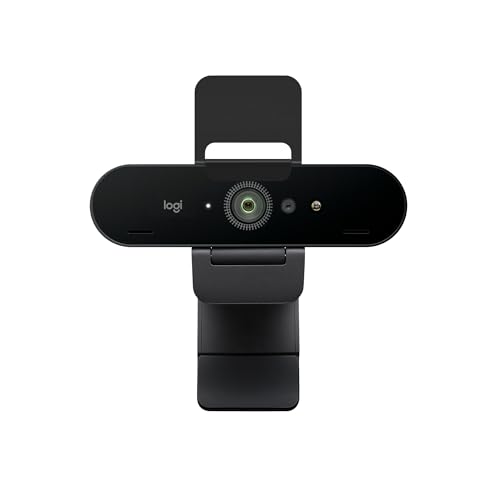
Logitech Brio 4K — Best professional default
The Brio is the camera IT departments dream in: plug it in, and Teams simply knows it, on Monday and on the Monday after the update. That reliability is the foundation of its top ranking, and the image built on it is the professional standard for a reason — a face rendered with clean detail and believable colour, autofocus that settles and stays, and exposure that handles the window-behind-you problem with more grace than anything at its station. Its field of view can be narrowed in software, which converts a room-sharing wide shot into a head-and-shoulders portrait without moving the camera an inch.
For this guide’s Teams-specific angle, two behaviours matter most. First, the Brio’s image survives the platform’s compression unusually well, because it starts clean: edges hold, skin stays skin, and the picture your colleagues receive resembles the picture you previewed. Second, its ecosystem maturity — firmware, settings software, a mount that fits every monitor and a privacy shutter — removes the small frictions that accumulate into a camera abandoned in a drawer by March.
Its compromises are age and appetite: the design has been the default long enough that rivals beat it on tracking tricks, and its best performance asks for decent light and a USB connection with room to breathe. As the answer to “which camera should our team just buy,” though, it remains the recommendation with the fewest footnotes in this entire guide.
- Format: USB webcam, 4K-class sensor
- Compatibility: instant recognition by Teams
- Framing: adjustable field of view in software
- Mount: monitor clip, tripod thread, privacy shutter
- Role: the professional default for solo desks
Strengths
- Works every Monday without a ritual
- Delivered image that survives compression
- Reframes from room view to portrait in software
Trade-offs
- No mechanical tracking for presenters
- Needs reasonable light for its best image
- Premium pricing over basic webcams
Its natural habitat is the consultant’s home office: one camera, clipped and forgotten, through a year of client calls in which nobody ever once commented on the picture — which is, for a meeting camera, the highest praise available.
Best for: professionals, consultants and teams standardising on one model. Not suited for: presenters who move, or rooms seating several people

OBSBOT Tiny 2 — Best for presenters
Some people do not sit in meetings; they perform them — standing at a whiteboard, walking a product through its paces, teaching to a camera as if it were a seminar room. The Tiny 2 is built for those people, and it is genuinely startling the first time it follows you: a small gimbal camera that pans, tilts and zooms to keep you framed as you move, directed by gestures and voice, like a camera operator who never tires and never needs briefing. In a Teams call, the effect on remote colleagues is disproportionate — the meeting suddenly has a broadcast’s grammar instead of a webcam’s stare.
Its sensor is large by webcam standards, and the low-light dividend shows in real rooms: evening calls and north-facing offices stay cleaner than the class average, while the tracking keeps the framing professional even when the presenter forgets the camera exists — which is rather the point. Preset positions let a teacher snap between whiteboard, desk and face with a gesture, turning a solo call into a small production without a producer.
The costs are complexity and trust. Tracking must be learned and occasionally restrained — a camera that follows you to the bookshelf during a thinking pause is a colleague too, in its way — and the price buys two ordinary webcams. For presenters, trainers and anyone whose meetings are performances, it is not an extravagance. It is the only pick here that changes what a solo Teams call can be.
- Format: PTZ webcam with AI tracking
- Movement: motorised pan, tilt and zoom
- Control: gesture and voice commands, presets
- Sensor: large for the class, kind in low light
- Role: teachers, trainers and demonstrators
Strengths
- Follows a moving presenter like a camera operator
- Preset framings for board, desk and face
- Strong image in ordinary room light
Trade-offs
- Tracking behaviour takes an evening to tame
- Price of two conventional webcams
- Overkill for sit-still meeting schedules
Watch it work a training session: the presenter circles a prototype, sits to annotate, stands to summarise, and the remote team’s view simply… handles it, reframing each time like a directed programme. Attendees remember the session as unusually clear without knowing why.
Best for: trainers, teachers, demonstrators and executives who present standing. Not suited for: static desk workers or multi-person rooms

Elgato Facecam — Best for creators
The Facecam was designed by streaming people for streaming people, and it shows in the choices: a fixed-focus lens tuned for desk distance, so your face is sharp without any autofocus hunting, ever; an image with a camera-like cleanliness that flatters without filters; and software that treats settings — exposure, white balance, contrast — as things to be set once, saved, and recalled exactly, the way a camera should behave and webcams so rarely do. For the professional whose Teams calls sit inside a wider life of recorded video, that discipline is the attraction.
In meetings specifically, the fixed focus is a quiet blessing. Lean in, lean back, hold a document toward the lens within its designed range — the image stays composed, with none of the pulsing refocus that makes colleagues seasick on lesser webcams. The privacy cover and monitor mount complete a design that assumes the camera lives on the desk permanently, as furniture of the job.
Its limits are the other side of its specialisation: no autofocus means no walking presentations, no tracking, and a working distance that must be respected when arranging the desk. It is a portrait instrument, not a room instrument. For the creator-consultant whose meetings are face-to-face conversations at a well-arranged desk, it delivers the most deliberately photographic image of any webcam in this guide.
- Format: USB webcam, fixed-focus lens
- Focus: desk-distance sharpness with zero hunting
- Software: settings saved and recalled exactly
- Image: clean, camera-style rendering
- Role: creators and consultants at fixed desks
Strengths
- An image that never pulses or hunts
- Set it once; it remembers like a camera
- Flattering without filter fakery
Trade-offs
- No autofocus for movement or close props
- Desk distance is a requirement, not a suggestion
- Fewer framing tricks than the Brio
Its emblematic user runs client workshops from a studio desk: same light, same framing, same trustworthy face every session, with the camera’s consistency quietly becoming part of her professional brand. Reliability, again — but here it is aesthetic reliability.
Best for: streamers, creators and consultants with a fixed, lit desk. Not suited for: presenters who move or shared rooms

Logitech StreamCam — Best compact home pick
Not every home desk is a studio, and the StreamCam is the webcam for the desk that is also a kitchen table’s corner. It is small, friendly and forgiving: a clean full-HD image with autofocus that behaves, colours that treat faces kindly in ordinary room light, and a mount that perches on a laptop or monitor without the engineering ceremony of its bigger siblings. For the hybrid worker whose meetings are important but not theatrical, it removes the laptop camera’s insults at a sane price and in about ninety seconds.
Its design shows thought for real rooms. The camera can be mounted in landscape or portrait orientation — the latter a gift for anyone whose meetings share a screen with documents — and its cable and footprint suit the small-monitor, small-desk reality of spare-room working. Logitech’s software keeps framing and settings simple, which for this audience is a feature written in capital letters.
Against the Brio above it concedes resolution headroom and the reframing tricks that come with it, and in dim rooms its smaller sensor works harder. But the comparison that matters for its buyer is not against the Brio; it is against the laptop camera it replaces, and there the StreamCam’s victory is total — geometry, light and dignity all restored in one small clip.
- Format: compact USB webcam, full HD
- Mount: laptop and monitor friendly, portrait option
- Autofocus: smooth and unobtrusive
- Footprint: built for small desks
- Role: the hybrid worker’s sensible upgrade
Strengths
- Transforms a laptop call in ninety seconds
- Small enough for shared and temporary desks
- Kind image in ordinary home light
Trade-offs
- Less reframing headroom than the Brio
- Dim rooms stretch its sensor
- No tracking or room coverage
Its defining scene is the Sunday-evening test call before a new job’s first Monday: laptop camera on one side, StreamCam on the other, and a partner across the kitchen laughing at the difference. First impressions at work are now made in rectangles; this is the affordable way to make a good one.
Best for: hybrid workers, home desks and laptop-based setups. Not suited for: presenters, creators or group rooms

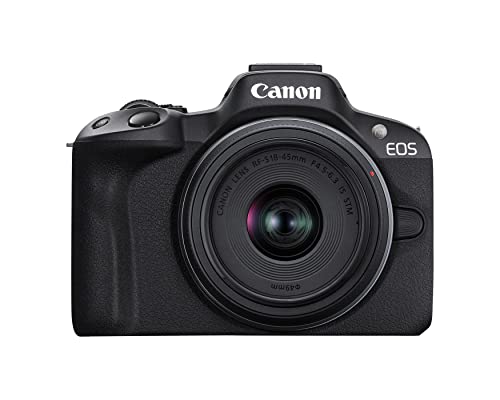
Canon EOS R50 — Best image money can buy
At the top of the meeting-image ladder sits a cheat: stop using a webcam. The EOS R50, connected over USB and recognised by Teams as a camera, brings a real interchangeable-lens system to the rectangle — a large sensor that laughs at office light, a proper lens that separates your face from the room with gentle blur, and Canon’s skin-friendly colour rendering your colleagues’ faces with a fidelity no webcam sensor approaches. For consultants, trainers, coaches and executives whose presence is literally the product being sold, the difference reads on screen as authority.
The arrangement demands more of its owner, and this guide will not pretend otherwise. The camera needs a desk mount or small tripod at eye level, a lens chosen for the desk’s distance, attention to power for long meeting days, and a few settings configured once — clean output, autofocus on the eyes — before it settles into service. In exchange, the same body leaves the desk on weekends and photographs your life, which no webcam in this list can offer as a closing argument.
It is, by any sane accounting, more camera than a meeting requires — and that is precisely its market. When the call is a sales pitch, a keynote delivered remotely, or a coaching session clients pay seriously for, the R50’s image is not an indulgence but a signal, received by every participant, that this person has arranged to be taken seriously.
- Format: APS-C mirrorless used over USB
- Image: large-sensor quality no webcam matches
- Focus: eye autofocus during calls
- Setup: desk mount, chosen lens, configured once
- Double life: a full camera beyond the desk
Strengths
- The most credible face in any meeting grid
- Background separation webcams cannot fake
- Earns its keep as a camera after hours
Trade-offs
- Setup and power need an evening’s attention
- Desk space and mounting are real costs
- Far more camera than most meetings need
Its signature moment is the pitch call where the client, twenty minutes in, asks what camera you are using — not as small talk, but because your rectangle has been quietly outclassing the grid since the introductions. That question is this pick’s entire business case.
Best for: consultants, coaches, trainers and remote keynote speakers. Not suited for: shared rooms, minimalists or IT-managed fleets
Dedicated PTZ Conference Camera — Best for small rooms
The final pick carries no link, deliberately: our verified pool for this site contains no room system, and rather than invent one we describe the category a small-room buyer should shop for with open eyes. A dedicated pan-tilt-zoom conference camera — ceiling- or table-mounted, remote-controlled, often paired with a speakerphone — exists to solve the problem no desk webcam can: four to eight people around a table, all of whom must be visible, and the one speaking must be findable. Preset positions for the table’s seats, a wide establishing view, and optical zoom to the speaker are the category’s grammar.
In Teams terms, these systems connect over USB like any camera here and simply present a better room: the wide shot for the meeting’s opening, the zoomed frame when the finance lead speaks, the whiteboard position saved as a preset. Paired with a proper room microphone — the category’s inseparable twin — they convert the hybrid meeting’s worst experience, the room that remote colleagues can neither see nor hear, into something approaching fairness.
Shop the category by three tests. First, presets and a remote that a non-technical chairperson can drive mid-meeting without a manual. Second, a microphone strategy — built-in array or a paired speakerphone — tested in your actual room’s acoustics, because audio, not video, is what remote participants abandon meetings over. Third, mounting and cable runs that survive the room’s real furniture. Buy for the room you have, seat count and all, and let the desk webcams above serve the desks they were born for.
- Format: room PTZ camera, USB to the room PC
- Framing: wide room view plus zoomed presets
- Control: remote with saved seat positions
- Audio: pair with a room microphone or speakerphone
- Role: huddle rooms and small boardrooms
Strengths
- Every seat at the table becomes visible
- Presets make framing a one-button habit
- Designed for rooms, not adapted to them
Trade-offs
- Cost and installation beyond any desk webcam
- Needs the room’s audio solved alongside
- Useless for a solo home desk
Its proof is the hybrid meeting that finally works: remote colleagues naming who spoke, following the whiteboard argument, and forgetting the room is a room at all. That forgetfulness is the entire goal of meeting technology, and this category is where it lives.
Best for: huddle rooms, small boardrooms and hybrid team spaces. Not suited for: individual desks or home offices
How Do the Six Teams Cameras Compare?
| Camera | Type | Standout trait | Best use |
|---|---|---|---|
| Logitech Brio 4K | Webcam | Reliability and reframing | Solo professional desks |
| OBSBOT Tiny 2 | Tracking webcam | Motorised following | Presenters and teachers |
| Elgato Facecam | Webcam | Fixed-focus consistency | Creators at fixed desks |
| Logitech StreamCam | Webcam | Compact friendliness | Home and hybrid desks |
| Canon EOS R50 | Mirrorless over USB | Image authority | Faces that are the business |
| Dedicated PTZ conference camera | Room system | Whole-table framing | Small meeting rooms |
Match the row to the room, not to the ego. Most meeting misery comes from a solo camera asked to cover a table, or a room system bought for a desk — the table above exists to prevent both errors in one glance.
How Should You Frame a Group in a Small Meeting Room?
Start from the remote participant’s chair, because that is the seat the camera serves. Everyone in the room should be visible without leaning, identifiable without name tags, and lit from the front rather than silhouetted against the window the room insists on having. Seat the table perpendicular to the window where possible, place the camera at the table’s end at seated eye height, and choose the widest framing that keeps faces at a size where expressions survive — a room shot in which nobody’s reaction can be read is a meeting remote colleagues will stop attending in every way that matters.
Then rehearse the meeting’s movements. Whoever presents will stand; the framing or the PTZ preset must include the standing position and the board. Whoever speaks from the far end must be zoomable without a fumble. Save those positions before the first real meeting, label the remote, and appoint the chairperson as camera operator by office rather than by accident. Ten minutes of this choreography, done once, pays out in every hybrid meeting the room will ever host — and its absence is audible, in the particular silence of remote colleagues who have stopped believing the room can see them.
What Mistakes Make Teams Calls Look and Sound Amateur?
The backlit silhouette leads the list: a bright window behind the speaker turns every webcam in this guide into a witness-protection interview. Turn the desk, close the blind, or let the light come from behind the camera instead. Second is the low laptop angle’s survival — an external camera left perched below eye level because nobody bought the small tripod or raised the monitor — followed by the camera that frames the ceiling’s best corner and the top of a head.
Audio commits the graver sins. The echoing room, the laptop microphone three metres from the speaker, the meeting conducted through a webcam’s built-in mic as if it were a telephone — remote participants forgive video almost anything and audio almost nothing. Any camera in this guide plus a modest headset or desk microphone will out-meet a flagship camera relying on room echo. And the final mistake is procedural: never testing. The two-minute solo recording before the important call, reviewed with the audience’s eyes, has saved more professional reputations than any purchase in this article.
Why Does Lighting Beat Resolution in Every Meeting?
Because Teams will throw your resolution away and keep your light. The platform compresses every feed to a modest delivered size, in which a well-lit 1080p face looks crisp and a badly lit 4K face looks like a rumour. Light does the work resolution promises: a soft source in front of you, slightly above eye level — a window with a sheer curtain, a desk lamp bounced off a wall, a modest panel — models your face, separates you from the background, and gives the camera’s sensor the easy job it needs to stay clean through compression.
The practical hierarchy is therefore unglamorous. First, face the light you have. Second, add one soft source if the room is dim or the hour is late. Third, only then, buy the camera — and buy it knowing the light has already delivered most of the improvement your colleagues will remark on. Every pick above was judged under this discipline: their rankings assume ordinary rooms honestly lit, which is why the little StreamCam in a bright kitchen can embarrass a Brio in a cave, and why this guide keeps spending your money on lamps before lenses.
How Do You Set Up a Camera So Eye Contact Actually Works?
Eye contact on video is a geometry problem with a known solution: the lens must sit where the eyes you are addressing appear to be. Place the camera at your eye level, as close to the centre of your screen as the hardware allows, and then arrange your windows so the meeting’s faces sit near the camera — the gallery dragged to the top of the display, just beneath the lens — rather than at the screen’s far corner. When you look at their faces, you will appear, to them, to be looking into their eyes; when you address the whole meeting, look at the lens itself, briefly and deliberately, the way a speaker finds one listener’s gaze.
Distance completes the effect. Sit far enough back that your head and shoulders fill the frame the way they would across a small table — roughly an arm’s length and a little more for most desk lenses — and resist the laptop-era habit of looming. The tracking and reframing tools in the picks above can maintain this geometry for you, but the initial arrangement is yours: camera high, faces near the lens, chair at conversational distance. Get those three right and colleagues will describe you as “present” without ever knowing why.
How Should a Home Office Camera Setup Grow Over Time?
In the order your colleagues will notice. The camera itself comes first, chosen from this list by room and role. The mount comes second — the riser or tripod that puts the lens at eye level is a permanent improvement disguised as furniture. Light comes third, one soft source honestly placed. Audio fourth, because the headset you buy after the camera will still transform more meetings than the camera did. And the background last: a shelf arranged, a door that closes, a screen for the truly committed — the set dressing of a professional rectangle, assembled over months rather than purchased in a panic the night before the big call.
Resist upgrading in the wrong order. A second camera angle, a 4K badge, a ring light the size of a halo — none of these will rescue a low lens, a backlit face or an echoing room, and each postpones the fix that would. The setups that impress in meeting grids share a boring signature: eye-level lens, lit face, clean sound, calm background. Build those four in sequence and any camera in this guide becomes the right camera, including the one you already bought.
What Should IT Teams Check Before Buying Cameras for Everyone?
Standardise on boring excellence. A fleet camera must be recognised by every laptop in the building without drivers, survive the platform’s updates without a helpdesk ticket, mount on the monitors the company actually owns, and include a privacy shutter that ends the policy conversation before it starts — which is why the Brio-class default tops this guide. Test the candidate in the building’s worst room, not its best: the glass-walled box with the echo and the backlight is the true certification lab, and a camera that behaves there will behave anywhere.
Then write the two-paragraph standard that accompanies the hardware: camera at eye level, light in front, headset for anyone in a shared space, and the test-call habit before client meetings. Hardware fleets fail socially more often than technically, and the standard — pinned where the cameras are unpacked — is what converts a purchase into a practice. Budget for the headsets in the same order; a fleet of good cameras heard through laptop microphones is a half-finished sentence.
How Do You Run a Hybrid Meeting Where Remote People Feel Like Participants?
Appoint the remote attendees a host in the room. One person — rotating, named at the meeting’s start — watches the chat, the raised hands and the remote faces, and carries their contributions into the room’s conversation with the same priority as a voice at the table. Technology enables this; the camera framing and room audio in this guide exist to serve it; but the role is human, and hybrid meetings fail precisely where the role is left unfilled and the room talks to itself for an hour while rectangles watch.
Support the role with the room’s habits. Decisions are repeated aloud for the record, side conversations at the table are treated as what they are — exclusions — and anything written on the physical board is either framed by the camera’s preset or photographed and shared before the meeting ends. Remote participants judge a room by whether its outputs reach them, and a room that disciplines itself this way will find its hybrid meetings attended, in every sense, rather than merely joined.
Why Do Some People Look Professional on Camera and Others Just Look Recorded?
Preparation made visible. The professional rectangle is a small stage that has been dressed: the lens at eye level, the face lit, the background chosen, the framing rehearsed in a test call the audience never sees. The recorded look is the same person photographed by accident — a laptop on a low desk, a window behind, a room wandering through the frame. Nothing about talent, seniority or charisma separates the two; it is an hour of arrangement, once, with equipment from this guide’s price range, and it compounds across every meeting of a career.
There is an equity argument here that managers should hear. As meetings become the workplace’s main stage, the employees whose home setups flatter them gain an unearned advantage in presence, and the ones photographed badly — often those with the least space and money — are quietly discounted. A company that issues a decent camera, a light and a standard, as this guide recommends, is not buying vanity. It is levelling the stage its decisions are made on.
How Do You Test a Meeting Camera Before the Meeting That Matters?
Record yourself, alone, at the hour the real meeting will happen, because light is a schedule as much as a fixture. Two minutes is enough: present something, stand if you will stand, share your screen if the camera must survive the transition, and then watch the recording with the sound up and the charity off. Check the four things your audience will unconsciously grade — whether your eyes meet the lens when you address them, whether your face holds detail when you move, whether the background argues with you, and whether your voice arrives from the same room as your face.
Fix one thing per test, in the hierarchy this guide has repeated: position, light, framing, audio, settings last of all. The settings menus of the cameras above are seductive rabbit holes, and almost nothing in them outranks moving the lamp. Keep the test recording habit for new rooms, new hours and new cameras alike; professionals in every visual craft rehearse, and the two-minute rehearsal is the meeting world’s entire price of admission.
What Changes When the Meeting Is a Job Interview, a Pitch or an Exam?
The stakes compress every lesson in this guide into one rectangle. Reliability outranks beauty: choose the camera and connection you have tested most, not the newest arrangement; join early; keep the phone hotspot and the laptop camera as rehearsed fallbacks rather than improvised ones. Framing tightens to the formal portrait — head and shoulders, eyes on the lens for the answers that matter — and the background is audited like a document: nothing behind you that you would not read aloud in the room.
Rehearse the specific choreography the occasion adds: the screen-share, the document held to the camera, the standing answer. The Facecam’s fixed focus, the Brio’s reframing, the Tiny 2’s presets each serve different versions of that choreography, which is why presenters should buy for their biggest recurring occasion rather than their average Tuesday. And when it is over, keep the setup standing for a day before dismantling it — the follow-up call has a way of arriving, and it deserves the same face as the pitch.
How Should You Handle Privacy, Shutters and Being on Camera All Day?
The always-near camera changes a worker’s relationship with their own desk, and the honest setups acknowledge it. Prefer cameras with physical shutters or covers — several picks here include them — and make closing the shutter the day’s closing ritual, as definite as shutting a door. Check, once, what your platform shows when the camera is off and what your camera’s indicator light actually promises, because peace of mind should be verified rather than assumed. Background blur and virtual backgrounds are legitimate privacy tools for shared homes; use them without apology, while remembering they cost processing and occasionally eat a gesturing hand.
Employers carry the matching duty: a camera issued for meetings is a meeting tool, not a monitoring instrument, and the trust that makes hybrid work function depends on that boundary being stated and kept. The technology in this guide is deliberately ordinary — it shows what you show it, when you switch it on — and keeping it ordinary, on both sides of the employment relationship, is a policy choice worth making in writing.
Final Recommendation
Buy the Logitech Brio 4K if you want the professional default that simply works, the OBSBOT Tiny 2 if your meetings are performances, and the Elgato Facecam if your desk is a studio that also takes calls. The Logitech StreamCam is the honest upgrade for the ordinary home desk, the Canon EOS R50 is the prestige instrument for faces that sell, and the room with a table full of people should skip webcams entirely and shop the PTZ category with presets, a remote and a real microphone. Whichever you choose: raise it to your eyes, light your face, test it on a Tuesday — and let the laptop camera retire to the closed lid it came from.
Frequently Asked Questions
Does a 4K webcam actually look better on Teams?
Indirectly, yes. Teams delivers a compressed, downscaled picture, but starting from a cleaner, higher-resolution sensor gives better detail after that downscale and allows digital reframing — narrowing the field of view — without the image falling apart. Judge webcams by the delivered picture, not the headline number.
Can I use a camera I already own for Teams?
Often, yes: many modern mirrorless cameras, including the Canon EOS R50 in this guide, connect over USB and appear to Teams as a webcam, and some action cameras offer a webcam mode too. Check the maker’s support pages for your model, set it up before the meeting that matters, and arrange continuous power for long days.
What matters more for meetings, the camera or the microphone?
The microphone, and it is not close. Participants tolerate soft video; they abandon echoing, distant audio. Buy the camera that fits your room from this list, then give your voice a headset or desk microphone before upgrading anything else.
How do I include everyone in a hybrid meeting room?
Frame the whole table in a wide establishing view, give the chairperson saved zoom presets for speakers and the board, and solve the room’s audio with a proper microphone or speakerphone. The PTZ pick in this guide describes the category; the framing section describes the choreography.
Where should a webcam sit for the most flattering angle?
At eye level or a fraction above, centred on the screen, roughly an arm’s length away. That single adjustment — a monitor riser, a small tripod, a stack of the books you keep meaning to read — improves any camera in this guide more than any setting inside it.
One small ritual closes the case for every camera in this guide: the Friday glance at your own rectangle during a low-stakes call, asking only whether the person on screen looks like the colleague you intend to be. If the answer drifts — a moved lamp, a sagging mount, a background slowly colonised by the week’s life — fix it in the minute it takes, while the stakes are friendly. Meeting presence is a maintained garden, not a purchased one, and the cameras above are simply the best current tools for keeping it.
And spare a thought for the people in the other rectangles, whose setups you now understand better than they may understand yours. Share the eye-level trick, the lamp trick, the test-call habit, generously and without superiority. A meeting is a commons: every participant’s camera is part of every other participant’s working day, and the grid gets better one shared kindness at a time.
Buy once, then, and buy for the room and the role rather than the specification sheet: the desk you actually sit at, the meetings you actually dread, the light your windows actually provide at the hour your calendar fills. The six answers above cover every honest version of that brief, from the kitchen-table corner to the boardroom wall — and every one of them will be outperformed, within a week, by the colleague who raises the lens, lights the face and tests the call. Be that colleague; the camera is merely how.
One final scene, because every remote worker recognises it: the meeting where a colleague’s child, cat or delivery driver crosses the frame, and the grid smiles with a warmth no agenda item produces. A good camera setup does not exist to eliminate those moments — it exists to make them charming rather than chaotic, a life visible at the edges of a professional frame. Choose the camera that frames your work honestly and your life kindly, set it at eye level, and join the next meeting as the version of yourself you meant to send.
Keep the receipt, the box and the two-minute test habit, in ascending order of importance. Hardware can be returned; a first impression in a new role cannot, and the modest disciplines in this guide — the raised lens, the faced light, the rehearsed call — are what separate the rectangles that get listened to from the ones that get minimised. Whichever of the six cameras above you install, install those habits with it, and the upgrade your colleagues perceive will be larger than the one you purchased.
The meeting grid is the new office corridor — the place where reputations are now formed between the agenda items, in hellos and reactions and the quality of a person’s attention made visible. It deserves the same care the corridor once received by default: a decent appearance, an audible voice, a readiness for the unscheduled conversation. The cameras in this guide are the corridor’s new fixtures. Fit one properly, and then forget it entirely, which is what all the best workplace technology eventually allows.
Start this week with the free parts: raise the laptop on books, turn your chair toward the window, drag the gallery to the top of the screen, and record the two-minute test. Then order the camera this guide matched to your room, and repeat the test when it arrives. The before-and-after, kept honestly, will teach you more about video presence than a year of meetings attended on autopilot — and it will make you the person colleagues ask, quietly, what changed.
Nothing in this guide requires permission from an IT department to begin, and nothing in it expires when the next platform update lands: eye-level lenses, honest light and tested audio were good practice on the first video call ever made and will survive every interface yet to come. Buy the camera that fits your room, practise the habits that fit your career, and let the technology — for once — be the least interesting thing about your presence in the meeting.
Your colleagues will never see the invoice, the comparison table or the deliberation — only the rectangle, arriving on time, lit like a person rather than a rumour. Make that rectangle worthy of the work inside it, and the meetings will start, in small ways that compound, to go the way your face suggests they should.
That is the whole assignment, in the end: to be present, recognisably and audibly, in rooms you are not physically in — for the colleagues who rely on your face for cues, your voice for decisions and your attention for respect. The six cameras above are the current best instruments for that presence, at every scale from a kitchen-table corner to a boardroom wall. Choose yours, set it at eye level, and go and be present properly.
Install it on a quiet evening, test it on a friendly call, and let the first important meeting meet the finished version of the setup rather than its debut. Cameras, like colleagues, deserve a gentle introduction to the team.
Consider, too, the second desk — the kitchen table on the days the office closes, the spare room when guests reclaim it, the client’s site where you are a visitor with a laptop. A meeting setup that only works in one perfected room is a fair-weather friend, and the portable picks in this guide earn their place partly by travelling: the StreamCam in a laptop bag, the Brio between home and office, the little OBSBOT presenting in rooms it has never seen. Test your setup once in its worst location, forgive what cannot be fixed there, and you will never again be ambushed by a change of scenery on the morning of the important call.
And when a colleague on the grid quietly upgrades — a face suddenly lit, framed and audible where last month there was a silhouette in an echo — say so, by name, in the meeting. Presence recognised is presence repeated, and the standard of a whole team’s rectangles rises fastest when its improvements are noticed out loud. That is how offices used to civilise themselves in corridors; the grid, given half a chance and a few good cameras, is learning to do the same.
The next meeting on your calendar is closer than the delivery van, which is no excuse at all: the books under the laptop, the chair turned toward the light and the gallery dragged beneath the lens cost nothing and take four minutes. Do those tonight, and let the camera — when it comes — arrive as the finishing touch on a presence you have already built.
Related Guides
Continue with our guide to home office lighting for video calls, our comparison of desk microphones and headsets for meetings, and our walkthrough for setting up a hybrid meeting room.