A face tracking webcam exists for one specific frustration: the moment a presenter stands up, steps sideways to a whiteboard, or walks a product across a desk, an ordinary webcam keeps staring at the empty chair. Every camera in this guide solves that problem in one of two fundamentally different ways, and telling those two ways apart is the single most important decision in the whole purchase. Three of the five picks physically move. Their lenses sit on motorised gimbals that pan and tilt to follow a person around a room, so the full resolution of the sensor stays pointed at the subject wherever that subject goes. The other two never move at all. They sit fixed on the monitor and use software auto-framing, detecting a face and cropping into a wide sensor image to simulate movement, which works well inside a limited area and quietly runs out of road beyond it.
This guide is built for people who present on their feet: teachers and trainers who move between a desk and a board, streamers who demonstrate with their whole upper body, sales presenters who stand, and anyone whose calls look wrong the moment they leave the chair. Seated callers who barely shift position are honestly served by the two fixed cameras here, and the guide says so at each pick rather than selling everyone the most mechanical option. Alongside the tracking mechanism, each pick is judged on sensor size, maximum resolution and frame rate, the field of view the framing has to work with, and the Windows control app that unlocks the tracking settings, because on this class of camera the app is not an accessory. It is where tracking is switched on, tuned, and pointed at the right person.
A note on how this guide was put together: it is based on published manufacturer documentation — spec sheets, product pages, and support material from OBSBOT and Insta360 — read against the questions a PC buyer actually has to answer. This site earns a commission when readers buy through links in the article, and that commission model is the only commercial relationship behind the selections; the research here is documentary, comparing what each manufacturer states about its own hardware. Where a spec is ambiguous, the guide follows the manufacturer’s own spec table over marketing language, which matters most for the two fixed cameras: Insta360’s spec table for the Link 2C lists its gimbal, in a single word, as None, and this guide labels it accordingly.
One scope note before the picks. A camera only qualifies for this list if its manufacturer documents face tracking or auto-framing as a built-in function. Motorised pan-tilt-zoom cameras that move only when a person drives them with a remote control are excluded, however good their optics are, because a remote puts the work back on the presenter. Plain digital zoom on its own is not tracking, and autofocus on its own is not tracking either; nearly every modern webcam focuses, and focusing on a face that has left the frame is impossible. What counts is a camera that finds a face or a body by itself and keeps that subject framed without anyone touching a control.
In this guide
Quick picks: best face tracking webcams for pc
| # | Product | Where to buy |
|---|---|---|
| 1 | OBSBOT Tiny 2 | Check on Amazon |
| 2 | Insta360 Link 2 | Check on Amazon |
| 3 | OBSBOT Tiny 2 Lite | Check on Amazon |
| 4 | Insta360 Link 2C | Check on Amazon |
| 5 | OBSBOT Meet 2 | Check on Amazon |
Two ways to follow a face, and why the difference is not marketing
A gimbal webcam carries its lens and sensor on a small motorised mount. When the tracking system decides the subject has moved, motors physically rotate the camera head — left and right on the pan axis and up and down on the tilt axis. Because the optics themselves move, the subject is always imaged by the centre of the sensor at full resolution. A presenter can walk the width of a small room, sit, stand, and step to a board, and the delivered picture keeps the same pixel count and the same sharpness from edge to edge of the movement range. The limits are mechanical: the pan range ends somewhere, the motors make a faint sound that a quiet room can reveal, and the moving head is one more thing that can wear or be knocked out of alignment.
A software auto-framing webcam takes the opposite approach. The camera body is fixed, usually clipped to the top of a monitor and aimed once by hand. Its sensor captures a wide image, and the framing system detects faces inside that image and outputs a crop centred on them. As the subject moves, the crop window slides and resizes, which feels like the camera is following. Within a desk-sized area this works surprisingly well, and it has real advantages: no moving parts, no motor noise, a smaller body, and a lower price for the same sensor. The compromise is arithmetic. Every crop throws pixels away. A fixed camera reframing tightly on a face at the edge of its field is delivering a fraction of its sensor, so the further the subject strays from the centre, the softer the picture becomes, and once the subject leaves the fixed field of view entirely there is nothing left to crop. The camera cannot see around corners it was never pointed at.
Neither approach is the correct one in the abstract; they answer different rooms. Movement across a room — teaching, demonstrating, presenting standing — is gimbal territory, because only a moving lens keeps full resolution on a moving person. Movement within a chair and a step either side — most desk calls, most seated streams — is where auto-framing earns its place, provided the sensor has resolution to spare for cropping. That is why every pick below is labelled with its mechanism in plain words in its first paragraph, and why the comparison table leads with mechanism rather than resolution. A buyer who knows which of the two behaviours a camera actually has will not be disappointed by it; a buyer who assumes the word tracking always means a moving camera very easily can be.
There is a second, quieter dividing line: the control app. The gimbal models here are configured through OBSBOT Center or Insta360’s Link Controller, and the fixed models lean on the same apps for their framing behaviour. Through those apps a user sets tracking modes, chooses between single-person and group framing where offered, defines preset positions, adjusts zoom limits, and updates firmware. On Windows this is routine for all five picks, but one condition deserves stating early because it recurs below: Insta360 documents that Link Controller does not support Windows on ARM, so owners of ARM-based Windows laptops get the cameras’ basic video but not the full control app for the Link 2 and Link 2C. Every pick in this guide has documented Windows support; the conditions attached to that support are spelled out per pick rather than buried.
The five face tracking webcams, ordered by how they follow you
The ordering below runs from the most capable physical tracking to the most compact software framing, so the mechanism gradient is easy to read: two flagship gimbal cameras, a budget gimbal that shares its flagship’s frame, and then the two fixed cameras that frame in software. Prices move around too much to print responsibly, so each pick closes with the same instruction instead of a number.

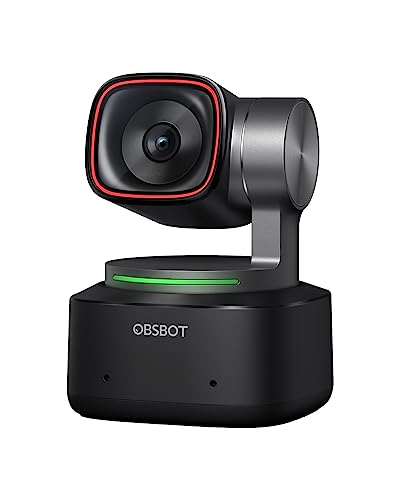
1. OBSBOT Tiny 2 — the 2-axis gimbal with the biggest sensor in this guide
Tracking mechanism: 2-axis gimbal. The Tiny 2’s camera head sits on a motorised two-axis gimbal with a controllable pan range of plus or minus 140 degrees and a tilt range of 30 degrees up to 70 degrees down, driven by OBSBOT’s AI Tracking with Auto Zoom. When tracking is engaged, the head physically turns to keep the subject centred, and the auto zoom adjusts focal length digitally on top of the movement so framing stays tight without the subject having to return to a marked spot. Because the lens itself moves, the 1/1.5-inch sensor — the largest fitted to any camera in this guide — is always imaging the subject with its full area rather than a crop of it.
That sensor is the headline hardware fact. It is a 50MP CMOS unit behind an f/1.9 lens, recording 4K at 30 frames per second or 1080p at 60, with all-pixel phase-detection autofocus and dual native ISO aimed at holding image quality together in ordinary room lighting. For a presenter, the practical meaning is headroom: at 1080p output, which is what most meeting platforms actually carry, the camera is downsampling from a much larger capture, and faces stay clean at the distances a person naturally works from a desk or a board. Control is the other half of the package. The Tiny 2 accepts voice commands for starting and stopping tracking and changing modes, and gesture control for selecting a tracking target and zooming, which suits a presenter standing away from the keyboard. Everything else — tracking modes including desk and whiteboard modes, preset positions, firmware — lives in the OBSBOT Center app on Windows.
Two working details round out the flagship’s case. The first is preset positions: OBSBOT Center lets the user save framed positions — a seat, a board, a demonstration spot — and jump the gimbal between them, which turns a free-roam tracking camera into something closer to a small studio setup for presenters who always use the same three places. The second is the desk mode, which tilts the head down to frame documents, sketches, or a product on the desk, then returns to face height. Audio comes from dual omnidirectional microphones with noise reduction built in; they are voiced for a person presenting at a natural distance rather than leaning into a desk mic, though streamers with an established microphone will simply keep using it and treat the camera’s audio as a fallback.
Strengths
- Largest sensor here (1/1.5-inch, 50MP), so tracked movement never costs resolution the way cropping does.
- Wide mechanical range: plus or minus 140 degrees of pan covers a presenter crossing a small room.
- Voice and gesture control allow mode changes from across the room, away from the PC.
- 1080p at 60 frames per second keeps gestures and movement smooth for streams and lessons.
Trade-offs
- It is the flagship of its line, and the depth of the app reflects that: first-time setup rewards patience.
- The gimbal head is a moving assembly, so it wants a stable mount and dislikes being knocked mid-call.
- Full 4K output over USB needs a USB 3 connection; older USB 2 ports limit the top modes.
Who it suits
Teachers, trainers, and streamers who present standing and moving, and who want the strongest image quality in this category while the camera does the following. If a presenter’s movement is the whole point of the purchase, this is the reference pick of the five — compare its current listing carefully against the Lite model below and check price on Amazon.
Check price on Amazon: OBSBOT Tiny 2

2. Insta360 Link 2 — the 2-axis gimbal with single or group tracking
Tracking mechanism: 2-axis gimbal. Insta360 states the point plainly in its own product material: the Link 2’s gimbal physically pans and tilts to follow movement around the room. Its AI Tracking can be set, inside the Link Controller app, to follow a single person or to keep a group framed, which makes it the most explicit of the five picks about multi-person work. Like the Tiny 2, the moving head means the 1/2-inch sensor is always aimed at the subject rather than cropping toward it, so resolution survives movement across the room.
The imaging side is a 1/2-inch sensor with an f/1.8 lens, 4K at 30 frames per second and 1080p at 60, phase-detection autofocus that Insta360 positions as faster and more accurate than the contrast-based systems in ordinary webcams, and a fixed field of view of 79.5 degrees diagonal. Around the tracking sit the modes presenters actually use: a Smart Whiteboard mode that squares up a board, a DeskView mode that tilts the framing down to documents and products on the desk, and gesture control for starting tracking and zooming from in front of the camera. Audio gets unusual attention for a webcam, with AI noise cancelling built in. The app condition flagged in the brief for this entire guide applies here in full: Link Controller does not support Windows on ARM, so the camera’s documented Windows support means conventional x86 Windows PCs, and ARM laptop owners should treat the app-dependent features as unavailable.
Mounting is more flexible than the monitor-clip stereotype suggests. The Link 2 attaches with a magnetic mount that grips the top of a laptop or monitor, and standard quarter-inch mounting points let it sit on a tripod instead — a genuinely useful option for a presenter, because a tripod places the camera at standing eye level and in the centre of the movement area rather than wherever the desk happens to be. HDR is supported across its resolutions and frame rates, which helps in the common presenting room where a bright window shares the frame with a face. The whiteboard mode deserves its emphasis: it detects the board’s edges, corrects the perspective, and enhances the writing, so the walk to the board — the movement this whole category exists for — ends with a legible surface rather than a keystoned one.
Strengths
- Physical 2-axis gimbal tracking with an explicit single-person or group choice in the app.
- Smart Whiteboard and DeskView modes cover the two surfaces presenters actually move between.
- Fast phase-detection autofocus suits subjects who change distance from the camera often.
- Gesture control covers the common mid-presentation commands without returning to the desk.
Trade-offs
- No voice control; commands are gestures and the app only.
- Link Controller excludes Windows on ARM, a real condition for newer thin Windows laptops.
- The 1/2-inch sensor is a step down in size from the Tiny 2’s, most visible in dim rooms.
Who it suits
Presenters who split time between solo delivery and small-group framing — a tutor with a student beside them, a team lead at a shared desk — and who work on a conventional Windows PC. For a group-aware gimbal with strong board and desk modes, look at the Link 2’s listing and check price on Amazon.
Check price on Amazon: Insta360 Link 2

3. OBSBOT Tiny 2 Lite — the flagship’s gimbal on a budget
Tracking mechanism: 2-axis gimbal. The Tiny 2 Lite is built in the same gimbal frame as the Tiny 2 and runs the same AI Tracking approach: a motorised two-axis head that physically pans and tilts to follow the subject, with auto framing on top. Nothing about the tracking concept is diluted. What changes is the hardware behind it and the control set on top of it, and the brief for this guide is explicit about both, because the two models are easy to confuse and the differences decide whether the saving is sensible.
The Lite’s sensor is a 1/2-inch 48MP unit rather than the flagship’s 1/1.5-inch 50MP, it records the same 4K at 30 frames per second and 1080p at 60, and its output format is MJPEG only, where the flagship offers additional formats. The clearest single cut is control: the Tiny 2 Lite has no voice control. Gesture control remains, and OBSBOT Center provides the same tracking modes and settings structure on Windows, so a presenter still gets hands-off target selection and zoom gestures; they simply cannot talk to the camera. In practice the Lite is the right shape of compromise for most buyers. The sensor step-down shows mainly in poor light, MJPEG-only output is a non-issue for the meeting and streaming platforms these cameras feed, and voice control is a convenience rather than a tracking feature. What is not compromised is the one thing this category exists for: a real gimbal that keeps full sensor resolution on a moving subject.
The MJPEG-only point deserves a plain explanation, because it sounds more limiting than it is. MJPEG is the most universally accepted format across meeting platforms, streaming tools, and Windows itself, so the Lite connects everywhere its flagship sibling does; the practical cost is bandwidth, since MJPEG streams are larger, which is one more reason to give any of these 4K cameras a USB 3 port where possible. The voice-control question resolves similarly. Presenters fall into two groups: those who set tracking once and let it run, and those who switch modes, targets, and zoom repeatedly through a session. The first group will never miss voice control. The second group is who the flagship’s premium is actually for, and they should buy the Tiny 2 instead of saving money into a daily irritation.
Strengths
- Same 2-axis gimbal concept and AI Tracking as the flagship, at the line’s budget position.
- Gesture control retained for target selection and zoom from in front of the camera.
- 4K at 30 and 1080p at 60 match the flagship’s headline output figures.
- OBSBOT Center support means tracking modes and presets work the same way.
Trade-offs
- No voice control — the flagship feature most likely to be missed mid-presentation.
- Smaller 1/2-inch sensor gives up some low-light headroom against the Tiny 2.
- MJPEG-only output removes format flexibility the flagship offers.
Who it suits
Teachers and presenters who want genuine gimbal tracking and can live without voice commands — which is to say, most people buying in this category. It is the value pick of the four gimbals here; verify the listing says Tiny 2 Lite in full, since the names differ by one word, and check price on Amazon.
Check price on Amazon: OBSBOT Tiny 2 Lite

4. Insta360 Link 2C — software auto-framing, no gimbal
Tracking mechanism: software auto-framing (no gimbal). This label is not a judgement; it is Insta360’s own spec table, which lists the Link 2C’s gimbal as None. The camera body is fixed. It is aimed once, by hand, on its mount, and from then on its Auto Framing does the work in software: the 1/2-inch sensor captures a fixed 79.5-degree diagonal field of view, the system detects the people inside it, and digital zoom of up to 4x crops and recentres the output to keep a person or a group in frame. Nothing physically follows anyone, and this guide will not describe it as doing so. What it does is reframe, quickly and quietly, inside the area it can already see.
Judged on those honest terms, it is a well-judged camera. The imaging hardware matches the Link 2 — the same 1/2-inch sensor class, f/1.8 lens, 4K at 30 frames per second and 1080p at 60, HDR across resolutions, phase-detection autofocus, and AI noise cancelling — so a seated caller gives up nothing in picture quality against the gimbal model. It keeps the Smart Whiteboard and DeskView modes, it adds a physical privacy shutter that blocks the lens with a switch, and its compact body (roughly 63 by 30 by 26 millimetres) sits on a monitor without the presence of a gimbal head. The conditions are the framing limits and one app note: reframing cannot recover a subject who steps outside the fixed field of view, tight crops spend sensor resolution, the mount angle is set manually and then adjusted in software, and Link Controller — needed for the framing settings — excludes Windows on ARM, as with the Link 2.
Setup on the 2C is a short ritual with a fixed camera’s logic: aim the body by hand so the subject’s working area sits inside the 79.5-degree field, then fine-tune the framing angle inside Link Controller rather than nudging the mount again. DeskView on this model is a reframing of the captured image rather than a physical tilt, which is entirely adequate for showing a document or a product held up at a desk. For two people sharing a desk — an interview format, a tutor and student, a couple on a family call — the group auto-framing widens and recentres on both faces without either person touching anything, and it is in that modest, seated scenario that the 2C is most completely itself.
Strengths
- Same sensor class and 4K output as the Link 2, in a smaller, simpler body.
- Auto Framing handles one person or a group at a desk without any moving parts or motor noise.
- Built-in physical privacy shutter, still rare enough to be worth listing.
- Whiteboard and DeskView modes survive from the gimbal model.
Trade-offs
- No gimbal: framing is a crop, and a subject who leaves the fixed field of view is simply gone.
- Deep digital zoom softens the picture as the crop spends the sensor’s resolution.
- The camera must be aimed by hand at setup; the framing cannot correct a badly pointed mount.
Who it suits
Desk-based callers and seated streamers who shift in their chair, lean, and occasionally share the frame with a second person, but who do not present standing. For that pattern of movement, reframing covers the need at a simpler price point — confirm the listing is the 2C and not the gimbal model, and check price on Amazon.
Check price on Amazon: Insta360 Link 2C

5. OBSBOT Meet 2 — the pocket-sized auto-framing camera
Tracking mechanism: software auto-framing (no gimbal). The Meet 2 is a fixed camera, and OBSBOT’s own description of its framing is the honest one: AI Auto Framing driven by real-time detection. The camera watches its 79.4-degree field of view, detects the subject, and adjusts the crop to keep that subject framed as they move within shot. There is no motorised head and no physical following, and within this guide’s rules it is labelled as exactly what it is — the smallest expression of the software approach, built for people whose movement happens inside a chair’s radius.
The hardware is strikingly small: 40.5 grams, built around a 1/2-inch 48MP sensor recording 4K at 30 frames per second and 1080p at 60. Two framing behaviours lift it above a plain fixed webcam. The first is the auto-framing itself, which recentres on a subject who leans, turns to a second monitor, or slides a chair sideways. The second is orientation: the Meet 2 supports vertical, portrait framing, which makes it the natural pick in this guide for creators recording phone-shaped video from a PC setup. OBSBOT Center on Windows handles its settings, and its size makes it the one camera here that genuinely travels — it is closer in spirit to a laptop accessory than to a piece of studio equipment, and it mounts where a gimbal head would look oversized, including on slim laptop lids and secondary monitors.
The portrait support changes who this camera is for. Vertical video is the native shape of the platforms many creators publish to, and framing for it at a desk usually means cropping a landscape picture afterwards and losing resolution on both sides. The Meet 2 frames vertically at the camera, so a creator can compose in the shape the audience will see. Pair that with the hot-desking pattern — the camera comes out of a laptop sleeve, sits on whatever monitor the day provides, frames its owner, and goes back in the sleeve — and the Meet 2’s identity is clear. It is not competing with the gimbals on their ground at all; it is the framing camera for people whose desk is wherever they open the laptop.
Strengths
- At 40.5 grams it is by far the most portable camera in this guide, with 4K output intact.
- AI Auto Framing recentres a seated subject without any setup ritual per call.
- Portrait-orientation framing serves vertical video, which none of the gimbal picks emphasise.
- Small size suits laptop lids and multi-monitor desks where a gimbal head is intrusive.
Trade-offs
- Fixed field of view: framing ends at the edge of the 79.4-degree image, like all software systems.
- Cropping for framing spends the 48MP sensor’s resolution, so distant framing is softer.
- No gimbal means no room-scale presenting; standing delivery belongs to the picks above.
Who it suits
Hybrid workers and creators who move between desks, travel with a laptop, or record vertical clips at a PC, and who want framing help without hardware bulk. It is the compact end of this category rather than a cut-price gimbal substitute — check its listing in the colour intended, since the colour versions are one model, and check price on Amazon.
Check price on Amazon: OBSBOT Meet 2
Side by side: mechanism first, then the numbers
The table below is deliberately qualitative. Figures are the manufacturers’ published maxima, and the column that should drive the decision is the second one: how the camera follows.
| Webcam | Tracking mechanism | Sensor | Top output | Control app | Framing character |
|---|---|---|---|---|---|
| OBSBOT Tiny 2 | 2-axis gimbal | 1/1.5-inch, 50MP | 4K at 30, 1080p at 60 | OBSBOT Center | Full resolution while moving; voice and gesture control |
| Insta360 Link 2 | 2-axis gimbal | 1/2-inch | 4K at 30, 1080p at 60 | Link Controller | Single-person or group tracking; board and desk modes |
| OBSBOT Tiny 2 Lite | 2-axis gimbal | 1/2-inch, 48MP | 4K at 30, 1080p at 60 | OBSBOT Center | Flagship tracking concept; gestures only, no voice |
| Insta360 Link 2C | Software auto-framing (no gimbal) | 1/2-inch | 4K at 30, 1080p at 60 | Link Controller | Crop-based reframing; privacy shutter; fixed aim |
| OBSBOT Meet 2 | Software auto-framing (no gimbal) | 1/2-inch, 48MP | 4K at 30, 1080p at 60 | OBSBOT Center | Compact 40.5 g body; portrait framing supported |
Read the table with one question in mind: how far does the subject actually travel? Room-scale travel maps to the top four rows, chair-scale movement to the bottom two, and no row is a failed version of another — they are different tools that share a category name. Sensor size runs down a similar gradient for a practical reason: the cameras asked to follow movement across a room are also the ones asked to hold a face together at a distance, in mixed light, for the longest stretches of a working day. Buyers whose movement is chair-scale but whose desk is a home office first and a studio second have a neighbouring decision to make as well.
What to look for in a face tracking webcam
Start with the mechanism, not the resolution
Every disappointment in this category comes from buying one mechanism while expecting the other. A gimbal camera follows a person physically and keeps full sensor resolution on them; a software auto-framing camera crops a fixed image and cannot see beyond its own field of view. Decide how far the subject moves — across a room, or within a chair and a step either side — and let that answer choose the mechanism before any spec is compared. Resolution, sensor size, and frame rate only matter after the mechanism is right, because they cannot rescue a camera that cannot see the subject at all.
Movement range against room size
For gimbal models, compare the pan and tilt range with the room. The Tiny 2’s plus or minus 140 degrees of pan covers a presenter crossing most small rooms from a central mount; a camera with a narrower range wants to be placed more carefully, facing the centre of the movement area. Also think about height: a tilt range that reaches well downward is what makes desk and document modes possible, while upward tilt matters when the camera sits low on a laptop and the presenter stands. For fixed models, the equivalent figure is the field of view — around 79 degrees on the two here — because that fixed wedge is the entire world the framing system can work in.
Sensor size and the light in the room
Sensor size is the quiet determinant of picture quality in ordinary rooms, where light is mixed and rarely generous. The Tiny 2’s 1/1.5-inch sensor gathers more light per pixel than the 1/2-inch sensors in the rest of this guide, which shows up as cleaner faces at distance and less aggressive gain in the evening. Buyers who present in bright, controlled lighting will see less difference; buyers in a spare room with one window should weight sensor size heavily, and should treat it as a more honest quality signal than megapixel counts, which mostly describe stills resolution and cropping headroom.
Resolution headroom means different things per mechanism
On a gimbal camera, 4K capture is delivered whole to the subject, and 1080p output — the ceiling of most meeting platforms — is a clean downsample. On a software framing camera, the 4K sensor is partly a budget for cropping: the tighter the frame the system chooses, the fewer pixels remain, so a 4K fixed camera reframing hard can deliver an effectively lower-resolution picture than its headline suggests. This is not a flaw so much as the mechanism’s arithmetic, but it is why the fixed picks here both carry large sensors for their class, and why a fixed camera with a small, low-resolution sensor is a poor framing camera however clever its software claims to be.
The control app is part of the product
Tracking settings live in the app: OBSBOT Center for the OBSBOT models, Link Controller for the Insta360 models. Modes, presets, group-versus-single behaviour, and firmware all pass through it, so documented Windows support for the app matters as much as the camera’s basic video compatibility, which is handled by standard USB video class drivers in Windows. The one condition to check before buying is platform exclusions — Insta360 documents that Link Controller does not support Windows on ARM — because a camera can deliver basic video on such a machine while its tracking controls stay out of reach.
Control from in front of the camera
A tracking camera’s user is usually standing in front of it, away from the mouse. Gesture control — present on the gimbal picks and used to select targets and zoom — and the Tiny 2’s voice control exist precisely for that distance. Weigh them by presenting style: a teacher mid-explanation benefits from changing modes without walking back to the desk, while a seated caller will rarely use either. Note the Lite’s honest subtraction here: same gimbal family, gestures retained, voice control removed.
Privacy hardware and behaviour
Cameras that watch for faces all day deserve a physical off state. The Link 2C’s built-in shutter blocks the lens with a switch; gimbal models in this guide tilt their heads down in sleep or privacy positions, which is nearly as legible from across the room. Software-only privacy — trusting an indicator light — is the weakest form, and buyers in shared or sensitive spaces should prefer a camera whose blocked state can be seen at a glance.
Frame rate is a presenting feature, not a gaming luxury
All five picks top out at 4K at 30 frames per second and offer 1080p at 60, and for this category the second figure matters more than it might seem. Tracking is motion: a presenter turning, gesturing, and walking reads far more naturally at 60 frames per second, and the tracking systems themselves have an easier subject to hold when movement is rendered smoothly. Since most meeting platforms carry 1080p at most, running a tracking camera at 1080p and 60 frames per second is usually the best-configured choice rather than a compromise — full tracking behaviour, smooth motion, and a downsampled image from a larger sensor. Reserve 4K at 30 for recording and streaming pipelines that genuinely publish at that resolution.
The second surface: boards and desks
Presenters rarely face the camera for an entire session; they turn to a whiteboard, a flip chart, or a desk covered in documents and products. How a camera handles that second surface is a real selection criterion. The gimbal models tilt or reframe toward it — whiteboard modes on the Insta360 cameras detect and square the board, desk modes on both brands tilt the view down — while the fixed cameras reframe their crop toward a document held up or laid in view. A buyer whose work is mostly board teaching should weight whiteboard handling nearly as heavily as face tracking itself, and a buyer who demonstrates products should check the desk mode of any candidate with the same care, because a tracking camera that loses the subject at the exact moment they turn to their materials has failed at its job.
Microphones at presenter distance
A tracking camera changes the audio geometry of a call. A seated caller sits within arm’s reach of a webcam’s microphones; a presenter using a gimbal camera may be two or three metres away, and at that distance room echo and household noise compete with the voice. All five picks carry built-in microphones, and the Insta360 models add AI noise cancelling while the OBSBOT models build in noise reduction, which is aimed squarely at this problem. Even so, audio is the one area where the camera is usually the junior partner: presenters who record or stream seriously typically pair any of these cameras with a separate microphone worn on the body or placed near the presenting position, and treat the webcam’s microphones as the convenience option for ordinary calls.
Mounts, clearance, and where the camera sits
Gimbal cameras need room to move. A head that pans plus or minus 140 degrees should not be placed where the swing points it at a wall for half the presenter’s path, and the camera should sit near the centre of the movement area, ideally on a tripod at standing eye level for presenters who work on their feet. Monitor clips remain fine for seated use of any model here. Fixed cameras invert the problem: they cannot move, so their single placement decision — height, angle, and what falls inside the fixed field of view — has to be made carefully once, because the framing software can only work with what the lens already sees.
Setting up a tracking camera on a Windows PC
Setup follows the same order for all five picks, and doing it before the first real call is the difference between a camera that feels magical and one that feels erratic. Start with placement: put the camera at or slightly above eye level for the position the subject spends most time in — standing eye level for presenters, seated eye level for callers — and, for gimbal models, near the middle of the area the subject moves through. Face the subject toward the room’s main light source where possible; every sensor in this guide performs better with light on the face than with a bright window behind it, and no tracking system can fix a silhouette.
Next, install the companion app before opening any meeting software: OBSBOT Center for the OBSBOT cameras, Link Controller for the Insta360 cameras. In the app, confirm the camera is recognised, apply any firmware update offered, and then set the tracking behaviour deliberately rather than accepting defaults blindly. Choose single-person tracking for presenting or group framing for shared desks where the model offers it, select the tracking target while standing in the presenting position, and save preset positions if the room has fixed stations such as a desk, a board, and a demonstration table. On the gimbal models, this is also the moment to check the pan range against the room: walk the presenter’s actual path once while watching the app’s preview, and move the camera if the head reaches its limit before the presenter reaches theirs.
Then open the meeting or streaming application and select the camera by name as the video device, checking that any framing feature inside the meeting app itself is switched off so the platform does not crop a picture the camera has already framed. Set the output resolution to what the platform actually carries — 1080p for most meeting services — rather than forcing 4K into an app that will downscale it anyway, and use a USB 3 port for the 4K gimbal models so their top modes are available. Finally, rehearse the controls from the presenting position: start and stop tracking by gesture, switch to the board or desk mode, and return. A presenter who has performed those three moves once in rehearsal will not be the one performing them for the first time in front of an audience.
Frequently asked questions
Is a gimbal webcam always better than software auto-framing?
No. A gimbal is better at following movement across a room at full resolution, and it is the only honest option for standing presenters. Software auto-framing is better at being small, silent, simple, and affordable, and for a seated caller its reframing covers the movement that actually happens. The gimbal’s moving head is also a liability where a fixed camera has none: it can be knocked, it makes faint motor sound, and it costs more for the same sensor. Match the mechanism to the movement, not to the assumption that more machinery means a better call.
Do these cameras track inside Zoom, Teams, and streaming software?
Yes, because the tracking happens in the camera, not in the meeting app. All five picks present themselves to Windows as standard USB video devices, so Zoom, Teams, Meet, and OBS receive an already-framed picture. The companion apps — OBSBOT Center or Link Controller — are used alongside the call to set modes, choose who is tracked, and adjust framing behaviour; they are configuration tools, not a requirement for the video itself to appear. Platform-side framing features, where a meeting app offers its own crop, should be left off when the camera is doing the framing, so the two systems do not fight over the picture.
Can a face tracking webcam follow more than one person?
Two of the five are explicit about it. The Link 2 offers a group setting in Link Controller that widens the physical framing to hold several people, and the Link 2C’s auto-framing likewise adjusts its crop for a group within its field of view. The gimbal models otherwise default to a selected single subject — chosen by gesture or in the app — which is the right behaviour for presenting, since a camera that cannot decide who matters will keep changing its mind. For a fixed two-person desk setup, either group-capable model works; for a room with people entering and leaving, expect to re-select the subject occasionally.
Why does the picture soften when a fixed camera frames tightly?
Because the tight frame is a crop. A fixed camera’s sensor captures its whole field of view, and framing on one face discards everything outside that face’s region. The delivered image is built from the remaining pixels, so the further the crop zooms, the lower the effective resolution. Starting from a 4K sensor, as both fixed picks here do, leaves a workable image after moderate cropping; starting from a small 1080p sensor would not. Gimbal cameras do not pay this cost, because the lens moves instead of the crop.
What should Windows on ARM users check before buying?
The control app, specifically. Insta360 documents that Link Controller does not support Windows on ARM, which affects the Link, Link 2, and Link 2C: the cameras can still appear as USB video devices, but the app where tracking modes and framing settings live is not available on that platform. Buyers on ARM-based Windows laptops should either choose a camera whose app supports their machine or accept basic video without tracking configuration. Conventional x86 Windows PCs — the large majority of desktops and laptops — are fully documented for all five picks.
The short version
Buy the mechanism that matches the movement. Present standing and moving, and the choice is among four real gimbals: the Tiny 2 for the biggest sensor and voice control, the Link 2 for group tracking and board modes, the original Link for its level-keeping third axis, and the Tiny 2 Lite for the same tracking idea at the budget end. Sit, shift, and share a desk frame, and the two fixed cameras — the Link 2C with its privacy shutter, the Meet 2 with its travel-ready size and portrait framing — cover the need without moving parts. A webcam earns the word tracking only when it does the following by itself, and every camera above does — the honest difference is only in how, and in how far it can follow before the room runs out.