The best HD external webcams for professionals are not about resolution alone. A professional call, stream, or recording needs a camera that handles bad office lighting, keeps focus when you move, frames you properly without a second monitor's worth of fiddling, and sounds clear without a separate microphone — and it needs to do all of that every day, without drivers that break or settings that reset. This roundup covers eight external webcams built for professional use, from the dependable Logitech C920 to 4K models with large sensors and DSLR-style controls. Every model below was checked against its current listing for its exact brand and model, and the notes stick to what the listing states about resolution, field of view, microphones, and software, so you can match the camera to the way you work. A laptop's built-in camera is the usual starting point, and it is usually the weakest part of the setup: a small sensor, a fixed wide angle, and a microphone that picks up the keyboard. An external webcam fixes all three at once, and the models below are the ones professionals actually buy when the camera becomes part of the job rather than an afterthought.
In this guide
Quick picks: best hd external webcams for professionals
| # | Product | Where to buy |
|---|---|---|
| 1 | Logitech Brio 4K | Check on Amazon |
| 2 | Logitech MX Brio | Check on Amazon |
| 3 | Logitech HD Pro Webcam C920 | Check on Amazon |
| 4 | Logitech C920S HD Pro Webcam | Check on Amazon |
| 5 | Razer Kiyo Pro | Check on Amazon |
| 6 | Razer Kiyo Pro Ultra | Check on Amazon |
| 7 | Elgato Facecam | Check on Amazon |
| 8 | Elgato Facecam 4K | Check on Amazon |
How the picks were chosen
Each webcam below was judged on the points that matter in professional use. First, image quality: resolution and frame rate, sensor size, and low-light performance, because a camera that falls apart in a dim office is useless for daily calls. Second, autofocus and field of view: a camera should keep a moving presenter sharp and offer a choice of framing, from a tight head-and-shoulders shot to a wider room view. Third, audio: dual microphones with noise reduction cover most calls without a separate mic, and the listings state what each camera's microphones do. Fourth, privacy and control: a physical shutter or a software privacy control, plus settings for exposure, white balance, and focus that stay where they are put. Finally, compatibility: plug-and-play operation with the meeting software professionals actually use. Models whose listings did not match the model named, or that were renewed listings, were left out.
Quick comparison
| Product | Best for |
|---|---|
| Logitech Brio 4K | Daily professional calls in 4K |
| Logitech MX Brio | Presenting with desk sharing |
| Logitech HD Pro Webcam C920 | Everyday calls in Full HD |
| Logitech C920S HD Pro Webcam | Daily calls with a privacy shutter |
| Razer Kiyo Pro | Streaming in clean Full HD at 60fps |
| Razer Kiyo Pro Ultra | Low-light streaming with DSLR quality |
| Elgato Facecam | Streaming with DSLR-style control |
| Elgato Facecam 4K | High-end streaming in 4K at 60fps |

1. Logitech Brio 4K
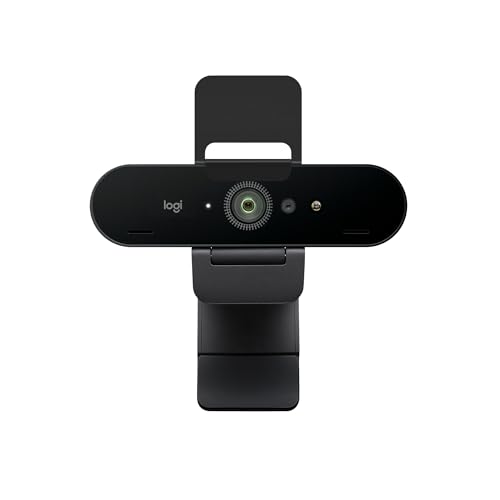
An Ultra HD 4K webcam with autofocus, 5x digital zoom, dual noise-cancelling microphones, HD light correction, and an adjustable field of view, for Windows, Mac, or ChromeOS. It records 4K Ultra HD at 30fps, 1080p at 60fps, or 720p at up to 90fps, with three field-of-view presets at 65, 78, and 90 degrees diagonal.
Strengths
- 4K at 30fps with 1080p at 60fps covers both sharp stills and smooth motion in one camera.
- Three field-of-view presets frame a head-and-shoulders shot or a whole room without moving the camera.
- Dual noise-cancelling microphones and HD light correction handle noisy rooms and dim offices.
Trade-offs
- 5x digital zoom, not optical, so zooming in loses detail rather than gaining it.
- No physical privacy shutter is stated — privacy depends on software or a cover.
- 4K at 30fps needs a capable computer and connection; weaker setups will run it at 1080p.
Who it fits
A professional who wants the best-known 4K webcam for calls, streaming, and recording, with flexible framing.
Best for: Daily professional calls and streaming in 4K.
Not suited for: A setup that needs a physical privacy shutter, or a weak computer that cannot handle 4K.
In daily use
In daily use the Brio is the camera that simply works. Plug it in, pick a field of view — 65 degrees for a tight head-and-shoulders shot, 90 when the whiteboard needs to be visible — and the autofocus and light correction handle the rest. The dual microphones pick up a voice clearly across a desk without a headset, and the 1080p at 60fps mode is the one most professionals end up using day to day, since it is smoother than 4K at 30 and easier on the connection. It is the safe, well-supported choice.
Before you buy
Before buying the Brio, check the computer and the connection can handle 4K if that is the plan — otherwise the 1080p modes are the practical choice. Decide whether a physical privacy shutter matters: if it does, a model with one built in is the better buy. And mount it at eye level rather than below the screen, since a camera looking up is the most common reason a professional call looks unprofessional.
Check price on Amazon: Logitech Brio 4K

2. Logitech MX Brio
An Ultra HD 4K webcam for streaming and collaboration, with 1080p at 60fps, Show Mode for sharing desk work, and certification for Zoom, Microsoft Teams, Google Meet, Streamlabs, and OBS. The listing states fine controls for lighting and white balance — ISO, shutter speed, tint, and vibrance — and a sensor with 70% larger pixels for sharp image quality, in graphite.
Strengths
- Show Mode tilts the camera down to share notes and sketches on the desk during a call.
- Fine manual controls for ISO, shutter speed, tint, and vibrance suit presenters who tune their image.
- Certification for the major meeting platforms means it works with the software professionals already use.
Trade-offs
- The manual controls reward learning; a user who never opens them pays for features they do not use.
- No privacy shutter is stated in the listing, so privacy needs software or a cover.
- The 4K mode runs at 30fps, so smooth motion means dropping to 1080p at 60fps.
Who it fits
A presenter or teacher who shares desk work on camera and wants manual control over the image.
Best for: Presenting, teaching, and streaming with desk sharing and fine image control.
Not suited for: A plug-and-play user who wants no settings to learn.
In daily use
Day to day the MX Brio's Show Mode is the feature that justifies it. Tilt the camera down and the desk — notes, sketches, a product — is on screen without a second camera or a document scanner, which is how a teacher or a presenter shares work naturally. The manual controls are there when they are wanted: ISO and shutter speed for a dim room, tint and vibrance for a consistent look across calls. And the platform certifications mean it simply appears in Zoom, Teams, or Meet without a driver hunt.
Before you buy
Before buying the MX Brio, decide whether Show Mode will actually be used — it is the main reason to choose this model over the standard Brio. Learn the manual controls on a quiet day, since tuning ISO and white balance mid-call is distracting, and check the mount fits the monitor: the camera is designed for a monitor top, and a thick or curved monitor may need an adapter.
Check price on Amazon: Logitech MX Brio
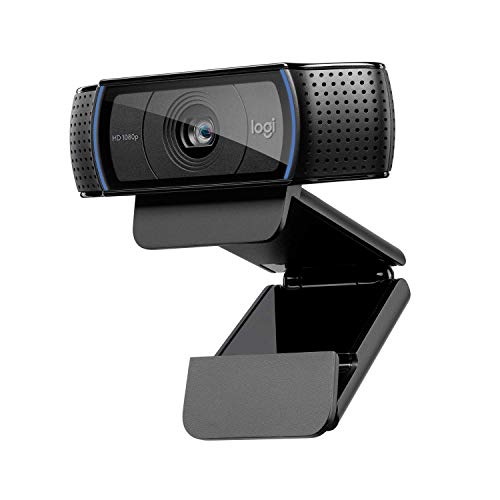
3. Logitech HD Pro Webcam C920
A Full HD 1080p webcam for widescreen video calling and recording, for desktop or laptop use. The C920 is the long-standing standard for professional video calls: 1080p video, a widescreen field of view, and plug-and-play operation with no software required for basic use.
Strengths
- The most proven webcam in this roundup — the default choice for professional calls for years.
- Full HD 1080p with a widescreen view covers calls, interviews, and recordings without fuss.
- Plug-and-play operation means it works on any computer without installing drivers.
Trade-offs
- No 4K, no autofocus detail, and no privacy shutter are stated — it is a basic camera done well.
- The feature list is thin next to the 4K models here, with no manual image controls stated.
- The design is older, so it looks plainer on a modern monitor than the newer models.
Who it fits
A professional who wants a dependable, affordable 1080p webcam and does not need 4K or manual controls.
Best for: Everyday video calls and interviews in Full HD.
Not suited for: 4K streaming, low-light work, or a physical privacy shutter.
In daily use
In daily use the C920 is the webcam that disappears into the job. It sits on the monitor, the computer recognises it instantly, and the calls look clean and professional without any settings to manage. There is no 4K and no manual tuning, and for most professional calls that does not matter — 1080p is what the meeting software shows anyway, and a camera that works every time beats a camera with features that need configuring. It is the right choice when reliability matters more than specifications.
Before you buy
Before buying the C920, be clear about what it does not do: no 4K, no stated privacy shutter, and no manual image controls. If any of those matter, the C920S or a 4K model is the better buy. Check the monitor mount fits — the clip suits most monitors but very thin or very thick screens can be awkward — and keep the lens clean, since a smudged lens is the most common reason a good webcam looks bad.
Check price on Amazon: Logitech HD Pro Webcam C920

4. Logitech C920S HD Pro Webcam
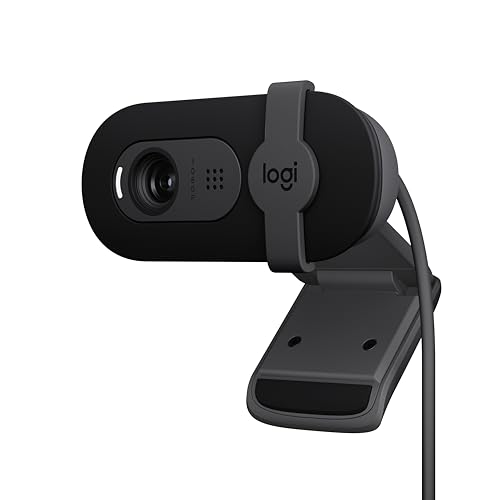
An HD Pro webcam for PC with Full HD 1080p at 30fps video calling, clear stereo audio, light correction, and a privacy shutter, working with Skype, Zoom, FaceTime, Hangouts, PC, Mac, laptop, tablet, and Xbox. It has a fixed 78-degree diagonal field of view, two microphones, and support for the Logitech Capture app for custom settings.
Strengths
- A physical privacy shutter — the first in this roundup — closes the lens when the call ends.
- Two microphones capture sound from a broader range of angles, so a voice sounds natural across a desk.
- The Logitech Capture app allows recording and custom settings for streams and videos.
Trade-offs
- Still 1080p, so it does not offer the 4K of the Brio models.
- The fixed 78-degree field of view cannot be narrowed for a tighter shot.
- The Capture app adds features but also adds software to install and maintain.
Who it fits
A professional who wants the C920's reliability plus a privacy shutter and stereo microphones.
Best for: Daily calls where privacy after the call matters.
Not suited for: 4K recording or an adjustable field of view.
In daily use
Day to day the C920S is the C920 with the two things professionals ask for most: a shutter and better microphones. The shutter is a small plastic slide that makes a large difference — close it after a call and there is no doubt about whether the camera is off, which matters in a home office and in any workplace with privacy rules. The two microphones pick up a voice naturally without a headset, and the Capture app is there when a recording needs custom settings, and ignorable when it does not.
Before you buy
Before buying the C920S, check the fixed 78-degree field of view suits the room: it frames a person and some of the space around them, which is right for most calls but wide for a tight head-and-shoulders shot. Get into the habit of closing the shutter after every call, since a shutter left open is no shutter at all, and test the microphones at the distance you actually sit from the camera.
Check price on Amazon: Logitech C920S HD Pro Webcam

5. Razer Kiyo Pro
A webcam for streaming, gaming, and video calls with uncompressed Full HD 1080p at 60fps, an adaptive light sensor, HDR, and a wide-angle lens with adjustable field of view. It works with OBS, Xsplit, Twitch, Zoom, and Teams, with field-of-view settings of 103, 90, and 80 degrees, a sensitivity of -38 dB, and 16-bit 48kHz audio.
Strengths
- Uncompressed 1080p at 60fps gives the highest-fidelity Full HD image here, with no compression artefacts.
- An adaptive light sensor and HDR handle rooms where the light changes during a call.
- Adjustable field of view from 80 to 103 degrees covers a tight shot or a wide room view.
Trade-offs
- No 4K — the Kiyo Pro Ultra is the 4K model in this family.
- No privacy shutter is stated, so privacy depends on software or a cover.
- The gaming and streaming focus means some features are tuned for streams rather than office calls.
Who it fits
A streamer or presenter who wants the cleanest 1080p image available, with strong low-light handling.
Best for: Streaming and professional video in Full HD at 60fps.
Not suited for: 4K recording or a physical privacy shutter.
In daily use
In daily use the Kiyo Pro's uncompressed video is the difference you can see: no blocky artefacts on movement, no smearing when you gesture, just a clean image that holds up on a large screen. The adaptive light sensor earns its keep in a room where the sun moves during the day — the image stays even instead of blowing out or going dark. And the adjustable field of view means the same camera works for a tight presenting shot and a wider room shot without being moved.
Before you buy
Before buying the Kiyo Pro, check whether uncompressed 1080p matters to your work — it needs more bandwidth and a capable computer than a compressed stream. Decide whether the lack of a stated privacy shutter is acceptable, and test the field-of-view settings before the first important call: 103 degrees shows a lot of room, and most professionals prefer 80.
Check price on Amazon: Razer Kiyo Pro

6. Razer Kiyo Pro Ultra
A 4K webcam with a large sensor, a built-in microphone and shutter, auto light correction, and pro-grade content creation features, for streaming, gaming, and video calls with PC, OBS, Zoom, and Teams. It uses a 1/1.2-inch Sony STARVIS 2 sensor with 2.9-micron pixels, a custom F/1.7 aperture lens, and AI-powered video imaging.
Strengths
- A large 1/1.2-inch Sony sensor with 2.9-micron pixels captures more light and detail than any other webcam here.
- A custom F/1.7 lens lets in far more light, giving clear images even in dim rooms.
- A built-in microphone and shutter cover audio and privacy without extra accessories.
Trade-offs
- The large sensor and lens make it the bulkiest webcam in this roundup.
- AI-powered imaging helps, but it cannot fix a badly lit room on its own.
- The pro-grade positioning means it costs more than the 1080p models for features a call-only user may not need.
Who it fits
A streamer or content creator who wants DSLR-like image quality from a webcam, especially in low light.
Best for: Professional streaming and recording where image quality is the priority.
Not suited for: A simple plug-and-play call camera on a tight budget.
In daily use
Day to day the Kiyo Pro Ultra is the closest a webcam gets to a real camera. The large sensor and the fast F/1.7 lens mean a dim office still produces a bright, detailed image, where smaller webcams turn grainy and dark. The built-in shutter is a welcome addition — privacy without a stick-on cover — and the AI imaging keeps the face sharp and well-lit as the light changes. It is the camera to choose when the video itself is the product, not just a way to join a meeting.
Before you buy
Before buying the Kiyo Pro Ultra, check the monitor mount can hold it — the larger lens and body are heavier than a basic webcam. Test it in the actual lighting of the room where it will be used, since low-light performance is its main selling point, and confirm the computer can handle 4K if that mode is the plan. If the work is calls only, the Kiyo Pro at 1080p may be the better value.
Check price on Amazon: Razer Kiyo Pro Ultra

7. Elgato Facecam
A premium Full HD webcam with HDR, a Sony sensor, PTZ control, uncompressed 1080p60 video, DSLR-style controls, and an easy-slide privacy shutter. It uses Elgato Studio software for extensive customisation, handles high-contrast lighting with HDR at 1080p30, and is built for live streaming, gaming, and video calls.
Strengths
- Uncompressed 1080p60 video with a Sony sensor gives smooth, lifelike motion and natural colour.
- DSLR-style controls through Elgato Studio offer the deepest image tuning of any 1080p camera here.
- An easy-slide privacy shutter and HDR handling for difficult lighting cover privacy and image quality together.
Trade-offs
- No 4K — the Facecam 4K is the 4K model in this family.
- The deep controls need Elgato Studio software, so full use means installing and learning it.
- HDR works at 1080p30, so high dynamic range and 60fps cannot be used at the same time.
Who it fits
A streamer or professional who wants DSLR-style control over a 1080p image, with a privacy shutter.
Best for: Streaming and calls with manual, DSLR-style image control.
Not suited for: 4K recording, or a camera that needs no software at all.
In daily use
In daily use the Facecam is the camera for people who like to tune their image. The Elgato Studio software offers the kind of controls a DSLR user recognises — exposure, white balance, and more — and once they are set, the camera holds them across calls instead of resetting. The uncompressed 1080p60 video is smooth and lifelike, the HDR handles a bright window behind the desk without turning the presenter into a silhouette, and the slide shutter closes with a flick when the call ends.
Before you buy
Before buying the Facecam, install Elgato Studio and learn the controls before the first important stream — the camera's strength is its tuning, and untuned it is simply a good 1080p webcam. Decide whether 1080p is enough, since the Facecam 4K exists for those who need more resolution, and check the lighting: HDR helps with contrast, but a well-lit room still beats any software correction.
Check price on Amazon: Elgato Facecam

8. Elgato Facecam 4K
A 4K60 studio webcam with DSLR-like control, a Sony STARVIS 2 sensor, Elgato Prime Lens technology, 49mm lens filter support, uncompressed video, HDR support, an eco-friendly build, and USB-C. It captures 4K at 60fps with Elgato Studio software for effects and settings.
Strengths
- 4K at 60fps — the highest resolution and frame rate combination in this roundup.
- A Sony STARVIS 2 sensor with Elgato Prime Lens technology gives DSLR-like detail and colour.
- 49mm lens filter support lets streamers use standard photographic filters, just like a DSLR.
Trade-offs
- 4K60 needs a capable computer, a fast connection, and USB-C — weaker setups will not use it fully.
- The deep controls need Elgato Studio, so the camera's strength depends on the software.
- The premium positioning makes it the most expensive webcam here.
Who it fits
A professional streamer or creator who wants the best image a webcam can produce, with DSLR-style filters and controls.
Best for: High-end streaming and recording in 4K at 60fps.
Not suited for: Basic video calls, or a computer that cannot handle 4K60.
In daily use
Day to day the Facecam 4K is the flagship of this roundup. The 4K60 video is visibly sharper and smoother than anything else here, the Sony sensor keeps colours true in mixed lighting, and the 49mm filter support is a genuinely professional touch — a diffusion filter for a softer look, or a polariser for a bright room, just as on a DSLR. The Elgato Studio software ties it together with effects and settings that stay put. It is the camera to choose when the video is the work, not just a window into it.
Before you buy
Before buying the Facecam 4K, confirm the computer, the connection, and the USB-C port can all handle 4K at 60fps — otherwise the camera's best mode goes unused. Budget for a 49mm filter if that feature is the attraction, since filters are sold separately, and learn Elgato Studio before the first stream: a camera this capable rewards preparation and punishes improvisation.
Check price on Amazon: Elgato Facecam 4K
Buying guide: best hd external webcams for professionals
Resolution and frame rate: what professionals actually need
Resolution is the headline number, but frame rate decides how the video feels. 4K at 30fps is sharper than 1080p but less smooth than 1080p at 60fps, and for a presenter who gestures, smoothness matters more than sharpness. Most meeting software shows 1080p at most, so a 4K camera's extra resolution is only visible in recordings and streams. Choose by the work: calls and interviews are well served by 1080p at 60fps, while recorded content and streaming benefit from 4K. And check the computer and connection can handle the chosen mode — a 4K camera on a weak connection is worse than a 1080p camera on a good one.
Low light, autofocus, and field of view
Professional webcams earn their keep in bad light: a dim office, a bright window behind the desk, or a room where the sun moves during the day. A large sensor, a fast lens, and HDR all help, and the listings state which models have them. Autofocus should keep a moving presenter sharp without hunting — a camera that constantly refocuses is distracting on a call. Field of view decides how much of the room appears: 65 degrees frames a head and shoulders, 78 is the standard for calls, and 90 or more shows the room. An adjustable field of view is worth having, since the right framing depends on the room rather than the camera.
Audio: the microphone you already have
Most professionals use the webcam's microphones, so they matter. Dual microphones with noise reduction pick up a voice clearly across a desk and suppress keyboard and room noise, and the listings state the microphone setup for each model. A single microphone is adequate for a quiet room but thin in a noisy one. If the work involves recording rather than calls, a separate microphone is still better than any built-in one — but for daily meetings, a good dual-microphone webcam is enough, and it is one less device to manage. Test the microphones at the distance you actually sit, since a microphone that sounds good at arm's length can sound distant across a desk.
Privacy, software, and mounting
A physical privacy shutter is the simplest privacy feature there is: close it and the camera is off, with no software to trust. Models without one need a stick-on cover or a software control, which is less certain. Software matters too: some cameras here offer deep manual controls through their own apps, which is powerful for a streamer and unnecessary for a call-only user — choose the level of control that matches the work. Mounting is the detail most often overlooked: the camera should sit at eye level on the monitor, not below it looking up, and the clip should fit the monitor's thickness. A camera on a tripod or a separate mount is worth considering for a permanent desk setup.
Compatibility and certification
A professional webcam must work with the software the workplace actually uses, without a driver hunt on the morning of an important call. Several models here state certification for Zoom, Microsoft Teams, Google Meet, OBS, and Streamlabs, which means they have been tested against those platforms rather than merely claimed to work with them. Check the listing for the platforms you use, and confirm the operating system is covered — Windows, Mac, and ChromeOS are stated for the Brio, while other models list their own combinations. Plug-and-play operation over USB is the norm here, but the 4K60 models need USB-C and a capable port, so check the port as well as the software.
Using and caring for your pick
Mount the webcam at eye level on the monitor and leave it there — a camera that is moved for every call is a camera that is never framed properly. Clean the lens with a soft, dry cloth when the image looks hazy, since a fingerprint is the most common cause of a soft picture. Set the field of view and the image controls once, on a quiet day, and save them in the camera's software so they load the same way every time. Close the privacy shutter after every call until it is a habit, and keep the camera's firmware and software updated — manufacturers fix autofocus and exposure behaviour in updates more often than buyers expect. If the camera is used for recording as well as calls, test the recording mode before the first important session, since 4K60 needs more from the computer than a call does.
Common mistakes to avoid
The most common mistake is mounting the camera below the screen and looking up into it — eye level is the rule, and it costs nothing. The second is buying 4K and running it on a computer and connection that cannot handle it, then blaming the camera for the stutter. The third is ignoring lighting: a camera cannot fix a dark room or a bright window behind the presenter, and a simple lamp in front of the desk does more than any sensor. The fourth is leaving the privacy shutter open, or never installing the cover, and discovering the camera was live. And the fifth is never opening the camera's software: the manual controls that make a good webcam great are only useful if they are actually set.
Final recommendation
For most professionals, the Logitech Brio 4K is the safe choice: 4K and 1080p60 in one camera, flexible framing, and dual microphones that handle daily calls without fuss. If privacy matters, the C920S adds a shutter to the dependable C920 formula for little extra. For streamers, the Razer Kiyo Pro Ultra and the Elgato Facecam 4K offer the best images a webcam can produce, with large sensors and DSLR-style control — the Kiyo Pro Ultra for low light, the Facecam 4K for 4K60 and filters. And for a presenter who shares desk work, the MX Brio's Show Mode is genuinely useful. Whichever you choose, mount it at eye level, light the room from the front, and set the controls once — the camera that disappears into the work is the right one. Good video is mostly preparation: the right camera, the right light, and a few minutes spent setting both up properly before the call that matters.
Frequently asked questions
Is 4K worth it for video calls?
For most calls, no — meeting software usually shows 1080p at most, so a 4K camera's extra detail is not visible to the other participants. 4K is worth it for recordings, streams, and content creation, where the audience sees the full resolution. For daily calls, 1080p at 60fps is smoother and easier on the computer and the connection.
Do I need a separate microphone with a webcam?
For daily calls, usually not: the dual microphones on the webcams here, with noise reduction, pick up a voice clearly across a desk. For recordings, podcasts, or any work where audio quality is the product, a separate microphone is still better. Test the built-in microphones at your actual sitting distance before deciding.
What is the best field of view for a video call?
Around 65 to 78 degrees suits most calls: 65 frames a tight head-and-shoulders shot, while 78 shows a person and some of the room. Wider angles such as 90 or 103 degrees show too much room for a normal call and can make the presenter look distant. An adjustable field of view is worth having, since the right framing depends on the room.
How do I stop my webcam looking dark or washed out?
Light the room from the front, not from behind: a lamp or a window in front of the desk lights the face, while a bright window behind the desk turns the presenter into a silhouette. The webcams here offer light correction, HDR, or manual exposure controls that help, but no camera fixes bad lighting on its own. A simple front light does more than any sensor.
Should I get a webcam with a privacy shutter?
If the camera sits in a home office or a bedroom, yes. A physical shutter is the only privacy control that does not depend on software: close it and the camera is off, visibly. Models without a shutter need a stick-on cover, which works but is easy to lose and leaves residue. For a shared or public workspace, a shutter is close to essential.
Can a webcam replace a DSLR for streaming?
For most streamers, a large-sensor webcam such as the Kiyo Pro Ultra or the Facecam 4K comes close: a big sensor, a fast lens, and manual controls produce an image that is hard to distinguish from a basic DSLR setup on a stream. A DSLR still wins on interchangeable lenses, depth of field, and low-light performance at the highest level, but it needs a capture card, a lens, and constant attention. A webcam is simpler, cheaper, and always ready — which is why most professional streamers use one.