The best webcams available today are dramatically better than the built-in camera on most laptops, and the gap shows up the moment you join a video call. A dedicated webcam gives you a sharper image, better handling of dim rooms, a wider or more flattering field of view, and a microphone that picks up your voice instead of your keyboard. That matters whether you work from home, stream games, teach online, or just want your family to see you clearly. The seven webcams in this guide cover the full range of what is worth buying right now: Logitech supplies five of the picks, from the budget C920x to the 4K MX Brio, while NexiGo and Anker cover the value and conference ends of the market. Every model here is a current listing, plugs in over USB, and works with the video apps people actually use.
What makes a webcam worth buying has not changed much, even as resolutions have climbed. Sharpness matters, but so does how the camera handles a backlit window, a dim evening room, or a face that moves around the frame. Autofocus keeps you sharp when you lean in or sit back, auto light correction keeps you visible when the room is not ideal, and a built-in privacy shutter gives you a simple way to know the camera is off. This guide weighs those practical qualities alongside resolution, because a 1080p camera that handles light well will look better on a call than a 4K camera that blows out every highlight. The picks below were chosen from current listings with the brand and model confirmed, and each one is described on its own merits rather than on a specification sheet alone.
One more thing worth knowing before the list: the webcam market has split into two clear groups, and knowing which group you belong to makes the choice much easier. The first group is the call camera, built for meetings, lessons, and family chats, where reliability and light handling matter most. The second group is the creator camera, built for streaming and recording, where resolution, frame rate, and manual control matter most. The Logitech Brio 101, C920x, and NexiGo N60 belong to the first group, the MX Brio and Brio 4K belong to the second, and the C922x and the Anker PowerConf C200 sit between them, each leaning a different way. This guide covers both groups so that whatever your calls look like, there is a pick that fits them.
In this guide
Quick picks: best webcams available today
| # | Product | Where to buy |
|---|---|---|
| 1 | Logitech Brio 101 | Check on Amazon |
| 2 | Logitech C920x HD Pro | Check on Amazon |
| 3 | Logitech MX Brio | Check on Amazon |
| 4 | Logitech C922x HD Pro | Check on Amazon |
| 5 | Logitech Brio 4K | Check on Amazon |
| 6 | NexiGo N60 | Check on Amazon |
| 7 | Anker PowerConf C200 | Check on Amazon |
How the picks were chosen
The picks were chosen from current webcam listings, with three hard filters. First, the camera must be a complete, standalone webcam from a known brand, sold new rather than renewed. Second, the model name in the listing must match the camera exactly, so there is no guessing about which generation is on offer. Third, the camera must cover a real use case: everyday video calls, streaming, business meetings, or conferencing. Within those filters the guide favours variety: two 4K models for buyers who want the sharpest image, four 1080p models at different prices, and one conference-focused model with a microphone array built for group calls.
Resolution was weighed alongside light handling, autofocus, field of view, microphone quality, and ease of setup. A webcam that needs no software to work well earns points, because most buyers want to plug it in and join a call, not spend an evening tuning settings. Privacy shutters and mount flexibility were also considered, since a camera that sits securely on a monitor and closes when you are done is simply easier to live with.
Price was the last filter, not the first. The cheapest camera here costs far less than the most expensive one, and both are good buys for different people. A budget camera that handles light well and includes a privacy shutter is a better purchase for daily meetings than a premium camera whose extra resolution never gets used. By the same token, a creator who streams every day will get far more value from a 4K camera than from saving money on a basic one. The right price is the one that matches the job, and the guide says plainly which job each camera is for.
Quick comparison
| Product | Standout detail |
|---|---|
| Logitech Brio 101 | 1080p, auto-light balance, privacy shutter, built-in mic |
| Logitech C920x HD Pro | 1080p/30fps, stereo audio, HD light correction |
| Logitech MX Brio | 4K, 1080p 60fps, Show Mode, auto light and sound |
| Logitech C922x HD Pro | 1080p/30fps or 720p/60fps, HD light correction |
| Logitech Brio 4K | 4K, autofocus, 5x digital zoom, dual noise-reducing mics |
| NexiGo N60 | 1080p, privacy cover, software control, USB plug and play |
| Anker PowerConf C200 | 2K, low-light correction, conference mic, 360-degree voice pickup |

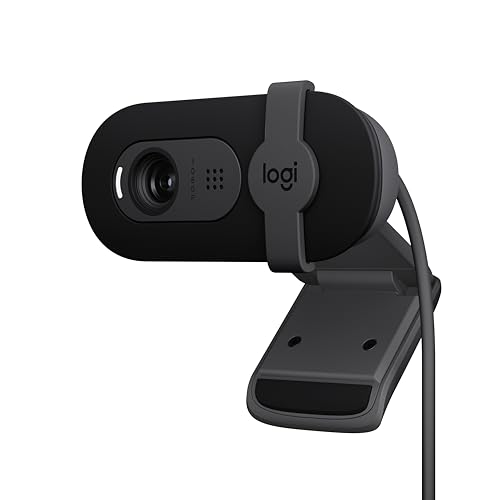
1. Logitech Brio 101
Key specs
Full HD 1080p webcam for PC, built-in microphone, auto-light balance, privacy shutter. The Brio 101 is Logitech's straightforward 1080p camera for everyday calls.
Strengths
- Auto-light balance keeps your face visible in rooms where the lighting is uneven or dim.
- Full HD 1080p resolution is a clear step up from most built-in laptop cameras.
- A built-in privacy shutter lets you close the camera with a quick slide when the call ends.
Trade-offs
- Fixed focus means the camera cannot refocus if you lean in close or move around.
- The field of view is standard rather than wide, so it suits one person rather than a group.
- There is no 4K option and no advanced software tuning for buyers who want more control.
Who it fits
Buyers who want a simple, reliable 1080p webcam for daily video calls without fussing over settings.
Best for: everyday video calls with dependable light handling.
Not suited for: streamers who need 4K, 60fps video, or a wide-angle group shot.
In daily use
In daily use, the Brio 101 is the webcam you forget about, which is exactly what a work camera should be. Plug it in, clip it to the monitor, and it produces a clean, well-lit image on every call without any adjustment. The auto-light balance does the heavy lifting in rooms with a window behind you or a single ceiling light, and the privacy shutter gives you a visible, physical way to know the camera is closed. Keep the lens clean with a soft cloth now and then, and the image stays sharp. It will not impress a streaming audience, but for meetings, classes, and family calls it is one of the easiest cameras to live with.
Before you buy
Before buying the Logitech Brio 101, check two practical things. First, confirm the resolution your calls actually need: 1080p is enough for most meetings, 2K adds visible sharpness on large screens, and 4K only pays off if your connection, your computer, and your audience can all make use of it. Second, think about your room: a camera with good light correction matters far more in a dim room than a higher resolution does, and a camera with a privacy shutter is worth having if the camera faces your living space.
Check price on Amazon: Logitech Brio 101

2. Logitech C920x HD Pro
Key specs
Full HD 1080p/30fps webcam with microphone, stereo audio, HD light correction. The C920x is the long-running default webcam for work and streaming.
Strengths
- The 1080p/30fps image is sharp and consistent, and it has been the reference point for webcams for years.
- HD light correction handles dim and uneven lighting better than most cameras at this level.
- Stereo microphones pick up your voice clearly without a separate headset or desk mic.
Trade-offs
- It tops out at 1080p, so buyers chasing 4K will need a newer model.
- Autofocus is present but not as fast or as confident as the focusing on the 4K Brio models.
- The design is plain and functional, with no privacy shutter built in.
Who it fits
Buyers who want the proven, do-everything webcam for work calls, teaching, and casual streaming.
Best for: reliable all-round video calls and streaming on a budget.
Not suited for: anyone who needs 4K resolution or a built-in privacy shutter.
In daily use
In daily use, the C920x earns its reputation quietly. It starts up quickly, works with every major video app, and produces a steady, natural-looking image that does not need tweaking. The light correction is the feature you notice most: in a room with a bright window or a dim corner, the camera adjusts itself and keeps your face readable. The stereo microphones are good enough for calls and lessons without a headset, though a dedicated microphone still sounds better for recording. Mount it at eye level, keep the lens clean, and it will serve for years without complaint.
Before you buy
A few checks before you order the Logitech C920x HD Pro will save disappointment. Confirm that your computer has a free USB port in a spot where the cable can reach the monitor comfortably, and check whether your video app supports the camera's resolution and frame rate. If you plan to stream, confirm that your streaming software recognises the camera before you commit. And if you wear glasses, remember that a camera with strong light correction will handle reflections better than a basic one.
Check price on Amazon: Logitech C920x HD Pro

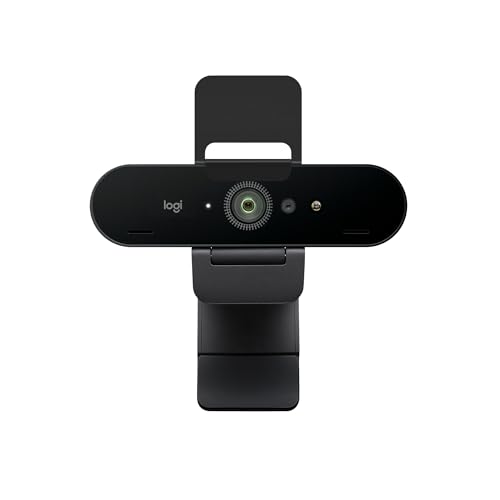
3. Logitech MX Brio
Key specs
Ultra HD 4K webcam for streaming and collaboration, 1080p 60fps, Show Mode, auto light and sound. The MX Brio is Logitech's premium webcam for creators and professionals.
Strengths
- 4K resolution with 1080p at 60 frames per second gives smooth, detailed video for streaming and recording.
- Show Mode lets you tilt the camera down to show a desk or document, which is useful for teaching and demos.
- Automatic light and sound adjustment keeps the image and voice balanced without manual tuning.
Trade-offs
- It costs substantially more than the 1080p models in this guide, which is hard to justify for occasional calls.
- 4K video needs a good connection and a capable computer to look its best on a live call.
- The extra features reward users who tune settings; buyers who want plug-and-play simplicity may not use them.
Who it fits
Streamers, creators, and professionals who want the sharpest image and the most control Logitech offers.
Best for: high-quality streaming and professional video calls.
Not suited for: casual callers who only need a basic 1080p camera.
In daily use
In daily use, the MX Brio is the camera for people whose image is part of their work. The 4K detail shows in hair, fabric, and background objects, and the 60fps mode at 1080p makes movement look smooth rather than choppy. Show Mode is genuinely useful for anyone who demonstrates products, signs documents on camera, or teaches with physical objects. The automatic adjustments mean you rarely need to open the settings, but the settings are there when you want them. Give it good lighting and a stable mount, and it rewards you with the best-looking video in this guide.
Before you buy
When the Logitech MX Brio arrives, spend ten minutes setting it up properly. Mount it at eye level on the monitor, centre it on your face, and make a short test call to check framing, lighting, and sound. Then leave the settings alone. Constant tweaking is the enemy of a good-looking call, and most people get better results from a stable setup than from a perfect one. If something looks wrong after a few days, change one thing at a time so you know what actually helped.
Check price on Amazon: Logitech MX Brio

4. Logitech C922x HD Pro
Key specs
Full HD 1080p/30fps or 720p/60fps webcam, HD light correction. The C922x adds a 60fps mode to the classic C920 formula for smoother motion.
Strengths
- The 720p/60fps mode makes movement smoother, which suits streaming and fast-paced on-camera work.
- 1080p at 30fps covers standard calls with the same sharp image as the C920x.
- HD light correction keeps the picture usable in rooms that are not ideally lit.
Trade-offs
- It is still a 1080p camera, so it cannot match the detail of the 4K models here.
- The 60fps mode drops the resolution to 720p, so you trade sharpness for smoothness.
- Like the C920x, it has no built-in privacy shutter.
Who it fits
Streamers and callers who want smoother motion without paying for a 4K camera.
Best for: streaming and calls where smooth movement matters more than maximum detail.
Not suited for: buyers who want 4K, autofocus tracking, or a privacy shutter.
In daily use
In daily use, the C922x feels like a C920x with one extra trick, and for streamers that trick matters. Switching to 60fps makes hand gestures, head movement, and on-camera demos look noticeably smoother, which is why this model has stayed popular with creators on a budget. For ordinary calls, the 1080p mode is the one to use, and the image is the same dependable picture the C920 line is known for. Keep the firmware and the Logitech software up to date if you use the extra features, and mount the camera at eye level for the most natural framing.
Before you buy
Before buying the Logitech C922x HD Pro, check two practical things. First, confirm the resolution your calls actually need: 1080p is enough for most meetings, 2K adds visible sharpness on large screens, and 4K only pays off if your connection, your computer, and your audience can all make use of it. Second, think about your room: a camera with good light correction matters far more in a dim room than a higher resolution does, and a camera with a privacy shutter is worth having if the camera faces your living space.
Check price on Amazon: Logitech C922x HD Pro

5. Logitech Brio 4K
Key specs
Ultra HD 4K webcam with autofocus and 5x digital zoom, dual noise-reducing microphones. The Brio 4K is Logitech's established 4K camera for sharp, flexible video.
Strengths
- True 4K resolution delivers the most detailed image of any Logitech camera in this guide.
- Autofocus keeps you sharp as you move, and the 5x digital zoom lets you frame the shot tightly.
- Dual noise-reducing microphones cut background hum and keyboard noise from your voice.
Trade-offs
- 4K streaming demands a strong connection and a capable computer, or the extra detail goes to waste.
- It is larger and heavier than the 1080p models, so it needs a stable monitor mount.
- The price sits well above the 1080p cameras, which is a lot to pay for calls alone.
Who it fits
Buyers who want 4K detail and autofocus for professional calls, recording, and content creation.
Best for: sharp 4K video with autofocus and clean audio.
Not suited for: lightweight travel setups or very basic call needs.
In daily use
In daily use, the Brio 4K is the camera you buy when your face is your storefront. The autofocus is quick enough that leaning in to read something or sitting back to think never leaves you blurry, and the zoom lets you frame out a messy background without moving the camera. The microphones handle a normal room well, picking up your voice while softening the fan or the keyboard. It benefits from decent lighting more than the 1080p models do, so a simple desk lamp or a window in front of you makes a visible difference. Once it is set up, it stays set up, and the image stays consistently good.
Before you buy
A few checks before you order the Logitech Brio 4K will save disappointment. Confirm that your computer has a free USB port in a spot where the cable can reach the monitor comfortably, and check whether your video app supports the camera's resolution and frame rate. If you plan to stream, confirm that your streaming software recognises the camera before you commit. And if you wear glasses, remember that a camera with strong light correction will handle reflections better than a basic one.
Check price on Amazon: Logitech Brio 4K

6. NexiGo N60
Key specs
1080P webcam with microphone, software control and privacy cover, USB plug and play. The NexiGo N60 is the value pick for buyers who want the essentials done well.
Strengths
- The 1080p image is clear and natural for calls, at a price well below the Logitech models.
- A built-in privacy cover gives you a physical shutter without paying for a premium camera.
- Software control lets you adjust the picture if you want to, while plug-and-play setup works with no software at all.
Trade-offs
- Autofocus and light correction are more basic than on the Logitech cameras, so tricky lighting shows more.
- The microphone is fine for calls but thinner-sounding than the Logitech stereo mics.
- Long-term durability and software support are less proven than the big brands.
Who it fits
Budget buyers, students, and anyone setting up a second camera for a spare desk or a shared computer.
Best for: good 1080p calls on a tight budget, with a privacy cover included.
Not suited for: professional streaming or demanding low-light rooms.
In daily use
In daily use, the NexiGo N60 is pleasantly unremarkable, which is a compliment at its price. It plugs in, works with every video app, and produces a clean 1080p picture that is easy to watch. The privacy cover is the feature you will use every day: slide it closed when the call ends and there is no wondering whether the camera is on. The software control is there if you want to warm up the colours or adjust the exposure, but most owners will never open it. For a home office, a student desk, or a second computer, it covers the basics at a sensible cost.
Before you buy
When the NexiGo N60 arrives, spend ten minutes setting it up properly. Mount it at eye level on the monitor, centre it on your face, and make a short test call to check framing, lighting, and sound. Then leave the settings alone. Constant tweaking is the enemy of a good-looking call, and most people get better results from a stable setup than from a perfect one. If something looks wrong after a few days, change one thing at a time so you know what actually helped.
Check price on Amazon: NexiGo N60

7. Anker PowerConf C200
Key specs
2K webcam for PC, laptop, or Mac, low-light correction, conference microphone, 360-degree voice coverage. The PowerConf C200 is built for meetings and small-group calls.
Strengths
- 2K resolution sits between 1080p and 4K, giving a visibly sharper image than standard HD.
- Low-light correction helps in dim meeting rooms where other cameras go dark or noisy.
- The conference microphone with 360-degree voice coverage picks up speakers around a table, not just the person in front of the camera.
Trade-offs
- The wider pickup can also catch background noise in a busy room, so placement matters.
- It is aimed at conferencing rather than streaming, so creators get fewer video-focused features.
- The 2K image is excellent for calls but not a substitute for a 4K camera for recording.
Who it fits
Small teams, meeting rooms, and anyone whose calls involve more than one person in the frame.
Best for: group calls and conference rooms where the microphone matters as much as the camera.
Not suited for: solo streamers who need 4K or 60fps video.
In daily use
In daily use, the PowerConf C200 is the camera for the room, not just the person. Set it at the end of a small table and it captures the speaker clearly while the microphone picks up colleagues on either side, which is exactly what a huddle-room camera should do. The low-light correction earns its keep in rooms with a single overhead light or a window behind the speaker, and the 2K resolution keeps faces sharp on a large display. Keep it centred on the group, test the audio once before an important meeting, and it will handle the call without further attention.
Before you buy
Before buying the Anker PowerConf C200, check two practical things. First, confirm the resolution your calls actually need: 1080p is enough for most meetings, 2K adds visible sharpness on large screens, and 4K only pays off if your connection, your computer, and your audience can all make use of it. Second, think about your room: a camera with good light correction matters far more in a dim room than a higher resolution does, and a camera with a privacy shutter is worth having if the camera faces your living space.
Check price on Amazon: Anker PowerConf C200
Buying guide: best webcams available today
Resolution: 1080p, 2K, or 4K
For most video calls, 1080p is enough. It looks sharp on a laptop or a typical monitor, it works well on modest connections, and it keeps file sizes and processing demands low. 2K adds a visible step up in detail that shows on larger displays and in recorded meetings. 4K is the choice for streamers, creators, and anyone recording video for later use, but it needs a strong connection, a capable computer, and good lighting to look its best. Buy the resolution your audience will actually see, not the biggest number on the box.
Light handling matters more than resolution
A webcam that handles light well will look better on a call than a higher-resolution camera that does not. Look for auto-light balance or low-light correction, and think about your room: a window behind you will silhouette your face on any camera, while a light in front of you flatters every camera. If your room is dim in the evenings, a camera with low-light correction is worth more than extra pixels. A simple desk lamp aimed at the wall in front of you can improve any webcam more than an upgrade will.
Autofocus, field of view, and framing
Autofocus keeps you sharp when you lean in or sit back, which matters if you move during calls or demonstrate things on camera. Fixed-focus cameras are fine if you sit at a steady distance. Field of view decides how much of the room the camera sees: a standard field suits one person, a wider field suits two people or a small group. Mount the camera at eye level and centre it on your face; a camera looking up from below is unflattering on every model.
Microphones and audio
Built-in microphones have improved a lot, and the stereo mics on the Logitech models are good enough for everyday calls. Conference cameras like the Anker PowerConf C200 go further, with microphone arrays that pick up a whole table. Even so, a headset or a dedicated microphone still sounds better than any webcam mic, and it also keeps your keyboard and room noise out of the call. If your voice is your work, budget for audio separately; if it is just calls, the built-in mic is fine.
Privacy, mounting, and compatibility
A physical privacy shutter is a small feature that brings real peace of mind: you can see at a glance that the camera is closed. Check that the mount fits your monitor, especially on thin or curved displays, and that the cable reaches your computer. Every camera in this guide works over USB with the major video apps, but if you use a less common app or an older operating system, confirm compatibility before ordering. Plug-and-play setup is the norm; software adds tuning options but should never be required for basic use.
Usage and care
Use your webcam the same way every day and it will reward you with consistent results. Keep the lens clean with a soft, dry cloth; a fingerprint or a layer of dust softens the image more than any setting can fix. Keep the camera mounted at eye level and centred, and resist the urge to move it between calls. If your room has a window, sit facing it rather than with it behind you, and add a small lamp in front of you for evening calls. Store the camera on its mount rather than loose in a drawer, and close the privacy shutter when you are done so the lens stays protected and your privacy stays obvious.
For streaming or recording, a few extra habits help. Record a short test clip before an important session and watch it back for framing, focus, and sound. Keep the camera firmware and any companion software updated, since makers do improve light handling and autofocus over time. If you use the camera for long sessions, give it airflow rather than burying it behind a monitor; webcams run warm, and heat can add noise to the image over a long call. And keep the original packaging for the first weeks, in case the mount does not suit your monitor and you need to exchange it.
Common mistakes
The most common mistake is buying on resolution alone and ignoring the room. A 4K camera in a dark room with a window behind you will look worse than a 1080p camera in a well-lit room with the light in front of you. The second mistake is mounting the camera too low, which produces an unflattering upward angle that no camera can fix. The third is forgetting audio: viewers forgive a slightly soft image far more readily than they forgive a muffled or echoing voice. The fourth is leaving the privacy shutter open between calls, which is a privacy habit worth building from day one. Fix the room and the angle first, and the camera will do the rest.
Another mistake is assuming that more features mean a better call. Software tuning, digital zoom, and background effects are useful tools, but they do not replace a clean lens, good light, and a stable mount. A related mistake is buying a streaming camera for occasional meetings, or a basic call camera for daily streaming; match the camera to the job you actually do most often. Finally, do not forget the cable: a camera whose USB cable barely reaches the computer will get knocked off the monitor sooner or later, so measure before you buy if your desk is large.
Final recommendation
The best webcam available today depends on how you use it. The Logitech C920x is the safest all-round pick for work and casual streaming, the Logitech Brio 101 is the simplest choice for everyday calls, and the NexiGo N60 covers the same ground for less money. The Logitech C922x adds smoother motion for streamers, the Logitech Brio 4K adds autofocus and true 4K detail, and the Logitech MX Brio is the best-looking camera in this guide for creators and professionals. The Anker PowerConf C200 is the pick for meeting rooms and group calls, where the microphone matters as much as the lens. Choose the resolution your calls need, fix the light and the angle, and any of these cameras will make you look and sound better on every call.
If you only buy one thing beyond the camera, make it light. A small lamp in front of you, or simply turning your chair to face the window, will improve your image more than spending twice as much on the camera. And if your calls involve other people in the room, the Anker's microphone array is worth more than any resolution upgrade. Whichever model you choose, set it up once, test it once, and then stop thinking about it; the best webcam is the one that lets you focus on the conversation instead of the hardware.
Frequently asked questions
Do I need a 4K webcam for video calls?
Not usually. Most video apps compress the picture during a call, so a 1080p camera looks nearly as good as a 4K one to the people you are talking to. 4K pays off for streaming, recording, and content creation, where the full detail is kept. For everyday meetings, a good 1080p camera with solid light handling is the better buy.
What is the difference between the Logitech C920x and the C922x?
The two cameras share the same 1080p image quality and light correction, but the C922x adds a 720p mode at 60 frames per second, which makes movement look smoother on stream. If you stream or move around on camera, the C922x is worth the small step up; if you only make calls, the C920x is enough.
How can I look better on video calls without buying a new camera?
Fix the light and the angle first. Sit facing a window or a lamp rather than with the light behind you, mount the camera at eye level, and clean the lens. Those three changes improve the picture more than any camera upgrade, and they cost nothing. A plain background and a headset for audio complete the setup.
Do webcams work with Zoom, Teams, and Google Meet?
Yes. Every webcam in this guide works over USB with the major video apps on Windows and Mac, with no special drivers needed for basic use. Some models offer extra software for tuning the picture, but it is optional. If you use a less common app, it is still worth a quick check, but standard USB webcams are supported almost everywhere.
Should I worry about privacy with a webcam?
A physical privacy shutter is the simplest answer: when it is closed, the camera cannot see anything. The Brio 101, the NexiGo N60, and several other models here include one. It is also good practice to close the shutter or unplug the camera when it is not in use, and to check which apps have camera permission on your computer.
Is a built-in webcam microphone good enough?
For everyday calls, yes, especially the stereo microphones on the Logitech models and the conference microphone on the Anker. For recording, teaching, or important presentations, a headset or a dedicated microphone will sound noticeably better and will keep room noise out of the audio. Treat the built-in mic as a capable backup rather than a studio tool.
What should I do if my webcam looks dark even in a bright room?
Check the light direction first: a window behind you will make any camera darken your face, so turn to face the window or the room's main light instead. Then check the lens for dust or fingerprints, and make sure no background app is forcing the exposure low. If the picture is still dark, a camera with auto-light balance or low-light correction, like the Brio 101 or the PowerConf C200, will handle the room better than a basic camera. A small lamp in front of you is the cheapest fix of all, and it works with any webcam.