Disclosure: As an Amazon Associate, ilcastellomenu.com earns from qualifying purchases. The product mentions in this guide are editorial: we link only to items that genuinely fit the topic, and a link never changes what we recommend checking, comparing, or avoiding.
If you have ever wondered what is response time on a monitor, the short answer is: the time a pixel takes to change from one shade to another, measured in milliseconds. That single number shapes how clean moving images look — whether a fast pan stays sharp or smears into ghost trails — and it is also one of the most creatively marketed figures in the industry, quoted under ideal conditions that your games will never meet. This explainer covers what the number measures, why two different measurements (GtG and MPRT) share the same shelf, and how much speed each kind of user actually needs.
By the end you will be able to read a spec sheet sceptically and shop the gaming roundups in Best Response Time for Gaming Monitors with the marketing filtered out. The short version: response time matters greatly for fast gaming, modestly for general use, and not at all for static work — and the figure on the box is a best case, not a promise.
What Is Response Time on a Monitor? The Measurement, Explained
A liquid-crystal pixel changes colour by physically reorienting crystals to let more or less backlight through. That reorientation takes time — milliseconds — and different transitions take different times: a swing between dark shades is typically slower than between bright ones. Response time is the measured duration of such a transition. While a pixel is mid-transition, it shows an in-between shade, so in a fast-moving scene the screen is a mosaic of pixels chasing their targets. The visible result, when transitions lag the refresh rate, is ghosting: a faint trail behind moving objects.
The industry-standard quote is GtG — grey-to-grey — the average or best time across a set of shade transitions, depending on who is quoting. Because manufacturers choose the flattering end, one brand’s ‘1ms’ panel can behave very differently from another’s in real content. Independent reviews that measure the full transition matrix — and the overshoot errors aggressive driving creates — are the only like-for-like comparisons. Treat the box number as a tier signal: it tells you the panel family aims at speed, not how it behaves at your settings.
In this guide
GtG Versus MPRT: Two Numbers, Two Different Things
MPRT — moving picture response time — measures something else entirely: how long a pixel remains visible during motion, which depends on the refresh rate and any backlight strobing, not on crystal speed. A panel can claim a tiny MPRT by flashing its backlight briefly each frame (the various ‘motion blur reduction’ modes), while its GtG transitions remain leisurely. Both numbers describe real aspects of motion clarity, but they are not interchangeable, and listings that print the smaller one without saying which it is are telling you less than they appear to.
Practical reading: GtG tells you about ghosting trails; MPRT (and refresh rate) tells you about the blur your eyes perceive when tracking movement across the screen, which is dominated by how long each frame is held. High refresh rates attack the second problem directly — a frame shown for a shorter time blurs less in your visual system — which is why the jump from 60Hz to 144Hz feels larger than any response-time improvement within a generation. The competitive context is in Best Monitors for Fps Gaming.
Overdrive: The Setting That Trades Ghosting for Halos
Overdrive (sold under names like OD, Response Time, or Trace Free in monitor menus) pushes pixels harder — applying extra voltage to speed transitions. At moderate settings it is pure gain: visibly cleaner motion. Pushed too far, pixels overshoot their target shade and correct back, producing inverse ghosting: bright or coloured halos trailing objects, an artefact many users mistake for a panel defect. Every panel has a sweet-spot overdrive tier, usually the middle one, and it can shift with refresh rate — a setting perfect at maximum refresh may overshoot at lower rates.
This is why the advice in How to Adjust a Monitor is to set overdrive to its middle option and judge with your own fastest content. It is also why variable-refresh gaming complicates response: as frame rates wander, the ideal overdrive wanders too, and better monitors adjust it dynamically. When you read that a panel is ‘1ms’, you are reading its behaviour at maximum overdrive in its best transition — the halo-prone corner of its range — not the balanced setting you will actually use.
Panel Types and Real-World Speed
Panel families have characteristic response personalities. Modern fast IPS panels deliver quick, consistent transitions across most shade pairs, which is why they dominate gaming shortlists like Best Monitors for Competitive Gaming. VA panels are fast between bright shades but slow between dark ones, producing the dark smearing described in IPS vs VA Panel. TN panels, the original speed technology, remain quick and cheap but concede colour and angles. OLED changes the subject: its pixels switch orders of magnitude faster than any LCD, so ghosting effectively vanishes and motion clarity is limited by refresh rate alone.
Refresh rate and response must be read together. A transition only matters if it completes within the frame window: at 60Hz a frame lasts about 16.7 milliseconds, generous for any modern panel; at 240Hz the window is about 4.2 milliseconds, and only genuinely fast panels finish most transitions inside it. Buying a very high refresh rate on a slow panel wastes the refresh; buying low response on a 60Hz screen wastes the response. Balance is the whole game.
How Much Response Time Do You Actually Need?
For office work, documents, and video, any modern panel’s response is sufficient — motion artefacts in scrolling text are dominated by refresh rate, and even there 60Hz serves. For casual and story-driven gaming, a mid-tier fast IPS or a VA you have made peace with will look clean at 60–144Hz. For competitive gaming, where tracking through fast pans decides outcomes, prioritise proven fast panels at high refresh with well-tuned overdrive — and weight independent measurements over box numbers, because at that level the differences between ‘1ms’ claims are the whole product.
A useful sanity test with any screen you own: wave a window rapidly, or play your fastest game, and look for trails behind high-contrast edges. If you cannot see them at your settings, your response time is — by the only definition that matters — fast enough. Chasing smaller numbers beyond the threshold of your own perception is the purest form of spec-sheet marketing working as intended.
Common Misconceptions
Misconception one: ‘Response time is input lag.’ They are different delays: response time is the pixel’s physical transition; input lag is the delay between your device sending a frame and the screen beginning to show it, caused by processing. Both affect feel, but they are measured separately and a fast-response panel can still sit behind laggy processing — gaming modes exist to strip that processing out. Misconception two: ‘1ms means no blur.’ Eye-tracking blur from frame hold persists even with instant pixels; only higher refresh and strobing address it. Misconception three: ‘The quoted number is the average.’ It is almost always the best case.
Misconception four: ‘Lower is always better, whatever the cost.’ Beyond your refresh window and your perception, lower buys nothing but a thinner wallet, and maximum-overdrive chasing actively adds halos. The mature buyer’s question is never ‘what is the smallest number’ but ‘is this panel’s measured behaviour clean at the refresh rate I will run’ — the question the curated lists in Best Monitors for Valorant and similar competitive roundups exist to answer.
Response Time in Everyday Content: Where You Can Actually See It
You do not need a test bench to meet response time; your daily content introduces you. Scroll a high-contrast document quickly and watch the text: a slight smear that resolves the instant you stop is transition time at work, and at 60Hz it is mostly the refresh rate’s frame-hold you are seeing. Drag a window across a dark desktop and look for a trail. Play a fast game scene with a pan across a bright sky and dark ground together — the two extremes in one motion — and both ghosting and overshoot, if present, will introduce themselves. These are the honest auditions; a panel that passes your content at your settings has all the response time you need, whatever its box claims.
Conversely, test patterns exaggerate. The famous UFO chase and its kin are diagnostic instruments designed to reveal differences invisible in content; they are the right tool for comparing two finalists and the wrong tool for judging a screen you already own and enjoy. Buy with instruments if you compete; live with content if you do not.
A Short History of the Millisecond Race
Early LCDs were slow enough that response time was the buying criterion — a generation of gamers kept CRTs for years because flat panels smeared. TN panels industrialised speed first, at the cost of colour and angles; IPS spent a decade closing the gap and largely has; VA optimised for contrast and kept its dark-transition weakness; OLED stepped outside the contest entirely. The modern spec-sheet ‘1ms’ is the residue of that race: a real historical achievement flattened into a marketing constant. Knowing the history explains the present — why the number is everywhere, why it is always the same number, and why reviewers with oscilloscopes remain employable.
How to Read a Response-Time Claim Like a Reviewer
Reviewers interrogate a response claim with three questions you can borrow. First: measured how — best single transition, or an average across the shade matrix, and at what overdrive setting? Averages across the matrix, at the setting recommended for use, are the honest currency. Second: with what errors — does the panel overshoot at that setting, painting halos that the headline number never mentions? Third: at what refresh — a panel fast at its maximum refresh may behave differently at the rates variable-sync gaming actually visits. A listing that answers none of these is marketing; a review that answers all three is a measurement, and the distance between those documents is the distance between buying a number and buying a picture.
Apply the same scepticism symmetrically: an older panel with an honest higher figure and clean behaviour can outperform a newer ‘1ms’ claim in your games. The spec sheet is the opening statement, never the verdict — a principle this entire batch of guides applies to contrast ratios, gamut percentages, and HDR badges with equal enthusiasm.
Putting It Together: A Sensible Speed Specification for Your Next Screen
Translate this explainer into a purchase rule and it fits in a paragraph. Decide your refresh rate first, from your games and your GPU — that number sets the frame window your pixels must beat. Then require a panel whose measured behaviour, at its balanced overdrive setting, completes most transitions inside that window without overshoot; in practice this means the established fast panel families in each technology, verified by measurement-based reviews rather than by the box. Then set the overdrive to its middle tier on day one, cap frame rates inside your sync range, and audition with your fastest content. If the picture is clean, your response-time specification is complete — not when a number is small, but when an artefact is absent.
For non-gaming screens, the same rule collapses to a sentence: any current panel is fast enough, so spend the money on size, ergonomics, and colour instead. The readers who internalise that sentence save more money than any other in this guide, because response time is the specification most often bought by people who will never see it — a tribute to how thoroughly the millisecond race taught us all to want the smallest number in the room.

A Worked Example: Following One Pixel Through a Frame
Abstractions clear up when you follow a single pixel at work. Imagine a racing game at a high refresh rate: each new frame arrives roughly every seven milliseconds, and in that frame a dark kerb edge must sweep across a light stretch of track. Your pixel begins the frame showing the track’s pale grey and is commanded to become the kerb’s dark grey. The response time is how long that transition actually takes — not when it starts, but how long until the pixel has essentially arrived. If the transition needs most of the frame interval, the kerb’s edge is still travelling while the next frame’s command arrives, and your eye, which integrates the journey, perceives a smear where the game drew a line.
Now slow the same pixel’s world down. In a document, the pixel changes when you scroll or type — a handful of transitions a second, each allowed to complete at leisure. The identical panel whose kerb smeared is, for this work, effectively instantaneous, which is why response time is a gaming and motion specification and not a general quality grade. The worked example also explains the measurement’s cruelty: the transitions that matter most in games are often between dark shades, historically the slowest journeys a pixel makes, and the ones headline figures — measured on the fastest available transition — describe least.
Finally, give the pixel an overdrive shove: extra voltage to hurry it. It arrives sooner, overshoots into a too-dark shade, and must wander back — and your eye integrates that error too, as a bright fringe trailing the kerb. Speed, accuracy, and artefacts are one system, and the rest of this explainer is about spending that system’s budget where your content actually lives.
Input Lag, Refresh Rate, and Response Time: The Three Clocks
Three different delays hide inside the single word speed, and separating them ends most buying confusion. Response time is the pixel’s clock, covered throughout this explainer. Refresh rate is the frame clock: how often per second the screen accepts and displays a new image, setting the tempo everything else must keep. Input lag is the pipeline’s clock: the total time from your mouse moving or a frame being finished to its photons reaching you, including the computer’s rendering, the connection, and the screen’s own processing. A screen can win one clock and lose another — a panel with instant pixels behind heavy processing still feels tardy, and a low-lag screen with slow pixels feels responsive but looks smeared.
For players, the clocks divide the remedies. Sluggish, disconnected feel points at the pipeline clock: check the game’s frame rate, the screen’s gaming mode that bypasses processing, and any intermediary devices adding their own delay. Trails and smearing point at the pixel clock: overdrive settings and panel family. Judder and uneven motion point at the frame clock and its synchronisation with the game’s output, the territory of adaptive sync. Naming the clock correctly is more than half the cure, because each clock’s fixes are useless against the others’ faults — no overdrive setting ever repaired a processing delay, and no gaming mode ever hurried a pixel.
For non-players, the three clocks collapse into one reassurance: at desktop content’s gentle tempo, all three are so far inside comfortable limits on any modern screen that none deserves a line in the purchase decision. Spend the attention on text, colour, and ergonomics, where your hours actually live, and let the clocks keep time unobserved — which is, for most desks, the correct final verdict on the whole topic.
How Reviewers Measure, and How to Read Their Numbers
A serious response-time measurement is a small laboratory: a photosensor watches the pixel while test software commands transitions between many pairs of shades, at several overdrive settings, and records not just the average journey but the worst ones and the overshoot errors. The output that matters is a grid — shades down one side, shades across the top, times in the cells — because a panel is not fast or slow but fast here and slow there, and your games live in particular cells. Dark-to-dark cells carry the smearing story; mid-tone cells carry everyday motion; the overshoot column carries the halo story. A single average extracted from that grid is the laboratory’s least interesting product.
Read reviews, therefore, for the grid’s shape rather than its headline. Look for the worst transitions being respectable rather than the best being spectacular, for the recommended overdrive setting being identified by name — reviewers earn their fee partly by finding the setting the manufacturer buried — and for measurements at the refresh rate you will actually run, since pixel behaviour changes with the frame budget. Distrust any review that reports a single response figure without naming the overdrive setting and method; it is quoting the box with extra steps.
Your own eyes remain the final instrument, and they have a test protocol: a fast pan across a detailed scene in your quickest game, a scroll through high-contrast text, and a dark object crossing a dark background. Trails you cannot find with those three, at your settings, do not exist for your purposes whatever the grid says — and trails you can find outweigh any laboratory reassurance. The grid explains; the eye decides.
Panel Families Revisited Through the Response Lens
Each panel family’s character is partly a response-time story told in chemistry. OLED sits at the extreme: its pixels switch essentially within the frame’s first instant, so its grid has no bad cells and its overdrive column is empty — the technology does not need the shove. Fast IPS panels occupy the engineered middle, quick across most transitions with mild overshoot available at aggressive settings, which is why they became the competitive default. VA panels split by shade: bright transitions can be genuinely quick while dark transitions lag, writing the family’s signature smear into exactly the scenes horror and space games are made of — though the best modern VA panels have narrowed their worst cells enough to change verdicts for many players.
TN, the older speed specialist, survives in the explainer as a lesson in single-axis optimisation: genuinely fast pixels purchased with viewing angles and colour that the rest of the market declined to keep paying for. Its eclipse by fast IPS is the market’s verdict that response time is one axis of a screen, not the axis — a verdict worth remembering whenever a specification, any specification, is marketed as the whole story.
The family’s lesson for buyers is to shop response as a distribution, not a badge. Ask where a panel’s slow cells live and whether your content visits them. A VA panel whose weakness is dark transitions is a fine servant for bright arena games and a poor one for stealth titles; an IPS panel’s mild, even profile suits the mixed library; OLED removes the question at a price this comparison has already itemised. Content first, grid second, badge never.
Settings That Change Response Behaviour in Your Hands
Response time feels like a fixed property of the panel, but several settings in your hands move it meaningfully. Overdrive is the obvious lever, with its middle settings usually offering most of the speed and little of the overshoot — set it by the halo test in your fastest game, not by the menu’s most aggressive label. Refresh rate is the second lever: panels often behave differently across their range, and some are measurably cleaner slightly below their maximum, a trade worth testing if trails bother you at the ceiling. Variable refresh interacts too, because the frame budget changes constantly under adaptive sync, and with it the pixel’s allowed journey — one reason consistent, capped frame rates can look cleaner than wildly swinging higher ones.
Motion-blur reduction modes — backlight strobing under various names — attack the other half of perceived blur, the part caused by your eye tracking a held image. They can produce strikingly clear motion at the cost of brightness, possible flicker sensitivity, and usually the loss of adaptive sync. They are a specialist’s tool: audition one in your fastest title for a full session before adopting it, because its clarity is real and so is its fatigue for some users. Ordinary players are typically better served by a sane overdrive setting and a frame rate their system can hold steady.
Record what you settle on. Response settings are prime victims of preset switching and game profiles, and the owner who has written down the overdrive level, refresh rate, and sync arrangement that produced clean motion can restore it in a minute after any update’s quiet reset. The journal habit appears in every guide in this series because every modern screen is a small computer whose state drifts — and whose best state deserves a written memory outside itself.
Sample-and-Hold: Why Your Eyes Create Half the Blur
Half of the motion blur you perceive is not the panel’s fault at all, and understanding this half explains the limits of the millisecond race. A modern screen holds each frame steady until the next arrives — sample and hold — while your eyes, tracking a moving object, sweep smoothly across the held image. The mismatch smears the image across your retina for the duration of the frame, even if the pixels themselves changed instantly. This is why a perfectly fast panel at a standard refresh rate still shows tracking blur, why higher refresh rates clarify motion beyond what pixel speed alone predicts — shorter holds, less smear — and why strobing modes, which flash the image briefly instead of holding it, can look startlingly clear.
The practical moral is that motion clarity is a system: frame rate to shorten the hold, response time to complete the change, and optionally strobing to shorten the display further, each contributing and each with costs. Buyers chasing clarity should budget across the system rather than maxing one term — a balanced pairing of a high refresh rate and a respectably fast panel outperforms, in the eye, a standard-rate panel with laboratory pixel speed. It also explains diminishing returns: once the pixel’s journey is a small fraction of the frame’s hold, further milliseconds buy improvements the eye’s own smear conceals.
This is consoling news for owners of ordinary panels. Much of what you perceive as your screen’s slowness is the hold, and the hold is improved by frame rate and content, which settings and systems control. The pixel race matters — the earlier sections are not retracted — but it matters inside a system whose other terms you may already own.
Response Time for Film, Sport, and Television Content
Moving pictures from film and broadcast live at frame rates far below gaming’s, and the response question changes character there. At cinema’s gentle cadence, pixel transitions have generous time to complete, so even a panel family’s slowest cells rarely smear a film; what viewers perceive as motion problems in films are usually the frame rate itself — the judder of a slow pan — or the screen’s motion processing trying to help. Sport sits between: faster pans and small, quick objects like balls reward a decent panel, and the same dark-transition behaviour that smears a stealth game can trail a dark kit against a shadowed stand, mildly, for viewers who look for it.
The settings that matter for this content are therefore different: motion interpolation and smoothing modes, which invent intermediate frames and divide audiences absolutely, and the film-mode detections that present low-frame content honestly. Response time’s role shrinks to a background competence — any modern panel passes — and the buyer whose screen serves mainly films and sport should demote the millisecond specification accordingly and promote contrast, uniformity, and size, where their content actually spends its quality budget.
This demotion is the explainer’s recurring kindness: it returns attention to the specifications your hours use. Response time is a real and measurable property with a passionate literature; for the film-first desk it deserves a footnote, and granting it one is not ignorance but allocation.
When Trails Are Not Response Time: A Short Differential
Not every trail is a pixel confessing. Before blaming response behaviour, eliminate the impostors, because their cures are free. A cable or link running beyond its honest bandwidth can produce artefacts that mimic motion problems, particularly at high refresh rates; test at a lower rate and see whether the trails vanish with the bandwidth demand. A game’s own motion blur setting paints trails deliberately and can be switched off in its menu, where it is a style, not a fault. Streaming compression smears fast motion in video content regardless of panel, and the same scene from a local file will acquit the screen in a minute.
Software overlays and recording tools can add their own lag and artefacts to games, and a driver update occasionally changes a panel’s overdrive behaviour by changing what the system requests. The differential habit is the troubleshooting guides’ eternal one: change one variable, observe, record. Swap the cable, drop the rate, disable the in-game blur, test the local file. The trail that survives all four eliminations has earned the response-time diagnosis, and by then you will also know the overdrive setting and content type it lives in — which is to say, you will know its cure or its panel verdict, and either way the mystery is over.
Keep the differential short and written. Motion complaints are unusually vulnerable to folklore, and the owner with four dated test results speaks a language support desks and fellow owners can actually help with.
Putting a Number on Enough: Specifications for Three Players
Enough, defined at last for three recognisable players. The casual and mixed player — varied library, standard to moderately high refresh rates, games as one desk activity among several — is served by any modern gaming-labelled IPS or VA panel at its middle overdrive setting, and should stop reading response specifications entirely once that box is ticked. The competitive player at high refresh rates should shop by reviewer grids at their exact refresh rate, favour even performance across transitions over a spectacular best case, and treat OLED’s clean grid as the reference their LCD finalists are priced against. The cinematic player of dark, atmospheric titles should invert the usual priority: the worst dark transitions matter more than the averages, which favours OLED outright and the best modern VA panels over mid-range IPS models whose averages flatter them.
Notice what the three definitions share: each names a content pattern first and a number second, and each treats the number as a threshold to clear rather than a score to maximise. That is the explainer’s whole teaching in one habit. Response time, honestly understood, stops being a race the moment your content’s demands are met — and every millisecond beyond enough is budget that contrast, size, and ergonomics would have spent better.
Players ready to shortlist can apply the thresholds inside our PC gaming monitor roundup, where the panels’ other axes have been weighed alongside their speed.
Gear for This Guide
Two verified gaming panels whose pool titles carry their response claims openly — useful examples of how the numbers are presented, and both genuinely fast panels behind the marketing.
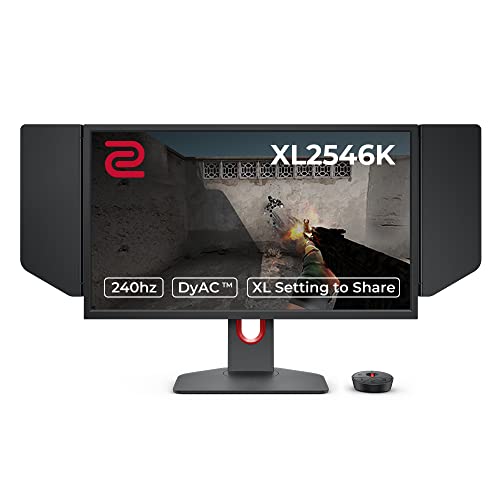
BenQ Zowie XL2546K 24.5-Inch 240Hz Gaming Monitor — A competitive-focused 1080p panel built around motion clarity, with a dedicated blur-reduction mode (DyAc+) — the esports end of the response-time conversation, where these milliseconds are a profession. Check on Amazon

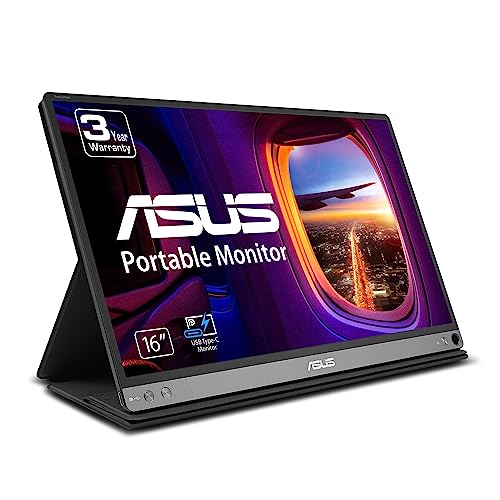
ASUS TUF Gaming VG27AQ3A 27-Inch 1440p 180Hz Monitor — A fast-IPS 1440p panel with ELMB Sync blur reduction and adaptive sync together — the mainstream performance point where response, refresh, and resolution balance for most players. Check on Amazon
Frequently Asked Questions
Is 1ms response time necessary for gaming?
No — it is a best-case marketing figure, and the real question is whether a panel’s typical transitions complete cleanly within your refresh window without overshoot. Plenty of panels quoting higher numbers deliver cleaner real-world motion than a poorly tuned ‘1ms’ rival. For competitive play, choose panels with strong independent measurements at high refresh; for everyone else, any modern fast IPS at your target refresh rate will look clean.
What is the difference between response time and input lag?
Response time is how fast pixels physically change shade once told to. Input lag is the delay before the screen starts showing a frame after the device sends it — signal processing inside the monitor. Response time affects motion trails; input lag affects how connected your inputs feel. Gaming monitors minimise both, and ‘game mode’ settings exist mainly to cut the processing that adds lag.
Why do I see bright halos behind moving objects?
That is inverse ghosting from overdrive set too high: pixels overshoot their target shade and swing back, painting a bright fringe on moving edges. Open the monitor menu and step the overdrive or response-time setting down one tier. The halos should vanish with little or no cost to ordinary ghosting. It is a settings artefact, not damage, and nearly every fast panel can produce it at its maximum setting.
Does response time matter for watching films or office work?
Barely. Films are 24-frame content where each frame lingers far longer than any modern transition, and their motion character is set by the format, not your panel. Office work is static. Where you might notice response in daily use is fast scrolling, and even there refresh rate dominates the impression. Buy response time for games; for everything else it is a free by-product of any current panel.
Is OLED’s response time really that much better?
Yes — OLED pixels switch orders of magnitude faster than LCD crystals, so transition ghosting effectively disappears and motion clarity is governed by refresh rate alone. It is one of OLED’s most tangible advantages for gaming, visible without test equipment. The trade-offs live elsewhere — price tier, brightness character, and static-content care — and are weighed in our IPS versus OLED comparison.
What response time should I look for at 144Hz?
At 144Hz each frame lasts about 6.9 milliseconds, so you want a panel whose typical transitions — not its single best — land comfortably inside that window without overshoot at its middle overdrive setting. In practice that means the established fast-IPS and fast-VA gaming lines, verified by measurements. The box number alone cannot tell you; the curated gaming lists can, because they are built from exactly those measurements.
Does response time affect anything besides gaming?
Fast scrolling, video of fast subjects, and the general crispness of motion all involve it, but at everyday refresh rates the effect is subtle and dominated by the refresh itself. Where it does matter outside games is specialist: sports broadcasting work, fast financial charting for some eyes, and anyone who reads while scrolling. For the standard desk, response time is a gaming specification with mild civilian benefits, and it should be budgeted accordingly — after size, panel, and ergonomics have been funded.
What is a good response time for console gaming on a monitor?
Consoles output up to 120 frames per second, giving a frame window of about 8.3 milliseconds — a window any modern gaming panel’s balanced settings fit inside comfortably. In practice, console players should shop refresh support (120Hz over HDMI), input lag behaviour, and HDR quality first; response time at this level is a solved problem wearing a marketing costume. The panel families in our console roundups are all, without exception, fast enough for the machines they serve.
Why does my monitor advertise different response times in different places?
Because different measurements are being quoted in different places: the best-case GtG figure in the headline, an MPRT figure (a different quantity entirely) in the feature list, and sometimes a more honest typical figure buried in the full specification. None of these is necessarily a lie; they are answers to different questions sharing one name. This explainer’s reading method — which quantity, at which overdrive, at which refresh — is how you reconcile them into the single behaviour your games will actually meet.
Why do I see trails on text when scrolling, but not in games?
Scrolling text is an unusually revealing test: black letters on a white field are the highest-contrast transition a pixel makes, repeated across the whole screen at a steady pace your eye tracks precisely. Games hide the same behaviour under texture, colour, and chaos. If scrolling trails bother you in documents, check the overdrive setting first — an aggressive setting tuned for games can halo text visibly — and consider a gentler overdrive or the standard picture mode for work, keeping the aggressive profile in the gaming preset where its artefacts are invisible in play.
Does a faster response time reduce input lag?
Only in the small sense that the pixel’s transition is the final step of the pipeline, so a faster transition shaves a little from the total. The bulk of input lag lives elsewhere: the game’s rendering, the connection, and the screen’s processing. A buyer chasing responsiveness should therefore read lag measurements and use the screen’s low-processing game mode, treating response time as the motion-clarity specification it is. Confusing the two leads to purchases that fix the clock that was not slow.
Is MPRT or GtG the number I should compare between two monitors?
Compare GtG measurements taken by the same reviewer with the same method, because GtG describes the pixel behaviour itself, while MPRT describes motion clarity under a particular measurement that often assumes backlight strobing is active. Two monitors quoting different species of number are not comparable at all, and a monitor quoting only the flattering species is telling you something about its other number. When in doubt, the review grid at your refresh rate and overdrive setting outranks both species of headline.
My monitor feels slower since I switched to a higher refresh rate. Is that possible?
The feel you describe usually has a mundane cause: at the higher rate your system may be delivering less consistent frame times, or a setting changed with the switch — overdrive behaviour, sync range, or a processing mode. Cap the game’s frame rate slightly below the refresh ceiling so adaptive sync stays in its happiest range, confirm the game mode is still engaged on that input, and re-run the halo test for overdrive. True panel slowness does not arrive with a refresh increase; configuration drift does, and it is curable by checklist.
Does response time matter for console gaming on a television-sized monitor?
Consoles output at moderate refresh rates by PC standards, which gives pixels a generous frame budget, so the response demands are mild and any modern gaming-capable panel clears them comfortably. The console buyer’s speed attention belongs to input lag and to the screen accepting the console’s full output — resolution, refresh rate, and HDR together — rather than to millisecond claims. A console desk that feels slow has a pipeline or settings problem, not a pixel problem, in the overwhelming majority of cases.
The Bottom Line
Response time is the speed of a pixel’s change of mind: real, important for fast motion, and quoted by marketers at its most flattering angle. Read it as a tier signal, pair it with the refresh rate you will actually run, set overdrive to its balanced middle, and judge with your own fastest content. Do that and motion clarity stops being a specification you bought and becomes a quality you can see — or rather, a defect you no longer can.
The millisecond that matters is the one inside your frame window at the overdrive setting you actually use — everything smaller is a number looking for a buyer.
Keep this explainer’s shortest sentence for the next time a spec sheet starts shouting: response time is a means to clean motion, not an end in itself. The end is a picture that holds together when the action moves — and you already own the only instrument that can certify it, which is your own eyes, watching your own fastest game, on the settings you actually use. Trust that instrument, keep the overdrive in its honest middle, and let the milliseconds look after themselves.
Related Guides
Keep going with these related guides and roundups from the same desk-setup cluster: