Knowing how to update firmware on a router matters more than almost any other maintenance task, because firmware is the router’s operating system: updates patch security vulnerabilities, fix stability bugs, and occasionally add features or improve performance. The process itself is simple — check for an update in the app or web interface, install it, and let the router reboot — but the details differ slightly between brands, and there are a few ways to get it wrong. This guide covers the automatic and manual methods, how to check your current version, what to do when an update fails, and how to make updates happen on their own from now on.
Firmware is one leg of basic router hygiene; the rest — passwords, encryption, and settings to switch off — is in How to Secure a Router. If the router is brand new, do the update during setup as described in How to Set Up a Router before the household starts depending on it.
Disclosure: As an Amazon Associate, ilcastellomenu.com earns from qualifying purchases. Links to Amazon on this page are affiliate links; they cost you nothing extra. Listing details such as price and availability change often, so check the current Amazon listing before you buy.
How to update firmware on a router: what you need, and the one safety rule
You need a device connected to the router (Wi-Fi is fine for checking, but a wired laptop is the most reliable option for a manual update), your administrator password, and about ten minutes when nobody will mind the internet dropping for a few minutes during the reboot. The one safety rule: never unplug or power off a router while a firmware update is being written. An interrupted update can corrupt the firmware and leave the router unbootable. If your area has unreliable power, pick a calm moment; otherwise the process is designed to be safe and self-checking.
In this guide
Method 1: Update through the phone app
For most current routers this is the easiest route. Open the manufacturer’s app, sign in, and look for a firmware or system update entry — typically under settings, system tools, or an advanced section. Tap check for updates; if one is available, the app shows the version and release notes. Start the update, keep the app open, and wait: the router downloads the file, verifies it, installs it, and reboots, which takes roughly three to ten minutes. Reconnect when the network name reappears, then re-check to confirm the version number has changed.
Method 2: Update through the web interface
- Find your current version. Sign in to the router’s admin page (the address and credentials are on the sticker underneath). The firmware version is usually shown on the status or system information page — note it down.
- Use the built-in check first. Most interfaces have an online upgrade or check button in the firmware/system section. If it finds an update, install it from there; the router handles download and verification itself.
- Or download manually. If there is no built-in check, go to the manufacturer’s support site, search your exact model and hardware version (printed on the sticker — the same model name can have several hardware revisions with different firmware files), and download the latest firmware for that revision.
- Upload the file. In the router’s firmware upgrade page, choose the downloaded file — unzip it first if it arrived as an archive, so you upload the firmware image itself — and start the upgrade. Then wait without touching anything until the router reboots and the interface responds again.
- Verify. Sign back in and confirm the version now matches the file you installed.
Turn on automatic updates
The best update is the one you never have to remember. Many routers now offer automatic firmware updates, sometimes scheduled for the small hours; enable the option if your model has it. Where there is no automatic option, put a reminder in your calendar every few months to run the built-in check. Routers are attacked precisely because they sit forgotten for years on ancient firmware — the roundup in Best Firmware for Routers discusses which brands have the strongest update track records and policies, worth weighing at replacement time.
What to do if an update fails
Distinguish two cases. If the update errors out but the router still works normally, simply try again — a dropped download is the usual cause; use a wired connection and retry, or download the file manually and upload it. If the router appears dead after an update — no network, lights stuck, admin page unreachable — start with a normal power cycle (unplug, wait thirty seconds, plug in) and give it several minutes. If it stays unresponsive, a factory reset using the recessed reset button restores the factory firmware image on most models, after which you set the router up again and retry the update. Only if reset also fails is it time for the manufacturer’s recovery instructions or support line; do not open the case, and do not attempt hardware recovery procedures on a mains-powered device.
After updating: quick sanity checks
Updates occasionally reset a setting or change behaviour. After the reboot, confirm the essentials: your network name and password are unchanged, the internet connection is up, encryption is still WPA3 or WPA2-AES, and any features you rely on — guest network, parental controls, VPN, port forwarding — are still configured. Then run a quick speed check beside the router and in a far room; results should match your pre-update baseline. If the update has made things noticeably worse, note the old version number (you recorded it in step 1) — some brands allow reverting to the previous file, and support can advise.
Common mistakes to avoid
- Installing firmware for the wrong hardware revision. Check the sticker; v1 and v3 of the same model are different products internally.
- Updating over an unstable connection and wandering off. Stay nearby until the reboot completes.
- Power-cycling mid-update because it ‘looks stuck’. Five quiet minutes is normal; wait at least ten before intervening.
- Skipping release notes on major versions. Occasionally an update changes defaults or retires a feature you use; a two-minute read prevents surprises.
- Never updating at all. The most common mistake, and the one attackers count on.
Reading version numbers and release notes like a pro
Firmware versions look like alphabet soup, but two habits make them useful. First, only compare versions within your exact model and hardware revision — a higher number from a different revision is meaningless to you. Second, skim the release notes before installing a major update: manufacturers list fixed vulnerabilities, known issues, and occasionally behaviour changes such as a feature moving or a default flipping. The security fixes are the headline reason to update promptly; the known-issues list is the reason a cautious user sometimes waits a week on a major release while the earliest adopters report back. Neither habit takes long, and together they turn updating from a leap of faith into an informed routine. If the notes mention that the update cannot be downgraded — some major versions are one-way — that is worth knowing before, not after, you click install.
Updating mesh systems, extenders and provider gateways
Mesh systems handle updates as a fleet: the app updates the main unit and nodes together, usually automatically, and the main thing you can do wrong is unplug a node mid-process because it looked idle. Leave the whole system alone until the app reports completion, and expect nodes to reboot at different moments, with brief local dropouts as each returns. Extenders have their own firmware and are the most commonly forgotten devices in the house — check them in their app or admin page on the same schedule as the router, since an unpatched extender is on your network too. Provider gateways update on the provider’s schedule and cannot be hurried; that loss of control is one of the quieter arguments for running your own router behind the gateway in bridge mode, where your network’s most important device patches when you say so.
When an update changes your network’s behaviour
Occasionally an update is followed by something odd: a device that no longer connects, a band that behaves differently, a feature renamed or retired. Work it calmly. First, restart the router once — updates that end in a confused state often settle after a clean boot. Second, check the specific setting involved; major updates sometimes reset individual options (band steering, a security mode) to new defaults, and re-selecting your preference is the whole fix. Third, if one old device refuses the network, suspect its compatibility with a changed default — WPA3 modes are the usual culprit — and adjust that one setting rather than rolling back the security the update brought. Only if the update has genuinely broken core function should you look at the previous version: some brands publish older files and allow manual downgrade, others do not, and support can tell you which camp yours is in. Keep the notes you made — old version, new version, what changed — because support will ask, and because ‘it broke after the update’ is a diagnosis only if you can say which update.
End-of-life: knowing when updates have stopped
Every router’s update stream eventually ends, usually quietly. Check yours: the manufacturer’s support page shows the latest firmware date for your model and revision, and some brands publish explicit end-of-life lists. A model whose last firmware is years old, or listed as end-of-life, is telling you its security story is over — new vulnerabilities will be found and not fixed. That does not demand a same-day replacement, but it should start the clock: the router is now the weakest link by design, and your next purchase should weigh the maker’s support horizon as a first-order criterion, as the buying guide in this series argues. Until replacement, minimise exposure — no remote access, WPS off, admin page reachable only locally — and keep the rest of the hardening checklist tight.
Backing up your configuration before a major update
Routine updates preserve settings, but belt-and-braces costs two minutes: most routers offer a configuration backup in the same administration area as the firmware page — download it before any major version jump and keep the file with the router’s other records. If the update does reset something, the restore turns a twenty-minute re-setup into a two-minute import. The backup also preserves the fiddly things memory loses: port forwards, reserved addresses, the exact guest-network settings. Two cautions. A backup from a very old firmware sometimes will not restore onto a much newer one — treat it as a reference document even then, since it records what your settings were. And the backup file can contain your credentials and provider details, so store it like the sensitive document it is, not in a shared downloads folder. If your router has no export option, the low-tech equivalent works: screenshots of the key settings pages, kept with the admin password in your password manager’s notes.
Update cadence for the whole shelf
The router is not the only firmware in the chain, and a household routine beats heroic one-offs. Put the whole shelf on the same quarterly rhythm: router first, then mesh nodes or extenders (usually automatic, but verify), the modem if it is yours (provider gateways update themselves), and a glance at the devices with their own network stacks — printers, cameras, the NAS. Cameras and doorbells deserve the same promptness as the router; they are internet-adjacent and historically under-patched. Keep a single note — a page in the password manager or a household document — listing each device, its current firmware, and the date checked. The note feels bureaucratic until the day a vulnerability is announced for something you own, when it becomes the fastest possible answer to ‘am I affected?’ That day is the entire point of the routine.
What if there is no update — and never will be?
For a router still in support, ‘no update available’ is good news and the check itself was the task. For a router whose support has ended, the absence of updates is the finding. Between those poles sits the common grey case: the model is old, the last firmware is a year or two back, and the maker has said nothing. Treat the trend as the answer — lengthening gaps mean the stream is drying up — and start planning replacement on your own schedule rather than the attacker’s. Until then, tighten exposure: remote access off, WPS off, the admin page local-only, and nothing sensitive reachable through the router from outside. An old router behind good settings is a managed risk; an old router on defaults is an open one.
Verifying an update actually landed
Trust, but verify — an update that reported success occasionally did not fully take, and a two-minute confirmation closes the loop. Reopen the firmware page and compare the version shown with the version the release notes promised; they should match exactly, including the build suffix. Then check the router’s uptime counter, which should read minutes rather than the weeks it showed before — proof the device genuinely rebooted onto the new code rather than merely downloading it. Finally, exercise the network briefly in the ways your household actually uses it: a call, a stream, the far room. If the version matches, the uptime is fresh and the house is online, the update is a fact rather than a hope, and you can record it in the household note with a clear conscience.
Teaching the household the one rule
Every update horror story has the same plot: someone unplugged the router mid-update because the internet ‘was down’. The technical fix is automatic updates scheduled for the small hours; the human fix is telling the household the one rule — if the router’s lights are doing something unusual and the internet has paused, wait ten minutes before touching anything, and never unplug a router that seems to be mid-thought. Put it where the people who unplug things will absorb it: a word during dinner beats a label nobody reads. Most routers recover gracefully from an interrupted download in any case, since the update is verified before it is applied; the rule exists for the minority of moments when the firmware is actually being written, and for the calm it brings to every other mysterious pause.
Firmware and your warranty and support calls
One practical interaction deserves a mention: if you ever contact the manufacturer about a fault, the first question will be your firmware version, and ‘it is current, updated on this date’ moves the conversation immediately to useful territory — while ‘I don’t know’ restarts it from the script. Keeping the router updated is therefore not only security hygiene but support hygiene: it eliminates the variable support is obliged to eliminate first, and it protects your warranty position, since a fault that a current firmware already fixes is not a hardware claim. The household firmware note recommended in this guide — model, revision, version, date checked — is the whole preparation. Thirty seconds of record-keeping, compounded over every support interaction the router will ever need.
The short version
Check in the app or admin page, install what is offered (or upload the exact file for your model and hardware revision), never interrupt the process, verify the new version, and switch on automatic updates so it never depends on your memory again. Ten minutes, a few times a year, keeps the most exposed device in your home patched.
Gear mentioned in this guide
You do not need new hardware for most of the steps in this guide, but the products below are the ones referenced above. Each was verified against Amazon’s Creators API product data for this site, so the link matches the exact model named.

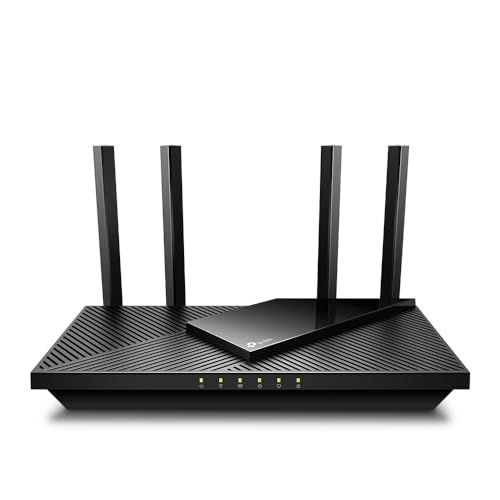
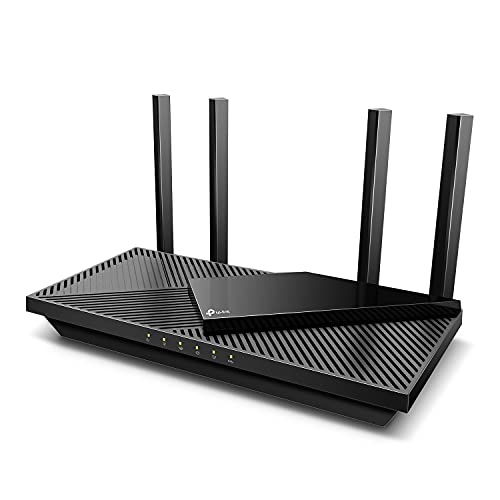
TP-Link AX1800 WiFi 6 Router (Archer AX21 V5)
The TP-Link Archer AX21 handles updates through the Tether app with an automatic-update option, which is exactly the set-and-forget behaviour this guide recommends; it is also EasyMesh compatible for later expansion.
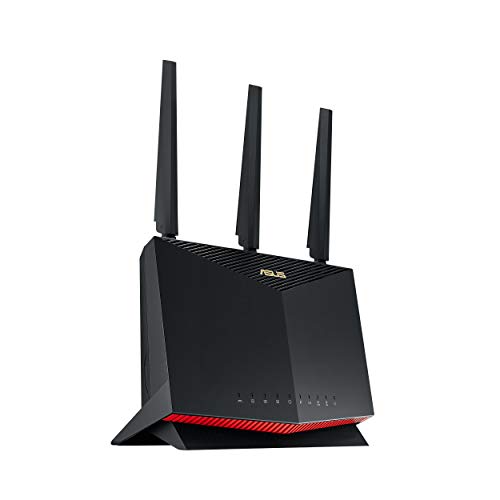
ASUS RT-AX86U Pro (AX5700) Dual Band WiFi 6 Extendable Gaming Router, 2.5G Port, Gaming Port, Mobile Game Mode, Port Forwarding, Subscription-Free Network Security, VPN, AiMesh Compatible
The ASUS RT-AX86U Pro offers firmware updates through the ASUS Router app or web interface, plus AiProtection Pro security features that are kept current by those same updates — a good example of why staying current matters.
Why updates arrive when they arrive: rollouts, regions and queues
One of the most confusing parts of keeping a router current is that updates rarely appear everywhere at once. Manufacturers release new firmware in stages, pushing it first to a small share of devices, watching for reports of trouble, and only then widening the release. Two identical routers in the same street can legitimately offer different versions on the same evening, and a router bought in one country may follow a different release track from the same model bought elsewhere, because regional variants carry different hardware revisions, radio rules and bundled features. None of this means your router has been forgotten. It means the update is travelling through a queue, and the sensible response is patience measured in days, not repeated manual checks measured in minutes.
Hardware revision matters here more than most people realise. Long-lived router models are often built in several revisions — the version number printed on the underside label, such as V1, V3 or V5 — and each revision has its own firmware line. An update announced on a manufacturer’s forum for your model name may apply only to a different revision, and installing a file meant for another revision is one of the few genuinely dangerous mistakes in this whole process, which is why manual downloads must be matched against the label, not just the marketing name. The app-based update route sidesteps this entirely, because the router reports its own identity and is offered only files built for it. If you update by hand, treat the revision check as part of the procedure, every time, even when you are sure you remember which revision you own.
There is also a queue at the household end. Routers that are set to update automatically do so on their own schedule, often in the small hours and sometimes days after a release becomes available, because the router checks in periodically rather than continuously. If you read about an update — particularly one described as fixing a security flaw — and your router has not taken it yet, a single manual check is reasonable. If the manual check finds nothing, the update has not reached your device’s track yet, and the correct move is to make sure automatic updates are on and let the system work, rather than hunting for files on third-party download sites, which are a known route for tampered firmware.
Reading a security headline like an owner, not a headline writer
Every few months, router security makes the news: a flaw is announced, a brand is named, and owners are told to update immediately. The advice is sound, but the useful skill is translating the headline into a personal answer. Work through three questions. First, is your exact model — including its hardware revision — on the manufacturer’s affected list? Advisories almost always name specific models, and similar names are not the same product. Second, is the flaw in the router’s firmware at all, or in a companion app, a cloud service or a feature you have never enabled, such as remote management from the internet? A flaw in a feature that is switched off on your router changes the urgency completely. Third, has a fixed version actually been released for your revision, and what version number is it? With those three answers, “update immediately” becomes a concrete check: compare your router’s current version against the fixed one, and you know whether you are exposed, patched, or waiting on the manufacturer.
While you are in the manufacturer’s support pages, look for the date of the most recent release for your model. That single date tells you a great deal about where your router sits in its support life. A model receiving updates within the last few months is actively maintained. A model whose newest firmware is a year or more old may still be supported — mature products need fewer fixes — but it deserves a closer look at the manufacturer’s end-of-life notices, because the transition from “quiet” to “abandoned” is exactly the transition that matters for security. Owners of provider-supplied gateways should remember that the update responsibility sits with the provider; your job is to leave the gateway plugged in and reachable, and to ask the provider directly if a headline names their hardware and no update has appeared.
Keep the outcome of each headline check in the same note as your network details: the date, the advisory’s subject, whether your model was affected, and the version you ended on. It takes a minute, and it converts the next headline from a fresh worry into a quick comparison. Households that keep this small log also stop double-updating — the surprisingly common habit of nervously re-checking and re-applying updates that landed weeks ago, because nobody wrote down that they had.
Updating a network, not just a box: the order of operations
A single router is one device, but many homes now run a small fleet: the main router, one or more mesh nodes or extenders, perhaps a provider gateway in front of everything, and occasionally a second access point in an outbuilding. Updates across a fleet have an order that avoids self-inflicted outages. Start with the device at the centre — the main router or the mesh system’s primary node — because everything else depends on it for addresses and routing. Then update the satellites and extenders, working outwards. Access points and extenders that are updated before the main unit sometimes reconnect to find the network subtly changed and need a second restart to settle; updating the centre first means the periphery comes back to a stable target.
Mesh systems complicate this in a helpful way: most update as a system, with the app orchestrating the nodes in sequence and restarting them in turn, so the network degrades gracefully rather than vanishing. Let that process finish completely before judging the result. A node that shows as offline mid-update is usually mid-restart, not broken, and pulling its power at that moment is the one intervention that can turn a routine update into a factory reset and a re-pairing session. Give a whole-system update a generous window — half an hour of patience is cheap — and schedule fleet updates for a time when a brief outage costs nothing, rather than the middle of a working day with two calls running.
Mixed fleets, where the router and the extenders come from different brands, need the manual version of the same discipline: one device at a time, each confirmed back online and passing traffic before the next is touched. If something misbehaves afterwards, you then know exactly which update coincided with the change, and the notes you kept — model, revision, version before and after — turn a support conversation from guesswork into a short story with a clear suspect. This is also the moment the household rule from the base guide earns its keep: nobody else in the home should be “helpfully” restarting pieces of the fleet while an update is in flight.
Updating routers you do not live with: second homes, rentals and relatives
Some routers are your responsibility but not under your roof: the cottage used in summer, the rental property you let out, the parent’s house two hours away where you are the unofficial IT department. Firmware strategy differs for each. For a second home that sits empty for months, automatic updates are not a convenience but the whole plan — a router that can only be updated by a person standing next to it will spend most of its life unpatched. Enable automatic updates there before you leave, confirm the setting survived a restart, and accept the small risk of an update hiccup in exchange for not running year-old firmware on an unattended network. If the property’s internet also carries cameras or a smart lock you rely on remotely, that reliance argues even harder for automatic updates plus a smart plug you can power-cycle remotely — used carefully, and never on the router while an update might be running.
Rental properties add a duty-of-care angle: tenants inherit your network’s security, and a router left on ancient firmware with a default admin password is a liability you handed over with the keys. Between tenancies, the clean routine is to factory-reset the router, update it to the latest firmware, set a fresh admin password and a fresh Wi-Fi password, and leave the network name and password in the property’s information pack. During a tenancy, automatic updates protect everyone without you needing access. For relatives, the kindest setup is the same trio — automatic updates on, a written note of the model and current version, and your phone number — because it minimises the number of times a routine update becomes a family emergency. Households choosing hardware for exactly this kind of low-touch reliability will find suitable options among Best Routers for Beginners, where forgiving apps and dependable automatic updates are the point.
Before you sell, gift or recycle: the last update is a reset
A router’s final update in your ownership is not really an update at all — it is an erasure. Routers remember a great deal: your network name and password, the admin password, connected device names that map your household, sometimes VPN credentials, dynamic DNS accounts and port forwarding rules that describe your cameras and storage. Handing a router to a friend, selling it, or sending it for recycling without clearing that memory hands over a small dossier along with the hardware. The correct sequence is to disconnect it from your network, perform a full factory reset using the hardware button as the manufacturer describes, then reconnect to it briefly with a cable to confirm it presents its original setup screen and none of your details. Only then is it a blank device ready for its next owner.
If you are gifting the router to someone whose network you will end up supporting — a parent, a student leaving for a first flat — there is a genuinely kind extra step: after the reset, connect it once, update its firmware to the current release, and reset it again if the update process asked you to create accounts or passwords along the way. The recipient then starts from the newest, safest baseline without facing an update prompt during their own first setup, and you have not left any of your credentials behind in the process. Mention the model’s age and support status honestly when you hand it over; a router near the end of its update life is still useful for light duty, but its next owner should know that its clock is ticking.
Recycling deserves the same reset discipline, with one addition: remove the router from any cloud account or app it was registered to. Many routers are bound to the owner’s app account, and a device that remains bound can confuse the next owner’s setup or leave the hardware visible in your app long after it has left the house. Deregister, reset, confirm, then recycle. It takes five minutes and closes the device’s story cleanly — which, after years of updates faithfully applied, is a fitting end to its service.
Keeping a version history: the two-minute habit that pays off for years
Every section above quietly depends on one habit: knowing which version your router was on, and when it changed. Manufacturers’ release notes are written for the version they describe, support staff begin every conversation by asking your current version, and the difference between “the update broke it” and “it broke a week after the update, for another reason” is a dated record. Keep the history wherever the household’s network note lives. Each entry needs only four things: the date, the version before, the version after, and a word or two about anything you changed at the same time — a new network name, a moved router, a setting you adjusted. That last element is the one people skip, and it is the most valuable, because problems that follow a combined change get blamed on the firmware when the real culprit was the setting changed in the same session.
The history also reveals your router’s support rhythm. A model that has received three updates in a year is on an active track; when that rhythm slows to silence, you will see it in your own notes before any announcement, and you can start planning a replacement calmly rather than discovering the abandonment during a security scare. When you do shop for the successor, the update track record of the brand you are leaving — and the one you are joining — is a legitimate selection criterion, and roundups such as Best Routers for Security weigh exactly that maintenance commitment alongside the headline features. Your two-minute habit, kept over years, is what turns firmware from a chore you react to into a lifecycle you actually manage.
Beta firmware, waiting a week, and the truth about downgrading
Some manufacturers offer beta or preview firmware to owners who opt in, promising early features in exchange for tolerance of rough edges. For a router that serves as a household’s test bench, that trade can be fun. For the router your home works, studies and relaxes through, it is a poor bargain: a beta fault does not announce itself politely, it appears as a dropped call or a node that will not rejoin, and beta programmes often warn that returning to the stable release may require a factory reset. Keep experimentation on a spare router if you have one, and let the household’s main network run firmware that thousands of other homes have already survived. The same conservatism explains the old advice to wait a few days after a major release before installing it, even when it is offered to you. Staged rollouts mean early adopters surface the rare bad interaction first; a short wait converts their experience into your information at no cost, because routine updates are seldom urgent. The exception remains a release that fixes a security flaw affecting your model — there, the risk of waiting outweighs the risk of being early, and the headline-reading method earlier in this guide tells you whether that is the release you are looking at.
Downgrading — returning to an earlier version after an update disappoints — sits in an awkward middle ground. Some routers allow it through the same manual-upload route used for updates; others block it, partly for security, because old firmware carries old flaws and an attacker who can force a downgrade gains a menu of known vulnerabilities. If an update genuinely breaks something in your home, the sensible sequence is to check the manufacturer’s support pages and forums for acknowledgment first, because a widely reported problem usually earns a follow-up release faster than you can safely engineer a retreat. If you do downgrade using an official file for your exact hardware revision, treat it as a temporary bridge: note the version you retreated to in your history, re-check your security settings afterwards, and plan to move forward again when the fixed release arrives. Never downgrade using files from unofficial sources, however confident the uploader sounds; a router running tampered firmware is worse than a router running buggy firmware, because the bugginess is at least accidental.
Frequently asked questions
How often should I update my router’s firmware?
Check every few months if your router lacks automatic updates; with automatic updates enabled, you mostly need to confirm occasionally that the feature is still on. Update promptly when the manufacturer flags a security fix.
Will a firmware update erase my settings?
Normally no — settings carry over. Major version jumps occasionally reset or rename options, which is why the post-update sanity check in this guide is worth the two minutes it takes.
Can a firmware update improve my Wi-Fi speed?
Sometimes indirectly: updates fix bugs, improve band steering and stability, and occasionally optimise performance. They cannot exceed your plan speed or the router’s hardware class, so treat big speed promises with scepticism.
What does ‘firmware’ actually mean?
It is the router’s built-in operating software, stored on the device itself rather than on a disc or in the cloud. Updating it is the router equivalent of updating a phone’s operating system.
My router is old and no longer receives updates. What should I do?
An unsupported router is a genuine security risk because new vulnerabilities go unpatched. Restrict it to low-risk use if you must keep it briefly, and plan a replacement — the criteria in the router buying guide will help you choose one with a better support policy.
Can I update my router’s firmware from my phone while I am away from home?
If your router’s app supports remote management and you enabled it while you were at home, yes — and for a security update, doing so promptly is reasonable. Two cautions apply. First, make sure the connection you are updating over is trustworthy; use the manufacturer’s app rather than a browser on public Wi-Fi. Second, remember that the household loses internet briefly during the restart, so warn anyone at home before you begin. If remote management is not already enabled, you cannot switch it on from away — that setting deliberately requires local access — so the update waits until you are home or someone there can run it.
The update finished but my version number looks the same. Did it fail?
Not necessarily. Some updates change components that do not alter the headline version number, and some apps report the version of the app itself rather than the firmware if you are looking at the wrong screen. Check the version in the router’s system or about page, compare it with the release you expected, and restart the router once before concluding anything — a pending update occasionally completes its installation across a restart. If the version still does not match and the update is offered again, let it run a second time; if it loops repeatedly, that is a genuine fault worth a support call, with your version history ready to quote.
Should I update a brand-new router before setting it up, or afterwards?
Afterwards, but immediately afterwards — which is the order the main guide recommends. A new router needs its network configured before it can reach the internet reliably to fetch updates, and most setup wizards now check for updates as part of the process anyway. Once setup completes, run the update check before you join the whole household’s devices, because the update will restart the router and may change default settings you would otherwise have to re-check across a fully populated network. An out-of-the-box router can be several releases behind, so do not be surprised if the first update is a large one or arrives as two in succession.
Do Wi-Fi extenders and mesh nodes really need updates too?
Yes. Every device that joins your network and runs its own software — extenders, mesh nodes, powerline adapters with Wi-Fi, even some smart switches — carries its own firmware and its own potential flaws, and the network’s security is set by its least-maintained member. The good news is that mesh systems usually update as one, orchestrated by the app. Standalone extenders are the ones most often forgotten, because they sit silently in a hallway socket for years; add them to the same check-in rhythm as the router itself, and include them in your version history.
Related Guides
- How to Secure a Router — the rest of the router hardening checklist
- How to Set Up a Router — where the firmware step fits in a fresh install
- How to Restart a Router — the correct reboot procedure, and when it is not enough
- Best Routers for Security — router picks with strong security features