Learning how to secure a router is the highest-value half hour you can spend on your home network, because the router is the front door: every device you own sits behind it, and it is the one gadget that is always on and always reachable from the internet. The good news is that real router security is a short checklist, not a specialist skill — change the default administrator password, use WPA3 or WPA2 encryption with a strong Wi-Fi passphrase, keep the firmware updated, and switch off the convenience features that open holes. This guide walks through each step in order and explains what each one actually protects against.
Work through this right after installation — How to Set Up a Router covers the physical setup — and revisit it whenever you replace the router. If you are shopping with security as the priority, Best Routers for Security and Best Home Routers for Security collect the models with the strongest built-in protections.
Disclosure: As an Amazon Associate, ilcastellomenu.com earns from qualifying purchases. Links to Amazon on this page are affiliate links; they cost you nothing extra. Listing details such as price and availability change often, so check the current Amazon listing before you buy.
How to secure a router — step 1: change the default administrator password
The administrator password guards the router’s settings — a different thing from the Wi-Fi password that joins devices to the network. Routers ship with defaults that are printed on the sticker at best and publicly documented at worst; lists of default credentials for common models circulate freely, and automated attacks try them constantly. Change the admin password to something unique that you use nowhere else, and store it in a password manager. While you are there, change the admin username too if the router allows it. This single step defeats the most common class of router compromise outright.
In this guide
Step 2: Set strong Wi-Fi encryption and a real passphrase
In the wireless settings, set security to WPA3 if your devices support it, or the WPA2/WPA3 mixed mode most routers offer for compatibility, with AES encryption. WPA3 closes weaknesses in the older handshake and protects better against password-guessing; mixed mode lets older gadgets connect with WPA2-AES. Never use WEP or the original WPA with TKIP — both are broken — and never run an open network. For the passphrase itself, favour a long string of several unrelated words: length is what defeats guessing, and a passphrase you can type on a TV remote beats a short cryptic one you end up writing on the router. Do not reuse your Wi-Fi password for any account, and do not use an address or family name as the network name, since the SSID is broadcast to everyone nearby.
Step 3: Keep the firmware updated
Most real-world router compromises exploit known software flaws that the manufacturer has already fixed — the victims are routers that never got the update. Turn on automatic firmware updates if your model offers them; otherwise check manually every few months. The full procedure, including safe recovery if an update goes wrong, is in How to Update Firmware on a Router. A router old enough to have stopped receiving updates should be treated as end-of-life and replaced, however well it still seems to work.
Step 4: Turn off the features that open doors
WPS (Wi-Fi Protected Setup)
WPS was designed to let devices join by pressing a button or entering a short PIN. The PIN method is fundamentally weak — it can be broken down into guesses that automated tools work through — so disable WPS entirely, or at minimum disable the PIN option if the button method can be kept separately. Typing a passphrase is a small price for closing this hole.
Remote management / remote access
Remote administration lets you reach the router’s settings from the internet. Unless you specifically set it up and understand it, it should be off: the admin page should only be reachable from inside your home network. Check for settings labelled remote management, remote access, or web access from WAN, and disable them. If you genuinely need remote access, use the router’s VPN server feature instead and administer it over that encrypted tunnel.
UPnP — a judgement call
Universal Plug and Play lets devices inside your network open inbound ports automatically. Games consoles and some apps like it, but it also means any compromised gadget can quietly expose itself to the internet. The cautious setting is off; if a device then misbehaves, forward the specific port manually for that device instead. Many users leave UPnP on without incident, but for a security-focused setup, off with manual exceptions is the defensible choice.
Step 5: Use the guest network for guests and gadgets
A guest network is a separate SSID with its own password that reaches the internet but not your computers, storage, or each other. Put visitors on it — you can change its password freely without reconnecting the whole house — and put smart-home and IoT gadgets on it too where practical: cameras, plugs, bulbs and budget devices are the least diligently patched things on most networks, and isolating them means a compromised gadget cannot wander your network looking for your laptop or NAS. If your router supports a dedicated IoT network, that works the same way.
Step 6: A few more settings worth checking
- DNS: leave the provider’s DNS unless you have a reason to change it; if you do change it, use a reputable resolver and note the change — unexpected DNS settings you did not make are a classic sign of a compromised router.
- Firewall: the built-in firewall should be on (it almost always is by default); do not disable it to fix an app problem.
- Unused services: turn off features you do not use, such as FTP/media server sharing to the internet, Telnet, or unused VPN servers.
- Attached-device list: glance at the client list occasionally; an unknown device is worth investigating, starting with changing the Wi-Fi password.
- Router placement and physical access: the reset button restores factory defaults, so a router in a shared or public space is only as secure as that space.
Signs your router may already be compromised
Warning signs include: settings or DNS entries you do not recognise, a changed admin password that locks you out, devices being redirected to odd pages, unexplained slowdowns with the router’s lights busy at idle, or your provider contacting you about traffic from your connection. The response is decisive rather than investigative: factory-reset the router, update the firmware immediately, then redo this checklist with fresh passwords — and change the passwords of important accounts from a clean device, since a compromised router could have observed traffic. If problems persist after a clean rebuild, replace the hardware.
Common mistakes that undo good security
- Changing the Wi-Fi password but not the admin password — the settings remain open to anyone who joins or guesses the network key.
- Leaving WPS PIN enabled because the button is convenient.
- Enabling remote access ‘temporarily’ and forgetting it for years.
- Treating an end-of-life router as fine because the Wi-Fi still works; unpatched is unpatched.
- Writing credentials on the router where any visitor can read them.
Securing the rest of the network, device by device
The router checklist secures the front door; the devices behind it deserve a pass too, because a compromised gadget is an inside agent. Prioritise by exposure and by how rarely each device is updated. Internet-facing things first: if you run a NAS, a home server, or cameras you view remotely, make sure they are reached through the manufacturer’s cloud service or a VPN rather than a port you forwarded and forgot — every open port is a doorbell the whole internet can ring. Cameras and video doorbells should have their own accounts with strong, unique passwords and two-factor authentication where offered; they are among the most targeted devices in the home. Computers and phones protect themselves reasonably well if their own updates are on. The long tail — plugs, bulbs, appliances — is why the guest or IoT network in the main checklist matters: you cannot patch a light bulb’s firmware habits, but you can put it in a room of the house where it can do little harm. Once a year, scroll the router’s client list and evict anything you no longer own or recognise; networks accumulate ghosts.
Passwords in real family life
Security advice fails when it ignores how households actually live, so make the good behaviour the easy behaviour. The admin password lives in a password manager shared appropriately among the adults who might need it — not on a sticky note, and not known only to one person who is on holiday when the internet breaks. The Wi-Fi password should be strong but typeable, because it will be typed, on TVs, by tired people, at night. The guest password is the one you give out freely — to visitors, cleaners, tradespeople — precisely so the main password never spreads; change the guest one whenever the circle of people who know it changes in a way you are not comfortable with. When you buy a second-hand router, factory reset it before it touches your network and then run this whole checklist: you are inheriting a stranger’s configuration otherwise. And when you sell or recycle yours, reset it for the same reason — your settings, and possibly your provider credentials, are on it.
Optional extras, honestly labelled
- Alternative DNS with filtering: pointing the router’s DNS at a reputable filtering resolver can block known malicious domains for every device at once. It is a seatbelt, not armour — it does not stop direct-IP attacks or fix unpatched devices — but as a free, one-time setting it earns its place for many households. Note what you set; unexplained DNS is also a compromise indicator, so yours should never be unexplained.
- Router VPN server: lets you reach your home network securely when away, the safe replacement for remote admin access. Worth setting up if you actually need home access from outside; pointless attack surface if you do not, so leave it off until you do.
- Built-in security suites: some routers include subscription or bundled intrusion-prevention and device-protection services. They add real value on top of the checklist — automatic blocking of known-bad destinations, alerts about misbehaving devices — but they supplement the basics rather than replacing them, and a router with the checklist done and no suite beats a suite behind a default admin password.
- Automatic everything: updates, security signatures, and app alerts on. Security that depends on your memory is security that lapses; automate every layer that offers it.
None of these extras changes the priority order: passwords, encryption, firmware, closed doors, isolation. Do those first, today, and treat everything in this section as the polish it is.
A worked order of operations for a Saturday morning
If the checklist feels like a wall, here is the sequence that gets a typical router from default to hardened in one sitting, in dependency order. First, connect one laptop by cable — wired setup removes Wi-Fi variables while you change Wi-Fi settings. Second, update the firmware before anything else, because an update occasionally changes menu layouts and you want to learn the current one, and because patching first means the settings you are about to make sit on fixed code. Third, set the admin password and store it. Fourth, set the Wi-Fi name, passphrase and WPA3/WPA2 mode. Fifth, walk the feature switches: WPS off, remote management off, UPnP decided, unused services off. Sixth, create the guest network and move the gadgets. Seventh, turn on automatic updates and any security alerts the app offers. Eighth, reconnect the household’s devices and glance at the client list to confirm the population looks right. Ninth — the step everyone skips — write down what you did and where the passwords live. The whole sequence is under an hour, most of it waiting for one reboot, and it never needs doing from scratch again: moving house or replacing the router is the same list, run once.
Security for households that are not technical
Most routers do not protect one expert; they protect a household, and the settings must survive contact with family life. The practical compromises that hold up: a Wi-Fi passphrase everyone can type, written in the password manager the family actually uses rather than the one they should; the guest network as the household’s public face, so visitors, children’s friends and the occasional contractor never touch the main password; automatic updates non-negotiably on, because no household schedules manual maintenance; and one named person as network owner, with the admin credentials accessible to a second adult in an emergency. Resist the urge to over-engineer — MAC address filtering, hidden network names and similar theatre add friction without adding security, and friction is what makes households quietly undo good settings at 11 p.m. when something will not connect. The best-secured router is the one whose security its household can live inside indefinitely.
What to do the day a vulnerability makes the news
A few times a year, a router flaw gets headlines, and households understandably ask what to do. The calm sequence: check whether your exact model and firmware are named — most flaws affect specific models or versions, and yours may not be among them. If it is, the maker’s advisory will say which firmware fixes it; update to that version promptly, using the procedure in the companion update guide. If no fix exists yet, the advisory usually lists mitigations — typically disabling the affected feature, which is one more reason the defaults-off posture in this checklist pays off: a feature you never enabled cannot be exploited while you wait. Change the admin password after patching if the flaw touched authentication. Then stop; the news cycle will move on, and a patched, hardened router has done everything asked of it. Keeping the household device-and-firmware note recommended elsewhere in this series turns this whole drill from a research project into a five-minute check.
Renting, borrowing and temporary networks
Security habits matter most in the setups people treat as temporary — and temporary setups have a way of becoming permanent. A rented gateway you ‘will replace soon’ deserves the same admin-password change and encryption check on day one, because soon stretches. A router borrowed from a friend arrives with their configuration and possibly their provider credentials: factory reset before use, always. A travel router in a holiday let creates your own bubble on someone else’s network — use it, with your own passphrase, rather than joining every device to a network whose other guests are unknown. And the network you set up for a relative inherits your standards or your shortcuts; set it up as you would your own, because you are the support line it comes with.
The short version
Unique admin password, WPA3 or WPA2-AES with a long passphrase, automatic firmware updates, WPS and remote management off, guests and gadgets on the guest network, and a glance at the client list now and then. None of it costs money or speed, and together it closes the routes that real attacks actually use. For households that want the router itself to do more of this work — intrusion prevention, automatic protection updates, VPN built in — Best Vpn Routers for Home covers the VPN-ready end of the market.
Gear mentioned in this guide
You do not need new hardware for most of the steps in this guide, but the products below are the ones referenced above. Each was verified against Amazon’s Creators API product data for this site, so the link matches the exact model named.
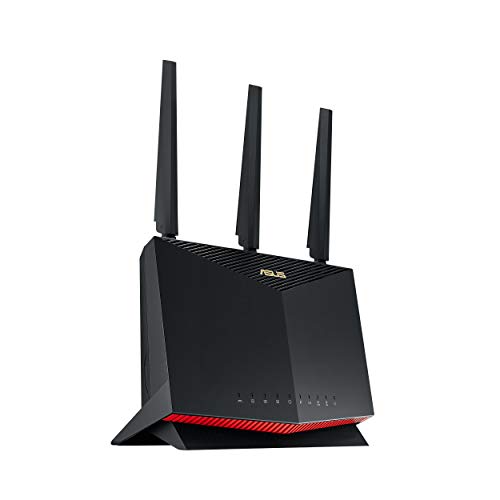
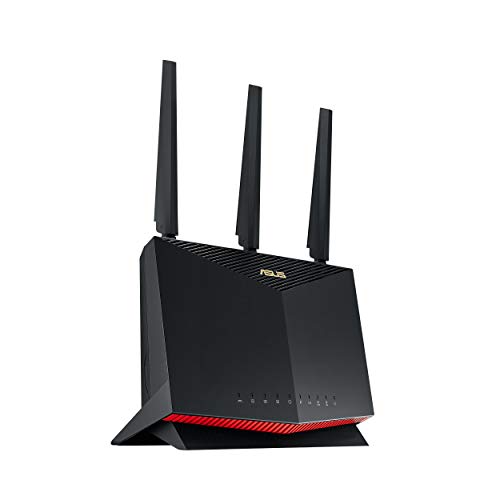
ASUS RT-AX86U Pro (AX5700) Dual Band WiFi 6 Extendable Gaming Router, 2.5G Port, Gaming Port, Mobile Game Mode, Port Forwarding, Subscription-Free Network Security, VPN, AiMesh Compatible
The ASUS RT-AX86U Pro includes AiProtection Pro — subscription-free network security powered by Trend Micro — plus VPN server support and AiMesh, making it a strong example of a router that actively helps with this checklist rather than leaving it all to you.

GL.iNet GL-MT6000 Flint 2 Wi-Fi 6 Gaming Router Dual 2.5G Ports
The GL.iNet Flint 2 runs OpenWrt-based firmware with OpenVPN and WireGuard client and server support built in, suiting users who want VPN-based remote access instead of an exposed admin page, and who value open, frequently updated firmware.
The account behind the router: securing the app and cloud login
Modern routers increasingly live behind a cloud account. The app on your phone talks to the manufacturer’s servers, which talk to your router, and that convenience quietly moves part of your router’s security out of the house and into that account. If someone gains control of the account, they may be able to see your network name, the devices on it, and in some ecosystems change settings or reboot the router remotely — without ever touching the admin password you so carefully set. Securing the router therefore now includes securing the account with the same seriousness: a unique password that the account does not share with any other service, stored in a password manager, and two-factor authentication switched on wherever the manufacturer offers it. An authenticator app is preferable to text-message codes where you have the choice, because phone numbers can be transferred by fraudsters in ways an authenticator on your physical phone cannot.
Review who else has access to that account. Router apps make it easy to invite a partner or family member as an additional administrator, which is genuinely useful, but invitations issued during setup have a way of outliving their purpose — an ex-partner, a former housemate, a teenager who has since moved out may still hold keys to the network. Once a year, open the app’s sharing or household section and remove anyone who no longer needs administrative reach. Apply the same hygiene to the email address the account is registered under: password-reset messages go there, so that mailbox’s own password and two-factor settings are, in effect, part of your router’s defences too.
Finally, decide deliberately whether remote access should exist at all. If you never manage the network from away, some routers let you disable cloud or remote administration entirely, shrinking the attack surface to people physically on your network. If you do manage it remotely — for a second home, or a relative’s network you support — keep the access, protect the account properly, and treat any unexpected login notification from the manufacturer as a stop-everything event: change the account password from a trusted device, review the router’s settings for changes you did not make, and only then carry on with your day.
Your name servers are a security setting too
Every device on your network asks a DNS service to translate names into addresses, dozens of times a minute, and by default those questions usually go to your internet provider’s resolvers, using settings the router picked up automatically. DNS matters for security in two ways. The first is integrity: traditional DNS answers travel unencrypted and can be tampered with on hostile networks, which is one reason routers that support encrypted DNS — you may see the terms DNS over HTTPS or DNS over TLS in the settings — are worth enabling when the option exists. Encryption does not make the answers infallible, but it removes a whole class of quiet interference between your router and the resolver. The second is filtering: some resolvers deliberately refuse to resolve names known to host malware or phishing pages, which adds a safety net under every device on the network at once, including the gadgets that run no security software of their own.
Changing resolvers is a one-line setting in the router’s internet or LAN section, and because it is set on the router, it applies to everything that joins the network without configuring each device. Choose resolvers run by organisations you can identify and whose logging practices you are comfortable with — the big public resolvers publish their policies — and write down what you chose in the household network note, because a future troubleshooting session will otherwise waste time rediscovering why the router’s DNS fields are not blank. After changing them, test the things that matter: normal browsing, your work VPN if you use one, and any streaming services, since a small number of services react oddly to resolvers in different regions. If something breaks, reverting is a thirty-second job with your note in hand.
One warning belongs here. If you ever find the router’s DNS settings changed to values you do not recognise and nobody in the household admits to touching them, treat that as a compromise indicator, not a curiosity. Redirecting DNS is a classic way to steer a whole household’s browsing through malicious servers while leaving everything else looking normal. The response is the compromise routine from the main guide: change the admin password from a clean device, restore the DNS values you documented, update the firmware, and watch the settings over the following days to confirm they stay where you put them.
Containing the gadgets: isolation that goes further than the guest network
The guest network advice in the main steps handles visitors and the least trustworthy gadgets, but some households want a finer division. Perhaps you work from home with employer equipment that should never mingle with the children’s games console; perhaps a home business takes card payments on the same connection the smart television uses. Many mid-range and enthusiast routers now offer multiple separate networks — sometimes labelled as additional SSIDs, sometimes as VLANs, a term borrowed from office networking that simply means carving one physical network into fenced-off sections that cannot see each other’s devices. The fencing is the point: a device on the work section can reach the internet but cannot browse the file shares, printers or cameras on the family section.
Set this up with restraint. Every extra network is a name and password to manage, a set of devices to assign correctly, and a small tax on the router’s wireless capacity. Two or three sections cover almost every real household need: the main network for the family’s own computers and phones, a gadget network for smart home devices and visitors’ overflow, and where needed a work network kept apart. The mistake to avoid is assigning devices by optimism rather than by behaviour — the printer everyone uses must live where everyone can reach it, and the games console that hosts local multiplayer for phones on the main network will sulk if it is fenced away from them. Sketch the sections on paper first, with the devices listed under each, and check the “who needs to talk to whom” lines before touching a single setting.
Owners whose routers offer no such features are not defenceless; the guest network plus sensible habits achieves most of the practical benefit. And for households shopping with containment in mind, models that combine clear multi-network controls with a strong update record are exactly what Best VPN Routers for Home and similar security-focused roundups tend to reward, because the feature only counts if the manufacturer keeps patching it.
Reading your router’s log without losing your mind
Buried in most admin pages is a system log: a scrolling record of connections, restarts, blocked attempts and DHCP exchanges. Owners who discover it tend to swing between ignoring it forever and panicking at entries they cannot interpret. The calm middle path is to learn the three or four entries that describe your network’s normal life — devices joining and leaving, the nightly quiet, the occasional restart — so that abnormal entries stand out by contrast. In particular, get comfortable ignoring the background radiation of the internet: unsolicited connection attempts from strangers, recorded as blocked, arrive at every router on earth, constantly. Your firewall dropping them is the system working, not an attack in progress, and no action is needed or possible.
The entries that do deserve attention are the ones about your own perimeter changing shape: an administrator login at an hour when nobody was home, a settings change you do not recognise, port forwarding rules appearing that you did not create, or the router restarting repeatedly without explanation. Those are the log’s real vocabulary of concern, and they pair with the compromise signs listed in the main guide. If your router can email or push alerts for admin events through its app, enabling that single notification is worth more than reading the log weekly, because it converts the log from a diary you must remember to consult into an alarm that taps you on the shoulder.
Logs also have a quieter, happier use: settling household mysteries. The camera that “never works” may show a pattern of joining and leaving that points at weak signal rather than malice; the teenager’s console appearing at 2 a.m. is a parenting conversation the log merely informs. Treat the log as evidence, not surveillance — its best role in a family is ending arguments about what the network actually did.
Working from home: when your employer has opinions about your router
A growing number of employers now issue security guidance — occasionally requirements — for the home networks their staff connect from, and a secured router is what makes compliance painless. The common expectations are the ones this guide already sets: current firmware, strong encryption, a changed admin password, and a separate network for work equipment where feasible. If your employer’s IT team asks questions about your home setup, the household network note you have been keeping is suddenly a professional document: model, firmware version and update date, encryption mode, and whether the work laptop sits on its own network are exactly the answers they want, and having them written down marks you out as the colleague who will not be the subject of the next incident review.
Where a work VPN is involved, the router’s role is mostly to stay out of the way. VPN traffic passes through the router encrypted, which means the router cannot inspect it — and should not try. Features that promise to accelerate or filter traffic occasionally interfere with VPN connections; if your work connection becomes unreliable after you enable an exotic router feature, that feature is the first suspect to switch back off. Some routers also offer to run a VPN client themselves, sending all household traffic through a commercial VPN service. That is a privacy choice with real trade-offs — it can slow connections, complicate streaming, and does nothing to secure the devices’ local behaviour — and it is entirely separate from your employer’s VPN, which runs on the work laptop regardless. Keep the two ideas distinct and you will avoid the most common home-working misunderstanding: believing the household VPN subscription somehow extends the office’s protection, or vice versa.
If you handle genuinely sensitive work — client data, financial records, anything regulated — ask your IT team whether they want your work devices on a dedicated network segment, and follow their answer rather than improvising. The router features to support that request are the multi-network controls described above, and setting them up with IT’s blessing takes an afternoon at most. It is also the one scenario where buying hardware specifically for its security management stops being an enthusiast’s hobby and becomes a reasonable business expense; the models gathered in Best Routers for Home Office are chosen with that dual household-and-workload life in mind.
An annual audit: thirty minutes, once a year
Security set up once and never revisited decays, because the household changes around it: devices arrive, guests come and go, children grow into different rules, and the manufacturer’s support clock keeps ticking. An annual audit — tie it to a date you already notice, such as the clocks changing — keeps the decay in check. Work through a short list. Confirm the firmware is current and automatic updates are still on. Change the Wi-Fi password if it has been shared more widely than you would now choose, and re-join the household’s own devices. Review the connected-device list against reality, removing or investigating anything you cannot identify. Check the app account’s sharing list and two-factor status. Confirm the guest network still has its own password and that remote administration is in the state you intended. Glance at the DNS fields and port forwarding rules and compare them with your note.
The audit is also the moment to ask the replacement question with fresh eyes: is this router still receiving updates, and does it still fit the household it serves? A router that has slipped out of support does not become dangerous overnight, but the audit is where that fact should be noticed and a replacement planned calmly, rather than discovered during a scare. Note the audit’s date and outcome in the household network record, and the following year’s audit starts from evidence instead of memory. Thirty minutes a year is a trivial premium for the device that stands between your household and the internet — and it converts router security from a setup-day event into what it should be: a maintained condition.
The physical layer: buttons, lights and who can touch the box
Router security discussions live in settings menus, but a router is also a physical object with buttons, and anyone who can stand next to it for thirty seconds holds powers that no password can fully revoke. The recessed reset button restores factory settings — including the default admin password printed on the label — which is by design, so that locked-out owners can recover their own hardware. In most family homes that trade-off is fine. In shared houses, student lets, holiday rentals and small workplaces, it deserves a moment’s thought: the router should live where casual access is unlikely, not on a hallway table where any visitor can press a paperclip into its back. You do not need a locked cabinet — the main guide’s warnings about heat and signal apply — but a shelf in a private room beats a communal surface, and knowing who can reach the box is part of knowing your network.
The WPS button deserves the same physical honesty. WPS exists to connect gadgets without typing passwords, and its push-button mode is reasonably safe in a home because it requires that physical press. Its old PIN mode, where a code printed on the label could be entered instead, is the one with a chequered history, and on routers that still expose a WPS PIN setting, disabling the PIN method while keeping the button is the balanced choice. If your router lets you disable WPS entirely and every device in the house is already connected, doing so removes the question altogether; new gadgets can join with the password, which you have made strong and memorable anyway. While you are looking at the hardware, note the label itself: it carries the default credentials and serial numbers, so photograph it for your records and keep the router where the label is not casually readable by everyone who passes — a small thing, but security is mostly a pile of small things done consistently.
One last physical habit costs nothing and pays off during every later incident: know where the router’s power switch and cables are without having to move furniture to find them. Security work happens under time pressure — a suspected compromise, a provider asking you to read a label, a support call that needs the serial number — and the owner who can reach the box calmly, in the dark, without unplugging the wrong device, handles those minutes better than the owner excavating a cupboard. If the router shares a strip with other equipment, label its plug. It is the least technical sentence in this guide and, on the bad day, possibly the most useful.
Frequently asked questions
Is WPA2 still safe enough?
WPA2 with AES encryption and a long, unique passphrase remains acceptable for most homes, especially in the WPA2/WPA3 mixed mode most routers offer. WPA3 is preferable where devices support it. What is not acceptable is WEP, original WPA/TKIP, or an open network.
Can someone hack my router if they do not know the Wi-Fi password?
They can still try the routes this guide closes: default admin credentials exposed through remote management, WPS PIN guessing, and known firmware flaws. That is why the checklist goes beyond the Wi-Fi password itself.
Should I hide my network name (SSID)?
It provides no real security — the name still leaks from your devices’ traffic — and it makes legitimate connections more fiddly. A strong passphrase and current encryption protect you; hiding the name does not.
How often should I change my Wi-Fi password?
There is no benefit to a routine schedule with a strong passphrase. Change it when someone who knows it should no longer have access, when a device is lost, or if you suspect compromise — and use the guest network for visitors so the main password rarely needs to change at all.
Does a VPN on my router make all this unnecessary?
No. A router VPN encrypts traffic leaving your home, which has privacy value, but it does not patch firmware, fix default passwords, or stop a compromised gadget on your own network. Do the checklist first; add a VPN only if you want what it specifically offers.
Does changing my Wi-Fi password kick everyone off, and is it worth the hassle?
Yes, every device must rejoin with the new password, which is why password changes are best done at a calm moment with the household warned. It is worth doing when the old password has escaped your control — shared with many visitors, given to a tradesperson who no longer needs it, or unchanged since the router arrived. For a password that has stayed within the household, an annual change at audit time is a reasonable rhythm. Smart devices are the tedious part of the rejoining; work through them room by room with the new password on your phone, and the whole job is usually done in under half an hour.
What is the difference between the Wi-Fi password and the admin password, in practice?
The Wi-Fi password gets a device onto your network as a user. The admin password gets a person into the router’s control room, where they can change every setting, including the Wi-Fi password itself. An attacker who learns your Wi-Fi password — from a guest, say — can use your internet connection but cannot reconfigure the router. An attacker with the admin password owns the network. That is why the admin password must be unique, never written on the router, and changed from its printed default without exception, while the Wi-Fi password can be a little more shareable by design.
Should I hide my network name so hackers cannot see it?
Hiding the SSID — the setting sometimes labelled “broadcast network name” — provides no meaningful security. Your network still announces itself to your own devices, their probes reveal the name to anyone listening, and scanners find hidden networks trivially. Meanwhile the setting makes your life harder: devices take longer to join, some gadgets fail to connect at all, and troubleshooting gets confusing. Leave the name visible, protect the network with strong encryption and a proper passphrase, and spend the effort you saved on the settings that actually keep people out.
My router offers a built-in security subscription. Do I need it?
These services typically add network-level filtering — blocking known malicious sites and flagging odd device behaviour — on top of the router’s built-in protections. They are a convenience layer, not a foundation: everything in the main steps of this guide matters more and costs nothing. If the service is included free for the router’s life, enabling it does no harm. If it is a paid extra, judge it as you would any subscription: worthwhile for households that will actually read its alerts and value the filtering for children’s devices, unnecessary for a small, well-maintained network whose owner already keeps firmware current and passwords strong.
Related Guides
- How to Update Firmware on a Router — the update procedure that keeps security patches flowing
- How to Set Up a Router — the install order — set up first, then harden
- Best Routers for Privacy — router picks for privacy-conscious households
- How to Fix a Router that Keeps Disconnecting — when odd behaviour is a fault rather than an attack