Disclosure: As an Amazon Associate, ilcastellomenu.com earns from qualifying purchases. Product links on this page may earn a commission at no extra cost to you.
Learning how to choose a hard drive starts with one honest question: what will actually live on it? A drive that holds a growing photo library, a game library, a NAS share and a boot drive for Windows are four different jobs, and the drive that is brilliant at one can be a poor fit for another. Capacity, form factor, interface, recording technology and intended duty cycle matter far more than the headline number on the box.
This guide walks through each decision in the order that matters, so you can narrow a long product list down to two or three sensible candidates. If you want model ideas while you read, our round-up of Best Hard Drives for Storage shows how the main categories differ in practice, and Best Hard Drives for PC covers desktop-focused picks. By the end you will know exactly which specifications to check and which marketing terms you can safely ignore.

Gear mentioned in this guide
The products below are examples that fit the situations described in this article. They are mentioned so you can picture the kind of hardware involved, not as a claim that one model suits every computer, console or NAS. Check the form factor, interface and capacity against your own system before you buy anything.
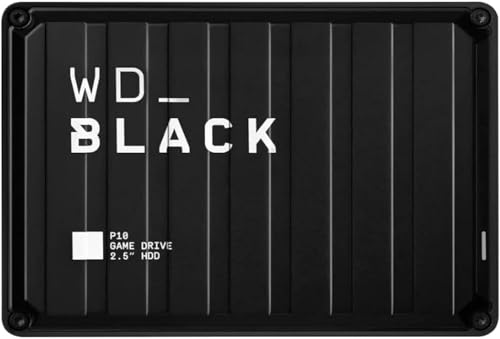
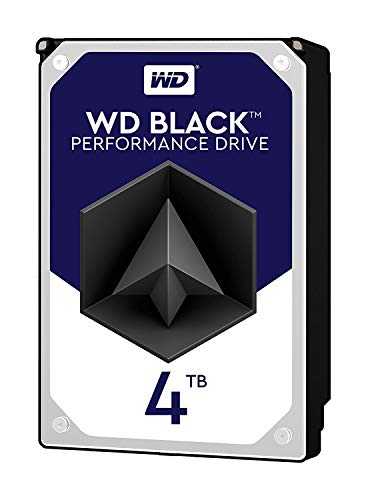
WD Black 4TB Performance HDD — Western Digital 4TB WD Black Performance Internal Hard Drive HDD – 7200 RPM, SATA 6 Gb/s, 256 MB Cache, 3.5″ – WD4005FZBX. Check on Amazon

Seagate BarraCuda 2TB HDD — Seagate BarraCuda 2TB Internal Hard Drive HDD – 3.5 Inch SATA 6Gb/s 7200 RPM 256MB Cache – Frustration Free Packaging (ST2000DM008/ST2000DMZ08). Check on Amazon

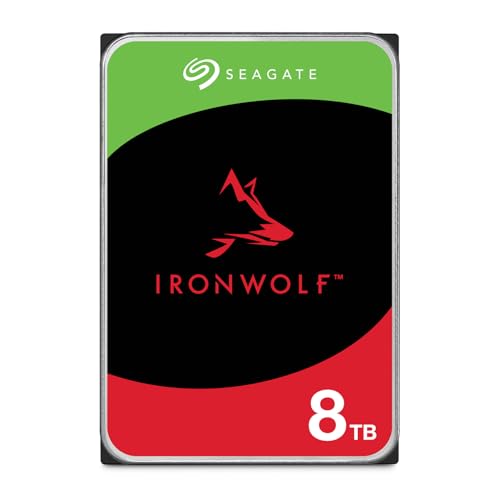
Seagate IronWolf 8TB NAS HDD — Seagate 8TB IronWolf Internal NAS Hard Drive | SATA 6 Gb/s (ST8000VNZ04) | 24/7 NAS-optimized HDD. AgileArray, All-CMR, RV sensors for multi-bay, 180TB/year. 3-Year Warranty + 3-Year Rescue. Check on Amazon
In this guide
How to choose a hard drive by job, not by headline
Start by naming the job in one sentence. Bulk storage rewards capacity and calm, predictable behaviour. A boot drive rewards responsiveness, which is why many people now pair a smaller solid-state drive for the operating system with a larger hard drive for files. A NAS drive works around the clock inside a warm enclosure, often beside other drives that vibrate. A portable drive gets carried, plugged in and unplugged, and dropped more often than anyone admits. Writing the job down first prevents the most common buying error: paying for speed you will never feel, or saving money on a drive that will work in the wrong environment every day.
Next, estimate how much space the job needs today, then double it if the library is still growing. Photo and video collections rarely shrink, game installs keep getting larger, and backup drives need room for several versions of the same files, not just one copy. A drive that is nearly full also becomes awkward to reorganise, defragment and back up. Buying one size larger than your current need is usually cheaper than replacing a too-small drive a year later, and it keeps a comfortable margin for the files you have not created yet.
Internal, portable or desktop external?
Internal drives fit inside a desktop, laptop, console or NAS and connect directly to the system, which keeps them tidy and always available. Portable external drives draw power from USB and suit laptops, travel and quick transfers between machines. Desktop external drives are larger, usually need their own power supply, and suit fixed backup stations where capacity matters more than mobility. The comparison in Internal vs External Hard Drive works through the trade-offs in detail if you are torn between the two styles.
Capacity, form factor and interface: the three fit checks
Capacity is measured in terabytes, but the usable space is always a little lower than the number on the label because manufacturers and operating systems count bytes differently. That gap is normal and not a fault. What matters is matching capacity to the job with headroom, as described above, rather than chasing the largest drive available. Very large drives also concentrate risk: one failure holds more data, which is another reason backups matter more as capacity grows.
Form factor decides whether the drive physically fits. Desktop and NAS drives are usually 3.5-inch, laptops and older consoles use 2.5-inch, and portable externals are built around the smaller size. Interface decides how it connects: SATA inside most computers and NAS enclosures, USB for externals. Check your device manual for bay size, connector and any capacity limits before ordering, especially with older laptops, game consoles and DVR-style recorders that can be picky about what they accept.
CMR, SMR, speed and cache in plain language
Two recording technologies appear in modern hard drives. Conventional magnetic recording, or CMR, writes tracks side by side without overlap and behaves predictably under sustained writes. Shingled magnetic recording, or SMR, overlaps tracks to gain capacity, which is fine for reading and light writing but can slow down during long, heavy write sessions such as rebuilding a RAID array or copying a huge archive in one go. For NAS and RAID use, CMR is the safer default; for a simple backup drive that mostly sits idle, SMR is rarely a problem.
Rotational speed and cache are covered in depth later in this batch, but the short version is simple. A 7200 RPM drive generally feels a little more responsive than a 5400 RPM drive and also tends to use more power and make more noise. Cache is a small, fast memory buffer that smooths bursts of transfers; it helps, but it will not transform a slow drive into a fast one. Treat both as secondary checks after job, fit and recording technology, not as the headline reasons to buy.
Reliability, warranty and the backup rule
Every hard drive will fail eventually; the only unknown is when. That is why the smartest part of choosing a drive is deciding how its data will be protected. Keep at least two copies of anything irreplaceable, on different devices, and ideally keep one copy away from the computer entirely. A NAS with RAID improves availability when a drive fails, but RAID is not a backup, because deletion, theft, fire and ransomware affect every copy inside the same box at once.
Warranty length and the drive’s rated workload tell you how the manufacturer positions the product. NAS and surveillance lines are rated for continuous operation and higher annual workloads than desktop lines, and they carry firmware tuned for multi-drive enclosures. Matching the product line to the duty cycle matters more than small differences in benchmark speed. A desktop drive worked around the clock in a NAS may run for years, but it is operating outside the conditions it was designed and tested for.
A step-by-step shortlist you can finish in fifteen minutes
Work through these steps with your own computer, console or NAS in mind. By the final step you should have a short specification — job, capacity range, form factor, interface and product line — that makes product pages much easier to judge.
Step 1: Write the job in one sentence
Say exactly what the drive is for: boot drive, game storage, photo archive, NAS share, backup target or travel drive. If the sentence contains two very different jobs, consider two drives rather than one compromise. A single drive asked to be both a fast system drive and a huge archive usually ends up mediocre at both, while a modest pairing of devices lets each one do the job it is good at.
Step 2: Measure what you already store
Open your current drive and note how much space your files use today, then look at how fast that number has grown over the last year. Photographers and video editors should count project files and exports, not just finished work. Gamers should count the library they actually keep installed. This measurement, doubled for growth, becomes your minimum capacity, and it is far more reliable than guessing from the sizes printed on retail boxes.
Step 3: Confirm the physical fit
Check bay size, connector and power. Desktops normally accept 3.5-inch SATA drives, laptops accept 2.5-inch SATA drives of a specific thickness, and NAS enclosures list supported sizes in their manuals. For external drives, confirm the USB port type on your computer and whether the drive needs a separate power supply. Five minutes with the manual prevents the classic frustration of a new drive that cannot be installed.
Step 4: Pick the product line for the duty cycle
Match the line to the hours and environment: desktop lines for ordinary PCs, NAS lines for multi-bay enclosures and continuous use, surveillance lines for camera recorders, and portable lines for travel. The explainer What is a NAS Hard Drive shows why NAS firmware and vibration tolerance differ from a regular desktop drive, which helps you decide whether the step up is worth it for your setup.
Step 5: Decide the backup pairing before you buy
Choose where the second copy will live before the new drive arrives. That might be an existing external drive, a NAS, a cloud service or a second internal drive used only for scheduled backups. Buying storage without a backup plan simply creates a bigger single point of failure. Decide the pairing now, while you are already thinking about capacity, and the new drive becomes part of a system instead of a lone container.
Step 6: Compare two or three finalists on the same criteria
With your specification written down, compare a small number of drives on capacity, recording technology, warranty, workload rating and the seller’s return terms. Ignore tiny benchmark differences that you will never notice in daily use. If two drives are genuinely equal, choose the one from the product line that matches your duty cycle and the retailer you trust most for painless returns. Then stop researching; storage is a tool, not a hobby project.
Common mistakes to avoid
Buying capacity before checking fit
A bargain 3.5-inch drive is no bargain if your laptop only accepts a 2.5-inch drive, and a thick laptop drive may not slide into a slim bay. Always confirm dimensions, connector and any firmware or capacity limits in the device manual first. Returns are possible, but the delay and hassle are entirely avoidable with one quick check before ordering.
Treating a single drive as a backup strategy
A backup drive that holds the only copy of your photos is not a backup; it is just the place the photos live. The rule is two copies on different devices for anything you cannot recreate. This mistake is painless right up until the day the drive fails, is stolen or is encrypted by malware, at which point there is no second chance.
Choosing SMR for heavy RAID rebuilds
Shingled drives are reasonable for light duties, but a RAID rebuild writes enormous amounts of data continuously, exactly the workload where SMR slows down and rebuild times stretch out. For NAS and RAID, choose CMR models and check the manufacturer’s specification sheet, because recording technology is not always printed on the retail box.
Practical tips that make a real difference
Label drives with the purchase date
Write the month and year on a small label when a drive goes into service. When you later plan replacements or read about lifespan, you will know the real age of each drive instead of guessing. This tiny habit makes the guidance in How Long do Hard Drives Last much more useful, because you can compare your fleet’s ages against typical service life.
Keep the receipt and serial number together
Save a photo of the label and the receipt in the same folder as your backup notes. Warranty claims need the serial number, and finding it without opening the computer or NAS saves time when a drive is already misbehaving. It also helps you prove which physical drive corresponds to which software warning.
Worked examples: four households, four different answers
Consider a family laptop that has filled its internal drive with photos and school projects. The job is overflow storage that travels occasionally, the library is modest but growing, and the budget is ordinary. The answer that falls out of the framework is a portable external drive of comfortable capacity, formatted for the systems it will meet, paired with a second copy of the photos somewhere else. Nothing in that job rewards spin speed, a performance line or a NAS pedigree, and paying for them would buy specifications the family will never exercise.
Now consider a video editor whose projects arrive weekly and whose archive grows relentlessly. The job splits in two: a working drive that must sustain long transfers without sagging, and an archive that must hold years of finished work cheaply. That household buys a CMR desktop-performance or NAS-tier working drive and a large archive drive, and treats them as different tools. A third household, running a four-bay NAS for backups and media, buys NAS-line drives on the enclosure maker’s compatibility list and nothing else. A fourth, expanding a games console, follows the console maker’s external-drive guidance. Same shop, same shelf, four correct answers — because the jobs were different and each buyer named theirs first.
How your needs will change, and how to buy for that
Storage needs rarely stay put. The photo library doubles when a child arrives or a camera improves; the game library grows with every sale; the NAS that began as a backup target quietly becomes the household’s media server, photo archive and camera recorder. Buying with a growth margin is not waste, because the cost of a second purchase — money, evenings of migration, another device to manage — exceeds the small premium of headroom bought once. When you estimate capacity, picture the library in three years, not the library on the day the old drive filled up.
The same foresight applies to the product line. A drive bought for light desktop duty may be promoted into a NAS when the household buys one, and a desktop line promoted beyond its brief becomes the weak member of an array. If a promotion is plausible, buying the NAS line at the start costs little more and keeps the option open. Conversely, a drive bought for a drawer backup role will never need array credentials. Honest forecasting — where will this drive plausibly serve in three years? — is the last refinement of the job sentence, and it is what separates a storage system from a series of disconnected purchases.
A note on buying used, refurbished and old stock
Second-hand drives tempt with capacity, and for expendable roles they can be a rational bargain: a scratch drive, a third copy, a test bench. The risks are knowable and should be priced in. A used drive’s power-on hours, error counters and handling history are partly readable through health tools and partly unknowable forever. Run the full health routine before trusting a used drive with anything, give it a probation period in a role where its failure would be a nuisance rather than a loss, and never let it become the sole holder of any file, however healthy it first appears.
Old stock — a new drive of an older model — is a different case: unused, warranted, but possibly a superseded design whose recording technology or firmware differs from the current line wearing a similar name. Verify the exact model on the manufacturer’s current documents, confirm the warranty runs from your purchase rather than from manufacture, and the purchase is usually sound. In both cases the discipline is identical to buying new: identify the exact model, read its real specification, and match it to a job whose risk it can honestly carry.
Frequently asked questions
Is a hard drive still worth buying instead of an SSD?
Yes, for bulk storage. Hard drives remain the practical way to hold many terabytes of photos, video, backups and game libraries, while SSDs are better for operating systems and applications that benefit from fast access. Many people use both: an SSD where responsiveness matters and a hard drive where capacity matters. The detailed comparison is covered in the hdd vs ssd guide in this batch.
How much capacity do most people need?
It depends entirely on the library. A documents-and-photos household may be comfortable for years with a modest drive, while a video editor can fill that same drive with a single project. Measure your current usage, double it for growth, and treat that as your floor. Buying for the library you actually have beats buying for an imagined one.
Does brand matter more than product line?
Product line usually matters more. Every major manufacturer makes desktop, NAS and portable lines with different firmware, workload ratings and warranties. A NAS line from any reputable maker is a better NAS choice than a desktop line from your favourite brand. Compare lines first, then brands within the line that fits your job.
What does workload rating mean?
It is the amount of data the drive is designed to read and write per year under its warranty terms. NAS and enterprise lines carry higher ratings than desktop lines. You do not need to track your exact workload, but the rating is a useful signal of how the drive is built and how the manufacturer expects it to be used.
Should I buy one large drive or two smaller ones?
Two drives give you a natural backup pairing and smaller blast radius when one fails, while one large drive is simpler and often cheaper per terabyte. For irreplaceable data, the two-drive approach is safer. For a game library that can be downloaded again, a single large drive is perfectly reasonable.
Can I use a NAS drive in a desktop?
Generally yes. NAS drives use the same SATA connections and work in desktops, though their firmware is tuned for enclosure use and they may cost more than a desktop equivalent. The reverse — a desktop drive doing continuous NAS duty — is the direction that gives up the design margins. Match the line to the hardest job the drive will face.
The bottom line
Choosing a hard drive well is mostly about honesty: name the job, measure the library, confirm the fit, and match the product line to the hours it will work. Do those four things and the specific model almost chooses itself. Pair the new drive with a real backup plan, and you have storage you can forget about — which is exactly what good storage should let you do.
Reading your shortlist like an engineer: the second pass
Once you have two or three candidate drives, the first pass has done its job: the fit is right, the capacity is right and the product line matches the work. The second pass is slower and more sceptical, and it is where good purchases are separated from merely adequate ones. Start with the full model number rather than the marketing name. Manufacturers reuse friendly names across generations, and two drives sold under the same banner can differ in recording technology, firmware generation and warranty terms. The exact model string on the specification sheet is the only identifier that tells you precisely which hardware you are getting, so search for that string, not the product family name, when you read documentation and compatibility lists.
Next, read the datasheet the way a support engineer would. Look for the workload rating expressed in terabytes per year, the mean time between failures figure, the non-recoverable error rate and the load and unload cycle count. None of these numbers predicts the life of your individual drive, but together they describe the design brief the drive was built to. A drive rated for continuous operation with a high annual workload and rotational vibration compensation was engineered for a different life than a desktop drive rated for office hours, even if the two share a capacity and a spin speed. When a datasheet hides one of these figures entirely, treat that absence as information too: product lines aimed at demanding roles publish these numbers proudly.
Finally, check the support trail. Find the firmware download page for the exact model, confirm the drive appears on your NAS or enclosure compatibility list if it will live in one, and read the warranty terms for your region rather than assuming they match another country’s. This second pass takes perhaps twenty minutes, and it routinely catches the one mismatch — a recording technology unsuited to RAID, a form factor variant, a warranty that requires registration — that the first pass missed.
Capacity planning with real libraries, not guesses
Most people estimate their storage needs by glancing at a drive that feels full, which systematically understates the problem because the files that grow fastest are rarely the ones you notice. A more reliable method is to audit by category. Measure your photo and video library separately from documents, games, virtual machines and backups, because each grows at a different rate and deserves a different home. Phone video is the usual shock: a single holiday recorded in high resolution can occupy more space than a decade of documents, and a household with several phones multiplies that quickly.
Once you have category sizes, apply a simple growth allowance to each. Documents barely grow. Game libraries grow in steps whenever a large title arrives. Media libraries grow steadily and almost never shrink, because nobody deletes the only copy of family footage. Backups need headroom for multiple restore points rather than a single snapshot. Adding these allowances category by category produces a target that feels larger than a guess but is far more honest, and it explains itself when you revisit the decision in two years.
There is also a working-space argument for buying above your measured need. Hard drives slow down as they approach completely full, file systems fragment more aggressively, and maintenance tasks such as defragmentation, integrity checks and large copies need free space to breathe. Planning to run a drive at roughly two-thirds to three-quarters full at the end of its planned service keeps performance consistent and leaves room for the unexpected project, the visiting relative’s photo dump or the temporary copy you need while reorganising. Capacity bought for headroom is not wasted capacity; it is the margin that keeps the drive pleasant to use for its whole life.
A quick audit you can do tonight
Open your file manager and note the size of your five largest folders. Check your phone’s storage screen for the video total. Look at your backup software and note how much space the retained history occupies, not just the latest copy. Write the four numbers down with today’s date. That dated note becomes more valuable every year, because the second time you do this audit you can measure your actual growth rate instead of estimating it, and every future storage decision gets easier and cheaper.
Matching the drive to the machine around it
A drive never works alone, and several disappointments blamed on drives are really mismatches with the host. An older desktop may have SATA ports from an earlier generation that cap throughput, a small-form-factor case may trap heat around a hard-working drive, and a budget enclosure’s USB bridge chip can limit both speed and the pass-through of health information. Before blaming or praising a drive, it is worth knowing which of these surrounding limits applies to your setup, because the same drive can feel sluggish in one home and brisk in another for reasons that have nothing to do with the drive itself.
Cooling deserves particular attention. Hard drives tolerate warmth, but sustained high temperatures shorten service life, and compact cases, media cabinets and stacked NAS bays all restrict airflow in ways their product photos do not show. If your case offers a fan position near the drive cage, using it is one of the cheapest reliability upgrades available. If the drive will live in a fanless enclosure on a shelf, favour a cooler-running product line and leave air space around the enclosure rather than tucking it between books or other electronics.
Power is the quieter sibling of cooling. Drives draw their highest current at spin-up, and a marginal power supply, an ageing USB hub or a long chain of adapters can produce intermittent behaviour that looks exactly like a failing drive. When a new drive misbehaves, testing it with a direct connection and a known-good cable is not a ritual; it is how you separate a drive problem from a delivery problem before you start a return you may not need.
Household scenarios the spec sheet never mentions
Consider a shared family computer that serves as homework machine, photo archive and media server at once. Its drive works evenings and weekends in bursts, sleeps in between, and holds data with wildly different values on the same platters. For this machine the deciding factors are rarely raw speed; they are capacity headroom, quiet operation in a living space and a backup arrangement simple enough that it actually happens. A capacious desktop or NAS-class drive paired with an automatic backup routine beats a faster, smaller drive that leaves the archive squeezed.
Contrast that with a student laptop that travels daily in a backpack. Here the mechanical drive’s enemies are shock and vibration, and the honest advice is that the internal role belongs to solid-state storage while the hard drive’s job is the stay-at-home archive and backup target, used on a desk through an enclosure. Choosing a hard drive well sometimes means choosing where it should not go.
A third common case is the home office machine holding client work. The drive decision there is inseparable from confidentiality and recovery time: how quickly could you be working again if this drive stopped tomorrow morning? That question pushes you toward a mirrored pair or a disciplined rotation of two drives, and toward product lines whose warranty replacement process you have actually read. Performance still matters, but it ranks third behind recoverability and predictability.
Setting up the new drive so it stays healthy
The first day of a drive’s life sets patterns that persist. After installation, run a full surface scan or an extended self-test before you trust the drive with its real workload; a drive that cannot pass its own extended test when new should be exchanged immediately, while the return is painless and no data is at stake. Then enable health monitoring in your operating system or NAS so warnings reach you in normal use, rather than waiting for you to remember to look.
Label the drive physically and digitally. A small label with the purchase date and intended role on the drive or its enclosure, matched by a clear volume name inside the system, prevents the classic accident of formatting or overwriting the wrong device months later when several similar drives are attached. If the drive joins a backup rotation, write its rotation position on the label as well. These tiny habits cost minutes and prevent the most expensive category of storage mistake, which is almost never hardware failure; it is human confusion.
If the drive will hold a growing archive, decide the folder structure now, while it is empty and decisions are free. A shallow structure organised by year and broad category ages better than a deep, clever taxonomy you will abandon by spring. Note the structure in the same dated audit note from your capacity planning, and future you — migrating to the next drive in five years — will be quietly grateful. Readers planning that migration may also find our guide to Best Hard Drives for Long-Term Storage useful for the archive side of the decision.
Questions readers ask after the first month
My new drive shows less capacity than the box promised. Is it faulty?
Almost certainly not. Manufacturers measure capacity in decimal units while operating systems report in binary units, so the same drive legitimately shows two different numbers. The gap grows with drive size and surprises almost everyone once. What matters is that the reported figure matches the expected converted value for that model, which a quick search of the exact model number will confirm.
The drive is noisier than my old one. Should I worry?
Seek sounds during large copies and brief actuator movement during random access are normal, and different product lines have distinctly different acoustic signatures. Worry instead about changes: a drive that becomes louder over weeks, develops a repetitive clicking pattern, or starts vibrating a desk it previously sat quietly on deserves a health check and a verified backup, promptly.
Can I mix drive sizes and lines in the same system?
In a desktop, yes, freely; each drive does its own job. In RAID arrays, mixing is possible but the array inherits limits from its members — capacity is calculated from the smallest drive and behaviour from the least suited firmware — so matched drives remain the cleaner choice for arrays, while mixed drives are perfectly sensible as independent volumes.
How soon should I plan to replace this drive?
Plan by role rather than by calendar. A drive holding the only copy of anything important should be treated as temporary from day one, protected by backup rather than by hope. For well-backed-up data, let health indicators, age relative to warranty, and your own capacity audit drive the timing — and start watching more closely once a drive passes its warranty period, not because failure is scheduled, but because your margin for surprise is thinner.
Ownership costs nobody puts on the box
The purchase is the smallest part of what a drive costs you over its life. Electricity is a real, if modest, factor for drives that spin around the clock: a desktop drive left awake continuously draws power every hour of the year, and in a multi-bay NAS the drives together can rival the rest of the system. Spinning drives down when idle saves that energy but trades it against spin-up wear and waiting time, so the right setting depends on your access pattern — a media archive consulted twice an evening suits aggressive sleep, while a drive serving a household’s files all day is happier staying awake during waking hours.
Time is the larger hidden cost. A drive that is awkwardly slow for its actual job taxes you in small instalments: the backup window that creeps into the morning, the game library that loads while everyone waits, the photo import that makes you postpone the task entirely — and postponed backups are a reliability cost disguised as a convenience issue. When you weigh two candidate drives, weigh the minutes as honestly as the specifications. A drive matched to its workload pays you back in tasks that simply happen, on schedule, without negotiation.
Finally there is the cost of the exit. Every drive you buy will one day be replaced, wiped, recycled or handed on, and drives bought with standard connections, standard formats and clear labels leave cheaply. Exotic formats, proprietary enclosures and undocumented roles all charge their fee at the end, in the currency of a difficult weekend. Choosing well includes choosing a drive your future self can retire without a research project.
How the choice changes for shared and public machines
Everything so far has assumed the drive’s owner and user are the same person. Shared machines — a family PC, a small office’s file computer, a club or classroom machine — add two considerations. The first is contention: several people’s workloads collide, so capacity headroom and steady behaviour under mixed access matter more than peak speed for any single user. The second is boundaries: a shared drive should hold shared data, with personal material kept on personal drives or in clearly separated, backed-up spaces, because a shared drive’s failure, upgrade or disposal otherwise becomes everyone’s problem at once.
For a machine that leaves your control — a computer you are preparing to sell or donate — the drive decision inverts. The question is no longer which drive to buy but which drive to leave in it: your working drive should come out and be replaced or securely wiped according to how sensitive its contents were, because deletion is not erasure and formatting is not either. A modest new drive in a departing machine is often the cleanest solution for everyone: the recipient gets a tested, honest component, and your data leaves with you on hardware you control.
One more check before you pay: the returns window test
However carefully you choose, reserve the first days of ownership for verification. Run the extended self-test, copy a large folder and read it back, listen to the drive through a normal day’s work, and confirm the reported capacity and model match what you ordered. All of this is painless inside a returns window and progressively less painless afterwards. A drive that passes its first week under your real workload, with its health baseline recorded in your notes, has earned its place; one that raises doubts in that week has given you the cheapest warning it will ever offer.
A worked decision from start to finish
To see the whole method in one place, follow a common case through it. A household’s shared PC reports its data drive nearly full: the audit shows a photo and video library that has doubled in three years, a modest documents folder, and backups whose retained history is quietly the second-largest consumer. The job, then, is really two jobs — a home for a growing media archive and room for backup history — and naming that honestly already eliminates the small, fast drives and the bargain models with recording technology that dislikes sustained writing.
The fit checks follow. The case has a free 3.5-inch bay and a spare SATA port, so the internal route is open; the household also wants the archive reachable when the PC sleeps, which argues for the NAS the family already owns for documents, whose free bay accepts the same drive family. One purchase can serve the archive if it moves to the NAS, while the PC’s internal drive becomes a simpler capacity upgrade. The shortlist narrows to NAS-class drives of the capacity the audit supports — current library, doubled for growth, plus a third again for working headroom — and the second pass over datasheets confirms the workload rating and the array compatibility.
The purchase that results is unglamorous and exactly right: a drive whose product line matches continuous duty, sized by measurement rather than optimism, installed with a health baseline recorded and a backup of the old archive verified before migration. Nothing in the decision required expertise beyond the steps in this guide — an honest job description, a measured library, confirmed fit, a matched product line and a sceptical second pass. That sequence, repeated, is the entire skill.
What if two drives tie on every check?
Ties happen, and they are good news disguised as indecision: if two drives from matched product lines both fit, both carry the ratings your job needs and both sit on your system’s compatibility lists, then either will serve, and the deciding factors can be the honest secondary ones. Prefer the drive with the longer warranty in your region, the clearer support documentation and the retailer whose returns process you trust, because over a five-year service life you are more likely to meet the support system than to measure the last few percentage points of throughput. Then stop deliberating. The cost of a storage decision is dominated by choosing the wrong category of drive, not by choosing the second-best drive within the right category, and a week spent splitting hairs between equals is a week your current, overfull drive spends at risk. Decide, record the baseline, back up, and let the drive disappear into the background of your computing life, which is where well-chosen storage belongs.