Disclosure: As an Amazon Associate, ilcastellomenu.com earns from qualifying purchases. Product links on this page may earn a commission at no extra cost to you.
The internal vs external hard drive decision shapes how your storage lives day to day: internal drives disappear inside the machine, always connected and tidy, while external drives sit outside, portable and shareable, ready to move between computers or into a drawer for safekeeping. Neither is universally better; each suits different habits.
This comparison works through speed, convenience, cost and risk so you can choose deliberately. Many households end up with both, and the sections below explain the classic division of labour. For shopping context, Best Internal Hard Drives for Storage represents the internal side and Best External Hard Drives for PC the external side of the same storage problem.

Gear mentioned in this guide
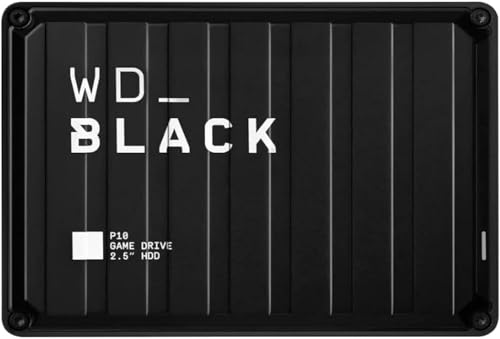
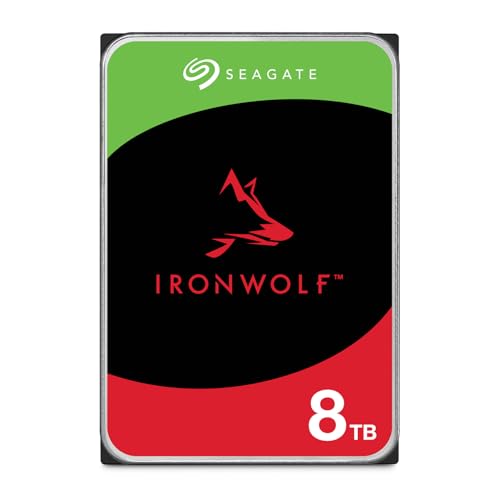
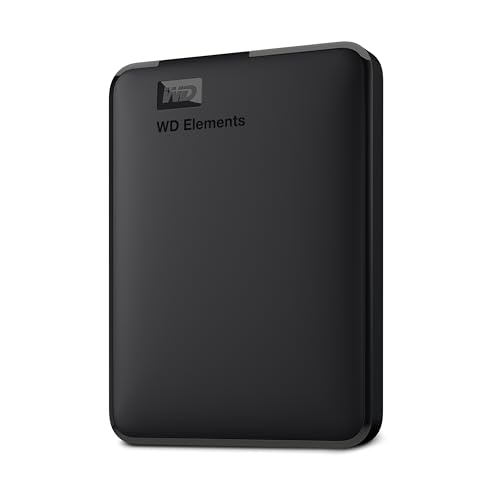
The products below are examples that fit the situations described in this article. They are mentioned so you can picture the kind of hardware involved, not as a claim that one model suits every computer, console or NAS. Check the form factor, interface and capacity against your own system before you buy anything.
WD Elements 2TB Portable — WD 2TB Elements Portable External Hard Drive for Windows, USB 3.2 Gen 1/USB 3.0 for PC & Mac, Plug and Play Ready – WDBU6Y0020BBK-WESN. Check on Amazon

Seagate BarraCuda 2TB HDD — Seagate BarraCuda 2TB Internal Hard Drive HDD – 3.5 Inch SATA 6Gb/s 7200 RPM 256MB Cache – Frustration Free Packaging (ST2000DM008/ST2000DMZ08). Check on Amazon

WD Elements Desktop 8TB — Western Digital 8TB Elements Desktop External Hard Drive, USB 3.0 external hard drive for plug-and-play storage – Western DigitalBWLG0080HBK-NESN, Black. Check on Amazon
In this guide
Quick verdict
Choose internal when the storage belongs to one machine permanently: a desktop’s media library, a laptop upgrade, a NAS share. It is always there, needs no desk space or extra cables, and cannot be forgotten in a drawer when the backup should be running. Choose external when storage must move: between home and office, between a Windows PC and a Mac, to a friend’s house as an off-site backup, or into a safe as an archive. If the sentence describing your need contains the words ‘take it to’, the answer is external; if it contains ‘always available’, the answer is internal.
The table and criteria below unpack that verdict. Pay particular attention to the backup discussion, because the strongest argument for external drives is not portability for its own sake — it is that a copy you can physically separate from the computer protects against theft, fire and ransomware in ways an internal copy cannot.
Side-by-side comparison
| Criterion | Internal | External |
|---|---|---|
| Connection | SATA inside the machine | USB outside the machine |
| Availability | Always connected | Connected when you plug it in |
| Portability | None without removal | Designed to move |
| Desk clutter | None | Drive plus cable; desktop models add a power supply |
| Sharing between computers | Awkward | Easy |
| Physical risk | Shares the computer’s fate | Can be stored separately; can also be dropped or lost |
| Typical role | Working storage, NAS, system expansion | Backups, archives, transport, console expansion |
Speed and convenience in daily use
Internal SATA drives connect directly to the system’s storage controller and are simply present: no cables to find, no ejection ritual, no desk footprint. For a drive you use every day, that invisibility is the convenience that matters. External drives connect over USB, which modern versions handle at speeds perfectly adequate for backups, media and game storage, though a chain of hubs and old cables can quietly slow or destabilise the connection. Use the cable the drive came with, plugged directly into the computer, for important transfers.
Convenience cuts the other way for sharing. Moving an internal drive between machines means opening cases; moving an external means unplugging one cable. Consoles embrace externals for exactly this reason — our lists such as Best External Hard Drives for Ps5 exist because plugging in a drive beats opening a console. Format choices matter for sharing too: a drive that travels between Windows and Mac wants exFAT, as the formatting guide in this batch explains.
Risk, backups and the separation argument
An internal drive shares its computer’s risks. If the machine is stolen, flooded or encrypted by ransomware, the internal ‘backup’ is compromised in the same event. An external drive stored in another room, a drawer at work or a relative’s house survives all of those. That physical separation is the single strongest argument in this entire comparison, and it is why backup advice so often ends with an external drive that is only connected while the backup runs.
Externals carry their own risks: they get dropped, lost and left in hot cars, and a portable drive in a bag lives a harder life than a drive screwed into a case. The answer is not to avoid externals but to treat them as copies, not originals. Data that exists only on a portable drive is data one accident away from gone. The healthy pattern is originals on internal storage, copies on externals, with at least one copy kept somewhere else entirely.
Cost and capacity considerations
Internal drives usually give the most capacity for the money at a given size, because you are not paying for an enclosure, cable and power supply. Externals add those parts but arrive ready to use with any machine, which has its own value, especially for laptops with no internal expansion options. Desktop externals reach the largest capacities and suit fixed backup stations; portables trade some capacity for a pocketable size and bus power with no separate supply to lose.
Consider also the enclosure route: a bare internal drive in a good USB enclosure becomes an external drive, which is how many people repurpose a drive after an upgrade. This hybrid path is economical and flexible, and it is the standard trick behind turning an old system drive into a backup device after cloning to a new one. Whether bought or built, judge the result by the same criteria: connection reliability, cooling and how the drive will actually be used.
Deciding in five questions
Run your situation through these questions in order. Most people find the answer is clear by question three, and the last two refine the size and style.
Step 1: Must the storage move between machines or places?
If yes, external, and the only remaining choices are portable versus desktop size. If the drive will never leave one computer’s side, internal keeps things simpler, tidier and always available. Be honest about ‘never’: a backup drive you plan to rotate off-site is a moving drive, even if it moves only once a month.
Step 2: Does the machine have room inside?
Many modern laptops have no spare bay, and some desktops are full. No room means external by default, or a replacement rather than an addition. Check the manual before falling in love with an internal upgrade path your hardware does not offer, and remember consoles generally expect external expansion.
Step 3: Is this drive part of a backup plan?
If the drive’s job is holding copies, external storage you can disconnect and store elsewhere is usually the right tool. A disconnected drive cannot be encrypted by ransomware attacking the computer, and a drive in another location survives local disasters. This question alone settles the choice for a large share of buyers.
Step 4: How much capacity, and how fast will it grow?
Very large, fast-growing libraries suit internal drives in a desktop or NAS, or desktop externals at a fixed station. Moderate libraries that travel suit portables. Size the drive with headroom as the chooser guide advises, because an external that fills up stops being a backup and becomes another archive to manage.
Step 5: Who else needs to use it?
Shared family storage, drives passed between colleagues, and media handed to a TV or console all favour external. Personal working storage favours internal. When in doubt, remember that an external can serve a single machine perfectly well, while an internal cannot easily serve several — flexibility argues external, permanence argues internal.
Common mistakes to avoid
Keeping your only backup inside the same computer
An internal second drive used as the sole backup shares every disaster with the original: theft, fire, flood, power surge and ransomware. It protects against one failure mode — a dead primary drive — and none of the others. Add an external copy stored elsewhere to turn a partial plan into a real one.
Treating a portable drive as an archive of originals
Portables get dropped, lost and left behind. They are superb as transport and as copies, and dangerous as the sole home of anything. If a file matters, it should also exist on storage that does not travel. The portable’s job is to carry a copy, not to be the copy.
Daisy-chaining externals through bargain hubs
Unpowered hubs and tired cables cause the disconnects and slow transfers people blame on drives. Plug storage directly into the computer for important work, use the supplied cable, and if you need a hub, choose a powered one from a reputable maker, as the round-ups of hubs for external drives in our live lists discuss.
Practical tips that make a real difference
Label externals with contents and date
A sticker naming the drive’s role and the month it entered service ends the mystery-drive problem. When several similar portables live in a drawer, labels are the difference between a backup system and a guessing game. Update the label when the role changes, not when you get around to it.
Rotate two externals for backups
Two modest externals, alternated weekly with one always stored away from the computer, give you separation and a recent copy even if one drive fails or is damaged in transit. This is the classic small-office pattern, and it scales down to a household perfectly well.
Internal vs external hard drive for backups, consoles and creators
For backups, the external drive’s separability wins the argument, but the details refine it. A backup external that lives connected is exposed to the same ransomware and electrical events as the machine it protects; a backup external that is connected weekly, updated and returned to a drawer is protected by its own absence. Many households compromise with two externals in rotation, so one is always away while the other is current. Internal drives still serve backups inside a NAS, where the box’s physical separation from your computer provides the same protection at household scale — the principle is separation, and both a drawer and a NAS satisfy it in different ways.
For consoles, external is the platform’s own answer: makers design for USB expansion, publish the rules for what can play from external storage, and expect libraries to live there. For creators, the division is workflow-shaped: internal drives hold the active project where speed and permanence matter, externals shuttle footage between machines and locations and hold the deliverable copies clients receive. In each case the question from the verdict section — does it move, or must it always be there? — produces the right answer faster than any specification comparison, because this particular choice is about the shape of your days, not the shape of the hardware.
Enclosures, docks and the third option
Between buying internal and buying external sits the enclosure: a bare drive in a USB housing, assembled by you. It deserves consideration whenever a drive outlives its original role — the classic case being the internal drive left over after an SSD upgrade, which becomes a perfectly good external backup device for the price of a housing. Enclosure quality matters: the bridge electronics, the power delivery for larger drives and the housing’s cooling all become part of the resulting device’s reliability, so reputable enclosures are worth their small premium over anonymous ones.
Docks are the enclosure’s open-air cousin: a slot that accepts bare drives for temporary connection. A dock is a diagnostic instrument and a cloning tool more than a home for a drive, because a bare drive on a desk is exposed to knocks and dust. Own a dock for the jobs in the troubleshooting and cloning guides, house your permanent externals properly, and the distinction stays healthy. Together, enclosures and docks mean the internal-external line is not a life sentence for any drive: a device can begin internal, retire into an enclosure, and finish as an archive in a drawer, serving usefully at every stage.
Security and privacy differences worth knowing
Where data lives affects who can reach it. An internal drive is protected by your computer’s sign-in and, if you enable it, full-disk encryption; it is also available to anyone who gains access to the running machine. An external drive can be encrypted just as thoroughly — and should be, if it travels — and it adds a physical option internals lack: you can simply take it away. A small external in a safe or a locked drawer is offline in the most literal sense, unreachable by network attacks, account compromises or curious software, which is why sensitive archives so often live on externals that spend their lives disconnected.
The travel risk runs the other way: a portable drive is losable in a way an internal drive is not. Encryption is therefore not optional for a portable that holds personal data; an encrypted lost drive is an inconvenience, an unencrypted one is a disclosure. Modern operating systems make encrypting an external a short, guided process, and the performance cost on current hardware is negligible for backup and archive duties. Decide the encryption question when the drive is formatted, not after its first journey, and record the recovery key somewhere separate from the drive itself.
The hybrid household: how the two settle into one system
Most mature setups stop choosing and start assigning. The desktop’s internal drives hold the working library, always present and quietly backed up. A NAS, if the household has one, holds the shared archive and receives the computers’ backups. Two external portables rotate as the separable copy, one always away from the house. A dock on the shelf handles transients: the drive from a retired laptop, the neighbour’s portable that needs its files rescued, the new drive being prepared. Each device has a role it is shaped for, and the system’s strength is that no role is asked of the wrong shape.
Building toward that pattern does not require buying it all at once. The usual order is pain-driven: an internal drive when the machine fills, an external when the first scare teaches the backup lesson, a second external when rotation dawns, a NAS when sharing outgrows sneakernet. Each step is the comparison in this guide answered again at a larger scale. If you are at step one, buy the internal for today’s job and the external for tomorrow’s scare in the same basket if you can; the pair is the smallest complete system, and everything after it is refinement.
There is one more household worth addressing: the single-laptop household, where the internal drive cannot be expanded and every additional byte must live externally or in the cloud. Here the comparison resolves into a discipline rather than a choice. The portable drive becomes working storage, so it must be treated with internal-drive respect: connected carefully, ejected properly, encrypted, and backed up as faithfully as any system drive, because for this household it is one. A second external, kept elsewhere, holds its copies. The laptop household’s setup looks simple from the outside and is, in truth, the purest form of the pattern this guide describes — every drive external by necessity, every role assigned by deliberation rather than by default.
Frequently asked questions
Is an external drive slower than an internal one?
For large sequential transfers over a modern USB connection, the difference is small in practice. Internal SATA has an edge in consistency and avoids USB quirks, while externals win on flexibility. For backups, media and game storage, a good external is entirely adequate; for a system drive, internal is the right home.
Can I turn an internal drive into an external one?
Yes, with a suitable USB enclosure matched to the drive’s size — 2.5-inch or 3.5-inch, with 3.5-inch enclosures needing their own power supply. It is a standard way to reuse a drive after an upgrade. Choose enclosures from reputable makers, because the enclosure’s electronics become part of the drive’s reliability.
Which is better for backups?
External, because separation is the point of a backup. A copy that can be disconnected and stored elsewhere survives events an internal copy cannot. Many people use both: an internal or NAS copy for quick, frequent backups and an external rotated off-site for disaster protection. Layers beat single answers here.
Do external drives fail more often?
The drive inside is the same technology; the risks differ. Externals face drops, transport and cable strain, while internals face heat and constant power-on hours. Handled carefully and used as copies, externals are dependable. Handled as indestructible luggage, they fail the way anything dropped eventually does.
Can a game console use an internal drive instead?
Some consoles allow internal expansion with specific drive types, while external USB storage is the universal route for game libraries, with model-specific rules about what can play directly from it. Check your console’s current guidance, and expect external drives to remain the flexible option for archiving games you are not playing this week.
Should my NAS count as internal or external?
A NAS is its own category: internal drives in a separate box, available over the network, separable from your computer and able to hold shared copies for the whole household. For backup architecture it behaves like the best of both — always available like internal storage, physically separate like an external — which is why NAS devices anchor so many home backup plans.
The bottom line
Choose internal for permanence and tidiness, external for movement and separation, and both when backups matter — which they always do. The strongest storage setups in this comparison are not one or the other; they are internal working drives with external copies that can leave the building.
The comparison in daily life: a week with each arrangement
Specifications flatten a difference that daily life makes vivid. A week with an internal drive is a week of invisibility: the storage is simply there, at full speed, whenever the machine is on, asking nothing. Its costs are paid in advance and in private — the installation afternoon, the fixed capacity, the knowledge that reaching the data means reaching the machine. A week with an external drive is a week of small negotiations: the drive is connected when you remember, ejected when you are careful, carried when you travel, and occasionally left behind, on the wrong desk, in the wrong bag. In exchange it offers a freedom the internal drive cannot — the library that visits another machine, the backup that leaves the building, the archive that survives the computer it describes.
Neither week is better; they suit different temperaments and different data. The honest self-knowledge the choice requires is about your habits, not the hardware. If you are a person who docks, plugs and routines reliably, the external drive’s negotiations cost you nothing and its freedoms are real. If your desk is a tide of cables and your backups happen only when automatic, internal storage with automatic routines will protect you better than a theoretically superior arrangement you must remember to perform. Storage systems fail at the human joints more often than at the electronic ones, so choose the arrangement your actual self will operate, not the one your ideal self admires.
Performance, examined more carefully
The internal connection’s speed advantage is real but frequently mis-stated, because two different bottlenecks share the credit. The interface itself — a modern internal connection against a USB link — sets a ceiling, and for mechanical drives that ceiling matters less than folklore suggests, since a spinning drive’s own transfer rate sits below both. Where the internal connection genuinely pulls ahead is latency and consistency: no bridge chip translating protocols, no shared bus contending with your other peripherals, no power negotiation surprises. Where the external connection has quietly closed the gap is convenience-class work: documents, media playback, photo libraries and backups proceed at speeds the drive, not the cable, determines.
The exceptions deserve naming. An external drive on an old, slow port, or through a hub shared with other hungry devices, can fall far behind its own capability, and the user blames the drive for the road it was given. Conversely, a modern external connection on a fast port can carry even solid-state storage respectably, which is why the external question must be asked about your ports and your cables, not about externals in general. Test the arrangement you actually own: copy a large folder, time it, and let evidence replace the argument.
Failure, loss and the geography of risk
The two arrangements distribute risk across different maps. The internal drive shares its fate with the machine: theft, fire, a spilled drink into the case, a power fault — one event reaches everything. The external drive escapes most of those events by being elsewhere, and acquires risks of its own in exchange: it can be dropped on the way, left in a café, borrowed and not returned, or simply mislaid in a drawer during a house move, with its data intact and unreachable in the most frustrating way possible. Neither map is safer in the abstract; they are safer against different lists, and your circumstances — a burglar-prone flat, a travelling job, a houseful of small children with strong opinions about cables — decide which list should worry you.
The mature answer, as with so much in storage, is to refuse the choice for anything irreplaceable: the internal drive for working speed, the external drive for the copy that lives apart, each covering the other’s map. The comparison then shrinks to its proper size, a question about where the working copy lives, and on that question your workflow, your ports and your habits are the only authorities that matter. Our round-up of external hard drives for PC covers the portable side if your map calls for one.
Special cases: consoles, media players and the television’s drive
Entertainment devices have settled this comparison in their own way, and their verdict is instructive. Consoles accept external drives for game libraries because games are bulky, re-downloadable and played from wherever they fit; the external drive’s convenience wins and its risks barely matter, since the data’s loss is an inconvenience measured in download time. Television recording and media players favour external drives for the same reason plus one more: the drive can move between the recorder and the computer, carrying its library with it. In both cases the data’s replaceability is what licenses the portable arrangement. Apply the same test at your desk and the decision often makes itself: replaceable data can live wherever is convenient; irreplaceable data needs the arrangement with copies.
There is a performance footnote specific to consoles and media duty: a drive that sleeps aggressively can cause stutters and missed recordings when the device expects instant availability, whichever side of the internal-external line it sits on. Check the power behaviour of the drive and its enclosure for always-ready roles, and prefer arrangements whose sleep settings you can control. The best storage for a recorder is the storage that is awake when the programme starts.
Cost accounting across the whole arrangement
The shelf prices suggest the internal drive is cheaper, and for the bare component it usually is. The full accounting adds the enclosure the external route requires — or reveals that the external product bundles it — and then keeps going, into the costs nobody invoices: the internal drive’s installation time and the possible adapter or caddy a slim machine needs; the external drive’s cable replacements and the second unit a sensible rotation eventually wants; the electricity both draw, trivially different; and the value of the desk space and the ports each consumes. None of these overturns the comparison for most people, but together they narrow the gap the shelf prices advertise, and they reward the buyer who prices the arrangement rather than the component.
The accounting has a final, often decisive line: reuse. A bare internal drive can be rehoused in an enclosure later and begin a second life as an external; an external drive can frequently be removed from its shell and installed internally, though some models solder or encrypt their bridge in ways that complicate the transplant. If your plans are unsettled — a desktop today, perhaps a laptop life next year — the bare internal drive plus a separate enclosure is the arrangement that keeps both futures open, and that optionality is worth a small premium to anyone whose computing is in transition.
Questions from the undecided
I can only afford one drive this year. Which side wins?
Buy for the job that is hurting. If the machine is full and slow to work with, internal capacity inside the machine you use daily wins. If the machine is fine and the anxiety is backup — nothing copied anywhere — the external drive wins, because it creates the second copy your data currently lacks. Next year’s purchase then completes the pair, and you will have spent the two years protected against the risk that was actually largest first.
Is an external drive fast enough to edit video from?
For many editors, yes, provided the connection is a fast one, the cable is short and sound, and the drive itself suits sustained work. Test with your own footage before committing a project: copy the media, scrub the timeline, render a short piece. Where the arrangement strains, the hybrid answers — media on the external, cache and current project internally — usually relieve it without new hardware.
Can an external drive be my only backup?
It can be your first backup, which is infinitely better than none, with two conditions: it must not live permanently connected and sitting beside the machine it protects, because that reunites the risks the arrangement was meant to separate; and it should be joined, when you can, by a second copy somewhere else entirely. A single external backup, disconnected and stored apart, is a respectable system. Two copies in two places is a good one.
Do external drives wear out faster from being moved?
Movement is the mechanical drive’s natural enemy, and an external drive’s life includes journeys an internal drive never takes. Modern portable drives are built with that life in mind — parked heads, shock sensing, rugged shells on some models — and the practical rules are simple: eject before moving, never move a drive while it is spinning and working, and carry it padded rather than loose among keys and tools. Treated so, a portable drive’s lifespan is respectable; treated as luggage, no drive’s is.
Sharing, lending and the social life of an external drive
An internal drive is private by architecture; an external drive participates in your social life, and that participation has rules worth setting before the first loan. A drive lent to a friend for a project returns with their files beside yours, having visited a machine whose hygiene you do not control. A drive passed around a family accumulates everyone’s copies and no one’s organisation, until it becomes the household’s attic — searched in emergencies, understood by nobody. The households that use shared external drives well treat them like a shared vehicle: one purpose per drive, a label that states it, a rule that the drive is erased and re-verified between owners, and a standing understanding that anything on it exists elsewhere too, because shared hardware eventually meets an accident no friendship should have to price.
There is a security chapter to the social life as well. An external drive that travels between machines should be encrypted if it carries anything personal, full stop — not because your friends are threats, but because loss and theft are, and because a drive that visits many machines collects exposure from each. The internal drive’s equivalent discipline is the machine’s own sign-in security, which most people already maintain. Each arrangement, again, has its own hygiene; the failures happen when a drive is used in the other arrangement’s style, carried like a toy while holding the only copy of the family archive.
When the answer is a dock: the arrangement that refuses to choose
Between the two camps sits the open dock, and for a certain kind of household it dissolves the comparison entirely. The dock turns bare internal drives into external ones on demand, so a household can keep its archives on inexpensive internal drives, stored in cases on a shelf like books, and read whichever volume the day requires. Archivists, photographers with a drive per year, and technicians with a shelf of client images all live this way, and the arrangement’s economics are compelling: the enclosure cost is paid once, the capacity scales at bare-drive prices, and every volume remains installable internally should a machine ever need it directly.
The dock’s disciplines are the external drive’s disciplines in concentrated form. Bare drives are fragile out of their cases — circuit boards exposed, labels that must carry the catalogue information a shelf of identical drives demands, storage that must protect against dust, knocks and static. A dock household keeps a written index: which drive holds what, its health at last check, its date. With that index, the shelf is a library. Without it, the shelf is a rumour. As with every arrangement in this comparison, the hardware is the easy half and the habits are the system.
Two households, two settled answers
The first household is a photographer’s: a desktop in a small studio, a laptop for location work, clients whose images must survive everything. Her working library lives internally, fast and always present; her external drives are the couriers and the vault, one travelling with the laptop as the location backup, one leaving the building weekly in rotation. Ask her which arrangement is better and she looks puzzled, because the question dissolved years ago into a system where each drive’s placement follows the risk it is meant to answer. The internal drive answers the deadline. The externals answer the fire, the theft and the dropped bag.
The second household is a student’s flat: one laptop, no desk to speak of, a games library that dwarfs the machine’s internal storage and a budget that arrives in termly instalments. His answer is an external drive that lives semi-permanently attached, holding the library and the coursework archive, plus a cloud copy of the essays themselves, because the drive’s portability — the quality his examiners would call a risk — is also what lets the whole library move home for the summer in a coat pocket. His arrangement would horrify the photographer, and hers would be unusable in his life, and both are correct, which is the comparison’s final lesson: placement follows life, and the reviewer’s job is to hand you the questions, not the answer.
The wallet-card version of this comparison
Internal for the work you do where the machine lives. External for the copies that must travel, arrive or escape. A dock when the archive outgrows both stories. Encryption on anything that leaves the building, backups that do not share a fate, and labels on everything — because the drive you cannot identify in a hurry is a risk in either arrangement. Settle those five points and the internal-versus-external question stops being a debate and becomes what it always should have been: a description of your system, written in hardware.
What changes when the machine is a laptop that never docks?
For the truly mobile worker — the machine that opens on trains, in site cabins and on kitchen tables, and is never once plugged into a desk setup — the external drive’s role quietly changes from storage expansion to ritual object. It comes out for the weekly backup, connects for the large transfer, and otherwise lives in the bag, and its value is measured in whether that ritual survives contact with a busy life. The practical design follows: choose a portable drive that needs no separate power supply, keep its cable attached or captive so the ritual has no missing piece, encrypt it because bags get left, and automate the backup so thoroughly that plugging in is the only human step. If the ritual still fails — be honest after a month — then the answer for this machine is not a better drive but a different system: a cloud copy for the working documents and the external drive demoted to monthly archive duty, where a missed week costs nothing. The comparison, one last time, is not about the drives. It is about designing the arrangement your real life will actually perform, and then letting the hardware be ordinary.
Before you decide, perform the simplest experiment this comparison allows: borrow or repurpose any external drive for one week and live the arrangement. Notice whether it is connected when you want it, whether the eject ritual survives your evenings, whether the cable lives where the work happens. Then imagine the same data internal — invisible, instant, immovable — and notice what you would miss and what you would not. A week of evidence about your own habits outweighs any reviewer’s verdict, including this one, because the drives are commodities and the habits are yours alone. Choose for the habits you observed, not the ones you intended, and the arrangement will still be serving you when both drives in this comparison have been replaced by their successors.
One more population deserves a direct answer: the household whose only computer is shared by everyone and owned, in practice, by no one. For that machine, internal storage should hold the shared working world — the family library, the household documents, the games everyone plays — because shared data on a wandering external drive is data that is missing whenever it is wanted. The external drive in that household has one job, backup, and should be treated with the ceremony of a fire safe: connected for its scheduled work, disconnected and stored apart afterwards, labelled so clearly that any family member can perform the ritual. Shared machines fail socially before they fail electronically, and clear placement — this lives here, that visits for one purpose — is the whole art of keeping them useful.
Whichever arrangement you settle on, write it down in the system record as a decision with a reason: internal because the machine never travels, external because the copy must leave the building, the dock because the archive outgrew the case. Reasons recorded today become instructions tomorrow, when a drive fails or a machine is replaced and someone — probably you, possibly a helper who never met the system — must rebuild the arrangement under pressure. Systems documented by their reasons survive their hardware. Systems that exist only as habits retire with the memory of whoever formed them.
And revisit the decision when your life changes shape — a new job that travels, a child who starts producing video coursework, a house move that gives the computer a room of its own. Storage arrangements are not marriages; they are answers to questions about where you work and what you fear losing, and when the questions change, the honest answer changes with them. The drives will not mind. Rebuilding the arrangement on purpose, with the data copied and verified at every step, is simply the household’s storage growing up alongside the household itself.
That, in the end, is the standard to hold any arrangement to: not whether it matches a reviewer’s diagram, but whether it still fits the life being lived around it.