Disclosure: As an Amazon Associate, ilcastellomenu.com earns from qualifying purchases. Product links on this page may earn a commission at no extra cost to you.
The HDD vs SSD question is really a question about jobs: hard disk drives store data on spinning magnetic platters and win on capacity for the money, while solid-state drives store data on flash memory with no moving parts and win on speed, silence and resilience. Most good systems no longer choose one; they use each where it is strongest.
This comparison gives you a quick verdict, a side-by-side table and a criterion-by-criterion breakdown so you can decide for your own machine and budget class. If you already know you want bulk storage, Best Hard Drives for Storage covers the HDD side, and if responsiveness is your priority, Best Ssds for Gaming covers the fast side of the shelf.

Gear mentioned in this guide
The products below are examples that fit the situations described in this article. They are mentioned so you can picture the kind of hardware involved, not as a claim that one model suits every computer, console or NAS. Check the form factor, interface and capacity against your own system before you buy anything.
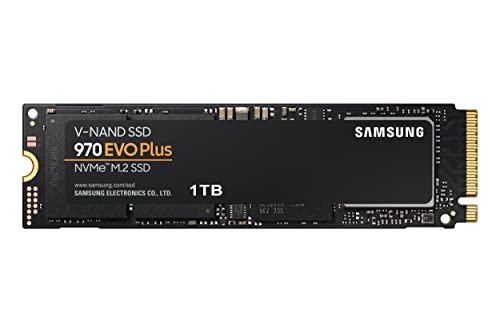
Samsung 970 EVO Plus 1TB NVMe SSD — Samsung 970 EVO Plus SSD 1TB NVMe M.2 Internal Solid State Drive w/V-NAND Technology, Storage and Memory Expansion for Gaming, Graphics w/Heat Control, Max Speed, MZ-V7S1T0B/AM. Check on Amazon

Crucial MX500 1TB SATA SSD — Crucial MX500 1TB 3D NAND SATA 2.5 Inch Internal SSD, up to 560MB/s – CT1000MX500SSD1. Check on Amazon

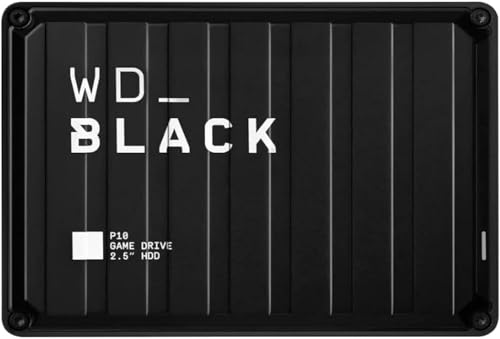
WD Black 4TB Performance HDD — Western Digital 4TB WD Black Performance Internal Hard Drive HDD – 7200 RPM, SATA 6 Gb/s, 256 MB Cache, 3.5″ – WD4005FZBX. Check on Amazon
In this guide
Quick verdict: which should you buy?
Buy an SSD for the drive your operating system and applications run from, and for any laptop that gets carried around. The difference in everyday responsiveness — starting up, launching programs, searching, updating — is the single most noticeable upgrade in modern computing, and it applies to old machines as much as new ones. Buy an HDD for bulk storage: photo and video archives, backups, media libraries and game collections where terabytes matter more than milliseconds. If you can only have one drive and it must hold everything, a mid-sized SSD is usually the happier compromise for a laptop, while a desktop can pair a modest SSD with a large HDD for less than one huge SSD.
The table below summarises the comparison; the sections after it explain each row so you can weigh the criteria against your own priorities rather than copying someone else’s conclusion.
Side-by-side comparison
| Criterion | HDD | SSD |
|---|---|---|
| How it works | Spinning platters, moving heads | Flash memory, no moving parts |
| Speed | Fine for sequential files; slow at scattered small reads | Fast at everything, especially small scattered reads |
| Capacity for the money | Excellent; multi-terabyte drives are routine | Improving, but large capacities cost much more |
| Noise and vibration | Audible spin and seek sounds; vibrates | Silent |
| Shock resistance | Fragile while running | Withstands bumps and travel far better |
| Power use | Higher, especially 3.5-inch models | Lower; helps laptop battery life |
| Failure style | Often gradual, with warnings and noises | Can be sudden; health reporting varies |
| Best role | Archives, backups, media, NAS bulk | System, applications, working files, travel |
Speed: where the difference actually shows
Sequential speed — copying one huge file — is the HDD’s best case, and a modern hard drive handles it respectably. Everyday computing, though, is mostly thousands of tiny reads scattered across the drive: loading program components, indexing, updating, opening projects. That random-access pattern is where spinning platters and moving heads pay their tax, and where SSDs pull far ahead. It is why an old laptop with an SSD feels responsive while a newer machine with only an HDD can feel strangely sluggish despite a faster processor.
For bulk jobs the calculus reverses. Copying a finished video archive to an HDD, streaming films from it, or backing up to it overnight are sequential, patient workloads where the SSD’s speed buys little and its cost per terabyte hurts. Gamers sit in between: an SSD shortens loading screens, but a large HDD holds far more installed titles. The common answer — a few favourites on SSD, the library on HDD — reflects the technology honestly rather than picking a tribe. Our chooser, How to Choose a Hard Drive, helps place your own workloads on this spectrum.
Capacity, cost and the shape of a sensible system
Hard drives remain the economical way to own many terabytes. Archives, backups and media collections grow relentlessly, and HDD capacity lets you keep several backup generations instead of one. SSD prices have fallen for years and small-to-mid capacities are now easy purchases, but at the largest sizes the gap is still wide. Budget therefore decides the split: spend first on enough SSD for the system and working files, then put remaining money into HDD capacity for everything else.
NAS systems show the same logic at larger scale. A NAS full of HDDs provides the shared archive; a small SSD cache or a dedicated SSD volume can speed up the hot data. The NAS drive lines discussed in What is a NAS Hard Drive exist because bulk network storage is still overwhelmingly an HDD job, run continuously by drives designed for exactly that duty.
Reliability, noise and life on the road
Neither technology is immortal, and both need backups. HDDs often decline gradually — growing error counts, new noises — which gives warning if you monitor health. SSDs wear with writes and report their own health indicators, but can also fail electronically without ceremony. In a laptop that travels, the SSD’s shock resistance is a practical reliability advantage no specification sheet fully captures: there is simply nothing inside to damage when the machine is bumped mid-write.
Noise and power quietly shape daily satisfaction. An HDD in a quiet room is audible; in a NAS cupboard it is irrelevant, in a bedroom media PC it can be the loudest component. SSDs are silent and sip power, extending laptop battery life and suiting fanless designs. None of these factors appears in a speed benchmark, yet owners notice them every day, which is why the verdict depends on where the drive will live as much as how fast it benchmarks.
Choosing your split: a short decision sequence
Answer these in order and the HDD versus SSD question usually resolves itself without further research.
Step 1: Is this the system drive?
If the operating system will run from it, choose an SSD unless budget absolutely forbids it. The responsiveness difference affects every interaction with the machine. Only in a purely archival build — a backup box, a media server — does an HDD make sense as the sole drive, because nobody interacts with it moment to moment.
Step 2: How many terabytes must it hold?
Count the real library. If the answer is several terabytes of archives, backups or media, an HDD belongs in the plan regardless of what else you buy. Trying to hold a huge archive on SSD alone is the most expensive way to solve a capacity problem, and it usually ends with a painfully full drive.
Step 3: Will it travel or get bumped?
Laptops, portable drives and anything that moves while working favour SSDs strongly. A portable HDD is fine on a desk and risky in a bag that gets dropped. Match the technology to the physical life it will lead, not the life you intend on your careful days.
Step 4: What does silence worth to you?
In a living-room or bedroom machine, SSD silence is a feature you enjoy constantly. In an office desktop or a NAS in a cupboard, HDD noise is a non-issue. Decide based on the room the drive will live in, and remember that several HDDs together, as in a NAS, add up to a noticeable hum.
Step 5: What is the failure plan either way?
Whichever you choose, decide the backup pairing now. An SSD system drive backed up to an HDD is the classic, sensible pattern: speed where you feel it, capacity where you need it, and a copy of everything on a different device. The technologies are complements in a backup plan, not just rivals in a benchmark.
Common mistakes to avoid
Buying a huge SSD for cold archives
Paying SSD prices to store files you open twice a year wastes budget that could buy both an SSD for daily work and a larger HDD archive with room for backups. Match spending to access patterns: hot data on fast storage, cold data on capacious storage.
Judging only by sequential benchmarks
A drive’s headline transfer number describes its best case, not your Tuesday morning of updates, searches and application launches. Random-access behaviour is what you feel. Read comparisons that test realistic mixed workloads, and remember that for archives even those barely matter.
Assuming SSDs make backups unnecessary
SSDs fail too, sometimes suddenly, and they are just as vulnerable to deletion, theft and ransomware as any drive. The technology choice changes speed and capacity, not the need for copies. Every argument in this guide assumes your important data exists in at least two places.
Practical tips that make a real difference
Upgrade in stages
If money is tight, add an SSD as the system drive now and keep your existing HDD for bulk files. This staged move delivers most of the felt improvement immediately, and the cloning guide How to Clone a Hard Drive shows how to move the system without reinstalling anything.
Keep the HDD for downloads and archives in a gaming PC
Game libraries are the classic split workload: current titles on the SSD, the backlog on the HDD, moved across when you actually play them. You get fast loads where they matter and a library that is not rationed by expensive capacity.
HDD vs SSD in laptops, desktops and NAS: the verdict by machine
In a laptop, the SSD case is close to absolute. The machine travels, gets bumped, runs on battery and is judged by its owner on responsiveness a dozen times a day; every one of those criteria is an SSD strength and an HDD weakness. The only laptop HDD that still makes sense is an external one, carrying bulk files the internal SSD has no room for. In a desktop, the verdict splits by bay: SSD for the system, HDD welcomed for the library, because the desktop’s size, power and stationary life neutralise most HDD disadvantages while its need for capacity plays to the HDD’s strength.
In a NAS, the HDD remains the default citizen and the SSD the specialist: bulk shares on hard drives, cache or application volumes on solid-state where the enclosure supports them. Game consoles mirror the desktop pattern with platform rules attached — fast internal expansion where the maker provides it, capacious external HDDs for the library at large. Notice that the machine, not the technology’s reputation, produces each verdict. Ask where the drive will live and what it will hold, and the comparison answers itself machine by machine, which is why blanket declarations that one technology has simply won always age badly.
Endurance and writes: the SSD side of the story
SSDs wear with writing: each flash cell tolerates a finite number of write cycles, and drives report their consumed endurance through health tools, much as HDDs report error counters. For ordinary home use this wear is a non-event — a typical system drive is retired for capacity or age long before its endurance runs out — but it shapes sensible architecture. Continuous, heavy writing workloads such as surveillance recording or constant cache churn belong on media designed for them, and parking a write-heavy job on a small consumer SSD is how the theoretical limit becomes a practical one sooner than expected.
Hard drives are indifferent to write volume in the same way, wearing instead by time, temperature and mechanical duty, which their workload ratings describe. This asymmetry explains several real-world patterns: archives and camera recorders stay on spinning media, system drives moved to flash, and hybrid designs put each kind of traffic where it wears least. Neither wear model makes its technology fragile; both reward the same behaviour — match the medium to the workload, monitor the health indicators the device offers, and keep backups that make any individual device’s mortality a scheduling matter rather than a loss.
The second-hand and upgrade angles
The second-hand market treats the two technologies differently, and buyers should too. A used HDD announces much of its history through power-on hours and error counters, so a careful buyer can grade it before trusting it with expendable duties. A used SSD reports its endurance consumption, which serves the same purpose, though its remaining life depends heavily on how the previous owner used it. In both cases the rule from earlier in this guide holds: used media, honestly graded, for data that exists elsewhere; new media with warranties for anything that would hurt to lose.
Upgrading is where the comparison becomes personal. Replacing a system HDD with an SSD is the single most praised upgrade in home computing, and cloning makes it an afternoon’s work; adding an HDD to a system that has only a small SSD is the second most praised, because it ends the weekly triage of what to delete. Most owners eventually do both, in whichever order their pain dictates. The technologies are not really rivals competing for one socket; they are successive answers to two different complaints — this machine feels slow, and this machine is full — and a mature setup has heard both complaints and answered each with the right device.
The environmental and resale footnotes
Two smaller considerations complete the comparison honestly. Environmentally, a hard drive’s materials and long potential service in archive roles give it a respectable profile when it is used for years and recycled properly, while an SSD’s efficiency in daily use saves power across its life; neither technology wins the argument outright, and both lose to the device discarded early. The greenest drive, as with most hardware, is the one bought correctly once and used for its full life in the role it was chosen for — which returns the decision, once again, to matching technology to job.
Resale and reuse follow the same pattern. A retired SSD with modest endurance consumption makes a fine portable or a relative’s upgrade; a retired HDD with clean counters makes a fine archive or third copy. Grade each by its own health evidence, label its second role honestly, and either technology can serve a useful second life. What neither should become is an unlabelled mystery in a drawer, because storage that nobody can identify eventually gets trusted by somebody who should not — usually you, in a hurry, during a recovery.
A final scenario deserves its own paragraph because it decides real purchases every week: the games console or media box that needs more room. Here the verdict leans on the platform’s own rules and on the library’s size. Fast internal expansion, where the maker offers it, serves the titles in current rotation, while a capacious external hard drive holds the archive of everything else at a cost per terabyte no solid-state option approaches. Players who reverse the arrangement — archive on expensive fast storage, current favourites exiled to a slow external — feel the mistake in every loading screen. The pattern is the whole comparison in miniature: speed where the hours are spent, capacity where the terabytes accumulate, and no technology asked to win an argument it was not designed for.
Keep one proportion in mind when the debate gets tribal: the question is never which technology is better in the abstract, but which mixture leaves you with a machine that feels fast, a library that fits, and copies of everything that matters. Households that answer those three needs deliberately rarely think about the rivalry again, because their storage simply works — the system quick, the archive roomy, the backup boring. That quiet end-state, not a benchmark crown, is what the comparison has been pointing at from its first paragraph.
Frequently asked questions
Is an SSD always better than an HDD?
No. SSDs are better at speed, silence, shock resistance and power use. HDDs are better at affordable capacity, which is a genuine, decisive advantage for archives, backups and media. ‘Better’ depends on the job, and most well-designed systems use both technologies deliberately rather than declaring a winner.
How long do SSDs and HDDs last?
Both typically serve for years in home use. HDDs wear mechanically and often warn before failing; SSDs wear with writes and report remaining life through their health tools. In practice, either can outlast the computer around it, and either can fail early, which is why backups matter more than lifespan debates.
Can I replace my laptop HDD with an SSD myself?
In many laptops, yes, if the machine has a replaceable 2.5-inch drive or an M.2 slot; cloning makes the swap painless. Some modern laptops have soldered storage that cannot be changed. Check your model’s service documentation first, and keep the old HDD in an enclosure afterwards as a backup drive.
Do games need an SSD?
Modern games increasingly assume fast storage and load noticeably better from SSDs, and some current titles effectively require them. Older and less demanding games run happily from an HDD. A split library — current games on SSD, the rest on HDD — is the pragmatic answer for most players.
What about hybrid drives?
Hybrid drives pair a small flash cache with an HDD and accelerate frequently used data automatically. They were a useful bridge when SSDs were expensive at useful sizes, but a deliberate two-drive split, or a single adequate SSD, is usually simpler and more predictable today. Buy hybrids only at a clear bargain for a single-bay machine.
Which is better for a NAS?
HDDs, for capacity and cost, using NAS-rated lines designed for continuous multi-drive duty. Many NAS owners add a small SSD for caching or for virtual machines and applications. The bulk shares — media, backups, archives — belong on HDDs sized generously, with health monitoring turned on.
The bottom line
HDD vs SSD is not a duel with one winner; it is a division of labour. SSDs make computers feel fast, HDDs make large libraries affordable, and the combination — system on SSD, bulk on HDD, backups across both — is why both technologies will share desks and NAS enclosures for years to come.
The comparison by workload: what each drive actually experiences
Abstract comparisons hide the truth that storage performance is workload-shaped. Take the boot sequence: an operating system starting up issues thousands of small, scattered reads, exactly the pattern where a solid-state drive’s instant access transforms the experience and a mechanical drive’s seeking dominates every second. Now take the opposite workload, a single enormous video file copied from one folder to another: here the mechanical drive’s weakness barely matters, because the heads settle into a continuous stream and deliver their sequential best, while the solid-state drive’s advantage narrows to its own sustained write behaviour, which on some models settles considerably after an initial burst. Most real workloads live between these poles, and locating yours on that spectrum predicts your satisfaction better than any headline speed figure.
Game loading tells the same story with a modern twist. Titles built around streaming world data in small pieces reward solid-state access patterns handsomely, and newer games are increasingly designed assuming that storage, which is why the boot-drive verdict has effectively ended. But the game library itself — the hundreds of gigabytes of installed titles waiting their turn — is a capacity problem, not a latency problem, and mechanical storage remains the sensible warehouse for it, with the current favourites promoted to the fast drive. The comparison, properly understood, is rarely either-or; it is a division of labour, and the skill lies in assigning each workload to the drive whose strengths it uses.
Creative work splits similarly. Video editing scrubs timelines in small random reads, favouring solid-state for active projects, while the footage archive is sequential, bulky and patient, favouring mechanical capacity. Photo workflows reward solid-state for catalogue operations and mechanical for the library itself. In each case the pattern repeats: the working set wants speed, the collection wants room, and a system designed around that sentence ages gracefully.
Failure behaviour: how each technology says goodbye
The two technologies fail with different personalities, and the difference matters for how you protect yourself. Mechanical drives usually decline audibly and gradually: new noises, slowing performance, growing error counts in their health data, giving an attentive owner weeks of warning. Their catastrophic failures exist — a dropped drive may never spin again — but the common path is a slope, not a cliff. Solid-state drives invert the pattern. They offer rich health reporting of their own, including wear indicators that predict the end of their writing life with unusual honesty, yet their sudden failures, when controller or firmware faults strike, can be total and warning-free, with recovery prospects far poorer than a mechanical drive’s.
The practical conclusion is not that one is safer; it is that your backup discipline must not be calibrated to the drive you can hear failing. Any drive can be gone by morning, by a different mechanism in each case, and the only strategy that covers both personalities is the same unglamorous one: current backups, verified restores, and health checks that look at the numbers each technology reports about itself. Readers sometimes ask which drive they should trust with the only copy of something. The answer, for both technologies, in every era, is neither.
Total cost over a system’s life, honestly counted
Comparing purchase prices per terabyte flatters mechanical drives and ends the analysis too early. A fairer accounting spreads across the system’s life. The solid-state boot drive repays its premium daily, in boot times, application launches and updates that no longer dominate an evening; multiplied across years, those minutes are the largest single return either drive offers. The mechanical library drive repays in capacity that postpones the next purchase and in a cost per terabyte that keeps a growing archive affordable. Electricity mildly favours solid-state, especially in laptops where every watt is also heat and fan noise; replacement cycles favour whichever drive you monitor better, which is to say the accounting keeps returning to habits rather than hardware.
There is one more line in the ledger: your time during failures. A failed mechanical drive often permits a home rescue attempt; a failed solid-state drive usually does not, so the solid-state system’s protection must be bought in advance, in the currency of backups, rather than improvised afterwards. Budget-conscious builders sometimes invert this, spending on capacity and hoping for rescue. The honest spreadsheet includes a column for that hope, priced at what the data is worth, and it rarely survives the arithmetic.
Scenario verdicts: five machines, five answers
The family desktop that does a little of everything wants the classic split: a solid-state system drive sized for the operating system, applications and the current game or two, and a mechanical drive for the archive, the library and the backup target’s first copy. The gaming laptop with a single bay wants solid-state inside, without argument, and its library overflow belongs on external mechanical storage at the desk. The home server or NAS wants mechanical drives in its bays for capacity and array economics, with a small solid-state drive, where the platform supports it, for the system and its caches. The ageing laptop being given a second life wants the single most transformative upgrade in personal computing: its mechanical system drive replaced by solid-state, an intervention that routinely makes a machine feel years younger for a fraction of a replacement’s cost. And the video creator’s workstation wants both, deliberately tiered: solid-state for the current project’s media and cache, mechanical for the archive, with the boundary between them managed as part of the craft.
Notice what none of these verdicts says: that the other technology is bad. Each assigns both drives where their economics shine. The comparison’s real loser is the single-drive system asked to be fast and vast at once, because that request is precisely the one neither technology answers well alone at household budgets.
Where the comparison is heading, and what to do about it
Solid-state capacity grows cheaper every year and mechanical drives retreat steadily toward the roles where capacity per cost is the whole argument: bulk storage, archives, NAS arrays and backup targets. It is reasonable to expect that the mechanical drive’s territory continues to shrink toward those strongholds, and equally reasonable to note that the strongholds are enormous — the world’s appetite for stored video alone keeps them populated. For your purchasing today, the trajectory argues for two things. Buy the solid-state system drive generously, because it will serve as the machine’s heart through several capacity upgrades around it. And buy mechanical capacity without nostalgia or embarrassment where bulk is the job, because in that job it remains, on the merits, the right tool.
One caution against waiting for the future to decide for you: a system suffering today under a mechanical boot drive loses real time every day spent awaiting a cheaper tomorrow. The upgrade’s value is the use you make of it, and storage bought when it removes a daily friction is rarely regretted, at any point in the price curve. Our round-ups of SSDs for PC and hard drives for storage show the current candidates on each side of the split, if you are speccing a system now.
Head-to-head questions readers actually ask
Will a solid-state drive make my old computer feel new?
If the machine currently boots from a mechanical drive, very likely yes — it is the single upgrade most consistently described as transformative, because it attacks the waits that colour every session. If the machine already boots from solid-state and feels slow, look elsewhere: memory pressure, heat and accumulated software are the usual suspects, and a faster drive will not cure them.
Is my data safer on the older, proven technology?
Your data is safer on whichever drive is backed up, monitored and not dropped. Mechanical drives offer better prospects for professional recovery after failure; solid-state drives offer better resistance to shock in daily handling and honest wear reporting. Safety lives in your system of copies, not in the recording technology, and choosing a technology as a substitute for backups is the one verdict this comparison gives without qualification: do not.
Can I start with one drive and add the other later?
Yes, and most people do. Start with the solid-state system drive if the budget forces a sequence, because adding bulk mechanical capacity later is a trivial installation, while migrating a system to solid-state later is a project. Desktops make the second step easy; laptops with a single bay make the external route the natural second step instead.
Do solid-state drives need the same health-check routine?
The same habit, different numbers. Watch the wear indicator and the spare-block reporting the drive offers, keep its firmware current through the manufacturer’s tool, and leave it some free space, which its internal housekeeping uses to stay fast and wear evenly. The routine is lighter than a mechanical drive’s — no noises to learn, no surface scans to schedule — but the log-keeping habit transfers intact.
Noise, vibration and the room the machine lives in
One comparison rarely survives contact with a living room: acoustics. A mechanical drive is a small orchestra of spin and seek, and in a desktop under a desk it is furniture music, barely noticed. Move the same drive into a media PC beside the television, a bedroom machine or a NAS on a bookshelf, and its character changes the room — the spin-up hum during a quiet film scene, the seek chatter under a backup that runs at midnight. Solid-state storage is silent in the absolute sense, and for machines that share space with sleep, conversation or recording, that silence is not a luxury specification but the deciding one. Musicians and podcasters learned this first: a mechanical drive in the recording room is a noise source with a schedule of its own, and no editing removes a hard drive’s seek pattern from a vocal take as cheaply as not recording it in the first place.
Vibration runs the argument in reverse at scale. One mechanical drive vibrates gently; a shelf of them in a NAS can harmonise, resonating through the enclosure and each other’s error rates, which is why NAS-class mechanical drives carry vibration compensation and why filling every bay of a large enclosure with desktop drives is a false economy the comparison articles warn about. Solid-state drives neither produce nor suffer vibration, and in vehicles, industrial settings and anywhere machinery shakes the building, that immunity settles the comparison before speed is even mentioned. The lesson generalises: the right drive is the one whose weaknesses your environment never provokes, and environments differ more than benchmarks do.
Data recovery, resale and the end of the road
When the two technologies reach the end of service, their stories diverge one last time. A mechanical drive that fails often retains its data on platters a laboratory can read, at a price; a solid-state drive that fails electronically usually takes its data with it, because the data lives in chips orchestrated by the very controller that died. This asymmetry should not drive your purchase — the correct response to both is backups — but it should drive your retirement habits. A mechanical drive leaving your possession needs a thorough overwrite, because its contents remain readable to the next owner. A solid-state drive needs its manufacturer’s secure erase, since overwriting flash through normal writes does not reach every stored page. Both drives deserve a documented ending, and confusing their erasure methods is a privacy mistake that survives long after the performance arguments are forgotten.
Resale value follows the same divergence. A used mechanical drive’s worth is legible from its health report — hours, surface, errors — and a clean report sells. A used solid-state drive’s worth hangs on its remaining write endurance, equally legible in its own reporting, and a heavily worn drive is honestly worth little regardless of how fast it still feels. In both cases the health data you have been logging for your own protection becomes the document that makes the drive sellable, giftable or recyclable without anxiety. The comparison ends, as it began, with the same advice wearing different clothes: know your drive’s numbers, keep your copies current, and let the technology serve the workload rather than the other way round.
A brief history that explains the present prices
The comparison feels permanent, but it is younger than many readers’ oldest photographs. For decades the mechanical drive was simply what storage meant, improving along a curve so reliable that capacity planning assumed it. Solid-state storage spent years as a specialist’s luxury — tiny, expensive, reserved for rugged laptops and servers whose owners could price a millisecond — before manufacturing scale dragged it into ordinary machines, first as a small boot drive paired with mechanical bulk, which is the split this article keeps recommending because it was literally the shape of the transition. Understanding that history explains the present shelf: mechanical drives did not become worse when solid-state arrived; they became specialised, retreating to the bulk roles where their economics remain untouchable, while the performance roles changed hands completely.
It also explains the emotional undertow the comparison sometimes carries. People who maintained mechanical drives for years learned crafts — listening for trouble, defragmenting, nursing a veteran through one more season — that solid-state storage made obsolete overnight, and there is a real sense in which an era of computing ended. Honour it accurately: the mechanical drive’s century of service is not an argument for booting your next machine from one, and the solid-state drive’s silence is not an insult to the machines that clicked and hummed before it. Technologies retire the way tools do, into the jobs where they remain best, and a workshop that keeps a handsaw is not in denial about the existence of the sawmill.
The verdict, compressed to a wallet card
If you remember nothing else: boot from solid-state, bulk-store on mechanical, back up both, monitor both, and let workload — not fashion, not nostalgia, not a single benchmark — assign every job. That sentence has survived every generation of this comparison so far, through interface changes and capacity leaps on both sides, because it is built on the durable difference between the technologies: one is fast and dear, the other is vast and patient, and a well-run household has work for both kinds of virtue.
What about hybrid drives and other attempts at both?
Hybrid drives, which marry a small solid-state cache to a mechanical drive in one unit, were the market’s attempt to give a single bay both virtues, and their history is instructive. The cache learned the files you used most and served those at solid-state speed, which genuinely helped habitual workloads, but the cache was small, its learning reset with your habits, and the arrangement inherited the mechanical drive’s failure personality with the solid-state drive’s recovery difficulties as a bonus. As true solid-state prices fell, the hybrid’s compromise stopped paying, and the two-drive split — or simply a large enough solid-state drive — replaced it. The idea survives in spirit inside modern systems, where operating systems cache intelligently in memory and fast storage tiers feed slower ones, but as a purchasing category the hybrid is a footnote. If you inherit one, use it as you would a mechanical drive of its capacity, enjoy the small speed gift on your routine files, and back it up with the same seriousness as everything else in this guide.
There is a small, satisfying test that settles the argument for any individual reader better than another page of analysis. Time your machine from power button to a usable desktop, and time your most-used application from click to working. Then imagine those waits removed from every day of the machine’s remaining life, and priced honestly against the archive capacity the same money buys in mechanical form. Most readers find the arithmetic answers itself in one direction for the system drive and the other for the library, which is why the split endures. Run the test, write the two numbers in your system notes, and let your own machine cast the deciding vote in a comparison that generalities can only take so far.
Finally, a word for the reader maintaining a machine for someone else — a parent’s PC, a small charity’s office computer, a relative who calls when things beep. For those machines, choose the arrangement that fails most gracefully in your absence: a solid-state system drive that removes the daily waits the owner cannot diagnose, mechanical bulk only where the archive genuinely needs it, health reporting enabled where the platform allows it, and backups so automatic that your absence is not a single point of failure. The best technology decision for a machine you support remotely is the one that generates the fewest mysterious phone calls, and that honour, year after year, belongs to boring, balanced systems built on exactly the split this article recommends.
Whichever side of the split your next purchase falls on, buy it the way this site always advises: by the workload it will actually meet, from the product line designed for that workload, with its health baseline recorded on day one and its backup arranged before its first important file arrives. Do that, and the great storage debate reduces to what it should be — background knowledge, quietly informing a system that simply works.