Disclosure: As an Amazon Associate, ilcastellomenu.com earns from qualifying purchases. Product links on this page may earn a commission at no extra cost to you.
The NAS drive vs regular hard drive question matters because a network-attached storage box is a harder workplace than a desktop: drives run around the clock, sit millimetres from neighbours that vibrate, and are expected to rebuild an array without drama when one member fails. NAS drives are engineered and firmware-tuned for exactly that workplace; regular desktop drives are not.
This comparison explains the differences that actually affect ownership — duty cycle, vibration handling, error recovery behaviour, workload ratings and warranty — and when a regular drive is honestly fine. If you are speccing a NAS now, Best Hard Drives for Home NAS and Best Hard Drives for Synology NAS show the NAS lines in their natural habitat.

Gear mentioned in this guide
The products below are examples that fit the situations described in this article. They are mentioned so you can picture the kind of hardware involved, not as a claim that one model suits every computer, console or NAS. Check the form factor, interface and capacity against your own system before you buy anything.
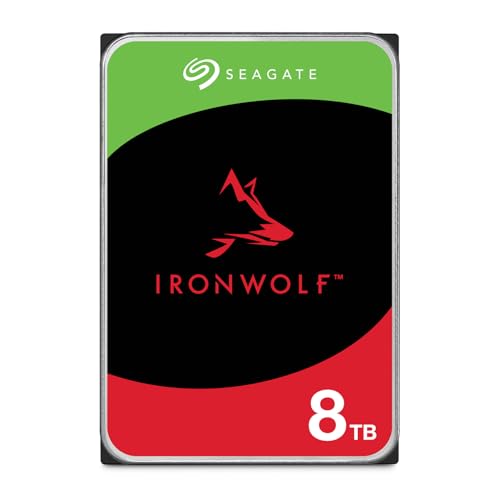
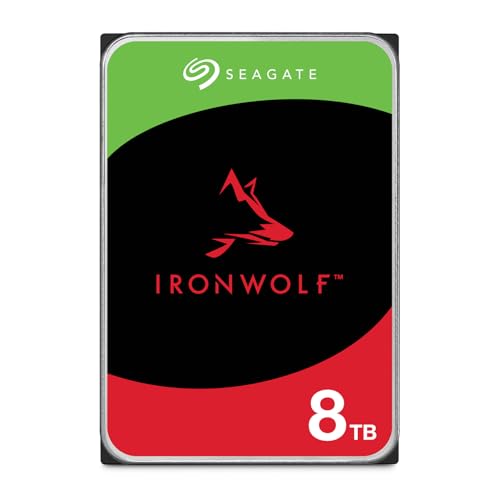
Seagate IronWolf 8TB NAS HDD — Seagate 8TB IronWolf Internal NAS Hard Drive | SATA 6 Gb/s (ST8000VNZ04) | 24/7 NAS-optimized HDD. AgileArray, All-CMR, RV sensors for multi-bay, 180TB/year. 3-Year Warranty + 3-Year Rescue. Check on Amazon

WD Red SA500 1TB NAS SSD — Western Digital 1TB WD Red SA500 NAS 3D NAND Internal SSD – SATA III 6 Gb/s, 2.5″/7mm, Up to 560 MB/s – WDS100T1R0A, Solid State Hard Drive. Check on Amazon

Seagate BarraCuda 2TB HDD — Seagate BarraCuda 2TB Internal Hard Drive HDD – 3.5 Inch SATA 6Gb/s 7200 RPM 256MB Cache – Frustration Free Packaging (ST2000DM008/ST2000DMZ08). Check on Amazon
In this guide
Quick verdict
For a NAS that holds data you care about, especially with two or more bays and RAID, buy NAS drives. The price difference over desktop drives is modest, and what it buys — continuous-duty design, vibration sensors and compensation, error-recovery timing tuned for arrays, higher workload ratings and longer warranties — maps directly onto the ways NAS ownership can go wrong. A regular drive is a reasonable choice only for a single-bay, non-critical box holding copies of data that exists elsewhere, where its lighter design brief matches a lighter job.
The sections below unpack each difference so you can judge your own risk rather than obeying a slogan. The recurring theme is that NAS drives are not faster desktop drives; they are differently designed drives, and the design differences are the product.
Side-by-side comparison
| Criterion | NAS drive | Regular desktop drive |
|---|---|---|
| Duty cycle | Designed for 24/7 operation | Designed for typical desktop hours |
| Vibration handling | Sensors and compensation for multi-bay use | Assumes a single-drive environment |
| Error recovery | Timed to cooperate with RAID controllers | Retries longer, which can drop it from an array |
| Workload rating | Higher annual rating | Lower annual rating |
| Recording technology | CMR across NAS lines | Varies; some models are SMR |
| Warranty | Typically longer | Typically shorter |
| Firmware extras | NAS health integration and array-friendly behaviour | Desktop-focused power and acoustic tuning |
Duty cycle and workload: the design brief
A desktop drive’s design assumes a working day: hours of use, then rest, in a case with one drive. A NAS drive assumes the opposite — continuous spinning, constant availability, and reads and writes arriving at all hours from backups, media servers and household members. Manufacturers express this in workload ratings, the annual data throughput the drive is built and warranted for. Running a desktop drive at NAS duty does not guarantee failure, but it operates the drive beyond its tested brief every single day, and warranties are written with that distinction in mind.
The explainer What is a NAS Hard Drive goes deeper into how NAS firmware and hardware differ. The practical takeaway for this comparison is that duty cycle is not marketing garnish. Bearings, motors and electronics specified for continuous service, plus validation inside multi-bay enclosures, are the substance of the NAS premium — modest in price, specific in purpose.
Vibration and error recovery: the invisible differences
Spinning drives vibrate, and in a multi-bay enclosure each drive feels its neighbours’ vibration, which can disturb the precision of the heads. NAS drives carry rotational vibration sensors and firmware compensation so a full enclosure still performs consistently; larger NAS lines are rated for more bays than smaller ones. A desktop drive in a crowded enclosure has no such help, and the result can be reduced performance and accelerated wear that no benchmark of a single drive on a test bench will ever reveal.
Error recovery behaviour is the subtlest and most consequential difference. When a desktop drive hits a hard-to-read sector, it retries persistently — good behaviour for a lone drive with no other copy. In a RAID array, that long retry can exceed the controller’s patience, and the controller may drop the drive from the array entirely, turning a small sector problem into a degraded array and a rebuild. NAS drives limit their retry time and report the error promptly, letting the array reconstruct the data from redundancy and handle the drive on its own terms. This single behaviour justifies NAS drives in RAID more than any speed figure.
When a regular drive is honestly fine
A single-bay NAS or a direct-attached box holding a third copy of data, in a cool spot, with no RAID to protect, asks little of a drive. A regular model there is a defensible economy, especially if it is a drive you already own. Likewise, a desktop PC doing desktop hours is exactly a desktop drive’s home; paying for NAS features inside a single-drive PC buys vibration tolerance with nothing to tolerate. The chooser in How to Choose a Hard Drive frames this as matching line to job, which is the whole argument in one phrase.
What is not fine is the false economy of desktop drives in a multi-bay RAID array protecting your only copy of the family archive. The saving is small, the design mismatch is total, and the failure mode — an array dropping drives during a rebuild — arrives at the worst possible moment. Spend the modest difference, buy the line designed for the workplace, and let the array’s health dashboard, covered in How to Test the Health of a Hard Drive, keep watch from there.
Deciding for your enclosure
Answer these four checks for the specific box you are filling. The same drive can be the right answer for one enclosure and the wrong answer for another.
Step 1: How many bays will be filled?
One bay, no array, copies-only data: a regular drive is defensible. Two or more bays, especially with RAID, point firmly to NAS drives for their vibration handling and error-recovery behaviour. The jump from one drive to an array changes the physics and the failure modes, not just the capacity, and the drive line should change with it.
Step 2: How many hours will it run?
A box that sleeps at night and wakes for evening backups lives a desktop-like life. A box serving files, cameras or media around the clock lives a NAS life and deserves drives rated for it. Be realistic about future use too; NAS boxes tend to accumulate jobs — backups, then media, then cameras — until they never rest.
Step 3: What happens when one drive fails?
If the honest answer is ‘nothing much, the data is elsewhere’, your risk budget is larger and drive choice is freer. If the answer is ‘we lose the family archive’, then RAID plus NAS drives plus an external copy is the responsible stack, and each layer earns its place. Price the layers against the data, not against each other.
Step 4: Does the NAS vendor list the drive as supported?
Enclosure makers publish compatibility lists built from their own testing. A NAS drive on the list is the lowest-surprise purchase in storage. An unlisted drive may work, but ‘may’ is a poor foundation for the box holding your backups. Check the list for your exact enclosure model before ordering.
Common mistakes to avoid
Judging NAS drives by desktop benchmarks
Single-drive speed tests miss everything that distinguishes a NAS drive: vibration behaviour in a full enclosure, error timing with a controller, sustained-write consistency during rebuilds. A desktop drive can win a benchmark and lose the array. Choose by design fit and vendor validation, not by a graph.
Mixing SMR desktop drives into a RAID array
Shingled drives’ sustained-write slowdowns collide with rebuilds, the longest sustained write a NAS ever performs. NAS lines use CMR for exactly this reason. Check recording technology on the specification sheet for any drive destined for an array, because the retail box may not mention it.
Assuming RAID makes drive quality optional
RAID protects against a drive failure; it does not protect against the array mishandling errors, nor against deletion, theft or ransomware. Quality drives reduce how often you test the redundancy, and an external or off-site copy covers what RAID cannot. Layers, again, are the answer.
Practical tips that make a real difference
Buy array drives from different batches when you can
Drives bought together share manufacturing batches and sometimes share failure timing. For a multi-bay array, sourcing from different sellers or at slightly different times diversifies that risk cheaply. It is a small, old professional habit that costs nothing and occasionally saves an array.
Keep one cold spare for larger arrays
If your NAS holds data you cannot pause, a spare NAS drive on the shelf turns a failure into a same-day rebuild instead of a delivery wait in a degraded state. The degraded window is when arrays are most vulnerable, so shortening it is real protection, not paranoia.
NAS drive vs regular hard drive: total cost over a service life
The shelf price gap between a NAS drive and a desktop drive of the same capacity is real but modest, and it is the smallest number in the true comparison. The full accounting includes the cost of the failure modes each choice invites: an array that drops a desktop drive during a rebuild costs an evening of anxiety at best and a recovery bill at worst; a NAS that hums along for years costs nothing further at all. It includes downtime, which for a home media server is an annoyance and for a small business file store is lost work. And it includes warranty length, because a drive replaced free in year four has a different lifetime cost from one replaced at your expense in year two.
None of this argues for buying the most expensive line in every situation. It argues for pricing the decision honestly: the premium buys down specific, named risks — duty mismatch, vibration, error-timing conflicts — in the specific environment where those risks live. In a single-bay box holding a third copy, those risks are nearly absent and the premium buys almost nothing, which is why this guide blesses the regular drive there. In a four-bay array holding the household archive, the same premium is the cheapest insurance in the whole system. Same drives, same gap, opposite conclusions — because cost only means anything relative to risk.
Firmware updates, health reporting and ecosystem fit
A subtler difference lives in how each drive class participates in its ecosystem. NAS enclosures test and list specific drive models, integrate their health reporting into dashboards, and in some ecosystems unlock vendor features — health scoring, recovery services, tuned notifications — for validated drives. A desktop drive in the same bay may report less, integrate less and sit outside the enclosure maker’s tested configurations, which matters most on the worst day, when you are reading a dashboard at midnight trying to decide which drive to pull. Being inside the tested set is a form of support you only appreciate when you need it.
Firmware maintenance follows the same pattern. Drive makers occasionally publish firmware updates addressing behaviour in specific environments, and NAS lines receive the array-relevant attention. None of this requires obsessive updating — storage firmware is not phone software, and the rule of not fixing what is not broken applies — but it is one more way the NAS line is a citizen of its ecosystem while the desktop drive is a tourist. For a box you intend to run for five or more years, citizenship compounds quietly in your favour.
What happens during a rebuild, hour by hour
The rebuild is where this comparison stops being theoretical. A drive in the array has failed or been replaced, and the controller must reconstruct the new member’s contents by reading every surviving drive, end to end, while the household keeps using the box. This is the longest sustained workload a NAS ever performs, performed by drives that are, statistically, the same age as the one that just died. NAS drives are built for this day: CMR recording keeps their write pace honest for hours, vibration compensation keeps a full, working chassis stable, and error timing lets the controller work around a survivor’s bad patch instead of ejecting it and ending the rebuild — and the array — on the spot.
Desktop drives meet the same day with different equipment. An SMR member’s write pace can sag dramatically under the rebuild’s relentless load, stretching the vulnerable window from hours into days. A desktop member that finds a hard sector may retry so long that the controller drops it too, converting one failure into two and a rebuild into a loss. These are not certainties — many desktop-drive arrays rebuild uneventfully — but a rebuild is precisely the moment a storage system should not be relying on luck. You choose your drives on an ordinary day for the worst day, and the worst day has a name: rebuild.
Reading the compatibility list like a contract
The enclosure maker’s compatibility list deserves a closer look, because it is the most underused document in home storage. It records which drives the maker has tested in which enclosures, sometimes with notes about firmware versions or capacities. A drive’s presence on the list is a tested promise about a system — thermals, behaviour under rebuild, health reporting — that no component specification can make alone. Its absence is not a condemnation, but it moves the risk from the manufacturer’s test bench to your shelf, and the price difference between a listed NAS drive and an unlisted anything is usually smaller than the value of keeping that risk where it belongs.
Check the list at purchase time and again when expanding an array years later, because lists evolve as drives are validated or age out of support. If your exact enclosure is old enough that current drives no longer appear for it, that is information about the enclosure’s remaining career as much as the drives’. Storage systems age as systems. The drive decision, made with the list open, is where that ageing is managed gracefully — matched components, documented in your register, replaced in an order you chose rather than one a failure chose for you.
One practical question remains for households mid-decision: can the two classes be mixed in one array while budget catches up? Technically an array will usually accept mixed members, and the system will run — at the mercy of its weakest member’s behaviours. The desktop drive’s error timing governs how the controller experiences trouble, its recording technology governs rebuild pace, and its duty design governs the ensemble’s risk. Mixing is therefore a tolerable bridge with a planned end, not a destination: note which bays hold the temporary members, keep the array’s external copy impeccably current while they serve, and replace them in order of age and workload as funds allow. A bridge you intend to cross is engineering; a bridge you forget you are standing on is how arrays surprise people.
Frequently asked questions
Can I use a regular drive in a NAS temporarily?
Yes, and many people do while a replacement ships. It will work; it simply operates outside its design brief and lacks array-tuned behaviours. Treat it as a stopgap, keep backups current while it serves, and return it to desktop duty when the NAS drive arrives. Temporary is the operative word.
Are NAS drives slower than desktop drives?
Not meaningfully for NAS workloads. Some NAS lines spin at lower speeds for cooler, quieter continuous running, and network speed usually limits transfers before the drives do. The performance that matters in a NAS is sustained, shared and rebuild behaviour, where NAS drives are designed to be consistent rather than occasionally quick.
Do NAS drives work in a desktop PC?
Yes, they use standard SATA connections and behave normally. Their firmware tuning aims at arrays, but nothing prevents desktop use. It is usually a more expensive way to fill a desktop bay, though people repurposing a retired NAS drive into a PC are making a perfectly sensible move.
What does the workload rating mean for my choice?
It is the annual read-plus-write volume the drive is designed and warranted to handle. NAS lines carry substantially higher ratings than desktop lines. You do not need to measure your workload precisely; the rating is a signal of the drive’s intended life. Choose the line whose rating brackets your reality with room to spare.
How many bays are NAS drive lines rated for?
It varies by line: entry NAS drives suit small enclosures, while higher lines are validated for larger bay counts with stronger vibration compensation. Match the line to your enclosure size using the manufacturer’s guidance. Putting small-enclosure drives in a large, fully populated chassis repeats the original mistake at a higher price.
Is a NAS drive worth it for a single-bay box?
It is a judgement call. The continuous-duty design and longer warranty still have value, and if the box runs constantly or holds your primary backups, the NAS line is the calmer choice. If the box holds a third copy and sleeps most of the day, a regular drive is an honest economy. Let duty and data value decide.
The bottom line
NAS drives earn their modest premium in the exact places NAS ownership gets difficult: continuous duty, crowded vibrating enclosures, and arrays that must handle errors gracefully. Match the drive line to the workplace, verify it against your enclosure’s compatibility list, and keep a separate copy regardless — because no drive line, however well designed, is a backup by itself.
The rebuild, hour by hour: where the firmware difference stops being theory
Every NAS owner eventually watches a rebuild, and it is the moment this comparison was invented for. A member drive has failed or been replaced, and the array must reconstruct its contents onto the new drive by reading everything that remains — a process that runs for many hours, during which the array is both busy and unprotected against a second failure. A regular desktop drive in this situation brings two liabilities that no datasheet headline mentions. Its error-recovery behaviour, tuned for a desktop where a difficult sector deserves persistent retries, can stall on a damaged patch while the array’s controller waits with a timeout of its own; when the timeout wins, the controller may drop the struggling drive from the array entirely, converting a rebuild into a crisis. Its vibration manners, adequate alone in a case, are amplified by neighbours doing the same marathon in the same small chassis, and the whole array’s error rate climbs with the shaking.
The NAS drive’s firmware exists precisely for this day. Its error recovery is deliberately brief — report the problem, let the array’s redundancy supply the data from elsewhere, keep moving — because in an array, a fast honest failure is worth more than a slow heroic retry. Its vibration sensors let it compensate for the neighbours’ motion instead of adding its own errors to the count. None of this is visible in ordinary service, which is the point: the premium buys behaviour reserved for the array’s worst day, and judging it by ordinary Tuesdays misses what it is for.
Mixed arrays and gradual migrations: the realistic middle
Few households rebuild their storage from scratch; most migrate, one drive at a time, as budgets and failures dictate. Mixing NAS and regular drives in one array during such a migration is common and workable, provided you understand what the mixture inherits. The array’s error behaviour follows its least patient member, its vibration environment follows the sum of all members, and its workload rating is a polite fiction unless every member carries one. A sensible migration therefore replaces the hardest-working or oldest regular drives first, keeps the array’s backups impeccable throughout — a migration is a season of elevated risk by definition — and treats the mixed period as a bridge, not a destination.
There is one mixture to avoid entirely: drives using shingled recording inside a parity array that must rebuild. The sustained, array-wide writing of a rebuild interacts badly with shingled media’s housekeeping, stretching the process and multiplying its stalls, whatever badge the drive wears. Check the recording method of any drive destined for array duty with the same care as its product line, and let the array’s worst day, not its average day, vet every candidate. Our guide to hard drives for home NAS keeps its recommendations inside the lines drawn for exactly this duty.
What the workload rating commits each side to
The annual workload figure is the closest thing storage has to a contract, and the two sides of this comparison sign very different ones. A desktop drive’s rating assumes a working week: powered for office hours, idle or asleep between, writing a modest annual total. A NAS drive’s rating assumes the opposite life — continuous power, an annual throughput several times larger, an array’s company. Running a desktop drive in NAS service does not merely bend these assumptions; it voids the premises its warranty and its design margins rest on, which is why experienced NAS owners speak of the rating the way electricians speak of a cable’s gauge: not as a suggestion, but as the boundary of the design.
Your own workload is measurable enough to compare. Backup software reports how much it writes; a NAS dashboard accumulates the array’s traffic; even a rough annual estimate, set beside the two ratings, tells you which contract your life resembles. Most home users discover their archive NAS writes far less than its drives allow and their backup targets write far more than they guessed — information that rearranges at least one purchase in most households that bother to gather it.
Beyond the array: surveillance, servers and other continuous duties
The comparison escapes the NAS more often than its name suggests, because continuous duty appears in other household costumes. A drive recording security cameras writes sequentially, endlessly, overwriting its oldest footage in a loop — a workload with its own dedicated product lines whose firmware prioritises never dropping a frame over every other virtue, and a role where a regular desktop drive’s assumptions fail in the opposite direction from the NAS case. A small home server — media, files, a few services for the household — reproduces the NAS pattern without the badge, and deserves the NAS answer for the same reasons: continuous hours, shared access, no human listening for trouble. Even a desktop that never sleeps because it hosts the family’s services has quietly crossed the line this comparison draws, and its next drive should be chosen from the continuous-duty side of the shelf.
The general principle is portable: match the drive’s designed duty cycle to the life it will actually live, and let the specific product categories — desktop, NAS, surveillance, enterprise — be read as duty statements first and marketing second. A drive’s name describes its intended life; believe it.
The second-hand and hand-me-down angle
Used drives complicate the comparison with history. A retired enterprise or NAS drive offered cheaply carries professional lineage and a professional’s mileage: its health report may show enormous hours beside a clean surface, which is either a bargain in durability or a warning about remaining margin, depending on the numbers. A used desktop drive of the same age has lived a gentler life at lower hours but with no design margin for the array you may be planning. Read the health data before the badge in all second-hand cases, price the remaining warranty at zero, and assign used drives to duties whose failure you can absorb — a second backup copy, a media library that exists elsewhere — until they have re-earned trust in your own service. The comparison between new NAS and regular drives is about design; the comparison between used ones is about evidence, and evidence outranks design every time it is available.
Decision questions for the array you actually own
My NAS has two bays and holds only backups. Do I still need NAS drives?
Your duty cycle argues yes if the unit runs continuously, which backup NAS units usually do — the hours accumulate whether or not data flows, and the drives’ design brief is the hours as much as the throughput. If your backup NAS sleeps or powers down between scheduled runs, its life genuinely resembles a desktop’s, and honest desktop drives become defensible. The deciding fact is the power schedule, so decide that first and let the drives follow.
One of my array’s drives failed. Must its replacement match the line?
Match the model if you can; match the line and recording method if you cannot; and treat a temporary substitute from another line as exactly that — temporary, with the array’s backups verified and a correct replacement ordered. Arrays forgive a guest. They should not be asked to raise one.
Is the price gap between the lines ever not worth paying?
Yes: in single-drive, intermittent, well-backed-up roles — a desktop’s second drive, an enclosure that works an hour a week — the NAS line’s virtues address problems the role never poses, and the regular drive is the honest purchase. The comparison was never that one line is better; it is that each line is better at the life it was designed for, and money spent matching design to life is never the waste. Money spent ignoring the match is, eventually, always collected.
Can firmware updates change which side of the comparison a drive belongs on?
Updates refine behaviour within a design; they do not redesign. A desktop drive remains a desktop drive after its update — its sensors, its ratings and its mechanical margins are hardware. Keep firmware current on both sides of the line for reliability and security, and choose the line itself at purchase, where the choice actually lives.
Setting up a new array: decisions the comparison informs
A new NAS build concentrates this article’s choices into one shopping list, and the order of decisions matters. Decide the array type first, because parity arrays place the heaviest rebuild demands on their members and therefore argue most strongly for NAS-class drives throughout, while a simple mirror of two drives is the most forgiving arrangement a regular drive will ever meet. Decide the power schedule second — continuous or scheduled — because it determines whether your drives’ lives will resemble the NAS design brief or a desktop’s. Decide the environment third: a NAS in a ventilated cupboard forgives heat that a NAS in a sealed media cabinet compounds, and drive choice can compensate only so far for a hostile home. Only then, with those three answers written down, does the product-line question answer itself, usually unanimously.
During the array’s first month, establish the baselines this comparison depends on later. Record each drive’s serial number against its bay, save the initial health reports, schedule the array’s own scrub and self-test routines, and perform one deliberate rehearsal: pull no drives, but walk the replacement procedure in the interface until you know where every confirmation lives. The first real failure should not be your first navigation of the menus, and the drives you chose — NAS or regular — will perform their side of the bargain best in a system whose owner has rehearsed theirs.
When the regular drive wins the argument outright
Honesty requires the cases where this comparison is not close. A single external enclosure used for a weekly backup, powered for an hour and shelved for six days, gives a NAS drive nothing to be good at: no array, no vibration company, no continuous hours, no rebuild. A desktop’s game-library drive, spinning up for evening sessions in a cool case, lives the exact life the desktop line was designed around. A temporary drive — holding a migration for a fortnight, staging a one-off archive copy — needs adequacy, not pedigree. In each case the regular drive is not a compromise but the correct engineering, and the money saved belongs to the backup media, the enclosure quality or the next drive in the rotation, where it will do measurable good. The NAS line’s premium purchases insurance against specific events; where those events cannot occur, the premium purchases nothing, and a good guide should say so as plainly as it recommends the opposite elsewhere.
Reading a NAS drive’s datasheet against a desktop drive’s
Place the two datasheets side by side and the comparison becomes documentary. The NAS sheet leads with its annual workload rating, its error rate, its vibration specification and its rated hours — the vocabulary of continuous, accompanied service. The desktop sheet leads with capacity, interface and acoustics, and its workload figure, where it appears at all, sits in the fine print at a fraction of the NAS drive’s. Neither document is lying; each is describing the life its drive was built to survive, in the order its intended reader cares about. Learning to read these sheets in parallel is the fastest way to make this article’s argument your own, because the manufacturers state the difference more bluntly in their tables than any reviewer dares in prose: these are different instruments, tuned for different service, sharing a shape and a connector the way a delivery van and a family car share a road.
Two figures deserve your particular attention in the parallel reading. The non-recoverable error rate predicts how often the array’s redundancy will be called upon during the vast reads a rebuild performs, and the NAS drive’s advantage there is not marginal but structural — it is the difference between a rebuild that is a chore and a rebuild that is a gamble. And the load-cycle and power figures reveal the assumed rhythm of each drive’s life, spin-up by spin-up: the desktop drive expects evenings and weekends, the NAS drive expects to forget what being off feels like. Buy the drive whose assumptions match your calendar, and most of what this comparison exists to teach has been applied.
The one-sentence version, for the reader in a hurry
If the drive will live in an array, run around the clock, or share an enclosure with working neighbours, buy the line designed for that life; if it will live alone, work office hours and rest at night, the regular line is its honest match — and in both cases, verify the recording method, record the health baseline, and keep the array’s backups worthy of the drives you chose.
One last population should hear its verdict directly: the owner of a single-bay NAS, who sometimes wonders whether the array arguments in this article apply to a device with no array at all. They apply in proportion. Your drive still lives the continuous life, still shares its enclosure with its own heat around the clock, still faces a rebuild of one whenever it is replaced and its data restored — and its error behaviour still decides whether small corruptions are reported honestly or retried into silence. The vibration chapter alone shrinks, with no neighbours to shake it. Read the comparison with that single discount applied, and the NAS line’s case in a one-bay home remains what it is in a four-bay one: a drive designed for the life your enclosure actually schedules, which is the only design brief that has ever mattered.
What changes when the array is built from solid-state’s shadow
A question increasingly asked at this comparison’s edge: as solid-state drives enter home servers for caches and fast tiers, does the mechanical tier’s product line matter less? The opposite is true. Tiering concentrates the mechanical drives’ role into exactly the work this article describes — bulk, continuous, arrayed, rebuilt on the array’s worst day — while the fast tier absorbs the random-access work that once excused a desktop drive’s presence. The mechanical tier becomes purer, not less important, and its drives should be chosen more strictly by the NAS criteria, not less. The household server of the near future is a small solid-state tier for heat and a mechanical array for truth, and the truth tier’s drives are NAS drives by design or they are guests. Plan the array’s purchases accordingly, and let each technology do the work its physics prefers.
Keep the array’s perspective and most storage decisions simplify in the same way. Ask of any candidate drive not how it performs in a reviewer’s single-drive test, but how it behaves on the array’s worst day, in its fifth year, at three in the morning, with one member already gone. Drives designed for that hour exist, are labelled for it, and cost their premium precisely because that hour is coming. Drives designed for gentler lives are excellent where those lives are lived. The comparison was never a contest; it is a matching exercise, and the array — patient, redundant, always on — is simply the most honest examiner a drive will ever face.
And if your array is small, young and backed up to the standard this site preaches, take the comparison in the spirit it is offered: not as a rule that excommunicates the desktop drive already purring in your second bay, but as the lens for the next purchase, the next replacement, the next enclosure. Storage systems are built one drive at a time across years, and a lens applied consistently at each of those moments produces, in the end, an array that matches its life — which is all that good engineering ever promised anyone.
Decide by the life the drive will live, install it with its baseline recorded, rehearse its replacement before you need the rehearsal, and let the array get on with the quiet, continuous work it exists to do. That is the whole comparison, applied.
Future arrays will blur these lines too — new tiers, new media, new firmware intelligence — and the reader who learned to ask what life a drive was designed for will read each new product line fluently, whatever badge it wears. Product categories change with the market. Duty cycles, rebuilds and three-o’clock failures do not, and a drive chosen for the life it will actually live remains the right answer in every generation of this technology.
Choose by design brief, verify by health log, and the array will repay the attention in the only currency it deals in: years of unremarkable, continuous service, and a worst day that turns out to be merely a long one.
That service, in the end, is the verdict every comparison on this page has been circling: the right drive is the one whose design brief reads like a description of your enclosure’s actual life — its hours, its company, its worst day included.
Match those two documents — the datasheet and the life — and the badge on the box becomes what it should always have been: a summary you could have written yourself.
Everything else is installation, and installation, done calmly, is an afternoon.
Begin it well prepared.