Disclosure: As an Amazon Associate, ilcastellomenu.com earns from qualifying purchases. Product examples below link to Amazon, where you can check current availability and specifications; this guide itself lists no fixed prices because pricing and bundles change frequently.
Learning how to fix stuttering in PC games begins with a distinction that saves hours: stutter is not low frame rate. A game can average a healthy frame rate and still hitch — a frozen beat here, a judder there — because individual frames arrive unevenly. Chasing average FPS will not cure it. What cures it is finding which part of your system occasionally stalls: storage, memory, thermals, drivers, background software or the game’s own streaming, and this guide hunts them in the order they most often confess.
Keep notes as you go. Stutter is an intermittent fault, and intermittent faults yield to method, not to changing five settings at once and hoping. Reproduce the problem in the same game, in the same area, with the same test run after every change — a busy city street, a fast vehicle section, anywhere the hitching reliably appears. One change, one test, one verdict.
How to Fix Stuttering in PC Games: Read the Symptom Pattern
The pattern of the stutter is your first witness. Hitching when entering new areas or turning quickly points at asset streaming — storage and memory. Regular, rhythmic judder points at frame pacing, sync settings or a frame-rate cap fighting your display. Stutter that arrives after twenty good minutes points at heat. Stutter in one game only points at that game — its settings, its engine quirks or its shader compilation behaviour. Stutter everywhere, including the desktop, points at the system itself.
Modern games compile shaders — small programs that prepare visual effects — and many do it during play, producing hitches the first time each effect appears. The signature is stutter that fades the longer you play a level and returns in new areas. Some titles compile up front at first launch (let that process finish), and driver or game updates can reset the cache and restart the cycle. If your pattern matches, patience plus updated drivers is genuinely the fix, and recognising it saves you from rebuilding a healthy PC.
In this guide
Fix 1: Storage and Memory — The Streaming Foundation
Games stream assets continuously, and the pipeline is only as fast as its slowest link. If the affected games live on a mechanical hard drive, moving them to an SSD is the single most effective anti-stutter upgrade there is — see the storage rung of How to Upgrade a Gaming PC. Check the drive’s health and free space too: nearly full SSDs slow down, and a drive reporting errors in its monitoring data is a suspect, not a bystander.
Memory is the other half of streaming. When RAM fills, the system pages data to the drive mid-game and every page-in is a potential hitch. Watch memory usage during your test run: if it presses against your installed total, you have found your culprit, and How Much Ram does a Gaming PC Need explains the capacity and configuration fix — including the dual-channel detail that costs nothing. Close the obvious co-tenants before testing: browsers are the worst offenders, quietly holding gigabytes across dozens of tabs.
Fix 2: Thermals and Power — The Delayed-Onset Causes
Heat produces the cruellest stutter pattern: perfection for fifteen minutes, then a machine that trips over itself. As the CPU or GPU approaches its temperature limit it throttles — clocks drop sharply, frames hitch, temperatures fall, clocks recover, and the cycle repeats as judder. Log temperatures and clock speeds during a session that stutters; a sawtooth pattern convicts thermals on the spot. The remedies are the airflow, dust and cooler work in How to Cool a Gaming PC, escalating to the acute-care sequence in How to Fix a Gaming PC that Overheats if shutdowns have joined the symptoms.
Power delivery leaves a similar fingerprint on laptops and on desktops with marginal supplies: components that cannot draw what they need will oscillate instead of settling. On a laptop, test plugged in with its performance power plan; on a desktop, a power supply that is old, undersized for a recent GPU upgrade or simply failing can produce load-dependent stutter that mimics every other fault in this guide — which is why the honest diagnostic order checks it before condemning expensive parts.
Fix 3: Drivers, Overlays and Background Software
Graphics drivers are the highest-churn software on a gaming PC and the first software suspect. If stutter arrived with a driver update, roll back; if you have not updated in a year, update; if the problem is chronic, a clean driver installation — using the installer’s clean option or a dedicated removal tool in safe mode — clears the accumulated debris of a dozen in-place upgrades. Chipset and storage drivers deserve the same respect on a freshly built or freshly upgraded machine.
Then strip the stage. Overlays from launchers, chat and capture tools inject themselves into the rendering path and are documented stutter sources; disable them all, test, and reintroduce one at a time. Background scans, cloud sync uploads and browser video tabs each take their turn as the confessed culprit in real troubleshooting threads. A gaming session deserves a quiet system: the test is whether the stutter survives a clean environment, and if it does not, you have your answer and your culprit list, one re-enabled app at a time.
Fix 4: Frame Pacing — Caps, Sync and Settings
When the pipeline is healthy and stutter persists, the problem is often rhythm rather than power. An uncapped frame rate that swings wildly feels worse than a slightly lower, stable one: cap the frame rate a few frames below your monitor’s refresh maximum, or at a value your system holds in the busiest scenes, and judge smoothness by feel over a full test run rather than by the counter’s peak. Variable-refresh displays (G-Sync and FreeSync class) exist precisely to smooth this, but they work within a range — a cap keeps you inside it.
| Stutter pattern | Likeliest cause | First move |
|---|---|---|
| Hitches entering new areas | Asset streaming: HDD or full RAM | Move game to SSD; check memory pressure |
| Bad at first, fades as you play | Shader compilation | Update drivers; let first-run compiling finish |
| Starts after 15–30 minutes | Thermal throttling | Log temperatures; clean and improve airflow |
| Rhythmic judder at all times | Frame pacing or sync conflict | Cap frame rate just under refresh; test sync off/on |
| One game only | That game’s settings or engine | Lower streaming-heavy settings; check its known issues |
| Everywhere including desktop | System: drivers, background load, failing drive | Clean driver install; strip overlays; check drive health |
In-game settings have streaming budgets too. Texture quality settings that exceed your GPU’s memory force constant swapping — lower textures one notch and watch the stutter, not the screenshots. Draw-distance and world-density sliders govern how much the game streams per second; they are stutter controls wearing graphics clothing. Change one, run your test route, and keep a written record — the same discipline our mouse-troubleshooting guides preach, applied to frames. If a specific title remains stubborn, its community will usually have named the setting already; engines have personalities, and searching the game’s name plus ‘stutter’ plus your GPU family is legitimate research, not surrender.
When to Suspect Hardware — and What to Do Next
If a clean software environment, healthy temperatures, an SSD with room to breathe and adequate memory still stutter in every game, hardware suspicion is earned. Test memory with a dedicated memory-checking tool overnight; test with a single RAM stick at a time; try the GPU in another system or another GPU in yours if spares exist. Each swap that moves the fault names the part. This is also where a warranty conversation starts, with your notes as evidence.
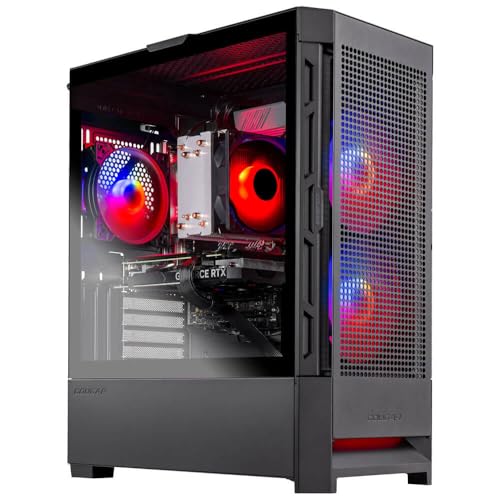
And if the verdict is that the machine has simply aged past your games, take comfort in the shape of the cure: stutter causes are the upgrade ladder’s home ground, and targeted fixes — storage, memory, one graphics card — resolve most cases without a new PC. Complete-system comparisons in Best Pcs for Gaming are for calibration, not obligation. Method first, money second: that order is the whole secret of this guide.
Frame-Time Literacy: Learning to See the Real Graph
The single upgrade to your troubleshooting skill is learning to read frame times instead of frame rates. Most performance overlays can show a frame-time graph — a line whose flatness is smoothness itself. A healthy line is boring: a steady band with minor variation. Your stutter lives in the spikes, and the graph’s gift is correlation: a spike that lands exactly when you enter a new area, exactly when the drive light would flicker, exactly at a temperature peak, is a confession with a timestamp. Spend one session watching the graph while you reproduce the problem and you will learn more than a week of settings folklore teaches.
This literacy also protects you from false cures. Settings changes often coincide with a good run — a quiet server, a cool evening, a level you have already compiled — and get credited for an improvement they did not cause. The graph, compared across identical test routes, does not flatter anyone. Keep the overlay on during your fix attempts in this guide, and let it deliver the verdicts; your future self, facing the next game’s stutter, will inherit a method instead of a pile of superstitions.
Per-Game Personalities: Engines Have Habits
After the system-level causes are cleared, what remains is the game’s own character, and engines genuinely differ. Some stream aggressively and punish slow storage in open worlds; some compile shaders at runtime and hitch on first encounters; some are CPU-bound in crowded scenes no matter the graphics settings; some simply ship with a known stutter that a patch addresses months later. The community knowledge for a specific title — its forums, its patch notes, its settings guides — is deep in a way no general guide can be, and consulting it is not a failure of method but its final stage: you arrive knowing your system is innocent, which makes the game’s confession easy to recognise.
Contribute back when you find your fix. A short post naming your hardware, your symptom pattern and the change that cured it is the exact artefact that saves the next player an evening — the troubleshooting commons runs on such notes. And keep perspective on the stubborn remainder: a small number of games stutter on essentially all hardware at launch, and the correct fix is the developer’s next patch plus your patience. Not every hitch is yours to repair, and recognising those is the last skill in this guide.
Prevention: A System That Rarely Stutters
The cured system stays cured through the same habits that run through this whole guide series: games on the SSD with space to spare, memory with headroom, drivers updated deliberately rather than reflexively — a week after release, once the early reports are in — and a background environment kept lean while you play. Add one habit specific to stutter: after any major change (new driver, new hardware, a big game update), run your standard test route once and glance at the frame-time graph. Deviations caught on day one are associations you can still make; deviations noticed a month later are archaeology.
A Night at the Troubleshooting Desk: One Session, Start to Finish
A single worked session shows the method’s rhythm. The patient: a capable PC, two years old, stuttering in a new open-world game — traversal hitches, worst in the city, absent in menus and in the owner’s other games. The frame-time graph goes on first, and the test route is fixed: the same vehicle run through the same district, three times per experiment, spikes noted. Baseline established: clean lines on the highway, a thicket of spikes at every district boundary — the streaming signature, in a game installed, the owner then recalls, on the old hard drive because the SSD was full.
Experiment one costs nothing: space is freed on the SSD by exiling a library of finished games, and the title is moved across. The test route’s thicket thins dramatically but does not vanish; the remaining spikes correlate with the memory graph pressing at the installed ceiling — this machine carries a single memory stick from a budget decision two years ago, and the session’s other resident, a browser, is not helping. Experiment two is a matched memory pair, installed in ten minutes, profile enabled. The route now runs clean: three passes, a boring graph, a city that streams like it means it.
Total spend: one memory kit. Total settings changed in the game: none. The owner’s original plan — a graphics card, chosen because ‘stutter means the GPU is weak’ — would have left both real causes untouched and both real fixes unfunded. The session’s moral is the guide’s whole argument in one evening: the graph named the disease family, the pattern named the suspects, and the cheapest test convicted them in order. Method is not the slow way to fix stutter. It is the fast way that looks slow for the first ten minutes.
The CPU-Bound Stutter: When the Processor Is the Stall
One cause deserves a deeper look because its signature is so often misread: the CPU-bound stutter. In crowded scenes — cities, battles, simulations with many agents — the processor must prepare each frame before the GPU can draw it, and if the CPU cannot keep pace, the GPU waits, and the waiting arrives as stutter that no graphics setting fully cures. The overlay tells the story plainly: GPU utilisation falls below its usual level during the hitches while one or a few CPU cores sit pinned at their maximum. That combination — a resting GPU and a drowning core — is the CPU limit’s fingerprint, and it inverts the usual shopping instinct: the fix is not a faster graphics card, which would wait even more expensively.
What can be done short of a processor upgrade is still worth doing. Settings that govern simulation load — crowd density, draw distance for objects the CPU must manage, physics detail, view distance in multiplayer titles — tax the CPU specifically, and lowering them targets the bottleneck precisely while leaving the GPU’s prettier settings alone. Background load matters doubly here, because every background process competes for the same cores the game is starving on; a browser playing video during a CPU-bound session is not a bystander but a participant in the crime.
Memory configuration joins this conversation too, because CPU performance is partly memory performance: a single-stick setup or an unenabled memory profile starves the processor’s data supply and shows up in exactly the crowded scenes where the CPU is already the limit. Players who fix configuration first sometimes find their ‘CPU bottleneck’ was partly a memory bottleneck wearing the CPU’s clothes — one more reason the diagnostic order in this guide checks the cheap, systemic things before pricing a processor.
DPC Latency and the Audio Driver Surprise
Here is the deep cut that solves the cases nothing else explains. Windows handles much of its driver work through deferred procedure calls — small tasks that drivers queue for the kernel — and a misbehaving driver can monopolise that queue in bursts, stalling everything, including your game’s frame delivery, for milliseconds at a time. The symptom is maddeningly generic: periodic hitches across games and even on the desktop, often with an audio crackle or pop riding along, because audio is exquisitely sensitive to the same stalls. The usual suspects are network drivers, audio drivers, and ageing storage or USB drivers — rarely the graphics driver everyone blames first.
Diagnosis uses a latency-monitoring tool, which reports which driver is holding the floor and for how long; the readout names names in a way few troubleshooting tools dare to. The fixes follow the names: update or roll back the convicted driver, prefer the motherboard or device maker’s current version over a years-old Windows default, and check whether a specific device — an old Wi-Fi adapter is the classic — is worth replacing outright. Players who find their culprit here tend to become evangelists, because the fault is invisible to every other instrument in this guide and obvious to this one.
Treat this as the advanced branch of the flowchart, not the first stop. DPC problems are real but not common, and the common causes — streaming, thermals, drivers, background load — should be cleared first, because they are cheaper to test and likelier to confess. When they have all been cleared and the stutter remains eerily regular, this is where the method leads next, and it leads there with evidence rather than folklore.
Windows and Platform Settings That Quietly Matter
A handful of operating-system settings sit close enough to the rendering path to deserve an audit. The power plan is the first: an aggressive power-saving configuration can park cores and downclock components in ways that produce exactly the uneven delivery this guide hunts, and the balanced or performance plan appropriate to a gaming desktop removes that whole family of suspicion. On laptops, the plan plus the plugged-in state is half the machine’s personality, and testing on battery is testing a different computer.
Game Mode and hardware-accelerated GPU scheduling are the second audit — both are designed to help, both usually do, and both have individual systems and titles where they interact badly with a specific driver or engine. The method applies as always: toggle one, run the test route, keep the graph’s verdict rather than the internet’s. Full-screen optimisations and per-game compatibility settings belong to the same family of levers: occasionally decisive for one stubborn title, never a general prescription.
The third audit is storage policy: confirm your SSD is running with its proper driver and that the drive hosting the game is not also the drive being hammered by a cloud-sync upload, a backup job or a torrent client during play. The system drive and the game drive being the same physical device is normal and fine; that device being simultaneously busy with someone else’s marathon is a scheduling conflict you can simply move to another hour.
Online Games: Separating Server Stutter From System Stutter
Online titles add a suspect the offline world does not have: the connection between you and the server, whose sins impersonate stutter convincingly. Rubber-banding, teleporting opponents and a world that freezes then fast-forwards are network symptoms — the local machine rendered everything it was told, and what it was told arrived in bursts. The separation test is simple: if the frame-time graph stays clean while the world misbehaves, your system is innocent and the session’s problem lives in the network, the server or the game’s netcode. If the graph spikes in step with the chaos, the fault is local after all.
Network-side remedies are their own discipline — wired over wireless where possible, a router not simultaneously streaming to the whole household, a server region chosen for proximity rather than habit — and they belong to the network’s guides rather than this one. What belongs here is the diagnostic discipline: do not let an online game’s bad evening send you reinstalling drivers on a healthy machine. Confirm local innocence with the graph and an offline title, and only then take the fight to the router, where it belongs. Our guide on how to fix mouse lag in games walks the same separation from the input side, and the two together cover most of what players lump together as ‘lag’.
Recording, Streaming and the Second Audience’s Cost
A PC that games cleanly alone may stutter the moment it also broadcasts, because recording and streaming add real work to the exact pipeline this guide has been protecting: capture, encoding, overlays, alerts and a second monitoring window all draw from the same CPU, GPU and memory budgets. The diagnostic is mercifully binary — test the route with the broadcast stack fully closed — and the remedies are equally concrete: let the GPU’s hardware encoder carry the stream rather than the CPU, cap the game’s frame rate to leave the encoder headroom, and treat the streaming software’s own settings as part of the game’s settings for troubleshooting purposes.
The subtle trap is the slow creep: a stream setup that was fine in spring acquires, by autumn, a new alerts package, a browser-source scene collection and a chat bot’s dashboard, each innocent alone. When a streamer’s stutter has no single cause, audit the accumulated entourage. The machine did not get slower; the session got heavier — the same lesson the memory sections teach, applied to the whole software stack.
Stutter on a Brand-New PC: The First-Week Causes
A new machine that stutters feels like a betrayal, but its causes are a distinct and mostly innocent list. Shader compilation is at its worst in week one, because every game is meeting every effect for the first time; the cure is hours of play, not returns. Drivers and firmware may be older than the components they run — a board that shipped before its CPU existed can behave strangely until its BIOS is current — and a freshly built machine deserves one deliberate update pass before any verdict on its character. Memory profiles are the third innocent: a new build whose kit runs at default speeds because nobody enabled the profile will stutter in exactly the streaming and CPU-bound scenes this guide describes, and its owner will blame the parts instead of the setting.
The fourth new-machine cause is the migration itself: a library being downloaded, indexed, scanned and cloud-synced simultaneously is a background load no troubleshooting should be asked to see through. Let a new PC finish becoming itself — downloads complete, updates settled, caches built — before judging its smoothness. And the fifth is expectation calibration: a player arriving from a locked, consistent console frame rate may perceive ordinary PC frame-time variation as stutter until their test route and graph show them what the numbers actually say. New machines deserve a settling week and a measured baseline, recorded while everything is healthy, against which every future problem can be compared.
Keeping a Stutter Log That Actually Gets Used
Every section of this guide has quietly depended on notes, so here is the format that makes them effortless. For each experiment, record four things: the date, the single change made, the test route result in one sentence, and the graph’s verdict — better, worse, or unchanged. That is the whole schema. A log kept at that weight will actually be kept, which is the entire battle; the elaborate spreadsheet abandoned after two entries has diagnosed nothing, while the scruffy text file with forty honest lines has solved cases that stumped forums.
The log pays its rent at three moments. The first is the relapse, months later, when the stutter returns wearing a new disguise and the log reveals it is the old culprit — the same pattern, the same fix, no rediscovery required. The second is the warranty or support conversation, where a dated record of symptoms and tests converts a vague complaint into an engineering report that gets taken seriously. The third is subtler: the log teaches you your own machine’s biography, until you can hear a new stutter and name its family before the overlay finishes loading. That fluency — not any single fix — is the real destination of troubleshooting as a skill, and it is built one four-line entry at a time.
When Stutter Is a Warning, Not a Nuisance
Most stutter is a performance problem, but occasionally it is a symptom with a prognosis, and the distinction is worth one sober section. Stutter that arrives alongside new noises — a clicking drive, a grinding fan, a power supply’s changed note — is hardware announcing a decline, and the correct response is a backup before it is a diagnosis. Stutter that worsens week by week on an unchanged system, migrating from one game to all games to the desktop, follows the same logic: something in the machine is failing progressively, and the candidates are a dying drive, degrading memory, a weakening power supply or a cooling system losing its fight. Progressive symptoms deserve the hardware branch of this guide early, not after the software branches have been exhausted out of optimism.
The backup point deserves emphasis because it is the only step in this entire guide with a deadline. Data on a failing drive has a closing window, and every hour spent tuning settings on a machine whose drive is dying is an hour borrowed from the rescue. If your stutter’s pattern smells progressive — new, worsening, spreading — copy what matters first, then troubleshoot at leisure on a machine whose worst case is inconvenience rather than loss. Troubleshooting is a skill; knowing when it is not the priority is the wisdom that contains it.
The Order of Fixes, Compressed Into One Page of Method
Everything in this guide reduces to a sequence, and the sequence is worth stating plainly so it can be followed under frustration, which is when method matters most and memory fails first. Step one: define the test — one game, one route, the frame-time graph visible. Step two: read the pattern — streaming, rhythm, heat, one-game, or everywhere — and let it choose your first suspect. Step three: clear the environment — background load, overlays, scans — and retest. Step four: work the pattern’s branch in the order this guide lays out, one change per test, cheapest first. Step five: when the common branches are clean and the stutter persists, go deep — latency tools, hardware swaps, the game’s own community. Step six: whatever the outcome, write it down in four lines.
Notice what the sequence never contains: buying a component to see if it helps, changing five settings and crediting the survivor, or reinstalling anything in the first evening. Those are the three shapes of troubleshooting despair, and each of them destroys the information the method exists to gather. A stutter is a question the machine is asking you about itself, and the sequence is simply how you listen carefully enough to hear the answer. Players who internalise it stop fearing the symptom — not because their PCs stop stuttering, but because they know, in advance, exactly how the story ends: with a graph, a pattern, a convicted cause, and four lines in a log that make the next story shorter.
Gear for This Guide
The examples below come from our verified product pool and illustrate the product classes discussed in this guide. They are examples, not a ranked list — use the criteria in this article to judge any model, including newer revisions.

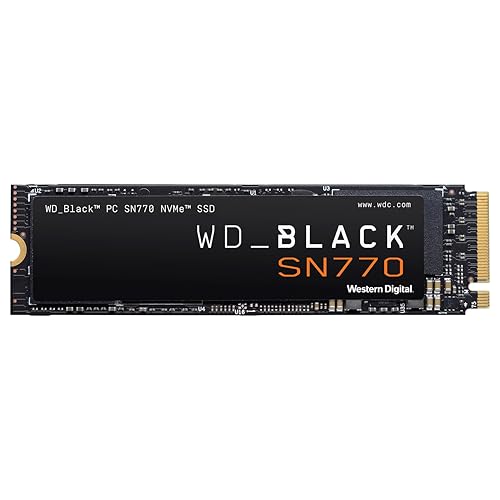
WD_BLACK 1TB SN770 NVMe Internal Gaming SSD
The streaming fix in hardware form: fast NVMe storage removes the most common mechanical cause of traversal hitching in modern games. WD_BLACK 1TB SN770 NVMe Internal Gaming SSD — Check on Amazon

ASUS Dual GeForce RTX 4070 EVO OC Edition Graphics Card
When texture settings outgrow an older card’s memory, a step up in GPU class and VRAM is the definitive cure — after the software checks, not before. ASUS Dual GeForce RTX 4070 EVO OC Edition Graphics Card — Check on Amazon
Frequently Asked Questions
Why does my game stutter even at 100 FPS?
Because the average hides the problem: if a few frames take ten times longer than the rest, you feel each one as a hitch while the counter stays proud. Frame-time consistency, not average rate, is the smoothness metric.
Can an antivirus cause game stutter?
Yes — real-time scanning of a game streaming thousands of files is a classic cause. Exclude the game folder from real-time scanning, or test with the scanner paused, before suspecting hardware.
Does capping FPS really help smoothness?
A cap your system can always hold produces even frame times, which the eye reads as smooth. A slightly lower, stable rate beats a higher, wildly varying one in perceived quality almost every time.
My stutter started after a game update. Is my PC broken?
Almost certainly not. Updates reset shader caches and sometimes introduce engine regressions that the developer later patches. Verify other games still run cleanly, update drivers, and check the game’s community channels before touching hardware.
Is stutter the same as mouse lag?
They can feel similar but have different roots: stutter is uneven frame delivery from the system, while input lag is delay between hand and response. If the whole world hitches, it is stutter; if only your view trails your hand, work through the mouse-lag guide instead.
Can my monitor's settings cause stutter?
A mismatched setup can: variable-refresh disabled while frame rates swing, or a frame cap fighting the display’s refresh, both produce judder that feels like system stutter. Align the cap, the sync mode and the refresh rate as one configuration, not three separate ones.
Bottom line: read the pattern, then fix in order — streaming (storage and RAM), thermals, drivers and background load, frame pacing — testing after every single change. Stutter is a symptom with a short list of causes, and method finds yours.
Why does my stutter get worse in busy multiplayer matches?
Because busy matches stack every load at once: more players and effects for the CPU to simulate, more assets streaming, more network traffic, and often more background software — voice, recording, a stream — joining the session. A system with any single weakness will show it there first. Run the diagnostic route in the busiest mode you play, not the quietest, because a fix that only survives an empty server has not fixed your actual problem.
Can a failing SSD cause stutter before it dies outright?
Yes. A drive developing errors retries reads, and each retry is a pause the game feels as a hitch; a drive running out of spare area or overheating under sustained reads can slow dramatically in bursts. Check the drive’s health data in its maker’s tool or a system monitor, keep real free space on it, and treat a worsening health report as a replacement decision, not a curiosity — back up first, because drives that stutter are sometimes introducing themselves.
Should I reinstall Windows to fix chronic stutter?
Only as the last software resort, after drivers have been cleanly installed, the background environment stripped and the hardware checks run. A reinstall does cure the accumulated-cruft cases — years of layered software can genuinely reach a state no audit untangles — but it costs a day and destroys your evidence. If you do reinstall, add software back in stages and test between stages; otherwise you may rebuild the same stutter on a clean system and learn nothing from the exercise.
Does a second monitor cause stutter in games?
It can, particularly when the second screen runs video or a browser with animated content while the game plays, and in some mixed-refresh-rate combinations where the desktop’s composition has to reconcile two different rhythms. Test with the second monitor’s content closed, then with the monitor disconnected, and let the graph judge. Many players keep the second screen happily once the video tab — not the monitor — is identified as the tenant causing the trouble.
How much free space should my game drive have?
Enough that the drive never has to fight for room: a practical rule is to keep a clear margin — at least a tenth of the drive, and more on smaller drives — because SSDs use free space as working room for their own housekeeping, and a nearly full drive slows in exactly the sustained-write and streaming patterns games exercise. When a library outgrows the drive, moving finished games to slower storage is a better answer than letting the fast drive live permanently at its ceiling.
Can lowering resolution fix stutter, or only frame rate?
It can fix both when the stutter is GPU-bound or VRAM-bound, because a lower resolution reduces the per-frame work and the texture memory pressure simultaneously. If the stutter survives a resolution drop unchanged, that is diagnostic gold: the cause sits elsewhere — CPU, streaming, thermals or software — and you have eliminated the graphics pipeline’s size from suspicion in one experiment. Use resolution as a test even if you would never play at the lower setting permanently.
Why does the stutter vanish when I restart the game?
Because several stutter mechanisms are session-shaped. Memory that fragments and fills across hours is emptied by a restart; shader caches complete and stop interrupting; a thermal soak resets; a leaking background process releases its grip. A fault cured by restarting is telling you it accumulates, and the log’s job is to note how long the clean period lasts — a machine that needs a restart every hour has a different prognosis from one that needs one every week, and the interval is the clue that separates a memory leak from a thermal story.
Is it worth capping frames below what my PC can do in every game?
As a troubleshooting experiment, yes; as a permanent policy, only where the graph says it helps. Some games and systems are simply steadier with a cap, and the smoothness dividend is real. Others pace themselves well uncapped, and a cap there only discards frames. Keep the per-game verdicts in your log — this is a setting whose right answer is individual to each title, and a blanket rule in either direction is a superstition wearing a uniform.
What is the first thing to try on a stuttering game I just installed?
Patience, structured. Let any first-launch shader compilation finish completely, play through the opening area twice — the second pass shows you the compiled, honest game — and only then judge. A remarkable share of launch-day stutter complaints describe the first twenty minutes of a game’s life on that machine, and the cure was simply the second twenty. If the stutter persists into the second session, the method in this guide takes over with a clear field.
Can a game stutter because of my internet if it is single-player?
Occasionally, through the side doors: launchers verifying licences, cloud saves syncing at checkpoints, telemetry and always-online requirements in nominally single-player titles can all hitch a session when a connection drops or a server sulks. The test is the same separation this guide uses for multiplayer — play offline where the game allows it and watch the graph. If the stutter vanishes offline, your PC was never the problem, and the fix is the game’s online behaviour rather than your hardware.
How long should I spend troubleshooting before accepting a game’s stutter?
Work the method for one focused session — pattern, environment, the pattern’s branch — and if the system proves innocent and the game’s community confirms a known issue, accept and move on with a clear conscience. The line is between your machine, which you can fix, and the game’s current build, which you cannot. Knowing which side of that line you are standing on is the entire skill; once you know, further hours are not diligence but rent paid to a problem that belongs to a developer’s patch queue.
What is the one tool I should learn first?
The frame-time graph in your performance overlay. It costs nothing, it works in every game, and it converts stutter from a feeling you argue about into a shape you can point at. Every other instrument in this guide is a specialist; the graph is the general practitioner, and most cases never need to be referred beyond it. Learn it once, and every future game inherits the benefit.
Related Guides
Keep exploring with these guides and roundups from the same Gaming PCs collection: