Disclosure: As an Amazon Associate, ilcastellomenu.com earns from qualifying purchases. Product examples below link to Amazon, where you can check current availability and specifications; this guide itself lists no fixed prices because pricing and bundles change frequently.
Asking how much RAM a gaming PC needs has a refreshingly clear current answer: 16 GB is the working minimum for a machine bought or upgraded today, 32 GB is the comfortable recommendation that removes memory from your list of worries for years, and 64 GB belongs to players who also create, stream heavily or run serious simulation and modding setups. This explainer shows the reasoning behind those numbers, because understanding them protects you from both underspending and the marketing of excess.
We will look at what RAM actually does while you game, how modern titles and Windows divide the capacity between them, why configuration — two sticks, matched speeds — matters as much as the headline number, and how to tell whether your current machine is genuinely memory-limited. It connects directly to the upgrade ladder in How to Upgrade a Gaming PC, where RAM is usually the second rung.
How Much RAM Does a Gaming PC Need? What RAM Does in a Game
RAM is your system’s short-term workspace: the staging area where the game keeps the level you are in, the textures about to be needed and the data the CPU is actively working on, because fetching from RAM is enormously faster than fetching from storage. When the workspace is too small for the job, the system spills the excess onto the drive — even a fast SSD is far slower than RAM — and you feel it as hitching when new areas load, stutter as assets swap, and sluggish behaviour when you tab out to a browser or chat app.
Two neighbours share the workspace with your game. Windows itself and its background services take a meaningful slice before you launch anything, and your habits take another: a browser with many tabs, voice chat, recording or streaming software and launchers all live in RAM alongside the game. This is why ‘the game only needs X’ arithmetic misleads — the honest question is how much the whole session needs, and sessions have grown heavier even where individual games have not.
In this guide
8, 16, 32 and 64 GB: The Honest Ladder
8 GB is legacy territory: older and lighter titles run, but modern games plus a modern Windows leave no headroom, and the swapping described above becomes a permanent feature. A machine at 8 GB is the single clearest upgrade candidate in PC gaming. 16 GB remains genuinely sufficient for the great majority of current games played one at a time with a modest background load — it is the floor for a new purchase, not a compromise to apologise for, and it is where budget builds should land rather than cutting the graphics card to afford more.
32 GB is where the experience changes character rather than merely improving: heavy modern titles, large modpacks, streaming while playing, and a browser that never needs closing all stop negotiating with each other. Because memory is among the cheapest components per year of service, 32 GB is the recommendation for any mid-range-or-above build intended to last — the configurations in Best Gaming PC for Under 1500 increasingly reflect exactly that. 64 GB, by contrast, buys most pure gamers nothing measurable today; its honest homes are content creation, virtual machines, extreme simulation and the heaviest modded environments. Spend there only if you can name the workload that needs it.
| Capacity | Verdict for gaming | Who it suits | Watch out for |
|---|---|---|---|
| 8 GB | Below the modern floor | Older titles, emergency use | Constant swapping and hitching in new games |
| 16 GB | The working minimum | Most players, budget builds | Heavy multitasking will press against it |
| 32 GB | The comfortable recommendation | New mid-range+ builds, streamers, modders | Diminishing returns beyond this for pure gaming |
| 64 GB | Specialist territory | Creators, simulation and VM users | Money most gamers should spend on the GPU instead |
Genre shifts the answer within the ladder. Esports titles are light and polite; sprawling open-world games, city builders and flight simulation are the heavyweights, and heavily modded games can exceed their official requirements several times over. If your library leans heavy, treat 32 GB as your floor rather than your upgrade.
Configuration Matters: Channels, Speed and Generation
Capacity is only the first variable. Memory should be installed as a matched pair of sticks so it runs in dual-channel mode, doubling the data path’s width compared with a single stick — a configuration difference that measurably affects frame rates, especially minimums, and costs nothing extra. A single 16 GB stick is therefore a worse buy than two 8 GB sticks at the same capacity, unless you are deliberately leaving slots free for an imminent upgrade. Four sticks can work well too, but pairs are the simplest path to stability at rated speeds.
Speed and latency are the secondary dials: within a generation, faster kits with tighter timings add small but real gains, most visible on some processor families and at high frame rates — worth choosing sensibly, not worth sacrificing capacity or the graphics budget for. Generation is the hard boundary: DDR4 and DDR5 are physically and electrically incompatible, your motherboard dictates which you buy, and that choice is one of the platform decisions that How to Choose a Gaming PC treats as long-term. Enable the memory’s rated profile (XMP or EXPO) in the BIOS after installation; kits left at default settings run slower than what you paid for, silently.
Is Your Current PC Memory-Limited? How to Tell
Open your task manager’s performance tab while your heaviest game runs with your usual background apps open. If committed memory presses against the total and the drive activity spikes during hitches, you have found a genuine memory limit and an upgrade will pay. If usage sits comfortably below the ceiling while frames disappoint, your money belongs elsewhere — graphics card first, per the diagnosis method in our upgrade guide. This five-minute check is the difference between an upgrade and a donation.
One more symptom deserves mention because it is so often misdiagnosed: games that run smoothly for twenty minutes then degrade can be exhausting memory as a session’s assets accumulate, or a memory leak in a specific title. If one game alone misbehaves while others stay clean at the same usage levels, suspect the game before the hardware. When you do upgrade, complete systems like those in Best PC Specs for Gaming show how balanced memory choices look inside real configurations.
RAM and the Rest of the Session: Streaming, Recording and Mods
The players who outgrow 16 GB fastest are rarely the ones with the heaviest single game — they are the ones with the heaviest session. Streaming software holds its buffers and overlays; recording at high quality keeps its own workspace; voice chat, a browser with the wiki and the stream chat, and a launcher or two all take up residence. Add a modern open-world title and the arithmetic that ‘the game fits in 16’ stops describing the machine’s actual evening. This is why the recommendation in this guide is framed around sessions rather than titles: capacity is bought for the whole desk, not for one executable.
Mods deserve their own sentence because they rewrite requirements entirely. A heavily modded game — texture packs, script extenders, content additions — can consume multiples of its vanilla footprint, and modding communities’ own guidance routinely assumes 32 GB. If modding is your hobby’s centre rather than its edge, treat the comfortable tier as your floor and spend accordingly; the same logic, at larger scale, is what puts simulation enthusiasts with sprawling add-on ecosystems in the 64 GB conversation honestly.
How to Check Compatibility Before You Buy a Kit
Memory upgrades fail on paperwork more than on silicon, so run the checklist. Generation: your board takes DDR4 or DDR5, never both, and the notch position enforces it physically. Slots and capacity: how many slots exist, how many are free, and the board’s maximum supported total. Speed support: the board and processor’s comfortable range, beyond which a kit’s rated profile may not hold without manual tuning. Clearance: tall heat spreaders versus your CPU cooler’s overhang, a clash discovered by many builders exactly once. And your current kit’s exact specification, so an addition matches it — or the decision is made to replace the set wholesale, which is often the cleaner path.
After installation, the verification ritual is short and non-negotiable: confirm the BIOS reports the full capacity, enable the rated profile, confirm dual-channel operation, and run a memory test for at least a pass or two before trusting the machine with a ranked evening. New-memory instability announces itself as random game crashes that impersonate every other fault in computing; the test, run once, is what lets you exclude your upgrade from future suspicion with a clear conscience.
The Upgrade Decision: Add, Replace or Wait
Owners at 16 GB with two free slots have the happiest path: add a matched pair and arrive at the comfortable tier for the price of a kit. Owners with all slots filled face replacement arithmetic — sell or retire the old kit — which argues for jumping straight to the target capacity rather than stepping. Owners on a platform nearing replacement should pause entirely: memory bought for a dying platform does not carry into the next one when the generation changes, and the same money held for the platform upgrade buys the right kit there. RAM is cheap, but it is not so cheap that buying it twice in a year makes sense.
Three Machines, Three Right Answers
Watch the ladder work on real households. The first is a five-year-old PC playing current titles at 1080p, carrying 8 GB in a single stick. Its owner’s complaint is hitching in open-world games. The usage check shows memory pinned at the ceiling with the drive light working overtime — the clearest diagnosis in this guide. The fix is not merely more memory but the right shape of it: a matched pair at the comfortable capacity, which also repairs the single-channel handicap the machine has carried since birth. One purchase, two faults, and the hitching’s obituary written by a graph.
The second machine is new, bought for esports and study, specified at 16 GB by a careful budget. Its owner asks whether they ‘cheaped out’. They did not: their titles are light, their sessions are single-game, and the money not spent on memory is visible in the graphics card and the monitor, where their games can actually feel it. The third machine belongs to a streamer-modder whose sessions are a small production company — game, broadcast, recording, browser, chat — and whose 16 GB machine stutters precisely when the show gets busy. For that session, 32 GB is not a luxury; it is the difference between the stream and the game taking turns and the two of them simply coexisting.
Same component, three verdicts, and the variable was never the game list alone — it was the session, the machine’s age and the owner’s whole pattern of use. That is why this explainer refuses a single-number answer despite opening with one: 16 and 32 are the landmarks, but your session is the map.
What RAM Actually Does During a Game, Minute by Minute
Follow a gaming session’s memory life and the capacity question stops being abstract. At launch, the game loads its world, textures, audio and code into RAM from storage — the loading screen is literally memory being filled. Once you are playing, the CPU works from RAM constantly: the game world around you, the assets for areas you are about to enter, the state of every system the game simulates. The GPU keeps its own working set in its dedicated video memory, but it is fed from system RAM, and the operating system is simultaneously holding itself, your voice chat, your browser and everything else you have not closed since Tuesday.
The interesting moments are the transitions. When you fast-travel, enter a new zone or swing your view toward a dense area, the game streams assets aggressively, and RAM is the staging ground for all of it. If free RAM runs out at that moment, the system starts evicting and re-reading from storage mid-play, and the player experiences it as hitching — small, rhythm-breaking stutters that no GPU upgrade fixes, because the GPU was never the component waiting. This is why memory shortage presents as inconsistency rather than as a low average frame rate: the game runs beautifully until it needs something that is not in RAM.
Capacity pressure also explains why the same game can feel worse in month six than at launch. Your background load grows — more launchers, more chat clients, a browser habit that metastasised — and the game’s share of a fixed pool shrinks. The RAM did not change; the neighbourhood did. When this guide later asks ‘is your PC memory-limited’, it is asking you to measure the whole neighbourhood, not just the game’s appetite in isolation.
Speed, Timings and Capacity: Which Shortage Hurts First
RAM discussions mix three different properties, and untangling them prevents expensive mistakes. Capacity is how much data the system can hold at once. Speed — the transfer rate, in megatransfers per second — is how fast data moves between RAM and CPU. Timings, expressed as latencies, govern how long the memory takes to begin delivering requested data. All three affect performance, but they fail differently, and the order in which they matter is capacity first by a wide margin: a system that runs out of capacity falls off a cliff into storage-speed paging, while a system with ample capacity but modest speed merely walks a few percent slower.
This ordering has a practical consequence for upgrades. A player with insufficient capacity gains more from adding capacity at ordinary speed than from replacing their kit with a smaller, faster one — the cliff matters more than the slope. Conversely, a player with ample capacity who is chasing the last few percent in CPU-bound games may find real, if modest, gains in speed and timings. Diagnose which shortage you have before shopping for its cure, because the cures are different products.
Generation complicates the shopping: newer platforms use newer memory standards that are not interchangeable with older ones, and the speed conversation differs by generation. What does not change across generations is the hierarchy — capacity, then configuration, then speed — and the measurement habit: watch your actual usage under your actual games, and let the graph, not the forum, tell you which property is your limit.
Dual Channel, Quad Channel and the Single-Stick Tax
Configuration is the silent term in the RAM equation, and it is where prebuilt PCs most often short-change their owners. Memory controllers access RAM through channels, and populating two channels with a matched pair of sticks lets the CPU read and write through both at once, roughly doubling the available bandwidth compared with a single stick of the same total capacity. A PC sold with one large stick instead of two smaller ones carries the same capacity on its listing and meaningfully less bandwidth in your games — a tax that never appears in the headline specification.
The size of the tax varies by game and by platform. CPU-bound titles and systems using integrated graphics — which borrow system RAM as video memory — feel it most, sometimes dramatically; GPU-bound play at high resolutions may barely notice. But there is no configuration in which the single stick wins, and the fix is mercifully simple: add a second stick matched in capacity and speed, or buy the pair from the start. When you shop, ’16 GB’ is an incomplete sentence; ’16 GB as two 8 GB sticks’ is the sentence you want to read.
Four sticks and quad-channel arrangements belong mostly to workstation platforms; on mainstream gaming boards, four sticks use the same two channels with two sticks each, which can add capacity but sometimes at reduced achievable speeds. For most gaming builds, two sticks in the board’s preferred slots — check the manual, because the preferred pair is specific — is the configuration that gives capacity, bandwidth and stability their best joint answer.
How to Measure Your Own Memory Pressure
Do not guess at this; your operating system is already keeping score. While playing your most demanding game with your normal background load running, watch memory usage in the task manager or a monitoring overlay. The telling figures are total usage as a share of installed capacity, and — more revealing — the behaviour over time: a system comfortably within its RAM shows a stable plateau, while a system at the edge shows usage pinned near the ceiling with the storage drive flickering as the system swaps and re-reads.
The subjective test matches the numbers. Memory pressure announces itself as hitching when entering new areas, as alt-tabbing to the desktop becoming a slow negotiation, and as a system that feels progressively more tired the longer a session runs, because caches and leaks accumulate against a ceiling that is already close. If a fresh reboot makes the same game feel noticeably smoother for the first hour, memory pressure is a prime suspect — the reboot temporarily emptied the neighbourhood.
Run the measurement before any purchase and write the numbers down. ‘My most demanding evening peaks at 15 of 16 GB with everything I normally run open’ is a complete diagnosis and a complete shopping brief: it tells you the next capacity step is a genuine need rather than an upgrade itch. Players who measure rarely buy RAM twice; players who guess sometimes buy it three times — too little, then mismatched, then right.
Buying and Installing RAM Without the Classic Mistakes
The mistakes in this category are so consistent they deserve their own roll call. First: mixing kits casually. Two sticks bought at different times, even with identical labels, may use different underlying chips and refuse to run together at their rated speed; matched kits exist precisely to remove this lottery, and adding a second, different kit to existing memory is the most common way players buy instability they then blame on the motherboard. Second: forgetting the memory profile. New RAM runs at a safe default speed until its rated profile is enabled in the BIOS, and a remarkable number of upgraded systems spend their lives at the default, their owners having paid for speed they never switched on.
Third: ignoring clearance and slots. Tall memory heat spreaders collide with large air coolers, and the board’s preferred slot pair is specific — install in the wrong pair and some boards complain or underperform. The manual’s diagram is the authority, and it takes ninety seconds to consult. Fourth: buying capacity the platform cannot grow into, or the wrong generation entirely. Memory standards are not cross-compatible; the notch is literally in a different place. Confirm your platform’s generation before the purchase, not at the installation.
Finally, verify after installing: confirm the full capacity is recognised, the profile is active at its rated speed, and then run the same game-and-overlay measurement that justified the purchase. The post-upgrade numbers should show headroom where the ceiling used to be. An upgrade verified is an upgrade finished — the refrain of this entire site, because the unverified ones have a way of quietly not having happened.
RAM Myths That Distort Buying Decisions
The first myth is that more RAM always means more frames. Beyond the capacity your session actually uses, additional memory sits idle — the game cannot spend what it does not need — and a benchmark comparing an ample system against a more-ample one will show a difference within the margin of noise. Capacity is a threshold, not a throttle: below it, performance falls off a cliff; above it, the graph is flat. Every buying decision in this area is about locating your session relative to that threshold, which is why this guide keeps returning to measurement rather than to bigger numbers.
The second myth is that RAM marketed with aggressive speeds and lighting is meaningfully faster in games than plain kits of the same specification. The silicon does not know what its heat spreader looks like. Buy the specification — capacity, speed, timings, from a maker who warranties it — and let the aesthetics be worth exactly what they are worth to you as decoration, priced separately in your head from the performance.
The third myth runs in the opposite direction: that memory is a fit-and-forget component whose settings never need attention. The forgotten profile — a fast kit idling at default speeds for years — is common enough that checking it belongs in any performance audit, alongside the equally common discovery that a well-meaning upgrade installed the sticks in the wrong slots and halved the channels. RAM rewards ten minutes of verification more reliably than almost any other component rewards money.
Laptops, Handhelds and Other Form Factors
Everything in this guide applies to gaming laptops with one hard amendment: much of what you buy is what you keep. Many gaming laptops still offer a memory slot or two for upgrades, but a growing number solder their RAM to the board, converting the capacity decision into a purchase-day final. If you are buying a laptop, buy the capacity for its whole life — the comfortable tier, not the floor — because the upgrade chapter may not exist. Check the specific model’s upgradability before purchase with the same care you would give its GPU, and treat soldered memory as a reason to step up a tier, not as a footnote.
Handheld gaming PCs compress the same logic further: their memory is shared between the system and the integrated graphics, so capacity does double duty and pressure arrives sooner than a desktop with the same headline figure. Owners of handhelds should be more disciplined about background load than any other class of player — the browser with twenty tabs is a luxury their architecture does not include — and should judge a handheld’s memory specification as a combined pool, not as system RAM with graphics handled elsewhere.
The unifying principle across form factors is that memory decisions are sticky. Of all the components in a gaming machine, RAM is among the cheapest to buy and among the most annoying to discover you undersized, because its shortage taxes every session in small, deniable ways that owners blame on everything else first. Buy the comfortable tier when the machine’s design makes changing your mind expensive, and measure before you spend when it does not.
A Short Glossary of Memory Terms Worth Knowing
Capacity, bandwidth and latency
The three quantities this whole article juggles. Capacity is the size of the workspace, in gigabytes. Bandwidth is how much data the workspace can exchange with the CPU per second, which is what channels and speed together determine. Latency is how long the memory takes to begin answering a request, expressed in nanoseconds or in the cycle counts of a timings specification. Games care about all three, in the order this guide has ranked them: capacity until you have enough, bandwidth via configuration, latency as the connoisseur’s final few percent.
XMP and EXPO
The stored profiles that tell your motherboard a kit’s rated speed and timings, so they can be applied with one BIOS setting instead of manual entry. They are the same idea from the two processor ecosystems, and enabling the profile is the step that converts the kit you bought into the kit you actually run. A system that has never had its profile enabled is the most common quiet underperformer in all of PC gaming.
Page file and committed memory
The page file is the portion of your storage drive the operating system reserves as overflow workspace — the spillway that keeps programs alive when RAM fills, at storage speed rather than memory speed. Committed memory is the total the system has promised to all running programs, and it is the figure to watch in your usage checks: when committed memory presses against the sum of RAM and page file, the system is living on its spillway, and the hitching described throughout this guide is the sound of it doing so.
Dual rank and memory training
Rank describes how a stick’s chips are organised internally; some configurations of rank and stick count run marginally faster or slower and can affect the speeds a board will hold. Memory training is the board’s start-up process of testing and calibrating the installed memory, which is why a first boot after a memory change can take noticeably longer and why a board may need a few attempts before it settles. Neither term should steer a mainstream purchase, but both explain behaviours that otherwise look like faults.
How Game Requirements Creep, and How to Stay Ahead of Them Honestly
Published minimum and recommended specifications are a lagging indicator: they describe the hardware a game was tested against during development, aimed at the installed base the publisher cannot afford to exclude. The trend across years is unmistakable, though — the comfortable capacity of one era becomes the floor of the next, as textures grow, worlds densify and operating systems themselves take a larger share. A buyer choosing memory today is really choosing where on that slope they want to stand in three years, and the honest way to decide is to look at the slope, not the snapshot: if the recommended figure has doubled across the last hardware generation, buying exactly today’s recommendation is buying tomorrow’s minimum.
This is the legitimate core of the future-proofing argument, and its limit matters just as much. Memory generations turn over with platforms, so capacity bought far beyond need may never be usable in the machine that replaces this one — the kit stays with the old platform while the new one speaks a different standard. The balanced position is the one this guide has argued throughout: buy one step above your measured present need, in the current generation, as a matched pair, and let the platform upgrade — when it comes — make the next memory decision with fresh information. Staying ahead of the slope by one step is strategy; staying ahead by three is storage of money in a depreciating warehouse.
And keep the perspective the whole explainer began with: RAM is the forgiving component. Its shortages announce themselves clearly, its upgrades are among the cheapest and easiest in the machine, and its correct amount is knowable from a five-minute measurement rather than from anyone’s opinion — including this article’s. Measure your session, buy the comfortable tier it points to, and spend the attention you saved on the components whose mistakes are expensive.
Gear for This Guide
The examples below come from our verified product pool and illustrate the product classes discussed in this guide. They are examples, not a ranked list — use the criteria in this article to judge any model, including newer revisions.

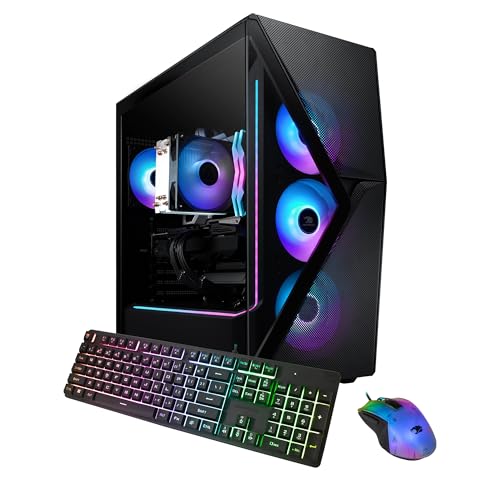
iBUYPOWER Slate MESH Gaming PC Desktop (32GB DDR5 configuration)
An example of the comfortable tier in a complete system: 32 GB of current-generation memory paired with a modern platform — the configuration this guide recommends for a lasting build. iBUYPOWER Slate MESH Gaming PC Desktop (32GB DDR5 configuration) — Check on Amazon
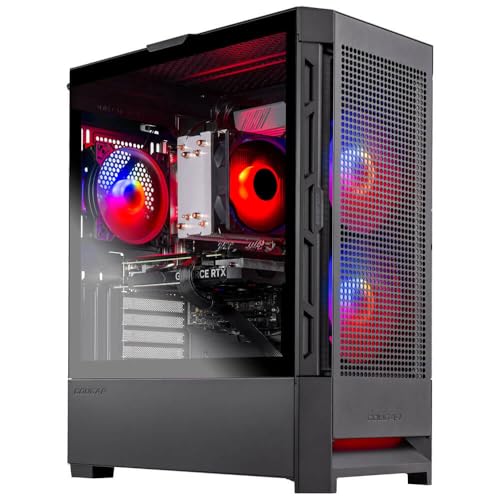
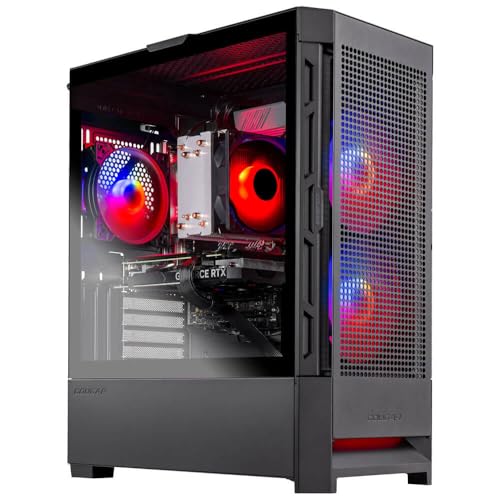
Skytech Gaming Nebula Gaming PC Desktop
The 16 GB baseline done properly: a matched dual-channel kit in a mainstream build, illustrating the floor configuration for gaming today. Skytech Gaming Nebula Gaming PC Desktop — Check on Amazon
Frequently Asked Questions
Is 16 GB of RAM enough for gaming in 2026?
For the large majority of games played with a normal background load, yes — it remains the sensible minimum. Players running heavy modern titles with streaming, many browser tabs or big modpacks will feel the ceiling and should choose 32 GB.
Does faster RAM increase FPS?
Modestly, in some configurations — the gains concentrate in minimum frame rates and on certain processor platforms. Capacity and dual-channel configuration matter more; never trade capacity for speed at the same budget.
Can I mix RAM sticks of different sizes or brands?
It often works, but the memory will run at the slowest stick’s settings and stability is not guaranteed. Matched kits are the reliable route; if you must mix, match speed and timings as closely as possible and test thoroughly.
Does RAM speed or capacity help loading times?
Loading is dominated by storage speed. RAM helps after the load — in streaming assets during play and in switching between areas — which is why an SSD outranks a RAM upgrade for load-time complaints.
Should I future-proof with 64 GB now?
For pure gaming, no: by the time games broadly need it, faster memory generations will be the standard and today’s kit may not carry forward. Buy 32 GB and put the difference toward the graphics card.
Will adding RAM fix my game's stutter?
Only if memory pressure is the cause — which the usage check in this guide identifies in minutes. Stutter has several other common causes, from storage speed to thermals, and RAM bought for the wrong one fixes nothing.
Bottom line: 16 GB is the floor, 32 GB is the comfortable recommendation, 64 GB is for named specialist workloads. Buy a matched pair, enable its rated profile, and verify with a usage check before upgrading what is not actually limiting you.
Is 16 GB still enough for gaming in most cases?
For a gaming-focused machine whose background load is disciplined — game, voice chat, a few tabs — 16 GB remains a workable capacity for the majority of current titles, though the margin has thinned and the heaviest games plus a streaming or heavy multitasking habit will press against it. The honest answer is measurement: if your own peak usage sits comfortably below the ceiling, 16 GB is enough for you; if it pins at the top with hitching, your machine has already voted for more.
Should I buy faster RAM or more RAM?
More, if your measurements show capacity pressure — capacity shortfalls cause the cliff-edge behaviour of paging and hitching, while speed shortfalls cost a few percent of frame rate in CPU-bound moments. Only once capacity is comfortably sufficient does speed become the better purchase, and even then its gains are the modest, connoisseur kind. Buy the cure for the shortage you measured.
Can I just add one more stick to what I have?
You can, and it often works — but match the existing stick’s capacity, speed and timings as closely as possible, and accept that mixing is a small lottery: the worst outcome is usually not failure to boot but an inability to run the rated profile, leaving you at safe default speeds. A matched kit removes the lottery. If you add a single stick, verify afterwards that the pair runs in dual channel at the intended speed.
Does RAM speed matter more for integrated graphics?
Yes, dramatically more, because integrated graphics borrow system RAM as their video memory, so memory bandwidth becomes graphics bandwidth. A system gaming on integrated graphics gains more from fast, dual-channel memory than almost any other single change. The moment a discrete GPU with its own memory enters the machine, system RAM speed returns to its usual modest importance and capacity resumes the throne.
How much RAM do I need for streaming and gaming on one PC?
Treat streaming as a second tenant: the game, the broadcasting software, the encoder’s buffers, chat, alerts and the browser stack all draw from the same pool. Most single-PC streamers find the capacity step above pure gaming to be the comfortable one — the tier where the game never has to negotiate with the broadcast for memory. Measure your own rehearsal stream’s peak usage; a test broadcast to nobody is the cheapest research in this entire guide.
Does my motherboard limit how much RAM I can use?
Yes — every board has a maximum supported capacity and a fixed number of slots, and older boards in particular can cap out at totals that modern buyers find surprising. Check the board’s specification page before assuming a large kit will work, and note the per-slot limit as well as the total. This is one more reason the platform decision matters: a board bought with headroom in slots and capacity lets memory grow with your needs, while a board at its ceiling makes the next capacity step a platform purchase.
Is it worth upgrading RAM on a PC I plan to replace in a year?
Only if memory pressure is measurably your bottleneck and the kit is cheap enough to justify as a one-year bridge — or if the memory generation carries into your planned next platform, which is rarely the case across a platform change. Run the usage check first. If the graph says memory is not your limit, the honest answer is to let the current machine be what it is and let the replacement budget arrive intact.
Why does my PC use half its RAM when I am only browsing?
Because unused RAM is wasted RAM, and modern operating systems know it. Windows fills spare memory with caches — files and program data it predicts you will want — so that they open instantly when called. This cached memory is surrendered the moment a game genuinely needs the space, so a high ‘in use’ figure at idle is not a problem and not a leak. Judge memory pressure by behaviour under your heaviest real load, not by an idle desktop number that was designed to look busy.
Can too much RAM ever hurt performance?
Practically, no — excess capacity is simply unused, and the situations where very large kits run at slightly reduced speeds on some boards are a configuration nuance, not a penalty worth planning around. The real cost of too much RAM is opportunity cost: money parked in idle gigabytes is money not spent on the graphics card, storage or monitor, where it would have been felt. Buy past your measured need by one comfortable step, not by three.
Do I need to change anything in Windows after adding RAM?
No — Windows recognises and uses new capacity automatically, and there are no settings to tune for ordinary use. The two verifications worth your time are in the BIOS, not the operating system: confirm the full capacity is reported there, and confirm your memory profile is enabled so the kit runs at its rated speed. If Windows shows less memory than you installed, the problem is physical or BIOS-level — a stick not fully seated is the usual culprit — and no software setting will fix it.
What is the single most common RAM buying mistake?
Buying capacity without configuration: a single large stick, or a fast kit whose profile never gets enabled, or a second-hand addition that does not match the existing kit and drags the whole set down to its level. Each version of the mistake has the same shape — the headline number was right and everything underneath it was unexamined. The checklist in this guide exists to be run before the purchase, when running it is free, rather than after, when it becomes a returns process.
In one sentence, how much RAM should I buy?
Buy 32 GB as a matched pair for any new mid-range gaming PC you intend to keep, accept 16 GB as the honest floor for a disciplined budget build, and let a five-minute usage measurement — not marketing — make the final call for an upgrade.
Should I close everything else before gaming to save RAM?
On a comfortable capacity, no — the system manages its workspace well, and the ritual of closing every application belongs to the era of genuine scarcity. On a machine at the floor whose usage check shows real pressure, closing the browser and the recording software you are not using is a legitimate free upgrade, worth doing while you plan the physical one.
Related Guides
Keep exploring with these guides and roundups from the same Gaming PCs collection: