Disclosure: As an Amazon Associate, ilcastellomenu.com earns from qualifying purchases. Product examples below link to Amazon, where you can check current availability and specifications; this guide itself lists no fixed prices because pricing and bundles change frequently.
Knowing how to fix a gaming PC that overheats is an exercise in staying calm and working in safe order: overheating announces itself through loud fans, throttled performance, game crashes and, at the end of the line, shutdowns that protect the hardware by ending your session for you. Almost every cause is mundane — dust, airflow, a tired cooler, a hot room — and this guide works from the free and safe fixes toward the hands-on ones, stopping well short of anything that risks you or the machine.
Safety framing first, because it shapes the whole guide: every step here is done with the PC shut down and unplugged when the case is open, nothing involves opening the power supply (never do that — its capacitors can hold a dangerous charge), and nothing requires defeating a fan or a thermal protection. If your PC smells of hot electronics or a fan has physically failed and is grinding, skip to replacement territory rather than coaxing it along.
How to Fix a Gaming PC That Overheats: Confirm What Is Actually Hot
Install a hardware monitor and identify the patient before treating it. ‘The PC overheats’ usually means one component: the CPU, the graphics card, or occasionally an SSD under a heatsink or a motherboard’s power delivery on a heavily loaded system. Record idle and gaming temperatures for each, plus how long the machine takes to reach trouble. A CPU that rockets to its limit within seconds of load has a contact or cooler problem; one that climbs slowly over twenty minutes has an airflow or capacity problem. A GPU that is fine in menus and extreme in games is normal behaviour pushed too far, not necessarily a fault.
Note the ambient facts too: room temperature, where the PC sits, and whether the problem is new or lifelong. A machine that has overheated since build day has a design or assembly cause — a cooler film left on, a fan facing backwards, a radiator choked against glass. A machine that degraded over a year has a maintenance cause. These two families barely overlap, and naming yours halves the guide. The background principles live in How to Cool a Gaming PC; this guide is the acute application of them.
In this guide
Step 1: The Free Fixes — Dust, Placement and Airflow Path
Power down, unplug, and inspect. Dust is the leading cause of acquired overheating: filters matted grey, heatsink fins furred, a radiator that looks like a carpet sample. Clean filters with water and dry them fully; blow heatsinks and fans out with compressed air in short bursts while holding fan blades still with a finger, so they cannot spin up and generate current or damage bearings. Work outside or prepare to vacuum afterwards — the amount of dust in a neglected gaming PC surprises everyone the first time.
Placement is the second free fix. A tower wedged into a closed cabinet, standing on deep carpet blocking its bottom intake, or exhausting against a wall two inches away is breathing its own hot air in a loop. Give it open space on every side, a hard surface underneath, and a room that is not itself an oven. Then audit the airflow path inside: front fans should intake, rear and top should exhaust, and a fan installed backwards — more common than pride admits — quietly sabotages the whole scheme. Correcting one reversed fan has ended more than one overheating saga.
Step 2: Fan Curves, Speeds and Software Sabotage
Before touching hardware, verify the fans are being asked to work. In the BIOS or motherboard software, confirm case and CPU fan curves actually rise with temperature — a curve left on a silent profile, or a fan header set to the wrong control mode, can leave a cooler idling while its processor cooks. Set a sane curve: gentle at desktop temperatures, decisively rising through the gaming range, full speed before the throttle point. In your graphics software, do the same for the GPU, whose default curve may prioritise quiet over temperature more than your card’s age and dust state can afford.
Software can also manufacture heat. A runaway background process pinning the CPU, mining malware (a real and under-discussed cause of ‘my PC is suddenly hot and loud at idle’), or a game menu rendering thousands of uncapped frames will all present as cooling problems. Check task manager at idle: a healthy gaming PC idles near zero load and near silence. If yours does neither, your overheating problem may be a software problem wearing a disguise — clean the system first, then re-measure before buying a single fan. The diagnostic overlap with How to Fix Stuttering in PC Games is real, because throttling causes both.
Step 3: The Cooler Itself — Mounting, Paste and Failure
If a single component still overheats with clean airflow and honest fan curves, its cooler is the suspect. For a CPU that overheats in seconds, the classic causes are a protective plastic film left on the cooler base at build time, mounting pressure so uneven the base barely touches the chip, or thermal paste that has dried and cracked after years. The remedy is a remount: PC off and unplugged, cooler removed, old paste cleaned from both surfaces with isopropyl alcohol and a lint-free cloth, a fresh pea-sized application, and an even, cross-pattern tightening. This is ordinary maintenance, well within a careful owner’s ability, and it resurrects more ‘dead’ coolers than any other step in this guide.
Liquid-cooled systems have their own failure signatures: a pump that has died leaves the CPU to spike almost instantly under load; a radiator mounted so air collects in the pump produces gurgling and declining performance; years of coolant permeation slowly empty the loop. AIOs are sealed units — the fix for a failed pump or a depleted loop is replacement of the unit, not refilling heroics. Air towers, by contrast, fail only by fan, and a fan is a cheap, safe swap. This asymmetry is the heart of Air Cooling vs Liquid Cooling for Gaming PC, and an overheating emergency is often the moment owners choose their next camp.
Step 4: The Graphics Card and Case-Level Heat
A hot GPU usually needs air more than surgery. Confirm its fans spin under load (a dead fan shows as one hot card and one silent corner), clear the dust from its heatsink fins and backplate area, and give it an intake path — a card pressed against a solid shroud or a glass side panel starves no matter how good its own cooler is. Fan-curve adjustment in the GPU software is safe and effective; repasting a graphics card is neither necessary nor advisable for most owners, and it can affect warranty — leave card internals alone and treat a genuinely failing GPU cooler as a warranty or replacement matter.
| Finding | Likely cause | Safe fix |
|---|---|---|
| CPU spikes to limit in seconds | Cooler contact: film, mount or dead paste — or a dead AIO pump | Remount with fresh paste; replace a failed AIO |
| Everything climbs slowly over 20+ minutes | Case airflow or dust saturation | Clean filters and fins; fix fan directions; improve placement |
| GPU hot, CPU fine | GPU airflow starvation or a failed card fan | Clear its intake path; raise its fan curve; warranty if a fan died |
| Hot and loud even at idle | Background load or malware | Task manager audit; clean the software first |
| Shutdowns under load only | Thermal protection or a marginal power supply | Fix temperatures; if they are fine, suspect the PSU |
The shutdown row deserves emphasis: if temperatures read healthy yet the machine still cuts out under load, suspicion moves to the power supply, whose protection trips can mimic thermal shutdowns exactly. Do not open the supply — replacement or professional diagnosis is the path. And throughout, let the machine’s own protections work: a PC that shuts down is defending itself, and defeating that defence is never the fix.
Prevention: Keeping It Fixed
Overheating is cured permanently by habits, not by the heroic afternoon. Filters on a monthly rhythm, an interior dust-out a few times a year, a temperature check whenever a new game sounds louder than the last, and a fan curve set once and left alone. When you upgrade components, re-run the thermal checks as part of the installation, following How to Upgrade a Gaming PC — new parts change the heat equation, and the time to learn that is the day they arrive, not the first summer weekend. Choose replacement cooling with the comparison guide open, keep the room side of the bargain, and your PC will spend its life in the quiet temperature band where performance lives.
Laptops and Compact PCs: The Same Physics, Tighter Margins
Everything in this guide applies to gaming laptops and small-form-factor desktops, with the margins compressed and the toolkit reduced. You cannot remount most laptop coolers casually, and you should not — but the free fixes carry over completely: vents cleared of dust with air (from outside, gently), the machine used on a hard surface rather than bedding, a stand that lifts the intake clear, and a room that is not working against it. Laptop fan curves live in the manufacturer’s control software rather than a BIOS, and a performance mode that sounds louder is usually the honest one for gaming; the quiet mode’s thermal bill arrives as throttling.
Compact desktops reward the airflow audit even more than towers, because their air paths are short and every cable and drive sits in the stream. If a small build runs hot from new, the likeliest causes are a fan orientation compromise made during assembly and an intake starved by the surface the machine stands on — both fixable in an afternoon. What compact owners should not do is chase tower-class temperatures; these machines are designed to run warmer within their limits, and the verdict that matters is throttling, not the number itself.
When Overheating Is a Symptom, Not the Disease
Occasionally heat is the messenger. A power supply delivering unstable voltage can make components work harder and hotter; a motherboard with a failing fan header leaves a cooler decorative; a graphics card with a dying fan reports as a case-airflow problem until someone watches the fans under load. This is why the guide insists on identifying which component is hot and observing behaviour, rather than treating ‘the PC’ as uniformly feverish. The component-level view turns a vague dread into a short suspect list, and the suspect list is what gets fixed.
There is also the honest end of the road: a machine whose cooling was marginal when new, in a room that has grown hotter, running games that have grown heavier, may simply need the upgrade its design always postponed — the tower cooler, the airflow case — and the overheating is the occasion, not the enemy. Our upgrade guide places that purchase in its proper order. Spend it once, spend it on the diagnosis you proved, and the machine’s next five summers are already handled.
A Seasonal Maintenance Calendar
Close the case with a calendar, because prevention fails when it depends on remembering. Monthly: filters, and a glance at idle temperatures — a rising idle is the earliest whisper of trouble. Each season change: the interior dust-out, fan behaviour check, and a fifteen-minute gaming temperature log compared with last season’s. Yearly: a honest review of the cooling hardware itself — fan bearings that have grown a voice, an AIO entering its later years, paste that has now served through several summers. Fifteen lines in a note, four short sessions a year, and overheating becomes a topic you read about rather than a evening you lose.
Case Study: The Shutdown PC and the Five-Dollar Culprit
A machine arrives in the story the way these machines always do: it shuts down mid-game, every game, after roughly half an hour, and its owner has already priced a new cooler and is quietly pricing a new PC. The temperature log tells the first truth — the CPU climbs steadily and crosses its limit on schedule, while the GPU stays comfortable — and the slowness of the climb says airflow or capacity, not contact. The case opens to a scene this guide’s readers can now predict: filters matted, fins furred, and a front fan that has not turned in some time, its cable unplugged since a storage upgrade months earlier and hidden behind the drive cage.
The repair bill, itemised: one reconnected fan cable, one afternoon of cleaning, one fan curve set from real measurements, and one thermal log afterwards showing the same game peaking comfortably below the throttle line. The five-dollar culprit of the title is the can of compressed air; everything else was free. The owner’s near-miss is the instructive part — a new cooler, installed into the same choked case with the same dead fan, would have improved the numbers slightly, postponed the shutdowns by minutes, and taught the false lesson that the PC was simply old.
Generalise the case and it becomes this guide’s thesis: overheating is usually a system that has drifted — a cable, a filter, a season, a setting — rather than a component that has died. Drifts are found by inspection and corrected by hand, in the safe order given here. The shutdowns were never the disease; they were the smoke alarm. Answer alarms by finding the kitchen, not by shopping for a new house.
The Supporting Cast: VRAM, Memory, Storage and Board Heat
The CPU and GPU take the blame in most overheating stories, but a complete diagnosis glances at the supporting cast, because their heat is real and occasionally decisive. Graphics card memory runs hot in its own right, and on some card designs it is the memory — not the core — that reaches its limit first, presenting as a card that throttles or produces errors while its headline temperature looks acceptable. If your monitoring tool reports a separate memory or hotspot figure, watch it alongside the core number; a wide, growing gap between core and hotspot is information, usually about contact or pads inside the card, and it belongs in a warranty conversation rather than a home surgery.
System memory and storage rarely overheat a gaming PC by themselves, but they contribute to the case’s total burden and they suffer from its heat: an SSD mounted behind a graphics card or under a heatsink without airflow will throttle its own speeds in long transfers, and memory pushed by aggressive profiles in a hot case can produce errors that look like everything except temperature. The practical takeaway is arrangement rather than alarm: give drives an airflow path where the case allows it, use the heatsinks boards provide for fast NVMe drives, and remember that a case cooled well for its two headline components usually cools the supporting cast adequately as a side effect. Heat is a whole-system budget, and the stars spend most of it — but the chorus sings in the same hall.
Undervolting: Treating Heat at the Source
Every fix so far has improved heat’s removal; undervolting reduces its creation, and for some machines it is the single most effective treatment available. Modern CPUs and GPUs are shipped with voltage margins that guarantee stability across the whole production run of silicon, which means many individual chips can do the same work at meaningfully lower voltage — and since heat tracks voltage steeply, a modest reduction converts directly into lower temperatures, quieter fans and, paradoxically, sometimes better sustained performance, because the component stops negotiating with its thermal limit. A CPU that throttles at stock settings and holds full clocks undervolted has not been slowed down; it has been given headroom it was always capable of using.
The discipline is patience: reduce in small steps, stress-test after each, and stop at the first sign of instability, backing off one step to a margin you can forget about. Instability from an over-lean undervolt looks like the faults in the stutter guides — random crashes, game-specific weirdness — so an undervolt must be verified across days of real use before it is trusted, and it should be the last variable changed in a system, never the first, or every later diagnosis will wonder whether the voltage is the culprit. Done carefully on a machine whose cooling is already honest, undervolting is the difference between a PC that manages its heat and a PC that never makes it.
Know its limits, too. Undervolting cannot rescue a choked case, a dead fan or a failed pump — it shrinks the heat those failures must handle, which can mask a mechanical problem while it worsens. Treat it as the final polish on a healthy system or as a legitimate strategy for a small case designed around it, and never as a substitute for the inspection steps that come first in this guide’s order.
Does Overheating Permanently Damage a PC? An Honest Answer
Fear of cooked silicon drives a lot of panic purchases, so the record deserves setting straight. Modern CPUs and GPUs defend themselves aggressively: they throttle as they approach their limits and shut down beyond them, and those protections make sudden death from ordinary gaming heat genuinely rare. A machine that has shut down a handful of times on hot afternoons has almost certainly not wounded its processor; it has sent you a message in the strongest language it has, and the correct response is the maintenance in this guide, not a replacement fund.
What chronic heat does do is age things at the margins. Years spent at high temperatures dry thermal paste faster, wear fan bearings sooner, stress solder and capacitors across thousands of thermal cycles, and shorten the comfortable life of a battery in a laptop. The damage model is not a cliff but a slope — heat as a tax on longevity rather than an assassin of components. That is a reason to fix overheating properly rather than to live at the throttle line, and it is not a reason to fear that last Tuesday’s shutdown halved your PC’s life. Fix the drift, restore the margins, and the machine’s remaining years are largely its own again.
The exceptions deserve their sentence: a burning smell, visible discolouration, a fan that has seized and let a component cook without airflow for an extended period, or shutdowns that continue even at idle — those leave this guide’s territory and enter replacement and professional diagnosis. Ordinary overheating, caught by its own protections and cured by maintenance, is a chapter in a PC’s life, not the end of the book.
When to Stop DIY: Warranty, Laptops Under Cover and Professional Help
This guide’s steps are ordered by safety and cost, and there is a point on that ladder where the correct action is to stop climbing and make a phone call. If the machine is under warranty and the overheating survives the external steps — cleaning accessible filters, placement, fan curves, the software audit — then opening it further may complicate the claim you are entitled to make. Document your temperatures and the steps you took, and let the warranty do the job it was sold to do. A sealed unit with a documented fault is, as our other guides note, the strongest position a customer can occupy.
Laptops concentrate this logic. Their cooling assemblies are compact, their fasteners are sometimes exotic, their thermal pads tear, and their warranties are comparatively easy to void — while their external fixes (vents, stands, modes, room) remain entirely in the owner’s hands. Work the external list thoroughly; if a covered laptop still throttles hard in ordinary games at honest settings, that is a service conversation, and it should happen while the cover lasts rather than after it lapses.
Professional help is the third legitimate destination, and choosing it is not defeat. A good repair shop brings thermal cameras, spare parts for A/B testing and experience with the failure modes that appear once in a thousand machines. The cases that belong there: shutdowns with healthy temperatures and a suspect power supply (never a DIY opening), any sign of physical or liquid damage, and faults that have survived this guide’s full order with evidence at every step. Bring your logs. A documented machine gets diagnosed in a fraction of the time, and time is what professional help charges for.
One Game Only: When the Software Is the Furnace
A PC that overheats in exactly one title is rarely dying; it is being asked a question other games do not ask. Menus and lobbies are the classic trap — a menu rendering at thousands of frames per second can load a GPU harder than the game itself, which is why some PCs are loudest before the match starts. The remedy is a frame-rate cap, set globally or per game, which every overheating audit should include as a matter of routine: a cap costs nothing in gameplay terms at sensible values and removes an entire category of pointless heat from every menu, loading screen and lightweight title you own.
Beyond menus, a single game may simply be the heaviest load you own — the first title to combine full CPU, full GPU and aggressive streaming — and its role is that of a stress test you happened to buy. Treat it as one: if the machine survives its demands after this guide’s fixes, it will survive anything else in your library. If it survives everything except that title, the remaining choices are honest ones — settings concessions in that game, a cooling upgrade sized to it, or accepting its sessions in shorter chapters during hot weather. What it is not is a mystery, and a named problem is a solved problem’s first half.
Reading the Pattern: A Symptom Diary Before You Touch Anything
The guides in this series share a conviction that evidence precedes wrenches, and overheating rewards that conviction more than most faults, because its causes separate cleanly by pattern. Before opening the case, spend one session as a diarist. Note the room temperature and the machine’s position. Log idle temperatures after ten quiet minutes. Start the game that causes trouble and note the time — not the temperature, the time — at which fans peak, performance dips or the shutdown lands, alongside the temperatures at that moment. Then note how quickly the machine recovers after you quit. Four observations, one session, and the diary has usually named the family: instant spikes speak of contact and pumps; slow climbs speak of air and dust; idle heat speaks of software; a machine slow to recover speaks of a case that cannot shed what it has absorbed.
The diary’s second job is to protect you from the placebo repair. Overheating fixes are peculiarly vulnerable to false credit, because temperatures vary with weather, session length and the game chosen, and a fix applied on a cool evening will look brilliant until the first hot Saturday audits it. A fix verified against the diary — same game, same session length, similar room, numbers compared like for like — is a fix you actually own. Keep the diary with the machine’s other records; the seasonal calendar in this guide assumes its existence, and future faults will read it the way doctors read a chart.
Second-Hand and Inherited PCs: The Overheating Audit
A used or inherited gaming PC deserves a thermal audit before its first long session in your home, because you did not witness its maintenance history and its previous owner’s normal may have been a slow drift toward the throttle line. The audit is this guide’s early steps performed without a presenting complaint: filters and fins inspected, fan directions and operation verified, idle behaviour checked for software surprises, and a fifteen-minute load log recorded as the machine’s baseline under your ownership. Any filth, reversed fan or forgotten mining software you find is not a scandal — it is exactly what the audit exists to catch while it is still free.
Pay particular attention to the consumables whose age you cannot know: thermal paste that may be original to a five-year-old build, an AIO whose years are undocumented, fans whose bearings have a voice you have not yet learned to recognise as abnormal. None of these require pre-emptive replacement — the load log decides — but they belong on a watch list the audit creates. A used PC that passes its audit with margins to spare is a bargain confirmed; one that fails has told you its price was not its whole price, while the information is still cheap. Either way, the audit converts an unknown machine into a known one, which is the precondition for every calm evening that follows.
The Fix Order, Compressed: One Calm Page for a Bad Evening
When the machine has just shut down and the evening is already spoiled, method is hard to remember — so here is the whole guide as a sequence short enough to follow while annoyed. First, let it cool, and note the facts while they are fresh: which game, how long, what the room was like. Second, identify the patient with a monitoring tool on the next, gentler run: CPU, GPU, or both, and whether the climb is fast or slow. Third, work the free list in order — idle-load audit, filters, fins, fan operation and direction, placement — retesting after the group, because these five cure the majority of cases between them. Fourth, set honest fan curves and a frame-rate cap, and retest. Fifth, and only now, touch the cooler itself: remount the one the evidence convicts, or replace the one that has failed its test. Sixth, write down what it was.
Notice, one last time, what the sequence protects you from: the cooler bought for a choked case, the paste replaced on a machine whose fan was unplugged, the new PC priced during an evening that a can of air would have saved. Overheating feels like an emergency and is almost always a maintenance backlog wearing an emergency’s clothes. Work the order, and the backlog clears — usually in an afternoon, usually for almost nothing, and permanently if the calendar at the end of this guide becomes a habit rather than a souvenir.
Gear for This Guide
The examples below come from our verified product pool and illustrate the product classes discussed in this guide. They are examples, not a ranked list — use the criteria in this article to judge any model, including newer revisions.
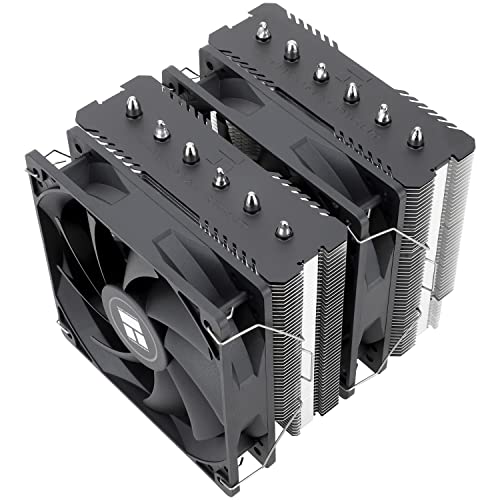
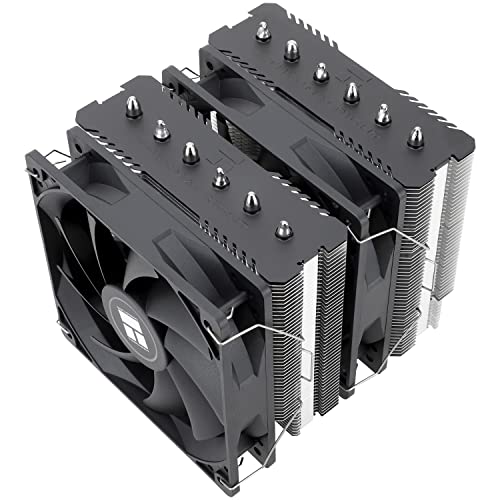
Thermalright Peerless Assassin 120 SE CPU Cooler
The replacement that ends most CPU overheating stories: strong tower cooling at a price that makes ‘just replace it’ rational when a remount does not cure an old cooler. Thermalright Peerless Assassin 120 SE CPU Cooler — Check on Amazon
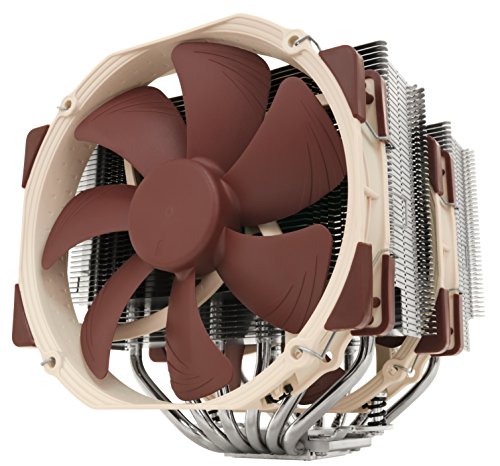
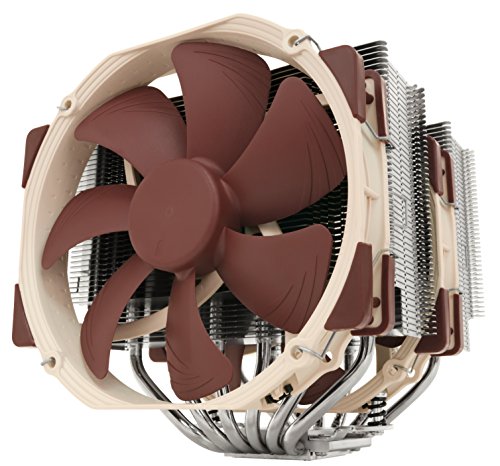
Noctua NH-D15 CPU Cooler
The fit-and-forget flagship for owners who want the overheating chapter closed permanently — huge thermal headroom and fans built for a decade. Noctua NH-D15 CPU Cooler — Check on Amazon

Corsair iCUE H100i Elite Capellix Liquid CPU Cooler
For a failed AIO or a case that cannot take a tower: a sealed 240 mm replacement loop, installed as a unit with no filling or plumbing. Corsair iCUE H100i Elite Capellix Liquid CPU Cooler — Check on Amazon
Frequently Asked Questions
How hot is too hot for a gaming PC?
Sustained CPU temperatures in the 90s and GPU temperatures pressing their rated limits (often mid-80s and up, model-dependent) mean throttling and intervention. Brief peaks matter less than sustained load figures — judge by a fifteen-minute gaming log, not a one-second spike.
Why does my PC shut down while gaming but not otherwise?
Gaming is the maximum simultaneous load on CPU, GPU and power supply. Thermal protection tripping on a hot component is the usual cause; if temperatures are verified healthy, a failing or undersized power supply is the next suspect. Either way, treat shutdowns as a message, not a nuisance.
Can dust really cause shutdowns?
Yes. Matted filters and furred heatsinks can raise load temperatures by margins large enough to cross throttle and shutdown thresholds — which is why cleaning is step one and why it so often ends the story.
Is it safe to run the PC with the side panel off while I wait for parts?
As a short-term diagnostic, it is fine on a stable, pet-free desk. As a habit it invites dust, spills and accidents, and it abandons directed airflow. Use it to confirm the diagnosis, then fix the cause.
Should I replace thermal paste every year?
No. Quality paste lasts for years. Replace it when remounting a cooler or when temperatures have crept with airflow, dust and fan curves already ruled out — paste is a suspect of opportunity, not a scheduled consumable.
My PC is hot only in summer. Is something wrong?
Probably not — every temperature inside the case starts from room temperature, so a hot season lifts the whole chart. If the machine stays clear of throttling, it is coping as designed; if summer pushes it over the edge, it was marginal all along and the airflow fixes in this guide are the cure.
Bottom line: identify the hot component, clean and unchoke the air path, verify fan curves and idle load, then remount or replace the one cooler that fails its test. Work in that order and overheating almost always ends as maintenance, not as a new PC.
Why is my PC loud and hot immediately after I start a game?
A fast rise in the first minutes is normal physics: the coolers and case air absorb the new load and fan curves respond to it. What separates health from trouble is where the rise stops. A system that climbs, levels off below its throttle point and stays there is doing its job audibly. A system whose temperatures keep climbing past twenty minutes, or whose fans reach maximum and stay there while temperatures still rise, has the capacity or airflow problem this guide’s early steps address.
Can a BIOS or driver update change my temperatures?
Yes, in both directions. Updates can change fan-curve defaults, power limits and the behaviour of boost algorithms, any of which moves temperatures noticeably; a machine that runs hotter the week after an update should have its curves and power settings re-audited before its hardware is suspected. This is one reason this site’s guides recommend updating deliberately and noting the date — a temperature change with an update in its biography has a prime suspect already named.
My GPU is hot but the fans look fine. What else could it be?
Air supply, most often: a card can have perfect fans and still starve if its intake faces a glass panel, a solid shroud or another card at close quarters, or if the case’s intake path never delivers fresh air to its corner. Test with the side panel removed — a large temperature drop convicts the case’s air path rather than the card. Beyond that, a wide gap between the card’s core and hotspot readings points inside the card, and that is warranty territory rather than a home project.
Is it normal for temperatures to be higher after a GPU upgrade?
Yes, and it is not automatically a problem. A stronger card converts more electricity into heat inside the same case, and every other component’s temperatures rise a little in sympathy because they all breathe the same air. Re-run your baselines after any upgrade, judge the new numbers against throttling rather than against nostalgia for the old ones, and add case airflow if the whole system’s margins have genuinely thinned.
Should I worry about my PC heating up my room?
Only for comfort and for the feedback loop it creates: a gaming PC is a real space heater, and in a small closed room it raises the very intake temperature it depends on, degree by degree, across a long session. Ventilating the room — a door open, air exchanged rather than stirred — is a legitimate cooling fix for the PC as well as for you, and in summer it is sometimes the only fix that matters.
Can overheating be caused by my monitor or resolution upgrade?
Indirectly, yes. A higher-resolution or higher-refresh monitor asks the GPU to do more work every second, and more work is more heat — a machine that was comfortable driving an old display can find its margins consumed by a new one, especially in games where the old setup was quietly frame-limited by the screen. If overheating’s biography begins with a monitor upgrade, believe it: re-run the baselines, re-audit the case airflow, and treat the display as the load change it genuinely is.
What should I record when I contact support about overheating?
Idle and load temperatures for the CPU and GPU, the room temperature, how long the machine takes to reach trouble, what you have cleaned and checked, and whether the fault appears in every game or one. That short dossier moves your case from the script’s first page to an engineer’s attention, and it protects you if the unit behaves itself on a test bench — intermittent thermal faults are famous for exactly that, and your log is the evidence they cannot argue with.
Is it safe to keep playing if my PC throttles but never shuts down?
Safe for the hardware, within the protections’ design — throttling is the machine defending itself successfully — but it is not a state to settle into. You are paying for performance the heat will not let you use, and the cause is usually one of the cheap drifts this guide catalogues. Treat persistent throttling as a maintenance appointment to keep soon rather than an emergency to fear tonight, and let the symptom diary tell you whether it is stable or progressing; progression moves the appointment up.
Why did my overheating start right after I moved house or rearranged my room?
Because placement is a cooling component and you changed it. A PC that breathed freely in its old spot may now sit in a sunlit corner, inside a desk’s enclosed bay, beside a radiator, or on carpet that swallows its bottom intake — while its internals are exactly as healthy as they were last month. Before suspecting the machine, audit the new geography with this guide’s placement step. Moves and rearrangements are among the most common biographies behind ‘sudden’ overheating, and the cheapest to cure.
What is the most overlooked cause of overheating you see?
The unplugged or failed case fan, discovered months after the storage upgrade or cleaning session that disturbed its cable. It produces no error message, the remaining fans compensate audibly — which owners read as the PC ‘working hard’ — and temperatures drift upward slowly enough to blame on the season. Whenever a machine’s heat biography includes any past work inside the case, put ‘watch every fan actually turn’ at the top of the inspection, before the dust, before the paste, before the shopping.
In one sentence, what should I do first when my PC overheats?
Find out which component is hot and how fast it gets there, because that single observation — patient and pace — points at the family of causes, and every fix in this guide hangs from getting it before touching anything at all. Five careful minutes with a monitoring tool will save you an entire afternoon of guessing and, quite possibly, a cooler you never actually needed to buy anyway.
Related Guides
Keep exploring with these guides and roundups from the same Gaming PCs collection: