The best ASUS gaming monitors are easy to shortlist once you know the two families the brand builds: the ROG line, where the fastest OLED and highest refresh-rate panels live, and the TUF Gaming line, where the value sits. This guide covers both, from the 24-inch 1080p TUF monitors that suit a first gaming PC to the 32-inch 4K 240Hz ROG OLED monitors that suit a flagship graphics card, so whether you play competitive shooters at 240Hz and above or slow cinematic games at 4K, there is an ASUS monitor here that fits. Every monitor below is a current listing with its brand and model confirmed, and each one states its size, resolution and refresh rate in the listing, so there is no guessing about what you are buying.
What makes one ASUS gaming monitor better than another for your setup is mostly a question of resolution, refresh rate and panel type. A 1080p 240Hz monitor such as the TUF VG259QM5A is the right pick for competitive play, where frame rate matters more than pixel count and the graphics card can push hundreds of frames per second. A 1440p 180Hz or 240Hz monitor such as the TUF VG27AQ3A or the ROG XG27AQDMGR is the sweet spot for most gamers, sharp enough for everyday use and fast enough for shooters. A 4K 240Hz OLED monitor such as the ROG PG32UCDP or the PG27UCDM is the flagship choice, with perfect blacks and instant response, but it needs a powerful graphics card to feed it. The eight monitors in this guide span all three resolutions.
Panel type is the second filter to apply. Fast IPS panels dominate the TUF range and give good colour and wide viewing angles at a fair cost, which is why the VG27AQ3A, the VG27UQ1A and the VG27VQ3B all use them. OLED panels dominate the ROG range and give the deepest blacks and the fastest pixel response in this guide, down to 0.03ms, which is why the PG32UCDP, the XG27AQDMGR, the XG27ACDNG and the PG27UCDM all use OLED or QD-OLED. Curved panels appear once, in the VG27VQ3B, for buyers who want a wraparound feel. Check your graphics card before ordering, measure your desk depth for a 32-inch panel, and confirm your graphics card has the DisplayPort or HDMI version the monitor needs for its top refresh rate.
In this guide
Quick picks: best asus gaming monitors
| # | Product | Where to buy |
|---|---|---|
| 1 | ASUS TUF Gaming VG27AQ3A 27 Inch 1440p 180Hz Gaming Monitor | Check on Amazon |
| 2 | ASUS ROG PG32UCDP 32 Inch 4K 240Hz OLED Gaming Monitor | Check on Amazon |
| 3 | ASUS ROG XG27AQDMGR 27 Inch 1440p 240Hz OLED Gaming Monitor | Check on Amazon |
| 4 | ASUS TUF Gaming VG259QM5A 25 Inch 1080p 240Hz Gaming Monitor | Check on Amazon |
| 5 | ASUS TUF Gaming VG27UQ1A 27 Inch 4K 160Hz Gaming Monitor | Check on Amazon |
| 6 | ASUS ROG Strix XG27ACDNG 26.5 Inch 1440p 360Hz QD-OLED Gaming Monitor | Check on Amazon |
| 7 | ASUS ROG PG27UCDM 27 Inch 4K 240Hz OLED Gaming Monitor | Check on Amazon |
| 8 | ASUS TUF Gaming VG27VQ3B 27 Inch 1080p 180Hz Curved Gaming Monitor | Check on Amazon |
How the picks were chosen
The picks were chosen from current ASUS gaming monitor listings, with three hard filters. First, the brand must be ASUS and the product must be a complete gaming monitor, not a monitor arm, a screen protector or a cable: the accessories that appeared in the search results were excluded. Second, the listing must name the exact model, so the VG27AQ3A, the VG27UQ1A, the VG27VQ3B and the VG27AQM5A are treated as the distinct models they are, not lumped together as one 27-inch TUF monitor. Third, the monitor must be a current, new listing with its size, resolution and refresh rate stated.
Within those filters the guide favours variety: three TUF 27-inch models at 1440p and 4K for the mainstream, two TUF 25-inch 1080p models for competitive play, one curved TUF model for immersion, and two ROG OLED flagships at 32 and 27 inches for buyers who want the best panel available. Refresh rate was weighed more heavily than lighting or stands, because a monitor that cannot keep up with your graphics card is the wrong monitor no matter how it looks. G-SYNC compatibility and FreeSync Premium support were noted where the listing states them, because smooth frames matter as much as raw speed.
One judgement call is worth stating plainly. The ROG OLED monitors in this guide cost far more than the TUF IPS monitors, and the difference is the panel: OLED gives perfect blacks, instant response and colours that IPS cannot match, but it also needs care, such as the OLED Care Pro features the listings mention, to guard against burn-in from static images. Buyers who play varied games and watch films will notice the difference every day, while buyers who play one competitive shooter with a static interface may be better served by a fast IPS panel at half the cost. The guide says which is which so the choice is deliberate, not accidental.
Quick comparison
| Product | Standout detail |
|---|---|
| ASUS TUF Gaming VG27AQ3A 27 Inch 1440p 180Hz Gaming Monitor | 27 inch, 1440p, 180Hz, Fast IPS, 1ms |
| ASUS ROG PG32UCDP 32 Inch 4K 240Hz OLED Gaming Monitor | 32 inch, 4K, 240Hz, OLED, dual mode FHD 480Hz |
| ASUS ROG XG27AQDMGR 27 Inch 1440p 240Hz OLED Gaming Monitor | 27 inch, 1440p, 240Hz, OLED, 0.03ms |
| ASUS TUF Gaming VG259QM5A 25 Inch 1080p 240Hz Gaming Monitor | 25 inch, 1080p, 240Hz, FreeSync Premium |
| ASUS TUF Gaming VG27UQ1A 27 Inch 4K 160Hz Gaming Monitor | 27 inch, 4K, 160Hz, 95% DCI-P3 |
| ASUS ROG Strix XG27ACDNG 26.5 Inch 1440p 360Hz QD-OLED Gaming Monitor | 26.5 inch, 1440p, 360Hz, QD-OLED |
| ASUS ROG PG27UCDM 27 Inch 4K 240Hz OLED Gaming Monitor | 27 inch, 4K, 240Hz, QD-OLED |
| ASUS TUF Gaming VG27VQ3B 27 Inch 1080p 180Hz Curved Gaming Monitor | 27 inch, 1080p, 180Hz, curved 1500R |

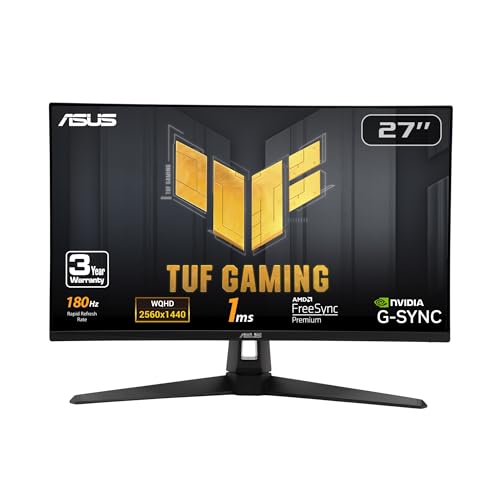
1. ASUS TUF Gaming VG27AQ3A 27 Inch 1440p 180Hz Gaming Monitor
Key specs
27 inch, 1440p, 180Hz, Fast IPS, ELMB Sync, 1ms, 130% sRGB, G-SYNC compatible. The VG27AQ3A is the mainstream 1440p pick in this guide, with a fast IPS panel and a 180Hz refresh rate.
Strengths
- 1440p at 27 inches is sharp for games and comfortable for everyday work and browsing.
- 180Hz refresh rate with a 1ms response keeps fast motion smooth without needing a flagship graphics card.
- 130% sRGB coverage gives vivid colour for games and films, and ELMB Sync keeps motion clear.
Trade-offs
- Fast IPS cannot match the perfect blacks of the OLED monitors in this guide.
- Built-in speakers are convenient but modest, so most buyers will still want headphones or desktop speakers.
- 180Hz is fast, but the 240Hz and 360Hz monitors here are faster for competitive play.
Who it fits
Gamers who want the 1440p sweet spot at a fair cost, for a mid-range gaming PC.
Best for: a balanced 1440p gaming monitor for most players.
Not suited for: anyone chasing the fastest refresh rate or the deepest blacks available.
In daily use
In daily use, the VG27AQ3A is the monitor that disappears into the setup. It mounts on the desk, the 27-inch 1440p panel fills the view without dominating it, and games run smoothly at 180Hz on a mid-range graphics card. The Fast IPS panel keeps colours vivid from any normal seating angle, and the ELMB Sync setting keeps motion clear in fast games. Set the refresh rate to 180Hz in your graphics settings after plugging it in, because it may default to a lower rate, and use DisplayPort for the full refresh rate. It is the monitor to buy when you want one display that does everything well.
Check price on Amazon: ASUS TUF Gaming VG27AQ3A 27 Inch 1440p 180Hz Gaming Monitor

2. ASUS ROG PG32UCDP 32 Inch 4K 240Hz OLED Gaming Monitor
Key specs
32 inch, 4K, 240Hz, OLED, dual mode FHD 480Hz, custom heatsink, 0.03ms, G-SYNC compatible. The PG32UCDP is the flagship 4K OLED monitor in this guide, with a dual mode that drops to FHD at 480Hz.
Strengths
- 4K OLED gives perfect blacks and vivid colour that no IPS panel in this guide can match.
- 240Hz at 4K with a 0.03ms response is the fastest large-format gaming experience here.
- Dual mode switches to FHD at 480Hz for competitive games where frame rate matters most.
Trade-offs
- 32-inch 4K needs a powerful graphics card to reach high frame rates at full resolution.
- OLED panels need care with static images, and the monitor is large for a shallow desk.
- Flagship pricing puts it far above the TUF monitors in this guide.
Who it fits
Gamers with a flagship graphics card who want the best 4K gaming picture available.
Best for: a flagship 4K OLED monitor for cinematic and competitive play alike.
Not suited for: anyone on a mid-range graphics card or a small desk.
In daily use
In daily use, the PG32UCDP is the monitor that makes you stop and look. The 32-inch 4K OLED panel shows games with a depth that IPS cannot match, dark scenes stay dark, and bright highlights pop without washing out the rest of the image. At 240Hz the motion is smooth, and switching to the FHD 480Hz dual mode turns it into a competitive monitor for shooters. Use the OLED care features in the monitor menu, vary what is on screen, and hide the taskbar when you can, because OLED rewards varied content. It is the monitor to buy when the display is the centrepiece of the setup.
Check price on Amazon: ASUS ROG PG32UCDP 32 Inch 4K 240Hz OLED Gaming Monitor

3. ASUS ROG XG27AQDMGR 27 Inch 1440p 240Hz OLED Gaming Monitor
Key specs
27 inch, 1440p, 240Hz, glossy OLED, HDR, 0.03ms, OLED Care Pro, TrueBlack Glossy. The XG27AQDMGR is the 27-inch OLED pick in this guide, with a glossy panel for deep contrast.
Strengths
- Glossy OLED gives deep blacks and punchy contrast that matte panels cannot match.
- 240Hz at 1440p with a 0.03ms response is fast enough for any competitive game.
- 27-inch 1440p is the sweet spot size, sharp without needing a flagship graphics card.
Trade-offs
- Glossy panel reflects room light, so it suits a controlled room more than a bright window seat.
- OLED needs the same care with static images as the other OLED monitors here.
- Costs more than any 1440p IPS monitor in this guide.
Who it fits
Gamers who want OLED picture quality at the popular 27-inch 1440p size.
Best for: an OLED gaming monitor that fits a normal desk and a strong graphics card.
Not suited for: anyone gaming next to a bright window, or on a tight budget.
In daily use
In daily use, the XG27AQDMGR is the OLED monitor for a normal desk. The 27-inch 1440p panel is sharp, the glossy finish makes colours look rich, and the 240Hz refresh rate keeps competitive games smooth. It is easier to drive than a 4K panel, so a strong mid-range or high-end graphics card can push high frame rates in most games. Keep direct sunlight off the screen, use the OLED Care Pro features, and the panel will stay vivid. It is the monitor to buy when you want OLED without stepping up to 32 inches and 4K.
Check price on Amazon: ASUS ROG XG27AQDMGR 27 Inch 1440p 240Hz OLED Gaming Monitor

4. ASUS TUF Gaming VG259QM5A 25 Inch 1080p 240Hz Gaming Monitor
Key specs
25 inch, 1080p, 240Hz, FreeSync Premium, ELMB Sync, Gaming AI, G-SYNC compatible. The VG259QM5A is the competitive 1080p pick in this guide, built for high frame rates.
Strengths
- 240Hz at 1080p is the easiest way to get a high refresh rate from a mid-range graphics card.
- FreeSync Premium and G-SYNC compatibility keep frames smooth without tearing.
- 25-inch size keeps the whole screen in view, which suits competitive shooters.
Trade-offs
- 1080p at 25 inches is less sharp than the 1440p monitors here for work and films.
- Fast IPS colour is good, but it cannot match the OLED monitors in this guide.
- Small screen feels cramped for split-screen work or wide cinematic games.
Who it fits
Competitive players who want the highest refresh rate their graphics card can feed.
Best for: a fast 1080p monitor for shooters and esports.
Not suited for: anyone who wants one monitor for gaming, films and office work.
In daily use
In daily use, the VG259QM5A is the monitor for players who count frames. The 25-inch 1080p panel is small enough to see in one glance, the 240Hz refresh rate makes tracking a moving target feel natural, and the ELMB Sync setting keeps motion sharp. A mid-range graphics card can push high frame rates at 1080p in most competitive games, so the monitor rarely waits for the graphics card. Set the refresh rate to 240Hz after setup, turn on the adaptive sync setting, and sit at a normal distance so the whole screen stays in view. It is the monitor to buy when winning the fight matters more than watching the scenery.
Check price on Amazon: ASUS TUF Gaming VG259QM5A 25 Inch 1080p 240Hz Gaming Monitor

5. ASUS TUF Gaming VG27UQ1A 27 Inch 4K 160Hz Gaming Monitor
Key specs
27 inch, 4K, 160Hz, ELMB Sync, 1ms, 95% DCI-P3, FreeSync Premium, G-SYNC compatible. The VG27UQ1A is the 4K IPS pick in this guide, for buyers who want 4K without OLED pricing.
Strengths
- 4K at 27 inches is very sharp, for games, films and detailed work alike.
- 160Hz is fast for a 4K monitor, and 95% DCI-P3 gives wide colour for films and editing.
- IPS panel avoids the burn-in care that OLED monitors need.
Trade-offs
- 4K at high settings needs a strong graphics card to reach high frame rates.
- 160Hz is slower than the 240Hz monitors here for competitive play.
- IPS blacks are grey beside the OLED monitors in this guide.
Who it fits
Gamers who want a sharp 4K picture on an IPS panel, for games and films.
Best for: a 4K gaming monitor without OLED cost or OLED care.
Not suited for: anyone on a mid-range graphics card, or chasing the highest refresh rate.
In daily use
In daily use, the VG27UQ1A is the 4K monitor for a mixed setup. The 27-inch 4K panel is sharp enough that text looks printed and game details stand out, the 160Hz refresh rate keeps motion smooth, and the wide colour gamut makes films look rich. It is easier to live with than an OLED panel, because there is no burn-in worry with a static desktop, and it costs far less than the 4K OLED flagships. Turn on the high refresh rate in settings, use DisplayPort for the full 160Hz, and keep the scaling setting where text stays readable. It is the monitor to buy when 4K sharpness matters more than OLED blacks.
Check price on Amazon: ASUS TUF Gaming VG27UQ1A 27 Inch 4K 160Hz Gaming Monitor

6. ASUS ROG Strix XG27ACDNG 26.5 Inch 1440p 360Hz QD-OLED Gaming Monitor
Key specs
26.5 inch, 1440p QD-OLED, 360Hz, 0.03ms, custom heatsink, OLED Care Pro. The XG27ACDNG is the fastest 1440p monitor in this guide, with a 360Hz QD-OLED panel.
Strengths
- 360Hz is the fastest refresh rate in this guide, for the most demanding competitive play.
- QD-OLED gives the deep blacks of OLED with bright, vivid colour.
- 0.03ms response means motion stays sharp even at the highest frame rates.
Trade-offs
- 360Hz needs a graphics card that can push hundreds of frames per second at 1440p.
- QD-OLED needs the same static-image care as the other OLED monitors here.
- 26.5-inch size is smaller than the 27-inch and 32-inch monitors in this guide.
Who it fits
Competitive players who want the fastest 1440p panel ASUS makes.
Best for: the fastest 1440p gaming monitor in this guide.
Not suited for: anyone whose graphics card cannot reach high frame rates at 1440p.
In daily use
In daily use, the XG27ACDNG is the monitor for players who feel the difference between 240Hz and 360Hz. The QD-OLED panel shows games with deep blacks and vivid colour, and the 360Hz refresh rate makes fast motion look almost still. It suits shooters and racing games where every frame counts, and it is sharp enough for everyday use at 1440p. Use the OLED care features, keep the refresh rate at its maximum in settings, and pair it with a graphics card that can actually feed it, because a 360Hz panel with a slow graphics card is wasted. It is the monitor to buy when speed is the whole point.
Check price on Amazon: ASUS ROG Strix XG27ACDNG 26.5 Inch 1440p 360Hz QD-OLED Gaming Monitor
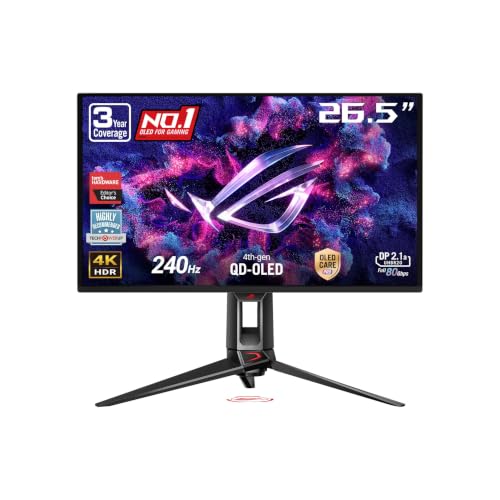
7. ASUS ROG PG27UCDM 27 Inch 4K 240Hz OLED Gaming Monitor
Key specs
27 inch, 4K, 240Hz, QD-OLED, OLED Care Pro, Neo Proximity Sensor, custom heatsink. The PG27UCDM is the 27-inch 4K OLED pick in this guide, for buyers who want flagship picture at a normal desk size.
Strengths
- 4K 240Hz QD-OLED is the sharpest and fastest picture in this guide at 27 inches.
- Neo Proximity Sensor dims the screen when you step away, which helps OLED care.
- Custom heatsink keeps the panel cool, which supports brightness and longevity.
Trade-offs
- 4K 240Hz needs a flagship graphics card to reach high frame rates.
- Flagship pricing puts it among the most expensive monitors here.
- OLED care with static images still applies, despite the sensor and heatsink.
Who it fits
Gamers with a flagship graphics card who want 4K OLED at 27 inches.
Best for: a flagship 4K OLED monitor for a normal desk.
Not suited for: anyone on a mid-range graphics card or a tight budget.
In daily use
In daily use, the PG27UCDM is the monitor that makes 4K feel effortless. The 27-inch QD-OLED panel is sharp, the 240Hz refresh rate keeps motion smooth, and the proximity sensor dims the screen when you walk away, which is a thoughtful touch for an OLED panel. It fits a normal desk where the 32-inch flagship would dominate, and it shows games and films with the depth that only OLED gives. Set the refresh rate to 240Hz, use DisplayPort, and let the sensor do its work. It is the monitor to buy when you want the best 4K picture at the most popular desk size.
Check price on Amazon: ASUS ROG PG27UCDM 27 Inch 4K 240Hz OLED Gaming Monitor
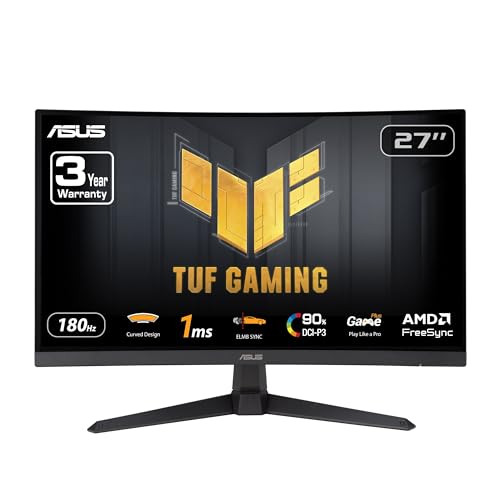
8. ASUS TUF Gaming VG27VQ3B 27 Inch 1080p 180Hz Curved Gaming Monitor
Key specs
27 inch, 1080p, 180Hz, HDR, curved 1500R, 1ms, ELMB Sync, FreeSync Premium, 90% DCI-P3. The VG27VQ3B is the curved pick in this guide, for buyers who want a wraparound feel.
Strengths
- 1500R curve wraps the screen around your view, which suits racing and immersive games.
- 180Hz at 1080p is easy for a mid-range graphics card to feed.
- 90% DCI-P3 gives wide colour for a 1080p monitor, and HDR support adds range to films.
Trade-offs
- 1080p at 27 inches is less sharp than the 1440p monitors here.
- Curved screen suits games more than straight lines in office work.
- HDR on a 1080p panel is modest beside the OLED monitors here.
Who it fits
Gamers who want a curved, immersive screen for racing and open-world games.
Best for: a curved gaming monitor for immersion on a budget.
Not suited for: anyone who works with straight lines, or wants the sharpest picture.
In daily use
In daily use, the VG27VQ3B is the monitor for getting lost in a game. The 1500R curve pulls the edges of the screen into your view, the 180Hz refresh rate keeps motion smooth, and the 27-inch size fills the desk without needing a huge graphics card. It suits racing games and open worlds, where the wraparound feel adds to the sense of speed and space. Sit centred and at a normal distance so the curve works as intended, and set the refresh rate to 180Hz after setup. It is the monitor to buy when immersion matters more than pixel density.
Check price on Amazon: ASUS TUF Gaming VG27VQ3B 27 Inch 1080p 180Hz Curved Gaming Monitor
Buying guide: best asus gaming monitors
Resolution first
Pick the resolution your graphics card can actually feed. A mid-range card suits 1080p at high refresh rates or 1440p at 144Hz and above, while 4K at 144Hz or 240Hz needs a high-end or flagship card. Buying a 4K 240Hz monitor for a mid-range card means running games at lower settings or a lower resolution, which wastes the panel. Match the monitor to the card you own, not the card you wish you owned.
Refresh rate and response
Refresh rate decides how smooth motion looks, and response time decides how sharp moving objects stay. For competitive shooters, 240Hz and above with a 1ms or 0.03ms response is the target, which is why the VG259QM5A, the XG27AQDMGR and the XG27ACDNG lead here. For cinematic games and films, 144Hz to 180Hz is plenty, and resolution and colour matter more. Adaptive sync, whether G-SYNC compatible or FreeSync Premium, stops tearing when the frame rate varies, so check the listing states it.
IPS or OLED
Fast IPS gives good colour, wide viewing angles and no burn-in worry at a fair cost, which is why the TUF range uses it. OLED and QD-OLED give perfect blacks, instant response and the best picture in this guide, but they cost more and need care with static images. If you play varied games and watch films, OLED is worth it. If you play one competitive game with a static interface for hours, IPS is the safer and cheaper choice.
Size, curve and desk
27 inches is the sweet spot for most desks, sharp at 1440p and 4K and easy to see in one glance. 25 inches suits competitive play, where the whole screen must stay in view, and 32 inches suits cinematic games and films, where the picture should fill your vision. A curved panel adds immersion for games but suits office work less. Measure your desk depth before ordering a 32-inch monitor, and check the stand footprint, because a wide stand can crowd a narrow desk.
Connections and settings
Use DisplayPort for the highest refresh rates, because HDMI may limit the top rate on some models. After plugging in, open your display settings and set the refresh rate to the monitor's maximum, because it often defaults to 60Hz. Turn on the adaptive sync setting in your graphics driver, set the colour mode to the wide gamut only when you want it, and keep the brightness at a comfortable level rather than maximum, which suits both your eyes and an OLED panel.
Usage and care
Set up a new monitor by placing it at arm's length with the top of the screen at eye level, connecting it over DisplayPort, and setting the refresh rate to its maximum in display settings. For OLED models, open the monitor menu and turn on the OLED care features, set the screen to dim or turn off after a few minutes idle, and hide the taskbar or set it to auto-hide, because static images are what OLED panels dislike most. For IPS models, set the overdrive or response setting to its middle value, because the fastest setting can cause ghosting. Keep the screen clean with a soft, dry microfibre cloth, and never spray cleaner directly onto the panel.
Calibrate the picture by setting the colour mode to the standard or sRGB mode for everyday use, and the wide gamut mode only for films and games that benefit from it. If the monitor looks too bright, lower the brightness to a comfortable level rather than raising the room light, because a bright screen in a dark room strains the eyes. For competitive games, turn off motion blur and set the graphics settings so the frame rate stays near the refresh rate, because a smooth frame rate matters more than maximum detail. Update the graphics driver when a new game arrives, because driver updates often fix monitor issues.
Live with the monitor by giving it a proper mount or stand: a monitor arm frees desk space and lets you set the height exactly, while the included stand suits a buyer who wants no extra purchase. If the monitor has USB ports, use them for a mouse receiver or a charging cable, because a short cable to the monitor is tidier than a long cable to the computer. Keep the room lighting even, with no bright window behind you or beside the screen, because uneven light makes the eyes work harder and washes out a glossy OLED panel. A monitor that is set up well will feel right for years, while a monitor that is too high, too low or too bright will strain you every day.
Common mistakes
The most common mistake is leaving the refresh rate at 60Hz, which wastes a 144Hz, 240Hz or 360Hz panel entirely. Another is buying a 4K monitor for a graphics card that cannot feed it, so games run at low settings or a lower resolution. A third is judging an OLED monitor by its first hour, before the panel has settled and the settings are right. Buyers also forget to check the cable: the cable in the box may not support the top refresh rate, so a certified DisplayPort cable is worth having.
Do not buy a monitor for its headline refresh rate alone, because the panel type, the resolution and the adaptive sync support matter just as much. Do not place an OLED monitor in direct sunlight, because heat and static images together are the worst combination for it. Do not ignore the stand: a monitor that cannot adjust height or tilt will strain your neck over long sessions, and a VESA mount is the fix if the stand does not suit you. And do not forget the desk: a 32-inch monitor on a shallow desk sits too close, which defeats the point of the bigger screen.
Do not buy a monitor for its box claims alone, because the headline refresh rate may need a specific cable or a specific port to reach. Do not ignore the panel warranty: OLED monitors have different warranty terms from IPS monitors, and the burn-in cover varies by maker, so read the listing before ordering. Do not run a 4K monitor at a lower resolution to gain speed, because a non-native resolution looks soft; lower the game settings instead, which keeps the picture sharp. And do not forget the graphics card: a monitor is only as fast as the card that feeds it, and a flagship monitor on a weak card is money spent for nothing.
ASUS ROG or TUF: which family to buy
ROG is the flagship family, where the OLED panels, the highest refresh rates and the newest features live, and it costs accordingly. TUF Gaming is the value family, where fast IPS panels, solid build quality and fair costs live, and it covers most gamers well. Buy ROG when the panel is the point and the budget allows it, because the OLED picture and the 240Hz and 360Hz speeds are genuinely better. Buy TUF when the monitor should be good without being expensive, because a TUF 1440p 180Hz panel is the sweet spot for most gaming PCs. Neither family is a bad buy, and the right one is the one that matches the graphics card and the budget.
Single monitor or dual monitors
One good monitor suits most gamers, because the game fills the screen and there is nothing to distract from it. A second monitor suits streamers, workers and multitaskers, because chat, music or a browser can live on the second screen while the game runs on the first. If you buy two, match the size and the height so the screens line up, and put the gaming monitor in front of you with the second monitor to the side. A 27-inch 1440p gaming monitor with a 24-inch second screen is the most common setup, and it works well for gaming and for work.
Final recommendation
For most gamers, the ASUS TUF Gaming VG27AQ3A is the best ASUS gaming monitor in this guide: a 27-inch 1440p 180Hz Fast IPS panel that suits almost any mid-range graphics card and any game. If you play competitively, the TUF VG259QM5A at 1080p 240Hz or the ROG XG27ACDNG at 1440p 360Hz are the picks, depending on your budget. If you want the best picture available, the ROG PG32UCDP at 4K 240Hz OLED or the PG27UCDM at 27 inches are the flagships, and the XG27AQDMGR gives OLED quality at a more normal size and cost.
The TUF VG27UQ1A is the pick for 4K on an IPS panel without OLED cost or care, and the VG27VQ3B is the pick for a curved, immersive screen on a budget. Whichever monitor you choose, match it to your graphics card, set the refresh rate to its maximum after setup, and use DisplayPort for the best result: a monitor is only as good as the signal you feed it.
Set the monitor up properly on day one: DisplayPort cable, maximum refresh rate, adaptive sync on, and the OLED care features enabled where they apply. A monitor that is set up right will serve the whole life of the graphics card, and often the next one too, because a good display outlives the parts around it. The eight monitors in this guide cover every budget and every refresh rate ASUS makes, from the 25-inch competitive panels to the 32-inch 4K OLED flagship, so the right one is the one that matches your card, your desk and your games.
Frequently asked questions
What is the best ASUS gaming monitor?
The ASUS TUF Gaming VG27AQ3A is the best all-round pick in this guide: a 27-inch 1440p 180Hz Fast IPS monitor that suits most gamers and most graphics cards. The ROG PG32UCDP is the best flagship, with a 32-inch 4K 240Hz OLED panel, and the ROG XG27ACDNG is the fastest, with a 1440p 360Hz QD-OLED panel.
Should I buy a 1440p or 4K ASUS gaming monitor?
Buy 1440p if your graphics card is mid-range or high-end, because it can reach high frame rates at 1440p in most games. Buy 4K if your graphics card is flagship class and you want the sharpest picture, because 4K at high settings needs a powerful card to stay smooth.
Is OLED better than IPS for gaming?
OLED gives perfect blacks, instant response and the best picture in this guide, which suits cinematic games and films. IPS gives good colour and wide viewing angles with no burn-in worry at a lower cost, which suits competitive play and mixed use. Both are good, and the right choice depends on what you play and how much you want to spend.
What refresh rate do I need for gaming?
144Hz to 180Hz is enough for most gamers and feels far smoother than 60Hz. 240Hz suits competitive players who want the fastest response, and 360Hz suits players who can feel the difference and whose graphics card can feed it. Above 240Hz, the benefit is smaller and the cost is higher.
Do ASUS gaming monitors work with NVIDIA and AMD graphics cards?
Yes, the monitors in this guide list G-SYNC compatibility or FreeSync Premium support, and most support both in practice through adaptive sync over DisplayPort. Check the listing for the model you choose, and turn on adaptive sync in your graphics driver after setup.
Can I use an ASUS gaming monitor for work as well as gaming?
Yes, a 1440p or 4K monitor such as the VG27AQ3A or the VG27UQ1A works well for office work, because the sharp resolution keeps text readable and the IPS or OLED panel shows colours accurately. A curved monitor suits games more than spreadsheets, and a 25-inch 1080p monitor feels small for work, so pick a 27-inch 1440p or 4K model if the monitor must do both jobs.
How do I stop OLED burn-in on a gaming monitor?
Use the OLED care features in the monitor menu, hide the taskbar or set it to auto-hide, vary what is on screen, and let the monitor dim or turn off when idle. The ROG OLED monitors in this guide include OLED Care Pro and a custom heatsink, and the PG27UCDM adds a proximity sensor that dims the screen when you step away. Varied content and the built-in care features keep an OLED panel vivid for years.
More from ilcastellomenu.com
Best Gaming Monitors for Gaming: gaming monitor picks