ilcastellomenu.com is reader-supported. When you buy through links on our site, we may earn an affiliate commission.
Where to Buy
Gameplay footage is easy to make look good; the game renders itself. The hard rectangle is the small one in the corner, where a face lit by monitor glow has to hold an audience through a four-hour session. The best cameras for streaming live games are the ones that keep that face sharp, correctly exposed and in sync while the PC is busy pushing frames to two places at once. Some streamers get there with a dedicated webcam and nothing else. Others run a mirrorless camera through a capture card and accept extra cables in exchange for a picture that looks like television. Both routes are covered below, because the right answer depends on your desk, your lighting and how much setup you tolerate before pressing Go Live.
Every camera named here is sold through mainstream retailers, and the linked picks go to Amazon listings where you can check the current configuration before ordering. If you already own a recent mirrorless camera, read the capture-card section before buying anything: your best streaming camera may already be sitting in a bag by the door. One more preliminary, offered in the spirit of saving money: borrow or trial before committing if you can. An evening with a friend’s webcam in your actual room teaches more than a week of comparison charts, because streaming quality is a property of a camera in a place, not of a camera in the abstract.
Key Takeaways
- A facecam lives or dies on exposure stability, not headline resolution.
- Fixed-focus and reliable autofocus beat cinematic depth of field at a desk.
- Capture cards add latency questions that USB webcams mostly dodge.
- Lighting money spent before camera money returns more visible quality.
- Clean HDMI output is the feature that separates streamer-ready mirrorless bodies.
- Your voice chain matters as much as the picture; no camera here fixes audio.
In this guide
Quick Picks
| Camera | Badge | Why it earns its slot |
|---|---|---|
| Elgato Facecam | Best purpose-built facecam | Built for streamers, with fixed focus and software that remembers your settings. |
| OBSBOT Tiny 2 | Best for animated streamers | A gimbal head that follows you when you lean, stand and celebrate. |
| Logitech Brio 4K | Best plug-and-play upgrade | Sharp 4K sensor with a wide field of view you can crop to taste. |
| Logitech StreamCam | Best compact desk option | Vertical-video friendly and happy on a small monitor mount. |
| Sony ZV-E10 II | Best mirrorless for streaming | Large sensor, superb eye autofocus and clean output for capture cards. |
| Canon EOS R50 | Best hybrid creator body | Streams beautifully and still works as a stills camera on days off. |
How Did We Choose Cameras for a Gaming Desk?
We weighted the things that actually show up on a broadcast. First, behaviour under mixed light: a gaming room is a cave with RGB accents, a bright monitor and usually one practical lamp, and cameras that hunt for exposure every time a game scene cuts from snowfield to dungeon make a streamer look seasick. Second, focus discipline. A facecam sits at arm’s length and the subject moves within a shallow box, so we favoured cameras that lock on and stay locked over those chasing a film look. Third, the connection path: USB cameras were judged on driver maturity and how gracefully they behave inside OBS and Streamlabs, while mirrorless bodies were judged on clean HDMI, webcam-over-USB modes and whether they can run for hours without overheating warnings.
Latency got its own pass. A facecam that trails the gameplay by a visible beat forces the streamer to add artificial delay to the game feed, and small mismatches between mouth movement and voice are the kind of wrong viewers feel before they can name. Finally we considered the desk itself: mount size, cable exit direction, whether the camera blocks a monitor bezel, and whether its indicator light can be dimmed during horror games. Cameras that demanded a studio to perform were marked down, however lovely their sensors.
We also discounted spec-sheet theatre wherever we found it. A headline resolution the camera can only sustain at a cinematic frame rate, a microphone included mainly so the box can claim one, a “pro” mode buried in software that resets monthly — these counted against a pick, not for it. What counted for a pick was evidence of design intent aimed at this exact job: stored settings, honest frame rates, mounts that respect monitor bezels, and software written by people who appear to have watched a stream fail at an embarrassing moment and sworn it would not happen on their watch.
Does 4K Matter When Your Face Occupies a Corner?
Mostly, no — and the honest version of that answer saves you money. A facecam window typically renders at a few hundred pixels across on the viewer’s screen, so a clean 1080p feed with stable exposure will look better than a noisy 4K feed that keeps re-focusing. Where 4K earns its keep is flexibility: a 4K sensor lets you crop a tighter frame from a wide shot without going soft, punch in for a reaction cam scene, or run a full-screen “just chatting” layout between matches without swapping cameras. Buy 4K for the crop, not for the corner.
Frame rate matters more than resolution for this job. Sixty frames per second keeps head movement smooth against fast gameplay, and it matches the cadence of the game feed so cuts between layouts feel continuous. A camera that offers 1080p60 is a better streaming tool than one offering 4K30 with a sluggish sensor readout, whatever the box art implies.
What Does a Capture Card Actually Do?
A capture card is a translator. A mirrorless camera speaks HDMI; your streaming software speaks USB. The card sits between them, taking the camera’s video output — ideally a clean feed with no menus or focus boxes — and presenting it to the PC as if it were a webcam. Passthrough is the second half of the job when the same card also carries gameplay: the console or gaming PC’s signal passes through the card to your monitor with as little delay as possible while a copy is sent to the streaming software.
Two numbers decide whether a card setup feels right. The first is passthrough latency, which affects how the game feels to play; good cards are effectively instant. The second is preview latency inside the streaming software, which affects lip sync; a small audio delay offset, set once and forgotten, usually absorbs it. None of this is difficult, but it is one more device to power, cable and troubleshoot at 7:58 before an 8:00 stream, which is why the webcams in this guide exist and why many full-time streamers still choose them.
What Are the Best Cameras for Streaming Live Games?

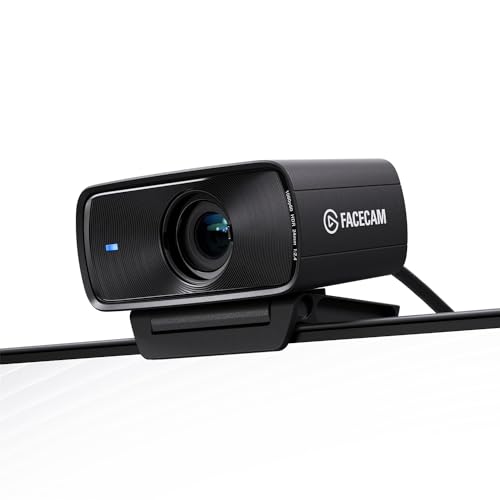
Elgato Facecam — Best purpose-built facecam
Most webcams are conference-call tools that streamers adopted; the Facecam is the reverse, a camera specified by people who watch broadcasts for a living. Its defining choice is fixed focus. At desk distance that sounds like a limitation and behaves like a relief: lean in for a whisper, rock back after a lost team fight, hold up a controller — the picture never breathes, never hunts, never drifts soft at the moment a clip gets made. The 1080p60 output is unglamorous on a spec sheet and exactly matched to the rectangle it will live in.
Elgato’s Camera Hub software is the other half of the argument. Exposure, white balance, zoom and pan are adjustable in fine steps and, crucially, the settings are stored on the camera itself, so the look you dialled in on Tuesday survives reboots and software updates. Streamers who have watched a rival webcam reset itself to auto-everything after a Windows update will understand why that matters more than another megapixel.
For live games specifically, the Facecam’s low-light discipline stands out. Gaming rooms run dark, and this camera holds a usable, low-noise image at light levels where general-purpose webcams smear. Pair it with even a modest key light and the result reads as intentional production rather than lucky accident.
- Connection: USB-C
- Output: 1080p at up to 60fps
- Focus: fixed, tuned for desk distance
- Software: Elgato Camera Hub, settings stored on-device
- Mount: monitor lip plus tripod thread
Strengths
- Focus that can never hunt mid-stream
- Settings persist through restarts and updates
- Composed behaviour in dark gaming rooms
Trade-offs
- No built-in microphone at all
- Fixed focus punishes anyone streaming from a sofa
- Field of view is desk-framed, not room-framed
Best for: streamers who sit in one chair, in one room, and want the camera solved permanently. Not suited for: creators who move around the room on camera or need an all-in-one audio solution.
One more gaming-specific virtue deserves naming: the Facecam’s image stays composed during rapid on-screen changes. When a flashbang whites out the game and the room’s ambient light swings with it, auto-exposure cameras often lurch; with exposure locked through Camera Hub, the Facecam simply continues, and the streamer’s face remains the steadiest object in the broadcast. That steadiness is what regular viewers are actually paying attention to, even if they would describe it as “this stream feels pro”.

OBSBOT Tiny 2 — Best for animated streamers
The Tiny 2 answers a question most webcams refuse to ask: what happens when the streamer won’t sit still? Its motorised two-axis gimbal tracks your face as you lean toward a clutch play, stand up between matches or pace during a sponsored segment, panning and tilting with a smoothness that reads as a camera operator rather than a robot. Gesture controls start and stop tracking without touching the keyboard — genuinely useful when both hands are on a controller.
The sensor is unusually large for the category, and it shows in mixed RGB lighting, where the Tiny 2 keeps skin tones separate from the purple wash that turns lesser cameras’ subjects into ghosts. Autofocus is fast and confident, and the 4K output gives OBSBOT’s software room to crop and reframe while the gimbal handles the physical movement.
There is a personality consideration. A camera that watches you back, swivelling on its neck, delights some audiences and unsettles others, and the tracking can be fooled by a second person entering the frame during a duo stream. Turn tracking off and it becomes a very good ordinary webcam — which is rather the point: it is the only pick here that can be both.
- Connection: USB-C
- Output: up to 4K at 30fps, 1080p at higher rates
- Tracking: AI face and body tracking on a 2-axis gimbal
- Controls: gesture, app and optional remote
- Microphone: built-in array
Strengths
- Follows movement no static camera can frame
- Large sensor keeps colour honest under RGB light
- Tracking can be disabled entirely when unwanted
Trade-offs
- Moving head distracts in minimalist setups
- Premium pricing for the category
- Best features need its software running
Best for: high-energy streamers, IRL-style desk segments and anyone presenting standing up. Not suited for: minimalists who want an invisible camera or streamers on a strict budget.
Speedrunning and rhythm-game streamers have adopted the Tiny 2 for a reason beyond novelty: the gimbal reframes faster than a scene switch. A runner who sits for the attempt and stands for the result stays centred through both, and the camera’s subject-lock rarely surrenders the face to a passing cat, a housemate, or the poster’s bright rectangle on the wall behind. In testing terms it is the only pick whose framing improves the more chaotic the broadcast becomes.

Logitech Brio 4K — Best plug-and-play upgrade
The Brio has been the default “serious webcam” for so long that its virtues are easy to underrate. It connects over USB, is recognised instantly by every streaming platform, and produces a 4K image wide enough that you choose your framing in software — tight facecam for ranked matches, wider shot for unboxings — rather than by physically moving the camera. That digital zoom from a 4K sensor stays clean through the crops a streamer actually uses.
Its autofocus is conventional and occasionally leisurely, which places it behind the Facecam for pure set-and-forget duty, but its exposure handling is mature and its colour science is the familiar, flattering Logitech look that needs little correction. Windows Hello support is irrelevant to streaming and delightful for the PC it lives on, unlocking the machine with the same camera that broadcasts from it.
For a games channel, the Brio’s strongest argument is ecosystem boredom: every guide, every OBS tutorial and every troubleshooting thread assumes this camera exists. When something misbehaves at stream start, the answer is one search away. That support gravity is worth real money to anyone whose income starts at a fixed hour.
- Connection: USB (USB-C with adapter)
- Output: up to 4K at 30fps, 1080p at 60fps
- Field of view: up to 90 degrees, crop-adjustable
- Extras: Windows Hello facial login, privacy shutter
- Microphone: built-in stereo
Strengths
- Crop freedom from a genuine 4K sensor
- Universally supported by software and tutorials
- Doubles as a biometric login camera
Trade-offs
- Autofocus can wander in low light
- Needs USB bandwidth shared carefully with other devices
- Design is businesslike rather than streamer-styled
Best for: streamers upgrading from a laptop camera who want one purchase to end the search. Not suited for: anyone needing tracking movement or a dedicated streamer software suite.
There is also a longevity argument that rarely appears in webcam comparisons. The Brio’s long production run means replacement cables, mounts and second-hand units circulate widely, and streaming software profiles for it are refined to a polish newer rivals have not reached. For a streamer whose worst nightmare is troubleshooting at showtime, boring and solved beats novel and promising.

Logitech StreamCam — Best compact desk option
Desk space is the scarcest resource in a gaming setup, and the StreamCam was designed by someone who measured it. The body is small, the mount grips a monitor top without a deep overhang, and the whole unit can rotate into portrait orientation for the streamers who cut vertical clips or run a simultaneous short-form feed. Its 1080p60 output is honest, its autofocus is quick at conversational distances, and its face-based exposure keeps the subject readable when a bright game flashes behind them.
What it gives up against the Brio is sensor size and crop headroom; what it gains is a friendlier price band and a form that disappears into a dual-monitor battlestation. The built-in microphones are serviceable for a first season of streaming, which cannot be said of every camera here, and the USB-C connection avoids the adapter drawer entirely on modern PCs.
Live games punish cameras that re-meter on every explosion. The StreamCam’s exposure steps are visible but restrained, and in the steady half-light of an evening stream it settles into a consistent look that viewers stop noticing — the highest compliment a facecam can earn.
- Connection: USB-C
- Output: 1080p at up to 60fps
- Orientation: landscape or portrait mounting
- Microphone: built-in dual
- Software: Logitech Capture / G Hub ecosystem
Strengths
- Tiny footprint on crowded monitor tops
- Portrait mode serves clip and short-form workflows
- Usable microphones for beginners
Trade-offs
- No 4K headroom for cropping
- Struggles sooner than rivals as light drops
- Mount is monitor-first; tripod use needs an adapter path
Best for: new and mid-size streamers with tight desks and tighter budgets. Not suited for: full-screen chatting layouts where sensor size shows.
Dorm-room and shared-flat streamers should note a quieter strength: the StreamCam’s modest appetite. It asks little of the PC, little of the desk and little of the room’s lighting to produce a broadcast-ready picture, and its small silhouette does not advertise “studio” to visitors. For creators filming in spaces that must return to ordinary life after the stream, that reversibility is a feature no flagship here can match.

Sony ZV-E10 II — Best mirrorless for streaming
When a channel grows past the facecam stage, this is the camera it grows into. The ZV-E10 II pairs a large APS-C sensor with Sony’s eye autofocus, which holds a face through glasses, headsets and the half-turn toward a second monitor with a tenacity no webcam matches. Through a capture card the image has the shallow depth and highlight roll-off that make a stream look produced; over USB it can serve as a webcam directly, at lower resolution, for travel or backup duties.
Streaming-specific thoughtfulness runs through the body: a tally light so you know when you are live, a product-showcase mode that shifts focus to an object held up to the lens — controllers, keyboards, sponsor hardware — and menus that assume video is the point. Battery life is the tax on all of it; a dummy battery or USB power is effectively mandatory for long sessions, and a capture card adds cost the webcam picks do not carry.
For games content the payoff is the between-match moments. Full-screen segments, hand cams and desk tours shot on the ZV-E10 II intercut with recorded content without a visible quality cliff, which is exactly where growing channels either professionalise or stall.
- Sensor: APS-C, interchangeable E-mount lenses
- Streaming: USB webcam mode plus clean HDMI
- Autofocus: real-time eye tracking
- Audio: 3.5mm mic input, directional capsule available
- Power: battery, USB or dummy-battery mains
Strengths
- Image quality a clear class above webcams
- Eye autofocus that survives headsets and glasses
- Lens choice lets the look evolve with the channel
Trade-offs
- Total cost climbs with lens, card and power accessories
- Long sessions demand mains power planning
- More setup before every stream than a webcam
Best for: established streamers making the mirrorless jump and hybrid creators who also record. Not suited for: anyone who wants to press one button and be live.
Consider also what the ZV-E10 II does to a channel’s recorded output. Highlights, sponsor reads and tutorial segments shot on the streaming camera inherit the live look, so the brand stays consistent across platforms. Streamers who record on one device and broadcast on another spend their lives colour-matching; this Sony quietly deletes that chore.

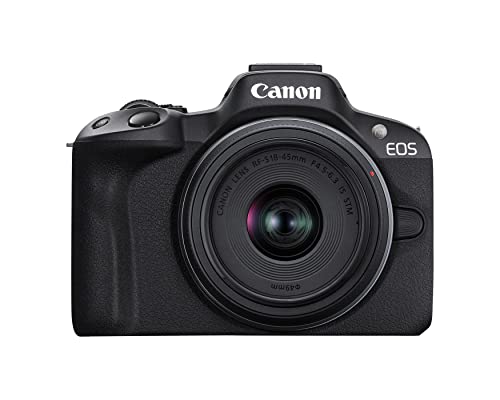
Canon EOS R50 — Best hybrid creator body
The R50 is the friendliest door into the mirrorless streaming tier. Canon’s colour — especially skin tones under household bulbs — flatters without correction, its Dual Pixel autofocus is confident and sticky, and the body can stream over USB as a webcam with Canon’s utility software or feed a capture card over HDMI when you want its full quality. A vari-angle screen that faces the streamer makes framing a solo broadcast a ten-second job.
It is also, unapologetically, a stills camera, and that dual life suits the many gaming creators whose channels sit beside photography, travel or family duties. The RF lens system gives it the same upgrade path as the Sony: start with the kit zoom at a desk, add a fast prime when the background blur itch arrives.
Heat is the honest caveat. Long 4K recording sessions in warm rooms are where compact bodies earn warnings; streamed at 1080p through a card, or used in its webcam mode, the R50 is far more comfortable, and most facecam duty never asks more of it. Plan the setup around that and it rewards you with the most approachable handling in this guide.
- Sensor: APS-C, Canon RF mount
- Streaming: USB webcam utility plus HDMI output
- Screen: vari-angle touchscreen, forward-facing
- Autofocus: Dual Pixel CMOS AF II with subject detection
- Audio: 3.5mm mic input
Strengths
- Flattering colour straight out of camera
- Forward-facing screen simplifies solo framing
- Genuine stills camera when the stream is off
Trade-offs
- 4K recording endurance is heat-limited
- Webcam utility resolution trails capture-card quality
- Kit lens is a starting point, not the final look
Best for: creators who want one camera for streaming, video and photography. Not suited for: marathon 4K recordists or streamers allergic to accessory purchases.
New streamers, in particular, should weigh the R50’s forgiveness. Its menus speak plainly, its automatic modes are genuinely competent while you learn, and its face-detection keeps a beginner framed while their attention is on chat and gameplay. Cameras that demand mastery before they reward it discourage exactly the people this category should encourage.
How Do the Six Streaming Cameras Compare at a Glance?
| Camera | Connection | Top output | Focus style | Ideal role |
|---|---|---|---|---|
| Elgato Facecam | USB-C | 1080p60 | Fixed | Permanent desk facecam |
| OBSBOT Tiny 2 | USB-C | 4K30 | Tracking gimbal | Moving presenters |
| Logitech Brio 4K | USB | 4K30 / 1080p60 | Autofocus | Crop-flexible all-rounder |
| Logitech StreamCam | USB-C | 1080p60 | Autofocus | Compact desks |
| Sony ZV-E10 II | USB / HDMI | 4K | Eye AF | Produced mirrorless look |
| Canon EOS R50 | USB / HDMI | 4K | Dual Pixel AF | Hybrid photo-video streaming |
How Should You Light a Facecam Corner?
The cheapest production upgrade in streaming is a single soft light placed where a window would be if your room had better architecture: slightly above eye level, angled down, off to one side of the monitor. It gives the camera an easy exposure target, carves your face out of the RGB gloom, and lets every camera in this guide drop its gain and look twice as expensive. A dimmable panel matters more than a powerful one, because facecam light lives two feet from your eyes for hours; comfort is a feature.
Second priority is killing the monitor’s dominance. A bright game scene washing your face blue-white, then vanishing into a dark menu, forces constant re-exposure. Lowering monitor brightness a notch and adding that steady key light narrows the range the camera must straddle. Background accents — the LED strip, the shelf lamp — can stay theatrical; they are scenery. Your face is the broadcast.
How Do You Sync a Facecam With Gameplay and Voice?
Lip sync drift usually comes from the slowest path in the chain, and in a capture-card setup that path is video. The fix is unglamorous: clap once on camera during setup, watch where the sound lands against your hands in the recording, and dial the matching audio delay into your streaming software. Save the scene collection once it is right. Webcam-only setups rarely need more than a few milliseconds of correction, but “rarely” is not “never”, and a five-minute clap test in setup week beats a chat full of polite complaints in month three.
Keep the chain short where you can. Every virtual camera hop, every software re-encode between the device and the broadcast adds its own small toll. Plug capture devices into rear motherboard ports rather than hubs shared with drives and dongles, and give the streaming PC’s USB controller room to breathe.
How Wide Should a Facecam Frame Be?
Framing is a storytelling decision disguised as a technical one. A tight crop — head and shoulders, little else — reads as intensity and suits competitive play, commentary and horror, where the face is the show. A wider frame that admits shelves, posters and the edge of a guitar tells viewers who you are between matches, and it is the natural habitat of chatting segments and variety streams. Neither is correct; drifting between them by accident, because the camera moved, is the only real error.
Practically, set the frame at your most animated. Streamers lean forward when a round tightens and throw their hands up when it resolves; a frame composed for your calmest posture will amputate a forehead at the exact moment a clip happens. Leave headroom you think you do not need. With a 4K camera you can then publish two crops — the live wide shot and a tighter edit for clips — from a single feed, which is the strongest argument for sensor resolution in this entire guide.
Background discipline matters at any width. A door that opens into a lit hallway, a mirror that catches the room behind the camera, a window whose daylight swings the exposure across an afternoon — these are the intrusions viewers remember. Compose the rectangle, then defend it.
Should You Run Two Cameras on One Stream?
The second camera is where hobby setups quietly become productions. Typical pairings: a facecam plus a hand cam for keyboard-and-mouse games or card openings; a wide room shot for starting-soon segments; a dedicated camera on a pet, a model kit, a 3D printer — the channel’s supporting cast. Streaming software handles the switching trivially through scenes, and viewers experience the change as energy rather than equipment.
The costs are real but specific. Two USB video devices compete for controller bandwidth, and mismatched colour between brands is more visible than either camera’s flaws alone. The pragmatic pattern is one good camera bought deliberately — any of the top four here — and a second, cheaper angle added later, with colour matched by locking both cameras’ white balance to the same manual value. Resist buying two mid cameras on day one; one excellent rectangle and an empty scene slot is the better foundation.
How Do Streaming Apps Treat Your Camera Feed?
OBS and Streamlabs do not pass your camera through untouched; they scale, colour-convert and composite it, and the defaults are not always flattering. Set the device’s resolution and frame rate explicitly in the source properties rather than accepting “device default”, which can silently choose a lower mode. Match the camera’s frame rate to your canvas so the compositor is not inventing or discarding frames unevenly — a 60fps facecam on a 60fps canvas is the smooth path, while mixed rates can produce a subtle judder viewers describe as “something feeling off”.
Filters deserve restraint. A whisper of sharpening and a gentle colour correction can unify a camera with your overlay palette; stacking beauty filters until skin turns to porcelain fools no one and dates the broadcast instantly. Chroma keying is the exception that justifies real effort: if you run a green screen, even light on the screen itself matters more than the camera upgrade you are contemplating, and every camera in this guide keys cleanly once the screen is lit evenly and you sit a sensible distance from it.
What About the Microphone the Camera Brings?
Two of the webcams here carry usable microphones, two carry serviceable ones, and the mirrorless bodies expect you to supply your own — and the Facecam pointedly includes none at all. Treat built-in camera audio as scaffolding: fine for your first month, a backup when the main microphone fails, and the reference track for syncing. The moment streaming becomes regular, a dedicated USB or XLR microphone on a boom arm, close to your mouth and far from the keyboard, will improve perceived production quality more than any camera swap on this page.
Placement logic is the same for both devices, which is why streamers solve them together. Camera at eye level, microphone just below frame, light above and beside — the classic triangle. Get those three positions right and even the most modest pick here broadcasts like a professional; get them wrong and the flagship looks like a ransom video.
How Do You Future-Proof a Streaming Camera Purchase?
Buy for the bottleneck you actually have. If your current picture is soft because the room is dark, the next purchase is a light, and the camera after that will thank you. If focus hunting is ruining clips, fixed focus or proven eye-tracking solves it, and resolution is irrelevant. Cameras date slowly compared with GPUs and games; a well-chosen 1080p60 webcam remains a legitimate broadcast tool for years, and the mirrorless bodies here double as production cameras whose usefulness outlives any single channel format.
The genuine future-proofing is in connections and mounts. USB-C, standard tripod threads, clean HDMI and software that stores settings are the features that survive a desk rebuild, a PC upgrade or a move from bedroom to studio. Proprietary docks and app-locked features are where purchases go to strand. Every pick in this guide was chosen partly on that unglamorous criterion.
What Mistakes Do Streamers Make With a New Camera?
- Judging the picture in a bright afternoon room, then streaming at midnight under completely different light.
- Leaving every setting on auto, so exposure and white balance wander whenever the game cuts scenes.
- Mounting the camera at monitor-base height and broadcasting an unflattering up-the-nose angle for a year.
- Buying a mirrorless body before checking whether it outputs a clean HDMI feed without interface icons.
- Running camera, capture card, interface and drives through one unpowered USB hub and blaming the camera for dropouts.
- Forgetting that viewers forgive soft video far sooner than they forgive bad audio, and spending the whole budget on the lens.
What Does the Room Behind You Say to Viewers?
Every facecam broadcasts two subjects: the streamer and the room. Viewers read that background constantly, even when they believe they are only watching gameplay. A tidy shelf with three deliberate objects reads as care; a slumped laundry pile reads as the opposite, and neither judgement is fair — but streaming is a visual medium and the rectangle does not care about fairness. The encouraging news is that the camera itself can do much of this work. A wider lens stopped down keeps the room legible and demands tidiness; a fast lens on a mirrorless body melts the same room into coloured shapes, and suddenly the laundry is impressionism.
This is a genuine fork in the buying decision. Streamers with a room worth showing — collections, instruments, a planted aquarium, a workshop — should favour depth and width, which points toward the Brio’s crop-friendly sensor or a mirrorless body on a moderate lens. Streamers broadcasting from a bedroom corner they would rather not exhibit should favour blur, which is the mirrorless pair’s home turf, or a tight webcam crop with a plain backdrop. Decide what the rectangle should confess before deciding which sensor fills it.
Lighting the background is the third lever, and the cheapest. A small lamp or LED strip behind you separates your silhouette from the room and gives even a modest webcam the layered look of a produced set. Viewers consistently rate a well-separated subject as “better camera quality” in blind comparisons, which tells you how much of camera quality was never in the camera.
How Do You Handle a Camera Mid-Stream Failure?
It will happen on your best night. The professional response is boring preparation: a backup scene in your streaming software that drops the facecam and enlarges gameplay, so one hotkey turns a frozen face into a deliberate layout change while you recover. Audience goodwill survives a missing camera far better than it survives a broadcaster staring at a frozen frame of themselves, troubleshooting in silence.
Prevention is mostly thermal and electrical. Webcams that run hot in a warm room are the usual suspects for the two-hour freeze; a camera mounted with air around it, away from the monitor’s exhaust warmth, lives longer per session. Keep the camera on its own USB port rather than a stacked hub, update firmware on a quiet afternoon rather than at showtime, and keep one spare cable — the correct cable, tested — in the desk drawer. The mirrorless bodies add one more failure mode, the empty battery, which the dummy-battery advice in their sections exists to eliminate.
Finally, rehearse the recovery once. Knowing that your software re-detects the camera, that your scenes still line up, and that chat will be greeted by a calm “camera’s taking a break, game’s still here” converts a crisis into a story viewers retell fondly. Reliability on a stream is a performance skill built on camera choices, and the picks above were all chosen with graceful failure in mind.
What Should a First-Time Buyer Spend On, in What Order?
Sequencing beats total budget. Season one: a competent webcam from this guide’s first four, a light of any respectable size, and the microphone you already suspect you need. That trio produces a broadcast nobody will mistake for television and nobody will click away from for technical reasons. Season two, if the channel is alive: treat the room — backdrop, background light, acoustic softening — because the camera has begun showing it honestly. Season three: the mirrorless jump, made with full knowledge of your framing habits, your genre’s demands and your tolerance for setup ritual.
Streamers who invert this order — flagship camera first, cave lighting forever — end up with an exquisite sensor faithfully recording a dim, noisy, badly framed room, and a comment section asking why the picture looks cheap. The camera is the last link in a chain that begins with light and ends with software settings. This guide orders its picks by role rather than price precisely so the chain can be built link by link, and every link here will still be useful when the next one arrives.
Which Genres of Game Punish a Weak Camera Most?
Horror streaming is the stress test. The genre’s aesthetic demands a dark room, a dim face and sudden loud moments, which is precisely the recipe for noisy gain, wandering exposure and missed reactions. Cameras with larger sensors or disciplined low-light processing — the Tiny 2 and Facecam among webcams, both mirrorless bodies above them — hold a face together at light levels where budget cameras dissolve into grain. If your channel lives in the dark, buy for the dark.
Fast competitive titles punish differently: through motion. A shooter streamer’s head movement is constant and small, and a camera with slow autofocus or a low frame rate turns that energy into smear. Sixty frames per second and confident face-lock are the specs that matter, in that order. At the opposite pole, strategy and simulation streamers barely move; for them colour accuracy and the patience of a fixed frame matter more, and almost any pick here will serve.
Party games and couch co-op widen the problem to several faces at several distances. A wide field of view and a sensor that can be cropped are the tools; the Brio’s 4K width exists for exactly this rectangle. Plan the genre first and the camera second — the guide is ordered by streaming style, not by price, for that reason.
How Should You Test a Camera in Its First Week?
Record, do not stream, your first tests. Capture ten minutes at your usual streaming hour, in your usual lighting, playing your loudest and darkest games, then watch the recording on the largest screen you own. Check four things in order: whether exposure survives a scene cut from snow to cave; whether focus holds when you lean to read chat; whether your mouth and voice stay married; and whether the picture still pleases you at the small size a facecam actually displays. A camera that passes those four checks in your room will pass for your audience.
Test the failure modes too. Unplug and replug the camera mid-session and see whether your software finds it again without a restart. Let the PC sleep and wake. Run the camera alongside every other USB device you own. These are the accidents of a streaming year, and discovering in week one that a hub renegotiates badly is the cheapest education in this hobby.
What Changes When You Stream From a Desk You Share?
Many streamers broadcast from a desk that must be an office by day, a homework station by evening and a studio at night. That triple life changes the camera calculus in ways spec sheets ignore. A permanently mounted webcam that sits unobtrusively above the monitor serves all three lives without negotiation — it is the video-call camera at nine, the facecam at nine in the evening, and invisible in between. The mirrorless rig, by contrast, must be assembled and struck, and every assembly is a small treaty with whoever else uses the room.
Shared spaces also argue for privacy hardware. A physical shutter or a camera that can be tilted into the desk is not paranoia; it is household diplomacy, the visible guarantee that the room is off the record when the stream is off. The Brio’s shutter and the Tiny 2’s ability to bow its head face-down are, in this context, family features rather than security features.
Finally, shared desks punish cable sprawl twice — once in the using and once in the explaining. A single USB-C lead that carries the whole camera, as with the StreamCam and Facecam, keeps the studio footprint to something a household can forgive. When you evaluate the picks above, evaluate them against your room’s other occupants as well as your audience; the stream that survives is the one the household tolerates.
How Do You Keep a Streaming Look Consistent Across Months?
Channels develop a visual signature whether they plan one or not; the craft is making it deliberate. Photograph your desk setup once it pleases you — camera position, light angle, software settings, even the distance from chair to monitor — and keep that record where future-you, rebuilding after a house move or a new PC, will find it. Streamers underestimate how much of “the stream looked better last spring” is geometry: a camera nudged two inches left changes the light’s modelling on a face more than a new sensor would.
Lock what can be locked. Manual white balance ends the slow colour drift between sessions; stored camera profiles, like the Facecam’s on-device settings, end the post-update reset; a saved scene collection ends the improvisation of layouts. Then resist the upgrade itch in the wrong place: when regulars say the stream looks great, believe them, and spend the next budget on the parts of the broadcast they cannot see improving — audio treatment, a second angle, a better chair for the fourth hour.
Consistency also protects your archive. Clips cut from January and June should sit side by side in a compilation without a visible seam, because compilations are how new viewers meet the channel. A stable camera, a stable frame and a stable light are what make that archive feel like one body of work instead of a thrift store of experiments.
How Much Setup Is Enough Before You Press Go Live?
Build a ritual, then shrink it. The sustainable streaming desk is the one that goes from cold to live in under five minutes: camera already mounted, light on a smart plug or a single switch, streaming software opening to the scene you saved. Every accessory that must be fetched, charged or re-aimed is a small argument against streaming tonight, and channels die of those arguments more often than of bad equipment. This is the deep reason webcams survive every mirrorless wave — not image quality, but the absence of friction on a tired Thursday.
That said, friction spent once is different from friction spent nightly. A capture-card rig that takes an afternoon to cable, colour-match and sync, then simply works for two years, is a fine bargain for a full-time channel. Judge setups by their weekly cost in minutes, not their first-day cost in hours.
Final Recommendation
Start by naming your streaming shape, because the recommendation forks there. The seated, single-game streamer is the Facecam’s home ground, and for that shape this guide’s advice is uncomplicated: buy it, light it, lock the settings and stop thinking about cameras for a year. The performer — standing segments, desk tours, unboxings, a body in motion — should skip straight to the Tiny 2 and enjoy being followed. The cautious upgrader with a conventional desk and a mixed life of calls and streams is the Brio’s person, and the StreamCam covers the same ground where space or money is tighter.
Most game streamers should start — and many should finish — with the Elgato Facecam: its fixed focus and remembered settings remove the two failures that actually embarrass broadcasts. If your presentation style involves standing, moving and performing to the room, the OBSBOT Tiny 2 is the only camera here that keeps up. The Brio remains the safest single upgrade for a conventional desk, and the StreamCam covers compact setups honestly. Step up to the Sony ZV-E10 II when your channel’s full-screen segments start earning real watch time, and choose the Canon EOS R50 when the same camera must also live a photographic life. Whichever you pick, spend the price difference on a light before you spend it on a lens.
Frequently Asked Questions
Can I use my phone instead of buying a streaming camera?
Yes, and modern phones make surprisingly good facecams through continuity-camera features or streaming apps. The costs are heat, battery wear and losing your phone for the duration of the stream. As a trial to learn your framing and lighting, a phone is excellent; as a permanent fixture, a dedicated camera is kinder.
Do I need a capture card if my camera has a webcam mode?
Not strictly. USB webcam modes are convenient and adequate for a facecam window. A capture card earns its place when you want the camera’s full resolution and colour, when the USB mode limits frame rate, or when the same card is already handling your gameplay feed.
Why does my facecam look worse than the reviews suggest?
Almost always light, then settings. Review footage is shot in controlled lighting; a dark room forces any small sensor into noisy high gain. Add one soft key light, lock exposure and white balance manually, and re-judge the camera before replacing it.
Is 1080p60 better than 4K30 for a facecam?
For the corner window, yes: motion smoothness matches your gameplay feed and the resolution is already more than the window displays. Choose 4K when you also run full-screen layouts or want crop flexibility from a single wide shot.
How do I stop my camera refocusing every time I move?
Reduce the hunting stimulus: steady light, a background that is not flashing, and focus modes set for faces rather than general scenes. Or remove the variable entirely with a fixed-focus camera like the Facecam, which is why it tops this guide for deskbound streamers.
Will a better camera grow my channel?
Not by itself. A competent camera removes a reason to leave; it does not supply a reason to stay. What it does do is stop taxing everything else you make — the commentary, the gameplay, the community rituals — with a layer of visual friction. Buy the camera that removes friction at your current size, then let content do the growing.
How long should a streaming camera last?
Years, if you buy on connections and mounts rather than launch-day features. Webcams have no moving parts worth the name — the Tiny 2’s gimbal excepted — and sensors age far more slowly than the games you will play in front of them. Expect the software ecosystem, not the hardware, to set the lifespan, which is another reason the mature platforms in this guide earned their places.
Related Guides
Setting up the rest of the broadcast desk? See our guides to the best cameras for streaming on a console setup, cameras that suit professional webinar presenting and compact cameras for creators who film away from the desk.