Disclosure: As an Amazon Associate, ilcastellomenu.com earns from qualifying purchases. Prices and availability change; check Amazon for the latest.
Where to buy
Check the latest price, availability and delivery on Amazon for the best gaming routers for low ping in this guide. Orders are placed on Amazon.
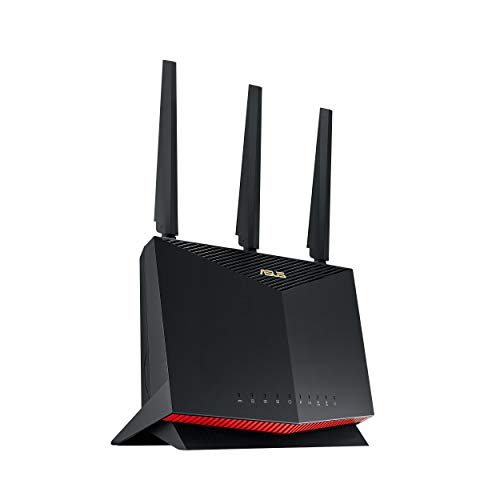
- ASUS RT-AX86U Pro (AX5700) (Best Overall) â Check on Amazon
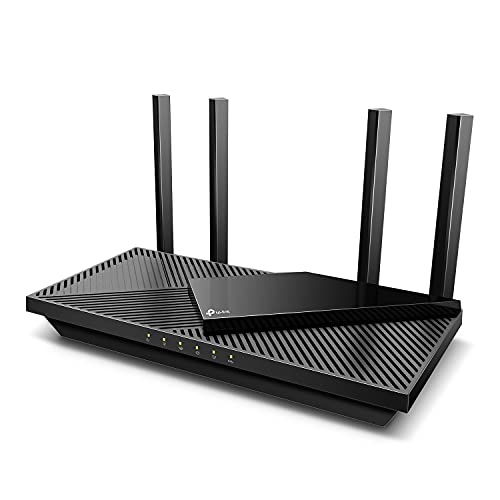
- TP-Link Archer GXE75 (AXE5400) (Best Wireless Ping) â Check on Amazon
- ASUS ROG Rapture GT-AX6000 (Best Wired Performance) â Check on Amazon
- GL.iNet Flint 2 (GL-MT6000) (Best for VPN + Low Ping) â Check on Amazon
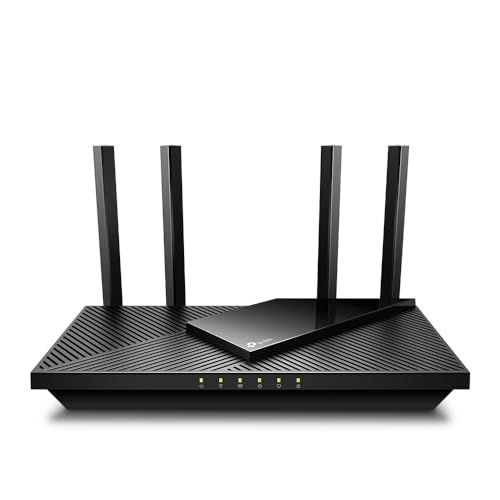
- TP-Link Archer AXE75 (AXE5400) (Best Wi-Fi 6E) â Check on Amazon
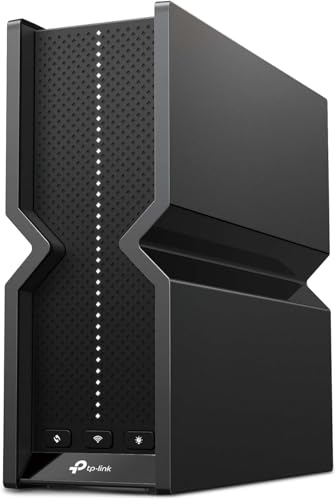
- NETGEAR Nighthawk RS300 (BE9300) (Best Wi-Fi 7) â Check on Amazon
Read the full guide â
Latency, not bandwidth, is what the best gaming routers for low ping are really about. A game sends tiny packets and lives or dies on how quickly and consistently they arrive, which is why a modest router with good queue management beats a flagship whose bufferbloat spikes your ping every time someone starts a download. The picks below were chosen for traffic prioritisation, wired options and processing headroom, not for their lighting.
Two truths frame the whole guide. First, a cable beats Wi-Fi for competitive play whenever one can be run, and every pick here keeps strong wired performance. Second, your internet connection sets the floor: no router fixes a congested line, but a good one stops your own household from being the congestion. Judge these routers by what they do under load, not by idle speed tests.
Prices are deliberately absent from this guide, because router pricing moves with sales and stock. Each linked pick carries a check-price link to Amazon, and prose-only picks are positioned by tier so you can judge them wherever you buy. What does not change with price is the analysis: the strengths, trade-offs and specifications below are the reasons each product earned, or merely kept, its place.
In this guide
Quick Picks
| Badge | Pick | Why it stands out | Link |
|---|---|---|---|
| Best Overall | ASUS RT-AX86U Pro (AX5700) | The configurable 2.5G port can serve a fast internet plan or a fast NAS | Check on Amazon |
| Best Wireless Ping | TP-Link Archer GXE75 (AXE5400) | 6 GHz band gives gaming laptops and consoles a clean, low-contention lane | Check on Amazon |
| Best Wired Performance | ASUS ROG Rapture GT-AX6000 | Dual 2.5G ports suit multi-gig plans and fast NAS links at once | Check on Amazon |
| Best for VPN + Low Ping | GL.iNet Flint 2 (GL-MT6000) | Fastest router-level VPN performance in this guide, including WireGuard client mode | Check on Amazon |
| Best Wi-Fi 6E | TP-Link Archer AXE75 (AXE5400) | The 6 GHz band gives Wi-Fi 6E devices a clean, uncongested lane | Check on Amazon |
| Best Wi-Fi 7 | NETGEAR Nighthawk RS300 (BE9300) | Wi-Fi 7 tri-band radios give the newest devices their fastest possible link | Check on Amazon |
Related reading: Best Routers Under $100 Dollars
How These Picks Were Chosen
Candidates were gathered from the current lines of the major networking brands, then filtered hard. The first filter was currency: routers whose firmware lines have gone quiet, whose security tops out at obsolete standards, or whose ports belong to an earlier decade did not survive, regardless of discounts. The second filter was honesty of specification: inflated speed classes built from bands no single device can use were noted, but never rewarded.
Each remaining router was then scored against this keyword’s scenario specifically. That scenario scoring is why a product can top one guide in this series and sit mid-table in another: the questions differ, so the answers differ. Wired performance, wireless design, software depth, ecosystem options and ownership experience each carried weight proportional to what the scenario actually demands.
The result is six picks with six different reasons to exist. If two products were effectively interchangeable, the one with the clearer trade-offs and the better support story took the badge. Anything presented without an Amazon link is prose-only by design: it belongs in the decision, but its purchase path is a specialist or regional retailer rather than the verified pool behind this guide.
The 6 Best Gaming Routers For Low Ping
A note on how to use these reviews: find the badge that matches your situation first and read that review in full, then read the reviews either side of it, because the right answer is often the neighbouring pick once a single trade-off is weighed honestly. Specifications are limited to what the manufacturer verifies, and anything this guide could not verify was left out rather than repeated from marketing copy.
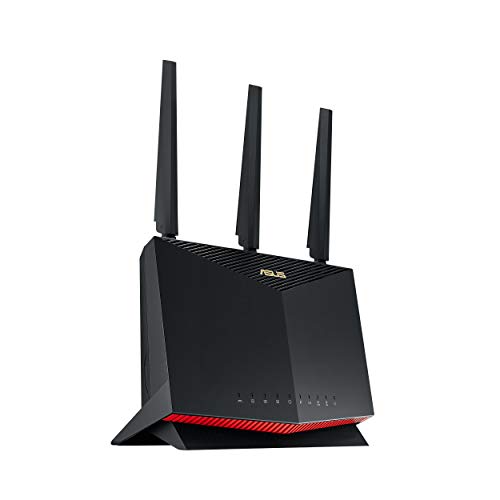
ASUS RT-AX86U Pro (AX5700) (Best Overall)
The RT-AX86U Pro is the enthusiast favourite of the Wi-Fi 6 generation, and the Pro refresh keeps everything that earned that status: a 2.0 GHz quad-core processor, a configurable 2.5 Gbps port, deep ASUSWRT firmware with Adaptive QoS, and AiMesh support for growing into a mesh later. It is a router you can tune properly, not just switch on.
See the ASUS RT-AX86U Pro (AX5700) on Amazon
Strengths
- The configurable 2.5G port can serve a fast internet plan or a fast NAS
- Deep, well-documented firmware with Adaptive QoS and traffic analysis
- Dedicated gaming port prioritises a wired console or PC automatically
Trade-offs
- Dual-band design has no 6 GHz band for Wi-Fi 6E clients
- Vertical tower design needs shelf space and looks technical
- Feature depth can overwhelm buyers who want set-and-forget simplicity
Key specs
- Wi-Fi 6 dual-band AX5700: 4804 Mbps on 5 GHz + 861 Mbps on 2.4 GHz
- 1x configurable 2.5G WAN/LAN port, 1x Gigabit WAN, 4x Gigabit LAN
- 2.0 GHz quad-core processor with 1 GB RAM
- USB 3.2 Gen 1 and USB 2.0 ports
- AiMesh support, AiProtection Pro, dedicated gaming port
- VPN server and client support, dual WAN and WAN aggregation
For gamers, streamers and home-office workers who will actually open the settings, the AX86U Pro rewards the effort with stable, prioritised traffic and years of firmware support. Buyers who want app-only simplicity should take the Deco or eero route instead; buyers who want control will find few routers at any price that balance power and polish this well. For gaming, that means holding latency steady while the household streams and downloads, prioritising the console or PC without manual babysitting, and offering a wired path that removes Wi-Fi from the equation entirely.
Security ownership is the other long game. Check that the admin password is unique, that remote management from the internet is off unless you deliberately need it, and that the guest network carries the gadgets you would least want wandering your main LAN. None of that is specific to this model, but this model’s firmware makes those settings easy to find, which in practice is what decides whether they get set at all.
Best for: a latency-sensitive gamer, specifically the best overall brief described above / Not suited for: buyers whose top priority is a different brief in this guide, or who cannot accept this pick’s stated trade-offs

TP-Link Archer GXE75 (AXE5400) (Best Wireless Ping)
The Archer GXE75 is TP-Link’s gaming take on Wi-Fi 6E: a tri-band AXE5400 router with a dedicated gaming port, acceleration features that prioritise game traffic, and a 2.5 Gbps port for fast plans. The 6 GHz band matters for gaming because it is still largely empty spectrum in most neighbourhoods.
See the TP-Link Archer GXE75 (AXE5400) on Amazon
Strengths
- 6 GHz band gives gaming laptops and consoles a clean, low-contention lane
- Game acceleration and a dedicated gaming port prioritise play traffic
- 2.5 Gbps port ready for faster internet plans
Trade-offs
- RGB gaming design is a matter of taste in shared spaces
- Some HomeShield features require the optional Pro tier
- Tri-band gaming features are wasted on a purely casual household
Key specs
- Wi-Fi 6E tri-band gaming router, 5.4 Gbps class
- 1x 2.5 Gbps port plus 4x Gigabit ports
- Dedicated gaming port and game acceleration features
- USB 3.0 port
- EasyMesh support and TP-Link HomeShield
- RGB lighting with a gaming control panel
For a household where a console or gaming PC shares the network with streams and calls, the GXE75’s prioritisation keeps play smooth without manual QoS homework. Casual players on a single console may be served just as well by the AX55 and a cable; competitive players will feel the difference this router is built to make. For gaming, that means holding latency steady while the household streams and downloads, prioritising the console or PC without manual babysitting, and offering a wired path that removes Wi-Fi from the equation entirely.
If you are coming from an ISP-supplied box, expect the biggest change to be consistency rather than peak speed: fewer mystery dropouts, a client list you can actually read, and settings that stay where you put them. Keep the old gateway for a week after the swap in case an activation or passthrough quirk appears, then return or retire it with confidence once the new network has survived a full working week.
Best for: a latency-sensitive gamer, specifically the best wireless ping brief described above / Not suited for: buyers whose top priority is a different brief in this guide, or who cannot accept this pick’s stated trade-offs
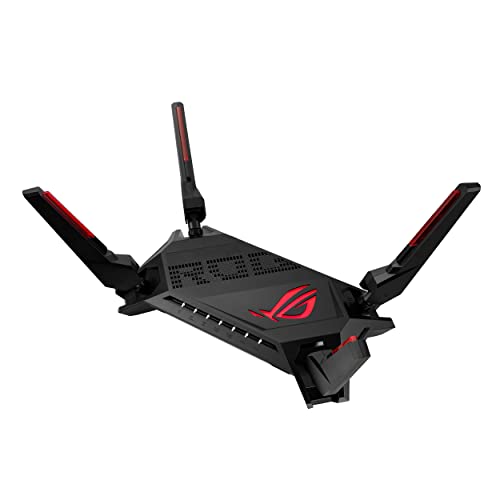
ASUS ROG Rapture GT-AX6000 (Best Wired Performance)
The ROG Rapture GT-AX6000 is ASUS aiming its gaming line at people who also run serious home networks. Beyond the RGB and the aggressive shell sits genuinely useful hardware: dual 2.5 Gbps ports, a fast quad-core processor, WAN aggregation and the full AiMesh and AiProtection feature set with no subscription attached to the security layer.
See the ASUS ROG Rapture GT-AX6000 on Amazon
Strengths
- Dual 2.5G ports suit multi-gig plans and fast NAS links at once
- Powerful quad-core CPU keeps QoS and VPN features responsive
- AiProtection Pro security is included for the life of the product
Trade-offs
- Gaming styling and RGB lighting will not suit every living room
- Dual-band only, so no 6 GHz lane for Wi-Fi 6E clients
- Large footprint compared with mainstream routers
Key specs
- Wi-Fi 6 dual-band AX6000 (4804 Mbps on 5 GHz + 1148 Mbps on 2.4 GHz)
- Dual 2.5 Gbps ports (WAN/LAN) with WAN aggregation
- Quad-core 2.0 GHz CPU
- AiMesh compatible for mesh expansion
- Lifetime AiProtection network security and Instant Guard VPN
- Game acceleration features and Aura RGB lighting
Gamers get the acceleration and port prioritisation they came for, but the GT-AX6000 is just as convincing as a power-user router for a wired home office or a NAS-heavy setup. If the 6 GHz band matters more than wired flexibility, the AXE75 or GXE75 make more sense; if ports and processing power matter most, this is the one. For gaming, that means holding latency steady while the household streams and downloads, prioritising the console or PC without manual babysitting, and offering a wired path that removes Wi-Fi from the equation entirely.
Renters and frequent movers should read this pick kindly: it sets up without tools, packs back into a small box, and does not depend on the house having structured cabling to earn its keep. Where a landlord’s router is locked down, running your own unit behind it in a clean passthrough or access-point arrangement restores control of your Wi-Fi name, password and device list, which is most of what tenants actually want.
Best for: a latency-sensitive gamer, specifically the best wired performance brief described above / Not suited for: buyers whose top priority is a different brief in this guide, or who cannot accept this pick’s stated trade-offs

GL.iNet Flint 2 (GL-MT6000) (Best for VPN + Low Ping)
The Flint 2 is the router VPN users and tinkerers recommend to each other. GL.iNet builds it on OpenWrt, fits a fast quad-core chip with a full gigabyte of RAM, and rates its WireGuard performance up to 900 Mbps, fast enough to run a whole household through a VPN tunnel without the usual speed collapse.
See the GL.iNet Flint 2 (GL-MT6000) on Amazon
Strengths
- Fastest router-level VPN performance in this guide, including WireGuard client mode
- OpenWrt foundation allows per-device VPN routing, ad blocking and deep customisation
- Two 2.5G ports and generous memory at a mainstream price point
Trade-offs
- No 6 GHz band and no Wi-Fi 7, despite the flagship positioning
- The friendly GL.iNet interface hides, but does not remove, OpenWrt complexity underneath
- Firmware updates are a manual, enthusiast-style process
Key specs
- Wi-Fi 6 dual-band AX6000: 4804 Mbps on 5 GHz + 1148 Mbps on 2.4 GHz
- 2x 2.5 Gbps ports (WAN and WAN/LAN) plus 4x Gigabit LAN ports
- MediaTek MT7986 quad-core 2.0 GHz CPU, 1 GB DDR4 RAM, 8 GB storage
- OpenWrt-based firmware with full LuCI access
- WireGuard VPN up to 900 Mbps and OpenVPN support (manufacturer figures)
- USB 3.0 port, AdGuard Home support
If the plan is to route some devices through a VPN and others direct, block ads network-wide, or simply own firmware you can inspect and extend, the Flint 2 is in a class of one here. Pure plug-and-play buyers may find its depth unnecessary, but anyone who has outgrown a closed ISP gateway will feel immediately at home. For gaming, that means holding latency steady while the household streams and downloads, prioritising the console or PC without manual babysitting, and offering a wired path that removes Wi-Fi from the equation entirely.
In a typical week this looks like: two video calls running in different rooms, a console pulling a large update in the background, phones drifting between bands as people move around the house, and a doorbell camera uploading clips whenever the post arrives. That unglamorous mix is the real test, and it is where the design choices above, the processor headroom, the band layout and the firmware’s queue management, either hold together or quietly fall apart.
Best for: a latency-sensitive gamer, specifically the best for vpn + low ping brief described above / Not suited for: buyers whose top priority is a different brief in this guide, or who cannot accept this pick’s stated trade-offs

TP-Link Archer AXE75 (AXE5400) (Best Wi-Fi 6E)
The Archer AXE75 is the point where Wi-Fi 6E stops being a flagship luxury. Its tri-band radio adds the 6 GHz band that newer laptops and phones are built for, the WAN port jumps to 2.5 Gbps for faster internet plans, and it keeps the approachable TP-Link setup experience rather than demanding enthusiast firmware skills.
See the TP-Link Archer AXE75 (AXE5400) on Amazon
Strengths
- The 6 GHz band gives Wi-Fi 6E devices a clean, uncongested lane
- 2.5 Gbps WAN port suits internet plans above a gigabit
- Tri-band design keeps older 2.4 GHz smart-home gear off the fast bands
Trade-offs
- 6 GHz range is shorter than 5 GHz, so placement matters more
- Only Wi-Fi 6E and Wi-Fi 7 clients can use the headline band
- Single-router coverage still will not fix a large home’s far corners alone
Key specs
- Wi-Fi 6E tri-band AXE5400: 6 GHz, 5 GHz and 2.4 GHz bands
- 160 MHz channels on the wide bands
- 1x 2.5 Gbps WAN port plus gigabit LAN ports
- Dual-core CPU, VPN support and WPA3
- OneMesh expansion support
- USB port for shared storage
Choose the AXE75 when the household already owns, or is about to buy, Wi-Fi 6E devices and wants them off the crowded 5 GHz band. In an apartment or a medium home it delivers the cleanest wireless upgrade in this price area, and OneMesh support means a compatible extender can patch a weak room later without replacing the router. For gaming, that means holding latency steady while the household streams and downloads, prioritising the console or PC without manual babysitting, and offering a wired path that removes Wi-Fi from the equation entirely.
Ownership details matter with this class of product. Firmware updates arrive through the app or web interface, the settings survive a power cut without drama, and a factory reset plus restore takes minutes rather than an afternoon. Buyers who manage a network for less technical family members should weigh that day-to-day administrability as heavily as any benchmark, because a router that is easy to rescue remotely saves real journeys across town.
Best for: a latency-sensitive gamer, specifically the best wi-fi 6e brief described above / Not suited for: buyers whose top priority is a different brief in this guide, or who cannot accept this pick’s stated trade-offs

NETGEAR Nighthawk RS300 (BE9300) (Best Wi-Fi 7)
The Nighthawk RS300 brings NETGEAR’s Wi-Fi 7 line into a single, tidy unit rated for 2,500 square feet and up to 100 devices. Tri-band BE9300 radios, 2.5 Gbps ports and app-based setup make it the straightforward flagship choice for buyers who want the newest standard without a mesh kit or gaming styling.
See the NETGEAR Nighthawk RS300 (BE9300) on Amazon
Strengths
- Wi-Fi 7 tri-band radios give the newest devices their fastest possible link
- Strong single-unit coverage performance for larger apartments and houses
- 2.5 Gbps ports on both the internet and local side
Trade-offs
- Only four wired ports in total, so switch buyers should budget for a switch
- NETGEAR Armor security is a subscription after any included trial
- Wi-Fi 7 client devices are still a minority in most homes
Key specs
- Wi-Fi 7 tri-band BE9300, up to 9.3 Gbps combined
- Rated coverage up to 2,500 sq. ft.
- Supports up to 100 devices
- 2x 2.5 Gbps ports plus 2x Gigabit ports
- Nighthawk app setup and management
- WPA3 security
The RS300 suits a household replacing a router for the long term: Wi-Fi 7 phones and laptops arriving over the next few years will use its full ability, and everything older still gets a fast tri-band network today. If wired ports are the priority, count them first, because four total ports fills up quickly with a NAS, a console and a desktop. For gaming, that means holding latency steady while the household streams and downloads, prioritising the console or PC without manual babysitting, and offering a wired path that removes Wi-Fi from the equation entirely.
Consider the upgrade path before you commit. A router that can later join a mesh ecosystem, accept a faster internet plan or hand its duties to a separate access-point setup protects the purchase when the house, the plan or the device fleet changes. The models in this guide were partly chosen for those second acts: very few households keep the same network shape for the whole life of a router, and the cheapest upgrade is the one that reuses what you already own.
Best for: a latency-sensitive gamer, specifically the best wi-fi 7 brief described above / Not suited for: buyers whose top priority is a different brief in this guide, or who cannot accept this pick’s stated trade-offs
Related reading: Best Small Routers For Wood
Comparison Table
| Pick | Wi-Fi / Type | Bands | Fastest port | Coverage / Role | Price |
|---|---|---|---|---|---|
| ASUS RT-AX86U Pro (AX5700) | Wi-Fi 6 AX5700 | Dual-band | 2.5 Gbps configurable | Single unit, AiMesh expandable | Check price on Amazon |
| TP-Link Archer GXE75 (AXE5400) | Wi-Fi 6E AXE5400 gaming | Tri-band (6 GHz) | 2.5 Gbps | Single unit, gaming homes | Check price on Amazon |
| ASUS ROG Rapture GT-AX6000 | Wi-Fi 6 AX6000 | Dual-band | 2x 2.5 Gbps | Single unit, large/flat homes | Check price on Amazon |
| GL.iNet Flint 2 (GL-MT6000) | Wi-Fi 6 AX6000 | Dual-band | 2x 2.5 Gbps | Single unit, power users | Check price on Amazon |
| TP-Link Archer AXE75 (AXE5400) | Wi-Fi 6E AXE5400 | Tri-band (6 GHz) | 2.5 Gbps WAN | Single unit, medium homes | Check price on Amazon |
| NETGEAR Nighthawk RS300 (BE9300) | Wi-Fi 7 BE9300 | Tri-band | 2x 2.5 Gbps | Up to 2,500 sq. ft. (rated) | Check price on Amazon |
Two cautions on the numbers above. Coverage figures come from each manufacturer’s own testing in favourable conditions, so treat them as relative rankings between these models rather than promises for your floor plan. And summed Wi-Fi classes (the AX and BE figures) describe all bands added together; no single device you own will ever see that number, which is why the bands and port columns matter more.
Related reading: Best Wi Fi Routers For Home
How to Choose the Right Router
Start with your internet plan, not the router shelf
Your plan speed is the ceiling nothing can raise. Read it off your bill, then insist on two things: a WAN port at least as fast as the plan (gigabit for most, 2.5 Gbps for multi-gig tiers), and a router whose real routing performance, not its Wi-Fi class, clears that speed with security features on. Buying far beyond the plan is harmless but wasteful; buying below it taxes every device you own, every day.
Understand Wi-Fi generations and bands plainly
Wi-Fi 5 (802.11ac) is the older standard still common in modem combos and business boxes. Wi-Fi 6 (802.11ax) is the current mainstream: its OFDMA and efficiency features matter more in busy homes than its speed bump. Wi-Fi 6E adds the 6 GHz band, a wide, quiet space for compatible devices. Wi-Fi 7 adds multi-link operation and even wider channels. Bands behave differently: 2.4 GHz travels far and slowly, 5 GHz is the workhorse, 6 GHz is fast and short-ranged. A tri-band router is not three times anything; it is a router with an extra, cleaner lane.
Match the speed class to reality
The AX or BE number on the box sums the theoretical rates of every band, which no single device can ever use at once. Treat it as a rough size label: AX1800-class suits small homes and lighter loads, AX3000 is the family sweet spot, and the big classes earn their keep with many simultaneous high-bandwidth devices, fast local transfers to a NAS, or multi-gig plans. Your slowest common device and your walls will set the real speed, not the box.
Decide the coverage architecture before the model
One router, one point of light: fine for compact, open homes, fragile for everything else. Mesh systems trade a little peak speed for even coverage and are the correct default for multi-floor or sprawling homes. A middle path exists in ecosystems like AiMesh, OneMesh and EasyMesh, where a strong main router can gain nodes later. Decide this architecture question first, because it narrows the model list more than any specification does.
Count ports like a person who owns a NAS
Wired connections are still the fastest, most stable and least power-hungry way to connect stationary gear. Count what you will plug in: desktop, console, television, NAS, work laptop dock, maybe a switch uplink. Four LAN ports is the healthy mainstream; two is a warning. Note the speed of each port too, because a single 2.5 Gbps LAN port transforms NAS and PC transfers even when the rest are gigabit.
Weigh security, firmware and the app honestly
A router is a security appliance that also does Wi-Fi. Prefer brands with a record of timely firmware updates, WPA3 support, automatic update options and a guest or IoT network for gadgets. Some security suites are free for life, some are subscriptions; both models appear in this guide and the trade-offs say which. Finally, open the app store page for the router’s app before buying: you will live in that app, and its quality is a product feature.
Think about the second year, not the first day
The right router disappears for years. Favour the pick whose ecosystem you can extend, whose firmware line is active, and whose capacity leaves headroom for the devices and plan upgrades you can already foresee. The cheapest router is the one bought once; the most expensive is the mid-range compromise replaced in eighteen months because a new games console, a faster plan or a house move exposed its ceiling.
For gaming, prioritise in this order: a wired connection path, queue management that works at your line speed, a CPU strong enough to run that QoS without becoming the bottleneck, and only then raw Wi-Fi class. Multi-gig ports matter if your plan exceeds a gigabit; the 6 GHz band matters if the console or PC must play over Wi-Fi in a crowded building.
Plan for the household you will have in two years
Device counts only move in one direction, and the next plan upgrade is usually faster, not slower. When two picks look close, choose the one whose WAN port, Wi-Fi generation and ecosystem still make sense after a plan upgrade and a house full of new gadgets. That bias towards headroom is why several premium picks appear in this guide at all: bought once, they quietly absorb changes that force lesser routers into early retirement.
Separate the three speeds before you judge any router
Your internet plan speed, your local network speed and your Wi-Fi link speed are three different numbers, and a router can bottleneck any one of them independently. A gigabit plan behind a 2.5 Gbps router gains nothing on the internet side but may transform local transfers; a Wi-Fi 7 radio behind a gigabit WAN does the reverse. Decide which of the three speeds your household actually feels, and spend on that one first.
Finally, keep perspective on upgrade timing. Wi-Fi generations arrive roughly every four to five years, and each one mostly helps the devices built for it. The rational pattern for most homes is to buy one solid generation and skip the next, unless a house move, a plan upgrade or a device fleet refresh changes the maths. Several picks here are deliberately previous-generation values for exactly that reason.
There is a quiet revolution in how routers are managed that this guide’s picks reflect: the app has become the interface, and the web dashboard the exception. That is mostly progress (setup that once took an evening now takes ten minutes) but it makes the maker’s software commitment part of the product. When you read these reviews, the named apps and suites are not garnish; they are the controls you will actually touch for years.
Bufferbloat deserves one plain paragraph, because it explains most ‘fast plan, laggy feel’ complaints. When any device saturates the connection, packets queue in oversized buffers and latency balloons. Modern queue management (the SQM and QoS features named in several spec boxes) trades a sliver of top speed for dramatically steadier latency. If your household games or calls while others download, that trade is the single most valuable setting in this entire guide.
Do not overlook the humble reboot schedule and the client list. A monthly glance at which devices are connected catches the forgotten camera with ancient firmware and the neighbour who never got removed after a house-sitting weekend. None of the picks here requires that attention, but all of them reward it, and it is the cheapest security practice in home networking.
Finally, a word about buying for a home you might leave. Renters, students and anyone in a temporary space should weight portability and standalone value: a router that works in a flat today and anchors a mesh in a house tomorrow is worth more than a slightly faster box that only makes sense in one floor plan. Several picks in this guide were chosen with exactly that second life in mind.
It is worth understanding what a speed test does and does not prove. A test to a nearby server, run beside the router at a quiet hour, measures the best case of the best link in the house. Real life is a laptop two rooms away at eight in the evening while the television streams and a cloud backup runs. When you evaluate any router in this guide, mentally move every claim to that worst realistic moment, because that is the experience you are actually buying.
Antenna design is another area where plain language helps. More antennas generally mean more simultaneous data streams and better beamforming, the trick of aiming energy towards a device rather than spraying it everywhere. What antennas cannot do is repeal physics: every wall costs signal, floors cost more, and the 6 GHz band, for all its cleanliness, fades fastest of all. This is why the guide keeps returning to placement and mesh as first-class solutions rather than settings.
Think about the processor as the router’s staff. Every feature you enable, from VPN tunnels to traffic analysis to a busy household’s worth of NAT sessions, is work handed to that CPU. Budget routers have small staffs and cope beautifully until several demanding jobs arrive together. If your household stacks features, the models above with quad-core processors and generous memory are not luxury; they are the difference between features that coexist and features that take turns.
How Do You Set Up and Optimise Your Router?
Good setup is worth more than a model tier. Work through these steps in order, and the network you finish with will be the one the hardware was actually capable of all along.
- Choose the spot before you open the box. Decide placement first, because it constrains everything else. Aim for the centre of the home, elevated on a shelf or wall mount, in open air, away from thick masonry, large metal objects, fish tanks and the microwave. For mesh, plan each node’s position now: roughly halfway between the main unit and the area it must serve, never inside the dead zone itself.
- Connect the modem chain in the right order. Power everything down. Connect the modem or provider connection box to the router’s WAN port with the supplied Ethernet cable (or connect the combo unit’s cable line, for modem routers). Power the modem first and let it fully sync, which can take several minutes, then power the router. This sequence lets each device negotiate cleanly instead of inheriting a half-started state.
- Run the setup and set the foundations. Follow the maker’s app or web setup, but make three decisions deliberately rather than accepting defaults blindly: one network name for all bands (band steering then works for you), a long unique password you have never used elsewhere, and the administrator password changed from any default. Note the network details somewhere safe that is not a sticky note on the router.
- Update the firmware before you customise anything. Check for firmware updates immediately and install them, then turn on automatic updates if the option exists. Early firmware on new models improves quickly, and updating now means your later settings sit on the stable version rather than being re-tested after an update changes behaviour.
- Place, then measure, then adjust. With the network live, walk the home with a phone and run speed tests in the rooms that matter: the desk, the main television, the furthest bedroom. For mesh, move nodes in small steps towards problem rooms and re-test; a metre can be worth more than a settings change. Only when placement is right should you touch channels or advanced options.
- Connect devices in a sensible order. Bring the heavy, stationary devices online first and wire them where a cable reaches: televisions, consoles, desktops, NAS. Then add laptops and phones, then the smart-home fleet, naming each device in the app as it joins. If your router offers an IoT or guest network, put gadgets you do not fully control there from the start.
- Set the features that protect the network. Enable the security suite if included, switch on the guest network for visitors, and turn on any automatic reboot schedule only if the router proves unstable without it (most modern units run for months untouched). If you use QoS, enter your real measured speeds rather than the plan’s headline numbers, because traffic shaping is only accurate when it knows the true size of the pipe.
- Maintain it like the infrastructure it is. Every few months, glance at the client list for devices you do not recognise, confirm firmware is current, and reboot if a problem is brewing. Once a year, reconsider placement and channels: neighbours change, furniture moves, and the network that was optimal last winter may be fighting a new one next door now.
Set up for gaming in layers: wire what you can, enable the gaming QoS mode and enter your plan’s real speeds (about 90 to 95 percent of measured speed is the classic SQM setting), then test under load, with a stream and a download running, because idle ping tells you almost nothing.
Troubleshooting quick fixes
- Problem: fast near the router, slow in one room â the classic coverage gap. Move the router or add a mesh node towards that room; no setting manufactures signal through walls.
- Problem: everything slows at the same evening hour â congestion, yours or the street’s. Test wired to the router: if wired is fast, optimise Wi-Fi placement and bands; if wired is slow too, the line or plan is the limit and the provider is the call.
- Problem: a smart device refuses to join â it is almost certainly 2.4 GHz-only and confused by band steering. Connect it via the router’s IoT network or a temporarily separated 2.4 GHz name, then restore your normal setup.
- Problem: video calls stutter while downloads fly â latency, not bandwidth. Enable QoS or SQM with your measured speeds, wire the work machine if possible, and check for a second router upstream causing double NAT.
- Problem: the network needs weekly reboots â check firmware currency and heat (routers stuffed in cabinets cook slowly), then the client list for a misbehaving device; persistent instability on current firmware is a replacement conversation, not a ritual to accept.
Keep exploring: Best Routers For Apple Products
Common Mistakes
Splitting every band into separate networks
Separate names for 2.4, 5 and 6 GHz feel organised and quietly defeat band steering, roaming and half the intelligence you paid for. One name, one password, and let the router and devices negotiate, unless you are deliberately isolating a stubborn gadget.
Judging the network by one speed test beside the router
That test measures the best metre of your home. Judge by the worst room at the busiest hour, because that is the experience the household actually complains about, and it is the number placement and mesh decisions should be based on.
Forgetting the wired devices in the plan
People count phones and forget the NAS, the desktop, the console and the television that all want ports. Running out of LAN ports, or discovering the one fast port is the wrong speed, is an avoidable day-one disappointment.
Buying the headline speed class and nothing else
The summed AX or BE number is the least useful figure on the box. Homes suffer from weak coverage, old Wi-Fi generations, cut-down ports and abandoned firmware far more than from a speed class one tier too low. Buy the architecture and the support story first.
Leaving the router where the line enters the house
The corner of the least-used room is where internet lines arrive and where routers go to underperform. A longer Ethernet cable and a central shelf outperform a model upgrade surprisingly often, and the cable is the cheapest network upgrade in existence.
Renting forever without doing the maths
On cable especially, the monthly gateway rental quietly exceeds the purchase price of a good modem router over a couple of years. Check the bill line, check the approved-device list, and let arithmetic make the decision.
Keep exploring: Best Internet Routers For Streaming
Final Recommendation
The shortest honest summary is this: ASUS RT-AX86U Pro (AX5700) is the default recommendation for most readers of this guide. For the best wireless ping brief, the answer is the TP-Link Archer GXE75 (AXE5400). For the best wired performance brief, the answer is the ASUS ROG Rapture GT-AX6000. For the best for vpn + low ping brief, the answer is the GL.iNet Flint 2 (GL-MT6000). Whichever you choose, set it up carefully, place it well, keep its firmware current, and judge it in the worst room at the busiest hour. That is where good routers prove themselves, and every pick here was chosen to do exactly that.
Keep exploring: Best Routers For Speed
Frequently Asked Questions
Does a gaming router lower ping on its own?
It lowers the ping you add inside your home: queue management (QoS/SQM) stops downloads and streams from inflating latency, and a wired connection removes Wi-Fi jitter. It cannot shorten the path to the game server, so pick servers in your region too.
Should my console use Wi-Fi or Ethernet?
Ethernet whenever possible. A cable removes interference, retries and roaming from the equation. If Wi-Fi is unavoidable, use the 5 GHz or 6 GHz band, keep the console in the same room as the router or a mesh node, and enable the router’s gaming prioritisation.
What is NAT type and why does Xbox care?
NAT type describes how openly your console can accept connections. Open NAT (Type 1/2) gives the smoothest party chat and matchmaking. If you see Strict NAT, check for double NAT (two routers in a chain, common behind ISP gateways) and enable UPnP or a passthrough mode on the upstream box.
How long should a good router last?
Four to six years is a fair expectation from a major brand with active firmware support. The usual triggers to replace sooner are the end of security updates, a jump to a much faster internet plan, or a household shift to a Wi-Fi generation your router cannot speak.
Does a better router improve my internet speed?
It improves the speed and stability your devices actually experience, up to the limit of your plan. If the current router is old, badly placed or overloaded, the difference can feel dramatic. If it is already modern and central, a new one mostly buys features and headroom.
Should I use the router’s automatic band steering or separate networks?
Automatic steering with one network name is right for most homes: devices land on the best band and roam cleanly. Separate names remain a useful troubleshooting tool for a specific stubborn device, not a default architecture.