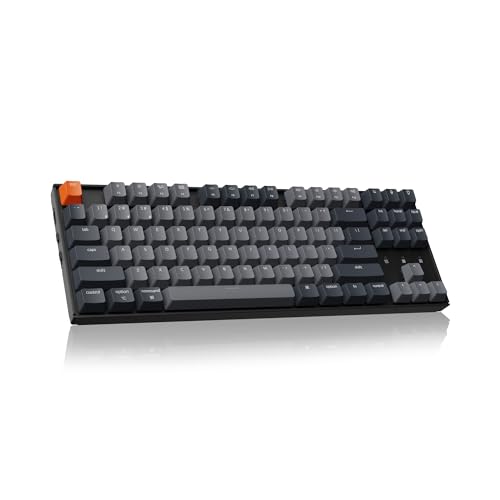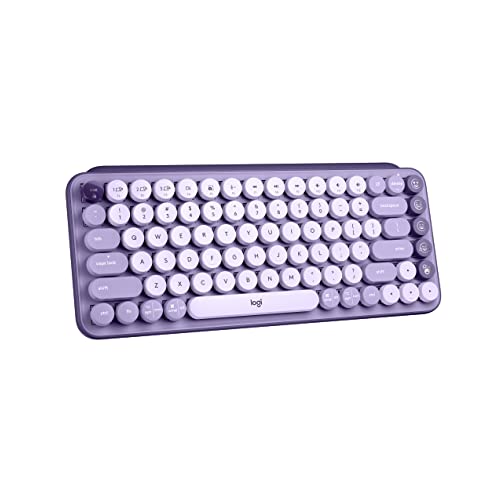
A tablet keyboard for a PC is a keyboard that works with both: it pairs with a tablet over Bluetooth for typing on the go, and it connects to a PC over Bluetooth or USB for a full desktop setup, without needing a second keyboard on the desk. The best ones switch between devices at the press of a key, so the same keyboard types an email on a tablet on the train and a document on a PC at the desk, and they do it without a cable, a dongle, or a second setup. The keyboards in this guide were chosen for that dual role. Every one of them pairs with a tablet and a PC, whether that is the Arteck compact Bluetooth keyboard built for iPad, iPhone, and PC, the Logitech multi-device keyboards that switch between three devices, or the mechanical AULA F99 that connects over Bluetooth, 2.4GHz, and USB-C. The list leans on Logitech, the brand that defined the multi-device keyboard, with Arteck covering the compact end and AULA covering the mechanical end. What makes a tablet keyboard good for a PC is not the same as what makes a desktop keyboard good. It has to be portable enough to carry with a tablet, it has to pair quickly and stay paired, and it has to feel good to type on for an hour, not just for a few minutes. A built-in cradle for the tablet, a touchpad for PC use, or backlighting for late-night work are all useful extras, and the sections below weigh them against the core test: does this keyboard work well with both a tablet and a PC, every day. Read the comparison table for a fast overview of connection and layout, then dig into the individual sections for the strengths and trade-offs of each keyboard. The buying guide at the end explains Bluetooth pairing, multi-device switching, and how to choose between a compact, a full-size, and a mechanical keyboard for a tablet and PC setup. The setup that works best for most people is worth describing, because a keyboard on its own is only half of it. Pair the keyboard with the tablet and the PC once, put the tablet on a folding stand at eye height, and keep the keyboard on the desk or on your lap at a comfortable distance, with the screen far enough away that you are not hunched over it. That arrangement turns a tablet into a small laptop for writing, for email, and for documents, and it turns a PC into a machine you can control from the sofa without a mouse. The keyboard is the same in both places, which is the point: one set of keys, learned once, used everywhere.
In this guide
Quick picks: best tablet keyboards for pc
| # | Product | Where to buy |
|---|---|---|
| 1 | Arteck Compact Wireless Bluetooth Keyboard | Check on Amazon |
| 2 | Logitech K480 Wireless Multi-Device Keyboard | Check on Amazon |
| 3 | Logitech Pebble Keys 2 K380s Wireless Bluetooth Keyboard | Check on Amazon |
| 4 | Logitech K780 Multi-Device Wireless Keyboard | Check on Amazon |
| 5 | Logitech MX Keys Mini Wireless Illuminated Keyboard | Check on Amazon |
| 6 | Logitech K400 Plus Wireless Touch TV Keyboard | Check on Amazon |
| 7 | AULA F99 Wireless Mechanical Keyboard | Check on Amazon |
Quick comparison
| Product | Connection and layout |
|---|---|
| Arteck Compact Wireless Bluetooth Keyboard | Compact Bluetooth, for iPad, iPhone and PC |
| Logitech K480 Wireless Multi-Device Keyboard | Multi-device Bluetooth, compact, for Windows, macOS, iPadOS and Android |
| Logitech Pebble Keys 2 K380s Wireless Bluetooth Keyboard | Slim portable Bluetooth, compact, customizable |
| Logitech K780 Multi-Device Wireless Keyboard | Multi-device, built-in cradle, Bluetooth or USB |
| Logitech MX Keys Mini Wireless Illuminated Keyboard | Illuminated, USB-C rechargeable, pairs with 3 devices |
| Logitech K400 Plus Wireless Touch TV Keyboard | Wireless touch keyboard, built-in touchpad, for PC-connected TV |
| AULA F99 Wireless Mechanical Keyboard | Tri-mode BT, 2.4GHz and USB-C, hot swappable, mechanical |

1. Arteck Compact Wireless Bluetooth Keyboard
What stands out
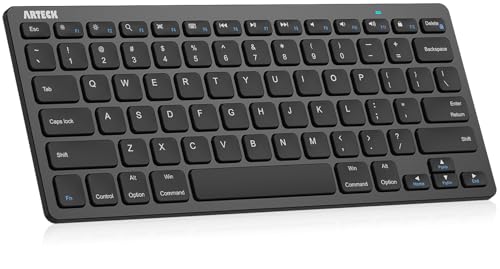
The Arteck Compact Wireless Bluetooth Keyboard is the most portable keyboard in this guide, and the one to buy if you want a keyboard that travels with a tablet. It is a compact wireless Bluetooth keyboard for iPad, tablet, iPhone, and PC, which means it pairs with a tablet for typing on the go and with a PC for a desktop setup, all in a slim, light package that fits in a bag alongside the tablet itself. Arteck has built its name on compact Bluetooth keyboards, and this one is the classic of the line: quiet keys, a sensible layout, and a battery that lasts for months on a charge. For a student or a traveler who types on a tablet and a PC, it is the obvious starting point.
Trade-offs to weigh
The trade-offs are size and feel. A compact keyboard means smaller keys and a tighter layout than a full-size keyboard, so touch typists will need a few days to adjust, and there is no number pad and no backlighting. It is a Bluetooth keyboard, so it needs a charged battery and a paired device, and it will not work with a PC that has no Bluetooth without a separate adapter. For portable typing, though, it is the lightest and simplest keyboard here.
Who it fits best
Best for travelers and students who want a light, compact Bluetooth keyboard for a tablet and a PC.
In daily use
In everyday use, the Arteck Compact Wireless Bluetooth Keyboard settles into a routine quickly. Set it up once, the way you like it, and give yourself a few days to adjust before judging it. The first session is about learning the layout and the feel; the second and third are where it starts to feel natural. Keep it clean, keep it in the conditions it was designed for, and it will stay consistent. If it has parts that wear — cables, surfaces, moving components — a quick check now and then keeps small issues from becoming real ones, and keeping the packaging and documentation for the first weeks makes any return or exchange far simpler.
Before you buy
Before buying the Arteck Compact Wireless Bluetooth Keyboard, check two practical things. First, measure and compare: check the dimensions, the capacity, and the compatibility details listed on the product page against what you already own and the space you have. A product that does not fit your setup will never feel right, whatever its specifications say. Second, think about your routine — where it will live, how it will be stored, and what it needs to connect to. None of this is difficult, but all of it is easier to plan before the product arrives than after.
Check price on Amazon: Arteck Compact Wireless Bluetooth Keyboard

2. Logitech K480 Wireless Multi-Device Keyboard
What stands out
The Logitech K480 is the classic multi-device keyboard, and the one to buy if you want a keyboard that holds your tablet while you type. It is a wireless multi-device keyboard for Windows, macOS, iPadOS, Android, and Chrome OS, with Bluetooth and a compact design, and it has a built-in slot that holds a tablet or a phone upright at a comfortable reading angle. The K480 pairs with three devices and switches between them with a dial, so the same keyboard types on a tablet, a phone, and a PC without re-pairing. It is the keyboard that defined the multi-device idea, and it remains the most practical version of it.
Trade-offs to weigh
The compromises are weight and key feel. The K480 is heavier than the Arteck and the K380s, because the cradle and the dial add bulk, and its keys are round and shallow, which some typists love and some do not. It has no backlighting, so it is not the best choice for typing in the dark. For a desk where a tablet sits beside a PC, though, the cradle is worth the weight.
Who it fits best
Best for desk setups where a tablet sits beside a PC, and for buyers who want a keyboard with a built-in tablet cradle.
In daily use
Day to day, the Logitech K480 Wireless Multi-Device Keyboard is the kind of product you stop thinking about, which is the highest praise it can earn. It does its job the same way every time, without quirks or surprises, and lets you focus on the work or the game instead of the hardware. That consistency matters more than any single feature. Treat it reasonably — a clean desk, a suitable surface, and storage that protects it when it is not in use — and it will keep that consistency for a long time. The best products are the ones that fade into the background.
Before you buy
A few checks before you order the Logitech K480 Wireless Multi-Device Keyboard will save disappointment. Confirm the key details on the listing match what you expect — the exact model name, the included accessories, and the variant — since similar-looking models can differ in important ways. Check the return policy and the warranty terms so you know your options if it arrives damaged or does not suit you. And if you are replacing something you already own, compare the new product with the old one on the points that mattered most, rather than on headline features you may never use.
Check price on Amazon: Logitech K480 Wireless Multi-Device Keyboard

3. Logitech Pebble Keys 2 K380s Wireless Bluetooth Keyboard
What stands out
The Logitech Pebble Keys 2 K380s is the newest compact Bluetooth keyboard in this guide, and the pick for buyers who want a slim, quiet, portable keyboard with a modern design. It is a slim, portable, compact Bluetooth keyboard in tonal graphite, with customizable keys and a quiet typing feel that suits shared spaces. The K380s is the successor to the long-running K380, and it keeps the same idea: a small, round-keyed keyboard that pairs with a tablet, a phone, and a PC, and switches between them at a keypress. It is the keyboard to carry in a bag with a tablet, and it looks good doing it.
Trade-offs to weigh
The trade-offs are the ones that come with a compact keyboard. There is no number pad, no backlighting, and no cradle for a tablet, so it needs a separate stand if you want the tablet upright. The round keys take a day to get used to, and the keyboard is light enough to slide on a smooth desk. For portable, quiet typing on a tablet and a PC, it is the best-looking keyboard here.
Who it fits best
Best for buyers who want a slim, quiet, portable Bluetooth keyboard for a tablet and a PC, in a modern design.
In daily use
Over a full week of use, the Logitech Pebble Keys 2 K380s Wireless Bluetooth Keyboard shows its character in small ways. The feel stays the same from the first day to the last, nothing loosens or rattles, and the finish holds up to regular handling. If you switch between tasks, you will appreciate that it does not need a different setup for each one: configure it once for the way you actually use it and leave it alone. If you share the space with work or family, the same product should handle those jobs without feeling out of place, which is a useful bonus for a single-product setup.
Before you buy
When the Logitech Pebble Keys 2 K380s Wireless Bluetooth Keyboard arrives, spend a little time setting it up properly. Follow the included instructions, check that everything listed as included is actually in the box, and test the main functions within the first day or two. Then leave the settings alone for a week. Constant tweaking is the enemy of getting used to a product, and most people get better results from a stable setup than from a perfect one. If something feels wrong after a few days, change one thing at a time so you know what actually helped.
Check price on Amazon: Logitech Pebble Keys 2 K380s Wireless Bluetooth Keyboard
4. Logitech K780 Multi-Device Wireless Keyboard
What stands out
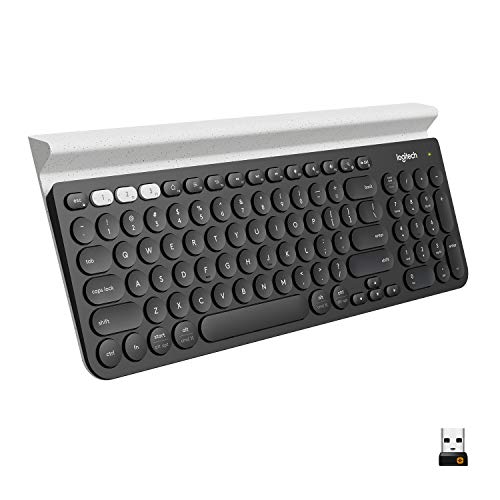
The Logitech K780 is the full-size multi-device keyboard in this guide, and the pick for buyers who want a proper desktop keyboard that also works with a tablet. It is a multi-device wireless keyboard with a built-in cradle, in a speckled finish, that connects over Bluetooth or USB and pairs with a computer, a tablet, and a phone. The K780 has a full layout with a number pad, which the compact keyboards here lack, and its cradle holds a tablet or a phone at a comfortable angle, so it works as a desktop keyboard and a tablet stand in one. For a home office where a tablet is a second screen, it is the most complete keyboard here.
Trade-offs to weigh
The compromises are size and portability. The K780 is a full-size keyboard, so it is too large to carry in a bag with a tablet, and it is heavier than the compact models. It has no backlighting, and its keys are quiet rather than tactile. For a desk that stays in one place, though, it is the best multi-device keyboard in this guide.
Who it fits best
Best for home offices where a full-size keyboard with a number pad and a tablet cradle is wanted.
In daily use
In everyday use, the Logitech K780 Multi-Device Wireless Keyboard settles into a routine quickly. Set it up once, the way you like it, and give yourself a few days to adjust before judging it. The first session is about learning the layout and the feel; the second and third are where it starts to feel natural. Keep it clean, keep it in the conditions it was designed for, and it will stay consistent. If it has parts that wear — cables, surfaces, moving components — a quick check now and then keeps small issues from becoming real ones, and keeping the packaging and documentation for the first weeks makes any return or exchange far simpler.
Before you buy
Before buying the Logitech K780 Multi-Device Wireless Keyboard, check two practical things. First, measure and compare: check the dimensions, the capacity, and the compatibility details listed on the product page against what you already own and the space you have. A product that does not fit your setup will never feel right, whatever its specifications say. Second, think about your routine — where it will live, how it will be stored, and what it needs to connect to. None of this is difficult, but all of it is easier to plan before the product arrives than after.
Check price on Amazon: Logitech K780 Multi-Device Wireless Keyboard
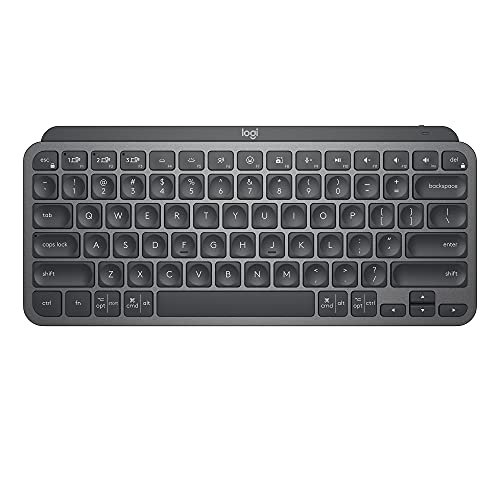
5. Logitech MX Keys Mini Wireless Illuminated Keyboard
What stands out
The Logitech MX Keys Mini is the best typing keyboard in this guide, and the pick for buyers who type all day on a tablet and a PC. It is a minimalist wireless illuminated keyboard in graphite, USB-C rechargeable, that pairs with three devices over Bluetooth, with backlit keys that adjust to the light and a low-profile design that is comfortable for long sessions. The MX Keys line is Logitech premium keyboard range, and the Mini brings that typing feel to a compact layout without a number pad. For a buyer who types for hours and wants the best keys, the MX Keys Mini is the one to choose.
Trade-offs to weigh
The trade-offs are cost and size. The MX Keys Mini costs more than the K480 and the Arteck, and it has no number pad and no cradle for a tablet, so it needs a separate stand. It is USB-C rechargeable, which means it needs charging rather than a replaceable battery, although a charge lasts for weeks. For typing feel and backlighting, though, nothing else here comes close.
Who it fits best
Best for heavy typists who want the best keys and backlighting in a compact multi-device keyboard.
In daily use
Day to day, the Logitech MX Keys Mini Wireless Illuminated Keyboard is the kind of product you stop thinking about, which is the highest praise it can earn. It does its job the same way every time, without quirks or surprises, and lets you focus on the work or the game instead of the hardware. That consistency matters more than any single feature. Treat it reasonably — a clean desk, a suitable surface, and storage that protects it when it is not in use — and it will keep that consistency for a long time. The best products are the ones that fade into the background.
Before you buy
A few checks before you order the Logitech MX Keys Mini Wireless Illuminated Keyboard will save disappointment. Confirm the key details on the listing match what you expect — the exact model name, the included accessories, and the variant — since similar-looking models can differ in important ways. Check the return policy and the warranty terms so you know your options if it arrives damaged or does not suit you. And if you are replacing something you already own, compare the new product with the old one on the points that mattered most, rather than on headline features you may never use.
Check price on Amazon: Logitech MX Keys Mini Wireless Illuminated Keyboard

6. Logitech K400 Plus Wireless Touch TV Keyboard
What stands out
The Logitech K400 Plus is the keyboard with a touchpad in this guide, and the pick for buyers who use a PC connected to a TV. It is a wireless touch TV keyboard for a PC-connected TV, in black, with a built-in touchpad and easy media control, which means it replaces both a keyboard and a mouse for a PC that lives in the living room. The K400 Plus pairs with a PC over a wireless receiver, and its touchpad lets you control the cursor from the sofa, which is the use case it was built for. For a tablet user with a PC on the TV, it is a useful second keyboard.
Trade-offs to weigh
The compromises are layout and range. The K400 Plus is a compact keyboard with small keys, and its touchpad is good for media control but not for precise work, so it is not a replacement for a proper mouse on a desk. It is designed for a PC-connected TV rather than for a tablet, so its tablet use is through the PC rather than direct. For the living room, though, it is the only keyboard here with a touchpad built in.
Who it fits best
Best for living-room PCs connected to a TV, where a keyboard with a built-in touchpad replaces a mouse.
In daily use
Over a full week of use, the Logitech K400 Plus Wireless Touch TV Keyboard shows its character in small ways. The feel stays the same from the first day to the last, nothing loosens or rattles, and the finish holds up to regular handling. If you switch between tasks, you will appreciate that it does not need a different setup for each one: configure it once for the way you actually use it and leave it alone. If you share the space with work or family, the same product should handle those jobs without feeling out of place, which is a useful bonus for a single-product setup.
Before you buy
When the Logitech K400 Plus Wireless Touch TV Keyboard arrives, spend a little time setting it up properly. Follow the included instructions, check that everything listed as included is actually in the box, and test the main functions within the first day or two. Then leave the settings alone for a week. Constant tweaking is the enemy of getting used to a product, and most people get better results from a stable setup than from a perfect one. If something feels wrong after a few days, change one thing at a time so you know what actually helped.
Check price on Amazon: Logitech K400 Plus Wireless Touch TV Keyboard

7. AULA F99 Wireless Mechanical Keyboard
What stands out
The AULA F99 is the only mechanical keyboard in this guide, and the pick for buyers who want a tactile, customizable keyboard for a tablet and a PC. It is a wireless mechanical keyboard with tri-mode connectivity over Bluetooth 5.0, 2.4GHz, and USB-C, a hot swappable design, and pre-lubed linear switches, which means it connects to a tablet over Bluetooth, to a PC over 2.4GHz or USB-C, and its switches can be swapped without soldering. The F99 is a hobbyist keyboard at a mainstream cost, and its mechanical feel is a different experience from the membrane keys on the other keyboards here. For a buyer who types all day and wants a keyboard that feels alive, it is the one to choose.
Trade-offs to weigh
The trade-offs are noise, size, and complexity. A mechanical keyboard is louder than a membrane keyboard, so it is not the best choice for a shared office or a lecture hall, and the F99 is a full-size keyboard that is too large to carry with a tablet. Hot swapping and switch choice are a hobby, not a necessity, and a buyer who only wants a quiet keyboard will be happier with the Logitech models. For typing feel and customization, though, it is unmatched here.
Who it fits best
Best for mechanical keyboard fans who want a tri-mode, hot swappable keyboard for a tablet and a PC.
In daily use
In everyday use, the AULA F99 Wireless Mechanical Keyboard settles into a routine quickly. Set it up once, the way you like it, and give yourself a few days to adjust before judging it. The first session is about learning the layout and the feel; the second and third are where it starts to feel natural. Keep it clean, keep it in the conditions it was designed for, and it will stay consistent. If it has parts that wear — cables, surfaces, moving components — a quick check now and then keeps small issues from becoming real ones, and keeping the packaging and documentation for the first weeks makes any return or exchange far simpler.
Before you buy
Before buying the AULA F99 Wireless Mechanical Keyboard, check two practical things. First, measure and compare: check the dimensions, the capacity, and the compatibility details listed on the product page against what you already own and the space you have. A product that does not fit your setup will never feel right, whatever its specifications say. Second, think about your routine — where it will live, how it will be stored, and what it needs to connect to. None of this is difficult, but all of it is easier to plan before the product arrives than after.
Check price on Amazon: AULA F99 Wireless Mechanical Keyboard
Buying guide
Bluetooth pairing: what to check
A tablet keyboard pairs over Bluetooth, so check that it supports the Bluetooth version on your tablet and your PC, and that it pairs with more than one device if you want to switch. Most keyboards here pair with three devices and switch at a keypress, which is the feature to look for. Pair the keyboard with each device once, name it clearly in the Bluetooth settings, and test the switch before you rely on it for work.
Multi-device switching
Multi-device switching is the feature that makes a tablet keyboard useful for a PC: a dial or a key that moves the keyboard between a tablet, a phone, and a PC without re-pairing. The Logitech keyboards in this guide switch between three devices, and the AULA F99 switches between Bluetooth, 2.4GHz, and USB-C. Test the switch after pairing, and remember which key or dial position belongs to which device, since a wrong switch is the most common frustration with a multi-device keyboard.
Compact, full-size, or mechanical
A compact keyboard is the best choice for carrying with a tablet, since it fits in a bag and weighs little, but it has smaller keys and no number pad. A full-size keyboard is the best choice for a desk, since it has a number pad and a comfortable layout, but it is too large to carry. A mechanical keyboard is the best choice for typing feel and customization, but it is louder and heavier. Choose by where you type most, not by the specification you wish you had.
Cradles, touchpads, and backlighting
A built-in cradle holds a tablet upright at a comfortable angle, which is worth having if you type on a tablet at a desk, and the K480 and K780 both have one. A built-in touchpad, as on the K400 Plus, replaces a mouse for a PC connected to a TV. Backlighting, as on the MX Keys Mini, helps for late-night typing. None of these extras matters as much as the key feel, so choose the keyboard for its keys first and its extras second.
Battery: rechargeable or replaceable
Most keyboards here run on replaceable batteries that last for months, while the MX Keys Mini is USB-C rechargeable and lasts for weeks on a charge. A rechargeable keyboard needs a cable and a charging habit, while a battery keyboard needs a spare battery in a drawer. Either is fine for a tablet and PC setup, but a rechargeable keyboard is easier to keep going if you already charge a tablet and a phone every night.
Key feel: membrane, scissor, and mechanical
Key feel is the difference between a keyboard you enjoy and a keyboard you tolerate, and it comes in three kinds. A membrane keyboard, like the Arteck and the K400 Plus, uses a rubber layer under the keys, which makes it quiet and cheap but gives a soft, mushy feel. A scissor-switch keyboard, like the Logitech models, uses a scissor mechanism that gives a short, crisp keypress and is the standard for laptops and for good portable keyboards. A mechanical keyboard, like the AULA F99, uses a separate switch under each key, which gives a tactile, precise feel and a sound that some people love and some people find loud. Try each kind if you can, since key feel is personal, and a keyboard that feels wrong will not get used no matter how good its specification is.
Trying before you buy
If you can, try a keyboard before you buy it, since key feel is the most personal part of the choice. A keyboard that looks right on a listing can feel wrong under your fingers, and a keyboard that feels right in a shop will still be the one you reach for in a year. If you cannot try it in person, buy from a listing with a clear return policy, and give yourself a full week with the keyboard before you judge it. The first day is about learning the layout, and the second week is about whether your hands still feel fresh at the end of a long session. A keyboard that passes the week test is the one to keep.
Layout and operating system
Check the layout before you buy: a keyboard made for Windows has a different key layout from one made for macOS or iPadOS, and the function keys may behave differently on each system. The Logitech keyboards in this guide are designed for Windows, macOS, iPadOS, Android, and Chrome OS, so they work across systems, but the key labels may not match every system. Test the function keys after pairing, and remap them in the system settings if they do not do what you expect.
Frequently asked questions
What is the best keyboard for a tablet and a PC?
For most buyers, the Logitech K480 is the best choice: it pairs with three devices, switches at a dial, and has a built-in cradle that holds a tablet upright. For a portable keyboard, choose the Arteck compact Bluetooth keyboard or the Logitech Pebble Keys 2 K380s, and for the best typing feel, choose the Logitech MX Keys Mini.
Can one keyboard work with a tablet and a PC?
Yes. A multi-device Bluetooth keyboard pairs with a tablet, a phone, and a PC, and switches between them at a keypress or a dial. The Logitech K480, K780, and MX Keys Mini all pair with three devices, and the AULA F99 connects over Bluetooth, 2.4GHz, and USB-C.
Do I need a keyboard with a cradle for a tablet?
A cradle is useful if you type on a tablet at a desk, since it holds the tablet upright at a comfortable angle. The Logitech K480 and K780 both have a built-in cradle. If you carry the keyboard with a tablet, a separate folding stand is lighter and more flexible.
Is a mechanical keyboard good for a tablet?
A mechanical keyboard works well with a tablet over Bluetooth, and its tactile feel suits long typing sessions, but it is louder and heavier than a membrane keyboard, so it is not the best choice for a shared office or for carrying in a bag. The AULA F99 is the mechanical option in this guide.
How long does a Bluetooth keyboard battery last?
Most Bluetooth keyboards in this guide last for months on a replaceable battery, and the USB-C rechargeable MX Keys Mini lasts for weeks on a charge. Turn the keyboard off when you are not using it, and keep a spare battery or a charging cable handy for the longest trips.
Conclusion
The best tablet keyboard for a PC depends on where you type and how you type. The Logitech K480 is the best all-round choice, with three-device switching and a built-in cradle that holds a tablet upright beside a PC, while the K780 is the full-size version with a number pad for a home office. The Arteck compact Bluetooth keyboard and the Logitech Pebble Keys 2 K380s are the portable choices for a bag, and the MX Keys Mini is the best typing keyboard here, with backlit keys and a premium feel. The Logitech K400 Plus is the pick for a PC connected to a TV, with its built-in touchpad, and the AULA F99 is the mechanical choice for buyers who want a tactile, customizable keyboard. Whichever you choose, pair it with each device once, test the switch, and give yourself a few days to learn the layout.