Disclosure: As an Amazon Associate, ilcastellomenu.com earns from qualifying purchases. Links on this page are affiliate links; they cost you nothing extra. Prices and availability change often, so check the current Amazon listing before you buy.
Weighing external gpu enclosure pros and cons honestly means refusing both sales pitches: the one that calls an external gpu enclosure a desktop killer, and the one that calls it a waste of money. The truth is a genuine trade, with real advantages on one side and structural disadvantages on the other, and the right answer depends on your laptop, your desk and your work. This article lays out the external GPU enclosure pros and cons in full — five to seven of each, explained rather than listed — then shows what the balance means for different owners, so the decision you reach is yours and not a headline’s.
Key Takeaways
- Best for: one-laptop owners whose heavy games or creative work always happen at the same desk.
- Not suited for: anyone whose laptop lacks the right high-speed port, or who needs full power on the move.
- The honesty point: a card in an enclosure runs below the same card in a desktop — plan around an external monitor to get the most from it.
- The compatibility rule: verify laptop port, enclosure and card against maker documentation before any money moves.
- The ownership shape: arrive at the desk, connect one cable, work at full strength, disconnect properly, leave with a light laptop.
The quick verdict: the pros win when a compatible laptop, a fixed desk and graphics-heavy work coincide. The cons win when portability of power, maximum performance per purchase, or an incompatible machine enter the picture. Neither side is a rounding error, which is exactly why this category polarises owners so reliably.
In this guide
The Pros
A Sealed Laptop Gains an Upgrade Path
There is also a longevity argument that deserves a fair hearing. A good enclosure can outlive the card first fitted in it and, in many households, outlive the laptop it first served. When the card starts to feel slow, you replace the card, not the computer. When the laptop is replaced, a compatible new machine can take over the same desk setup. That rolling upgrade path spreads cost across years instead of concentrating it in one painful purchase, and it is one of the strongest reasons enthusiasts stay with the format despite its compromises.
An external GPU enclosure is, at its core, an empty home for a desktop graphics card. Inside the box sit a slot for the card, a power supply sized for graphics work, cooling, and a connection that carries the card’s work back to your laptop over a single cable. The laptop stays thin, light and portable for the train, the lecture hall or the client meeting, and then, back at your desk, it borrows the muscle of a desktop card for games, rendering, video timelines and other work that integrated graphics handle slowly or not at all.
One Machine, One Life of Files
Value in this category is never just the enclosure’s ticket. The true cost of admission is enclosure plus desktop card, plus very possibly a monitor if you do not already own one worth using, plus the small change of cables and desk rearrangement. Set against that full figure, the honest rivals are a gaming laptop with stronger built-in graphics, a compact desktop as a second machine, or continuing to lower settings and wait. Any verdict that prices only the empty box is flattering the category, and this guide refuses to do that arithmetic on your behalf.
Where the sums turn favourable is time and consolidation. One machine means one set of applications, licences, files and habits. The card can be sold and replaced as needs grow, softening the next upgrade. A student finishing a degree, a renter with one desk, a professional whose employer issues a thin laptop they cannot change — for these owners the enclosure is not a luxury toy but the only available door to serious graphics, and a door you can walk through is worth more than a cheaper door that does not exist in your building.
Desktop Cards, Honestly Chosen
Who reaches for one of these boxes? Students with one laptop for both notes and gaming, video editors whose ultrabook edits documents beautifully but stumbles on colour work, software developers running local visualisation, photographers batch-processing large files, and players who travel with a light machine but keep a real desk at home. What unites them is a single-computer life: they do not want, cannot afford, or have no room for a second desktop machine, yet they regularly meet work that their laptop’s built-in graphics cannot comfortably do.
The honest starting point, before any model names, is that an external setup is a compromise bought deliberately. You pay for an enclosure and a card, you accept a desk-bound tether whenever you want the extra power, and you accept that the same card would run faster inside a proper desktop. In return you keep one machine, one set of files, one keyboard you know by touch, and a graphics upgrade path that a sealed laptop could never offer. Judged against a desktop it looks inefficient; judged against buying a second computer, it often looks very sensible indeed.
A Calmer, Single-Cable Desk
Cables deserve the same suspicion as ports. The short cable supplied with an enclosure is not short by accident: high-speed connections of this kind are sensitive to cable length and cable quality, and a random long cable bought for tidiness can undermine stability or performance. Use the cable the maker supplies, or a replacement the maker explicitly approves for this purpose, and route it so it is not kinked, trapped under the enclosure, or stretched to reach a badly placed box. Many mysterious disconnects in owner forums trace back to a cable that was never meant for this job.
While you are checking ports, count the rest of your desk. An enclosure occupies one precious high-capability port for as long as it is connected. If your laptop has only one such port, everything else — monitors, drives, network, charging — must flow through the enclosure’s own connections, a dock, or the laptop’s remaining lesser ports. Some enclosures help here by passing through charging and offering extra connections; others are deliberately single-purpose. Map your whole desk on paper first, because discovering a port shortage after the card is fitted is a special kind of frustration.
The Card Keeps Value Beyond the Laptop
Where the sums turn favourable is time and consolidation. One machine means one set of applications, licences, files and habits. The card can be sold and replaced as needs grow, softening the next upgrade. A student finishing a degree, a renter with one desk, a professional whose employer issues a thin laptop they cannot change — for these owners the enclosure is not a luxury toy but the only available door to serious graphics, and a door you can walk through is worth more than a cheaper door that does not exist in your building.
The value case collapses in a few recognisable situations. If your laptop lacks the right port, there is no case at all. If you mostly play on the move, the box stays home while you travel. If your processor is weak, the card waits on it. If a desktop would fit your life perfectly well, the desktop gives the same card more performance for similar money. Naming these collapses is not pessimism; it is how the owners who love this format were separated, before purchase, from the owners who returned it within the month.
Creative Software Becomes Usable on Light Machines
Set expectations about noise and presence early. A desktop card under load has fans, and an enclosure puts those fans on your desk rather than under it. Makers work hard on airflow and acoustic tuning, and a well-chosen pairing can be civilised, but a hard gaming session or a long render will make itself heard in a quiet room. Headphones solve it for many people; a closed door solves it for others. What will not solve it is pretending the box is silent, so plan placement, cable length and room layout with honest ears from the start.
It helps to picture the enclosure as a dock with one very ambitious job. Ordinary docks spread a laptop’s connection across monitors, drives and peripherals. An enclosure does some of that in certain models, but its defining task is far heavier: it hosts a power-hungry desktop card and shuttles rendered frames between that card and the laptop quickly enough that games and creative applications feel responsive. That is a much harder job than passing through a keyboard signal, which is why compatibility, cabling and setup order matter so much more here than with ordinary desk accessories.
The Cons
The Same Card Runs Slower Than in a Desktop
Drivers and software add their own small tax and their own occasional drama. The operating system must juggle two graphics systems, decide which applications use which, and hand work across cleanly. Modern systems handle this far better than early adopters endured, and for most mainstream applications the experience is now routine. Still, the odd older title, niche professional tool or freshly updated driver can behave unexpectedly, and patience plus a willingness to check the maker’s support pages are part of ownership. This is enthusiast hardware with a friendly face, not an appliance.
The Internal Display Makes the Loss Worse
Your laptop’s processor plays a supporting role that is easy to forget. The enclosure adds graphics power; it does nothing for a processor that is already the bottleneck in your games or your exports. An older or strongly power-limited laptop chip can hold back a powerful external card, leaving you paying for capability the rest of the system cannot feed. Before blaming or praising an enclosure, know which part of your current machine actually runs out of breath first in the work you care about, because the box only fixes one of the two.
Compatibility Is a Chain That Can Simply Say No
While you are checking ports, count the rest of your desk. An enclosure occupies one precious high-capability port for as long as it is connected. If your laptop has only one such port, everything else — monitors, drives, network, charging — must flow through the enclosure’s own connections, a dock, or the laptop’s remaining lesser ports. Some enclosures help here by passing through charging and offering extra connections; others are deliberately single-purpose. Map your whole desk on paper first, because discovering a port shortage after the card is fitted is a special kind of frustration.
Mac Support Is Limited, Plainly
So the first job, before falling for any enclosure or card, is detective work on your own machine. Read the laptop maker’s specification page for your exact model and year, not a sibling model that merely looks the same. Look in the manual for the port description in full. Check the enclosure maker’s compatibility notes as a second source. If the trail is ambiguous, ask the laptop maker directly and keep the answer. A five-minute check at this stage is worth more than any review, because an enclosure connected to the wrong port is not a slower setup; it is no setup at all.
The True Cost Is Enclosure Plus Card Plus Monitor
Resale and reuse soften the long view further. Desktop cards have an active second life in other people’s machines, and a mainstream enclosure from a known maker is easy to pass on when your circumstances change. Compare that with a gaming laptop, whose graphics age inside a sealed chassis and drag the whole machine’s value down with them. None of this guarantees a bargain — premium enclosures and flagship cards are serious money by any measure — but the modular path wastes less of what you bought when the future arrives, and that is a real, bankable kind of value.
Noise, Heat and Desk Space Are Permanent Tenants
Heat management is a placement habit as much as a maintenance task. Give the enclosure clearance on the sides its vents use, keep it out of direct sun and away from radiators, and resist the tidiness instinct that hides humming hardware inside closed cupboards. A box that cannot breathe runs its fans harder, makes more noise, ages its components faster and can throttle the very performance you bought it for. The cheapest performance upgrade in this entire category is simply moving the enclosure to a spot with honest airflow.
Power Stays at the Desk When You Leave
The idea appeals because laptops force a compromise that desktops do not. A laptop’s graphics are chosen on the day you buy the machine and, in almost every modern thin machine, they can never be changed afterwards. An enclosure breaks that lock-in in one specific way: the card inside the box can be swapped, sold on or carried forward, even though the laptop itself stays exactly as it was. That separation between the portable computer and the upgradeable graphics is the whole point of the category, and everything else in this guide follows from it.
External GPU Enclosure Pros and Cons: What the Trade-Offs Mean for You
The value case collapses in a few recognisable situations. If your laptop lacks the right port, there is no case at all. If you mostly play on the move, the box stays home while you travel. If your processor is weak, the card waits on it. If a desktop would fit your life perfectly well, the desktop gives the same card more performance for similar money. Naming these collapses is not pessimism; it is how the owners who love this format were separated, before purchase, from the owners who returned it within the month.
Value in this category is never just the enclosure’s ticket. The true cost of admission is enclosure plus desktop card, plus very possibly a monitor if you do not already own one worth using, plus the small change of cables and desk rearrangement. Set against that full figure, the honest rivals are a gaming laptop with stronger built-in graphics, a compact desktop as a second machine, or continuing to lower settings and wait. Any verdict that prices only the empty box is flattering the category, and this guide refuses to do that arithmetic on your behalf.
Drivers and software add their own small tax and their own occasional drama. The operating system must juggle two graphics systems, decide which applications use which, and hand work across cleanly. Modern systems handle this far better than early adopters endured, and for most mainstream applications the experience is now routine. Still, the odd older title, niche professional tool or freshly updated driver can behave unexpectedly, and patience plus a willingness to check the maker’s support pages are part of ownership. This is enthusiast hardware with a friendly face, not an appliance.
Where the frames are displayed matters as much as how they are made. Sending the finished picture back along the same cable to the laptop’s own built-in screen costs extra capacity on that shared road, and performance suffers accordingly. Routing the picture from the card straight out to an external monitor gives the card a clear, direct path for its output and is the arrangement experienced users recommend. If your plan involves gaming on the laptop’s internal display, temper your expectations more than if your plan centres on a proper desk monitor.
Multi-monitor workers weighing the display side of the trade may find best GPU for multiple monitors a useful companion while deciding.
Context: Enclosure Versus the Alternatives
Against a gaming laptop, the enclosure trades travelling power for a lighter daily machine and an upgradeable card. Against a desktop, it trades peak performance for consolidation and for keeping the laptop you already own. Against a console, it trades simplicity for the ability to run creative and professional software no console touches. None of these trades is foolish; each suits a different household. The error is not choosing the enclosure — it is choosing it while imagining you had chosen one of the others.
Value in this category is never just the enclosure’s ticket. The true cost of admission is enclosure plus desktop card, plus very possibly a monitor if you do not already own one worth using, plus the small change of cables and desk rearrangement. Set against that full figure, the honest rivals are a gaming laptop with stronger built-in graphics, a compact desktop as a second machine, or continuing to lower settings and wait. Any verdict that prices only the empty box is flattering the category, and this guide refuses to do that arithmetic on your behalf.
Resale and reuse soften the long view further. Desktop cards have an active second life in other people’s machines, and a mainstream enclosure from a known maker is easy to pass on when your circumstances change. Compare that with a gaming laptop, whose graphics age inside a sealed chassis and drag the whole machine’s value down with them. None of this guarantees a bargain — premium enclosures and flagship cards are serious money by any measure — but the modular path wastes less of what you bought when the future arrives, and that is a real, bankable kind of value.
How to Buy Smart If the Pros Win
If the balance tips positive, buy against the cons: verify the chain, demand power and space headroom, and favour makers with strong support. The recurring names below are prose-only picks in qualitative tiers.
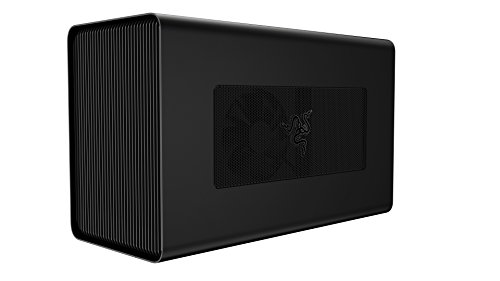
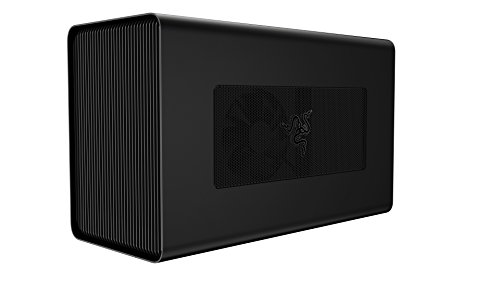
Razer Core X
The Razer Core X is a widely available full-size enclosure from a gaming brand many laptop owners already know, positioned in the mid tier of this category, with a straightforward layout that suits a first external graphics setup and a desktop card you may already own.
Best for: buyers whose shortlist already values what the Razer Core X emphasises, and whose laptop, card and desk have all passed the compatibility checks in this guide. Not suited for: buyers expecting any enclosure to erase the category’s overhead, or anyone fitting a card the maker does not list as suitable for the box. Treat it, like every pick here, as a prose-only recommendation in a mid or premium tier — check the current Amazon listing before you buy, and confirm fit, card support and port requirements on the maker’s own page first.
Strengths in daily use come from the unglamorous things: a layout that makes fitting a card calm rather than fiddly, cooling that does not fight the card’s own fans, and support documentation that answers real questions. Trade-offs are equally unglamorous: desk space surrendered, fan noise under sustained load, and the discipline of connecting and disconnecting properly. Judge this model on those lived details, gathered from the maker’s documentation and owner discussion of the specific revision, rather than on launch-day enthusiasm.

Sonnet eGFX Breakaway Box
The Sonnet eGFX Breakaway Box is an enclosure from a maker with a long history in professional expansion hardware, positioned in the mid-to-premium tier, often considered by creative users who want a tidy desk unit from a company that also supports studios and production teams.
Best for: buyers whose shortlist already values what the Sonnet eGFX Breakaway Box emphasises, and whose laptop, card and desk have all passed the compatibility checks in this guide. Not suited for: buyers expecting any enclosure to erase the category’s overhead, or anyone fitting a card the maker does not list as suitable for the box. Treat it, like every pick here, as a prose-only recommendation in a mid or premium tier — check the current Amazon listing before you buy, and confirm fit, card support and port requirements on the maker’s own page first.
Strengths in daily use come from the unglamorous things: a layout that makes fitting a card calm rather than fiddly, cooling that does not fight the card’s own fans, and support documentation that answers real questions. Trade-offs are equally unglamorous: desk space surrendered, fan noise under sustained load, and the discipline of connecting and disconnecting properly. Judge this model on those lived details, gathered from the maker’s documentation and owner discussion of the specific revision, rather than on launch-day enthusiasm.
AKiTiO Node Titan
The AKiTiO Node Titan is an enclosure from a Thunderbolt specialist, positioned in the mid tier, known among enthusiasts for a practical, serviceable design that treats the enclosure as working hardware rather than desk decoration.
Best for: buyers whose shortlist already values what the AKiTiO Node Titan emphasises, and whose laptop, card and desk have all passed the compatibility checks in this guide. Not suited for: buyers expecting any enclosure to erase the category’s overhead, or anyone fitting a card the maker does not list as suitable for the box. Treat it, like every pick here, as a prose-only recommendation in a mid or premium tier — check the current Amazon listing before you buy, and confirm fit, card support and port requirements on the maker’s own page first.
Strengths in daily use come from the unglamorous things: a layout that makes fitting a card calm rather than fiddly, cooling that does not fight the card’s own fans, and support documentation that answers real questions. Trade-offs are equally unglamorous: desk space surrendered, fan noise under sustained load, and the discipline of connecting and disconnecting properly. Judge this model on those lived details, gathered from the maker’s documentation and owner discussion of the specific revision, rather than on launch-day enthusiasm.
PowerColor Mini Pro
The PowerColor Mini Pro is a compact enclosure from a graphics-card maker, positioned as a smaller-footprint option for desks where space is genuinely tight, trading the roominess of a full-size box for a unit that is easier to place and to move.
Best for: buyers whose shortlist already values what the PowerColor Mini Pro emphasises, and whose laptop, card and desk have all passed the compatibility checks in this guide. Not suited for: buyers expecting any enclosure to erase the category’s overhead, or anyone fitting a card the maker does not list as suitable for the box. Treat it, like every pick here, as a prose-only recommendation in a mid or premium tier — check the current Amazon listing before you buy, and confirm fit, card support and port requirements on the maker’s own page first.
Strengths in daily use come from the unglamorous things: a layout that makes fitting a card calm rather than fiddly, cooling that does not fight the card’s own fans, and support documentation that answers real questions. Trade-offs are equally unglamorous: desk space surrendered, fan noise under sustained load, and the discipline of connecting and disconnecting properly. Judge this model on those lived details, gathered from the maker’s documentation and owner discussion of the specific revision, rather than on launch-day enthusiasm.
Mantiz Saturn Pro
The Mantiz Saturn Pro is an enclosure that adds hub-style thinking to the basic formula, positioned in the mid-to-premium tier, aimed at users who want the graphics box to double as part of their docking arrangement rather than sit apart from it.
Best for: buyers whose shortlist already values what the Mantiz Saturn Pro emphasises, and whose laptop, card and desk have all passed the compatibility checks in this guide. Not suited for: buyers expecting any enclosure to erase the category’s overhead, or anyone fitting a card the maker does not list as suitable for the box. Treat it, like every pick here, as a prose-only recommendation in a mid or premium tier — check the current Amazon listing before you buy, and confirm fit, card support and port requirements on the maker’s own page first.
Strengths in daily use come from the unglamorous things: a layout that makes fitting a card calm rather than fiddly, cooling that does not fight the card’s own fans, and support documentation that answers real questions. Trade-offs are equally unglamorous: desk space surrendered, fan noise under sustained load, and the discipline of connecting and disconnecting properly. Judge this model on those lived details, gathered from the maker’s documentation and owner discussion of the specific revision, rather than on launch-day enthusiasm.
Cooler Master MasterCase EG200
The Cooler Master MasterCase EG200 is an enclosure from a long-established case and cooling maker, positioned in the mid tier, bringing a case-builder sensibility to layout, airflow thinking and the everyday business of opening a box and fitting a card.
Best for: buyers whose shortlist already values what the Cooler Master MasterCase EG200 emphasises, and whose laptop, card and desk have all passed the compatibility checks in this guide. Not suited for: buyers expecting any enclosure to erase the category’s overhead, or anyone fitting a card the maker does not list as suitable for the box. Treat it, like every pick here, as a prose-only recommendation in a mid or premium tier — check the current Amazon listing before you buy, and confirm fit, card support and port requirements on the maker’s own page first.
Strengths in daily use come from the unglamorous things: a layout that makes fitting a card calm rather than fiddly, cooling that does not fight the card’s own fans, and support documentation that answers real questions. Trade-offs are equally unglamorous: desk space surrendered, fan noise under sustained load, and the discipline of connecting and disconnecting properly. Judge this model on those lived details, gathered from the maker’s documentation and owner discussion of the specific revision, rather than on launch-day enthusiasm.
Setup and Care That Reduce the Cons
Setup rewards patience and sequence. The broad shape is the same across makers: place the enclosure, fit the card with the power off, connect the monitor to the card rather than to the laptop, connect the enclosure to the laptop with the supplied cable, power up in the order the maker specifies, and install or update graphics drivers with the enclosure connected, following the maker’s stated order rather than your own instincts. Driver installation order sounds like pedantry until you have spent an evening undoing a sequence the manual warned about on its second page.
Build a small routine for connecting and disconnecting. Use the operating system’s safe-eject or graphics-disconnect process where one is offered rather than simply pulling the cable mid-session, close GPU-heavy applications before undocking, and let the laptop settle before you close its lid and go. Owners who treat the single cable as magically hot-swappable in all circumstances eventually meet a crash that teaches the routine the hard way. The enclosure makes a laptop feel modular, but it still appreciates being treated as machinery rather than magic.
Ongoing care is light but not zero. Dust is the main enemy: an enclosure breathes desk air through its vents, and a card’s heatsink slowly collects the room. Every few months, power down, unplug, open the box as the maker intends and clear dust with care, keeping fans from spinning wildly under blasts of air. Check that cables still seat firmly, that vents remain unobstructed by the slow creep of desk clutter, and that nothing has been stacked on top of a box that was designed to breathe through its lid.
Heat management is a placement habit as much as a maintenance task. Give the enclosure clearance on the sides its vents use, keep it out of direct sun and away from radiators, and resist the tidiness instinct that hides humming hardware inside closed cupboards. A box that cannot breathe runs its fans harder, makes more noise, ages its components faster and can throttle the very performance you bought it for. The cheapest performance upgrade in this entire category is simply moving the enclosure to a spot with honest airflow.
Bottom Line
The pros are about freedom within one machine’s life; the cons are about physics, compatibility and cost. Owners who read both columns and still buy are, anecdotally and logically, the happiest owners in the category. Owners who read only the first column become the cautionary tales in the second. Read both, check your port, price the whole chain, and then decide like someone who intends to still be pleased in year three.
Weighing a External Gpu Enclosure in Real Life: Recurring Benefits, Recurring Annoyances
If a drawback can be softened by placement, a simple accessory or a change of routine, it belongs in a different category from a drawback built into the design itself. Give a new external gpu enclosure a fair trial in the position it was bought for before improvising workarounds, since many early complaints disappear once placement is corrected. Ask what you would do on the day this external gpu enclosure stops working as expected, and whether you could swap, reset, clean or return it without dismantling half your setup. Take a quick photo of the working setup before you change anything, so cable routes, positions and settings can be restored exactly if the new arrangement disappoints.
As a concrete listing check, take the Razer Core X and the Sonnet eGFX Breakaway Box named earlier in this article and confirm, line by line, that each variant offered matches the size, connection and contents described for it here. Think about storage for the accessories this external gpu enclosure brings with it, so spare parts and tools end up in one known place instead of scattered across drawers. Look for the failure you would notice first if you chose badly: a port you cannot reach, a part that will not fit, a control you cannot see, or a routine that becomes slower instead of easier. Run one deliberately awkward task early on, the kind you usually avoid, and see whether this external gpu enclosure handles your edge cases or only your easiest work. The honest way to weigh the drawbacks of a external gpu enclosure is to ask how often each one will actually meet your routine, rather than counting advantages and disadvantages as if they were equal.
Treat any accessory bundled in the box as a starting point, and check whether it suits your setup before assuming the maker has solved that part for you. A calm final test is to walk away mid-task, come back later, and see whether the setup still makes sense at a glance without reconstructing what you were doing. Allow a short settling period for your own habits to adapt, but set a firm date to decide, well inside the return window, whether this external gpu enclosure has earned its place. Look closely at seams, edges, hinges, threads or contact points when the external gpu enclosure arrives, because build quality is easiest to judge before everyday wear hides the evidence.
Decide in advance what good enough looks like for your use, so a minor cosmetic flaw does not distract you from performance that genuinely meets the brief.
Frequently Asked Questions
Does an external GPU enclosure work with a Mac?
Only in limited circumstances, and many Mac owners should skip the category. macOS support for external graphics has always been restricted to particular machine generations, connection types and a narrow set of graphics cards, and Mac laptops built on Apple’s own silicon do not use external graphics enclosures. If you own an older Intel-based Mac, verify your exact machine, system version and intended card against Apple’s and the enclosure maker’s current documentation. If you own a newer Mac, put the budget toward the machine and display instead.
Can I upgrade the graphics card inside the enclosure later?
Yes — that upgrade path is one of the format’s best arguments. The card is a standard desktop card held in a standard way, so when it ages you can replace the card alone, provided the new card physically fits the enclosure, suits its power supply and connectors, and is supported by your operating system. This is exactly why choosing an enclosure with sensible space and power headroom matters on day one. The laptop stays sealed and unchanged, but its graphics can grow up more than once across its life.
Is it safe to unplug the enclosure whenever I want?
Treat disconnection as a small procedure rather than a tug. Close applications that are using the external card, use the operating system’s safe disconnect or eject process where one is offered, and let the laptop settle before closing the lid. Pulling the cable mid-session can crash the application, the driver or occasionally the system, and repeated rough handling helps nothing. Owners who build the calm routine — arrive, connect, work, disconnect properly — report the format feels appliance-like; owners who yank cables collect the horror stories.
Will an external GPU enclosure make my laptop as fast as a desktop?
No, and any source promising that is misleading you. The same desktop card performs below its desktop-installed level when it works through an enclosure, because the connection between laptop and box is a narrower path than a desktop’s internal one. The gain over integrated graphics is still dramatic for games and creative work, which is the comparison that matters for most buyers. Use an external monitor fed directly by the card, keep expectations qualitative rather than chasing a rival’s benchmark chart, and the improvement will feel like the transformation owners describe.
How do I know whether my laptop has the right port?
Check the exact model and year on the laptop maker’s own specification pages, and read the port description in full rather than trusting the port’s shape. Ports that look identical can offer very different capabilities, and only some provide the connection an enclosure requires. Cross-check the enclosure maker’s compatibility notes, use the supplied cable, and if any source is ambiguous, ask the laptop maker directly before buying. This five-minute check prevents the single most expensive mistake in the category: an enclosure that can never work with your machine at all.
Should I play on the laptop screen or an external monitor?
An external monitor connected to the card itself is the stronger arrangement. Sending finished frames back along the same cable to the laptop’s built-in display consumes capacity on a shared path and costs performance, while a monitor fed directly by the card gives the card a clear route for its output. Many owners start on the internal screen for convenience and move to a desk monitor once they see the difference. If a monitor is in your future anyway, buying it alongside the enclosure is money spent where the format rewards it most.
Related Reading
external gpu enclosure reviews
external gpu enclosure buying guide
is an external gpu enclosure worth it
how to choose an external gpu enclosure
how to set up external gpu enclosure
best GPU for multiple monitors
best monitors for a dual monitor setup
best graphics cards for Blender
One More Consideration Before You Decide
Heat management is a placement habit as much as a maintenance task. Give the enclosure clearance on the sides its vents use, keep it out of direct sun and away from radiators, and resist the tidiness instinct that hides humming hardware inside closed cupboards. A box that cannot breathe runs its fans harder, makes more noise, ages its components faster and can throttle the very performance you bought it for. The cheapest performance upgrade in this entire category is simply moving the enclosure to a spot with honest airflow.
Software care mirrors hardware care. Keep graphics drivers on a sane cadence — current enough to support your newest work, not so bleeding-edge that you volunteer as a tester on a deadline. Read the enclosure maker’s notes when a major operating system update lands. Keep a note of the driver version that worked beautifully, so a bad update can be rolled back to a known-good state rather than to a guess. Stability you have documented beats novelty you have not, every working week of the year.
Value in this category is never just the enclosure’s ticket. The true cost of admission is enclosure plus desktop card, plus very possibly a monitor if you do not already own one worth using, plus the small change of cables and desk rearrangement. Set against that full figure, the honest rivals are a gaming laptop with stronger built-in graphics, a compact desktop as a second machine, or continuing to lower settings and wait. Any verdict that prices only the empty box is flattering the category, and this guide refuses to do that arithmetic on your behalf.
Resale and reuse soften the long view further. Desktop cards have an active second life in other people’s machines, and a mainstream enclosure from a known maker is easy to pass on when your circumstances change. Compare that with a gaming laptop, whose graphics age inside a sealed chassis and drag the whole machine’s value down with them. None of this guarantees a bargain — premium enclosures and flagship cards are serious money by any measure — but the modular path wastes less of what you bought when the future arrives, and that is a real, bankable kind of value.
It helps to picture the enclosure as a dock with one very ambitious job. Ordinary docks spread a laptop’s connection across monitors, drives and peripherals. An enclosure does some of that in certain models, but its defining task is far heavier: it hosts a power-hungry desktop card and shuttles rendered frames between that card and the laptop quickly enough that games and creative applications feel responsive. That is a much harder job than passing through a keyboard signal, which is why compatibility, cabling and setup order matter so much more here than with ordinary desk accessories.
The honest starting point, before any model names, is that an external setup is a compromise bought deliberately. You pay for an enclosure and a card, you accept a desk-bound tether whenever you want the extra power, and you accept that the same card would run faster inside a proper desktop. In return you keep one machine, one set of files, one keyboard you know by touch, and a graphics upgrade path that a sealed laptop could never offer. Judged against a desktop it looks inefficient; judged against buying a second computer, it often looks very sensible indeed.
One More Consideration Before You Decide
Ongoing care is light but not zero. Dust is the main enemy: an enclosure breathes desk air through its vents, and a card’s heatsink slowly collects the room. Every few months, power down, unplug, open the box as the maker intends and clear dust with care, keeping fans from spinning wildly under blasts of air. Check that cables still seat firmly, that vents remain unobstructed by the slow creep of desk clutter, and that nothing has been stacked on top of a box that was designed to breathe through its lid.
Heat management is a placement habit as much as a maintenance task. Give the enclosure clearance on the sides its vents use, keep it out of direct sun and away from radiators, and resist the tidiness instinct that hides humming hardware inside closed cupboards. A box that cannot breathe runs its fans harder, makes more noise, ages its components faster and can throttle the very performance you bought it for. The cheapest performance upgrade in this entire category is simply moving the enclosure to a spot with honest airflow.
Resale and reuse soften the long view further. Desktop cards have an active second life in other people’s machines, and a mainstream enclosure from a known maker is easy to pass on when your circumstances change. Compare that with a gaming laptop, whose graphics age inside a sealed chassis and drag the whole machine’s value down with them. None of this guarantees a bargain — premium enclosures and flagship cards are serious money by any measure — but the modular path wastes less of what you bought when the future arrives, and that is a real, bankable kind of value.
Where the sums turn favourable is time and consolidation. One machine means one set of applications, licences, files and habits. The card can be sold and replaced as needs grow, softening the next upgrade. A student finishing a degree, a renter with one desk, a professional whose employer issues a thin laptop they cannot change — for these owners the enclosure is not a luxury toy but the only available door to serious graphics, and a door you can walk through is worth more than a cheaper door that does not exist in your building.
The honest starting point, before any model names, is that an external setup is a compromise bought deliberately. You pay for an enclosure and a card, you accept a desk-bound tether whenever you want the extra power, and you accept that the same card would run faster inside a proper desktop. In return you keep one machine, one set of files, one keyboard you know by touch, and a graphics upgrade path that a sealed laptop could never offer. Judged against a desktop it looks inefficient; judged against buying a second computer, it often looks very sensible indeed.
It helps to picture the enclosure as a dock with one very ambitious job. Ordinary docks spread a laptop’s connection across monitors, drives and peripherals. An enclosure does some of that in certain models, but its defining task is far heavier: it hosts a power-hungry desktop card and shuttles rendered frames between that card and the laptop quickly enough that games and creative applications feel responsive. That is a much harder job than passing through a keyboard signal, which is why compatibility, cabling and setup order matter so much more here than with ordinary desk accessories.