Disclosure: As an Amazon Associate, ilcastellomenu.com earns from qualifying purchases. Links on this page are affiliate links; they cost you nothing extra. Prices and availability change often, so check the current Amazon listing before you buy.
Reading external gpu enclosure reviews side by side teaches a lesson single reviews hide: owners rarely disagree about the enclosures themselves — they disagree about expectations. These external gpu enclosure reviews, gathered into one comparative judgement, show the same pattern repeating across makers and models. Delighted owners verified compatibility, used an external monitor and bought a card matched to the box. Disappointed owners skipped a check, chased a desktop’s benchmark chart, or asked a tethered desk box to be a travelling companion. This roundup reviews the field as it is actually lived with, model by model and lesson by lesson.
Key Takeaways
- Best for: one-laptop owners whose heavy games or creative work always happen at the same desk.
- Not suited for: anyone whose laptop lacks the right high-speed port, or who needs full power on the move.
- The honesty point: a card in an enclosure runs below the same card in a desktop — plan around an external monitor to get the most from it.
- The compatibility rule: verify laptop port, enclosure and card against maker documentation before any money moves.
- The ownership shape: arrive at the desk, connect one cable, work at full strength, disconnect properly, leave with a light laptop.
In this guide
What External GPU Enclosure Reviews Consistently Agree On
The single most important honesty point in this entire category is overhead. A desktop graphics card connected through an external enclosure performs below the same card installed inside a desktop computer. The connection between laptop and box, however clever, is a narrower road than the direct internal connection a desktop motherboard gives its card, and the card’s work must travel that road in both directions. Nothing about a premium badge removes this; it is a property of the arrangement itself, not a flaw in any particular model you might choose.
Where the frames are displayed matters as much as how they are made. Sending the finished picture back along the same cable to the laptop’s own built-in screen costs extra capacity on that shared road, and performance suffers accordingly. Routing the picture from the card straight out to an external monitor gives the card a clear, direct path for its output and is the arrangement experienced users recommend. If your plan involves gaming on the laptop’s internal display, temper your expectations more than if your plan centres on a proper desk monitor.
None of this makes the category a bad buy; it makes it a buy to make with open eyes. The fair comparison for most shoppers is not enclosure versus desktop, because the desktop was never really on their table. The fair comparison is enclosure versus the integrated graphics they already struggle with, versus a games console that cannot run their creative software, or versus a second computer they do not want. Against those real alternatives, a well-matched enclosure delivers a transformation in capability, even while a benchmark chart against a desktop would call the same result a loss.
There is also a longevity argument that deserves a fair hearing. A good enclosure can outlive the card first fitted in it and, in many households, outlive the laptop it first served. When the card starts to feel slow, you replace the card, not the computer. When the laptop is replaced, a compatible new machine can take over the same desk setup. That rolling upgrade path spreads cost across years instead of concentrating it in one painful purchase, and it is one of the strongest reasons enthusiasts stay with the format despite its compromises.
Think about where the work actually happens before you think about hardware. If your heavy sessions always happen at one desk, with a monitor you already like, an enclosure fits your life neatly. If your heavy work happens in hotel rooms, site offices and relatives’ spare rooms, a tethered box that lives at home solves only part of the problem. The enclosure rewards a settled desk and a routine: arrive, plug in one cable, work at full strength, unplug, leave. Build the habit and the hardware disappears; fight the habit and the box becomes expensive furniture.
External GPU Enclosure Reviews: The Models, Judged Together
The six enclosures below anchor most serious shortlists. Each entry distils the recurring verdict of owner experience and maker documentation into the questions that matter — fit, power headroom, cooling, desk manners — as prose-only picks in qualitative tiers.
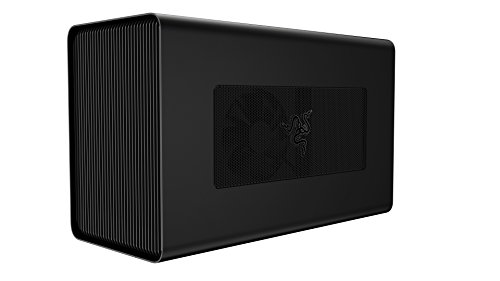
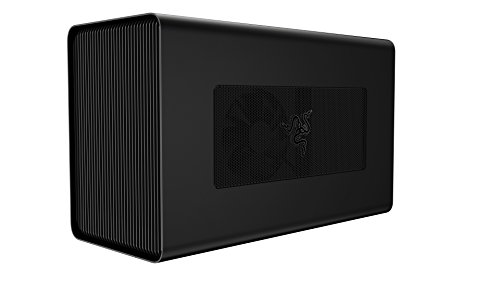
Razer Core X
The Razer Core X is a widely available full-size enclosure from a gaming brand many laptop owners already know, positioned in the mid tier of this category, with a straightforward layout that suits a first external graphics setup and a desktop card you may already own.
Best for: buyers whose shortlist already values what the Razer Core X emphasises, and whose laptop, card and desk have all passed the compatibility checks in this guide. Not suited for: buyers expecting any enclosure to erase the category’s overhead, or anyone fitting a card the maker does not list as suitable for the box. Treat it, like every pick here, as a prose-only recommendation in a mid or premium tier — check the current Amazon listing before you buy, and confirm fit, card support and port requirements on the maker’s own page first.
Strengths in daily use come from the unglamorous things: a layout that makes fitting a card calm rather than fiddly, cooling that does not fight the card’s own fans, and support documentation that answers real questions. Trade-offs are equally unglamorous: desk space surrendered, fan noise under sustained load, and the discipline of connecting and disconnecting properly. Judge this model on those lived details, gathered from the maker’s documentation and owner discussion of the specific revision, rather than on launch-day enthusiasm.

Sonnet eGFX Breakaway Box
The Sonnet eGFX Breakaway Box is an enclosure from a maker with a long history in professional expansion hardware, positioned in the mid-to-premium tier, often considered by creative users who want a tidy desk unit from a company that also supports studios and production teams.
Best for: buyers whose shortlist already values what the Sonnet eGFX Breakaway Box emphasises, and whose laptop, card and desk have all passed the compatibility checks in this guide. Not suited for: buyers expecting any enclosure to erase the category’s overhead, or anyone fitting a card the maker does not list as suitable for the box. Treat it, like every pick here, as a prose-only recommendation in a mid or premium tier — check the current Amazon listing before you buy, and confirm fit, card support and port requirements on the maker’s own page first.
Strengths in daily use come from the unglamorous things: a layout that makes fitting a card calm rather than fiddly, cooling that does not fight the card’s own fans, and support documentation that answers real questions. Trade-offs are equally unglamorous: desk space surrendered, fan noise under sustained load, and the discipline of connecting and disconnecting properly. Judge this model on those lived details, gathered from the maker’s documentation and owner discussion of the specific revision, rather than on launch-day enthusiasm.
AKiTiO Node Titan
The AKiTiO Node Titan is an enclosure from a Thunderbolt specialist, positioned in the mid tier, known among enthusiasts for a practical, serviceable design that treats the enclosure as working hardware rather than desk decoration.
Best for: buyers whose shortlist already values what the AKiTiO Node Titan emphasises, and whose laptop, card and desk have all passed the compatibility checks in this guide. Not suited for: buyers expecting any enclosure to erase the category’s overhead, or anyone fitting a card the maker does not list as suitable for the box. Treat it, like every pick here, as a prose-only recommendation in a mid or premium tier — check the current Amazon listing before you buy, and confirm fit, card support and port requirements on the maker’s own page first.
Strengths in daily use come from the unglamorous things: a layout that makes fitting a card calm rather than fiddly, cooling that does not fight the card’s own fans, and support documentation that answers real questions. Trade-offs are equally unglamorous: desk space surrendered, fan noise under sustained load, and the discipline of connecting and disconnecting properly. Judge this model on those lived details, gathered from the maker’s documentation and owner discussion of the specific revision, rather than on launch-day enthusiasm.
PowerColor Mini Pro
The PowerColor Mini Pro is a compact enclosure from a graphics-card maker, positioned as a smaller-footprint option for desks where space is genuinely tight, trading the roominess of a full-size box for a unit that is easier to place and to move.
Best for: buyers whose shortlist already values what the PowerColor Mini Pro emphasises, and whose laptop, card and desk have all passed the compatibility checks in this guide. Not suited for: buyers expecting any enclosure to erase the category’s overhead, or anyone fitting a card the maker does not list as suitable for the box. Treat it, like every pick here, as a prose-only recommendation in a mid or premium tier — check the current Amazon listing before you buy, and confirm fit, card support and port requirements on the maker’s own page first.
Strengths in daily use come from the unglamorous things: a layout that makes fitting a card calm rather than fiddly, cooling that does not fight the card’s own fans, and support documentation that answers real questions. Trade-offs are equally unglamorous: desk space surrendered, fan noise under sustained load, and the discipline of connecting and disconnecting properly. Judge this model on those lived details, gathered from the maker’s documentation and owner discussion of the specific revision, rather than on launch-day enthusiasm.
Mantiz Saturn Pro
The Mantiz Saturn Pro is an enclosure that adds hub-style thinking to the basic formula, positioned in the mid-to-premium tier, aimed at users who want the graphics box to double as part of their docking arrangement rather than sit apart from it.
Best for: buyers whose shortlist already values what the Mantiz Saturn Pro emphasises, and whose laptop, card and desk have all passed the compatibility checks in this guide. Not suited for: buyers expecting any enclosure to erase the category’s overhead, or anyone fitting a card the maker does not list as suitable for the box. Treat it, like every pick here, as a prose-only recommendation in a mid or premium tier — check the current Amazon listing before you buy, and confirm fit, card support and port requirements on the maker’s own page first.
Strengths in daily use come from the unglamorous things: a layout that makes fitting a card calm rather than fiddly, cooling that does not fight the card’s own fans, and support documentation that answers real questions. Trade-offs are equally unglamorous: desk space surrendered, fan noise under sustained load, and the discipline of connecting and disconnecting properly. Judge this model on those lived details, gathered from the maker’s documentation and owner discussion of the specific revision, rather than on launch-day enthusiasm.
Cooler Master MasterCase EG200
The Cooler Master MasterCase EG200 is an enclosure from a long-established case and cooling maker, positioned in the mid tier, bringing a case-builder sensibility to layout, airflow thinking and the everyday business of opening a box and fitting a card.
Best for: buyers whose shortlist already values what the Cooler Master MasterCase EG200 emphasises, and whose laptop, card and desk have all passed the compatibility checks in this guide. Not suited for: buyers expecting any enclosure to erase the category’s overhead, or anyone fitting a card the maker does not list as suitable for the box. Treat it, like every pick here, as a prose-only recommendation in a mid or premium tier — check the current Amazon listing before you buy, and confirm fit, card support and port requirements on the maker’s own page first.
Strengths in daily use come from the unglamorous things: a layout that makes fitting a card calm rather than fiddly, cooling that does not fight the card’s own fans, and support documentation that answers real questions. Trade-offs are equally unglamorous: desk space surrendered, fan noise under sustained load, and the discipline of connecting and disconnecting properly. Judge this model on those lived details, gathered from the maker’s documentation and owner discussion of the specific revision, rather than on launch-day enthusiasm.
Design, Build and Setup: What Owners Praise and Curse
Keep the maker’s support pages and your receipts somewhere findable. Firmware updates for enclosures exist, driver branches change, and operating system updates occasionally rearrange how external graphics are handled. A ten-minute check of the maker’s notes before a big system update can spare an evening of troubleshooting after it. Likewise, register the product if the maker asks, and photograph your card’s serial label before it disappears inside the box; future you, mid-support-ticket, will be grateful for both small kindnesses.
Fitting the card itself is ordinary careful hands work. Power everything off and unplug before opening the enclosure — this is not a suggestion to soften, because the box contains a real power supply and a card that costs real money. Ground yourself against static, support the card’s weight as you seat it in its slot until it clicks home, secure it as the enclosure’s design intends, and attach the card’s power connectors fully; a half-seated power connector is a classic cause of a first boot that shows nothing at all. Close the case only when every connector has been checked twice.
First boot is a moment for observation, not impatience. Give the system time to recognise new hardware, watch for the card appearing in the system’s device listings, and let driver installation finish completely before launching a game to celebrate. Then verify the setup is actually doing its job: check that your demanding application reports using the external card, not the laptop’s integrated graphics, because systems sometimes need an explicit preference set per application. That one setting, quietly wrong, explains many disappointed first impressions that had nothing to do with the hardware at all.
Inside every enclosure sits a power supply, and matching that supply to the card you intend to fit is a quiet decision with loud consequences. Desktop graphics cards vary enormously in appetite, from modest cards that sip power to flagship cards that demand a supply with real headroom and the right power connectors. The enclosure’s supply must suit the card with margin to spare, because a supply run at its limit runs hot, runs loud and can produce the kind of instability — crashes under load, sudden restarts — that owners misdiagnose for weeks as driver trouble.
Physical fit is the supply’s twin constraint. Cards differ in length, in height, and in thickness measured by the slots they occupy, and enclosures differ in the room they offer. A card that fits on paper can still foul a side panel, strain its power cables against the lid, or sit so close to a vent that its cooling suffers. Read the enclosure’s stated card clearance, compare it with the card maker’s stated dimensions rather than a retailer’s rounded summary, and leave breathing room. Graphics cards are not books; a tight shelf is not a virtue.
Because display routing shapes real performance so strongly, readers planning the full desk should also browse best monitors for a dual monitor setup before deciding the enclosure is the whole purchase.
Performance in Real Use, According to the Pattern of Reviews
Gaming Verdicts
Drivers and software add their own small tax and their own occasional drama. The operating system must juggle two graphics systems, decide which applications use which, and hand work across cleanly. Modern systems handle this far better than early adopters endured, and for most mainstream applications the experience is now routine. Still, the odd older title, niche professional tool or freshly updated driver can behave unexpectedly, and patience plus a willingness to check the maker’s support pages are part of ownership. This is enthusiast hardware with a friendly face, not an appliance.
That overhead shows up unevenly, which is why two owners can report very different experiences and both be telling the truth. Workloads that lean heavily on the card once the scene is loaded tend to fare better than workloads that constantly stream data back and forth. High resolutions can actually suit an external setup relatively well, because the card does more of the work locally per frame. Chasing extremely high frame rates at modest resolutions is where the connection’s limits are felt most, since the laptop and the link must keep up with a very rapid conversation.
Creative Work Verdicts
There is also a longevity argument that deserves a fair hearing. A good enclosure can outlive the card first fitted in it and, in many households, outlive the laptop it first served. When the card starts to feel slow, you replace the card, not the computer. When the laptop is replaced, a compatible new machine can take over the same desk setup. That rolling upgrade path spreads cost across years instead of concentrating it in one painful purchase, and it is one of the strongest reasons enthusiasts stay with the format despite its compromises.
It helps to picture the enclosure as a dock with one very ambitious job. Ordinary docks spread a laptop’s connection across monitors, drives and peripherals. An enclosure does some of that in certain models, but its defining task is far heavier: it hosts a power-hungry desktop card and shuttles rendered frames between that card and the laptop quickly enough that games and creative applications feel responsive. That is a much harder job than passing through a keyboard signal, which is why compatibility, cabling and setup order matter so much more here than with ordinary desk accessories.
The Internal-Screen Complaint
That overhead shows up unevenly, which is why two owners can report very different experiences and both be telling the truth. Workloads that lean heavily on the card once the scene is loaded tend to fare better than workloads that constantly stream data back and forth. High resolutions can actually suit an external setup relatively well, because the card does more of the work locally per frame. Chasing extremely high frame rates at modest resolutions is where the connection’s limits are felt most, since the laptop and the link must keep up with a very rapid conversation.
Drivers and software add their own small tax and their own occasional drama. The operating system must juggle two graphics systems, decide which applications use which, and hand work across cleanly. Modern systems handle this far better than early adopters endured, and for most mainstream applications the experience is now routine. Still, the odd older title, niche professional tool or freshly updated driver can behave unexpectedly, and patience plus a willingness to check the maker’s support pages are part of ownership. This is enthusiast hardware with a friendly face, not an appliance.
Strengths and Trade-Offs of the Field
Strengths
- Every serious maker now offers a mature, well-documented box; the category has outgrown its hobbyist fragility.
- Card upgradeability is praised in review after review as the feature owners value more each year.
- Single-cable desk life genuinely works, and owners structure their days around its simplicity.
Trade-offs
- Overhead versus a desktop appears in every honest review, whatever the badge on the box.
- Mac compatibility limits exclude many would-be buyers before model choice even begins.
- Fan noise under load is the most common lived complaint once the honeymoon month passes.
How the Field Compares with the Alternatives
Where the sums turn favourable is time and consolidation. One machine means one set of applications, licences, files and habits. The card can be sold and replaced as needs grow, softening the next upgrade. A student finishing a degree, a renter with one desk, a professional whose employer issues a thin laptop they cannot change — for these owners the enclosure is not a luxury toy but the only available door to serious graphics, and a door you can walk through is worth more than a cheaper door that does not exist in your building.
Resale and reuse soften the long view further. Desktop cards have an active second life in other people’s machines, and a mainstream enclosure from a known maker is easy to pass on when your circumstances change. Compare that with a gaming laptop, whose graphics age inside a sealed chassis and drag the whole machine’s value down with them. None of this guarantees a bargain — premium enclosures and flagship cards are serious money by any measure — but the modular path wastes less of what you bought when the future arrives, and that is a real, bankable kind of value.
The value case collapses in a few recognisable situations. If your laptop lacks the right port, there is no case at all. If you mostly play on the move, the box stays home while you travel. If your processor is weak, the card waits on it. If a desktop would fit your life perfectly well, the desktop gives the same card more performance for similar money. Naming these collapses is not pessimism; it is how the owners who love this format were separated, before purchase, from the owners who returned it within the month.
Who Should Buy and Who Should Skip
Operating system support is the second compatibility gate, and it is not symmetrical. Windows laptops with the right port have historically offered the broadest path for external graphics, including a wide choice of cards. Mac support is a different story and must be stated plainly: macOS support for external graphics has always been limited to specific hardware generations, specific connection types and a restricted set of graphics cards, and newer Mac laptops built on Apple’s own silicon do not use external graphics enclosures at all. Mac owners must verify their exact machine, system version and card choice with particular care, or skip the category entirely.
Finally, remember that compatibility is a chain, and the chain includes the card. An enclosure may suit your laptop perfectly while the specific desktop card you fancy is too long, too thick, too power-hungry or simply not supported by your operating system. Check all three links — laptop port, enclosure, card — against maker documentation before money moves. Owners who do this homework almost always describe setup as boring, and boring is the highest praise a first evening with new hardware can earn. Owners who skip it feature in the cautionary tales everyone else reads.
So the first job, before falling for any enclosure or card, is detective work on your own machine. Read the laptop maker’s specification page for your exact model and year, not a sibling model that merely looks the same. Look in the manual for the port description in full. Check the enclosure maker’s compatibility notes as a second source. If the trail is ambiguous, ask the laptop maker directly and keep the answer. A five-minute check at this stage is worth more than any review, because an enclosure connected to the wrong port is not a slower setup; it is no setup at all.
Setup, Care and Maintenance Essentials
Keep the maker’s support pages and your receipts somewhere findable. Firmware updates for enclosures exist, driver branches change, and operating system updates occasionally rearrange how external graphics are handled. A ten-minute check of the maker’s notes before a big system update can spare an evening of troubleshooting after it. Likewise, register the product if the maker asks, and photograph your card’s serial label before it disappears inside the box; future you, mid-support-ticket, will be grateful for both small kindnesses.
Build a small routine for connecting and disconnecting. Use the operating system’s safe-eject or graphics-disconnect process where one is offered rather than simply pulling the cable mid-session, close GPU-heavy applications before undocking, and let the laptop settle before you close its lid and go. Owners who treat the single cable as magically hot-swappable in all circumstances eventually meet a crash that teaches the routine the hard way. The enclosure makes a laptop feel modular, but it still appreciates being treated as machinery rather than magic.
Heat management is a placement habit as much as a maintenance task. Give the enclosure clearance on the sides its vents use, keep it out of direct sun and away from radiators, and resist the tidiness instinct that hides humming hardware inside closed cupboards. A box that cannot breathe runs its fans harder, makes more noise, ages its components faster and can throttle the very performance you bought it for. The cheapest performance upgrade in this entire category is simply moving the enclosure to a spot with honest airflow.
Software care mirrors hardware care. Keep graphics drivers on a sane cadence — current enough to support your newest work, not so bleeding-edge that you volunteer as a tester on a deadline. Read the enclosure maker’s notes when a major operating system update lands. Keep a note of the driver version that worked beautifully, so a bad update can be rolled back to a known-good state rather than to a guess. Stability you have documented beats novelty you have not, every working week of the year.
Final Verdict
Taken together, the reviews describe a category that rewards homework and punishes hope. No model escapes the format’s physics, and no model needs to: matched to the right laptop, card and monitor, each of the enclosures above has made owners measurably happier with the one computer they already loved. Choose by fit, power headroom and maker support rather than by launch headlines, and your own review, a year from now, will read like the satisfied majority.
Desk space deserves a mention in any verdict, because an enclosure is bigger in person than product photos suggest. Between the box itself, its separate power brick and the thick cable that refuses to bend tightly, most setups claim a footprint closer to a small desktop PC than to a laptop accessory. Measure the run from your laptop’s port to where the box will actually sit, and think about fan noise during evening use in a quiet room before the numbers seduce you.
Frequently Asked Questions
How do I know whether my laptop has the right port?
Check the exact model and year on the laptop maker’s own specification pages, and read the port description in full rather than trusting the port’s shape. Ports that look identical can offer very different capabilities, and only some provide the connection an enclosure requires. Cross-check the enclosure maker’s compatibility notes, use the supplied cable, and if any source is ambiguous, ask the laptop maker directly before buying. This five-minute check prevents the single most expensive mistake in the category: an enclosure that can never work with your machine at all.
Should I play on the laptop screen or an external monitor?
An external monitor connected to the card itself is the stronger arrangement. Sending finished frames back along the same cable to the laptop’s built-in display consumes capacity on a shared path and costs performance, while a monitor fed directly by the card gives the card a clear route for its output. Many owners start on the internal screen for convenience and move to a desk monitor once they see the difference. If a monitor is in your future anyway, buying it alongside the enclosure is money spent where the format rewards it most.
Does an external GPU enclosure work with a Mac?
Only in limited circumstances, and many Mac owners should skip the category. macOS support for external graphics has always been restricted to particular machine generations, connection types and a narrow set of graphics cards, and Mac laptops built on Apple’s own silicon do not use external graphics enclosures. If you own an older Intel-based Mac, verify your exact machine, system version and intended card against Apple’s and the enclosure maker’s current documentation. If you own a newer Mac, put the budget toward the machine and display instead.
Can I upgrade the graphics card inside the enclosure later?
Yes — that upgrade path is one of the format’s best arguments. The card is a standard desktop card held in a standard way, so when it ages you can replace the card alone, provided the new card physically fits the enclosure, suits its power supply and connectors, and is supported by your operating system. This is exactly why choosing an enclosure with sensible space and power headroom matters on day one. The laptop stays sealed and unchanged, but its graphics can grow up more than once across its life.
Is it safe to unplug the enclosure whenever I want?
Treat disconnection as a small procedure rather than a tug. Close applications that are using the external card, use the operating system’s safe disconnect or eject process where one is offered, and let the laptop settle before closing the lid. Pulling the cable mid-session can crash the application, the driver or occasionally the system, and repeated rough handling helps nothing. Owners who build the calm routine — arrive, connect, work, disconnect properly — report the format feels appliance-like; owners who yank cables collect the horror stories.
Will an external GPU enclosure make my laptop as fast as a desktop?
No, and any source promising that is misleading you. The same desktop card performs below its desktop-installed level when it works through an enclosure, because the connection between laptop and box is a narrower path than a desktop’s internal one. The gain over integrated graphics is still dramatic for games and creative work, which is the comparison that matters for most buyers. Use an external monitor fed directly by the card, keep expectations qualitative rather than chasing a rival’s benchmark chart, and the improvement will feel like the transformation owners describe.
Related Reading
external gpu enclosure buying guide
external gpu enclosure pros and cons
is an external gpu enclosure worth it
how to choose an external gpu enclosure
how to set up external gpu enclosure
best graphics cards for AMD systems
One More Consideration Before You Decide
Software care mirrors hardware care. Keep graphics drivers on a sane cadence — current enough to support your newest work, not so bleeding-edge that you volunteer as a tester on a deadline. Read the enclosure maker’s notes when a major operating system update lands. Keep a note of the driver version that worked beautifully, so a bad update can be rolled back to a known-good state rather than to a guess. Stability you have documented beats novelty you have not, every working week of the year.
Heat management is a placement habit as much as a maintenance task. Give the enclosure clearance on the sides its vents use, keep it out of direct sun and away from radiators, and resist the tidiness instinct that hides humming hardware inside closed cupboards. A box that cannot breathe runs its fans harder, makes more noise, ages its components faster and can throttle the very performance you bought it for. The cheapest performance upgrade in this entire category is simply moving the enclosure to a spot with honest airflow.
The value case collapses in a few recognisable situations. If your laptop lacks the right port, there is no case at all. If you mostly play on the move, the box stays home while you travel. If your processor is weak, the card waits on it. If a desktop would fit your life perfectly well, the desktop gives the same card more performance for similar money. Naming these collapses is not pessimism; it is how the owners who love this format were separated, before purchase, from the owners who returned it within the month.
Where the sums turn favourable is time and consolidation. One machine means one set of applications, licences, files and habits. The card can be sold and replaced as needs grow, softening the next upgrade. A student finishing a degree, a renter with one desk, a professional whose employer issues a thin laptop they cannot change — for these owners the enclosure is not a luxury toy but the only available door to serious graphics, and a door you can walk through is worth more than a cheaper door that does not exist in your building.
Who reaches for one of these boxes? Students with one laptop for both notes and gaming, video editors whose ultrabook edits documents beautifully but stumbles on colour work, software developers running local visualisation, photographers batch-processing large files, and players who travel with a light machine but keep a real desk at home. What unites them is a single-computer life: they do not want, cannot afford, or have no room for a second desktop machine, yet they regularly meet work that their laptop’s built-in graphics cannot comfortably do.
It helps to picture the enclosure as a dock with one very ambitious job. Ordinary docks spread a laptop’s connection across monitors, drives and peripherals. An enclosure does some of that in certain models, but its defining task is far heavier: it hosts a power-hungry desktop card and shuttles rendered frames between that card and the laptop quickly enough that games and creative applications feel responsive. That is a much harder job than passing through a keyboard signal, which is why compatibility, cabling and setup order matter so much more here than with ordinary desk accessories.
One More Consideration Before You Decide
Ongoing care is light but not zero. Dust is the main enemy: an enclosure breathes desk air through its vents, and a card’s heatsink slowly collects the room. Every few months, power down, unplug, open the box as the maker intends and clear dust with care, keeping fans from spinning wildly under blasts of air. Check that cables still seat firmly, that vents remain unobstructed by the slow creep of desk clutter, and that nothing has been stacked on top of a box that was designed to breathe through its lid.
Software care mirrors hardware care. Keep graphics drivers on a sane cadence — current enough to support your newest work, not so bleeding-edge that you volunteer as a tester on a deadline. Read the enclosure maker’s notes when a major operating system update lands. Keep a note of the driver version that worked beautifully, so a bad update can be rolled back to a known-good state rather than to a guess. Stability you have documented beats novelty you have not, every working week of the year.
Resale and reuse soften the long view further. Desktop cards have an active second life in other people’s machines, and a mainstream enclosure from a known maker is easy to pass on when your circumstances change. Compare that with a gaming laptop, whose graphics age inside a sealed chassis and drag the whole machine’s value down with them. None of this guarantees a bargain — premium enclosures and flagship cards are serious money by any measure — but the modular path wastes less of what you bought when the future arrives, and that is a real, bankable kind of value.
Where the sums turn favourable is time and consolidation. One machine means one set of applications, licences, files and habits. The card can be sold and replaced as needs grow, softening the next upgrade. A student finishing a degree, a renter with one desk, a professional whose employer issues a thin laptop they cannot change — for these owners the enclosure is not a luxury toy but the only available door to serious graphics, and a door you can walk through is worth more than a cheaper door that does not exist in your building.
Think about where the work actually happens before you think about hardware. If your heavy sessions always happen at one desk, with a monitor you already like, an enclosure fits your life neatly. If your heavy work happens in hotel rooms, site offices and relatives’ spare rooms, a tethered box that lives at home solves only part of the problem. The enclosure rewards a settled desk and a routine: arrive, plug in one cable, work at full strength, unplug, leave. Build the habit and the hardware disappears; fight the habit and the box becomes expensive furniture.
There is also a longevity argument that deserves a fair hearing. A good enclosure can outlive the card first fitted in it and, in many households, outlive the laptop it first served. When the card starts to feel slow, you replace the card, not the computer. When the laptop is replaced, a compatible new machine can take over the same desk setup. That rolling upgrade path spreads cost across years instead of concentrating it in one painful purchase, and it is one of the strongest reasons enthusiasts stay with the format despite its compromises.
One More Consideration Before You Decide
Software care mirrors hardware care. Keep graphics drivers on a sane cadence — current enough to support your newest work, not so bleeding-edge that you volunteer as a tester on a deadline. Read the enclosure maker’s notes when a major operating system update lands. Keep a note of the driver version that worked beautifully, so a bad update can be rolled back to a known-good state rather than to a guess. Stability you have documented beats novelty you have not, every working week of the year.
Heat management is a placement habit as much as a maintenance task. Give the enclosure clearance on the sides its vents use, keep it out of direct sun and away from radiators, and resist the tidiness instinct that hides humming hardware inside closed cupboards. A box that cannot breathe runs its fans harder, makes more noise, ages its components faster and can throttle the very performance you bought it for. The cheapest performance upgrade in this entire category is simply moving the enclosure to a spot with honest airflow.
Resale and reuse soften the long view further. Desktop cards have an active second life in other people’s machines, and a mainstream enclosure from a known maker is easy to pass on when your circumstances change. Compare that with a gaming laptop, whose graphics age inside a sealed chassis and drag the whole machine’s value down with them. None of this guarantees a bargain — premium enclosures and flagship cards are serious money by any measure — but the modular path wastes less of what you bought when the future arrives, and that is a real, bankable kind of value.
Value in this category is never just the enclosure’s ticket. The true cost of admission is enclosure plus desktop card, plus very possibly a monitor if you do not already own one worth using, plus the small change of cables and desk rearrangement. Set against that full figure, the honest rivals are a gaming laptop with stronger built-in graphics, a compact desktop as a second machine, or continuing to lower settings and wait. Any verdict that prices only the empty box is flattering the category, and this guide refuses to do that arithmetic on your behalf.
An external GPU enclosure is, at its core, an empty home for a desktop graphics card. Inside the box sit a slot for the card, a power supply sized for graphics work, cooling, and a connection that carries the card’s work back to your laptop over a single cable. The laptop stays thin, light and portable for the train, the lecture hall or the client meeting, and then, back at your desk, it borrows the muscle of a desktop card for games, rendering, video timelines and other work that integrated graphics handle slowly or not at all.
Think about where the work actually happens before you think about hardware. If your heavy sessions always happen at one desk, with a monitor you already like, an enclosure fits your life neatly. If your heavy work happens in hotel rooms, site offices and relatives’ spare rooms, a tethered box that lives at home solves only part of the problem. The enclosure rewards a settled desk and a routine: arrive, plug in one cable, work at full strength, unplug, leave. Build the habit and the hardware disappears; fight the habit and the box becomes expensive furniture.