Disclosure: As an Amazon Associate, ilcastellomenu.com earns from qualifying purchases. Links to Amazon on this page are affiliate links; they cost you nothing extra. Listing details such as price and availability change often, so check the current Amazon listing before you buy.
Learning how to fix GPU fan noise begins with a diagnostic truth: ‘fan noise’ is at least four different problems wearing one coat. There is honest airflow noise (fans working hard because the card is hot), fan-curve noise (fans surging up and down because the curve is badly shaped), mechanical noise (a bearing, a cable, a rattle), and coil whine — which is not a fan at all. Each has a different fix, and applying the wrong one wastes money. This guide helps you identify which noise you have, then fixes it in safe order, from settings to housekeeping to the honest limits of home repair.
You will need your ears, a monitoring tool (HWiNFO64 or GPU-Z) to correlate noise with temperature and fan speed, and ten minutes of methodical listening. Change one thing at a time and re-listen — the same discipline as How to Test a Graphics Card — because fan noise ‘fixed’ by changing five things at once teaches you nothing and often returns. A note on expectations: a graphics card under full gaming load will never be silent; the goal is a smooth, low whoosh you can ignore, not a library. If silence at load is truly the requirement, that is a hardware-tier and cooler-size conversation for your next purchase via How to Choose a Graphics Card.
Step 0: Identify your noise
| Sound | Likely cause | Go to |
|---|---|---|
| Smooth whoosh that rises with game load | Normal airflow noise — fans cooling a hot card | Fix 1 and Fix 2 |
| Fans surging up-down-up-down rhythmically | Fan curve steps too steep around a common temperature | Fix 1 |
| Clicking, ticking, or a light buzzing that changes with fan speed | Cable or debris touching a blade; loose shroud | Fix 3 |
| Grinding, rattling, or wobbling growl from one fan | Worn or damaged fan bearing | Fix 4 |
| High-pitched whine that changes with frame rate, present even at low fan speed | Coil whine (electrical, not a fan) | Fix 5 |
Pinpointing helps: with the case open and the system idling, briefly run a game and listen closely (keep hands and tools out of the case while it runs). Does the noise track fan RPM in your monitoring tool, or frame rate? Does it come from the graphics card, or — very commonly — from the CPU cooler or a case fan you have been blaming unfairly? Confirming the source before ‘fixing’ the wrong component is the whole game; the sensor-correlation method is the same one used in How to Fix Graphics Card Overheating, and the two problems are cousins — hot cards are loud cards.
In this guide
Fix 1: Reshape the fan curve
The factory fan curve is a compromise tuned for a reviewer in an air-conditioned lab, not for your room. In MSI Afterburner or AMD Adrenalin, draw a smoother curve: fans starting gently at low temperatures, rising in a steady slope rather than steps, reaching assertive speeds before the card gets properly hot rather than after. The surging pattern — silent, roar, silent, roar — comes from a steep curve section straddling the temperature your games hover at; flattening the slope there ends the yo-yo. Also set a sensible minimum: a curve that lets fans spin at a low, constant speed during light gaming is often less noticeable than the zero-RPM stop-start cycle, even though the stop-start one is ‘quieter’ on paper.
Fix 2: Give the fans less work to do
Fan speed follows temperature, and temperature follows load and airflow — so the deepest noise fixes attack heat itself. Clean the dust from the card and case filters (safely: power off, unplugged, compressed air in short bursts, blades held still — never a vacuum, never opening the PSU). Sort the case airflow into a clean front-to-back path. Cap frame rates at your monitor’s refresh rate: in menus and light games, uncapped rendering is pure noise for nothing. Consider a modest power-limit reduction or undervolt, which can cut heat — and therefore fan speed — substantially for a few percent of performance; the conservative philosophy in How to Overclock Safely a Graphics Card applies in mirror image. And check the card is not fighting a stupid load: a background app holding the GPU busy keeps fans awake on the desktop, where silence is most noticeable.
Fix 3: Mechanical interference and rattles
Power down, unplug, open the case, and inspect. Look for a cable — often a front-panel wire or a PCIe power lead — resting against a fan blade or close enough to kiss it when the card vibrates; reroute and secure it. Check for debris in the fan wells and for a loose fan shroud or backplate screw (snug, never forced). GPU sag can twist a long card enough to make a shroud buzz against the cooler at certain RPMs; a support bracket or a simple prop at the far corner is a legitimate, cheap cure. Spin each fan gently by hand with the power off: it should rotate freely and silently; grit, wobble, or resistance tells you the problem is the fan itself, which is Fix 4’s territory.
Fix 4: A failing fan bearing
Bearings wear out, especially on cards that have lived hot and dusty for years. Symptoms are grinding, rattling that peaks at certain speeds, and a fan that wobbles visibly or spins reluctantly. Honest options, in order: if the card is under warranty, claim it — fan failure is a warranty defect, not wear you should pay for. Out of warranty, model-specific replacement fans exist for many popular cards and swapping one is a delicate but documented job; weigh your confidence honestly, because the cooler assembly and thermal pads are easy to disturb. The folk remedies — peeling the sticker and oiling the bearing — sometimes buy weeks of quiet and sometimes do nothing; treat them as a last resort on a card you can afford to lose, not a repair. If the card is old and due replacement anyway, a noisy bearing is a reasonable final argument for the upgrade you were postponing; efficient, quiet-cooled picks fill the Best Graphics Cards for Gaming roundup.
Fix 5: Coil whine — the impostor
Coil whine is a high-pitched tone produced by vibrating electrical components (inductors) under changing load. It is not a fan, not a fault in the warranty sense on most policies, and not dangerous — just maddening, especially in quiet rooms and high-frame-rate menus where it often peaks. Mitigations that genuinely help: cap frame rates (whine scales with FPS, and uncapped menu screens at thousands of FPS are its favourite stage); enable VSync or a limiter; sometimes a different PSU changes the electrical conditions enough to alter it; and time — whine occasionally softens as components age. What does not help: fan curves, cleaning, or reseating. Identifying whine correctly saves you from ‘repairing’ healthy fans — the identification table at the top of this guide exists largely for this moment.
When to seek help or replace
Escalate when a fan does not spin at all under load (that is now a cooling emergency — see the overheating guide), when grinding is joined by visible wobble or the card overheats despite clean airflow, or when the card is in warranty for any mechanical noise at all. Keep perspective on the other end too: a healthy card that is merely audible under full load in a quiet room is not broken, and chasing silence with money is better done at purchase time — bigger coolers, lower power draw (the link between watts and noise is drawn in graphics card power consumption explained), and models reviewed specifically for acoustics.
Prevention
- Keep the dust out on a schedule; dirty coolers work harder and louder for the same temperatures.
- Keep your tuned fan curve saved as a profile, and re-check it after driver updates, which can reset tuning — a note our driver guide repeats for good reason.
- Cap frame rates globally at your refresh rate; your ears and your electricity bill both benefit.
- Support long, heavy cards to prevent sag-related shroud buzz developing over time.
- Listen to your PC occasionally with the game audio off. New noises are early warnings, and early warnings are cheap.
How to fix GPU fan noise by tuning the whole system, not just the card
The graphics card rarely sings alone. Case fans on an aggressive motherboard curve, a CPU cooler ramping for a bursty game menu, even a hard drive’s vibration through a thin case panel can harmonise into ‘the GPU is loud’. Before tuning the card, isolate the choir: run a GPU-only load (a benchmark windowed while the CPU idles) and then a CPU-only load, and listen to each. Then tune as a system: motherboard fan curves slaved to sensible sensors with gentle slopes, case fans that do their work at low constant speeds rather than dramatic ramps, and a GPU curve shaped to match. The quietest PCs are not the ones with the most aggressive silence settings per component — they are the ones where every fan moves a little air all the time instead of one fan sprinting to cover for the rest. Anti-vibration details help more than they should: snug panel screws, rubber mounts where offered, and a case on a solid surface rather than a resonating hollow desk.
Software discipline completes the picture. A single global frame-rate limit at your refresh rate removes the loudest scenarios in PC gaming — uncapped menus and loading screens where a powerful card renders a static image at four-digit frame rates and full fan speed for no benefit whatsoever. Per-game profiles in the vendor suites let quiet games stay quiet and demanding games use the assertive curve. And keep recordings and overlays in mind: instant-replay features keep the GPU’s encoder and memory mildly busy at all times, which on some cards is the difference between fans stopped and fans idling audibly on the desktop — if desktop silence matters, test with the feature off and decide consciously.
Judging noise when you buy the next card
- Read reviews that measure noise at matched temperatures or matched performance — raw ‘dB’ figures without context mislead.
- Prefer larger, slower-spinning fans and three-fan coolers at a given tier; physics favours diameter over RPM for quiet airflow.
- Check the zero-RPM behaviour and the fan-stop temperature; a card that stays fanless through light gaming transforms desktop and indie-game acoustics.
- Treat power draw as a noise spec: a card achieving your frame rate at lower wattage gives its cooler less heat to move, and therefore less noise to make.
- Remember the case is part of the acoustic system — mesh-front airflow cases let coolers run slower than sealed glass boxes at the same temperatures.
Noise is the specification owners live with most intimately and research least. A card that is three percent faster and twenty percent louder is, for most desks, the worse card — a trade that only becomes visible if you shop for acoustics deliberately, with the vocabulary this guide has given you: curve shape, load behaviour, bearing health, and the electrical impostor, coil whine, correctly identified and priced in.
Measuring noise without a laboratory
You cannot fix what you cannot compare, and ‘quieter than before’ deserves better evidence than mood. A phone with a sound-meter app is not a calibrated instrument, but it is a consistent one: same phone, same position (a metre from the case, at ear height where you sit), same game scene, and readings before and after each change give you a trustworthy delta even if the absolute number is approximate. Log the conditions alongside — fan curve version, ambient temperature, which panel was on — because noise comparisons across different conditions manufacture conclusions. Subjective notes matter too, and capture what meters cannot: character. A smooth 38 dB whoosh can be less annoying than a tonal 34 dB whine, because the ear hunts patterns, not just levels. Record both the number and the adjective (‘smooth’, ‘buzzy’, ‘cyclical’) after every intervention; when the noise returns months later, as noises do, your log identifies whether it is the same noise or a new one wearing its coat.
The acoustics of placement: your desk is part of the PC
Before buying anything for noise, audit the furniture. A PC on a desk sits at ear level with its fans aimed at the room; the same PC under the desk, on a stand that lets it breathe, gains distance and a desk’s worth of muffling for free — provided the under-desk space is open, not a cabinet (cabinets trade noise for heat, the worst bargain in this guide). Hard surfaces reflect; a PC against a bare wall corner sits in an acoustic amplifier, while soft furnishings nearby absorb what the fans emit. Cable-length permitting, even a metre of repositioning can outperform a parts purchase. And manage expectations by time of day: a system that is inaudible over afternoon household noise may be plainly audible at midnight, which is an argument for the quiet profile and the frame cap at night rather than for chasing a silence that physics prices in flagship coolers. Placement, profiles, and perspective — the three cheapest decibels you will ever buy.
When loud is a symptom, not a trait
End where diagnosis should always end: with the change log. A card that was quiet for two years and is loud this month is not ‘getting old’ in some vague sense — something specific changed. The candidates, in the order this guide has taught: dust crossing a threshold, a fan bearing beginning its decline, a driver update resetting a curve, a heavier game arriving, a warmer season, a cable shifted by a moved case into a blade’s path. Each has a fix already described, and each fix is cheaper than the resignation (‘GPUs are just loud’) that skips the investigation. Treat new noise the way good pilots treat a new sound in an aircraft — as the machine filing a report in the only language it has — and your hardware will repay the attention with years of quieter service.
A worked example: silencing a real-world setup, step by step
Assemble the method on a typical patient: a mid-range card, two years old, in a mesh case under a desk, newly loud in a summer gaming session. Step one, identify: the noise is a load-linked whoosh with a cyclical surge — no grinding, no whine — and monitoring shows the card oscillating around the temperature where its stock curve steepens. Step two, the free fixes in order: dust blown out of the card and filters (a visible felt of it on the intake), the surge diagnosed as curve shape and flattened with a custom slope, a global frame cap set at the monitor’s refresh rate, and the case lifted onto a stand so its underside intake breathes. Step three, verify with the phone meter at the usual seat: the surge is gone, the level is down by a clearly audible margin, and — the acceptance test from the overheating guide — temperatures plateau slightly lower than before despite the gentler fans, because clean fins and real intake air beat desperate RPM every time. Total cost: one can of air and an hour. Total parts replaced: none. This composite is deliberately unglamorous, because real acoustic victories almost always are — a diagnosis, a cleaning, a curve, a cap — and the drama of replacement parts is reserved for the minority of cases, like the failed bearing, that genuinely earn it.

Gear mentioned in this guide
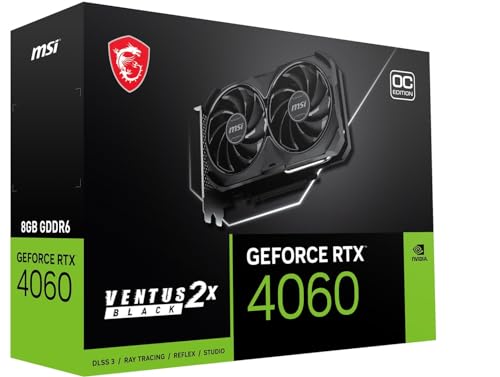
If a fan bearing has truly failed on an out-of-warranty card and replacement is the practical route, quiet-cooled models like this RTX 4060-class card are the benchmark to shop against. Most readers will fix the noise for free below.
- MSI GeForce RTX 4060 Ventus 2X Black 8G OC — Check on Amazon
A field guide to fan sounds: what each noise is saying
Noise diagnosis begins with vocabulary, because ‘loud’ describes a dozen different faults with a dozen different fixes. A smooth whoosh that rises and falls with load is simply air moving — healthy, and addressed by asking the fans to do less work or to work at a steadier speed. A whine or whistle at particular speeds suggests air being forced through a tight gap or a fan running near a resonant speed for your case. A rattle or buzz that changes when you press the case panel or the card’s shroud is mechanical vibration finding an amplifier. A clicking or ticking, regular with rotation, points at something touching a blade — a cable, a zip-tie tail, a label lifting with age — or at a bearing beginning to fail. A grinding or dry rattling from one fan that worsens month by month is a bearing at the end of its life. And a high electronic chirp or buzz that tracks frame rate rather than fan speed is usually not a fan at all, but coil whine, the impostor the main guide covers.
Identify before you intervene, using the simplest tools: your ears, a phone recording moved slowly around the case, and the fan-speed readout in your monitoring software. Change one fan’s speed at a time if your software allows it, and listen for which change alters the noise. Note the speeds at which the noise appears and disappears — a noise that lives only in a narrow band can often be cured by teaching the fan curve to step over that band rather than sit in it, a trick that costs nothing and that owners discover late because nobody tells them noise can be scheduled around as well as reduced.
Fan curves in depth: hysteresis, ramping and the art of not hunting
The main guide reshapes the curve; this section explains the behaviours that make a reshaped curve feel professional rather than merely quieter. The first is hysteresis — a deliberate delay or temperature band before fans respond to a change. Without it, a card hovering at a threshold temperature makes its fans surge and relax every few seconds as each frame’s load flickers, and that hunting is more annoying than a steady higher speed, because human hearing notices change far more than level. Most good control tools let you set how quickly fans may rise and fall; slower fall times in particular transform a system, letting fans glide down after a load ends instead of stepping audibly through every gear.
The second behaviour is matching the curve to your actual temperature fingerprint, using the logged readings from your own games rather than generic advice. If your card lives between two temperatures in your longest sessions, the curve should be calm and flat across exactly that span, with its decisive rise reserved for temperatures you rarely reach. The third is coordinating the case fans with the GPU rather than tuning each in isolation: case fans governed by a sensor that never reflects gaming load will leave the card to fight alone, while a case curve that wakes when the GPU does feeds the card cooler air at the moment it matters, letting the card’s own fans run slower for the same temperature. Tune the system as one instrument and the GPU fan — usually the loudest voice in the choir — often ends up needing to sing less. The temperature side of this coordination is covered in our overheating guide, and the two articles’ settings should be made together, in one sitting, with one log.
Resonance: when the case and desk become the speaker
Some GPU noise is not produced by the card at all, but by the card exciting everything it touches. A fan’s slight imbalance or a coil’s vibration travels through the mounting into the case, and a large flat side panel is an excellent drum skin; the desk beneath, especially a hollow one, can join in as a sounding board. Diagnose resonance by touch: with the noise present, rest a fingertip on the side panel, the top panel and the desk surface in turn. A panel that stills under your finger has confessed. Remedies follow the physics: tighten panel screws evenly, confirm no panel is slightly bowed or missing a rubber mount, move a cable that presses against a panel, place the case on a mat or board if it stands on a resonant surface, and check the card’s own mounting — a heavy card sagging in its slot can press its shroud against a neighbouring surface, which is both a noise source and a reason to fit the support the choosing guides recommend.
Resonance explains the otherwise baffling reports of identical cards that are quiet in one home and loud in another. The card brought the vibration; the room supplied the amplifier. When you shop for your next case or desk with this in mind — solid panels, sensible mounting, a surface that does not drum — you are buying quiet as surely as when you choose the card itself, and usually for less money.
Bearings, age and the honest end of a fan’s life
GPU fans are wear parts, and their bearings decide their lifespan and their soundtrack. Sleeve bearings are cheap and quiet when young but age faster, especially mounted horizontally where their lubrication works against gravity. Ball bearings run longer and tolerate orientation, at the cost of a faint mechanical texture some ears catch. Fluid-dynamic designs aim for the quiet of the first with the life of the second and dominate better coolers. Whatever the type, the ageing sequence is similar: a new sound at start-up that fades as the fan warms, then a sound at particular speeds, then a sound at most speeds, then visible wobble or a fan that sometimes fails to start without a nudge. Each stage is information, and the stages usually take months, which gives you time to plan rather than panic.
On replacement, be precise about what fits. Fans on graphics cards are usually model-specific in size, mounting and connector, sourced as matched sets for that exact cooler; generic case fans do not bolt on, whatever a listing implies. Options, in order of sanity: the card maker’s support channel while any warranty or goodwill remains, a reputable parts seller listing your exact model, or — as a well-documented enthusiast path with warranty consequences — removing the shroud and mounting quality case fans to the bare heatsink, a modification that can be dramatically quieter but must be researched for your specific card’s heatsink shape and fan control. What not to do: oil a sealed bearing through guesswork, run a card indefinitely with a dead fan because temperatures ‘seem okay’ at the desktop, or buy a used fan of unknown history for a card you depend on. Fans are cheap compared with the chip they protect; treat them that way.
Quiet by design: settings and habits that prevent most noise complaints
Close the loop with prevention, because most fan-noise stories begin as purchasing and settings stories. A card asked to render far beyond the monitor’s refresh is a card making noise for nothing; a frame-rate cap, set once, is the single most effective quiet setting in PC gaming and the one most owners never apply. An undervolt, validated with the method in our tuning guide, lowers the heat the fans must move at the same performance, and it is free. Dust discipline matters acoustically as well as thermally: a clogged heatsink forces higher speeds for the same cooling, so the cleaning rhythm from the overheating guide is also a noise programme. And when you buy, remember that cooler size is the quiet specification — larger heatsinks and larger, slower fans move the same air with less effort and less sound — which is why the same chip in a bulky triple-fan design and in a compact dual-fan design can be two different acoustic experiences wearing one name. Read the cooler, not just the chip, and your next card starts its life on the quiet side of this entire article.
A worked silencing: putting the whole method together on one desk
Watch the pieces combine on a typical problem machine: a mid-range card, loud enough in evening gaming to be heard over speakers, in a case under a desk. The log comes first — one session in the owner’s longest game, noting fan speeds, the three temperatures and where the noise peaks. The recording test identifies the dominant sound as a smooth whoosh with a buzz layered at one particular speed band. The buzz stills under a fingertip on the side panel: resonance, treated by tightening the panel, adding the missing rubber mount found rattling in the case’s accessory box, and standing the case on a mat. The whoosh is honest airflow, treated at its causes: a frame cap at the monitor’s refresh removes a third of the pointless work, a validated undervolt trims the heat, and the case fans are re-curved to wake with the GPU so the card’s fans peak lower. Finally the card’s own curve is rebuilt around the logged temperatures, with slow fall times and a deliberate step over the speed band where the buzz lived.
The result is not silence — no air-cooled gaming PC is silent — but a machine whose loudest moments sit under the game’s own audio at the owner’s chair, which was the actual requirement all along. Note what the fix did not involve: no new card, no exotic parts, one mat. Most fan-noise problems yield to this order of attack — identify, de-resonate, reduce the work, then shape the curve — and the owners who struggle are usually those who start at the curve, the last step, and ask it to compensate for everything upstream. Work the order, log the result, and keep the settings exported; a quiet PC, once achieved, should be a documented state you can restore after any driver update or rebuild, not a lucky accident you are afraid to touch.
Noise etiquette for shared homes, calls and late nights
A PC does not live alone, and fan noise is a social fact before it is a technical one. The same machine that is unremarkable at noon can end a partner’s sleep, bleed into a microphone on a work call, or make a shared living room’s film night a negotiation. Design for the strictest audience the machine serves. For calls and recording, the winning combination is distance and workload: move the case off the desk and away from the microphone’s axis, cap frame rates in the games played while others are on calls in the next room, and keep a quiet profile — the conservative curve and undervolt from this guide, saved under an honest name — that can be applied in one click when the house goes quiet. For late-night gaming, headphones change the equation entirely, letting the fans work while the room rests; a modest headphone habit has silenced more PCs than any cooler. None of this appears in benchmark tables, yet it decides real satisfaction with a machine more than a few degrees or decibels either way. Judge your fixes at the chair, at the hour, with the people who actually share your air — that is the laboratory this article has been pointing at all along.
The buyer’s five-minute acoustic test for the next card
Carry this article into your next purchase and the noise question mostly answers itself before money moves. In reviews, look past the single decibel figure — measured who-knows-where — for the fan behaviour descriptions: whether speeds ramp smoothly, whether a zero-RPM mode exists and at what temperature it releases, whether owners of the exact model report coil whine or resonance in real cases. Prefer the larger cooler within your case’s limits, and treat a quiet or silent BIOS mode as a real feature worth having. In the first week of ownership, run the listening test from this guide while returns are still easy: your longest game, your room, your chair, evening quiet. A card that passes there will pass for years, barring the bearing wear covered above; a card that fails there will not improve with familiarity. Noise is the specification you experience every minute the machine runs, which makes it, for most owners, more important than the last few percent of performance they will never feel. Buy accordingly, and this guide becomes the one you recommend rather than the one you need.
Finally, give your future self the gift of the exported settings file and a two-line note: the curve you settled on, the speeds you avoid, the date. Fan noise has a way of returning after rebuilds, driver clean installs and well-meaning helpers, and the difference between a five-minute restoration and a fresh research project is that small file. Quiet, like performance, is a state you document — and once documented, it tends to stay achieved, which is the most that any owner can ask of a machine with moving parts spinning thousands of times a minute, a few feet from where they sit, every single day.
Keeping quiet through upgrades and rebuilds
Every hardware change re-opens the acoustic question, and owners who plan for that keep their quiet through years of upgrades. A new card brings a new cooler voice; a new case changes the resonance map; a new desk can turn a settled system into a drum. After any change, repeat the short version of this guide’s method: one logged session in the longest game, one listening pass with a fingertip on the panels, one check that the saved curve and profile were reapplied rather than assumed. Ten minutes, and the machine’s acoustic state is re-established on evidence instead of hope. Keep the notes cumulative — which card was quiet in which case, which desk position drummed — and patterns emerge that no review can give you, because they describe your room and your furniture. That accumulated knowledge is the real end-point of fan-noise troubleshooting: not a single silencing, however satisfying, but a household that knows how its machines sound and why, and that hears a new noise the week it starts rather than the season it becomes unbearable.
Share those notes when the machine is sold or handed down, too. A buyer or a younger sibling who inherits not just a quiet PC but the knowledge of how it stays quiet — the saved profile, the speeds to avoid, the cleaning rhythm — inherits the result of all this work instead of having to rediscover it one annoying evening at a time. Good machines carry their documentation with them.
And on the evenings when the house is quiet and the game is loud in all the right ways, that documentation is what lets you forget the fans exist — which was the goal from the very first complaint that sent you to this guide in the first place.
Frequently asked questions
Why are my GPU fans so loud all of a sudden?
Something changed: dust accumulated past a threshold, a game update got heavier, summer raised the room temperature, a driver update reset your fan curve, or a fan is beginning to fail. Work the identification table — the pattern of the new noise (load-linked whoosh vs grinding vs surging) points at the cause faster than guessing.
Is it normal for GPU fans to stop spinning?
Yes — most modern cards have a zero-RPM mode that stops fans under light load and low temperatures to stay silent on the desktop. Fans should start under gaming load. A fan that never spins, even hot and loaded, is a fault.
Can I replace just one fan on my graphics card?
Often, yes — many popular models have replacement fans available, and the swap is documented by the community for common cards. It is delicate work near thermal pads and small connectors, and it will usually void any remaining warranty, so warranty first, DIY second, and only with your exact model’s parts.
Does coil whine mean my card is dying?
No. Coil whine is an acoustic quirk of power delivery components under load, not a symptom of impending failure, and it does not affect performance or lifespan. It is annoying, occasionally changes with PSU or frame-rate caps, and is generally not considered a warranty defect — though policies vary and asking costs nothing.
Will a bigger case or more case fans make the GPU quieter?
Indirectly, yes. Better case airflow delivers cooler air to the GPU’s own fans, so they achieve the same cooling at lower speeds. It is one of the few upgrades that helps temperatures and noise simultaneously — provided the case fans themselves are decent and their curves are sane too.
Why did my GPU fans get louder after a driver update?
Usually because the update reset something rather than broke something. A clean driver installation can return fan behaviour to defaults, remove a custom curve stored in the vendor app, or change the temperature at which zero-RPM mode releases. Before suspecting the hardware, open your fan-control tool, confirm your curve is still the active one, and reapply your settings. If a genuine change in behaviour persists across a reapply and a reboot, note the driver version and the symptom together — that pairing is what support channels and forums can actually act on.
Is it safe to set a fixed fan speed instead of a curve?
A fixed moderate speed is a legitimate diagnostic and a reasonable temporary setting, and it is how you prove whether a noise is speed-related. As a permanent arrangement it wastes the design: too slow risks temperatures in the one game that runs hotter than your test, too fast makes noise your constant companion. Use a fixed speed to learn, then build the curve that behaves like the fixed speed in your normal games and rises beyond it only when genuinely needed.
My fans pulse every few seconds at idle. What is that?
That is usually threshold hunting: the card warms to the point where fans start, cools below the point where they stop, and repeats, often because the case’s idle airflow leaves it hovering exactly at the boundary. Cures include a small minimum fan speed so the fans never fully stop, a touch more case airflow at idle, or adjusting the start temperature if your tool allows it. Confirm with a temperature readout that the pulsing matches the threshold being crossed; if it does, the fix is scheduling, not repair.
Can a noisy GPU fan be a sign of something more serious?
Occasionally. A fan that suddenly becomes noisy alongside rising temperatures can be reporting a heatsink clogged with dust, a failing bearing increasing friction and heat, or a workload change you have not noticed — a background process holding the card at load. Treat a change in noise as a prompt to look at temperatures and utilisation together, using the checks in this guide. Noise alone is rarely an emergency; noise plus a new temperature pattern deserves the full diagnostic order rather than a louder fan curve to mask it.
The bottom line
Fix GPU fan noise by naming it first: curve, heat, interference, bearing, or whine. Most cases surrender to a smoother fan curve, a dust-out, a frame-rate cap, and a rerouted cable — free fixes, safely done. Bearings are a warranty claim or a careful parts swap; whine is managed, not repaired. And when the card is simply old and loud by design, let its replacement be chosen for acoustics as well as speed, starting from graphics card buying guide.