Disclosure: As an Amazon Associate, ilcastellomenu.com earns from qualifying purchases. Links on this page are affiliate links; they cost you nothing extra. Prices and availability change often, so check the current Amazon listing before you buy.
This thunderbolt docking station buying guide guide is written for laptop owners who are tired of the daily cable ceremony and want one honest account of what this class of hardware does, what it cannot do, and how the real choices differ. This buying guide works at category level: it explains the types of dock on sale, the questions that actually separate them, and how different kinds of users should rank those questions, so that the model you eventually choose is the answer to your desk rather than to somebody else’s review.
Key Takeaways
Start with the laptop, not the dock: its connection standard and display limits define everything a dock can do for you. Then rank charging intent, port geography and platform behaviour in the order your own routine feels them. Buy from a maker who publishes compatibility notes and firmware updates. The best dock in this guide is not the one with the longest specification; it is the one whose compromises you will never notice.
In this guide
What a Thunderbolt Dock Does and the Main Types
A Thunderbolt docking station is best understood as a desk made permanent. The laptop stays the computer, but everything that used to be plugged in and unplugged one cable at a time, the monitors, keyboard, mouse, network lead, storage and audio, moves onto the dock and stays there. One cable between laptop and dock then carries the whole conversation, and arriving at the desk becomes a single gesture instead of a small ceremony of connectors performed twice a day, every day, for the life of the machine.
The reason that single cable can carry so much is that Thunderbolt is a tunnelling standard rather than a simple port expander. Display signals, data and power travel together over one connection, coordinated by the dock’s internal controllers. Newer Thunderbolt generations offer more headroom than older ones, and USB4 shares much of the same underlying thinking, but the buying lesson is simpler than the engineering: a genuine Thunderbolt dock is built and certified around that one-cable promise in a way a basic port adapter is not.
Portable and permanent are different design briefs, and docks belong firmly to the second. A full docking station expects its own power supply and a fixed place on the desk, and in exchange it offers charging, many ports and dependable multi-device behaviour all day. Owners who try to travel with a desktop dock usually end up buying a small hub as well, and that is not a failure of the dock; it is the category working as intended, with each tool sized for its own half of a hybrid working life.
How Many Displays Do You Honestly Need?
Display support is where docks diverge most visibly. Some are content driving a single external screen, others are built to run two or more at once, and the answer depends on the dock, the laptop and the operating system working together. Macs and Windows machines have historically treated multiple displays over one connection differently, and even two laptops from the same brand can behave differently across generations. Treat any multi-monitor plan as a three-way compatibility question and verify all three parts before money moves.
Compatibility with docks is best thought of in groups rather than absolutes. A dock described as working with Thunderbolt laptops on both major desktop platforms will generally behave as expected, while edge cases gather around older machines, machines whose ports are data-only, and multi-display ambitions on hardware that supports only one external screen. Makers publish compatibility notes for a reason, and reading the notes for your exact laptop generation takes less time than a return. The category is mature; surprises now come mostly from assumptions, not from the hardware.
How Much Does Charging Behaviour Matter to Your Day?
Charging is the second promise of a good dock, and it changes daily life more than any port count. The dock takes power from its own supply, passes a charge on to the laptop, and keeps the battery topped up through the working day, so the charger that came with the laptop can live in a travel bag permanently. Machines differ in how much power they accept and docks differ in how much they offer, so the honest check is whether the dock’s charging is described as suitable for your class of laptop, not a hunt for a single impressive number.
Heat is the quiet companion of that convenience. A dock that is charging a laptop, driving displays and moving data is doing real electrical work, and warm enclosures are normal in this category. What matters is management rather than absence: a dock with a metal shell, sensible vents and room to breathe on the desk will behave better over years than one sealed inside a drawer or buried under papers. If a dock runs uncomfortably hot to the touch or drops connections when warm, that is a fault to act on, not a personality trait to accept.
Which Ports Belong at the Front of Your Desk?
The port layout of a dock deserves a slow look before buying, because you will live with its geography every day. Ports on the front serve the things that come and go: a headset, a phone cable, a memory card, a flash drive. Ports on the back serve the things that stay: monitors, network, printer, backup drive. A dock that puts a frequently used socket around the back will annoy you daily in a small way, and small daily annoyances are exactly what a dock is supposed to remove from a working life.
Network and audio connections are the unglamorous ports that separate a workstation dock from a travel adapter. A wired network socket gives a laptop a stable connection that does not compete with household wireless traffic, which matters for calls, large transfers and shared office files. A combined audio jack keeps a headset or speakers permanently attached to the desk instead of the laptop. Neither feature photographs well, and both are the kind of thing owners praise six months later when describing why the desk simply works.
Dock firmware and drivers are a modest but real part of ownership. Most modern Thunderbolt docks are designed to work with the drivers built into current operating systems, which keeps setup close to plug and play. Occasionally a maker releases a firmware update that improves display behaviour or fixes a quirk with a particular laptop generation. Buying from a maker who publishes those updates, and documents them in plain language, is worth more than an extra port you will never use, because the dock must keep pace with laptops that update themselves constantly.
Top Picks at a Glance
| Pick | Tier | Where it shines |
|---|---|---|
| CalDigit TS4 | Premium tier | Best overall for dense permanent desks |
| Plugable Thunderbolt 4 Docking Station | Mid tier | Best for mixed-brand households |
| Kensington SD5780T | Mid tier | Best for managed, support-friendly offices |
| Anker 778 Thunderbolt Docking Station | Premium tier | Best for front-access convenience |
| OWC Thunderbolt Dock | Mid tier | Best for creative desks with legacy gear |
Thunderbolt Docking Station Buying Guide: The Shortlist Examined

CalDigit TS4
Best for: readers who want a flagship Thunderbolt dock from a maker long associated with professional desk setups, aimed at users who connect many peripherals and want one substantial hub at the centre of the desk. Not suited for: anyone whose laptop cannot use this class of connection properly, because no accessory can lend a machine capabilities its own ports do not have.
Considered as the centre of a permanent desk, this pick earns attention through steadiness rather than novelty. In daily use, what matters is unglamorous: the unit wakes with the system, the connected devices appear without negotiation drama, and the desk behaves the same on a wet Tuesday as it did on the day everything was installed. Judge this model the way you would judge any piece of desk infrastructure, by how completely it disappears into the routine. Check the current listing before you buy, confirm the port mix matches the devices you actually own, and plan its power and cable routing as part of the purchase rather than as an afterthought.
Strengths worth weighing include a clear purpose within its tier, a layout that suits real furniture, and a setup routine another member of the household could repeat without help. The honest trade-offs are the ones shared by its whole class: your laptop’s own capabilities set the ceiling, warmth under sustained load must be given air rather than complaints, and your cables remain half the system. Bought with those truths in view, it is a sensible representative of its tier, and a fair benchmark against the other picks gathered in this guide.
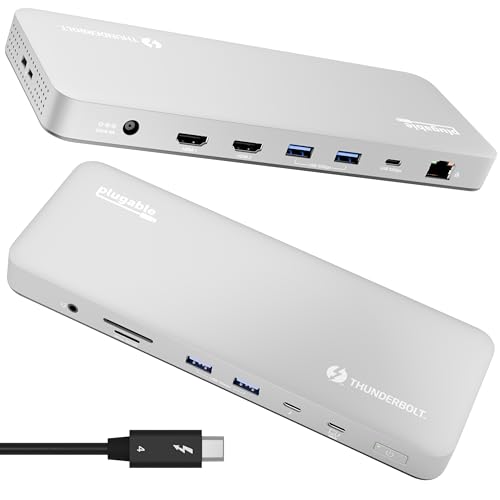
Plugable Thunderbolt 4 Docking Station
Best for: readers who want a dock from a connectivity specialist known for clear documentation, aimed at mixed laptop households and offices that value straightforward behaviour across brands. Not suited for: anyone whose laptop cannot use this class of connection properly, because no accessory can lend a machine capabilities its own ports do not have.
Viewed from the chair of someone who sets up workstations for other people, this pick makes sense because its behaviour is predictable. In daily use, what matters is unglamorous: the unit wakes with the system, the connected devices appear without negotiation drama, and the desk behaves the same on a wet Tuesday as it did on the day everything was installed. Judge this model the way you would judge any piece of desk infrastructure, by how completely it disappears into the routine. Check the current listing before you buy, confirm the port mix matches the devices you actually own, and plan its power and cable routing as part of the purchase rather than as an afterthought.
Strengths worth weighing include a clear purpose within its tier, a layout that suits real furniture, and a setup routine another member of the household could repeat without help. The honest trade-offs are the ones shared by its whole class: your laptop’s own capabilities set the ceiling, warmth under sustained load must be given air rather than complaints, and your cables remain half the system. Bought with those truths in view, it is a sensible representative of its tier, and a fair benchmark against the other picks gathered in this guide.

Kensington SD5780T
Best for: readers who want a Thunderbolt dock from an established office accessories maker, aimed at managed workplaces and home offices that prefer a traditional, support-friendly design. Not suited for: anyone whose laptop cannot use this class of connection properly, because no accessory can lend a machine capabilities its own ports do not have.
Approached as a first serious dock for a home office that has outgrown adapters, this pick keeps the learning curve gentle. In daily use, what matters is unglamorous: the unit wakes with the system, the connected devices appear without negotiation drama, and the desk behaves the same on a wet Tuesday as it did on the day everything was installed. Judge this model the way you would judge any piece of desk infrastructure, by how completely it disappears into the routine. Check the current listing before you buy, confirm the port mix matches the devices you actually own, and plan its power and cable routing as part of the purchase rather than as an afterthought.
Strengths worth weighing include a clear purpose within its tier, a layout that suits real furniture, and a setup routine another member of the household could repeat without help. The honest trade-offs are the ones shared by its whole class: your laptop’s own capabilities set the ceiling, warmth under sustained load must be given air rather than complaints, and your cables remain half the system. Bought with those truths in view, it is a sensible representative of its tier, and a fair benchmark against the other picks gathered in this guide.

Anker 778 Thunderbolt Docking Station
Best for: readers who want a dock from a widely recognised accessories brand, aimed at buyers who like a modern enclosure and a broad spread of everyday ports on the front and back. Not suited for: anyone whose laptop cannot use this class of connection properly, because no accessory can lend a machine capabilities its own ports do not have.
Judged for a shared or managed desk that cannot afford mid-morning surprises, this pick represents the dependable end of the market. In daily use, what matters is unglamorous: the unit wakes with the system, the connected devices appear without negotiation drama, and the desk behaves the same on a wet Tuesday as it did on the day everything was installed. Judge this model the way you would judge any piece of desk infrastructure, by how completely it disappears into the routine. Check the current listing before you buy, confirm the port mix matches the devices you actually own, and plan its power and cable routing as part of the purchase rather than as an afterthought.
Strengths worth weighing include a clear purpose within its tier, a layout that suits real furniture, and a setup routine another member of the household could repeat without help. The honest trade-offs are the ones shared by its whole class: your laptop’s own capabilities set the ceiling, warmth under sustained load must be given air rather than complaints, and your cables remain half the system. Bought with those truths in view, it is a sensible representative of its tier, and a fair benchmark against the other picks gathered in this guide.

OWC Thunderbolt Dock
Best for: readers who want a dock from a maker with deep roots in the Mac upgrade world, aimed at creative users who still rely on a mix of newer and older peripherals. Not suited for: anyone whose laptop cannot use this class of connection properly, because no accessory can lend a machine capabilities its own ports do not have.
For a buyer comparing tiers rather than chasing novelty, this pick shows what stepping up to an established dock maker buys in confidence. In daily use, what matters is unglamorous: the unit wakes with the system, the connected devices appear without negotiation drama, and the desk behaves the same on a wet Tuesday as it did on the day everything was installed. Judge this model the way you would judge any piece of desk infrastructure, by how completely it disappears into the routine. Check the current listing before you buy, confirm the port mix matches the devices you actually own, and plan its power and cable routing as part of the purchase rather than as an afterthought.
Strengths worth weighing include a clear purpose within its tier, a layout that suits real furniture, and a setup routine another member of the household could repeat without help. The honest trade-offs are the ones shared by its whole class: your laptop’s own capabilities set the ceiling, warmth under sustained load must be given air rather than complaints, and your cables remain half the system. Bought with those truths in view, it is a sensible representative of its tier, and a fair benchmark against the other picks gathered in this guide.
How to Prioritise by Use Case
A dock also changes how a desk is shared. In a household or small office where two people use the same desk on different days, a dock turns handover into one cable: the monitors, keyboard and network are already waiting, and each person’s laptop simply takes over the station. That only works smoothly when both machines speak the same connection language, which is worth checking before building a shared-desk plan around a single dock. When it does work, the dock quietly becomes the most democratic object in the building.
Sharing and security deserve one practical paragraph. A docked station in a shared space makes it easy for the next person to sit down and work, which is a benefit in a household and a consideration in an office. Screen locking when you step away, and care about what storage stays attached to a shared dock, keep the convenience without the exposure. None of this requires special equipment; it requires only that the station’s owner thinks about the handover as part of the setup rather than as an afterthought.
First Setup and Care Essentials
Setup order is a small ritual with real consequences. Connect the dock or hub to its power first where it has any, attach the permanent peripherals, then connect the laptop last, so the machine meets a complete, awake station rather than a half-built one. Displays should be on and set to the input you actually used. This sequence gives every handshake in the chain the cleanest possible start, and repeating it after any major change, a new monitor, a new cable, a system update, prevents a whole family of ghost faults.
Judged over years rather than weeks, the economics of this category favour buying once and buying suitably. A well-matched dock or hub is used every working day, touched more often than most furniture, and replaced rarely. The difference between an adequate unit and the right unit is therefore not a one-off experience but a daily one, repeated thousands of times. That repetition is why careful buyers spend an evening on compatibility and layout, and why they so rarely regret the evening afterwards.
Mistakes to Avoid
Cable discipline matters more than accessory marketing suggests. The cable between laptop and dock should be the one supplied with the dock or a certified equivalent of similar short length, because that single link carries everything and marginal cables cause symptoms that look exactly like dock faults. Longer or thinner substitutes may charge happily yet fail under display and data load. When a dock misbehaves, swapping that one cable for the supplied one is the cheapest diagnostic step in the whole system, and it acquits or convicts the cable in minutes.
Troubleshooting a dock rewards the same narrowing method as any chained system. If nothing works, check power to the dock and whether the laptop recognises the connection at all. If displays fail but data works, suspect cables, inputs and the laptop’s display limits. If everything works until the machine sleeps, look at power and sleep settings on both sides. Change one thing, observe, and write down what helped. Most dock mysteries are a cable, a setting or a sleeping device, in roughly that order of likelihood.
Before You Commit: A Fit, Compatibility and Daily-Use Audit for a Thunderbolt Docking Station
Use the models named in this guide as reference points for checking a listing page carefully, confirming the exact variant, the included parts and the stated compatibility before you commit. Treat any accessory bundled in the box as a starting point, and check whether it suits your setup before assuming the maker has solved that part for you. Check the connection points you rely on every day, and note which ones are already occupied, shared or awkward to reach once furniture is back in place. Check the underside, back or hidden face of the thunderbolt docking station as part of your inspection, because labels, vents, switches and fasteners often live where first impressions never look.
As a concrete listing check, take the CalDigit TS4 and the Plugable Thunderbolt 4 Docking Station named earlier in this article and confirm, line by line, that each variant offered matches the size, connection and contents described for it here. Keep the instructions somewhere you can find them months later, since the setting or step you skip today is often the one a future problem sends you hunting for. Make one change at a time during the first days, so that when something improves or gets worse you know which change caused it. Start this final check away from the listings, with the space, the equipment and the routine you already have written down in plain terms. Buy for the setup you have today plus one realistic upgrade, not for a complete rebuild you may never do, and the shortlist usually becomes much clearer.
Consider who else will use, move or clean around this thunderbolt docking station, because a choice that only works for one careful owner often frustrates everyone else in the household or team. Decide in advance what good enough looks like for your use, so a minor cosmetic flaw does not distract you from performance that genuinely meets the brief. Write the exact model name and variant from the packaging into your notes, so replacement parts, accessories and support conversations start from certainty rather than guesswork. Keep the area underneath and behind the thunderbolt docking station reachable for cleaning, since the spots you cannot reach become the spots where dust and lost small parts collect.
Check that nothing you place on, under or beside the thunderbolt docking station blocks airflow, movement, visibility or access that the design quietly depends on. Allow a short settling period for your own habits to adapt, but set a firm date to decide, well inside the return window, whether this thunderbolt docking station has earned its place. If a listing leaves a basic question unanswered, treat that silence as a cost, since you will pay for the uncertainty later in time, returns or improvised accessories. Ask whether the benefit you want survives your least favourite conditions, such as low light, a crowded desk, a warm room or a rushed start to the day. Recheck the return window and the condition requirements before you discard any packaging, especially for a thunderbolt docking station whose fit only becomes clear after several real sessions.
Think about storage for the accessories this thunderbolt docking station brings with it, so spare parts and tools end up in one known place instead of scattered across drawers. If two options look identical on paper, choose the one whose controls, layout or handling you understood fastest, since clarity in daily use beats a longer feature list you never touch. Keep the packaging and any small adapters, feet, brackets or fasteners together until the thunderbolt docking station has survived a full week of ordinary use in its final position.
Give a new thunderbolt docking station a fair trial in the position it was bought for before improvising workarounds, since many early complaints disappear once placement is corrected.
Frequently Asked Questions About Buying a Thunderbolt Dock
Do I need Thunderbolt on my laptop to use a Thunderbolt dock?
For the full one-cable experience, yes. A Thunderbolt dock expects the laptop to hand it displays, data and charging over a Thunderbolt connection. A laptop with a plain USB-C port that lacks Thunderbolt may still connect in a limited way on some models, or not at all, and the display behaviour is usually the first casualty. Check your laptop’s specification for the Thunderbolt name rather than trusting the shape of the socket, because the connector alone promises nothing.
Can one dock charge my laptop and run my monitors at the same time?
That is precisely the job the category was designed for. The dock takes power from its own supply, passes a charge to the laptop, drives the connected displays and serves the peripherals, all over the single cable between laptop and dock. Whether a particular pairing keeps a particular laptop fully charged under heavy load depends on both machines, so confirm that the dock’s charging is described as suitable for your class of laptop before buying.
Why does my second monitor not appear through the dock?
Work through the likely causes in order. Confirm the display is on the input you actually used, swap its cable for a known-good one, and then check the harder limit: some laptops support only one external display over a single connection, and operating systems differ in how they handle several. If the laptop itself supports only one external screen, no dock can overrule it. Testing with the laptop maker’s stated display support in hand turns this mystery into a short checklist.
Does a dock stay warm when it is not being used?
A dock that remains powered will often feel mildly warm, because it is awake, listening for a laptop and keeping its circuits ready. That is normal behaviour for powered desk infrastructure. What is not normal is a dock too hot to touch comfortably, or one whose connections drop as it warms up. Give any dock air around its shell, keep it out of drawers and direct sun, and treat genuine overheating as a fault to raise with the maker rather than a quirk to live with.
Will a Thunderbolt dock work with both Mac and Windows laptops?
In most current cases, yes, with the display caveat doing most of the talking. Data devices, network, audio and charging generally behave across platforms, while the number of external screens a machine will drive over one cable can differ between operating systems and laptop generations. Households sharing one dock between platforms should verify the screen count for each machine specifically, because that is where the platforms part company, and the rest of the experience is usually reassuringly similar.
What cable should I use between the laptop and the dock?
Use the cable supplied with the dock, or a certified equivalent of a similar short length from a maker you can identify. That single link carries displays, data and power together, and marginal cables are the most common hidden cause of dock faults that look like hardware failures. Longer fashion cables and bargain substitutes may charge perfectly yet misbehave under full load. If a dock ever misbehaves, returning to the supplied cable is the first and cheapest test you can run.
Related Guides
an honest pros and cons breakdown
whether a dock is worth it for you
a step-by-step guide to choosing
feeding two monitors from a hub
a docking station for dual HD monitors
a dock for a MacBook Air with two monitors
a KVM switch for two computers and two monitors
sharing a desk between two computers with a KVM switch
Living With the Setup, Month After Month
Ownership after the first month is mostly a story of habits. The station becomes furniture, the cable becomes a reflex, and the only remaining questions are small ones: whether the spare port you left free was the right one, whether the cable routing survived the last desk clean, whether the backup drive still mounts the moment the laptop lands. These are good problems, the kind that mean the system is working, and they are the true texture of life with desk infrastructure bought well.
A monthly glance keeps a station honest. Look at the back of the desk with fresh eyes: connectors seated, vents clear, no cable being slowly sawn by a desk edge, no new device quietly added by another member of the household. Small drifts explain most sudden mysteries in shared setups, and a glance catches them while they are still trivial. The habit costs less time than making tea and preserves the feeling of inevitability that a good station gives a working morning.
Recommendations between friends in this category travel best as method rather than as model names. Count your devices, check your laptop’s port capabilities, decide what stays permanently and what travels, and buy the hardware that matches that description from a maker you can identify. The method survives model changes, laptop changes and house moves. A name alone survives none of those, which is why experienced owners, when pressed, describe their reasoning first and their purchase second.
Resist the sprawl. Every added device on a station is another cable to seat, another driver of heat, another place a fault can hide. The best stations stay legible: anyone standing at the desk can say what is connected and why. When a new device earns a permanent place, something else often retires to a drawer, and that exchange keeps the system understandable. Legibility, far more than port count, is the mark of a mature setup and the thing guests actually admire.
If you move house or change desks, the station is the easiest part of a workstation to carry forward. Photograph the chain before dismantling, keep each cable with the device it served, and rebuild in the same order in the new place. Because the concept never changes, one laptop connected to a waiting desk, prior experience transfers completely. Owners regularly report the second installation taking minutes rather than an evening, and that confidence is part of what the first purchase really bought.
Support quality reveals itself in the small print long before you need it. A maker who publishes a clear setup order, names compatible laptop generations honestly, and answers display questions in ordinary language is describing how ownership will feel. Keep your purchase record and model details with your other household documents. Faults are not likely, but precise information shortens every conversation you might ever have, with support, with a retailer, or with the next person to own the desk.
Patience during the first fault is a skill worth rehearsing. The urge to replace the most impressive-looking component immediately is strong and usually wrong, because chained systems fail at their cheapest links first: a cable, a setting, a sleeping display, a laptop that updated itself overnight. Work from the wall socket outward, change one thing, and observe. That discipline, borrowed from every trade that maintains systems, is why some owners solve in minutes what others chase for a weekend with identical hardware.
The deeper satisfaction of a good station is that the desk becomes a place rather than a pile. Work starts when you sit down, not after a setup ritual, and ends cleanly when the laptop leaves. That transformation is available at every level of this category provided the expectations are honest and the hardware matches the machine. Choose for the desk you have, install calmly, and let the station disappear into the background of a working life; that disappearance is the product.
There is a rhythm to a well-set desk that owners rarely articulate until it is gone. The laptop lands, the screens wake in their places, the work is simply there, at the size and posture the day requires. Nothing about that rhythm is automatic; it is the accumulated result of small correct decisions, the right dock for the machine, the supplied cable kept in service, the ports arranged the way hands actually move. Naming the rhythm matters because it is the thing being bought, long after the product name is forgotten.
Visitors judge a workstation in the first ten seconds, and what they are really judging is legibility. A desk where every device has a reason and every cable has a route reads as competence before a word is spoken. The dock or hub at the centre of that desk is doing quiet reputational work in calls, in meetings, in the background of every video window. It is not the reason anyone buys one, and it is a reason many people, once they have it, refuse to work any other way.
Consider the alternative history, because most buyers have lived it. Adapters multiply in drawers. A charger lives under the desk and another in a bag, and somehow both are always in the wrong place. A screen works through one adapter but not another, for reasons nobody recorded. The station, whether dock or hub, is best understood as the decision to end that history deliberately, to replace a drawer of improvisations with one considered connection and a note in a drawer that explains it.
Maintenance in this category is mercifully close to none, which is why the little that exists gets skipped. Dust the vents when you dust the desk. Reseat the main cable if behaviour ever changes. Read the maker’s firmware notes when a major system update arrives. That is the whole liturgy, and it takes minutes a year. Hardware that asks so little should be given it promptly, because nearly every sad story in this category begins with a small ignored symptom and a long delay.
Children, partners, cleaners and colleagues will all, in time, unplug something. The station that survives domestic life is the one documented for other people: a label on the main cable, a note about the power-up order, a photograph of the back of the desk. This is not fussiness. It is the recognition that a shared home is a shared system, and that the kindest feature any setup can have is being restorable by whoever finds it disturbed.
Think about the second year when you buy, because the first month is a honeymoon any product can survive. In the second year the cable has been flexed ten thousand times, the desk has been rearranged twice, the laptop has updated itself more often than anyone counted, and a new device has joined the population. The hardware that still feels inevitable in that year is the hardware that was chosen by method in the first week: matched to the machine, matched to the desk, bought from a maker who stayed interested.
There is also an economics of attention at work. Every minute spent coaxing a connection is a minute taken from the work the connection exists to serve, and those minutes compound across a year into days. A station that simply works is therefore not a luxury purchase but an attention purchase, and its return is paid daily in the least replaceable currency a working person has. This is why owners defend these purchases with a warmth that surprises people who have only ever shopped by specification.
When the time comes to replace a laptop, the station earns one final compliment: continuity. The new machine arrives, the cable moves across, the screens and drives and network are already home. Settings need an evening, not the setup a whole weekend. In a technology landscape where every upgrade usually means starting again, a desk that persists across machines is a small miracle of standardisation, and it is available to anyone who buys the connection carefully once.
The environmental ledger deserves one honest line. A dock or hub that serves for years, across two machines, replaces a stream of disposable adapters bought in frustration and discarded in drawers. Buying once, buying suitably and keeping hardware in service is the greenest pattern this category offers, and it happens to be the cheapest and calmest pattern as well. Durability is not a separate virtue here; it is the same virtue as satisfaction, measured over a longer period.
New devices will keep arriving with new connector promises, and the station concept will survive them, because the need it answers is human rather than technical. People work in places. Places accumulate tools. A single, calm connection between the person, the machine and the place is always going to be worth having, whatever shape its plug takes next decade. Buy the version of that idea that fits your machine and your desk today, and you are buying something with a longer future than any single product cycle.
Ask owners what they would change and the answers are instructively small. A front port moved two inches. A cable six inches longer. A power switch in a kinder place. Nobody wishes they had bought a different concept; they wish the execution of the right concept had been tuned to their room. That is the strongest evidence available that the method in this guide, desk first, laptop second, product last, is the correct order of operations for the whole category.
A final practical habit separates the satisfied from the merely equipped: the first-week test. Use every port you intend to rely on. Sleep and wake the machine a dozen times. Unplug and replug at the speed of a real morning. Swap nothing, change nothing, just observe. Faults found in the first week are shopping problems, solved by exchanges and adjustments. The same faults found in the sixth month feel like betrayals. The test costs an evening and buys certainty, which in this category is the entire product.
One underappreciated virtue of a proper station is what it does to the laptop itself. Ports on the machine stop being consumables, flexed twice a day by five different plugs, and become what they should have been all along: a single connection point, used gently, in one place, with a cable that lives there. Laptops are replaced for many reasons, but a worn, wobbling port should not be one of them, and a docked or hubbed routine is the simplest insurance a port can be given.
Sound is the sense that reports a setup’s health first. The click of a connector seating properly, the absence of a fan straining under a pile of papers, the quiet of a desk where nothing dangles and nothing strains: these are the acoustics of a system at rest. When a station starts to sound different, a new rattle, a cable ticking against a desk edge as it slowly slips, it is reporting a physical change worth ten seconds of attention before it becomes a disconnection during a call.
Light tells the same story. A small indicator that confirms the station is awake, a screen that wakes in its assigned place rather than negotiating anew each morning, a charging light that behaves the same on Friday as it did on Monday: these tiny consistencies are how an owner knows, without thinking, that the system is itself today. Infrastructure earns trust in exactly this currency, small kept promises, and it spends that trust only when something genuinely changes.
There is a social etiquette to shared stations that is worth stating once. Leave the desk as the next person expects to find it: main cable coiled where hands look for it, screens off or asleep rather than blazing, your own portable drive taken with you. The station makes sharing easy; etiquette makes it pleasant. Households and small offices that agree these courtesies early find the shared desk becomes a small point of pride rather than a recurring negotiation.
Travel teaches the value of the home station by contrast. A week of borrowed desks, borrowed chairs and cables borrowed from hotel televisions sends most people home with a sharpened appreciation for the place where everything is already connected. That contrast is not an argument against travel hubs, which do their own job honourably. It is a reminder that the two halves of a hybrid life serve each other, and that gratitude, in equipment as in much else, is a form of information.
Budget the whole system, not the headline item. A station purchase that leaves nothing for the right cable, the small shelf that gives the unit its air, or the spare lead that lives in the drawer, is a purchase half finished. Experienced buyers hold back a modest portion of the budget for exactly these finishing items, because they know the last few connections decide whether the first big one delivers. The finishing items are unglamorous, and the morning routine they protect is anything but.
When something does go wrong, resist theatre. Do not rebuild the desk in an afternoon of frustration. Sit down with the narrowing method, power first, then the main cable, then one device at a time, and let the system confess in its own order. Almost every owner who has kept a station for years has a story of a fault that turned out to be a switched-off power strip or a display asleep on the wrong input, and the moral of every one of those stories is the same: the boring explanation is usually the true one.
Record what you learn in the place you keep such things. The working power-up order, the port the backup drive prefers, the setting that fixed the wake behaviour after the big system update: three lines in a note will save a future hour, possibly a future you who has forgotten the whole episode. Systems maintained by notes stay calm. Systems maintained by memory alone depend on one person’s presence, and presence is the one resource no desk can stock.
The category will keep changing its vocabulary. New generation names will arrive, new port shapes will be proposed, and listings will shout about all of it. The questions in this guide will not change, because they are about devices, desks, machines and habits rather than about any year’s specification sheet. Keep asking them in order, and each new generation becomes a simple reassessment instead of a fresh confusion. That stability is the real return on learning the method once.
Finally, notice what success feels like, because it is easy to miss. Success is the morning nothing happened. The laptop landed, the work appeared, the day began, and the connection between those events never crossed your mind. Weeks of such mornings are the product this entire category exists to sell, under two different names and at two different sizes. Choose the name that matches your life, set it up with care, and then enjoy the most underrated luxury in modern work: not thinking about it.
A word about buying in the wrong season of your own life. A station bought the month before a house move, a job change or a new laptop is a station bought for a desk that is about to stop existing. The hardware is patient; it will keep. The method in this guide is patient too. When the desk, the machine and the routine have settled into their new shapes, the same six questions will produce a sharper answer in an evening than any amount of research done against a life in transition.