Disclosure: As an Amazon Associate, ilcastellomenu.com earns from qualifying purchases. The product mentions in this guide are editorial: we link only to items that genuinely fit the topic, and a link never changes what we recommend checking, comparing, or avoiding.
The ultrawide vs dual monitors choice decides the shape of your working day: one seamless panoramic canvas, or two distinct workspaces with a bezel between them. A 34-inch ultrawide (3440 by 1440) and a pair of 27-inch 1440p screens offer surprisingly similar total pixels and desk cost, but they behave completely differently — window management, gaming, video calls, and even how tidy your desk feels all diverge. This comparison is for everyone standing at that fork with a tape measure in hand.
We will compare workspace behaviour, gaming, productivity habits, calls and sharing, cost and cabling, and the hybrid answer many people land on. The hardware shortlists are in Best Wide Screen Monitors for Work for the panoramic route and Best Monitors for Dual Setup for the paired route.
Ultrawide vs Dual Monitors: The Quick Verdict
Choose dual monitors if your work is reference-driven — draft beside source, call beside notes, code beside output — if you screen-share often, or if you want one screen to be able to serve a second device. Choose an ultrawide if your work is one deep application — editing timelines, large spreadsheets, immersive games — if you hate bezels and cable clutter, or if your desk is narrow but deep. Creators who game after hours split both ways; traders and writers lean dual; video editors and sim players lean ultrawide.
| Criterion | Ultrawide (34-inch class) | Dual monitors (2 x 27-inch) |
|---|---|---|
| Total workspace | One continuous canvas, about 5 million pixels | Two canvases, about 7.4 million pixels total |
| Window management | Needs snapping tools or discipline | Natural — one app per screen |
| Gaming | Immersive wrap; check game support | Game on one, guides/chat on the other |
| Video calls and sharing | Share a window, not the whole expanse | Share one whole standard screen easily |
| Cabling and power | One cable, one plug, one stand | Two of everything; dock often needed |
| Second device use | Picture-by-picture on some models | Trivially — one screen per device |
| Desk demand | Width yes, but a single footprint | More width, two footprints or a dual arm |
In this guide
Workspace Behaviour: Canvas Versus Compartments
Dual monitors give your applications addresses. The reference lives on the left, the work on the right, and your hands learn the geography until glancing replaces searching. Full-screen anything is effortless, and a crashed or busy app never takes your whole view. The bezel in the middle is the price: nothing can live centred, and content that wants to span — a huge spreadsheet, a timeline — is cut in two.
An ultrawide removes the bezel and returns the centre to you, which is more valuable than it sounds: your main work sits directly ahead, flanked by supporting windows, matching how attention actually works. The cost is management: without snapping utilities or your operating system’s tiling features, windows sprawl. Most ultrawide owners adopt a thirds layout — main app centre, two narrower companions — and after a week it is as automatic as the dual-screen geography ever was. The setup mechanics for the dual route are in How to Set Up Dual a Monitor.
Gaming: Immersion Versus Utility
For immersive single-player, racing, flight, and simulation titles that support 21:9, an ultrawide is the single most cinematic upgrade a desk can hold — the wrap fills peripheral vision exactly as Curved vs Flat Monitor describes, and most ultrawides are curved for this reason. Check support for your specific games: most modern titles handle ultrawide well, some older or competitive-focused ones letterbox it to 16:9, leaving black bars and a smaller effective picture than a standard screen would give.
Dual monitors game differently: the match on one screen at standard aspect, and the second screen carrying voice chat, a stream, a map, or a guide. Competitive players strongly prefer this — standard aspect, high refresh on the gaming panel, no compatibility questions. Streamers likewise. The honest split: ultrawide for immersion in supported worlds; dual for variety, competition, and everything-around-the-game.
Calls, Sharing, and the Second-Device Question
Screen sharing is dual monitors’ quiet superpower. You share one entire standard screen and your audience sees a tidy, legible desktop at a familiar aspect. Share an ultrawide whole and your viewers get a letterboxed strip they must squint at; the workaround — sharing a single window — works but must be remembered every call. If your day is back-to-back shared screens, this point alone can decide the purchase, and it is the one reviewers most often forget to test.
Second devices tilt the same way. With dual screens, a work laptop can own one panel and a personal machine the other, or a console can take one while the PC keeps its workspace. Ultrawides with picture-by-picture can split for two sources, but the halves are non-standard shapes that suit neither device well. Households and hybrid workers who genuinely run two machines should weight this heavily; single-machine desks can ignore it entirely.
Cost, Cabling, and Desk Reality
Sticker prices mislead; total the system. The ultrawide route is one panel (often at a premium per pixel), one stand, one cable, one plug, and no dock for most laptops. The dual route is two mid panels that often sum to less than the ultrawide — plus, realistically, a dual arm to keep heights matched, possibly a dock to drive both, and double the cables to manage. Our dual-arm and dock notes in the dual setup guide cover those extras, and Best Docking Station for Dual Monitors prices the laptop question honestly.
Desk fit differs too. An ultrawide needs width but offers a single, centred footprint and a cleaner look; dual 27s need more total width and either two footprints or an arm. Shallow desks favour dual (each panel sits closer to the wall plane); deep desks favour ultrawide, whose curve brings its edges forward. Measure with the tape, not with optimism — both setups are wider than they look in product photos.
The Hybrid Answer, and the Final Verdict
Many settled desks end up hybrid: an ultrawide as the centrepiece with a modest second screen — sometimes the laptop’s own, sometimes a small portrait panel for chat and documents. Portrait orientation is dual’s revenge: a vertical screen for reading and feeds is something no ultrawide can imitate. If budget forces a sequence, buy the screen that serves your dominant work first and add the complement later; both routes extend gracefully.
Final verdicts: reference-heavy knowledge work, frequent sharing, two machines — dual. Single deep applications, immersive gaming, tidy-desk minimalism — ultrawide. Truly torn buyers with the budget usually report the same experience: the ultrawide delights daily, and the dual setup’s fans cannot imagine giving up their compartments. There is no wrong door here — only the door that matches your Tuesdays. Whichever you walk through, How to Adjust a Monitor will make the result feel native within a day.
The Third Option: One Big 16:9 Screen
Some buyers cross-shopping these two setups actually want a third thing: a single large standard screen — 32 inches at 4K — which offers one canvas, console-friendly aspect, and centred work without ultrawide’s game-support questions or dual’s bezel. It gives up the ultrawide’s peripheral wrap and the dual setup’s compartments, and gains simplicity and the sharpest text of the three. If your work is one application at a time and your games are standard-aspect, audition this option before the fork; many ‘ultrawide versus dual’ debates end with a large 4K screen quietly winning on points.
Window Management Tools That Change the Ultrawide Maths
The ultrawide’s one structural weakness — window discipline — is substantially a software problem with software answers. Both major operating systems now snap windows into halves and thirds natively, and dedicated utilities let you define permanent zones (a wide centre for the main app, narrow flanks for chat and notes) that windows obey with a drag. Owners who invest twenty minutes in zones report that the ‘compartments’ advantage of dual screens shrinks to the genuinely separate things: full-screen independence, sharing, and second devices. If those three are not your life, tooling may have just decided your purchase.
Dual setups benefit from tooling too — shortcuts that throw windows between screens, and profiles that restore layouts after docking — but their organisation is native in a way the ultrawide’s must be constructed. Count your own tolerance for twenty minutes of setup against years of daily geometry; both answers are respectable, and they point at different products.
A Decision Diary: What Owners Report After a Month
Ultrawide converts praise the centre: main work directly ahead, no bezel tax on timelines and tables, and a desk that photographs like a magazine. Their complaints are specific: the occasional letterboxed game, the screen-share squint, the wish for a portrait wing. Dual loyalists praise the addresses: everything in its place, sharing without thought, a screen to lend a second machine. Their complaints are equally specific: the bezel in the middle of their posture, the cable thicket, the two of everything at upgrade time. Notice that neither group complains about picture quality — by the time shape is the question, the panels inside either answer are good. Choose the complaint list you would rather own.
Power Users’ Verdicts: Programming, Data, and Creative Timelines
Ask programmers and the room divides by workflow theology. Those who live in one editor with many panes — file tree, code, terminal, preview — often prefer the ultrawide’s unbroken surface, where panes resize without a bezel negotiating. Those who live across applications — editor here, browser and documentation there, chat exiled to a third space — defend dual screens as separate rooms for separate mental modes. Data workers follow the spreadsheet rule from earlier in this guide: one vast model wants width without seams; many reconciled sources want compartments. Neither camp is wrong, and both camps contain people who switched and switched back, which is the market’s way of saying the adaptation is real in both directions.
Creative timelines remain the ultrawide’s most defensible stronghold: a video or audio timeline is a single horizontal thought, and cutting it with a bezel is a daily, physical annoyance no window habit fully heals. If your living is made of timelines, weight that sentence heavily. If your living is made of documents, calls, and comparisons, the compartments are waiting. The fork, in the end, is not about screens at all — it is about whether your work is one long sentence or several parallel ones.
The Cost Ledger, Completed: What Each Setup Buys Next
Ownership costs continue past the first purchase, and the two setups invoice differently over the years. The dual owner upgrades in halves — one panel can be replaced, promoted to primary, or retired to a second desk while its partner serves on — which smooths spending and extends the system’s total life. The ultrawide owner upgrades in wholes: the panel is the desk’s centrepiece, and replacing it is a single larger event, partially offset by the ultrawide’s strong second-hand demand among the gaming audience it was born for. Failure tells the same story in miniature: a dead dual panel is an inconvenience absorbed by its twin, while a dead ultrawide is a desk without a screen until the replacement lands — an argument, for the work-critical, in dual’s favour that rarely appears in comparisons and matters enormously on the one day it matters.
None of this overturns the content-based verdicts that structure this guide; it completes them. Choose the canvas or the compartments by your work, then check the ledger — upgrade rhythm, failure tolerance, resale path — for a veto. Most buyers find no veto, only confirmation. The few who find one are precisely the buyers this section was written for, and they will be grateful on a schedule the rest of us cannot predict.

Head-to-Head Across Four Real Jobs
Give both setups the same four jobs and their characters separate quickly. Job one, the reference-and-write pattern — a source document open beside the draft it feeds — belongs to dual monitors by design: two full screens, two full-screen applications, a physical seam that matches the mental boundary between reading and writing. An ultrawide performs the same job through window snapping, and disciplined users do it happily, but the boundary is a habit rather than a bezel, and habits lapse under deadline pressure in a way bezels never do. Job two, the single vast canvas — a timeline, a panorama edit, a wide simulation — inverts the verdict completely, because no arrangement of two screens offers a centre that is not a seam.
Job three, the meeting-heavy day, favours dual screens for a reason that surprises buyers: sharing. One screen can be shared entire while the other keeps notes, chat, and the next slide private, a division the ultrawide approximates with window-level sharing and fumbles exactly when the call matters most. Job four, the evening game, divides by library — natively supported wide titles are the ultrawide’s finest hour in all of display technology, while the dual setup offers the game one screen and keeps the guide, the chat, and the stream on the other, a utility many players quietly prefer to immersion once they have lived with both.
Score your own week across the four jobs rather than across specifications. Most desks discover a lopsided result — three jobs for one shape, one for the other — and the lopsidedness is the decision. The genuinely split week is rarer than the debate suggests, and it is the only week for which the hybrid answers later in this guide were invented.
The Seam: Everything That One Line Decides
The dual setup’s bezel seam is usually discussed as an aesthetic flaw, but its real effects are behavioural, and they cut both ways. As a cost, it forbids the true single canvas: no window can live across it without a scar, no film can use the whole width, and the centre of your visual field — where a solo screen puts its most important content — is occupied by plastic and a gap. As a benefit, the seam is the strongest organisational tool a desk can have: a physical, unignorable boundary that sorts applications into homes, survives deadline pressure, and gives your eyes a resting edge that an unbroken canvas never provides. Owners who thrive on dual setups almost always cite the boundary, not the area, as what they would miss.
Ultrawide software has spent years trying to manufacture the seam’s benefits without its costs — virtual divisions, snap zones, per-zone maximising — and the tools are genuinely good now. What they cannot manufacture is the seam’s second physical gift: independence. Two screens can differ in angle, height, content type, and even whether they are awake; one can be portrait, one can be shared, one can fail without darkening the desk. An ultrawide is one object with one fate, which is tidier and more fragile at the same time.
The honest summary is that the seam is a feature with a price, and the canvas is a feature with a price, and the prices are paid in different currencies — organisation versus continuity. Buyers who know which currency their work spends have finished this comparison; the remaining sections merely help them spend it well.
Resolution, Text, and the Arithmetic of Usable Space
Compare usable space by pixels arranged, not by diagonal inches advertised. A common ultrawide offers the width of two modest screens with the height of one, which means its total workspace is closer to a screen and two-thirds than to the dual pair it is marketed against; a pair of standard monitors usually carries more total pixels and decisively more vertical space, the dimension documents, code, and web pages actually consume. Buyers migrating from dual screens to an ultrawide are sometimes quietly surprised by the vertical loss, having compared widths in the showroom and heights never. Lay the two arrangements out as rectangles of pixels before ordering, at your real scaling, and count the lines of text each holds.
Scaling behaves differently across the shapes as well. Two matched monitors scale identically, so windows keep their size as they travel; a single ultrawide beside a laptop screen — the common hybrid — reintroduces every mixed-density quirk the dual pair avoided. None of this is decisive alone, but text workers should weight vertical pixels and scaling consistency heavily, because their day is measured in lines read, and both shapes’ marketing is measured in widths admired.
There is one arithmetic point in the ultrawide’s favour that deserves plain statement: all of its pixels sit in one continuous field at one distance, angled toward one centred viewer, so a higher share of its nominal space is genuinely comfortable space. The dual pair’s outer edges, by contrast, drift toward the periphery where they serve glancing rather than reading. Count both arrangements’ comfortable pixels, not their total pixels, and the gap between the shapes narrows to the honest margin the rest of this guide argues about.
Failure Modes and the Bad Day Test
Every setup should be judged once by its worst day. The dual setup’s bad days are plural and small: one screen of two fails and the desk continues at half width; a cable or port misbehaves and the fault is isolated to one half; an update scrambles the arrangement and one screen’s settings need restoring. Annoying, survivable, and compartmentalised — the architecture of two objects doing what two objects do. The ultrawide’s bad day is singular and total: one panel, one fate, and a desk with no display at all while it is repaired, plus a replacement hunt for a niche format that fewer local shops stock.
Cost shapes the same asymmetry. Replacing one failed screen of a dual pair costs half a setup and can even be an upgrade in disguise; replacing an ultrawide costs an ultrawide. Insurance, warranty length, and the manufacturer’s service reputation therefore weigh more heavily in the ultrawide column, and a buyer choosing the single canvas should read its warranty with the attention usually reserved for laptops. The dual buyer can afford a shrug the ultrawide buyer cannot — one more quiet line in the total-cost ledger the headline prices never show.
Neither failure profile should veto a shape by itself. But the buyer whose income stops when their screen does — the trader, the on-call engineer, the freelancer on deadline — should count redundancy as a feature with a salary attached, and for that buyer the dual setup’s boring resilience often closes a comparison that immersion had been winning.
Sound, Cameras, and the Desk’s Supporting Cast
The supporting equipment arranges itself differently around each shape, and the differences are daily. A webcam centred above an ultrawide sits high and central, fine for calls; above a dual pair it must choose the seam — where it serves neither screen well — or one screen, which then becomes the call screen by hardware fact. Speakers flank an ultrawide in the space its single stand leaves free, while a dual pair’s two stands compete for exactly the territory speakers want, pushing them wider or behind. A desk lamp, a microphone arm, a laptop on a stand: each finds a different home depending on the shape, and sketching the whole cast, not just the screens, prevents the familiar outcome of a perfect display arrangement with nowhere sane for sound.
Cable reality also differs in kind. The ultrawide asks for one high-bandwidth connection done properly — a single cable whose specification genuinely covers the resolution and refresh rate, since very wide formats are bandwidth-hungry and quietly downgrade themselves on a marginal cable. The dual setup asks for two ordinary connections and the port count to host them, which is where laptops and docks enter the comparison: a machine that drives one ultrawide over a single cable may need a dock to drive two screens, and that dock belongs in the dual column’s budget from the start.
Power and heat close the cast list. Two panels draw roughly twice one panel’s power and warm the desk’s air with two backlights; a large ultrawide draws a substantial figure of its own, concentrated in one place. In small rooms both are noticeable by evening, and in neither case decisive — but the buyer furnishing a small, warm study should know the number exists before the summer does the teaching.
The Hybrid Desk, Designed Rather Than Accumulated
The hybrid — one ultrawide plus a smaller companion, or one large screen plus a portrait sidecar — tempts every buyer who scores the four jobs evenly, and it succeeds exactly when it is designed rather than accumulated. Designing means assigning roles before sizes: the canvas screen takes the immersive and the wide, the companion takes communication, reference, or vertical documents, and the two are chosen at sizes and densities that let windows cross without a jarring scale step. Accumulating means adding whatever was on sale to whatever exists, and discovering that three competing centres have replaced the one decision the comparison was trying to make.
The most successful hybrid in practice is the ultrawide with a modest portrait flat screen at its side — a pairing that covers the canvas job, the reference job, and the vertical job while keeping the call screen question answerable and the budget sane. The least successful is the near-equal pair of an ultrawide and a standard screen of similar height, which spends dual money to recreate the seam problem at a worse angle. If your heart is set on a hybrid, sketch it at scale, assign every screen its named job, and delete any screen whose job description comes out as miscellaneous.
Hybrids also inherit both families’ homework: the bandwidth-hungry single cable and the multi-screen arrangement settings, the ultrawide’s total-failure profile softened by the companion’s survival, the dual setup’s organisation imposed by role rather than by bezel. Owners who do the homework once, in writing, report the same invisibility the best setups of either pure shape achieve — which remains the only finish line this guide recognises.
Gaming Libraries Audited: Support, Performance, and the Second Screen’s Revenge
Audit an ultrawide gaming case title by title before believing it, because support is a property of games, not of monitors. Modern major releases generally handle wide formats well, but older titles, some competitive games that restrict field of view deliberately, and a long tail of independent games may pillarbox the picture into a centred standard frame with black bars — at which point your ultrawide is, for that title, a standard screen with expensive margins. Cutscenes are the commonest betrayal, frequently rendered at standard width inside a game that plays wide. None of this is hidden; community databases catalogue support per title, and twenty minutes with your own library’s list is the most valuable research in the whole gaming comparison.
Performance is the second audit. The ultrawide’s extra pixels sit between the standard resolutions in demand, closer to the higher one in the wider formats, and a graphics card that is comfortable at standard width may need settings concessions to hold its frame rates across the canvas. The dual setup makes the opposite trade: the game runs at an ordinary resolution on one screen at full pace, while the second screen’s windows cost the card almost nothing. Players whose libraries are demanding and whose cards are mid-range often find the dual setup is the faster gaming machine in practice, whatever the immersion gap.
Then there is the second screen’s revenge, the utility that immersion arguments underrate until it is lived with: the guide that never covers the game, the chat that never alt-tabs, the stream dashboard, the music, the map. Games pause; desks do not. The player who streams, socialises, or researches while playing may find the dual setup’s divided attention is not a compromise of the gaming experience but an expansion of it — and that discovery, made after an ultrawide purchase, is an expensive one, which is why this audit belongs before the order.
What to Measure in Your Room Before Choosing the Shape
Three measurements arbitrate most of this comparison in any given room. Desk width, honestly measured wall to obstruction, decides whether a dual pair sits at comfortable angles or crowds its own edges off the surface — and whether the ultrawide’s single span fits with speakers inside the line or exiled behind it. Desk depth decides viewing distance, which decides whether the ultrawide’s far edges sit inside comfortable vision or beyond it, and whether two angled screens can both reach an arm’s length without their near corners arriving too close. Wall and shelf positions decide mounting, arm travel, and whether a second screen’s portrait ambition has the vertical room it dreams of.
Take the measurements with the supporting cast in place — speakers where they will live, laptop where it will dock, lamp where it will stand — because both shapes fail in the margins, in the ten centimetres the sketch forgot. Then perform the comparison’s most honest test: tape the outlines on the wall or desk at true size, sit in the chair, and work for an hour with your current screen inside the taped geography. Cardboard has settled more of these debates than any review, because rooms vote, and tape lets them vote early.
Record the numbers with your decision, whichever way it falls. Desks change more slowly than computers, and the measurements that chose this shape will choose its successor, its second screen, and its mounting hardware for years. A note in the settings journal — widths, depths, distances — is the comparison’s final deliverable, and the one most likely to still be earning its keep a decade from now. Shoppers who have settled on the dual shape can compare tested pairings in our dual monitor setup roundup before measuring their own desk against them.
The Cost Ledger, Audited Line by Line
Headline prices mislead this comparison in a specific direction: the ultrawide’s single price looks complete while the dual setup’s price arrives in pieces that are easy to undercount, and honest accounting must total both columns fully. The dual column includes two screens, two stands or a dual arm, the dock many laptops will need, an extra cable or two, and the second screen’s share of the power strip and desk. The ultrawide column includes one screen, possibly one capable cable bought deliberately rather than found in a drawer, and — for buyers whose work is load-bearing — a warranty read as insurance rather than paperwork. Totalled honestly, the columns usually land closer than the shelf tags suggested, and occasionally the dual column, built from two mainstream screens, undercuts the niche-format ultrawide outright.
Upgrade and replacement lines belong in the same ledger. The dual setup lets you replace or upgrade one half at a time, spreading cost across years and letting a good screen serve beside a better one; the ultrawide concentrates every renewal into a single large purchase. Resale cuts the other way for tidiness — one desirable ultrawide can be easier to sell than two ageing matched screens — but matched pairs have their own second-hand audience among buyers seeking exactly that symmetry. Neither column wins the ledger in general; your cash flow’s shape, lumpy or smooth, is the tiebreaker, and it is a legitimate one.
Close the audit with the cost nobody lists: the cost of choosing wrong, which is returns postage, restocking risk, and a month of desk disruption. That cost argues for the tape test, the library audit, and the four-jobs scoring before the order — the cheap instruments this guide keeps recommending — because in this comparison more than most, the expensive sentence is not the price of either shape. It is the price of the other shape, bought second, after the first one’s trial was skipped.
Gear for This Guide
The two verified artefacts of this fork: a 34-inch curved ultrawide, and the dual stand that makes the paired route ergonomic.
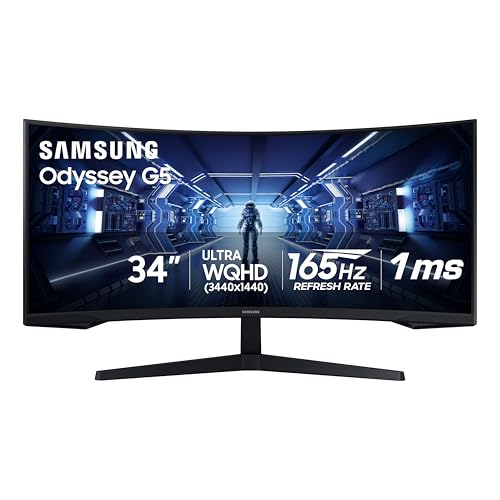
Samsung 34-Inch Odyssey G5 Ultra-Wide Curved Monitor — A WQHD ultrawide with a strong 1000R-class curve and high refresh — the panoramic route in full: one cable, one canvas, wrap-around immersion for work and games alike. Check on Amazon

HUANUO FlowLift Dual Monitor Stand — A full-motion dual mount for 13-to-32-inch screens that puts both panels at one exact height — the accessory that turns two separate monitors into one coherent dual setup. Check on Amazon
Frequently Asked Questions
Is an ultrawide the same as two monitors stuck together?
In pixels, a 34-inch 3440×1440 ultrawide is close to two 27-inch 1440p screens with the bezels removed and some height trimmed — but behaviourally it is a different tool. It is one canvas you partition, not two places you put things. Users who think in partitions adapt with snapping tools; users who think in places often miss the second screen’s separateness, especially for calls and second devices.
Can I split an ultrawide into two virtual screens?
Yes, several ways: operating-system snapping into halves or thirds, manufacturer utilities that define zones, and picture-by-picture modes that treat the panel as two displays for two sources. Window-zone tools make the single-canvas route feel organised. What you cannot fully recreate is the operating-system-level independence of two real displays — separate full-screens, separate sharing, separate power.
Which is better for spreadsheets and data work?
It depends on the shape of your data. One enormous workbook with forty columns loves the ultrawide’s unbroken width. Several workbooks compared side by side, plus email and chat, love dual screens’ compartments. Analysts who live in one model lean ultrawide; analysts who reconcile across sources lean dual. Traders, who run many independent windows, are the classic dual (or triple) holdouts.
Do all games support ultrawide?
Most modern games do, especially immersive genres. The exceptions cluster in competitive titles (some deliberately restrict aspect for fairness), older games, and a few console ports. When unsupported, you get black side bars and a 16:9 picture. Check your top five games specifically before buying for gaming; support lists and community fixes exist for nearly everything, but native support is the experience you are paying for.
Which setup is cheaper overall?
At comparable panel quality, two mid-range 27-inch screens usually undercut a good 34-inch ultrawide on panel price, then give some back in arms, cables, and possibly a dock. The ultrawide’s single-cable simplicity has real value for laptop desks. Total both baskets — panels plus mounting plus connection — before declaring a winner; the gap is smaller than the stickers suggest, in whichever direction it falls.
Can I add a second monitor to an ultrawide later?
Absolutely, and many owners do: the ultrawide stays the centrepiece, and a smaller screen — often in portrait — joins for chat, documents, or monitoring. Your computer simply sees two displays. The combination covers nearly every use case in this comparison, at the cost of the widest desk of all. If you suspect you are heading there anyway, the ultrawide-first sequence is the graceful path.
Which setup is better for working from home with lots of video calls?
Dual monitors, for most call-heavy roles: you share one standard screen cleanly, keep notes and chat on the other, and position the camera over the screen you are actually looking at. Ultrawide users manage well by sharing single windows and placing the call window centrally, but it is a managed workaround rather than a native fit. If calls are occasional, this factor fades; if they are your calendar, let it vote early.
How much desk space does each setup really need?
Measure width and depth, not diagonal. A 34-inch ultrawide typically spans a little over eighty centimetres wide on one footprint and asks for a comfortably deep desk so its curve sits at a natural distance. Two 27-inch screens span roughly a metre and a quarter side by side — more with an angled secondary — and fit shallower desks because each panel is narrower. Both setups are wider than their owners expect; the tape measure section of this comparison exists because returning a screen for geometry is the most avoidable errand in desk building.
Which setup is better for a small desk?
Measure before philosophising: a single ultrawide usually fits a small desk more gracefully — one footprint, one cable, no second stand competing for the keyboard’s territory — provided the desk is deep enough for its curve to sit at a sane distance. Dual screens on a small desk work only with an arm lifting both panels off the surface, and even then the combined width crowds. Shallow and narrow together is the hardest brief of all; there, one modest standard screen beats both contestants, and this comparison cheerfully disqualifies itself.
Can I start with an ultrawide and add a second screen later, or the reverse?
Both sequences work, and both are common. Ultrawide-first owners typically add a portrait wing for documents and chat. Dual-first owners who fall for immersion usually replace the pair wholesale, because an ultrawide beside a standard screen is an awkward geometry — though as a transition it functions fine. Your computer does not care; it sees displays, not philosophies. Buy the half your current work needs and let the other half arrive when the work asks for it.
Which setup is better for writing and research specifically?
Dual monitors, for most writers, because the job’s shape is two documents in dialogue — source and draft, notes and chapter, data and prose — and the seam enforces the dialogue’s structure for free. The exception is the writer whose research arrives as wide artefacts: scanned spreadsheets, maps, timelines, and large tables that must be read whole. That writer should audition the ultrawide with their widest real document, because a canvas that holds the artefact entire can be worth more than a boundary that splits it.
Can I split an ultrawide so it behaves exactly like two monitors?
Closely, but not exactly. Software can divide the panel into zones, snap windows into halves, and even present the screen to the computer as two virtual displays on models that support it, which reproduces most window behaviour. What it cannot reproduce is independence: the halves cannot take different angles, one cannot sleep or be shared while the other works, and a panel fault still darkens both. If your need is window discipline, the virtual split suffices; if your need is two objects, only two objects answer.
Which is kinder to a laptop with limited ports?
The ultrawide, usually by a wide margin. One cable carries the whole canvas, often alongside power and a hub in the monitor, while the dual setup asks most laptops for a dock and its fine print. Check the laptop’s single-output bandwidth against the ultrawide’s full resolution and refresh rate before celebrating, because the one cable must be a capable one — but as an architecture, one demanding connection is easier for a laptop to satisfy than two simultaneous ones.
Is an ultrawide or a dual setup better for a standing desk?
Dual setups ask more of a standing desk: two stands or arms must stay aligned through the desk’s travel, and any difference in how they ride becomes visible at every height change. A single ultrawide on one arm is mechanically simpler and keeps its geometry at every elevation. Cable slack matters for both — every connection needs a service loop that survives the desk’s full rise without tugging — but the dual setup has twice the loops to plan. Standing-desk buyers with no other preference can let the mechanics cast a real vote here.
Which setup photographs better for a tidy desk aesthetic?
The ultrawide, and it is not close: one stand, one cable, one unbroken line. But buy the photograph only if the working shape underneath it also wins your four-jobs audit, because desks are used for more hours than they are admired. The dual setup can be made genuinely tidy — matched screens, a dual arm, disciplined cables — and a tidy working desk beats a beautiful desk that fights its owner every Tuesday. Aesthetics are a legitimate tiebreaker and a poor foundation.
The Bottom Line
Ultrawide is a canvas; dual monitors are compartments. Immersion, timelines, and tidy single-cable desks live on the canvas. Reference work, easy sharing, and two-machine flexibility live in the compartments. Your dominant applications already know which one you are — buy that one, set it up carefully, and let the other remain what it honestly is: a good setup for a different person’s day.
Whichever you choose, resist re-litigating it at the first inconvenience: both setups have a two-week adaptation curve, and the owners who thrive are the ones who finish it.
One practical footnote before you commit: whichever shape you buy, keep the packaging until the second week is out. Both setups have a genuine adaptation period, and the box is your cheapest insurance during it — returns and exchanges are painless with it and painful without it. After the fortnight, recycle it with a clear conscience: a desk that has survived its own adaptation period has told you everything the showroom could not, and the shape on it has earned its place by the only vote that counts, which is your working day’s.
Related Guides
Keep going with these related guides and roundups from the same desk-setup cluster: