Seventeen inches and a touchscreen sound like a simple combination to shop for, and it is not. Most large laptops are built without a touch layer at all, most touchscreen laptops stop at 16 inches, and the overlap between the two groups is a shelf so narrow that a buyer can learn the whole of it in one sitting. That narrowness makes the traps dense: search results for this category are crowded with 16-inch convertibles wearing the wrong label, with 17-inch machines whose touch panel exists only in a different configuration, and with famous model names whose spec sheets say, in plain type, non-touch screen.
A quick note on how this page works before the picks: this article contains affiliate links, and if you buy through one of them this site may earn an affiliate commission at no extra cost to you. That income keeps guides like this one free to read, and it never changes which machines get picked — every model below earned its place on its manufacturer documentation, its screen specification and its honest fit for a stated kind of buyer, not on any commercial arrangement.
So this guide applies one hard filter before anything else, to the manufacturer’s own documents rather than marketplace titles. Every pick is a laptop with a panel measuring 17.0 to 17.3 inches diagonally, and every pick has touch confirmed in the maker’s specification sheet, datasheet or store configuration for the exact variant described. Models that failed that check were removed, however strong their reputations — including a widely recommended 17-inch ultraportable line that sold for years without any touch option, and a popular big-screen value line whose maker’s spec pages list a non-touch panel for every configuration. Two of the originally considered names failed verification in exactly this way and were replaced with machines that pass it; the reasoning is a matter of public spec sheets, and the buying lesson generalises to the whole category.
What survives the filter is a genuinely varied five. There is a premium clamshell whose touch panel is also its best screen, a current-generation mainstream machine, the lightest 17-inch laptop chassis in production wearing a touch panel as a distinct variant, a big convertible from a slightly older generation that remains the value route into this size, and a mobile workstation where touch is one configuration among many on a serious spec sheet. Between them they cover desk-bound multitaskers, annotators, travellers, presenters and engineers — the realistic audiences for a screen this large that also answers to a finger.
One honesty note about generations belongs up front. Not every pick is from the current model year: two are final-generation designs whose makers have moved their flagships down to 16 inches, and one is an older convertible circulating through retail channels. Each pick’s section says plainly where it stands, because in this category the alternative to a slightly older 17-inch touch machine is usually not a newer one — it is a smaller screen.
In this guide
Quick picks: best 17 inch touch screen laptops
| # | Product | Where to buy |
|---|---|---|
| 1 | Dell XPS 17 | Check on Amazon |
| 2 | HP ENVY 17 | Check on Amazon |
| 3 | LG gram 17 Touch | Check on Amazon |
| 4 | Dell Inspiron 17 7706 2-in-1 | Check on Amazon |
| 5 | HP ZBook Fury 17 G7 | Check on Amazon |
Why the 17-inch touch shelf is so narrow
Three structural reasons explain the scarcity, and knowing them makes the rest of the guide easier to read. The first is panel economics: touch adds a digitiser layer, glass, weight and cost, and on a 17-inch panel those additions are at their largest, while the buyers of big laptops have historically been the least touch-oriented — gamers, workstation users and desktop-replacement buyers. Makers therefore offer touch on a minority of large models, often on one panel option inside a model.
The second reason is that the industry’s centre of gravity moved. Through the early 2020s the premium thin-and-light contest settled at 15 and 16 inches, and the flagship lines that once anchored the 17-inch class were discontinued or shrunk — Dell’s XPS range now tops out at 16 inches. The 17-inch machines that remain are disproportionately gaming rigs and workstations, two families where touch is rare, which is why this guide’s five come from such different corners of the market.
The third reason is naming. A model name describes a family, not a configuration, and inside one family the touch question can flip between panel options, model years and even regions. The same 17-inch line can contain a touch SKU and an otherwise identical non-touch SKU sold side by side, sometimes under near-identical titles. That is why this guide verifies per configuration, and why the buyer’s most useful habit is checking the panel line of the spec sheet for the exact machine in the cart.
What to look for in a 17-inch touch screen laptop
Verify the touch panel on the spec sheet, not the listing title
Everything else in this section is secondary to this habit. Marketplace titles compress a configuration into a string of selling words, and “touch” is one of the words most often borrowed from a sibling configuration. The reliable documents are the manufacturer’s specification sheet, datasheet or configurator, where the display section states the panel’s size, resolution and touch status. On several picks below, the touch version is one panel option among two or three, and the difference between the touch and non-touch variants is exactly the difference between a machine that belongs in this guide and one that does not. Match the model code as well as the model name: letters and digits at the end of a code are frequently what separates the touch build from the plain one.
Understand the two sizes hiding inside “17 inch”
The label covers two physically different screens. A 17.0-inch panel in this list is a 16:10 display, taller than the widescreen norm, which returns vertical room to documents, code editors and spreadsheets — more rows on screen at once, less scrolling through the working day. A 17.3-inch panel is a 16:9 display, wider and shorter, shaped like a television; it favours side-by-side windows and video, and it is the size the older desktop-replacement tradition settled on. Neither is better in the abstract: a buyer whose work is a wall of text and data usually gets more from the taller shape, while a buyer who parks two windows side by side, or watches a great deal of video, may prefer the wider one.
Decide how the touch will actually be used: flat, folded or penned
Touch on a laptop-sized screen serves three different jobs, and the right form factor follows from the job. Flat touch on a conventional clamshell is for the small interactions — tapping through a presentation, scrolling a document with a finger, signing a form on screen, reaching for a playback control — and it asks nothing of the hinge. A 360-degree hinge, on the convertible pick, turns the screen outward for stand and tent modes in front of an audience and folds it flat for reading and annotation; the cost is weight, because the hinge, the chassis and the glass all add up at this size. Pen work is the third job and the most often mis-sold: an active pen with pressure levels is a different input system from a fingertip, and not every touch panel has it. One pick here supports its maker’s active pen, and one famous lightweight documents finger touch only with pen support explicitly excluded. A buyer who plans to write or draw should treat pen support as a specification to confirm, never as a consequence of the word touchscreen.
Read resolution and brightness against the size
Pixels spread thinner as panels grow, so a resolution that looks crisp at 14 inches can look merely adequate at 17. The picks here run from full HD on the mainstream 17.3-inch machine to a 4K-class UHD+ panel on the premium clamshell and the workstation, with two QHD+ class screens between. For text-heavy work at a normal desk distance, the QHD+ tier is the comfortable middle: sharp type without the battery and scaling costs of 4K. Brightness matters in the rooms these machines sit in — a 300-nit panel is fine in a shaded study and washed out opposite a bright window, while the 500-nit and 550-nit panels on the premium and workstation picks hold up in daylight rooms and glass-walled offices. Colour gamut follows the same split: the creative-grade panels here cover Adobe RGB or DCI-P3 in full per their makers, while the mainstream panels cover the sRGB space, which is the honest requirement for office work and general media.
Treat weight as the portability specification
No specification in this guide varies like weight. The lightest pick, in touch form, sits around 1.4 kilograms — the weight of a typical 14-inch laptop — while the workstation pick in its touch configuration is documented at roughly 3.2 kilograms, before its power adapter. Everything about how a 17-inch machine gets used follows from where it lands on that range. A machine near the light end can commute, travel and move between rooms without negotiation; a machine at the heavy end is a desk that occasionally relocates, and should be bought as one. Convertible weight deserves a particular warning: a 2.4-kilogram 2-in-1 is a fine laptop and stand, but nobody holds it one-handed as a tablet for long. Buy the modes you will use at the weight you will carry.
Weigh battery capacity against a large backlit panel
A 17-inch screen is the largest power draw in any of these machines, and the battery figures their makers publish are measured under light, maker-chosen conditions — treat every published hour figure as an upper bound from the manufacturer, useful for comparing a maker’s own models and optimistic for everyone else’s. The more portable number is capacity in watt-hours, which the spec sheets state plainly: the picks here run from the high sixties to the high nineties. A larger panel at high brightness pulls a mid-sized battery down quickly, so a buyer who works away from a desk should weigh capacity alongside the panel’s resolution — the 4K touch configurations are the thirstiest combinations in this list — and note that several picks charge over USB-C, topping up from a desk dock or travel adapter.
Count the ports a desk-bound machine actually needs
A laptop this size usually anchors a desk, and its port selection decides whether that desk needs a dock. The workstation pick is a museum of useful sockets — Thunderbolt, HDMI, mini DisplayPort, Ethernet, an SD reader and a smart card reader — because its buyers plug into everything. The premium clamshell takes the opposite path with four Thunderbolt ports and an SD reader, expecting a dock or dongles for the rest. Between them sit the mainstream machines with the balanced mix most home offices actually use: USB-C for a monitor and charging, HDMI for a television or second screen, USB-A for the peripherals already owned, and a headphone jack. Buyers replacing a desktop should list their existing screens and devices before choosing, and should notice which picks still offer wired Ethernet — in this list, only the workstation builds it in.
Remember that memory and storage are configurations, not models
Two listings with the same model name can differ by a factor of two in memory and storage, and at this size the difference matters for years. Some picks solder their memory to the board — what you buy is what you keep — while others, including the workstation and the premium clamshell, keep slots that allow upgrades. Storage follows the same pattern, with the workstation offering multiple drive bays and the ultraportables offering one. The practical rule: choose the configuration for the workload’s third year, not its first month, and where the memory is soldered, buy the larger figure if the budget stretches, because there is no later correction.
The five best 17-inch touch screen laptops
The picks are ordered by role: the premium clamshell first, then the current mainstream machine, the ultralight, the convertible and the workstation. Prices are described in words throughout, since listings move; the closing line of each pick points to the current figure.

Dell XPS 17 (9730) — the premium clamshell, where touch is also the best screen
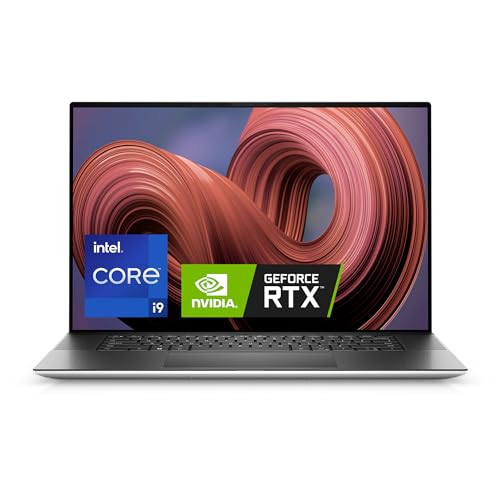
The XPS 17 (9730) holds the position in this roundup that its maker designed it for: it is the premium expression of the big clamshell, a 17.0-inch 16:10 machine in a CNC-machined aluminium chassis with a carbon-fibre palm rest, built around one of the most ambitious panels fitted to a laptop this size. Dell offered the 9730 with two displays, and the split between them is the whole story for this guide. The FHD+ panel, at 1920 x 1200, is a non-touch anti-glare screen. The UHD+ panel, at 3840 x 2400, is the touch one — anti-reflective, protected by Corning Gorilla Glass 6, rated by Dell at 500 nits with full Adobe RGB coverage, 94 percent of DCI-P3 and DisplayHDR 400 support. On this machine, choosing touch is not a compromise added to the screen; it is choosing the screen.
Around that panel sits the strongest specification in this list. Dell’s datasheet offers 13th-generation Intel H-series processors up to a Core i9, NVIDIA GeForce RTX graphics up to the RTX 4070 laptop GPU, up to 64 gigabytes of DDR5 memory in two slots, and a 97 watt-hour battery — the largest capacity here. The touch configuration is documented at 2.44 kilograms, and the four Thunderbolt 4 ports plus a full-size SD card reader mark it as a creator’s machine that expects to live on a desk and travel occasionally rather than daily. The webcam is a 720p unit, the one specification that reads a generation behind the rest.
The generation question needs stating plainly. The 9730 is the final XPS 17: Dell’s flagship line now tops out at a 16-inch model, and no successor to this machine has been announced. That makes it a purchase from remaining and refurbished stock rather than from a living production line — availability varies, and the buyer should confirm the exact panel on the exact unit, because the FHD+ non-touch version of this same laptop is the single most likely wrong purchase in this entire guide. Judged on the documented hardware, though, nothing else in the category combines this panel, this performance ceiling and this build. It is the pick for buyers who want the best 17-inch touch screen first and organise the rest of the purchase around that.
Strengths:
- The UHD+ touch panel is the finest screen in this roundup on paper: 3840 x 2400, 500 nits, full Adobe RGB coverage and Gorilla Glass 6, per Dell’s spec sheet
- Highest performance ceiling here, with H-series processors and RTX 40-series graphics options
- 97 Wh battery, the largest capacity in the list, and memory in two upgradeable slots
- Four Thunderbolt 4 ports and a full-size SD card reader for camera-led workflows
- 16:10 panel shape returns vertical room to documents and timelines
Trade-offs:
- Touch exists only on the UHD+ configuration — the FHD+ version of the same laptop is non-touch
- Final generation of its line, so stock is finite and configuration choice narrows over time
- No USB-A or HDMI port; legacy peripherals need a dock or adapters
- 720p webcam is a generation behind the rest of the specification
- 2.44 kg in touch form is desk-first weight, not commuter weight
Who it suits: Photo and video editors, designers and developers who want the largest, sharpest touch canvas in a conventional laptop, who work mainly at one desk, and who will verify the UHD+ panel on the unit they buy rather than trusting a title.
If the sharpest panel in this class matters more than legacy ports or a living production line, the XPS 17 in its UHD+ touch configuration is the machine to shortlist first, so check price on Amazon.
Check price on Amazon: Dell XPS 17

HP ENVY 17 — the current-generation mainstream pick
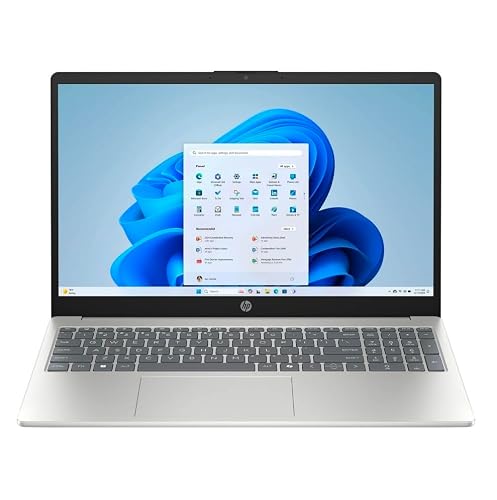
The ENVY 17 is the pick for buyers who want this category without archaeology: a current 17.3-inch line, sold through retail channels, in which touch is a regular configuration rather than a special order. HP’s own store describes the touch build — the 17-da series — around a 17.3-inch FHD (1920 x 1080) multitouch-enabled IPS panel with edge-to-edge glass, rated at 300 nits with full sRGB coverage. It is a 16:9 screen, wider and less tall than the 16:10 panels elsewhere in this list, and for the side-by-side window work and video that dominate home use, that shape is a reasonable trade. The same range also contains non-touch configurations and sharper non-touch panels, which is precisely why this pick is written the way it is: the ENVY 17 belongs in this guide in its touch configurations, and the buyer should look for the word multitouch in HP’s own specification for the exact SKU.
The platform underneath is the most modern in the roundup. HP builds the 17-da series on Intel Core Ultra processors with integrated Intel Arc graphics and an onboard neural processor for the AI features Windows now advertises, paired with DDR5 memory and PCIe Gen4 storage. The battery is an 83 watt-hour unit that HP rates for up to ten hours and forty-five minutes of mixed use — a manufacturer figure, quoted here as HP publishes it — with fast charging that HP describes as roughly half a charge in about forty-five minutes. Weight is documented at 2.5 kilograms, and the port selection is the balanced desk mix described earlier: Thunderbolt 4, further USB-C, three USB-A ports, HDMI 2.1 and a headphone jack, so most existing peripherals connect without a dock.
Two details lift it above a generic big laptop for its intended buyer. The webcam is a 5-megapixel IR unit with a physical privacy shutter and a microphone mute key — the best video-call hardware in this list, on the machine most likely to spend its life in video calls. And the wireless card varies by SKU in an instructive way: some configurations carry Wi-Fi 6E and others Wi-Fi 7 — another reminder that the configuration, not the model name, is the product. As the straightforward, current route into a 17-inch touchscreen — a premium-adjacent machine at a mid-range position in this list — the ENVY 17 is where most buyers should start.
Strengths:
- Current-generation platform with Intel Core Ultra processors and integrated Arc graphics
- Touch is a regular retail configuration, not a special order — with HP’s own store documenting the multitouch panel
- 5MP IR webcam with privacy shutter and mic mute key, the strongest call setup here
- Balanced port mix including Thunderbolt 4, USB-A and HDMI 2.1 — most desks need no dock
- 83 Wh battery with HP-published fast-charge support
Trade-offs:
- The touch panel is FHD and 300 nits — the least sharp and joint-dimmest screen in this list
- Non-touch configurations of the same line sit in the same channels; the SKU must be checked for the multitouch panel
- 16:9 shape gives back the vertical room that 16:10 rivals provide
- 2.5 kg is the heaviest of the clamshell picks here
- Wi-Fi generation and other details vary by SKU within the same model name
Who it suits: Home-office buyers and families who want a big touchscreen for everyday multitasking and video calls, who value current processors, a proper webcam and ports that match the peripherals they already own, and who are content with full HD sharpness.
For a current-generation 17-inch touchscreen that asks for no compromises on webcam or ports, the ENVY 17 in a touch configuration is the straightforward buy, so check price on Amazon.
Check price on Amazon: HP ENVY 17

LG gram 17 Touch — the 17-inch screen that weighs like a 14-inch laptop
Every gram laptop exists to make one argument, and the 17-inch version makes it at full size: LG’s documentation for the touch variant — the 17Z90T family — describes a 17-inch WQXGA (2560 x 1600) anti-glare IPS touchscreen in a magnesium-alloy chassis that weighs roughly 1.4 kilograms depending on configuration. Set that against the other picks: close to half the weight of the premium clamshell, and well under half the workstation’s. For a buyer whose 17-inch laptop has to move — between home and office, through airports, from desk to meeting room — this is not one advantage among many; it is the deciding property of the machine, and LG builds everything else around protecting it.
The touch implementation needs its limits stated as clearly as its existence, because LG states them. The panel is a finger-touch screen: LG’s documentation for the model says in plain terms that a touch pen is not supported. Buyers who want to tap, scroll, zoom and sign with a fingertip are fully served; buyers who want handwriting or drawing should look at the convertible pick instead. The panel itself is a strong specification — 2560 x 1600 in the taller 16:10 shape, an anti-glare finish, brightness LG rates at 320 nits typical, and wide colour coverage by LG’s figures. Inside sit Intel Core Ultra processors, a 77 watt-hour battery that LG credits with very long video playback figures in its marketing for the line — manufacturer claims, to be read as such — and a complete port set: two Thunderbolt 4 ports, two USB-A ports and HDMI.
The variant warning for this pick is the sharpest in the guide. The gram 17 name covers both panels: most gram 17 configurations sold over the years are the non-touch version, which does not belong in this article, and the touch build is identified by the T in its model code — 17Z90T and its suffixes. A listing that says gram 17 without the touch confirmation in LG’s own specification is a listing for the other machine. A business sibling, the gram Pro 17, has its own touch variant and may surface in the same searches; it is a different product at a different price position, and the two should not be confused at lookup. Verified correctly, the gram 17 Touch is the only machine here that makes a 17-inch touchscreen a genuinely portable object.
Strengths:
- Roughly 1.4 kg by configuration — by far the lightest 17-inch touch machine in this guide
- 2560 x 1600 16:10 anti-glare panel: sharp, tall and usable in bright rooms
- 77 Wh battery is a large capacity for the weight class, with strong manufacturer playback claims
- Two Thunderbolt 4 ports, two USB-A and HDMI — a complete port set despite the thin chassis
- Magnesium-alloy build with military-standard durability testing published by LG for the line
Trade-offs:
- Finger touch only — LG’s documentation states a touch pen is not supported
- The same model name covers the non-touch gram 17; the touch variant is a specific model code
- Integrated graphics only, and performance tuned for portability rather than heavy sustained loads
- Memory is packaged with the platform on current versions — the configuration must be chosen carefully at purchase
- 320-nit typical brightness is a step below the premium panels here
Who it suits: Consultants, executives, academics and frequent travellers who want the big screen for documents and data but refuse the big-laptop carry, and whose touch use is tapping, scrolling and presenting rather than pen work.
If the laptop has to travel as often as it sits, the gram 17 Touch is the only pick here that removes weight from the decision entirely, so check price on Amazon.
Check price on Amazon: LG gram 17 Touch

Dell Inspiron 17 7706 2-in-1 — the big convertible that folds all the way back
Only one pick in this guide has a 360-degree hinge, and it earns its place by being the most versatile screen here rather than the newest. The Inspiron 17 7706 2-in-1 pairs a 17.0-inch QHD+ (2560 x 1600) Truelife touch display — a 16:10 IPS panel with narrow borders on all four sides, per Dell’s documentation — with a hinge that swings through laptop, stand, tent and tablet positions. Dell built the four modes into the product’s identity: stand mode for films and shared viewing at a table, tent mode where space is tight, tablet mode for reading folded flat. It is also the pen pick of this roundup: Dell documents active pen support for the model, which makes it the one machine here suited to annotating documents and marking up work directly on a very large canvas.
The platform is a generation or two behind the leaders, and the section should not pretend otherwise. Dell offered the 7706 with 11th-generation Intel Core i5 and i7 processors, up to 16 gigabytes of DDR4 memory, and on higher configurations an NVIDIA GeForce MX350 graphics chip alongside the integrated Iris Xe. The battery is a 68 watt-hour unit, the smallest capacity in this list, and Dell documents a maximum weight of 2.43 kilograms. In practice this is a machine for documents, browsing, media, light creative work and long annotation sessions rather than for heavy rendering or large code builds, and its mid-range position in this list’s price language reflects that. Thoughtful details from Dell’s spec sheet include a lift hinge that tilts the keyboard when open, a fingerprint reader in the power button, a webcam privacy shutter and thermals that adapt to whether the machine is on a desk or being held.
Availability is the caveat that comes with an older design: the 7706 circulates through remaining retail stock and the refurbished market rather than a current production line, so the exact configuration on offer — processor, memory, the MX350 or not — varies listing by listing, and each needs checking against Dell’s published specification for the model. A buyer who wants a genuinely big screen that folds back for presenting and takes a pen for marking up has exactly one documented option in this category at a sane price position. The tablet-mode warning from the buying-advice section applies with full force — at 2.43 kilograms this is a lap and table tablet, not a one-handed one — but as a laptop and a stand, the size is the pleasure of it.
Strengths:
- The only 360-degree convertible here: laptop, stand, tent and tablet modes on a 17-inch screen
- QHD+ 2560 x 1600 16:10 touch panel — sharper than the mainstream clamshell pick
- Active pen support documented by Dell — the annotation and mark-up pick of the five
- Fingerprint reader, webcam privacy shutter and a lift hinge that improves the typing angle
- Mid-range price position for a very large convertible
Trade-offs:
- 11th-generation processors and DDR4 memory — a clear step behind current platforms
- 68 Wh battery is the smallest capacity in the list, feeding the joint-largest panel shape
- At up to 2.43 kg, tablet mode is a lap activity, not a handheld one
- Sold from remaining and refurbished stock, so configuration and condition vary by listing
- Optional MX350 graphics help older creative apps but are no substitute for modern GPUs
Who it suits: Teachers, presenters, reviewers of other people’s documents and anyone whose work involves showing a screen to people across a table — buyers who will use the hinge and the pen weekly, and who accept an older platform as the price of both.
If folding the screen back and writing on it matter more than having the newest silicon, the Inspiron 7706 remains the honest big convertible, so check price on Amazon.
Check price on Amazon: Dell Inspiron 17 7706 2-in-1
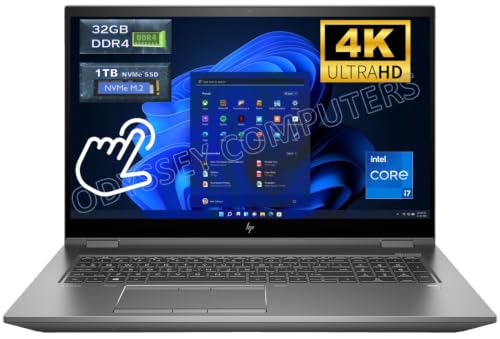
HP ZBook Fury 17 G7 — the workstation that happens to offer touch
The ZBook Fury 17 G7 enters this guide from the opposite direction to every other pick: it is a flagship mobile workstation first, and a touchscreen laptop only because HP offered its 17.3-inch 4K UHD panel in a touch configuration. The listing that carries this pick is explicit about it — a 17.3-inch 3840 x 2160 UHD touchscreen on a machine built around an Intel Core i7-10850H, 32 GB of RAM and a 1 TB drive, with the certified professional software support that is the ZBook line’s reason to exist. Touch here is not the headline; it is the bonus on a machine bought for work that needs certification.
That framing is exactly why the configuration discipline of this guide matters here more than anywhere, because the majority of Fury 17 G7 machines in the world are non-touch; the pick is this workstation in its UHD touch configuration specifically, and any listing needs the touch panel confirmed before money changes hands. The panel itself is a desktop-replacement screen — a 4K UHD sheet at 17.3 inches, sharp enough for detailed CAD, photo and video review and annotation that a touch panel genuinely serves. It is a heavy machine by laptop standards, roughly 2.7 kg before its large power adapter, built for desk work that occasionally travels rather than for carrying everywhere.
Strengths
- A 17.3-inch 4K UHD touchscreen on a true mobile workstation, with ISV-certified professional software support.
- Serious configuration depth: a six-core i7, 32 GB of RAM and a 1 TB drive in the listing that carries this pick.
- The largest, sharpest touch panel in this guide for detailed review and annotation work.
Trade-offs
- Roughly 2.7 kg in touch configuration, plus a large power adapter — transportable, not portable.
- Most Fury 17 G7 listings are non-touch; the UHD touch configuration must be confirmed explicitly.
- An older platform generation, sold increasingly through workstation resellers rather than as a current line.
Who it suits: engineers, designers and reviewers whose workload runs certified workstation software and touch is the bonus on top. If the workload is certified workstation software and touch is the bonus on top, the ZBook Fury 17 G7 in its UHD touch configuration stands alone here, so check price on Amazon.
Check price on Amazon: HP ZBook Fury 17 G7
How the five compare
The table below compresses the verification work of this guide into one view: the panel each maker documents, the form it arrives in, the pen position and the weight class.
| Laptop | Touch panel (per maker) | Form | Pen support | Weight | Best for |
|---|---|---|---|---|---|
| Dell XPS 17 (9730) | 17.0″ UHD+ 3840 x 2400, 500 nits, Adobe RGB | Clamshell | Not a pen-focused model | 2.44 kg (touch) | The sharpest screen and highest performance |
| HP ENVY 17 (touch SKUs) | 17.3″ FHD 1920 x 1080 multitouch, 300 nits | Clamshell | Not a pen-focused model | 2.5 kg | Current-generation everyday use and video calls |
| LG gram 17 Touch (17Z90T) | 17″ WQXGA 2560 x 1600, 320 nits, anti-glare | Clamshell | None — finger touch only, per LG | About 1.4 kg | Portability above everything |
| Dell Inspiron 17 7706 2-in-1 | 17.0″ QHD+ 2560 x 1600 Truelife touch | 360-degree convertible | Dell Active Pen supported | Up to 2.43 kg | Presenting, annotating and shared viewing |
| HP ZBook Fury 17 G7 (touch config.) | 17.3″ UHD 3840 x 2160 touch | Mobile workstation | Not a pen-focused model | About 2.7 kg | Certified professional software |
Two patterns in the table deserve a sentence each. The first is that pen support, not touch itself, is the rarest feature in this category: only the convertible builds its input story around an active pen, two picks are explicitly finger-only by their makers’ documentation, and the rest treat touch as a convenience layer over a keyboard-first machine. The second is that resolution and portability pull against each other — the two UHD panels sit in heavy machines, while the lightest pick settles at the QHD+ tier most desk work actually needs.
Matching a pick to the work it will actually do
For the spreadsheet-and-documents home office, the decision is between the two current-feeling clamshells. The ENVY 17 is the default: current processors, the best webcam here, ports for everything already on the desk and a panel that is entirely adequate for office work. The gram 17 Touch serves that desk and every other desk, and its sharper, taller panel is the better reading screen of the two. Either anchors a permanent setup well — paired with a proper external keyboard and a desk deep enough to put the display at arm’s length.
For work that is shown to other people — teaching, presenting, reviewing documents together — the Inspiron 7706 is the natural pick, because its hinge and pen were designed for those rooms, and its stand mode turns a laptop into a shared display. For creative work where the panel itself is the tool, the XPS 17’s UHD+ screen is the one the other picks are measured against. And for certified professional software, the ZBook Fury is not really in competition with the other four at all: it answers a different question that happens to share this guide’s filter.
Mistakes that catch 17-inch touch buyers out
The commonest error is buying the model name instead of the configuration: the non-touch FHD+ XPS 17, the non-touch gram 17 and a non-touch ZBook Fury all wear the names of picks in this guide, and all three arrive without the feature the buyer came for. The second mistake is assuming a pen: one of these five machines is documented by its maker as finger-touch only, so a buyer planning to write on screen has exactly one pick here. The third is misjudging modes against weight — a 2.4-kilogram convertible is a superb stand and a poor handheld tablet. The fourth is ignoring generation status: one pick is a final-generation design and one is an older convertible, all bought from finite stock, so the exact configuration wanted should be secured when found. And the fifth is shopping the category by search results alone, in the one category where results are most polluted by 16-inch machines and borrowed labels.
Frequently asked questions
Is a 17-inch touchscreen worth it over a 16-inch one?
For desk-anchored work, usually yes: the step from 16 to 17 inches is worth roughly a fifth more screen area, which in practice means two windows at comfortable widths or several more rows of a spreadsheet. For daily commuting the calculus reverses — the 16-inch class offers far more choice, including most of the convertible market — and a buyer who carries the machine every day should want a specific reason to stay at 17. The honest summary is that 17 inches is a desk decision and 16 inches is a travel decision, and this guide’s lightest pick exists for the buyers caught between the two.
Do all of these laptops work with a stylus?
No, and the differences are documented rather than subtle. The Dell Inspiron 7706 supports Dell’s active pen and is the pick for handwriting and annotation. The LG gram 17 Touch is specified by LG as finger touch only, with pen support explicitly not offered. The two premium clamshells and the workstation treat touch as a finger-driven convenience layer; none of them builds its specification around a pen.
Why do so many 17-inch laptops have no touch option at all?
Because the large-laptop market is dominated by buyers who rarely touch the screen: gamers, workstation users and desktop-replacement owners working through keyboard, mouse and often an external monitor. Adding a touch layer to a panel this size adds cost, weight and a glossy surface those audiences frequently dislike, so manufacturers reserve it for models aimed at general productivity and creative work. The result is the pattern this guide is built on — touch at 17 inches is a per-model, per-configuration exception rather than a range-wide feature, and it has to be verified model by model.
Can a 17-inch touch laptop replace a desktop PC?
For most office, creative and development work, yes — that is the role half of this list was designed for. The workstation pick exceeds many desktops outright in memory and storage capacity, the premium clamshell pairs its panel with discrete graphics and a full Thunderbolt docking story, and even the mainstream picks drive external monitors over USB-C or HDMI. The realistic limits are sustained heavy rendering, which still favours a desktop’s cooling, and repairability. A buyer replacing a desktop should budget for the dock or hub that the thinner picks require, and should choose memory and storage for the machine’s whole life where the design solders them in place.
Are these models still in production?
It varies by pick, and each pick’s section says where it stands. The ENVY 17 and the gram 17 Touch are current lines sold through ordinary channels. The XPS 17 (9730) is the final generation of a discontinued line, the Inspiron 7706 is an older design circulating through remaining and refurbished stock, and the ZBook Fury 17 G7 is an older workstation generation increasingly sold by refurbishers. In a category this narrow that mix is normal: verify the exact configuration and its warranty position at purchase, rather than waiting for a newer 17-inch touch machine that may never be announced.
The bottom line
Choose by the job the screen has to do. The sharpest conventional panel and the highest performance ceiling belong to the Dell XPS 17, provided the unit carries the UHD+ touch screen. For current, uncomplicated everyday use with proper video calls, an ENVY 17 touch SKU is the default. For travel, the gram 17 Touch stands alone at its weight; for a screen that folds back and takes a pen, the Inspiron 7706 is the only documented answer. And when the real requirement is a certified workstation that also offers touch, the ZBook Fury 17 G7’s UHD touch build is the complete list of candidates.
Above every one of those choices sits the single habit this category rewards: read the panel line of the manufacturer’s own specification for the exact machine in the cart, because at 17 inches the difference between the laptop in this guide and the laptop that merely shares its name is almost always one line of a spec sheet.