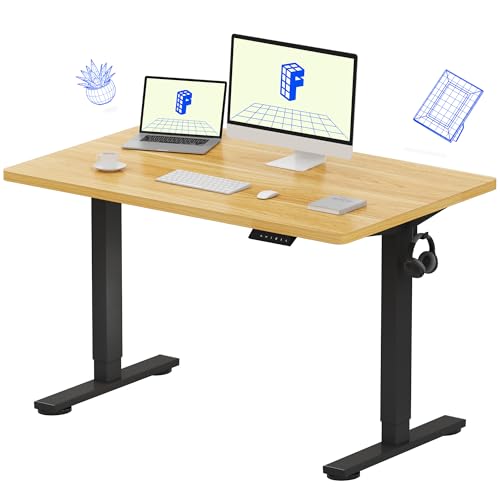
Knowing how to fix a standing desk not rising matters because most cases are not a broken desk at all: electric standing desks refuse to move for protective reasons — a controller that needs a reset, a cable shaken loose, an overload, or an obstruction the anti-collision system has detected. The desk is often protecting itself and you, and the fix is a calm sequence of external checks, not a repair.
This guide gives you that sequence in safe order: power and cable checks, the controller reset that resolves the majority of cases, load and obstruction checks, and handset clues. One boundary is absolute and runs through the whole article: never open the motor housing or the control box. Those are sealed, mains-connected units; everything a user should do happens outside them, and anything beyond this sequence is a job for the manufacturer’s support or a qualified technician.
Disclosure: As an Amazon Associate, ilcastellomenu.com earns from qualifying purchases. Product examples below link to Amazon, where you can check current availability and specifications; this guide itself lists no fixed prices because pricing and bundles change frequently.
How to Fix a Standing Desk Not Rising: Safety First, and What Not to Do
Before touching anything: if the desk is stuck partway up with a heavy load, support nothing with your body and do not climb under a raised, loaded desk to investigate. Work from the handset and the cables you can reach from beside the desk. Unplug the desk from the wall before reseating any cables — that is both an electrical safety step and, as you will see, part of the reset procedure itself.
Do not open the control box or any motor or lifting-column housing, do not bypass or bridge any connector, and do not attempt to force the desk up or down by lifting or pushing the desktop while someone operates the handset. Forcing a leg against a stalled motor can damage the mechanism and turn a reset-level problem into a replacement-level one. If the desk smells of hot electronics, shows a damaged or pinched power cord, or trips a breaker, stop entirely and go straight to the ‘when to seek help’ section.
In this guide
Step 1: The Basic Power Checks
Confirm the desk is actually receiving power. Check the wall socket with another device or a lamp — sockets on switches and power strips with their own switches fool everyone once. Follow the power cord from the wall to the control box (usually mounted under the desktop): it should be fully seated at both ends, undamaged, and not pinched by the frame or trapped under a foot. Check any power-strip switch and, if your desk’s power supply has an indicator light, confirm it is lit.
While you are under the desk, look — without opening anything — at the handset cable and the motor cables where they plug into the control box. A cable that has worked partly out of its socket is the second most common cause of a dead desk, especially after the desk has been moved, cleaned around, or adjusted through its full range many times. Note anything loose; you will reseat it in step 3. If your desk choice is still ahead of you, note that these check-points are standard on all electric models, whatever their position in roundups like Best Standing Desks for Home Office.
Step 2: The Controller Reset (Fixes Most Cases)
Electric desk controllers enter a protective state after power interruptions, overloads, or sensor confusion, and they announce it by doing nothing — or by allowing downward movement only. The standard reset procedure, shared in essence by most major controller families, clears that state. Always consult your manual first if you have it, since a few models vary the details, but the common sequence is this.
Unplug the desk from the wall and wait at least 30 seconds — a full minute is safer — so the control box fully discharges. Plug it back in. Then press and hold the DOWN button on the handset. On many desks the desk will descend slowly to its lowest position, pause, and give a small ‘bounce’ or click as it re-initialises; keep holding until that happens, then release. The desk has re-learned its lowest position and should now rise normally. Test a full rise unloaded or lightly loaded before restoring your full setup.
If your handset shows an error code, the reset is still the first response for the common codes that indicate initialisation, overload, or duty-cycle protection. Codes that persist after a correct reset, or that your manual associates with a specific component, belong to the support conversation in the final section — record the code before unplugging, as it is genuinely useful diagnostic information.
Step 3: Reseat the Cables (Power Off)
If the reset did not revive the desk, return to the cables with the desk unplugged. One at a time, unplug and firmly reseat each connector at the control box: the handset cable, each motor (leg) cable, and the power lead. Look at each plug as you handle it — a bent surround, a plug that was only half-home, or a cable jacket pulled back from its connector are all findings. Route cables so none is stretched at full height or trapped where the frame moves; a cable that pulls taut at the top of travel will work itself loose again.
Reconnect power and repeat the reset from step 2, since reseating cables returns the controller to the same ‘initialise me’ state. Desks that rise unevenly — one leg moving, one not — very often trace to that leg’s motor cable being the loose one, which is why this step precedes any thought of component failure. Cable discipline under a moving desk is a setup topic as much as a repair one; the routing principles in Best Desks for Cable Management apply directly.
Step 4: Check Load, Obstructions, and Duty Cycle
Three protective behaviours mimic failure. Overload: if you recently added a heavy monitor, a desktop PC on the surface, or a shelf of books, the total may exceed the frame’s lifting capacity — remove items and retry; the desk is refusing for a legitimate reason, and the capacity discussion in Electric vs Manual Standing Desk explains how load limits work. Obstruction and anti-collision: many desks stop and reverse slightly when they meet resistance — a chair arm under the desk, a windowsill, a cable tray catching the frame, even a tall object on the desk meeting a shelf as it rises. Clear the full travel path above and below and retry.
Duty cycle: desk motors are rated for intermittent use — a common pattern is a couple of minutes of movement followed by a longer rest — and controllers enforce it by pausing after repeated full-range cycling, such as during an enthusiastic setup session. If the desk stopped after many consecutive adjustments, simply wait twenty minutes and try again before diagnosing anything.
Step 5: Handset and Environment Clues
A completely dark handset with confirmed power points to the handset’s own cable or the handset itself — reseat its connector first (step 3). A handset that lights but shows dashes or an unfamiliar code wants the manual’s code table plus a reset. Desks in very cold rooms, garages, or after a house move occasionally need the reset simply because the controller lost its position reference in transit; the reset’s lowest-position re-learn covers exactly that.
Also check the obvious environmental culprits: a child-lock or lock combination enabled on the handset (some models lock with a button hold), a desk that has been unplugged and replugged into a strip that is off, and — in offices — a neighbouring desk’s handset paired in your memory rather than yours. None of these feel plausible until one of them is the answer.
When to Seek Repair or Replacement
Escalate to the manufacturer or a qualified technician when: the reset and reseat sequence has been performed correctly twice with no response; an error code persists; one leg never moves while the other does (after its cable has been reseated); there is any smell, noise, heat, or visible damage from the control box or a column; or the desk is under warranty — in which case escalate first, since opening anything could void it. Have ready: the model, the error code, what changed before the failure, and the steps you have already tried. That information typically halves the support conversation.
What you should not do at this stage is open the control box or motor housings, substitute a different power supply ‘to test’, or bypass safety connectors. Sealed mains-powered units are not user-serviceable, and every legitimate user-level fix is in the steps above.
Prevention
Most not-rising episodes are preventable. Keep cables slack-checked: after any setup change, run the desk through its full range and watch every cable. Keep the load within capacity with margin. Avoid long runs of back-to-back full-range adjustments. Plug the desk into a surge-protected outlet where your power supply is unreliable, since controller confusion often follows power events. And keep the manual — the reset variation and error-code table for your specific controller are two pages you will be glad to have. Buyers comparing mechanisms with reliability in mind will find the failure-mode comparison in Electric vs Manual Standing Desk useful, and anyone re-setting-up after the fix should re-run the geometry checks in How to Set Up Ergonomically a Desk.
Reading the Desk's Behaviour: A Symptom Table
Before running the steps, match your symptom to its most likely meaning — it can save you half the sequence.
Symptom patterns and what they usually mean
Desk completely dead, handset dark: power is not arriving (socket, strip, cord) or the handset connection is out. Desk descends but will not rise: the controller wants initialisation — go straight to the reset. Desk rises partway and stops, or reverses slightly: anti-collision has met an obstruction, or the load is at the limit. Desk worked, then stopped after many adjustments: duty-cycle protection — wait it out. One leg moves, the other does not: that leg’s motor cable at the control box, in the great majority of cases. Desk hums or clicks but does not move: the controller is commanding and the mechanism is not answering — after cables and reset, that is a support case.
Error codes refine these readings but rarely overturn them: most codes in most controller families map to initialisation, overload, duty cycle, or a leg fault — the same four families as the symptoms above. Record the code, then work the sequence.
After a house move or a new setup
A disproportionate share of not-rising desks have just been moved, rebuilt, or had their equipment changed. Moving works cables loose and loses the controller’s position reference; a new, heavier monitor setup crosses the load threshold; a re-routed cable now pulls taut at height and unseats itself mid-travel. If your desk failed within a day of any change, suspect the change first: reseat everything the move could have touched, re-run the reset, and re-check the load against capacity before concluding anything has broken.
Keeping a One-Minute Log for Support
If the sequence in this guide does not revive the desk, the quality of your support interaction decides how fast the resolution is. Before calling, write down: the desk’s model and approximate age; the error code exactly as displayed; what changed before the failure (move, new equipment, power cut); and the steps you performed, in order — power verified at the socket, reset performed with a full minute unplugged, each cable reseated, load reduced and retried. That log tells the technician you have exhausted the user-level path, and it protects your warranty position, because it documents that you never opened a sealed unit or forced the mechanism.
Photograph the handset display and the control box’s label (from outside — no opening required) while you are at it. Support teams diagnose from labels and codes; giving them both in the first message routinely halves the exchange.
Understanding What the Controller Is Protecting
It helps to know why the desk refuses, because a refusal understood is a refusal you can clear confidently. The controller continuously tracks the columns’ positions. Anything that makes that tracking untrustworthy — a power interruption mid-move, a cable unplugged and reconnected, one leg’s signal lost — invalidates the position data, and the controller’s safe response is to allow only the downward journey to the reference point: the reset. The desk is not broken; it is lost, and the reset is how it finds itself.
The other protections have the same logic. Overload protection refuses a lift that could strain the motors or the frame. Duty-cycle protection rests motors that heat with use, because a small motor run continuously will cook itself. Anti-collision stops travel when resistance suggests the desk is meeting something — or someone. Every ‘fault’ in the symptom table is one of these guardians doing its job on possibly stale information, which is why the correct user response is always to clear the information (reset, reseat, unload, wait) rather than to defeat the guardian.
Power events and protecting the controller
A meaningful share of controller confusion follows power events: cuts, brown-outs, a strip switched off mid-travel, a stormy evening. If your area’s power is unreliable, a surge-protected outlet is cheap insurance for the control box’s electronics, and after any outage, expect the desk to want its reset before normal service — perform it as routine rather than as diagnosis. Desks in offices with nightly power-down policies may need the reset as a Monday ritual; knowing that in advance converts a recurring ‘fault’ into a known behaviour.
After the Fix: Verifying the Repair Properly
A desk that moves again has passed the first test, not the last. Verify it the way a technician would sign off the job. Run the desk unloaded through its full range twice, slowly, watching for hesitation, uneven leg movement, or new noises — the fault’s ghost often shows at the extremes of travel first. Then load the desk with its normal equipment and repeat once. Check every cable at full height for tension and at full descent for pinching, because the cable that caused the fault was often routed by the last setup change.
Finally, re-run your ergonomic presets: a reset desk may have lost its memory positions, and discovering that mid-work-week is a small but avoidable annoyance. Re-save seated and standing heights now, while the tape measure logic is fresh. If the desk performs cleanly for a week of normal use, close the case — and if the fault returns within that week, escalate with your log, because an intermittent fault documented over days is far easier for support to honour than a single frustrated report.
What a replacement controller or leg involves
Should support conclude that a component has failed, the replacement is normally a parts swap, not a desk replacement: a control box unbolts from the desktop’s underside and its connectors transfer one by one; a handset unplugs; a lifting column is the largest job, involving the frame’s disassembly with the desktop removed and supported. None of these require opening a sealed unit — the failed unit is exchanged whole — and all are within the capability of a careful owner following the maker’s instructions, or a technician for those who prefer. Keep the faulty part until the replacement proves itself; warranty processes occasionally ask for its return, and its label carries the part number the whole conversation depends on.
A Short Glossary of What You Are Looking At
Knowing the parts’ names sharpens every check in this guide and every support conversation after it. The handset is the control you press, usually with up/down buttons and sometimes a display and memory keys. The control box is the sealed unit under the desktop where every cable converges — the desk’s brain, and the part you must never open. The lifting columns are the telescoping legs, each containing a motor; on many desks one column is the ‘master’ whose cable carries position data, which is why cable seating matters so much. The power supply may be a separate brick or built into the control box. When support asks what your desk shows or does, these are the nouns they will use — and now they are yours too.
One Side Rises and the Other Does Not: The Asymmetric Fault
A desk that tilts as it rises — one column travelling, the other standing still or lagging — is a distinct fault with its own logic, and it should be stopped the moment you notice it. A desk driven out of level strains both columns, binds in its guides, and can jam in a tilted position that is far harder to recover than a desk that simply refuses to move. Release the button, let it stop, and if the desk offers a reset procedure, that procedure is also the resynchronisation procedure: on most dual-motor frames, the full reset — driving the desk to its lowest position and holding the down control through the reset sequence in the manual — is what re-teaches the controller where both columns are.
If the tilt survives a correct reset, work the suspects in order. The commonest is the cable to the silent column: reseat both ends with the power off, exactly as the cable step earlier in this guide describes, and inspect the run for the pinch or the stretch that moving desks eventually inflict. Next, swap nothing and change nothing, but watch the quiet column closely during a gentle attempt — a column that hums without moving has power and a mechanical problem; a column that is utterly silent may have none. That distinction, motor noise versus silence, is the single most useful observation you can hand to a support line, because it splits the fault tree between electrical supply and mechanical failure in one sentence.
Do not level the desk by hand, by lifting the low side, or by shimming the desktop level while the columns disagree. The controller’s idea of level is what protects the frame, and a desk physically levelled while electronically tilted will fight itself on every subsequent travel. Recover synchronisation by the book, or leave the desk parked at a usable height and treat it as a fixed desk until the part — cable, column, or control box — that the evidence names has been replaced.
Direction-Specific Faults: Down but Not Up, Up but Not Down
A desk that travels one way and refuses the other is giving you a narrower diagnosis than a desk that will not move at all, and it is worth reading carefully. Down-but-not-up most often means the controller is protecting something: it believes the load is excessive, a collision sensor is reporting an obstruction below that it expects to meet on the way up’s return, or the duty protection has engaged and will allow the gravity-assisted direction while it cools. Work the load and obstruction checks with fresh suspicion — including the cable tray’s contents and anything stored beneath since the desk last travelled happily — then give it the full rest the duty cycle demands before concluding anything is broken.
Up-but-not-down reverses the suspects. A desk that will rise but not descend may have lost its position reference — it no longer knows where the floor of its travel is, and it refuses to drive toward an unknown — which the reset procedure exists to cure. It may also be a handset fault in one direction only: buttons are physical switches, they wear individually, and a down button that has failed feels exactly like a controller refusal until you test with the app, a second handset, or the maker’s button-test procedure if one exists.
In both directions, note the handset’s display behaviour as you press: a code that appears only on the refused direction is the controller explaining itself, and the manual’s code table — checked now, while the symptom is reproducible — converts that explanation into a part name. Photograph the code. Intermittent faults love to vanish at the support call, and a photograph is a witness that does not get nervous.
Reading Error Codes and Handset Displays Without Guesswork
Modern handsets report faults as codes, and the codes feel like a private language until you learn their grammar. The letters and numbers differ by maker, but the categories repeat across the industry, and recognising the category tells you which chapter of this guide you are in. Overload codes report weight or resistance beyond the frame’s rating. Duty or thermal codes report a mechanism protecting itself from overuse. Collision codes report the anti-collision system’s intervention — sometimes a genuine obstruction, sometimes a sensor grown oversensitive, sometimes a cable run tight enough to tug as the desk travels. Position or synchronisation codes report that the controller has lost track of a column, and they answer to the reset.
Connection codes — the ones reporting that a column or the handset itself is not answering — send you back to the reseating step with the power off, and they deserve to be believed: a connector can look seated and be a millimetre from honest contact, especially on a desk whose cables flex with every journey. When a code appears, the disciplined response is boring and correct: write it down, photograph the display, power the desk down, and look the code up in the manual or the maker’s support pages before touching anything else. The code is the desk diagnosing itself out loud; guessing over it is like talking through a witness’s testimony.
Keep the code table once you have found it. Photograph the manual’s page or save the maker’s document with the desk’s other paperwork, because the next occurrence — and intermittent faults always schedule a next occurrence — will happen at a worse hour than this one, and the table will turn it from an evening’s mystery into a two-minute identification.
Faults That Arrive With a House Move, a Rewire, or a Long Holiday
Desks dislike being moved and being left, and both events have characteristic failure signatures. After a move, the suspects are physical: a column cable pulled a fraction loose in transit, a control box knocked against a door frame, a handset cable pinched under the reassembled frame. The desk that worked in the old house and refuses in the new one is almost never a coincidence of timing — reseat everything, in the order this guide gives, before suspecting a component. Also check the new room itself: a desk plugged into a switched socket, a power strip whose switch a mover flipped, or a circuit shared with a kettle that trips under combined load can all impersonate a dead desk with great conviction.
After a long unplugged spell — a holiday, a season in storage — the characteristic fault is amnesia: the controller has lost its position reference and wants the reset procedure before it will travel with confidence, which some desks announce with a code and others with a sullen inch-at-a-time creep. Treat the creep as a request, not a failure: perform the full reset exactly as the manual describes, driving to the lowest point and holding as instructed, and the desk’s memory returns. Storage adds one more suspect — damp. A control box that spent a winter in a cold garage deserves a day indoors, unplugged, to dry and warm before its first power, and a desk that behaves erratically after storage should be given that day before any part is condemned.
Intermittent Faults: The Desk That Fails Only Sometimes
The hardest faults are the polite ones — the desk that fails on Tuesday, works for the support call on Wednesday, and fails again during your deadline on Friday. Intermittence has physical causes, and they are findable with patience. Heat is the first: a control box or motor that works cold and quits warm points at thermal protection tripping early, or at a component whose failure is temperature-sensitive, and the diary entry that cracks the case is the desk’s temperature story — time of day, room warmth, how much travel preceded the failure. Vibration is the second: a connector that is almost seated passes current until the desk’s own travel shakes it open, which is why reseating with conviction — power off, each connector out and firmly home — cures so many intermittent desks permanently.
Load is the third, and the sneakiest, because loads change innocently: the desk that fails only when the laptop bag hangs from its hook, only when the full water bottle stands at the far corner, only with the printer aboard for the big job. Test intermittence by reproducing it — same load, same direction, same starting height — and then removing variables one at a time. A fault you can summon on demand is a fault you can fix, demonstrate, and claim for; a fault you cannot summon is a diary-keeping exercise until the pattern shows itself. Keep the one-minute log this guide recommends, and let the desk’s own history accuse the culprit.
What a Technician Will Do, and What Repairs Are Worth Authorising
Professional repair of a standing desk is mostly substitution: the technician arrives with, or orders, the three suspects — handset, control box, column — and swaps them in order of cost and likelihood until the desk travels. Knowing this demystifies the quote. A handset is the cheap experiment and the commonest cure; a control box is the mid-priced brain; a column is the expensive limb, and its replacement involves real furniture work. When you authorise repair, ask which part the evidence indicts and what the fallback is if the first swap does not cure it, so the bill’s shape is agreed before the parts are ordered.
The self-repair boundary is worth restating in this context: swapping a handset, a cable, or a control box — external components, connected by plugs, with the power off — is reasonable owner work for a confident adult following the maker’s instructions. Opening a control box or a column is not: they contain mains electricity and, in the column’s case, springs and drives under load, and nothing inside them is user-serviceable anyway. The line is bright — if it has a plug, you may swap it; if it has a case you must open, it belongs to a technician.
Judge repair against replacement with the desk’s whole state in view. A sound frame and desktop with a failed control box is a repair, almost always. A desk needing a column, a control box, and a handset in sequence is a desk being rebuilt at retail parts prices, and the honest comparison is against a new frame carrying a fresh warranty — with your existing desktop, which usually transfers, softening the new frame’s cost. Either decision is defensible; the indefensible one is ordering parts one at a time, hopefully, without a diagnosis — the most expensive way to own the same desk twice.
A Preventive Routine for a Desk That Must Not Fail
Some desks are load-bearing in a life — the home worker’s only workstation, the shared family desk — and deserve a maintenance rhythm closer to a car’s than to a chair’s. Monthly: run the desk through its full travel once, unloaded of anything fragile, and listen. Columns announce wear as new sounds long before they announce it as failure, and a monthly listen builds the baseline that makes a new sound recognisable. Check the cable runs at the same pass for chafe where they flex, and confirm every connector is still fully home — travel works on them gently and constantly.
Quarterly: clear and audit the under-desk zone, because stored creep is the commonest cause of collision stops and strained travel; re-check the load against the frame’s rating with fresh eyes, since setups gain weight the way ponds gain lilies; and wipe the handset and its cable’s entry points, where desk dust and drink splashes do their slow work. Annually: record the desk’s state in its file — firmware or model numbers photographed, the manual’s location noted, the maker’s parts page bookmarked — so that the failure you have been preventing, when it eventually schedules itself, meets a prepared owner rather than a surprised one.
None of this is superstition. It is the recognition that a standing desk is a small machine that lifts your livelihood twice a day, and machines reward the owners who listen to them. The desk that is maintained this way rarely stars in a troubleshooting guide at all — which is, of course, the point of every page of this one.
Frequently Asked Questions
Why will my standing desk go down but not up?
That asymmetry is the classic signature of a controller that needs initialisation: many controllers permit downward movement to reach the reset position while refusing to rise. Perform the reset — unplug, wait, replug, hold DOWN until the desk reaches the bottom and gives its small confirmation movement — and rising is usually restored.
How long should I leave the desk unplugged during a reset?
At least 30 seconds; a full minute is a safer default. The control box holds residual charge briefly, and a too-quick replug can leave the controller in its previous state, making a correct reset appear not to work.
My desk shows an error code. What should I do?
Write the code down, then perform the standard reset, which clears the common initialisation, overload, and duty-cycle codes. If the same code returns after a correct reset and cable reseat, consult the manual’s code table and contact support with the code and the steps you have tried.
Can I open the control box to check for a loose wire?
No. The control box and motor housings are sealed, mains-connected units and are not user-serviceable; opening them is a safety risk and typically voids the warranty. Every user-level fix — power checks, resets, reseating the external cables — is done from outside, with the desk unplugged.
The desk stopped after I adjusted it many times in a row. Is it broken?
Probably not: motors have a duty cycle, and controllers enforce a rest period after sustained use. Wait about twenty minutes without attempting adjustments, then try again. If it then works normally, you met the protection system doing its job.
One leg moves and the other does not. What is the likely cause?
After a correct reset, the most likely cause is that leg’s motor cable being loose at the control box. Unplug the desk, reseat that cable firmly, reconnect power, and reset again. If the leg still never moves, that is a component-level fault for the manufacturer — do not open the column.
My desk rises unevenly — one side is higher than the other. What now?
Stop travelling immediately and do not try to work at a tilted setting, because the frame binds harder with every uneven journey. Run the full reset procedure from the manual — on most frames, driving to the lowest position and holding the control through the reset — which resynchronises the columns’ positions. If the tilt returns, power off and reseat the cables to the lagging column at both ends, then reset again. A tilt that survives both is a component fault in the lagging column or the control box, and it is a repair conversation, not a settings one.
The handset beeps when I press the button but nothing moves. Is that a code?
Effectively, yes. Beep patterns are the audio version of display codes — makers use them on handsets without screens — and the manual’s table translates the pattern: count the beeps, note whether they repeat, and look them up before doing anything else. The commonest meanings are the protective ones — overload, duty cycle, collision — so while you look the pattern up, also run the honest checks: weight added recently, anything stored beneath, how much the desk has travelled in the last few minutes. The desk is usually explaining a protection, not announcing a death.
The reset did not fix it. What is the sensible next step?
Stop resetting — one correct reset is diagnostic, five are just wear — and return to evidence. Work the sequence once more in order: power path proven at the socket with another device, every connector reseated with the power off, load removed entirely, obstructions cleared, then one reset and one gentle attempt. If the desk still refuses with a bare frame and proven power, the fault is inside the trio of handset, control box, and column, and the next step is the maker’s support with your log, your codes, and your photographs ready. That call, well prepared, is usually short.
Can I push a dead electric desk down to sitting height by hand?
No — and attempting it can convert a cheap fault into an expensive one. The columns are driven mechanisms; forcing them back-drives gears and motors that were not designed to be pushed, and a desk that suddenly yields can descend faster than your hands expect, with your equipment aboard. If the desk is stranded at standing height, work standing, or move the work to another surface, and let the repair restore the travel. The exception is a procedure printed in your own manual — a few frames have a sanctioned manual-lowering method — and the manual’s word outranks any general advice, including this guide’s.
The desk moves a few centimetres and stops, over and over. What is it doing?
That creeping behaviour is usually a controller that has lost its position reference and is travelling cautiously, asking — in the only language it has — for the reset procedure. Perform the full reset exactly as the manual describes, including driving to the lowest position and holding the control for the full instructed time; most creeping desks recover their full, confident travel immediately afterwards. If yours does not, note whether the creep is in one direction or both, and whether a code accompanies it, because that pattern distinguishes a lost reference from a failing column sensor — a distinction worth a sentence in your log and a photograph for support.
The desk worked yesterday and nothing changed. Why would it fail overnight?
Something usually did change, quietly: the load grew by a bag or a book, a cable shifted as the desk travelled, a power strip was switched by a cleaner’s knee, or the room’s temperature swung enough to matter to a marginal component. Overnight failures also include the household’s invisible hands — a partner who borrowed the socket, a child who found the handset. Before diagnosing the desk, audit its world: socket, strip, cables, load, and the space beneath. Desks fail suddenly far less often than their circumstances change silently.
Is it safe to keep using the desk as a fixed desk while I wait for a part?
Yes, provided it is stable and level where it stands — a parked electric desk is simply heavy furniture, and working at it does it no harm. Two cautions: do not rest loads on it beyond its rating on the assumption that a stationary desk is stronger, because the columns carry the same limits parked or travelling; and if the fault involved a tilt or a column behaving strangely, park it at its lowest height, where leverage and risk are smallest, until the repair is done.
The Bottom Line
Work the sequence: confirm power, reset the controller (unplug, wait, hold DOWN to the bottom), reseat every external cable with the power off, then check load, obstructions, and duty cycle. That resolves the overwhelming majority of not-rising desks — and anything beyond it belongs to the manufacturer, with the housings kept firmly closed.
Related Guides
Understand the mechanisms, compare standing against regular desks, and browse adjustable-desk roundups: