Disclosure: As an Amazon Associate, ilcastellomenu.com earns from qualifying purchases. Links to Amazon on this page are affiliate links; they cost you nothing extra. Listing details such as price and availability change often, so check the current Amazon listing before you buy.
Learning how to choose a graphics card starts with a simple truth: the right card is the one that matches your monitor, your games or workloads, and the power supply and case you already own — not the one with the biggest number in its name. This guide walks through the decision in the order that actually matters, from resolution and refresh rate down to physical fit, so you can narrow a confusing wall of model names down to two or three sensible candidates.
By the end you will know how to read the specs that matter (GPU class, VRAM, power draw, outputs), how to spot the specs that are mostly marketing, and how to avoid the three classic mistakes: buying a card your power supply cannot feed, buying a card that does not fit your case, and paying for 4K performance to drive a 1080p screen. If you would rather start from finished shortlists, our roundups of the Best Graphics Cards for Gaming and the Best Graphics Cards for the Money collect the current picks by budget.
Step 1: Start with your monitor, not the card
Your display decides how much graphics card you need. A card renders frames; your monitor decides how many of those frames you can actually see and how detailed each one is. A 1080p 60 Hz office monitor can only ever show 60 frames per second at 1920×1080, so a flagship card driving it is mostly wasted money. A 1440p 165 Hz gaming monitor, by contrast, can use every bit of a strong mid-range or high-end card, and a 4K display roughly doubles the pixel workload of 1440p again.
Write down three numbers before you shop: resolution (1080p, 1440p, or 4K), refresh rate (60 Hz, 144 Hz, 240 Hz), and whether the panel supports adaptive sync — FreeSync (AMD’s open standard, now also supported by most NVIDIA cards over DisplayPort) or G-Sync (NVIDIA’s). Adaptive sync smooths out frame delivery and makes a mid-range card feel faster than its raw numbers suggest, which is one reason matching the card tier to the monitor matters more than chasing benchmark charts. If you are also upgrading the display, our monitor guides in the Best Graphics Cards for Multiple Monitors roundup’s companion coverage and the dedicated monitor category are worth reading alongside this one.
In this guide
Step 2: Match the GPU tier to your resolution and settings
Graphics cards fall into loose tiers. Entry-level cards handle 1080p at medium-to-high settings and esports titles at high frame rates. The mid-range — where most gamers should shop — handles 1080p at ultra settings, 1440p at high settings, and light ray tracing. High-end cards target 1440p high-refresh and 4K, and the flagship tier exists for 4K high-refresh, heavy ray tracing, and professional workloads. Within a generation, a higher tier from either NVIDIA or AMD beats a lower tier far more reliably than small clock-speed differences between brands of the same card.
Be honest about the games you actually play. Competitive shooters and MOBAs are deliberately light so they run on almost anything; cinematic single-player titles with ray tracing are the opposite. If your library is mostly the former, a mid-range card paired with a high-refresh monitor is the sweet spot, as our Best Graphics Cards for 1080p 144hz Gaming picks show. If you play the latest story-driven releases at 1440p or 4K, budget for the tier above the one that merely ‘runs’ them today, because new releases only get heavier.
How to choose a graphics card by reading the specs that matter
VRAM: how much video memory you need
VRAM is the memory on the card itself, used for textures, frame buffers, and game assets. For 1080p gaming, 8 GB is a workable minimum today, though texture-heavy games are already pressing against it at ultra settings. For 1440p, 12 GB is the comfortable target; for 4K, 16 GB gives real headroom. Creators working with large video timelines, 3D scenes, or local AI models should treat VRAM as the first spec, not an afterthought — those workloads can be limited by memory capacity long before raw speed matters. Our explainer on What is Vram on a Graphics Card goes deeper if you want the full picture.
Power draw (TDP) and connectors
Every card lists a typical board power and a recommended power-supply wattage. Treat the recommendation as a floor with headroom, not a target to shave. Also check the physical connectors: cards may need one or more 8-pin PCIe power cables, or the newer 12VHPWR/12V-2×6 connector on recent high-end NVIDIA models, sometimes via an adapter that needs several 8-pin leads. A power supply that lacks the right cables is a hard stop, not a detail to improvise around. The full reasoning is in graphics card power consumption explained.
Outputs and physical size
Count the DisplayPort and HDMI outputs against the monitors you own or plan to own, and check the HDMI version if you want high refresh rates at 4K from a TV. Then measure: modern cards are long, thick (two to three-and-a-half slots), and tall. Compare the card’s listed length against your case’s GPU clearance with the front fans or radiator installed, and leave a little slack for power cables, which need room to bend without pressing hard against the side panel.
Step 3: Decide NVIDIA vs AMD (and don’t ignore Intel)
NVIDIA’s strengths are mature ray-tracing performance, DLSS upscaling with frame generation on recent generations, and the CUDA ecosystem that many creative and AI applications are built around. AMD’s strengths are typically more VRAM at a given tier, strong traditional (raster) performance for the money, and open standards like FSR that work across brands. Intel’s Arc cards are a credible budget option with good media encoding, though driver maturity varies more by game. There is no universal winner — the dedicated comparison in nvidia vs amd graphics cards works through the trade-offs criterion by criterion.
Step 4: Set a budget tier and shortlist two or three cards
With your monitor, tier, and brand leanings settled, set a firm budget band and shortlist two or three specific models inside it. Compare those models on VRAM, cooler size and noise reputation, length, and warranty length rather than tiny factory-overclock differences, which are worth a frame or two at most. Finished shortlists by band — like the best graphics cards under 300 and best graphics cards under 500 roundups — are a fast way to sanity-check that your shortlist matches what the market actually offers at that level.
Common mistakes when choosing a graphics card
- Bottleneck panic. Any CPU can limit any GPU in some game at some settings; a modest mismatch is normal and rarely a reason to rebuild the whole PC. Check that your CPU is not several generations behind the card, then move on.
- Buying VRAM by number alone. A slow card with lots of memory is still slow. Memory capacity matters once the GPU itself is fast enough to use it.
- Ignoring the power supply. Wattage, connector types, and the age and quality of the unit all matter. Budget for a PSU upgrade if yours is marginal — it protects every other component.
- Forgetting the case. Length, slot thickness, and cable bend room have ended more upgrades than any spec-sheet argument.
- Chasing last-gen flagships at clearance prices without checking VRAM and features. An older flagship may lack current upscaling and frame-generation features that make a newer mid-range card feel faster in supported games.
Pro tips for a confident purchase
Read reviews of the specific partner model you are buying, not just the GPU — coolers, noise, and build quality differ a lot between brands using the same chip. Check the card’s behaviour at idle too: most modern cards stop their fans entirely under light load, which matters if the PC sits in a bedroom or studio. Finally, keep your receipt and box until you have stress-tested the card for a few days; the workflow in how to test a graphics card takes under an hour and catches the rare faulty unit while returns are painless.
Worked examples: three buyers, three right answers
Consider three people with the same loose budget in mind. The first plays competitive shooters on a 1080p 240 Hz monitor and cares about frame rate above all: their correct card is a strong mid-range model with excellent esports performance and current upscaling, and every unit of currency spent above that tier buys frames their games cannot use more meaningfully than a better mouse or monitor would. The second plays story-driven releases on a 1440p 165 Hz display and loves ray tracing: their correct card is a tier higher, chosen for ray-tracing strength and 12 GB or more of VRAM, even if its raw raster numbers look similar on a chart. The third edits 4K video for clients and games occasionally: their correct card is decided by their editing software’s GPU acceleration and VRAM needs first, with gaming performance a welcome passenger. Same shop, same shelf, three different ‘best’ cards — which is why advice that starts with a model name instead of a monitor and a workload is always suspect.
Notice what none of them did: none started from a benchmark chart and worked backwards, none bought a tier ‘just in case’ without naming the case, and none ignored the boring constraints. The esports player checked that their older CPU could feed high frame rates; the 1440p player confirmed their PSU had the connectors for the bigger card; the editor verified their software’s hardware acceleration list. Choosing well is mostly this: a short chain of verified facts about your own setup, ending in a shortlist that almost chooses itself.
New vs last-generation vs used: the value triangle
Current-generation cards carry the newest features — the latest upscaling versions, frame generation, AV1 encoding, the longest driver runway — and full warranties. Last-generation cards, especially as they are discounted to clear, often deliver more raw performance per unit of money and remain excellent buys when their VRAM and feature set still suit your monitor; the honest check is whether the discount truly undercuts the newer card’s total package rather than merely its launch price. Used cards push value furthest and risk furthest: unknown history, no or short warranty, and the need to test rigorously on arrival. None of the three routes is the ‘smart’ one in the abstract. The smart route is the one whose compromises you have named out loud: features forgone, warranty surrendered, or premium paid — chosen, not discovered later.
A five-minute decision drill
- Write down your monitor’s resolution and refresh rate, and the three games or applications you use most.
- Name your tier from those facts (1080p high-refresh, 1440p, 4K) using the tier descriptions in this guide.
- List your constraints: PSU wattage and connectors, case GPU clearance, physical outputs needed.
- Shortlist two or three current or last-generation models inside the tier that satisfy every constraint.
- Read one in-depth review of each exact partner model, focusing on cooler noise and temperatures.
- Buy the one whose weaknesses you mind least — and keep the box until it passes a week of testing.
Understanding model names without a decoder ring
Card names encode three facts: the brand and family (GeForce RTX, Radeon RX, Arc), the generation (the first digits), and the tier within it (the later digits, plus suffixes like Ti or Super on NVIDIA cards and XT on AMD cards, which denote a step up within the tier). A newer generation at a lower tier often matches an older generation’s higher tier in raw speed while adding features — which is why cross-generation comparisons must be made on benchmarks and feature lists, never on the apparent size of numbers. Partner suffixes (OC, Gaming, Windforce, Dual, and their many cousins) describe the board partner’s cooler and factory tuning, not a different GPU; two cards with the same GPU name and different suffixes perform within a few percent of each other, differing mainly in noise, size, and price. Learn to read a name in that order — family, generation, tier, suffix, partner trim — and a shop page full of near-identical boxes resolves into a tidy grid.
One more naming trap deserves a flag: mobile parts. Laptop GPUs share desktop names while running at far lower power limits, and their performance can trail the desktop namesake by a tier or more. If you are comparing a laptop against a desktop, or reading reviews to predict a laptop’s behaviour, make sure the silicon in the review is the silicon in the machine. Desktop buyers can ignore this entirely — except when a too-good-to-be-true ‘graphics card’ listing turns out to be a laptop part or a much older card in a costume, a scam pattern that flourishes wherever model names confuse people. Buy from reputable sellers, and let the name-reading skill above be your first fraud filter.
When to involve the rest of the system in the decision
Sometimes the honest answer to ‘which graphics card?’ is ‘not yet’. If your CPU is many generations old, a new mid-range card may spend its life waiting on the processor in your favourite games, and splitting the budget between a platform refresh and a more modest card yields the better machine. If your monitor is the weak link — a small, dim 1080p panel — a display upgrade can transform the experience more than any card, and it resets the tier calculation entirely. And if your power supply or case cannot host the card your monitor wants, those unglamorous purchases are part of this purchase, priced in from the start. Choosing a graphics card well means choosing the system it joins; the card is the headline, never the whole story.
Questions to ask a seller (or yourself) before paying
- Is this the exact partner model I researched — same cooler, same VRAM capacity, same outputs — or a near-namesake?
- Does the listing state the card’s dimensions and power connectors, and do they match my case and PSU as measured, not as remembered?
- What is the warranty length, who honours it in my country, and what proof of purchase will I keep?
- If used: has it been tested under load in front of me or on video, was it mined on, and what is the returns arrangement if it fails my own testing?
- Am I buying this tier because my monitor demands it — can I say the sentence ‘my display is X, my games are Y, therefore this card’ out loud without hand-waving?
- What else in the system does this purchase commit me to — PSU, case, monitor — and is that total, not the card alone, inside my budget?
Six questions, five minutes, and the most common purchase regrets in this category — wrong model variant, unfit case, unfeedable PSU, unsupported warranty, tier bought for a monitor that does not exist — are all intercepted before money moves. That is the entire promise of this guide compressed into a checklist: choosing a graphics card is not a talent, it is a procedure, and procedures can be followed by anyone, including you, including this time.

Gear mentioned in this guide
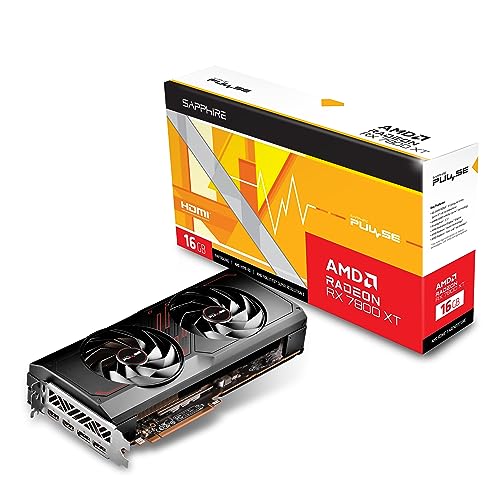
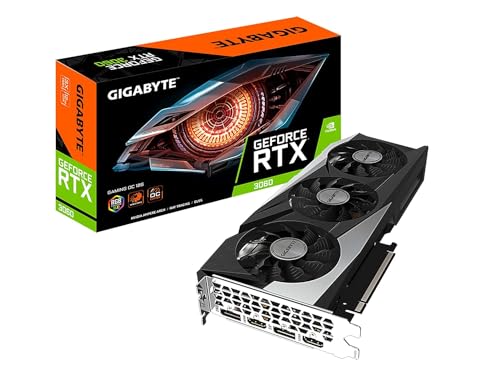
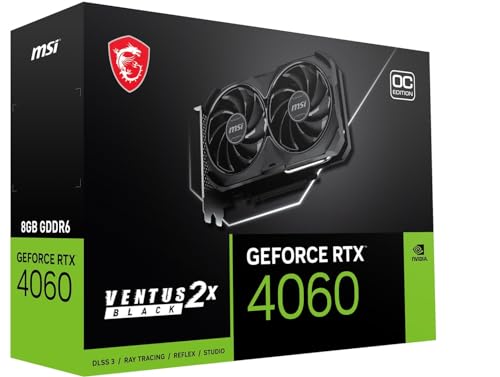
Three current cards that illustrate the tiers discussed below — an efficient 1080p/1440p option, a value-focused AMD alternative, and a stronger 1440p card. They are examples of classes, not the only right answers.
- MSI GeForce RTX 4060 Ventus 2X Black 8G OC — Check on Amazon
- PowerColor Fighter AMD Radeon RX 7600 — Check on Amazon
- ASUS Dual GeForce RTX 4070 EVO OC Edition 12GB — Check on Amazon


Matching the card to the games and software you actually run
The steps above start with your monitor, and that is the right order. The next layer, though, is what you feed that monitor. Two players can own identical 1440p displays and need completely different cards, because the software they run makes completely different demands. Before you shortlist anything, spend ten minutes writing down the five programs you will actually use most in the next two years, and judge every candidate against that list rather than against a reviewer’s benchmark suite.
Fast, light games reward refresh rate more than raw power
Competitive shooters, MOBAs, racing games with simple tracks and most indie titles are deliberately built to run on modest hardware. In these games the limiting factor is rarely texture detail or lighting quality; it is how many frames per second the whole system can push to a high-refresh display, and how consistently it can hold them during busy scenes. A mid-range card paired with a sensible CPU will often reach the refresh ceiling of a 165 Hz or 240 Hz panel at 1080p or 1440p with competitive settings, and spending more on the GPU alone buys almost nothing you can feel. What you can feel is frame-time consistency: a card that holds a near-flat frame time at a capped rate feels smoother than a stronger card swinging wildly between very high and merely average rates. If this is your main use, prioritise a card known for stable drivers and low noise at moderate load, and put the money you save toward the monitor, the CPU or a better mouse.
Big single-player games reward memory and features
Large open-world and story-driven titles sit at the opposite end. They stream huge texture sets, lean on lighting effects, and are usually played at the highest settings you can manage rather than the lowest settings you can tolerate. Here VRAM capacity, memory bandwidth and upscaling quality decide how long the card stays comfortable. A card that is merely adequate on launch day tends to age quickly in this category, because each year’s releases assume a little more memory and a little more compute than the last. If these are your games, buying one tier above your immediate need is not waste; it is how you avoid a second purchase halfway through the console generation your games are designed around. Readers building mainly for this kind of play should also look at the current best graphics cards for 4K gaming even if they play at 1440p, because the headroom patterns described there are exactly what longevity looks like.
Creators should judge a different scoreboard entirely
Video editing, 3D work, photo processing and local AI tools use the GPU in bursts and in ways games never do. Timeline scrubbing in an editor depends on hardware decoding support for the codecs your camera records. Rendering depends on which acceleration API your software prefers, and that preference is not brand-neutral: some applications are built and tested primarily around one vendor’s compute platform, and the gap in those specific programs can be larger than any gaming gap. AI image tools and local language models are limited first by VRAM capacity, because the model has to fit in memory before speed matters at all. If you create as well as play, list your creative applications beside your games, check each developer’s own GPU guidance, and weight it heavily. A card that is second-best for your games and first for your editor is usually the right overall buy. Our roundup of the best graphics cards for video editing goes deeper on the codec and acceleration side of that decision.
Simulation and VR are their own category
Flight and racing simulators, and VR headsets in particular, punish inconsistency more than low averages. A headset needs two high-resolution views rendered at a locked rate; when the card misses, the software reprojects or drops frames and the result is discomfort, not just a less pretty picture. Simulator players also tend to add multiple displays, button boxes and head tracking, all of which argue for generous outputs and memory. If VR is even a maybe in your next two years, treat it as a requirement now, because retrofitting around a card that cannot hold headset rates is more expensive than buying the capacity once.
Refresh rate changes the calculation as much as resolution does
Most buying advice talks about resolution as if it were the whole load. It is only half of it. The GPU’s workload is pixels multiplied by frames: a 1080p display at 240 Hz asks the card to finish roughly the same number of pixels per second as a 4K display at 60 Hz. That is why a card described as a 1440p card can feel overpowered or underpowered depending on the panel it feeds.
Work through your own combination honestly. At 1080p and 60 Hz, almost any modern dedicated card is comfortable, and the sensible move is to buy for reliability and features rather than speed. At 1440p with a 144 Hz or 165 Hz panel, you are in the heart of the current market, and mid-range and upper-mid-range cards are designed precisely for you. At 4K, or at ultrawide resolutions that approach 4K in pixel count, the top tiers exist because nothing else holds high settings there. Remember also that you do not have to run every game at the panel’s maximum: a 144 Hz monitor fed a stable 90 to 110 frames per second still feels dramatically smoother than 60, so a card that gets you most of the way is not a failure.
One more subtlety is worth knowing. Raising resolution mostly loads the GPU, while raising frame rate loads both the GPU and the CPU, because the processor has to prepare each frame. Chasing very high refresh on an older processor can leave a new card waiting idle, which is the bottleneck pattern covered next.
Pairing the card with your processor without overthinking bottlenecks
Bottleneck discussions online often imply there is a single correct pairing and that any mismatch wastes money. Real systems are simpler and more forgiving. In most games at 1440p and above, the graphics card does the great majority of the work, and a mid-range processor from the last several years keeps it fed. At 1080p with low settings and very high frame-rate targets, the processor becomes the limit more often, because each frame is cheap for the GPU and arrives quickly.
Use this practical test instead of a calculator. If your current games already run at frame rates you are happy with but look worse than you want — you are turning textures and lighting down — the GPU is your limit and a card upgrade will show. If your frame rate barely changes when you drop the resolution or settings, something else, usually the CPU, is the limit, and a bigger card will disappoint. That one experiment, which takes five minutes in a game you own, tells you more than any pairing chart. Also keep platform basics in view: a new card cannot fix a system short on system memory or running games from a nearly full, slow drive, and those upgrades are separate decisions.
The fit checks people skip: sag, airflow and noise under your desk
The main guide covers card length and slot width. Three related checks catch people out just as often. First, weight: large triple-fan cards are heavy, and over months they can sag at the far corner, which looks untidy and stresses the slot. Many cases and cards include a support bracket, and a simple stand solves it — but only if there is floor space in the case beneath the card, so check before the card arrives. Second, where the card breathes: a thick card installed directly above a solid power-supply shroud or another expansion card may fit on paper while its fans sit millimetres from a surface. It will run, but hotter and louder than reviews suggest. Third, where the heat goes: a powerful card exhausts a room-warming amount of heat into your case and then your room. In a small room, in summer, that changes how long you want to play, and it is a genuine argument for a more efficient tier rather than the fastest tier.
Noise deserves the same realism. Review noise figures are measured in open test benches or specific cases at specific distances. Your case under your desk will differ. If you play with speakers rather than headphones, favour larger, slower-spinning fans and models with a quiet BIOS mode, and remember that a slightly slower card running quietly often makes a system feel more premium than a faster card you can hear through a wall.
Planning for what you might plug in later
A graphics card usually stays in a system for three to five years, longer than almost any other part except the case and power supply. So choose it for the system you will have in year three, not only the one on your desk today. A second monitor for work, a drawing tablet display, a capture device for streaming, a VR headset, a faster main monitor in a future sale — each is a common mid-life addition, and each asks something of the card: another output of the right type, more memory, a better hardware encoder. None of this argues for overspending wildly. It argues for not buying the one model in a tier with fewer outputs, an older encoder or the least memory just because it is marginally cheaper this week. Flexibility you never use costs little; flexibility you need and do not have costs a replacement card. If streaming is on that maybe list, the encoder discussion in our look at the best graphics cards for streaming explains what to check before you buy.
Reading a product listing like someone who has been burned before
Two cards can share a name and still be meaningfully different products, and listings are not always eager to highlight the difference. The most important habit is to check the full specification on the manufacturer’s own product page rather than trusting a marketplace title. Titles are compressed for search, and the details that get compressed out — memory capacity on variants that share a name, the exact output selection, whether a card is a low-profile or full-height design — are often the details that decide whether the card suits you.
Pay particular attention to three things. First, memory configuration: some model names have been sold with more than one VRAM capacity or even different memory types, and performance follows the configuration, not the badge. Second, factory overclocks: a modest factory overclock is harmless and sometimes comes with a better cooler, but it does not turn one tier into the next, so never let an OC badge justify paying the next tier’s price. Third, physical variants sold under one listing: compact dual-fan, full-size triple-fan and low-power versions can all sit behind the same product title with a dropdown selector. Confirm the exact variant’s dimensions and connector requirements before ordering, especially for small cases, because returning a card that does not fit is a delay nobody budgets for.
What reviews can and cannot tell you
Reviews are most reliable when they compare cards inside one test system, on the same day, with the same games. They are least reliable when you compare numbers across different reviews, because test systems, game versions and driver versions all move. Use reviews to establish the order of cards within a generation and to learn about noise, temperatures and build quality — the ownership qualities benchmarks do not capture. Be wary of conclusions drawn from a single launch-day title; drivers mature, and the card that looked ordinary in week one sometimes looks considerably better by month three. Finally, weight reviews of the specific partner model you are buying for its cooler and noise, and reviews of the GPU itself for performance. Those are two different questions and good reviewers answer them separately.
Choosing when the PC is shared, inherited or bought for someone else
Not every card is chosen by its user. If you are speccing a PC for a child, a partner or a family room, the right priorities shift. Favour quiet operation, because the machine often lives in a shared space. Favour generous memory over peak speed, because a shared machine accumulates games and creative hobbies you did not plan for. Favour simple, stable software: automatic driver updates through the vendor app, no overclocking tools, no experimental settings. And leave clear headroom in the power supply, because the most common upgrade to a family PC is a hand-me-down card from another machine, and it should be a ten-minute swap, not a second project. A card chosen this way rarely tops a benchmark chart, but it is the card nobody complains about for four years, which is the actual goal.
The same logic applies in reverse when you inherit a machine and are choosing its first real upgrade. Resist the urge to match the card to the machine’s original era. A well-kept older PC with a decent processor and power supply often accepts a modern mid-range card beautifully and feels reborn, while period-correct used parts simply recreate the limitations the owner wanted to escape. Check the power supply and case first, then buy the best current card those two allow.
A short pre-flight routine for the week the card arrives
Most bad upgrade experiences are decided before the box is opened. In the week before delivery, update your motherboard BIOS only if the card maker’s guidance or your board’s release notes call for it — otherwise leave a working system alone. Download the current driver package for the new card in advance, so a slow connection on the day does not tempt you into skipping the clean installation. Photograph the inside of your PC before you touch anything: cable routing, which power connectors are in use, and how the old card sits. That photo is your undo button if a cable ends up somewhere it should not be.
Clear physical space as well as digital space. Check that nothing stored beneath the GPU — a drive cage, a capture card, a thick cable bundle — will foul the new card’s fans, and confirm you have the right screwdriver and a spare slot cover or two. Finally, decide in advance what you will do with the old card: keep it as a known-good spare for troubleshooting, move it to a second machine, or sell it while it still has value. A spare card is genuinely useful — it is the fastest way to prove whether a future display problem is the card or everything else — and knowing its fate stops the new installation from stalling halfway on indecision. When the new card is in, run one familiar game and one benchmark before you close the case panels for good, and keep the old card within reach for the first week. That small bit of staging turns a stressful swap into a routine one.
The one-week-later check that confirms you chose well
A week after installation, run a short, honest review of your own purchase. Are temperatures and noise where reviews led you to expect, in your case, at your desk? Are the games you actually play holding the frame rates you targeted at the settings you wanted, without the fans becoming the soundtrack? Did any planned use — the second monitor, the headset, the editing timeline — surprise you in either direction? If something is off, that week is when returns and exchanges are easiest and when a driver update or a fan-curve adjustment can still turn a near-miss into the right card. If everything checks out, record the model, the driver version and the settings you settled on in a note with the PC’s other details. Future you, troubleshooting in two years, will be grateful for the receipt, the date and the baseline numbers.
Frequently asked questions
Do I need a new power supply for a new graphics card?
Only if your current unit falls short on wattage, lacks the required power connectors, or is old and low quality. Compare the card maker’s recommended PSU wattage against your unit’s rating, and check the connector types physically. If both check out with headroom to spare, you can keep it.
How much VRAM do I need for 1440p gaming?
12 GB is the comfortable target for 1440p today. 8 GB cards still run most games at 1440p with sensible texture settings, but newer texture-heavy titles increasingly reward the extra capacity, and 16 GB gives the longest useful life at this resolution.
Is a used graphics card a good idea?
It can be, especially for previous-generation mid-range cards, but you inherit unknown history — including possible mining use — and usually a shorter or absent warranty. Stress-test any used card immediately using the steps in our testing guide, and buy through a channel with buyer protection.
Will a new graphics card work with my old motherboard?
Almost certainly yes. Graphics cards use the PCIe x16 slot, and PCIe is backward and forward compatible across generations. A modern card in an older PCIe 3.0 slot loses little to nothing in most games. The real constraints are physical space and power, not the slot generation.
Should I wait for the next generation before buying?
There is always a next generation. Buy when your current setup stops delivering the experience you want, and buy the tier that serves your monitor well. Waiting makes sense only when a launch is confirmed and imminent — and even then, new launches rarely make the previous tier a bad purchase at a reduced price.
I have an ultrawide monitor. How should I choose differently?
Treat ultrawide resolutions by their total pixel count rather than their name. A 3440×1440 ultrawide sits between standard 1440p and 4K in workload, so shop one step up from the tier you would buy for a normal 1440p panel, and pay extra attention to VRAM, because the wider view also means more texture area on screen at once. Also check that your favourite older games support the aspect ratio properly; the card cannot fix a game that only renders in 16:9.
Does the brand of the same GPU model actually matter?
The underlying chip is the same, so raw performance between brands using the same GPU is usually within a few percent. What differs is everything around it: cooler size and noise, fan quality, physical dimensions, the number and type of outputs, warranty handling in your country, and whether the card has a quiet mode. Those differences are real and worth comparing, but they are about ownership comfort, not about one brand being secretly much faster.
How long should a well-chosen card last?
For most buyers, three to five years is a realistic expectation if you buy with a little headroom above your current monitor and games. Cards rarely stop working in that window; they gradually ask for lower settings, first in the newest releases. Buying one tier up mainly stretches the period before those compromises start, which is why the worked examples in this guide weight headroom more than launch-day benchmarks.
Can I choose a card now and upgrade my monitor later?
Yes, and it is a common sensible order, as long as you buy the card for the monitor you genuinely plan to get rather than the one you might get someday. A card bought for a future 1440p high-refresh panel will feel underused on a 1080p 60 Hz display for a while, but it will not be harmed by it, and the upgrade will feel large when the panel arrives. The reverse order — a demanding new monitor on an old card — is the frustrating one, because every game immediately asks for settings cuts.
The bottom line
Choosing a graphics card is a matching exercise: match the tier to your monitor’s resolution and refresh rate, match the VRAM to your games and workloads, and match the card’s power and size to your PSU and case. Do those three things, shortlist two or three models, and the ‘best’ card for you usually picks itself. For the complete framework in checklist form, continue with the graphics card buying guide.