Disclosure: As an Amazon Associate, ilcastellomenu.com earns from qualifying purchases. Links to Amazon on this page are affiliate links; they cost you nothing extra. Listing details such as price and availability change often, so check the current Amazon listing before you buy.
Knowing how to fix graphics card overheating starts with recognising it: games that stutter or crash after ten good minutes, fans that ramp to a roar, frame rates that sag the longer you play, or a monitoring overlay showing temperatures pinned at the card’s limit. The good news is that overheating is one of the most fixable PC problems, and the causes are usually mundane — dust, airflow, a bad fan curve, a hot room — rather than a dying card. This guide works through the causes in order, from the free and safe to the more involved, and tells you honestly where home repair should stop.
First, confirm it really is heat. Install a monitoring tool (HWiNFO64 or GPU-Z) and watch GPU temperature and the hotspot reading during the game that misbehaves, following the method in How to Test a Graphics Card. Modern cards are designed to boost until they reach a temperature target — commonly in the low-to-mid 80s °C — and then hold there by adjusting clocks. Sitting at the target with full performance is normal behaviour, not overheating. Overheating is when temperatures hit the limit and performance falls, stability goes, or the card keeps climbing past its usual range. Diagnose before you dismantle.
Likely causes, most common first
- Dust-clogged fans, heatsink fins, and case filters choking airflow.
- Poor case airflow: too few fans, fans fighting each other, or a case sealed behind solid panels and tucked into a cabinet.
- A fan curve that prioritises silence until the card is already hot — or a failed/stuck fan.
- High ambient temperature: a hot room or a PC under a desk in a heat pocket.
- Ageing thermal paste and thermal pads between the GPU and its cooler losing effectiveness (a years-down-the-line cause).
- Excess load: uncapped frame rates rendering hundreds of needless frames, or an unstable overclock adding heat — see How to Overclock Safely a Graphics Card.
- A genuinely failing cooler or card — the least common cause, checked last.
In this guide
Fix 1: Clean the card and case (safely)
Power the PC down, switch the PSU off, unplug it, and ground yourself by touching the case. Remove the side panel. Using short bursts of compressed air — holding each fan blade still with a finger so it cannot spin up — blow dust out of the graphics card’s fans and heatsink fins, the CPU cooler, and every case filter and intake. Filters usually slide or pop out for a proper wash (dry them fully before refitting). Never use a vacuum cleaner inside a PC (static risk), never spin fans with the air jet (it can damage bearings and generate voltage), and never open the power supply itself — that component is off-limits, full stop, in this and every guide here. If the card is removable and very dirty, you may take it out for better access — support its weight, release the PCIe latch gently, and handle it by the edges and bracket.
Fix 2: Fix the case airflow
Air should move in one clear path: in through the front/bottom, out through the rear/top, passing over the graphics card on the way. Check that intake and exhaust fans exist and agree on that direction (fan frames usually blow toward their strut side), that front intakes are not smothered by a solid panel with no vents, and that cables are not wadded into a dam in front of the card. Move the PC out of enclosed cabinets and off thick carpet, give the rear exhaust room to breathe, and keep the side panel on — an open panel usually wrecks the designed airflow path rather than helping. If your case has empty fan mounts and genuinely poor flow, adding one intake and one exhaust is the cheapest real upgrade in PC building; the airflow-first case picks in our PC-case coverage and a capable CPU cooler from Best CPU Coolers for Gaming both lower the whole system’s thermal stress, GPU included.
Fix 3: Adjust the fan curve and software behaviour
In MSI Afterburner or AMD Adrenalin’s tuning panel, set a custom fan curve that starts fans earlier and ramps more assertively through the 60s and 70s °C. You are trading a little noise for lower sustained temperatures and steadier boost clocks — most users find a middle setting they cannot hear over game audio transforms the card’s behaviour. While you are in software: remove any overclock (return to stock profile) until temperatures are proven under control; cap frame rates at your monitor’s refresh rate so the card stops cooking itself rendering frames you cannot see; and confirm in Task Manager that no background app (a stuck recorder, a browser tab with a runaway WebGL demo, mining malware in the worst case) is holding the GPU at load on the desktop — an idle card should idle cool.
Fix 4: Check the fans themselves
With the PC running and the panel off, watch the card’s fans under load (start a game or benchmark). All fans should spin; most modern cards stop them at idle by design, so judge under load, not on the desktop. A fan that does not spin, grinds, wobbles, or rattles is a mechanical fault. Fan replacement is sometimes possible with model-specific parts, but it is fiddly and warranty-relevant — if the card is under warranty, this is your cue to use it rather than your screwdriver. Also confirm nothing physical is obstructing a fan: a sagging card pressing a cable into a blade is a real and oddly common find, and a support bracket or a rerouted cable is the whole fix.
Fix 5: Repasting — the advanced step, with honest warnings
On a card several years old, the thermal paste between GPU die and cooler can dry out, and temperatures climb despite clean fans and good airflow. Replacing it (and any squashed thermal pads, with pads of the correct thickness) can restore like-new temperatures — but be honest with yourself about the ledger: opening the card typically voids any remaining warranty, the die is fragile, pad thickness mistakes make things worse, and this is a job for someone comfortable with delicate electronics. If the card is in warranty, do not repaste — claim the warranty. If it is long out of warranty and you have confirmed every simpler cause, repasting is a legitimate, well-documented procedure to research for your exact model before attempting. This guide deliberately gives the judgement framework rather than a teardown script, because the safe steps above solve the overwhelming majority of overheating cases.
When to seek repair or replacement
Stop and go professional (or go shopping) when: temperatures remain extreme after cleaning, airflow, and fan-curve work; you see artifacts — speckles, flashing textures, coloured blocks — which suggest the GPU or its memory is damaged rather than merely hot; a fan is mechanically dead on a card in warranty; or the card overheats at idle with no load to explain it. If replacement is the answer, size the new card with Graphics Card Buying Guide and favour an efficient model — the power-to-heat relationship in Graphics Card Power Consumption Explained means a lower-draw card also cools your whole case’s problem down.
Prevention: keeping temperatures down for good
- Dust maintenance every few months — five minutes with compressed air and the filters, before temperatures tell you it was due.
- Keep the sensible fan curve and frame-rate cap as permanent settings, not emergency measures.
- Leave breathing room around the case, especially the rear exhaust and front intake.
- Watch temperatures after any change — new driver, new game, summer arriving — the same way how to fix gpu fan noise treats new noises: as early, cheap information.
- Record your healthy temperatures (the baseline from your testing notes) so ‘hotter than it used to be’ is a measurement, not a feeling.
How to fix graphics card overheating caused by the room and the software
Two culprits hide outside the case entirely. The first is the room: a PC exhausting into a small, closed, sun-warmed space is trying to cool itself with its own waste heat, and no fan curve defeats thermodynamics. If temperatures track the weather or the time of day, suspect the environment before the hardware — relocate the case into open air, out of cabinets and away from radiators, and retest before spending anything. The second is software load you did not invite: a browser with hardware acceleration wrestling a heavy page, a game launcher running a rendered background at hundreds of frames per second, a recording tool left active, or — the serious case — crypto-mining malware, which presents exactly as a card that runs hot and loud on the desktop for no visible reason. An idle GPU should sit near idle temperatures; if yours does not, open Task Manager, sort by GPU usage, and find the tenant before you renovate the building.
There is also a seasonal discipline worth adopting: the first hot week of the year is when marginal cooling setups confess. If your card’s temperatures creep every summer, build the fix in spring — clean the filters, verify the fan curve, consider the extra case fan — rather than mid-heatwave with the card throttling through your evening game. Heat management is maintenance, and maintenance is cheapest when it is scheduled rather than urgent.
Temperature targets and what ‘fixed’ looks like
| Signal | Healthy | Still a problem |
|---|---|---|
| Gaming temperature | Settles at a stable plateau at or below the card’s usual target | Climbs continuously or pins at the limit with falling clocks |
| Frame rates over 30 minutes | Consistent from minute one to minute thirty | Noticeably lower late in a session than at the start |
| Fan behaviour | Steady, load-appropriate speed | Maximum speed with temperatures still rising |
| Idle temperature | Cool, fans often stopped | Hot at the desktop with no load to explain it |
| Stability | No crashes attributable to heat | Crashes/artifacts that arrive as temperature peaks |
Use the table as your acceptance test after every fix: run the same game, in the same area, for the same duration, and compare against the same columns. ‘Feels cooler’ is not a result; a plateau where there was a climb is. And record the fixed numbers as your new baseline — the next time temperatures drift, you will know by how much, since when, and therefore probably why.
Special cases: small cases, laptops, and older cards
Small-form-factor PCs play by harsher rules: less air volume, components breathing each other’s exhaust, and coolers sized by millimetres. In a small case, the hierarchy of fixes reorders — case airflow and ambient air supply matter even more, power limits and undervolting become primary tools rather than garnish, and blower-style or lower-draw cards earn their keep. Laptop GPUs, meanwhile, share heat pipes with the CPU and live in a chassis you should not open casually: your fixes are external (a stand that lets the underside breathe, clean vents blown out gently from outside per the maker’s guidance, sane in-game settings and frame caps) plus software fan profiles where offered — internal repasting on a laptop is a service-centre conversation. Older cards deserve a mention too: a five-year-old card that suddenly runs hot after years of stability is usually telling you about dust and dried paste, in that order — which is good news, because both are among the most fixable stories in this guide.
The diagnostic order, and why it is the order
Troubleshooting guides are written in sequence for a reason, and this one’s sequence encodes a philosophy: cheapest and most reversible first, most invasive last, and information before intervention at every step. Monitoring comes before cleaning because a card that is not actually overheating should not be dismantled by someone chasing a software problem. Cleaning comes before repasting because dust causes more overheating than paste failure by an order of magnitude, and costs nothing but care. Fan curves come before fan replacement because a curve is a setting and a fan is a purchase. Every step either fixes the problem or eliminates a suspect, so even the ‘failed’ steps are progress — by the time you reach the invasive end of the list, you hold a short, evidence-backed case that the remaining suspects are the real ones. Resist the gravitational pull of the dramatic fix (the teardown video, the exotic cooler); drama is not a diagnostic category. The boring order is the fast order, measured in evenings rather than weekends.
Cooling upgrades ranked by honesty
- Case fans, correctly placed: the highest-value hardware spend for most systems — cool intake air is the resource every cooler consumes.
- A better case: justified when the current one’s front panel strangles intake by design; mesh-front airflow cases transform component temperatures system-wide.
- Thermal paste renewal (out-of-warranty, confirmed cause): genuinely effective on older cards, with the warranty and care caveats stated in the main guide.
- Aftermarket GPU air coolers: exist for popular cards and can be excellent, but they are involved, warranty-ending surgery — a hobbyist project, not a repair recommendation.
- Water-cooling the GPU: superb temperatures, real cost and complexity, and almost never the rational answer to a fixable airflow problem. Admire it as a hobby; do not prescribe it as a cure.
- A newer, more efficient card: when replacement is already due, efficiency is cooling — the same performance at fewer watts is a permanent temperature reduction no fan curve can match.
Notice that the list’s top entries fix the system, not the card. That is the recurring lesson of thermal work: components live in environments, and environments are usually the diagnosis. Spend on the environment first and the components you already own will frequently turn out to have been fine all along — the most satisfying sentence in all of PC maintenance, and the one this guide most hopes to make true for you.
Keeping a temperature log (and why future-you insists)
Close the loop with the habit that makes every future diagnosis faster: a temperature log. It needs almost nothing — the date, the game or test, the peak GPU and hotspot temperatures, the room’s rough warmth if you know it, and any change you made that week. Three entries a year is enough: one after any cleaning or hardware change, one in the first hot week of summer, one whenever a new demanding game arrives. With that log, ‘my card runs hotter than it used to’ becomes a dated, quantified observation with a shortlist of coincident changes attached — the difference between maintaining a machine and worrying at one. Without it, every thermal question is archaeology. The log takes ninety seconds per entry and pays out for the entire life of the PC; of all the advice in this guide, it is the cheapest per unit of future calm, which is why it gets the last word.
A quick word on temperature readings you can trust
Not all temperature numbers are equal, and chasing a phantom reading wastes evenings. Prefer readings from established tools (HWiNFO64, GPU-Z, or the vendor suites) over unknown utilities; compare like with like — the GPU core sensor against its own history, the hotspot against its own — rather than against numbers from other people’s different cards in different cases; and remember that a one-degree difference is measurement noise, while a ten-degree drift from your logged baseline is a finding. Trust trends, distrust decimals.

Gear mentioned in this guide
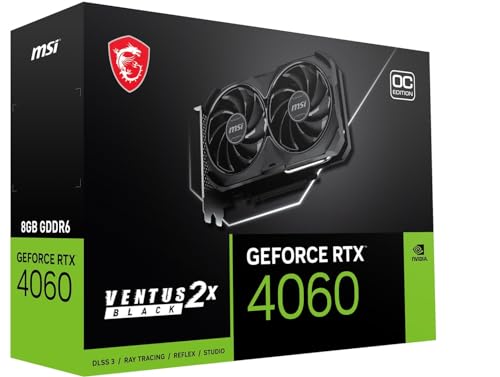
If — and only if — testing proves the card itself has failed, a cool-running, efficient current card like this RTX 4060-class model is the kind of replacement that also lowers case temperatures. Do not buy your way out before working through the free fixes below.
- MSI GeForce RTX 4060 Ventus 2X Black 8G OC — Check on Amazon
Reading the three temperatures: core, hotspot and memory
Modern monitoring tools report more than one GPU temperature, and owners who watch only the headline number misread their card’s health. The core temperature is the average across the main chip and the figure most limits and reviews refer to. The hotspot is the single hottest sensor point on the die, and it normally runs noticeably above the core average; a gap between the two that grows over the card’s life — or that is far wider than owners of the same model typically report — is one of the earliest signs that the thermal paste has dried, pumped out or lost even contact, because heat is no longer spreading from the hottest region into the cooler as it should. Memory temperature, reported on many recent cards, tells its own story: memory chips are cooled by pads rather than paste, work hard at high resolutions, and can run hot while the core looks comfortable, producing memory-specific symptoms — artefacts and instability in texture-heavy scenes — on a card whose headline temperature seems innocent.
Use the trio diagnostically. Core and hotspot both high, memory normal: the main cooling path — airflow, fans, heatsink contact — is the suspect, and the fixes in the main guide apply in order. Core fine, hotspot extreme: contact or paste, and no amount of case airflow will cure it, which is why some owners chase fans for weeks without moving the number that matters. Memory alone high: pads, or a workload change, and the inspection should focus there. Record all three in your temperature log. A card’s thermal character is a fingerprint, and changes in the relationships between the numbers often announce a developing fault months before any single number crosses a limit.
The room is part of the cooling system: intake air and placement
Every temperature inside your PC is built on the temperature of the air entering it, so audit the room before the hardware. Measure, even roughly, the air temperature where the case actually breathes — beside the case at desk or floor level, not at the room’s thermostat across the room. Cases tucked into enclosed desk cabinets, under-desk compartments with a door, or carpeted corners against a wall can inhale air several degrees warmer than the room at large, pre-heated by the machine’s own exhaust recycling in the confined space. A PC on carpet may also be slowly strangling its bottom intake and clogging its filter with fibres. Radiators, sun-facing windows and other PCs are all local heat sources that belong in the audit.
The fixes are unglamorous and effective: give the case open air on its intake and exhaust sides, raise it off carpet onto a stand or board, move it out of the cabinet or leave the cabinet’s back open, and check the result with the same game at the same settings. Owners regularly recover more temperature this way than from any internal modification, because they have lowered the starting point of the entire thermal chain. This is also why a card can review cool and run hot in your home without anyone lying: the reviewers’ room is not your cabinet. Judge every fix against your own placement, and when you read temperature claims anywhere — including this site’s — translate them through your room first.
Software causes that imitate hardware failure
Before any screwdriver, interrogate the software, because several purely digital causes present exactly like a cooling fault. A background process holding the GPU at load — a game launcher left on an animated storefront, a browser tab with a runaway advertisement, recording software buffering continuously, or in the worst case unwanted mining software installed without the owner’s knowledge — keeps temperatures and fans elevated at the desktop, and the card gets blamed for working as instructed. Open your monitoring tool at the idle desktop and look at utilisation: a healthy idle is near zero. Anything else has a name in Task Manager, and finding it is the fix.
Fan-control conflicts are the second digital impostor. When two tools — the vendor app, a tuning utility, the motherboard’s software — both try to command the same fans, the result can be fans that ignore load, freeze at one speed, or oscillate, all while temperatures climb. Choose one controller, uninstall or disable the others’ fan functions, and reboot. The third impostor is a misunderstood zero-RPM mode: many cards stop their fans entirely below a temperature threshold by design, which alarms owners who expect constant spinning and delights owners who value silence — until a case with poor airflow lets the card hover at the threshold, fans starting and stopping in a cycle that sounds like a fault. Raising the case airflow slightly, or setting a gentle minimum fan speed, settles it. Each of these costs nothing to check, and checking them first is what separates a methodical afternoon from an unnecessary repaste. Our testing guide shows how to capture the utilisation and temperature evidence cleanly.
Thermal paste and pads in depth: materials, ageing and judgement
The main guide introduces repasting with warnings; this section adds the judgement around it. Thermal paste is a gap-filler between the chip and the cooler, there to exclude air from microscopic imperfections, and it ages by drying and by slowly migrating away from the hottest centre — the pump-out effect — across thousands of heat cycles. Quality paste in a well-mounted cooler can serve for many years; paste in a card that has run hot daily, or that was applied thinly at the factory, can fade far sooner. Thermal pads, the soft squares over memory and power components, age differently: they compress permanently, can dry and crumble, and — critically — must be replaced with the correct thickness, because a pad even slightly too thick can lift the cooler off the main chip and make core temperatures dramatically worse while fixing the memory. That single fact is responsible for many repastes that ‘made it worse’, and it is why pad work demands measuring the originals before discarding them.
Decide with evidence. Repaste when the diagnostic pattern points there — the widening hotspot gap, a card whose temperatures have climbed against its own logged history despite clean fans and good airflow — and when the card is out of warranty or you accept the warranty implications in your region. Photograph every stage, keep every screw organised, work on a clear surface, and test thoroughly afterwards at the same workload as your baseline log, because the comparison against your own numbers is the verdict. If the card is under warranty and running hot, the manufacturer’s service channel is the correct first move; a warranty is part of what you bought, and spending it is not a failure of self-reliance.
Undervolting as a thermal treatment, not a performance trick
One remedy deserves promotion from the tuning world into the repair toolkit: undervolting. A card that runs hot at stock settings is converting its voltage margin into heat, and most chips carry a generous factory margin. Asking the card to hold its normal speeds at slightly lower voltage — the method detailed in our safe tuning guide — can remove a meaningful slice of heat and fan noise while changing performance by less than measurement noise. For an older card whose paste you are not ready to replace, for a small case that cannot breathe better, or for a hot room in summer, a validated undervolt is often the difference between a machine that throttles and one that simply works. Validate it like any repair: the same games, the same log, temperatures and stability recorded against the pre-change baseline. Treat it as a setting with a test protocol, not a forum incantation, and it becomes one of the most satisfying fixes in this entire article — free, reversible, and effective precisely where the problem lives.
Seasonal strategy: the twice-a-year thermal service
Cards rarely overheat in the week they are cleaned; they overheat in the first hot week of the year, under the first demanding new game, after months of quiet drift. Beat the calendar with a twice-a-year service timed to the seasons rather than to faults. Before summer: clean the card and case filters, confirm every fan spins freely and quietly, run your standard game scene and log the three temperatures against last season’s entry, and check the room placement with fresh eyes — furniture moves, new consoles arrive, and a case that breathed freely in January can be boxed in by June. Before winter, the shorter version: filters again, a look at fan behaviour as heating systems start drying and dusting the air, and a check that a PC moved for the holidays still has open air around it.
Keep the service boring and written. The log that results — dates, temperatures, what was cleaned or changed — is the document that turns every future thermal question into a comparison instead of an investigation. It also disciplines the imagination: owners without logs remember their card as ‘always running hotter lately’, while owners with logs can see that this July matches last July almost exactly, and that the machine is not dying but merely experiencing weather. Most overheating anxiety, like most overheating, is cured by airflow and information in roughly equal measure.
When the whole PC is hot: separating the card’s fault from the system’s
A final diagnostic discipline: the graphics card is often the messenger for a system-wide condition. If the CPU is also hotter than its history, the case exhaust is weak, or a new drive or second card has changed the internal landscape, fix the system first — one case fan correctly placed can lower every temperature in the box, the card’s included. Test the card’s innocence by watching whether its temperature tracks the case’s internal air temperature: a card whose readings rise and fall with the room and the case, holding a steady margin above intake air, is cooling as designed in an environment that is too warm. A card whose margin above intake air keeps growing is the one with a card-level fault. That margin — card temperature minus intake temperature, at the same workload — is the single most honest number in thermal troubleshooting, because it factors out the weather, the room and the season, and it is the number your log should headline. Everything in this article, from cleaning to repasting, is ultimately an attempt to defend that margin; measure it, and you will always know whether you are winning.
Helping someone else’s hot PC: advice for the family technician
If you are the person relatives call, overheating jobs arrive with missing history and strong opinions. Resist opening with the advanced fixes. Begin with the questions that replace the log the owner never kept: when did it start, what changed just before — a new game, a moved desk, a new pet, a heatwave, a driver update — and what exactly happens, in the owner’s words, with the game named. Then run the diagnostic order in this guide at double speed, narrating as you go, because an owner who understands the intake-air margin and sees the dust filter’s state becomes a collaborator in the prevention plan rather than a repeat caller. Leave the machine with three things: a cleaned and verified cooling path, a one-page note of the temperatures you measured and the date, and one habit matched to the cause you found — filter cleaning for the dusty home, placement for the cabinet, a frame cap for the menu-screen roaster. Most domestic overheating is environmental, and environmental fixes survive only when the person who lives with the machine knows why they matter. Teach the why, write the numbers, and the card you fixed stays fixed.
What good looks like, one month after the fix
Declare victory carefully. A repair is proven not on the day you make it but across the following month of ordinary use: the longest game on the hottest evening, the first dusty week, the first long session with the room door closed. Keep the log running through that month with no extra effort — the overlay you already use, a note after any session that felt warm or loud — and compare the month’s worst readings against the card’s limits and against its own pre-fix history. If the margin above intake air has been restored and holds, the fix was real. If temperatures creep back week by week, something is still ageing or clogging, and you have caught it early with evidence in hand. Either way you know, which is the entire philosophy of this guide: temperatures are not a vibe to worry about but a small set of numbers to keep, and a card whose numbers are known is a card that will never surprise you in the middle of a game, a summer or a sale.
One more reassurance belongs in any honest overheating guide: graphics cards are built to run warm, and a card at its normal working temperature, fans audible and stable for hours, is not a card in distress. Distress has signatures — throttling that steals performance, artefacts, crashes, temperatures that climb instead of levelling — and this article has taught you to read them. Everything short of those signatures is a machine doing the job it was designed for, in the room you gave it, with the air you provided. Keep the air clean and plentiful, keep the log honest, and let the card be warm without being worried about. Worry is a resource too, and it is better spent on the components that cannot speak for themselves; the graphics card, through its sensors, speaks constantly. You only have to listen on a schedule.
A note on pets, dust and other honest realities of homes
Review benches do not have cats. Real homes do, and pet hair is the single most aggressive intake contaminant a PC meets: it mats against filters and heatsink fins faster than household dust, insulates exactly where air needs to pass, and arrives continuously. Homes with pets, open windows near busy roads, wood stoves or keen DIY activity should simply run the cleaning side of this guide on a shorter rhythm, and should favour cases with easily removable, washable intake filters — a buying detail worth more to those households than any exotic cooling feature. Place the case off the floor where possible, since hair and dust travel along it, and make the filter check a monthly two-minute habit rather than a seasonal event. None of this is a counsel of perfection; it is calibration. The right maintenance interval is a property of your home, not of the internet’s average home, and the temperature log will tell you plainly when your interval is wrong: the margin narrows sooner than it used to. Listen to it, shorten the rhythm, and the card returns to being what it should be — the part of the PC you think about least.
Write that rhythm down where the PC lives — a note in the log, a reminder in the calendar you actually check — because maintenance that depends on remembering is maintenance that happens after the fault instead of before it.
That is the whole craft, in the end: clean air in, hot air out, honest numbers kept.
Frequently asked questions
What temperature is too hot for a graphics card?
Most modern cards are built to run at a temperature target in the low-to-mid 80s °C under full gaming load and will throttle themselves to stay safe. Sustained readings above your card’s usual range, a hotspot climbing far beyond the average temperature, or performance dropping as temperature rises are the real warning signs — judge against your own baseline, not a universal number.
My GPU is at 83 °C but games run fine. Is that overheating?
Probably not — that is likely the card’s designed boost target, reached and held with performance intact. Overheating is a behaviour (throttling, crashing, climbing without stabilising), not a single number. Confirm with a monitoring session: stable temperature plus stable clocks equals healthy.
Will adding case fans really help the GPU?
Yes, often more than anything you can do to the card itself. The GPU’s cooler can only work with the air the case gives it; feeding it cool intake air and removing hot exhaust air lowers the temperature of everything it breathes. One intake and one exhaust, correctly oriented, is the classic fix.
Is it safe to run my GPU fans at 100%?
Safe, yes — fans are rated for it — but loud, and it shortens fan life if sustained forever. A good custom curve reaches high speeds only when temperatures demand it. If you need 100% constantly to stay safe, treat that as a symptom: airflow or paste needs attention.
Can overheating permanently damage a graphics card?
Modern cards protect themselves by throttling and, if necessary, shutting down, so a single hot episode rarely kills hardware. Chronic overheating is different: it ages fans, paste, and components, and repeated thermal stress shortens life. Fix the cause rather than relying on the protections.
Does taking the side panel off fix overheating?
As a diagnostic, it is excellent; as a permanent fix, it is a confession. If temperatures drop substantially with the panel off, your case airflow is the problem and the real fixes are the fan and placement work in this guide. Running permanently open invites dust at a far higher rate, exposes components, and can actually worsen cooling for parts that relied on directed airflow. Use the open panel to prove the diagnosis, then close the case and fix the airflow properly.
How often should thermal paste be replaced as routine maintenance?
There is no fixed interval, and replacing paste on a schedule rather than on evidence causes more problems than it prevents — every opening risks pads, screws and connectors. Use your logged temperatures as the trigger: a clear, sustained rise against the card’s own history, or a widening gap between core and hotspot readings, is the signal. Many cards never need it within their useful life; cards that run hot daily may benefit after several years. Evidence first, calendar never.
My GPU temperature is fine but the fans are screaming. Is that overheating?
Not necessarily — it is often a fan-curve or control problem rather than a temperature problem. The card may be following an aggressive default curve, a second software tool may be overriding settings, or the fans may be responding to a hotspot or memory reading you are not watching while the core looks calm. Check all the temperature sensors, confirm only one fan controller is active, and reshape the curve with the method in our GPU fan noise guide before assuming a cooling fault.
Can overheating damage other components, or only the card?
A chronically overheating card heats everything around it: the air feeding your CPU cooler, the motherboard’s power components nearby, and drives mounted in the exhaust path. It also makes the power supply work harder in warmer air. This is why a GPU temperature problem left alone for a summer sometimes graduates into a generally unstable PC. Fixing the card’s cooling is system maintenance, not vanity, and the whole machine’s temperatures usually improve together when you do.
The bottom line
Graphics card overheating is almost always an airflow story, not a death sentence: confirm it with monitoring, clean the dust out safely, give the case a clear front-to-back air path, set a fan curve with a pulse, and remove silly loads like uncapped frame rates. Only after those steps should repasting or replacement enter the conversation — and if they do, you will proceed knowing the card, not the case, is truly at fault. Start any diagnosis the structured way with how to test a graphics card.