The SSD vs NVMe for gaming question confuses people because the terms overlap: NVMe drives are SSDs — the comparison is really between a SATA SSD and an NVMe SSD as the home for your game library. Both demolish a hard drive. The real questions are how much extra an NVMe drive buys you in load times today, what DirectStorage changes tomorrow, and where the smarter money goes when a build budget is finite. This guide answers all three with the honesty the benchmark charts sometimes lack.
Disclosure: As an Amazon Associate, ilcastellomenu.com earns from qualifying purchases. Links to Amazon on this page are affiliate links; they cost you nothing extra. Listing details such as price and availability change often, so check the current Amazon listing before you buy.
The verdict up front: if you are buying new and your system has an M.2 slot, buy NVMe — it is the modern default and the price difference over SATA has largely evaporated. If you already own a SATA SSD, it remains a perfectly good games drive, and upgrading it purely for gaming is one of the least effective ways to spend money in a PC. The details — and the console picture, which is different again — follow.
SSD vs NVMe for gaming: load times in the real world
Across typical game libraries, moving from a hard drive to any SSD cuts load times dramatically — often to a third or less — because games constantly fetch scattered small files, exactly the workload where spinning disks are weakest. Moving from a SATA SSD to an NVMe SSD then trims load times further, but modestly: commonly in the range of a second or a few on loads that took twenty or thirty, with wide variation by title. Some games show almost no difference; a few with huge streamed worlds show more. No honest reviewer can promise you a transformation at this step, because the bottleneck has already moved elsewhere — to the CPU unpacking assets and the engine assembling the scene.
That ‘elsewhere’ is worth understanding, because it predicts the future correctly. A game load is a pipeline: read data, decompress it, build textures and geometry, compile shaders, initialise physics and audio. Storage is one stage. Once storage is SSD-fast, the other stages dominate, and doubling storage bandwidth again shaves only the storage slice. This is the same reason the Gen 4 versus Gen 5 step, analysed in Gen 4 vs Gen 5 SSD, shows such small gaming deltas: the industry has been storage-saturated for ordinary loading since the first NVMe drives arrived.
Where NVMe does show a clearer gaming edge is at the margins of the experience: open-world texture streaming with less pop-in, faster fast-travel, quicker level restarts in punishing games, and snappier installation and patching — a large game update is a giant sequential write, and NVMe writes it in a fraction of SATA’s time. These are quality-of-life gains rather than headline numbers, but regular players genuinely feel them across a year of gaming.
In this guide
DirectStorage and what it changes
DirectStorage is the Windows API (with a counterpart philosophy on consoles) that lets games stream assets from NVMe storage to the GPU far more efficiently, using the graphics card to decompress data and bypassing the CPU bottleneck described above. In titles built for it, the storage stage of the pipeline shrinks dramatically and NVMe’s bandwidth finally has a workload shaped to use it. Adoption, however, is title-by-title and still growing; most of the existing library predates it and loads the classic way.
The practical takeaway is balanced. DirectStorage is a genuine reason to prefer NVMe for a new purchase — it is the direction games are travelling, and an NVMe drive is the price of admission. It is not yet a reason to retire a working SATA SSD, because the catalogue that punishes SATA remains small, and SATA drives still load those titles far faster than any hard drive. Buy for the future when buying new; do not manufacture e-waste chasing it early. Either way, verify your drive is performing at its class speed with How to Test the Speed of an SSD before blaming it for any load-time disappointment.
Capacity: the gaming spec that actually bites
Ask gamers what storage problem they actually have and the answer is rarely speed — it is space. Modern flagship titles routinely exceed 100GB; a modest library of ten current games can consume a terabyte. A 2TB NVMe drive transforms a gaming life more than a 1TB drive of a faster class does, because it ends the uninstall shuffle. When the budget forces a choice between faster and bigger, bigger wins for gaming almost every time — a point the buying framework in How to Choose an SSD makes for all workloads and that applies double here.
A two-tier setup is the connoisseur’s answer: a fast NVMe drive for the operating system and the games in current rotation, plus a large, inexpensive SATA SSD (or even a hard drive, for older and undemanding titles) as the library vault, moving games between tiers as tastes change — modern launchers make relocating an install a few clicks. The vault tier is where roundups like Best Hard Drives for Storage still earn their place in a gaming rig. And for console players, portable capacity from the best external SSDs for gaming list solves the same problem externally.
Consoles: a different rulebook
The PlayStation 5 settles its side of the debate by specification: its internal expansion bay takes only PCIe 4.0 NVMe drives with heatsinks, meeting Sony’s speed floor — SATA need not apply — and the vetted models are gathered in Best Ssds for Ps5. External USB drives on PS5 store PS5 games but cannot play them; they play PS4 titles, which is where a SATA-class portable still serves. Xbox Series consoles play current-generation games only from internal storage or the proprietary expansion card, while USB drives (SSD or hard drive) handle older-generation titles. The pattern across consoles: current-generation gaming has standardised on NVMe-class storage internally, with external SATA-class drives demoted to archive and legacy duty — the same two-tier logic as the PC setup above, imposed by the platform holders.
Frame rates: the myth to retire
Storage does not change frame rates in any meaningful, general sense. Your GPU and CPU render frames; storage feeds them assets. The exceptions are edge cases — severe texture streaming stutter in a few open-world titles on very slow drives — and even there, the fix is ‘an SSD’ rather than ‘a faster SSD’. If a build has a fixed budget, every unit of currency moved from the GPU to a fancier SSD in pursuit of frames is a downgrade to the actual gaming experience. Buy the GPU the games deserve; buy the competent NVMe drive the system deserves; let each do its own job.
Similarly, DRAM and controller class matter more to sustained behaviour than to any single load screen. A drive that throttles during a 150GB install because it overheats or exhausts its cache will annoy you more than a slightly slower-on-paper drive that never does. The dram vs dramless SSD comparison explains the cache side of that story, and it is worth a read before choosing a budget games drive.
Recommendations by situation
- Building a new gaming PC: a 2TB PCIe 4.0 NVMe drive is the current sweet spot; Gen 5 only if budget is genuinely unconstrained (see the Gen 4/Gen 5 comparison).
- Upgrading from a hard drive: NVMe if a slot exists, SATA if not — either is a revelation. Do not replace the whole PC for this.
- Already on a SATA SSD: keep it. Add NVMe later as extra capacity if a slot is free, and spend upgrade money on GPU, monitor or games.
- Out of space, not speed: add the biggest sensible second drive; tier your library. Capacity is the gaming upgrade that never disappoints.
- PS5 owner: Gen 4 NVMe with a heatsink from the vetted list; external drives are for PS4 titles and archiving.
- Laptop gamer: NVMe chosen for fit and cool running; check the slot and thickness constraints in your model’s manual first.
Our gaming-specific shortlist, Best Ssds for Gaming, applies exactly these priorities — capacity-forward, thermally sane, class-appropriate speed — so it is the natural next click if you are buying today.
What playtesting actually shows: three genres, three answers
Genre changes the storage story. In linear, level-based games, loading is a discrete event between stretches of play, and the SATA-to-NVMe difference is a few seconds per level — real, measurable, and quickly forgotten. In open-world games, assets stream continuously, and while any SSD handles the streaming, NVMe’s headroom shows in the edges: less texture pop-in at high travel speeds, smoother fast-travel, fewer hitches when the engine ingests a new district. In competitive games, storage matters once — the initial load — and then not at all for the hours of play that follow; nobody’s rank was ever decided by their drive.
The pattern generalises into buying advice: the more your library leans open-world and the more you value polish at the margins, the more NVMe justifies itself; the more competitive or retro your taste, the more any SSD is the whole answer. Either way the hard drive is the only wrong answer left in gaming storage, and it has held that title for a decade.
Installs, patches and the unglamorous majority of storage time
Gamers benchmark loads but live with installs. A modern flagship title’s download-and-install cycle, and the now-routine patches nearly as large, are sustained-write marathons where NVMe’s advantage is not seconds but tens of minutes across a year of releases — provided the network and the launcher’s decompression keep up, which they increasingly do. This is also where drive quality whispers: a budget drive whose write speed collapses after its cache fills will install a 120GB game at a pace its load-time benchmarks never hinted at. For players on fast connections with big libraries, sustained-write behaviour — the same property the speed-testing guide teaches you to measure — is the gaming spec that repays attention, ahead of any generation label.
Library management is the other unglamorous win. With launchers supporting multiple library folders and painless moves between drives, a fast NVMe ‘now playing’ tier plus a capacious budget tier is a system that scales with your backlog instead of against it. The cost of the second tier has fallen to the point where the real question is not whether you can afford the space, but why you would ration it.
Laptops and handhelds: gaming storage under constraints
Gaming laptops compress every storage trade-off into a hot, thin box: usually one or two M.2 slots, tight thermal budgets, and no room for heatsinks. The right laptop drive is therefore a cool-running, mainstream Gen 4 model in the largest capacity the slot and budget allow — flagship drives throttle in laptop bays and their peak figures are fiction in that environment. Handhelds tighten the screws further: the Steam Deck’s 2230 slot and similar devices dictate both size and power draw, and for many owners the pragmatic expansion is external — the microSD route our Steam Deck card roundup covers — trading peak speed for zero surgery. In constrained devices, fit and thermals are not footnotes to the storage decision; they are the decision, with interface class a respectful third.
What about loading from a full drive, a hot drive, a budget drive?
Three real-world taxes apply to gaming storage regardless of interface, and knowing them prevents misdiagnosis. A nearly full drive loads and patches slower than the same drive with room to breathe, because its controller is reshuffling as it writes — keep the fifth-free rule and your library drive stays in its best behaviour. A hot drive in a cramped console-adjacent setup or a laptop throttles during the longest installs, which is why heatsinks and airflow appear in a gaming guide at all. And a budget drive with a small write cache turns the season’s 100GB release into an endurance event. None of these is an argument for a flagship; all three are arguments for buying a competent, roomy drive and housing it decently — the unglamorous formula that this entire comparison keeps arriving at from different directions.
The verdict for the library you already own
Everything in this guide can be compressed into a single purchasing posture: your existing games do not care which SSD generation hosts them nearly as much as the internet argues about, and your future games care somewhat more, in a direction NVMe already covers. So the SATA drive you own is not a problem awaiting a solution, and the NVMe drive you buy next is not a luxury — it is simply what drives are now. Players who internalise that can spend their attention where gaming actually rewards it: on the games, the GPU that renders them, and the screen that shows them, with storage quietly and competently beneath notice, exactly where infrastructure belongs.
A final word on future-proofing a games library
Future-proofing is a phrase that sells a great deal of unnecessary hardware, so it deserves a precise meaning here. A games library is future-proofed not by the fastest drive but by headroom: capacity for the installs you have not met yet, an interface the next several years of titles are being built around, and a drive healthy enough to still be serving when those titles arrive. NVMe at a generous capacity is exactly that posture — which is why it is this guide’s recommendation for new purchases — while chasing each new generation’s peak is the opposite of proofing: it spends the headroom budget on bandwidth the future, so far, keeps declining to use. Buy room, buy the current standard, and get back to the games.
One more consideration
One more scenario completes the picture: the shared family or living-room PC, where the games library serves several players and the drive fills with everyone’s titles at once. There, capacity discipline matters more than any interface figure — a roomy drive that never forces a deletion argument beats a faster drive that hosts one weekly. Storage peace, in a shared machine, is a feature the whole household can feel, and it is bought with terabytes rather than with benchmarks.

Streaming, traversal and the stutters that are not about load screens
The load-screen comparison that dominates this topic misses where storage increasingly matters in modern games: the moments when there is no load screen at all. Open-world titles stream assets continuously as you move — textures, geometry, audio — and the engine budgets that streaming around assumed storage behaviour. Move faster than the budget, by vehicle or fast travel, and the seams show: blurry textures that sharpen late, geometry popping in, occasionally a hitch as the engine waits on data. A faster NVMe drive widens the streaming budget, and in the most demanding titles that is the difference between a world that keeps up with a fast mount and one visibly assembling itself around you.
Keep the claim calibrated, though. Traversal stutter has many authors — processor, memory, engine design — and storage is only sometimes the culprit. The diagnostic is pattern-matching: stutter that strikes while moving fast through new areas, with textures arriving late, points at the streaming path; stutter in static scenes during combat points elsewhere, usually at the processor or graphics card. Upgrading storage to fix the second kind buys disappointment. But for the first kind, on a machine otherwise well balanced, the step from SATA to a healthy NVMe drive is one of the few upgrades that changes how a game feels minute to minute rather than how long its load screens last.
Recording, streaming and screenshotting your play
Plenty of players now ask their storage to do two jobs at once: feed the game and swallow a recording of it. Capture changes the storage equation because it adds a sustained write stream alongside the game’s reads, plus a third stream if you are also downloading or updating something in the background. A single modern drive handles ordinary capture comfortably — gameplay recording bitrates are modest next to any SSD’s sustained writes — but the edge cases are real: high-bitrate local recording of long sessions, on a nearly full drive, while a large patch installs, is exactly the compound load that exposes a weak drive’s post-cache write collapse mid-session.
The tidy solution, where the machine allows it, is separation: game on the fast drive, capture folder on a second drive, even a SATA one, since recording writes are sequential and undemanding. That keeps the game’s reads and the capture’s writes from ever queuing behind each other, and it keeps hours of footage from eating the system drive’s free space — the silent killer of SSD performance generally. Players building a library drive around this pattern will find suitable large models in our guide to the best SSDs for gaming, and the separation habit costs nothing but a setting in the capture software.
Mods, texture packs and the storage appetite of a customised game
A heavily modded game is a different storage citizen from the retail install. Texture packs multiply asset sizes, mod managers keep staging folders and backups of everything they touch, and load order tools read thousands of small files at startup — a workload that leans on random-read performance far more than the base game does. Players deep into modding scenes notice drive differences that the standard load-time charts never capture, because their games effectively became small-file databases. For them, NVMe’s random-read advantage stops being theoretical, and capacity planning changes too: a modded install can swell to two or three times its original footprint, which is how a drive that was ‘plenty for gaming’ fills up in a single enthusiastic weekend.
Two habits keep a modded setup healthy. Keep the mod manager’s staging and download folders on the same fast drive as the game, so installs and load-order rebuilds are not bottlenecked by a slow second disk; and keep a genuinely free margin on that drive, because a nearly full SSD slows down precisely when a mod manager is rewriting thousands of files. If modding is your main hobby, it is also the strongest argument in this entire comparison for prioritising the fast drive and the bigger capacity over almost any other upgrade — your bottleneck moved, and storage is honestly where your games now live.
Library management across two drives: a working system
Most gaming PCs end up with games spread across a fast drive and a larger one, and the difference between a system and a mess is a rule for what lives where. A workable rule sorts by how a game uses storage, not by how much you like it. Current multiplayer titles and anything with heavy open-world streaming go on the NVMe drive. Turn-based, indie and older games — whose load behaviour a SATA drive already saturates — live happily on the big drive. The rotating middle moves with your habits: when a game becomes your daily driver, promote it; when it cools, demote it. Both major launchers make moving an installed game a few clicks, and moving beats reinstalling every time, because your settings, saves and mods travel with the files.
Keep the bookkeeping boring. One library folder per drive, named plainly, and no games installed outside the launchers’ libraries where they become invisible to updates. Watch the fast drive’s free space the way you watch fuel — the performance cost of a nearly full SSD lands hardest on the drive doing your gaming. And when you buy the next drive, buy it for the library’s growth, not its current size: game installs have grown every year of the medium’s life, and the cheapest time to own headroom is before you need it. Players planning that purchase around console rules instead should read our guide to the best SSDs for PS5, where the requirements are stricter and officially specified.
Downloads, decompression and why install day is a processor test
On a fast connection, the bottleneck on install day is often not the drive at all. Modern game delivery compresses heavily, and unpacking a large title is processor work: the download finishes and then the machine spends long minutes decompressing and verifying, with the drive writing in bursts between processor-bound pauses. Players watch the disk graph sit half-idle and blame the SSD, when the graph is honestly reporting a processor at full stretch. This is worth understanding before any upgrade: if your installs feel slow, check which component is actually saturated during one. Drive upgrades fix drive bottlenecks, and install day, increasingly, is not one.
Where the drive does matter on install day is in the compound moments — patching a huge title while playing another, the launcher verifying tens of thousands of files, the antivirus scanning the new install as it lands. Those are random-heavy, queue-building workloads, NVMe’s home ground, and they are the reason a gaming machine on NVMe feels composed on a busy evening while a SATA machine feels like it is negotiating. Judge the comparison on your busiest evenings, not your quietest load screens, and you will have judged it the way your machine actually lives.
Older games, emulation and the library’s long tail
Not every game in a library can use fast storage, and pretending otherwise wastes the fast drive’s space. Titles from the hard-drive era were built around slow, sequential access; their load times collapse the moment any SSD hosts them and then improve no further, because the remaining wait is the engine itself. Emulated classics behave the same way — the emulated hardware’s own limits are the ceiling, and the host drive’s speed stopped mattering several doublings ago. These games are the ideal citizens of the big SATA drive: they lose nothing there, and every gigabyte they occupy on the fast drive is a gigabyte a modern streaming-heavy title cannot use.
The long tail has one more virtue: it is where a library’s total size lives. A decade of accumulated favourites adds up to terabytes, and no sane budget puts all of it on flagship storage. Sorting the library by era and engine, rather than by affection, is the unglamorous skill that keeps a gaming PC fast and capacious at once — the demanding present on NVMe, the beloved past on SATA, and nothing exiled to a spinning disk or an uninstall you will regret during a nostalgic weekend.
Cloud saves, launchers and the storage you do not control
Some of a game’s storage behaviour happens where you cannot optimise it, and knowing the boundary saves futile effort. Cloud save syncs write small files at exit and start; shader caches rebuild on their own schedules; launchers maintain their own download caches and verification passes. When a game stutters on exit or takes a strange pause before its menu, the cause is often one of these housekeeping writes rather than the game’s own loading — and on a nearly full drive, housekeeping writes are exactly what a struggling SSD handles worst. The actionable conclusion is not a faster drive but a freer one: keeping comfortable free space on the gaming drive smooths more of these small frictions than any interface upgrade, because it gives every one of those background writers room to work.
It also reframes a common complaint. A player upgrades to NVMe, keeps the new drive as full as the old one, and reports that nothing feels different. They are often telling the truth — the upgrade was real, but the fullness tax ate it. Capacity discipline is part of storage performance in gaming now, as surely as interface speed, and it is the part entirely within your control tonight, without spending anything.
Judging by the stopwatch you already own: a home test for your library
You can settle this comparison for your own library in one evening, with no new hardware. Pick three games: your most demanding open-world title, your daily multiplayer game, and an older favourite. Time three things in each, on your current drive — a cold load to gameplay, a fast travel or level transition, and five minutes of fast movement through new areas while you watch for texture pop-in. Write the numbers down. Those nine figures are your baseline, and they describe your machine, your settings and your games — a dataset no review can match for relevance.
If you later change drives, repeat the identical tests and compare honestly. Most players who do this discover the pattern this guide has described: small gains on loads, a clearer gain in streaming smoothness on the demanding title, none at all on the old favourite. And some discover their bottleneck was never storage — the numbers barely move because the processor was the limit all along. Either discovery is worth the evening, because the next upgrade after that will be aimed at the component that actually governs your games. The full testing method, with the settings that keep results comparable, is in our guide to testing the speed of an SSD.
The verdict, restated for the way games are actually bought
Games are not bought one benchmark at a time; they arrive in sales, bundles and seasons, dozens at once, each larger than the last. Judged against that reality, the gaming storage hierarchy writes itself. First, be on an SSD at all — the single great divide in gaming storage is spinning versus solid, and everything in this comparison is refinement after it. Second, own enough capacity that the drive breathes; a full fast drive serves worse than a roomy slower one. Third, put the current, demanding titles on the fastest drive you have and let the library spread across what you own. Fourth — and only fourth — does the interface generation of your next drive matter, and by then the answer is easy, because a new drive for a modern machine is NVMe by default and the only real questions left are capacity and quality.
Players who internalise that order stop chasing load-screen screenshots and start owning libraries that simply work — every game installed, every drive with room to breathe, every upgrade aimed at a measured bottleneck. That is the actual prize in this comparison, and it was never really about the interface at all.
What about the operating system sharing the games drive?
On most gaming PCs, Windows and the library live on the same drive, and that cohabitation shapes real performance more than spec sheets suggest. The operating system is a permanent background workload: updates stage and install, indexing crawls new files, antivirus scans arrivals, telemetry and logging write their small steady stream. During a heavy patch Tuesday, that background load queues alongside your game’s streaming requests. NVMe’s deep queues and low latency were designed for exactly this contention, which is why the felt difference between the interfaces grows on busy system drives and shrinks on dedicated games-only drives. If your games already live on their own drive, your current interface matters less than the charts imply; if everything shares one disk, the NVMe advantage in daily smoothness is larger than load times alone would ever show.
The practical mitigations are free. Schedule updates for your off hours rather than letting them land mid-session, keep the shared drive’s free space healthy so background writes never squeeze, and if you add a second drive later, move the library — not the operating system — because the library is the bigger, easier relocation and the one that removes most of the contention. The system drive keeps its small, latency-sensitive work; the games get a drive of their own; and the interface debate quiets down to the gentle question of which drive the next purchase should be.
A note for players building their first gaming PC
First-time builders meet this comparison at the worst possible moment — while juggling a dozen other component decisions — so here is the whole thing as a shopping rule. Buy an NVMe drive, in the mainstream generation your motherboard supports best, at the largest capacity your budget reaches after the graphics card and processor are funded. Do not shrink the drive to afford a faster tier of it, and do not shrink anything else to afford a larger tier of storage speed. Every experienced builder giving honest advice gives some version of that rule, because the first PC’s job is to play everything well, and capacity plus balance does that while storage exotica does not.
Then, once the machine exists and you know your own habits — which games you actually rotate, how fast your library grows, whether you record — let experience, not forums, aim the second storage purchase. That is when this comparison becomes genuinely useful to you: as a map of your own measured bottlenecks. The players who enjoy their machines longest are rarely the ones who won an argument about interfaces; they are the ones whose drives never quite filled up and whose games were always installed and ready. Aim for that, and the interface will take care of itself.
Patch culture and the always-updating library
Modern gaming libraries are never finished installing. Live-service titles patch weekly, seasonal updates run to tens of gigabytes, and launchers verify files with a thoroughness that reads and rewrites large parts of an install. Across a year, the cumulative storage work of simply keeping a library current rivals the work of playing it — and that maintenance workload has a distinct shape: long sequential writes during downloads, then random-heavy verification passes, often while you are playing something else. It is, once again, the compound pattern where interface headroom and queue handling show up as general machine composure rather than as any single timed event.
Players on slower storage feel patch culture as friction: evenings that begin with a forty-minute update ritual, machines that grind while a verification pass runs, downloads that crawl because the drive cannot accept data as fast as the connection offers it. None of that appears in a load-time chart, yet it decides how a gaming PC feels to live with in the era of the hundred-gigabyte game. When you weigh this comparison for your own setup, weigh your evenings honestly — the loading you time with a stopwatch is a small share of the loading your library actually does.
One evening’s experiment that settles the argument socially
Gaming storage arguments usually happen between friends with different machines, which is why they never resolve: each person is reporting real data from a different library, a different processor and a different tolerance for load screens. If your group wants a verdict you can share, run the same title, at the same settings, from the same save point, on both machines, and time the same three events. You will almost certainly reproduce this guide’s pattern — and, more usefully, you will discover which of your machines is limited by something else entirely. Arguments that end with a shared measurement tend to stay ended, and the loser buys the snacks with a clear conscience.
The library-first mindset, as a closing rule
Judge every storage decision by asking what it does for the library as a whole — its size, its readiness, its freedom from full-drive slowdowns — before asking what it does for any single game’s load screen. That order of questions produces gaming PCs that feel fast in the ways players actually live with: everything installed, everything patched, everything launching without ceremony. The interface on the box is the least interesting part of that outcome, which is exactly why it should be decided last, quickly, and then forgotten in favour of playing something.
And the shortest version, for the group chat
Any SSD transforms a gaming PC; NVMe refines the busiest moments — streaming worlds, patching libraries, juggling a system that never stops writing in the background. Buy capacity first, keep the drive breathing, put the demanding games on the fastest disk you own, and spend the time you saved arguing about interfaces on the games themselves. That is the whole verdict, and it fits in one message because, for players, it really is that simple.
Gear mentioned in this guide
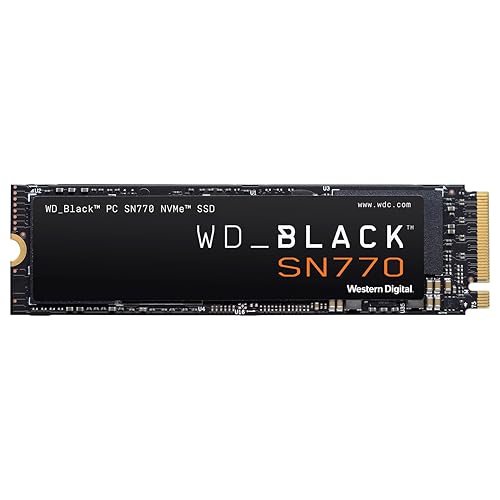
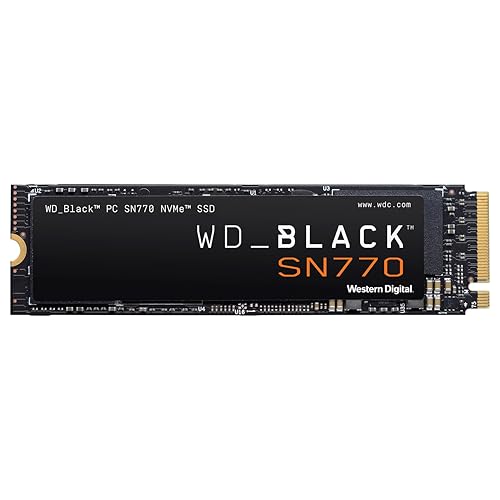
WD_BLACK SN770 1TB NVMe SSD — a mainstream Gen 4 games drive of exactly the class this guide recommends for most builds. Check on Amazon

WD_BLACK SN850X 1TB NVMe SSD with Heatsink — a flagship Gen 4 option with heatsink fitted — the pattern PS5 owners need and high-end PCs appreciate. Check on Amazon

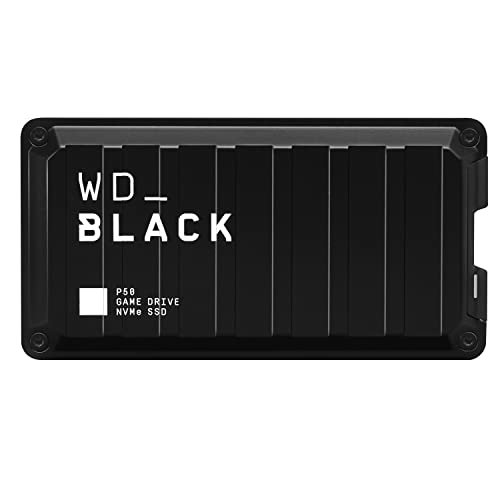
Western Digital P50 Game Drive SSD 1TB — a portable game drive for expanding console and PC libraries externally. Check on Amazon
Frequently asked questions
Do games load faster on NVMe than on a SATA SSD?
Yes, but modestly in most current titles — typically seconds on loads measured in tens of seconds, with some games showing almost no difference and a few showing more. The dramatic leap is from hard drive to any SSD. DirectStorage titles are the growing exception where NVMe’s advantage widens.
Does an NVMe SSD increase FPS?
No, not in any general sense. Frame rates are set by the GPU and CPU. Storage affects loading and asset streaming; only in rare stutter-prone edge cases on very slow drives does storage intrude into rendered performance, and any SSD fixes that.
Is 1TB enough for a gaming PC?
It is workable but tight: a handful of modern flagship titles can fill most of it alongside the operating system. 2TB is the comfortable size for a games machine today, and the better buy whenever the budget allows choosing between more space and a faster class.
Can I play games installed on an external SSD?
On PC, yes — USB SSDs play games fine, with loads limited by the port speed. On PS5, external drives cannot play PS5 games (storage only) but play PS4 games; on Xbox Series consoles, external drives play older-generation titles while current-generation games need internal or expansion-card storage.
Should I put Windows and games on the same NVMe drive?
Yes — that is the normal, sensible arrangement. There is no meaningful performance penalty for sharing a modern NVMe drive between the OS and the library, and it keeps management simple. Splitting across drives is about capacity organisation, not speed.
My SATA SSD feels fine. Am I missing out?
For gaming, very little. You are missing somewhat faster installs and patches, slightly quicker loads in some titles, and DirectStorage’s best behaviour in the small but growing list of games that use it. That is a ‘nice when you next buy’ list, not a ‘replace it now’ list.
Is a heatsink necessary for a gaming SSD in a desktop?
For Gen 4 drives in a ventilated case, a motherboard heatsink or the drive’s own spreader is generally sufficient; gaming loads are bursty rather than sustained. Fit the board’s heatsink if it has one — it costs nothing — and only chase aftermarket cooling if benchmarks under load show throttling.
Should I buy a separate small NVMe just for Windows and keep games on SATA?
You can, but the benefit is small and the capacity friction is real. A single larger NVMe for system plus current games, with the SATA drive as overflow library, is the arrangement most players end up happiest with.
Do I need to move my games to the NVMe drive to benefit, or can they stay on SATA?
They benefit where they live. A game installed on the SATA drive loads at SATA speeds; the NVMe drive cannot help it from across the system. Move the titles in current rotation to the NVMe drive — launchers make this a few clicks — and leave the backlog on SATA, where it loses nothing but a few seconds it was never going to miss.
The bottom line
For gaming, the storage hierarchy of importance is: have an SSD at all, have enough of it, then — a distant third — have the fastest class of it. NVMe is the right purchase today and SATA remains a right answer for existing owners and older machines. Spend first on capacity, keep the GPU budget intact, and your games will load quickly and live spaciously, which is all storage was ever asked to do.