Knowing how to fix slow SSD speeds starts with a diagnosis, because ‘slow’ has at least six different causes — a nearly full drive, a throttling-hot drive, a wrong port or slot, a cache that collapses on long writes, a disabled TRIM, or a workload the drive was never built for — and each has a different cure. This guide measures first, then works through the causes in order of likelihood, using safe software and settings fixes before physical ones. By the end you will know whether your drive needs a setting changed, a heatsink fitted, some free space, or an honourable replacement.
Disclosure: As an Amazon Associate, ilcastellomenu.com earns from qualifying purchases. Links to Amazon on this page are affiliate links; they cost you nothing extra. Listing details such as price and availability change often, so check the current Amazon listing before you buy.
One reassurance before the toolbox opens: SSDs do not gradually wear into slowness the way folklore suggests. A healthy SSD at half its endurance life performs essentially as it did new — wear affects lifespan, tracked in How to Check the Health of an SSD, not everyday speed. So a drive that has genuinely slowed is pointing at a condition, and conditions can be fixed. First, though, confirm the slowness is real and locate it, because the fix for a benchmark artefact is to stop worrying.
How to fix slow SSD speeds: measure properly before fixing anything
Run a recognised benchmark under fair conditions — machine idle, drive cool, plugged into power — following the method in How to Test the Speed of an SSD, and record four things: sequential read, sequential write, random 4K read, and how full the drive is. Then compare against the right expectation: your interface ceiling (SATA ~560 MB/s, PCIe 3.0 NVMe ~3,500 MB/s, PCIe 4.0 ~7,400 MB/s, USB portables at their port’s ceiling), not against a faster class’s marketing. A SATA drive reading at 520 MB/s is healthy; the same figure from a Gen 4 NVMe drive is a symptom.
Also characterise the slowness. Is everything uniformly slow, or only long writes? Only when the machine has been working hard (heat), or from a cold start? Only in one application? Each pattern indicts a different suspect: uniform slowness suggests connection or mode problems; long-write collapse suggests cache exhaustion; heat-correlated slowdowns suggest throttling; single-application slowness usually is not the drive at all. Write your pattern down — it is the map for the stages below — and if the benchmark says the drive is at class speed while the machine ‘feels’ slow, believe the benchmark and look elsewhere (memory pressure, CPU load, a failing cable on another device) before operating on a healthy drive.
In this guide
Fix 1: Free up space — the full-drive slowdown
SSDs need empty room to work. Writing requires pre-erased blocks; when a drive is nearly full, the controller must constantly erase and reshuffle data before it can write, and both speed and wear suffer. The practical threshold is around 75–80 percent full: beyond it, write performance degrades noticeably on many models, and at 95 percent the effect can be severe. Check your fill level first because this is the most common cause and the cheapest cure.
The cure is housekeeping with judgement. Move bulk media and dormant game installs to a secondary drive or one of the capacious options in Best Hard Drives for Storage; uninstall what you no longer use; clear the OS’s own caches and old update files with the built-in disk-cleanup tools. Aim to live at 70–80 percent full or less. If your drive is chronically full at a size that no longer fits your life, the durable fix is a larger drive — the capacity logic in How to Choose an SSD exists for exactly this moment — and cloning across to it is a solved problem (how to clone to an SSD). Do not reach for registry cleaners or miracle optimiser utilities; the free space is the fix, and it comes from your files, not from software folklore.
Fix 2: Cool the drive — thermal throttling
Fast NVMe controllers protect themselves by throttling — cutting speed sharply — when they overheat, typically during sustained writes. The signature is unmistakable once you look: a large copy or benchmark starts at full speed and falls off a cliff partway through, recovering after a rest. Confirm with a health utility’s temperature readout during a load: a drive pushing into its high thermal range while speeds sag has confessed.
Fixes, in order of effort: ensure the motherboard’s M.2 heatsink is actually fitted over the drive, with its thermal pad’s protective film removed (the film mistake from how to install an SSD is astonishingly common); improve case airflow so the drive sits in moving air rather than a dead pocket behind a hot graphics card; move the drive to a slot away from the GPU if the board offers one; and for drives that ship with or accept a low-profile heatsink, fit it — in desktops there is rarely a reason not to. Laptops offer fewer options: verify the drive has whatever thermal pad or shield the maker designed for the bay, keep vents clear, and accept that sustained-write peaks in a thin chassis will be shorter than a desktop’s. If throttling persists in a cool, well-arranged system, the drive model itself may simply run hot — a selection lesson for next time rather than a fault to repair.
Fix 3: Correct the connection — slots, ports, cables and modes
- NVMe lane width and generation: a drive in a slot wired for x2 lanes, or a chipset slot running at a lower PCIe generation, is capped below its class. The manual states each slot’s wiring; move the boot drive to the primary CPU-connected slot where possible.
- SATA mode: in BIOS, the SATA controller should be in AHCI mode. A drive running under a legacy IDE mode loses features and performance. (Changing this on an existing Windows install can prevent booting — research the safe procedure for your OS first, or leave it and note it for the next clean install.)
- SATA port and cable: confirm the cable is a SATA III cable on a SATA III port (older boards mixed generations) and swap the cable itself if speeds are erratic — cables fail silently and often.
- External drives: use the fastest port, the drive’s supplied cable (not a charge-only substitute), and no unpowered hub. A Gen 2×2 drive on a Gen 2 port is port-capped, not faulty — see the ceilings discussion in how to test the speed of an SSD.
- Slot sharing side-effects: some boards reduce an M.2 slot’s lanes when other slots are populated. The manual’s sharing table — the same one behind the vanishing-drive cases in How to Fix an SSD that is Not Detected — tells you if your configuration is lane-starved.
Fix 4: TRIM, firmware and operating-system settings
TRIM is the housekeeping protocol that lets the OS tell the drive which blocks are no longer in use, so the controller can keep plenty of erased blocks ready and writes stay fast. It is enabled by default on modern Windows, macOS and Linux, but verify rather than assume: on Windows, the ‘Optimize Drives’ tool shows the SSD being trimmed on schedule, and a command-line query of the TRIM setting should report it enabled. If TRIM has somehow been disabled, re-enabling it and running an optimisation pass can restore write performance on a drive that has been working without it.
Firmware is the second software lever. Drive makers occasionally ship updates that fix throttling behaviour, sleep-state bugs and performance regressions; the maker’s utility (the same one used for health checks) reports whether an update exists for your exact model. Apply updates on stable power, after a backup, and only from the manufacturer’s own tool or site. While in settings: confirm the OS power plan is not parking the drive aggressively on a desktop (the ‘turn off hard disk’ and PCIe link-state settings can add latency that feels like slowness), and make sure no scheduled antivirus scan or cloud-sync backlog is silently saturating the disk whenever you benchmark — background load is the great impersonator of drive faults.
Fix 5: Understand cache collapse — when the drive is ‘working as designed’
Many drives, especially DRAM-less and QLC models, write at high speed into a fast cache and slow dramatically — sometimes to near-hard-drive pace — once a long transfer exhausts it. A 20GB copy flies; a 200GB copy crawls for its second half. No setting fixes this, because it is the product’s design point, not a malfunction; the dram vs dramless SSD comparison explains the mechanics and which designs resist it. Your options are behavioural and strategic: stage very large transfers in chunks with pauses, schedule them overnight, or — if sustained writing is your actual job — replace the drive with a model chosen for sustained performance (TLC NAND, DRAM, strong reviews at large test sizes), accepting that this is an upgrade, not a repair.
Distinguish cache collapse from throttling before concluding: collapse tracks the amount written in one continuous run and recovers quickly; throttling tracks temperature and needs cooling time. A benchmark with a large test file, watched alongside a temperature readout, separates the two in one sitting — and the distinction decides whether your money goes to a heatsink or to a different drive.
When slow means dying: replacement criteria
Occasionally, slow is a symptom of genuine decline: a drive logging media errors, consuming its spare blocks, or showing a health percentage in freefall may also perform erratically as its controller works around failing NAND. Run the full health check from how to check the health of an SSD whenever slowness is unexplained by the stages above. Errors present plus slowness equals replace — back up immediately, clone to the replacement while reads still succeed, and retire the old drive. Slowness alone, with a clean health report and a cause found in the earlier stages, is never a reason to replace a drive; it is a reason to fix the cause and keep the money.
And if every stage checks out — space fine, temperatures fine, connection at full width, TRIM on, health clean, benchmark at class ceiling — then the drive was never slow, and the machine’s hesitation lives elsewhere: memory pressure, a CPU-bound application, a network drive in the workflow, or an operating system install that has earned a clean start. Storage is the most-blamed and least-often-guilty component in the modern PC; the discipline of this guide — measure, then fix in order — is what separates a repaired machine from a replaced-for-no-reason drive. For context on what class of drive a replacement would even be, the Best Ssds for PC shortlist shows the current field.
Laptop-specific slowdowns: power, heat and thin air
Laptops add two slow variables desktops mostly escape. The first is power policy: on battery, many laptops trim PCIe link states and processor power in ways that shave storage performance measurably — benchmark on mains power before diagnosing anything, and compare like with like thereafter. The second is thermal reality: a laptop’s M.2 bay sits in a sealed, warm sandwich with the battery and motherboard, and sustained-write speeds in that environment will always be shorter-bursted than a desktop’s. Neither is a fault. The actionable laptop list is short: keep vents and the fan path dust-free, ensure the drive’s factory thermal pad or shield (often a thin metal cover the maker fitted) went back on after any service, and do not stack a second heat source — a hard-working dGPU — against the drive during long transfers if the schedule allows otherwise.
The background-load audit: proving the drive innocent
Before any fix, spend ten minutes auditing what else is using the disk, because background load is the most convincing impersonator of a failing SSD. Open the task manager or activity monitor’s disk view during a ‘slow’ episode and sort by activity: cloud sync clients catching up after a holiday, a game launcher verifying a library, an antivirus full scan, a backup run, an operating system update staging itself — each can saturate a drive for an hour and make a healthy machine feel broken. The signature is timing: slowness that arrives at the same hour daily, or after every boot for twenty minutes, is scheduled software, not degrading hardware.
If the audit finds a culprit, the fix is configuration, not hardware: schedule scans and backups for idle hours, exclude work folders from real-time sync where appropriate, and let updates finish rather than perpetually deferring them into your working day. If the audit finds nothing — disk idle while the machine crawls — the drive is doubly innocent, and attention belongs on memory pressure and CPU load. Either way the audit earns its ten minutes: it is the difference between treating a symptom and treating a cause.
A maintenance rhythm that prevents most slowdowns
Slow SSDs are usually not maintained badly in a single dramatic way; they drift — fuller each month, dustier each season, one more background agent each install. A light rhythm prevents the drift. Monthly: glance at free space and keep the fifth-of-the-drive rule. Quarterly: check for a drive firmware update while you run the health check, and clear the downloads-and-desktop sediment that migrates onto the system drive. Annually: a benchmark against your saved baseline, a blast of air through the case or laptop vents, and an honest review of whether the drive’s size still fits your life. None of this takes more than minutes, and together it is the entire difference between the owners who meet this guide in a panic and the owners who never need it.
Re-testing after fixes: closing the loop
Every fix in this guide deserves a verdict, and the verdict is a re-run of the identical benchmark under the identical conditions you started with. Freed space should show write figures recovering; a fitted heatsink should show a long copy holding its speed to the end; a slot move should show the sequential ceiling stepping up to the class figure. If the number did not move, the fix did not address the cause — return to the pattern you recorded at the start and promote the next suspect. This loop, measure-fix-measure, is the whole method; skipping the second measurement is how machines accumulate three ‘fixes’ and the original problem. When the loop closes with figures at class ceiling and a clean health report, stop: the drive is fixed, the baseline note gets updated with today’s date, and the machine goes back to being a tool instead of a project.

Split the symptom: slow reads, slow writes, or slow everything
Before applying any fix, spend two minutes deciding which slowness you actually have, because the three kinds have almost disjoint causes. Slow writes with healthy reads point at the write-side machinery: a full drive, an exhausted cache, garbage collection drowning, or a nearly exhausted drive rationing its remaining life. Slow reads with healthy writes are rarer and more interesting — they implicate the connection’s negotiated speed, a controller struggling with a degrading map, heavy read interference from another process, or, on an old drive, cells whose charge has faded enough that error correction works overtime on every read. Slow everything, reads and writes together, with good temperatures and free space, usually indicts the host rather than the drive: the slot, the cable, the driver, the power plan, or a background workload eating the machine the drive lives in.
The split is testable in one benchmark run, because every tool reports reads and writes separately. Compare each against your baseline or against the drive’s reviewed figures, and let the lopsided one lead the investigation. Owners who skip this step tend to apply the full liturgy of fixes — freeing space for a read problem, reseating cables for a cache problem — and conclude the drive is haunted. It is not haunted; it is specific. Match the fix to the half that is actually slow, and most of this guide’s remedies become a short list instead of a weekend.
Power management’s quiet tax: link states, plans and sleepy controllers
Modern systems save power by letting the PCIe link and the drive itself nap between requests, and the waking is not free. Aggressive link power management can add latency to the first access after every idle moment, which users experience as a machine that hesitates — opening a folder pauses, a game stutters on its first asset fetch after a quiet scene — while benchmarks, which keep the drive continuously busy, report perfect health. That mismatch is the fingerprint of a power-state problem: the drive is fast when awake and slow to wake, and the test that would prove it is not throughput at all, but a latency measurement after idle pauses.
The experiment is safe and reversible. On a desktop, set the power plan to its high-performance variant for a day and note whether the hesitations vanish; in the firmware, link-state power management settings can be relaxed for the slot in question. On a laptop the same settings trade against battery life, so treat any change as a dial to tune rather than a switch to flip — you may accept a little wake latency as the honest price of an hour’s more battery, or decide the responsiveness is worth the cost. Either way, decide knowingly. A surprising number of ‘slow SSD’ complaints in thin laptops are this dial, set by the manufacturer for the spec sheet’s battery figure, waiting for an owner who prefers the other end of the trade. If the hesitations survive every power setting, the diagnostic path in our guide to testing SSD speed will separate latency from throughput properly.
The software stack audit: drivers, encryption and security tools
Between your applications and the drive sits a stack of software, and any layer can become the bottleneck while the drive tests innocent. Storage drivers are the first suspects after any major system change: a machine running on a generic driver, or on a chipset vendor’s driver that an update silently replaced — or failed to replace — can leave a fast drive negotiating like a slow one. Check which driver the controller reports, compare it with the motherboard or laptop maker’s current offering, and treat driver changes as deliberate acts, one at a time, with a benchmark before and after. Encryption is the second layer: software-encrypted volumes on older processors, or hardware encryption accidentally running in a software mode, can tax exactly the small-file operations that make a system feel quick. The fix is rarely to remove encryption — it is to confirm it is running in the mode your hardware accelerates.
Security software is the third layer, and the audit method matters more than the verdict. Real-time scanning reads what you read and inspects what you write; on a healthy setup the cost is small, but a misconfigured exclusion list or a scanner locked in a loop over a game library or a virtual machine folder can halve effective storage performance in those places. Test by timing a copy with the scanner’s real-time protection briefly paused — briefly, deliberately, and restored immediately after — and if the difference is dramatic, the remedy is exclusions for known, trusted bulk folders, not life without protection. Each layer of the stack gets the same treatment: measure, change one thing, measure again. The drive at the bottom of the stack is usually the last thing that was ever slow.
Slow in one application: when the program, not the drive, is the bottleneck
A drive can be healthy, a system honest, and one application still crawl — because the application is waiting on something that is not storage throughput at all. Games wait on processors to decompress assets. Photo editors wait on previews being generated by a single thread. Browsers wait on a profile database locked by another process. Virtual machines wait on a host that has over-committed its memory and is paging — a condition that looks exactly like a dying drive, down to the hundred-percent disk activity, while the drive itself is merely the messenger carrying the memory system’s distress. The tell, in case after case, is that the same operation is fast in a different program, or the same program is fast with different data.
Diagnose at that boundary deliberately. Time the slow operation, then time a plain large copy to the same drive in the same minute; if the copy flies and the application crawls, close the storage case and open the application’s — its cache settings, its scratch location, its version, its own forums where the same complaint will be filed under the program’s name. Owners burn weekends replacing drives for application faults with metronome regularity, and the two-minute copy test is all that stands between them and the truth. Storage is the most blamed component in the machine precisely because everything passes through it; passing through is not the same as causing.
Knowing when slow is simply the drive you bought
One diagnosis in this guide is not a fault at all, and reaching it honestly saves more money than any fix. Entry-level drives — especially large, inexpensive ones built on QLC NAND with modest controllers — are designed to a price, and their behaviour after the cache, under load, at high fullness, is not a malfunction to be repaired but a specification to be understood. If your drive benchmarks at its reviewed figures, holds its health, runs cool, sits in the right slot — and still slows to a crawl twenty minutes into a huge copy — the drive is very likely performing exactly as its design intends, and no setting in this guide will promote it into a different class of hardware.
The correct response is role management, not repair. Keep that drive for the work it does well — libraries, archives, everyday light duty — and, if your workload genuinely includes sustained heavy writing, let the next drive be chosen for that: the sustained-write figures, the NAND type and the endurance class, as our guide to choosing an SSD lays out. Knowing the difference between a broken drive and a mismatched one is the most valuable diagnostic skill in this entire article, because one deserves a warranty claim, the other deserves a better assignment — and confusing them wastes either a good drive or a good warranty.
After the big update: when slowness arrives with a changelog
A drive that slows the week a major operating-system update lands is rarely dying; it is introducing itself to new management. Big updates replace storage drivers, reset power policies, rebuild search indexes, re-scan every file for security, and occasionally change the defaults for features like device encryption or storage sense — each capable of taxing the drive for days, and all of them temporary or fixable. The diagnostic error is to benchmark during the settling period and conclude the hardware aged overnight. Give a major update a few days of normal use, confirm the one-off jobs have finished, then measure. Slowness that survives the settling, with the background audit clean, earns the full investigation this guide describes; slowness inside it is usually just the sound of a system doing its paperwork.
The exception proves the rule in a specific way: if the slowdown began with an update and persists for weeks, read the update’s known-issues notes and the drive maker’s firmware page before anything else, because the pairing of a new system build with an old drive firmware is a documented genre of storage misery, and the fix — one careful firmware update, on stable power, after a verified backup — is already written and waiting. Timing is a diagnostic. A fault with a birthday is a fault with a cause, and the cause is usually whatever shares the birthday.
External drives and the slow lane nobody suspects
Everything in this guide applies outside the case too, with one dominant extra suspect: the link. An external SSD is only as fast as its port, its cable and its enclosure’s bridge chip, and each of those fails quietly downward — a cable that negotiates a slower USB speed, a front-panel port wired to an older standard, a hub sharing one link among four devices. The drive inside is frequently blameless and frequently replaced anyway. Test an external drive the way you would want to be tested: shortest good cable, directly into the machine’s fastest port, nothing else on the hub, and only then read the numbers. A drive that recovers its speed under those conditions was never slow; it was under-connected, which is a shopping problem about cables and ports, not a dying-drive problem.
Heat writes the second half of the external story. A pocket drive copying a backup in a warm room inside a sealed shell will throttle exactly as an internal drive does, with fewer remedies available — so give it air, give it a metal shell that touches the drive properly, and do not judge its sustained speed by a test run inside a laptop bag. External storage lives a harder thermal life than anything screwed to a motherboard, and most of its ‘failures’ are just physics, patiently explained.
Game loads versus file copies: why the two clocks disagree
Players often report a paradox: benchmarks and file copies look healthy, yet game loading feels no better than the old drive — or a new drive that copies beautifully loads games like the SATA disk it replaced. The paradox dissolves once you see that loading a game is mostly not a file copy. The engine reads compressed assets, decompresses them with the processor, builds shaders, negotiates with the graphics driver, and only then asks the drive for the next piece. Storage is one instrument in that orchestra, and on a machine where the processor or a shader-compilation step leads, a faster drive changes the total by seconds you need a stopwatch to find. The honest test for a gaming complaint is the one in our SSD versus NVMe for gaming comparison: time the actual load, in the actual game, before and after — and believe that clock over the benchmark’s.
The reverse paradox exists too: a drive that benchmarks modestly can feel superb in games, because its latency is consistent and its random reads at low queue depth — the figures games actually consume — are strong. Feel and figures measure different things, and the owner who learns to test the workload itself, rather than its synthetic cousins, stops being surprised by either direction of the disagreement.
Closing the loop for good: the note you leave on the machine
Every fix in this guide ends the same way: with a measurement that proves it worked. Add one step and the proof becomes permanent — write down what was wrong and what fixed it, with the date, and tape the note inside the case or save it with the machine’s documents. Storage faults recur in families: the slot that negotiates slowly, the enclosure that runs hot, the update that resets the power plan. The second occurrence, met with a note from the first, is a five-minute fix. Met without one, it is the same weekend of diagnosis, performed again by an older, more annoyed version of you. Machines forget nothing but tell nothing; the note is how they learn to talk.
The seasonal slowdown: heat, dust and the machine’s calendar
Some slowdowns keep a calendar. A desktop that was quick in spring and sluggish by late summer may simply be hot: ambient temperatures climb, dust mats the filters and the drive’s heatsink, and the throttling threshold that winter never reached becomes an afternoon routine. Laptops keep the same calendar with less margin. Before any deep diagnosis, ask the seasonal question — has the room changed, has the machine been cleaned this year, does the slowdown arrive in the afternoon and forgive by morning? A vacuum, a filter rinse and a heatsink reseat have cured more ‘ageing SSDs’ than any software in this guide, because the drive was never ageing at all. It was warm, and it was telling you the only way it knows how: by slowing down until the temperature makes sense again.
Rebuilding trust in a drive that tested fine
There is a psychological stage after every storage scare, and it deserves a paragraph: the drive tested healthy, the fix worked, and yet you watch it for weeks, half-expecting betrayal. The cure is evidence, scheduled. Re-run the benchmark monthly for a quarter, save the results beside the health reports, and let three identical readings do what reassurance cannot. If the numbers hold, close the case in your mind as firmly as you closed the machine. If they drift, you have caught it early, with data. Either way, the watching becomes a system instead of a mood — and a system, unlike a mood, eventually lets you get back to using the computer for what it was for.
The fix order, memorised as a single sentence
If this guide’s many remedies blur together under pressure, keep the order in one sentence: measure honestly, split the symptom, free the space, cool the drive, check the connection, audit the software, and only then judge the drive. That sequence runs from cheapest to dearest and from commonest to rarest, and following it in order is worth more than any individual fix in it — because most slow drives are cured by step two or three, most of the rest by step five, and the drive that survives all six with its slowness intact has genuinely earned its replacement conversation. Print the sentence on the note you tape inside the case. Future you, mid-diagnosis and short on patience, will be glad past you did the remembering in advance.
Speed as a relationship, not a number
Live with a drive long enough and its speed stops being a specification and becomes a relationship: you know its moods, its warm afternoons, the way it behaves when full, the sound of a system at peace with its storage. This guide has treated slowness as a series of faults, but the deeper skill it has been teaching is acquaintance — baselines kept, seasons noticed, changes dated, so that when behaviour shifts you can say what shifted and roughly when. An owner who knows their drive that well rarely needs a troubleshooting guide at all, because the diagnosis arrives with the symptom. Until then, the method stands: measure, split, fix in order, verify, and write it down. The drive will do the rest, at exactly the speed it honestly has.
One promise to make before you close the case
Promise yourself this: the next slowdown gets measured before it gets mourned. Not benchmarked to death, not screenshotted into a forum thread — just timed, split into reads and writes, compared against the baseline you now keep, and matched against what changed in the machine that week. That small promise converts every future slowdown from a mystery into a procedure, and procedures end. It is the difference between owning storage and being haunted by it, and it costs one honest measurement at the moment you would otherwise start guessing. Your drive, which has been telling the truth all along, will appreciate being asked properly.
And if the drive is simply old
Give the last word to the simplest case of all: a drive that is slow because it is old, full of years, honest in its health report and tired in the specific ways this guide has catalogued. There is no shame in that diagnosis and no trick that reverses it — only the calm sequence of backing up, choosing a successor for its strengths, cloning at leisure, and demoting the veteran to work that suits its remaining pace. Drives, like the machines they live in, are allowed to retire. The owner’s job is only to notice in time, and noticing — measured, dated, unpanicked — has been the subject of every page above.
Final check, final word
Run the benchmark once more, save it beside the first one you took, and look at the two together. Whatever they show — recovery, stability, or an honest decline you have already planned around — you now own the story of this drive’s speed instead of renting opinions about it. That was the point of every fix in this guide.
Gear mentioned in this guide
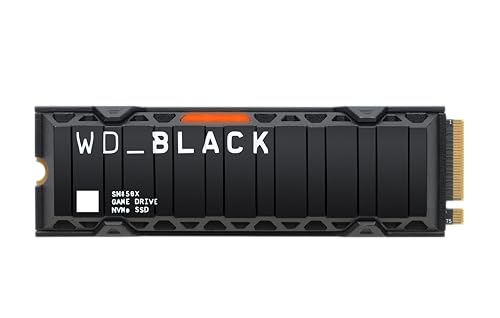
WD_BLACK SN850X 1TB NVMe SSD with Heatsink — the heatsink-fitted pattern that solves throttling on flagship Gen 4 drives — the Fix 2 hardware answer. Check on Amazon
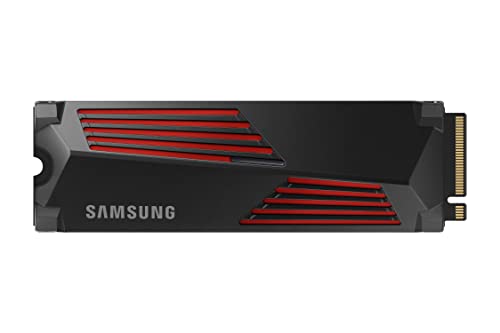
Samsung 990 PRO with Heatsink 1TB — another factory-heatsinked flagship whose sustained behaviour illustrates the composed end of the market. Check on Amazon

Crucial P3 Plus 1TB NVMe SSD — a mainstream drive of the kind where cache behaviour, not faults, explains most long-write slowdowns — the Fix 5 case study. Check on Amazon
Frequently asked questions
Why is my SSD slower than when it was new?
Most commonly because it is fuller (writes degrade as free space vanishes), hotter under load, or being measured under different conditions. Wear itself does not slow a healthy SSD meaningfully. Work through the stages: fill level, temperature, connection, TRIM — in that order — and the cause usually surfaces.
How full is too full for an SSD?
Performance starts suffering noticeably beyond roughly 80 percent full on many models and can degrade sharply near 95 percent. Keep at least a fifth of the drive free as a standing habit; it protects both speed and endurance.
Does defragmenting speed up an SSD?
No — it does nothing useful for flash (there is no seek time to optimise) and wastes write endurance. Modern operating systems already run the correct SSD maintenance (TRIM) automatically. If a tool suggests defragging your SSD, ignore the tool.
Why do my write speeds collapse during big copies?
Either the drive’s fast write cache filled (a design behaviour, worst on DRAM-less and QLC models) or the controller overheated and throttled. Watch temperature during a copy: hot means cooling fixes; cool means cache, and the answers are chunked transfers or a sustained-performance drive.
Can a firmware update really fix SSD speed?
Occasionally, yes — makers have shipped updates correcting throttling curves, sleep bugs and performance regressions. It is worth checking the manufacturer’s utility when slowness is unexplained. Back up first and update only on stable power.
My benchmark is fine but the PC feels slow. Is the SSD lying?
The benchmark measures the drive; the feeling measures the whole machine. Memory pressure, CPU load, background sync or scans, and software bloat all mimic storage slowness. If the drive benchmarks at its class ceiling with a clean health report, look elsewhere — the drive has an alibi.
Will adding a heatsink void my SSD’s warranty?
Fitting a motherboard heatsink or a third-party cooler over the drive does not modify the drive and is standard practice. Removing a factory-fitted heatsink can void warranty on some models and risks damaging the drive — if your drive came with one, leave it on and cool the case instead.
My SSD is fast in benchmarks but game installs crawl. Why?
Installs are a chain — network download, decompression by the CPU, then writes — and the slowest link sets the pace. If the benchmark says the drive is quick, watch CPU usage during an install: a saturated processor, not the SSD, is the usual governor, with the drive’s write cache the second suspect on very large installs.
The bottom line
Slow SSDs are almost always explainable: too full, too hot, wrongly connected, missing TRIM, or honestly cache-limited by design. Measure against your class ceiling, fix in the order given, and reserve replacement for drives whose health reports — not their benchmark screenshots — say their time has come. The drive you already own is usually one adjustment away from the speed you remember.