ilcastellomenu.com is reader-supported. When you buy through links on our site, we may earn an affiliate commission.
Where to Buy
Pairing a camera with a Mac sounds simple until the first cable refuses to cooperate. The best cameras for Macs are not simply the best cameras full stop; they are the ones whose USB streaming actually works on Apple silicon, whose companion apps are signed and maintained for current macOS releases, whose files drop into Photos, Final Cut Pro and Lightroom without a transcoding detour, and whose manufacturers publish Mac firmware updaters instead of treating them as an afterthought. That compatibility layer is where this guide spends its attention.
There are two distinct jobs hiding inside this keyword. The first is the desk job: calls, recordings and streams where the camera lives above your monitor and macOS sees it as a webcam, either natively over USB or through a small utility. The second is the creator job: a proper interchangeable-lens or compact camera that tethers to the Mac for studio work, streams cleanly when asked, and hands over footage in codecs Apple silicon edits natively. We have included both kinds, and the verdicts say plainly which job each pick is really for.
Continuity Camera deserves an honest mention before any shopping happens. If you own a recent iPhone, your Mac already has a surprisingly good desk camera in your pocket, complete with Desk View and portrait lighting. The picks below earn their place by beating that free option on specific grounds: a larger sensor for dim rooms, optical behaviour an iPhone cannot mimic, tracking that follows you around a studio, or tethering and recording features that turn the Mac into a genuine production hub. If none of those grounds matter to you, save your money — this guide will tell you where that line falls.
One practical warning that shapes several verdicts: macOS tightens camera and microphone permissions with every release, and third-party webcam utilities occasionally break for a few weeks after a major update. Cameras that present themselves as standard USB video devices, with no driver at all, sail through those transitions. Cameras that depend on a companion app carry a small, recurring risk. We weight that difference heavily, because a camera that vanishes from your meeting after an update is worse than a slightly softer image that never does.
Key Takeaways
- Driver-free USB video class support is the single best predictor of a painless Mac experience.
- Apple silicon edits H.264 and HEVC natively; exotic codecs cost you transcoding time on every project.
- Continuity Camera is the free benchmark — a purchase must beat it on sensor size, tracking or tethering.
- Check that the maker ships a macOS firmware updater, not just a Windows one, before you buy.
- USB-C native cables remove the dongle roulette that still breaks older micro-USB camera setups.
- Tethering support in your actual editor matters more than the camera’s headline resolution.
In this guide
Quick Picks: Six Cameras That Behave on macOS
| Pick | Badge | Why it earns its place |
|---|---|---|
| Logitech Brio 4K | Best Pure Webcam for Mac | Plugs into any modern Mac and simply appears in FaceTime, Zoom and Teams at up to 4K, no driver required. |
| OBSBOT Tiny 2 | Best Tracking Desk Camera | A motorised gimbal follows you around the room while its Mac app stays refreshingly light. |
| Elgato Facecam | Best for Mac Streamers | Fixed-focus simplicity, honest colour and a Camera Hub app that treats macOS as a first-class citizen. |
| Sony ZV-E10 II | Best Hybrid for Creators | Streams over USB, records superb footage to card and tethers into a Mac studio workflow. |
| Logitech StreamCam | Best Vertical-Video Option | Rotates for portrait framing and plays nicely with Mac recording apps at a friendly price tier. |
| DJI Osmo Pocket 3 | Best Pocket Camera That Doubles as a Webcam | A gimbal camera for the road that also sits on your desk and streams to the Mac when you get home. |
How Did We Choose Cameras Specifically for Mac Owners?
Compatibility came first, ahead of image quality. Every pick here either presents itself to macOS as a standard USB video device or ships a maintained Mac application, and we checked that the manufacturers publish macOS firmware tools rather than Windows-only updaters. A camera you cannot update from the computer you own is a camera with an expiry date.
Second, we looked at the file journey. Mac creators live in Photos, iMovie, Final Cut Pro, Premiere on Apple silicon or DaVinci Resolve, and the smoother a camera’s codecs and colour profiles land in those tools, the better the ownership experience. Picks that record widely supported formats, offer clean USB streaming without capture cards, and expose sensible colour options scored ahead of technically superior cameras that demand conversion steps.
Third, we judged the desk reality: cable type, mount options, indicator lights you can trust, and whether the camera behaves when the Mac wakes from sleep — a small, maddening failure mode that cheaper webcams still exhibit. The studio picks were judged on tethering reliability and remote control from macOS instead.
Finally, we kept the free rival in view. Continuity Camera improved again with recent iPhones, so each pick had to name the specific advantage that justifies spending money beside a capable phone. Those advantages are written into the verdicts rather than left as marketing fog.
Why Does Driver-Free Support Matter More on a Mac Than Anywhere Else?
Apple’s security model is the reason. macOS sandboxes camera access, notarises the software that requests it and periodically changes the rules underneath third-party utilities. A webcam that relies on a kernel extension or a fragile virtual-camera plugin can lose a version cycle to that churn. A webcam that speaks the standard USB video protocol needs no permission beyond the normal prompt, because the operating system itself is the driver.
This is also why the humble spec line “UVC compliant” deserves more respect from Mac buyers than any resolution claim. It predicts behaviour across FaceTime, QuickTime Player, OBS, browsers and meeting apps without per-app troubleshooting. Every webcam in this guide qualifies, and the two mirrorless-style picks stream over USB using the same standard, which is precisely why they made the list ahead of prettier rivals that still lean on capture cards.
There is a second, quieter benefit: longevity. A driver-free camera bought today will very likely still work on the Mac you buy in five years. App-dependent cameras carry the manufacturer’s ongoing goodwill as a hidden specification, and goodwill is not something you can check in a settings panel.
Which Six Cameras Deserve a Place Beside Your Mac?
The list deliberately mixes three true webcams, one streaming specialist, one hybrid mirrorless body and one pocket gimbal camera. Read the badges as job descriptions. If your Mac life is meetings, the top half of the list is yours; if your Mac is an editing workstation that occasionally hosts a stream, start from the Sony and the DJI and work backwards.

Logitech Brio 4K — Best Pure Webcam for Mac
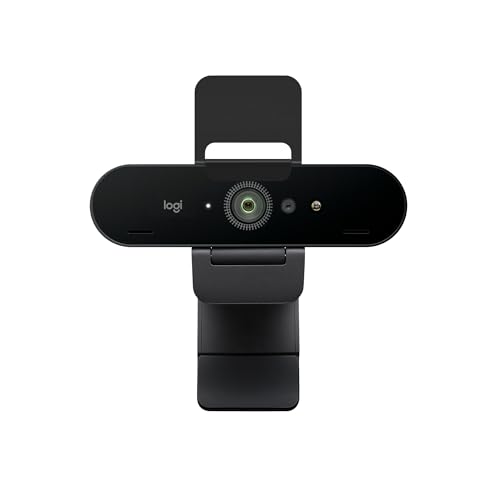
The Brio has been the default recommendation for Mac desks for years, and the reason is boring in the best possible way: you plug it into a USB-C or adapted USB-A port, open any app that uses a camera, and it is simply there, at resolutions up to 4K, with a choice of field-of-view settings that let you frame a tight head-and-shoulders shot or a wider whiteboard view. No Logitech software is required for that core behaviour, which is exactly the trait that survives macOS updates unscathed.
For the Mac-based professional, the details line up well. The sensor handles the mixed lighting of a home office — window on one side, warm lamp on the other — with auto-exposure that rarely hunts, and the dual microphones are serviceable enough that a separate mic becomes an upgrade rather than a rescue. Logitech’s optional settings app on macOS lets you store zoom and colour preferences on the camera itself, so the framing you tuned on Monday is still there on Friday, on any machine you plug into.
Where the Brio shows its age is in ambition: it is a superb meeting camera and an unremarkable creative one. Fixed focus behaviour at close range and a small sensor mean product demos and beauty close-ups flatten out. Buy it for the calendar full of calls it will quietly ace, not for the channel you keep meaning to start.
MacBook owners who dock at a desk monitor will appreciate a subtler strength: the Brio wakes reliably. Sleep-wake cycles are where bargain webcams earn their reputations for vanishing, and this camera reappears in the app list within a second or two of the Mac stirring, day after day. Paired with a laptop stand that puts the lens near eye level, it produces the quietly competent picture that promotion committees and clients register as professionalism without ever consciously noticing the camera at all.
- Resolution: up to 4K at 30fps, 1080p at higher frame rates
- Connection: USB, driver-free on macOS
- Adjustable field of view in software
- Built-in dual microphones
- Monitor mount and tripod thread
Strengths
- Instantly recognised by every Mac app we care about
- Flexible framing without moving the camera
- Settings persist on the device between machines
Trade-offs
- Small sensor limits close-up and low-light finesse
- Autofocus can breathe during animated conversations
- Premium tier pricing for a webcam
Best for: Mac professionals whose day is meetings and who want zero-fuss 4K presence.
Not suited for: Creators filming products, faces at close range or anything cinematic.

OBSBOT Tiny 2 — Best Tracking Desk Camera
The Tiny 2 answers a question the Brio never asks: what if you do not sit still? Its motorised two-axis gimbal watches for you and pans and tilts to keep you framed while you present at a whiteboard, demonstrate a prototype on your desk, or pace through a recorded lecture. On a Mac the companion software is comparatively restrained — gesture controls, framing presets and tracking toggles — and the camera still functions as a standard webcam if you never install it.
Teachers and presenters feel the benefit first. Desk View-style overhead shots, hand-tracking for showing documents, and voice commands that start tracking without touching the keyboard all suit the way Mac users already work with a machine across the room connected to a television. The image itself comes from a larger sensor than most webcams carry, and it shows in evening recordings where lesser cameras smear faces into watercolour.
The honest caveats are mechanical. A gimbal is a moving part on your desk; it is silent in normal use but it is one more thing that can wear, and the tracking, while good, will occasionally lock onto a poster or a passing colleague with comic confidence. Treat the gestures as conveniences layered on a strong camera, not as magic, and the Tiny 2 is the most capable desk camera in this guide.
Recording locally is where the Tiny 2 quietly outclasses fixed webcams for Mac educators. A lecture captured in OBS on an Apple silicon machine keeps the full sensor quality rather than the compressed feed a meeting platform returns, and the gimbal’s smooth pans read as deliberate camera work in the finished video. Lesson recordings, product walkthroughs and studio tours all benefit from a camera that reframes itself while your hands stay on the thing you are teaching about.
- Motorised pan and tilt with subject tracking
- Larger sensor than typical webcams
- Gesture and voice control options
- USB-C connection, driver-free base function
- Mac companion app for presets
Strengths
- Keeps presenters framed without a camera operator
- Noticeably better dim-room image than most webcams
- Overhead and desk demonstration modes suit teaching
Trade-offs
- Moving parts add cost and a wear item
- Tracking occasionally chooses the wrong subject
- Best features need the companion app installed
Best for: Mac-based teachers, presenters and demonstrators who move while they talk.
Not suited for: Static desk workers paying for motion they will never use.

Elgato Facecam — Best for Mac Streamers
Elgato built the Facecam around a refusal: no autofocus. The lens is fixed at a desk-appropriate distance, which sounds like a limitation until you watch a stream where an autofocus webcam pulses in and out while its owner leans toward a game. On a Mac, the Camera Hub software exposes exposure, white balance and field of view with settings saved to the camera, and the uncompressed-feeling image — crisp, honest, free of the beauty filters that plague this category — is exactly what streaming audiences read as professional.
The Mac fit goes deeper than the app. Elgato’s ecosystem is heavily used by Mac streamers, so the Facecam’s behaviour in OBS on Apple silicon is well-trodden ground, and firmware updates arrive through the same Mac software rather than a borrowed Windows laptop. The image leans on you to provide decent light; with a key light in place, the fixed lens delivers a sharpness that autofocus rivals rarely sustain for a whole broadcast.
Choose it with eyes open about its demands. There is no microphone at all, by design, and in a dark room with a single desk lamp the fixed exposure philosophy gives you less rescue than an auto-everything webcam. Streamers who already own a microphone and a light — which is most serious streamers — will find those omissions read as focus rather than corner-cutting.
There is also a workflow elegance to how the Facecam treats exposure. Because nothing is automatic, the picture you dial in during a quiet Tuesday test is the picture your audience gets on Saturday’s stream — no surprises when a cloud crosses the window or a pale shirt confuses a meter. Mac streamers running long broadcasts prize that predictability, and the on-device settings mean a borrowed laptop or a fresh OBS install does not reset your look to factory guesswork.
- Fixed-focus lens tuned for desk distance
- Settings stored on-device via Camera Hub
- No built-in microphone (streamer-focused design)
- USB-C, standard webcam protocol
- Strong OBS-on-Mac track record
Strengths
- No focus hunting, ever, during a stream
- Natural, unfiltered image quality
- Mac software treated as a primary platform
Trade-offs
- Requires your own microphone and decent lighting
- Fixed focus punishes very close or far seating
- Weak choice for casual meeting-only use
Best for: Mac streamers and podcasters who already own a mic and a light.
Not suited for: Anyone wanting one device that handles picture and sound for calls.

Sony ZV-E10 II — Best Hybrid for Creators
When the Mac is a workstation rather than a meeting terminal, the ZV-E10 II is the pick that grows with the work. It streams over USB as a standard webcam for calls and broadcasts, records high-quality video to its card for edited projects, and tethers to Sony’s Mac software for studio shooting where the big monitor is the viewfinder. That triple life is why it anchors the creator half of this list.
The image gap over any webcam is not subtle. An APS-C sensor with interchangeable lenses means real background separation, low-light footage that stays clean after the sun leaves your office, and colour profiles that grade gracefully in Final Cut Pro. Mac editors on Apple silicon will appreciate that its mainstream codecs cut smoothly without proxy media on recent machines, keeping the file journey from card to timeline short.
The trade is desk discipline. A mirrorless camera as a webcam wants a dummy battery or USB power plan for long sessions, a lens choice made deliberately — the kit zoom is fine, a fast prime is transformative — and a few minutes in the menus to set streaming resolution and disable auto power-off. None of that is difficult, but it is a different ownership style from plug-and-play, and meeting-only users should honestly buy the Brio instead.
Stills photographers should not overlook what tethering unlocks here. Shooting product or portrait work into a Mac means clients and collaborators review full-size images on a calibrated monitor as the session unfolds, focus can be checked at pixel level before the set is struck, and files land already organised in the folder your editor will open. That studio rhythm, more than any single specification, is what separates a camera that visits your Mac from a camera that works with it.
- Sensor: APS-C, interchangeable E-mount lenses
- USB streaming plus internal recording
- Tethering and remote control via Mac software
- Product showcase and background-defocus modes
- Strong autofocus with eye tracking
Strengths
- Image quality no webcam in this guide can approach
- One camera for streams, calls and edited productions
- Deep, affordable lens ecosystem
Trade-offs
- Needs power and setup planning for long desk sessions
- Total cost climbs once lenses join the cart
- Overkill for a calendar of internal meetings
Best for: Mac creators who stream, record and shoot stills with one body.
Not suited for: Plug-and-play meeting users or anyone allergic to menus.

Logitech StreamCam — Best Vertical-Video Option
The StreamCam’s party trick is physical: rotate it in its mount and the frame turns portrait, ready for the vertical formats that dominate phone-first platforms. For Mac users cutting Reels, Shorts or TikTok content at a desk, that mechanical honesty beats cropping a landscape frame and throwing away most of the pixels. It connects over USB-C, appears as a standard webcam everywhere on macOS, and records smooth 1080p footage that holds up well in good light.
Its personality is friendlier than the Brio’s. The fabric-wrapped body looks like desk equipment rather than surveillance gear, the mount handles both monitor-top and tripod duties, and Logitech’s Mac software offers framing and text-overlay conveniences aimed at solo creators rather than IT departments. Face-tracking digital pan keeps a moving presenter centred within the frame, a modest but useful echo of the OBSBOT’s gimbal at a lower commitment.
Dim rooms expose its ceiling. The sensor is a webcam sensor, and evening footage under household bulbs goes soft and noisy sooner than the Tiny 2’s or any mirrorless pick’s. Position a lamp with intention and the StreamCam is a delight; rely on overhead kitchen lighting and it will tell on you.
Students and early-career creators form the StreamCam’s natural constituency on the Mac side. It is the camera bought with the first sponsorship payment or the summer-job savings, and it behaves like it understands the assignment: quick to set up before a deadline, forgiving of imperfect rooms, and good enough that the content — not the picture quality — becomes the thing an audience judges. Paired with a MacBook’s own editing tools, it completes a starter studio that fits in a backpack.
- 1080p recording with smooth frame rates
- Rotates for true vertical capture
- USB-C, driver-free on macOS
- Face-based auto-framing in software
- Monitor mount and tripod thread included
Strengths
- Vertical video without cropping away resolution
- Approachable price and setup
- Pleasant design for creator desks
Trade-offs
- Low-light footage softens quickly
- No 4K option for future-proofing
- Software extras vary by app on Mac
Best for: Mac-based short-form creators filming at a desk in decent light.
Not suited for: Night-time streamers or 4K meeting setups.

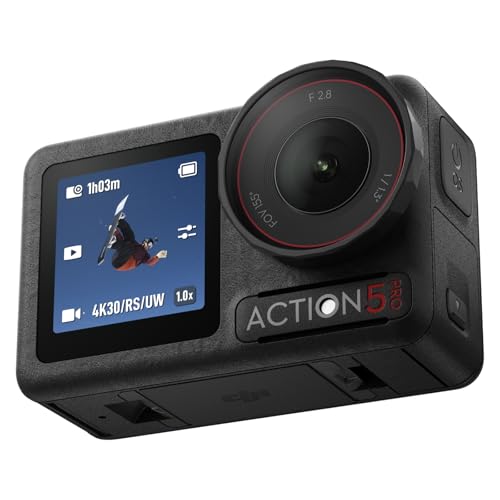
DJI Osmo Pocket 3 — Best Pocket Camera That Doubles as a Webcam
The Pocket 3 lives two lives with unusual grace. Out of the house it is a gimbal-stabilised pocket camera that shoots walk-and-talk footage no phone matches for smoothness. Back at the Mac, connected over USB, it presents itself as a webcam and brings that same stabilised, large-sensor look to calls and recordings — with the gimbal able to track your face as you shift in your chair, a party trick that makes desk footage feel produced rather than captured.
For Mac creators who travel, the workflow is seductive: footage lands on a card that any Mac reads instantly, the codecs edit natively on Apple silicon, and the same device covers the hotel-room stream and the street footage in one small case. The rotating screen and physical controls make solo operation genuinely easy, and the image from its one-inch-class sensor embarrasses every true webcam here in difficult light.
As a permanent desk fixture it is less ideal. You are paying for a gimbal and portability that a fixed desk camera does not need, long stationary sessions want a power plan, and the field of view suits a presenter framing better than a tight corporate headshot. Buy it as a travel camera that moonlights brilliantly at the desk, not the other way round.
Wedding and event shooters have adopted the Pocket 3 as a discreet second angle, and the Mac connection completes that story at the edit desk: cards offload quickly, the colour profile is documented well enough to match against larger cameras, and the stabilised footage cuts into timelines without plug-in gymnastics. As a webcam it is almost a bonus feature — yet for creators whose audience follows them between locations, appearing on a home stream with the same camera that filmed the trip carries a continuity viewers genuinely notice.
- One-inch-class sensor with 3-axis gimbal
- Webcam mode over USB for macOS
- Face tracking in both lives
- Rotating touchscreen, pocketable body
- Fast file transfer to Mac
Strengths
- Stabilised footage quality far beyond webcams
- Travel and desk duty in a single device
- Excellent low-light image for its size
Trade-offs
- Desk-only users pay for portability they may not need
- Long sessions need a power arrangement
- Framing favours presenters over tight headshots
Best for: Travelling Mac creators who also stream or record at a desk.
Not suited for: A permanent, set-and-forget meeting station.
How Do the Six Compare on a Mac Desk?
Resolution tables hide the differences that decide Mac ownership. This comparison focuses on connection behaviour, the job each camera truly serves and the weakness a Mac owner will meet first.
| Pick | Connection to Mac | Standout trait | Watch out for |
|---|---|---|---|
| Logitech Brio 4K | USB, driver-free | 4K meetings with stored framing settings | Close-up and low-light limits |
| OBSBOT Tiny 2 | USB-C, optional app | Gimbal tracking for presenters | Moving parts; occasional wrong-subject locks |
| Elgato Facecam | USB-C, Camera Hub app | Fixed focus that never hunts on stream | No microphone; needs good light |
| Sony ZV-E10 II | USB streaming + tethering | Mirrorless image for streams and projects | Setup and power planning |
| Logitech StreamCam | USB-C, driver-free | True vertical capture for short-form | Softens in dim rooms |
| DJI Osmo Pocket 3 | USB webcam mode | Gimbal quality at desk and on the road | Portability premium for desk-only use |
What Should You Check Before Spending Anything?
Start with the free experiment. Update macOS, prop your iPhone on a stand and run Continuity Camera through a full day of your real meetings. Note exactly where it disappoints you — the dim corner of your office, the lack of tracking when you stand, the fixed framing — because that list, and only that list, is your shopping justification. Mac owners who skip this step routinely buy webcams that duplicate a phone they already carry.
Next, audit your ports and your apps. A modern MacBook may offer only USB-C, so a camera with a native USB-C cable saves you the adapter drawer; check that your main meeting or streaming app appears in the camera’s supported list, and confirm the manufacturer offers a macOS firmware updater. These five minutes of homework predict ownership happiness better than any resolution comparison.
Also consider where the camera will physically live for the next two years. A monitor-top perch suits a single-screen desk; a small tripod behind the laptop suits a standing desk that changes height; a boom arm suits a creator desk where the camera must swing between face framing and overhead product shots. Mounting sounds like an accessory detail, yet it decides whether the camera gets used daily or negotiated with — and a camera that needs negotiating loses to the built-in one on busy mornings, whatever its specifications promise.
Finally, light your face before you upgrade your lens. A modest lamp placed behind the camera transforms every pick in this guide, including the phone you already own, and it costs less than the difference between any two of them. Camera shopping after lighting is shopping with honest eyes.
How Do You Set Up a Camera-as-Webcam Rig That Survives a Work Week?
Power is the first decision. Mirrorless bodies used as webcams should run from USB power or a dummy battery rather than a battery you swap mid-call, and the streaming resolution should be set one notch below the camera’s maximum if your room runs warm — sustained streaming is a thermal marathon, and a conservative setting finishes it without the shutdown warning appearing during your presentation.
Mounting is the second. A small desktop tripod or monitor arm that holds the camera at eye level, slightly above and angled down a few degrees, flatters faces and survives desk bumps better than a monitor-clip arrangement on a heavy body. Route the cable with slack and a gentle curve; a taut cable is a trip hazard that ends with a camera on the floor.
Then save your work. Photograph your final settings, note the streaming mode and white balance you chose, and store a preset where the camera offers one. macOS updates, borrowed cables and curious family members all conspire to reset your rig; a documented setup is a five-minute restore instead of a fresh research project.
What Mistakes Do Mac Owners Make When Buying Cameras?
Buying for the spec sheet instead of the protocol. A camera with spectacular resolution that needs a flaky virtual-driver layer on macOS will lose to a modest UVC camera every single update cycle. The protocol line in the specifications is the most Mac-relevant sentence on the page.
Ignoring the firmware updater’s platform. If updates ship as Windows executables only, a Mac-only household inherits a chore that usually becomes neglect, and neglected firmware is how small compatibility bugs become permanent.
Forgetting the microphone budget. Two picks in this guide have no mic or a deliberately basic one, and several mirrorless rigs sound hollow without help. A camera purchase that consumes the whole budget while the audio stays poor produces the classic expensive-looking, cheap-sounding call.
Paying twice for the same job. A tracking gimbal webcam and a mirrorless streaming rig overlap heavily; owning both is a luxury, not a strategy. Decide whether your Mac life is meetings, presenting or producing, and let that single answer pick your camera.
How Does Continuity Camera Change What a Mac Owner Should Buy?
Apple’s feature quietly reset the floor of this entire category. A recent iPhone on a stand delivers autofocus, portrait lighting effects, a desk-overhead view and wireless convenience that would have embarrassed most standalone webcams a few years ago, and it costs a Mac owner nothing. Any camera asking for your money now has to clear a higher bar than “better than a laptop’s built-in camera,” because that is no longer the comparison that matters.
The gaps that remain are specific. Phones overheat on marathon call days and are, inconveniently, also your phone — every notification, call and authentication prompt interrupts the camera feed’s other job. Their small sensors still lose to a proper webcam’s larger one in a dim room, and to a mirrorless camera’s sensor by a distance that needs no measurement. Fixed desk cameras also stay put: aligned, framed and forgotten, while a phone rig gets dismantled every time you leave the house.
So the honest buying rule becomes subtraction. List what Continuity Camera does badly in your actual routine — the overheating, the interruptions, the evening grain, the missing tracking — and buy the camera in this guide that fixes exactly those items. Mac owners who run that test honestly often end up spending less than they planned, and the ones who do buy get a camera whose advantage they can articulate in one sentence.
What About Audio, Lighting and the Rest of the Mac Desk?
Viewers forgive soft video far sooner than bad sound, and every experienced Mac creator eventually learns that the microphone mattered more than the camera they agonised over. The good news is that macOS treats USB microphones with the same plug-and-play grace as UVC cameras, so a modest desk microphone transforms calls recorded with any pick here. Budget for it in the same purchase, especially with the Facecam, which ships without a microphone by design.
Lighting ranks second and costs least. A single adjustable lamp or small LED panel, placed behind and slightly above the camera and aimed at your face, lifts a budget webcam’s image past a premium camera working in gloom. Macs with bright displays add a subtle fill from the screen itself, which is why evening calls often look better than the room feels — lean into that accident by keeping your screen brightness up during calls.
Background and framing finish the effect. A camera at eye level, a metre or so of separation from the wall behind you, and one deliberate object in frame — a plant, a shelf, a picture — read as intention. None of the six cameras here can arrange your room for you, and all of them look dramatically better once you do.
Which Mac Apps Reveal the Differences Between These Cameras?
QuickTime Player is the honest broker. Its recordings show you exactly what a camera delivers without a platform’s compression smoothing over the evidence, and comparing two cameras in QuickTime, in your own room’s light, settles arguments that specification sheets prolong. Record thirty seconds with each candidate setup — your face, a wave of the hand, a step back from the desk — and watch at full size on the Mac’s display.
OBS is the stress test for streamers: it exposes whether a camera holds its settings, whether tracking survives quick movements, and how much Apple silicon headroom the feed consumes alongside your other tools. FaceTime and your main meeting app are the reality check, because their compression will flatten small quality differences — if two cameras look identical in Zoom but worlds apart in QuickTime, buy for the recordings you keep, not the calls that evaporate.
For the studio picks, the revealing app is your editor. Tether the Sony in the software you actually use, import a card of its footage into your actual timeline, and grade a clip before money changes hands in your imagination. Compatibility you have witnessed beats compatibility you have read about, every time.
How Long Will a Good Mac Camera Setup Stay Current?
Webcam technology moves slowly compared with phones, and that is good news for buyers. A driver-free 4K webcam bought today will very likely serve through your next two Macs, because the USB video standard it speaks is stable and meeting platforms change their compression more often than their camera requirements. The Brio’s long tenure at the top of recommendation lists is evidence, not nostalgia.
Mirrorless and pocket cameras age differently: their image quality stays competitive for years, while their streaming features are the part that dates. Buy those for the footage they record first and the webcam duty second, and their value survives the arrival of whatever streaming protocol comes next. The one perishable element across the whole guide is companion-app support, which is why this article keeps returning to the same advice — the less a camera needs its app, the longer it will live on your desk.
Plan the purchase as infrastructure rather than gadgetry. A camera, a microphone, a lamp and a stand, bought once and chosen for standards rather than fashions, quietly disappear into your working life — which is the highest compliment desk equipment can earn.
How Should Mac Owners Think About Resolution, Frame Rate and Field of View?
Resolution is the number buyers compare first and the one that matters third. On a Mac desk, the practical ladder runs like this: 1080p is the honest working standard that every platform transmits and every recent Mac handles without effort; 4K earns its premium when you record locally, crop into the frame for a tighter composition, or sit close enough to a large monitor that softness becomes visible in previews. Chasing resolution beyond your actual use buys heat and file size, not compliments from colleagues who receive a compressed feed regardless.
Frame rate shapes how alive you look. Thirty frames per second is the meeting norm and perfectly adequate for a seated conversation; sixty smooths gestures, demonstrations and anything involving your hands, which is why teachers, product reviewers and streamers feel the difference immediately. If you present physical objects to the camera — a circuit board, a sketch, a knitted sample — frame rate will change how professional you appear more than any resolution upgrade on this page.
Field of view is the quiet framing decision. A narrow view flatters a single speaker and hides the room; a wide view suits whiteboards, two-person recordings and small studios where the camera sits close. Several picks here let you choose the crop in software, which is the flexible answer: start wide at the sensor, narrow deliberately in settings, and keep the option to widen when the meeting changes character. Judge a camera’s field of view in your actual chair, at your actual distance, because catalogue numbers assume a desk that may not resemble yours.
The three settings interact, and the wise order of operations is to fix field of view first, frame rate second and resolution last. A well-framed 1080p feed at sixty frames looks more expensive than a badly framed 4K feed at thirty, and colleagues will describe the difference as “your camera looks great” without knowing why. That misattribution is the whole game of desk video, and it is winnable with settings before it is winnable with spending.
What Does a Mac-Friendly Studio Corner Look Like on a Sensible Budget?
Picture the corner in layers rather than products. The foundation is position: a desk against a wall you control, a chair that puts your eyes level with the top third of the camera’s frame, and a background close enough to feel intimate but far enough to blur slightly with a wider-aperture lens. Mac owners working from laptops gain the most from an external monitor or a stand, because raising the screen raises the camera, and raising the camera is the single cheapest production upgrade in this entire guide.
The second layer is the capture chain in the order your audience perceives it: microphone first, light second, camera third. A sensible sequence buys the mic in month one, the lamp in month two and the camera in month three, testing each against Continuity Camera as the control. By the time the camera arrives, you know exactly which weakness it is being hired to fix, and the before-and-after difference will be large enough to justify the patience.
The third layer is tidiness that survives weekdays. Cables routed once, settings saved on the camera where possible, a small notebook or note in your Mac’s Notes app recording the configuration that worked. Studio corners fail socially, not technically: a rig that takes ten minutes to assemble gets skipped on busy mornings, and the best camera in this guide is worthless in its box. Build the corner so the default, lazy behaviour is walking in, sitting down and pressing join.
Finally, leave room in the budget for the unglamorous consumables of a working setup: a longer cable than you think you need, a spare mount, cleaning cloths for lenses that live above dusty desks, and a small surge-protected power strip dedicated to the corner. These items never appear in recommendation videos, and they are the difference between a studio that functions in month six and a pile of good intentions beside a monitor.
When Is a Dedicated Camera the Wrong Purchase for a Mac Owner?
Sometimes the correct answer to this keyword is restraint. If your camera appearances are two internal team calls a week, in a bright room, with colleagues who have never once commented on anyone’s picture, then Continuity Camera or even the Mac’s built-in camera is already past the point of diminishing returns, and the money serves you better in a chair, a monitor arm or a course. Cameras are tools for being perceived; where perception carries no stakes, the tool can stay simple.
The purchase also misfires when the real problem lives elsewhere. A camera cannot repair a room lit by a single ceiling bulb behind you, a microphone across the room, or a habit of sitting with a window at your back that turns your face into a silhouette. Diagnose before you spend: record yourself in your worst weekly meeting conditions, watch the recording cold, and name the ugliest flaw precisely. If the flaw is light, buy light. If it is sound, buy sound. Only when the flaw is genuinely the sensor should a camera from this list enter the cart.
There is a timing version of the same mistake. Buying a streaming rig the week before a product launch, a thesis defence or a conference talk invites you to debut untested equipment at the moment of maximum consequence. New cameras deserve a fortnight of low-stakes use — settings learned, failure modes met, the update applied — before they carry an important hour. Mac owners who respect that apprenticeship period find their gear boring in the best way: present, reliable and never the story of the day.
And when the purchase is right, commit to it fully. Learn the one camera you bought instead of keeping a second tab open on the one you did not; every pick here rewards familiarity, and the settings fluency you build over months shows on screen as surely as any sensor specification.
How Do You Keep a Mac Camera Rig Reliable Month After Month?
Reliability is a maintenance habit disguised as a personality trait. Once a month, spend five minutes on the rig: check for firmware updates while you are not about to present, wipe the lens with a clean microfibre cloth — desk lenses accumulate a film of dust and kitchen air that softens images so gradually you blame the camera — and open QuickTime to confirm the picture still matches your memory of it. Cameras rarely fail dramatically; they fade, and a monthly glance catches the fade while it is still free to fix.
Keep a fallback rehearsed. The Mac’s built-in camera, or your phone through Continuity Camera, should be a configuration you have used at least once, not a theory you test while a client waits. Knowing your second-best setup’s framing and light means a failure becomes a thirty-second switch instead of a cancelled meeting, and paradoxically makes failures rarer, because a rig you are not afraid of gets handled more calmly when it hiccups.
Document changes when you make them. A new monitor, a moved desk, a macOS upgrade — each quietly alters exposure, framing or permissions, and the note you leave yourself (“raised camera two inches in March, white balance locked for the north window”) turns the next troubleshooting session from archaeology into arithmetic. Professional studios keep such logs for cameras worth a house; a three-line note serves a desk rig just as faithfully.
Finally, resist the upgrade itch that recommendation cycles cultivate. The cameras in this guide improve slowly, your audience’s platforms compress aggressively, and the marginal gains of next year’s model will be invisible in the meetings where your reputation is actually made. Spend the attention instead on the content of what you present — the camera’s job is to disappear, and a rig that has disappeared for a year is a rig that was bought correctly.
Final Recommendation
For the classic Mac desk, the Logitech Brio 4K remains the answer that requires no further thought: it works everywhere, at up to 4K, with framing stored on the device. Presenters who move should step up to the OBSBOT Tiny 2 and let the gimbal do the following, while streamers with a microphone and a light already in place will get the most honest image from the Elgato Facecam.
Creators should look past webcams entirely. The Sony ZV-E10 II turns the Mac into a studio hub — streaming, tethering and recording in one body — and the DJI Osmo Pocket 3 covers the travelling creator whose desk is wherever the laptop opens. The Logitech StreamCam holds the friendly middle for vertical-video makers on a budget.
Whichever you choose, run the Continuity Camera test first and light your face second. The right purchase is the one that fixes a disappointment you have actually felt, on the Mac you actually own, in the room where you actually work every day.
Frequently Asked Questions
Will any of these cameras work with FaceTime and QuickTime, or only pro apps?
All six present themselves through standard macOS camera services, so FaceTime, Photo Booth and QuickTime Player recordings all see them alongside Zoom, Teams and OBS. That universality is exactly why driver-free support anchored our selection.
Do I still need a capture card to use a mirrorless camera with my Mac?
Not with the Sony ZV-E10 II — it streams over USB directly. A capture card can raise streaming resolution or frame rate in some rigs, but for meetings and typical streams the USB path is simpler, cooler-running and entirely sufficient.
Why does my webcam look worse after a macOS update?
Usually a companion app or virtual-camera plugin needs its own update to match new system rules. Driver-free cameras are immune to most of this. Check the manufacturer’s site before assuming the hardware failed.
Is 4K worth it for video calls on a Mac?
Most meeting platforms compress your feed well below 4K, so the benefit is indirect: a 4K sensor lets you crop to a tighter frame while staying sharp, and recordings made locally in QuickTime or OBS keep the full quality. Buy 4K for framing freedom and local recording, not for Zoom miracles.
Can I update these cameras’ firmware from a Mac?
Yes for the picks here — Logitech, OBSBOT, Elgato, Sony and DJI all provide macOS update paths through their apps or updaters. Confirm the current version on the maker’s support page before buying anything outside this list.
Does the Mac model I own change which camera I should pick?
Only at the margins. Any Apple silicon Mac handles every camera here without strain, including 4K webcam feeds alongside a full workday of other apps. Older Intel Macs manage the webcams comfortably but may warm up when a mirrorless USB stream runs beside video editing, so Intel owners doing hybrid work should favour recording to card and streaming at moderate settings. Ports matter more than processors: a MacBook with only USB-C ports pairs cleanest with the USB-C native picks.
What is the cheapest meaningful upgrade from Continuity Camera?
Better light, then framing. If the phone still disappoints after both, the Logitech StreamCam is the gentlest step up, and the Brio 4K is the step that ends the search for meeting use.
Related Guides
Keep exploring with best cameras for microsoft teams and best cameras for streaming and best cameras for zoom meetings.