The best data adaptor for SD cards is the small piece of hardware that sits between the card and the computer, and it decides whether moving files is a thirty-second job or an afternoon of frustration. A good adaptor does one thing well: it lets the computer see the card, at the card's own speed, without drivers to install and without a cable to hunt for. The bad ones are the ones that slow the card down, that only fit one size, or that stop working when the laptop changes, and they cost more in lost time than they ever saved in money.
Seven adaptors made this list, and they fall into two kinds. The first kind is the sleeve: the SanDisk, the Kingston and the GIGASTONE, which turn a microSD card into a full-size SD card so it fits a camera, a laptop slot or a card reader. The second kind is the reader: the Anker, the UGREEN, the uni and the BENFEI, which plug into a USB-C or USB-A port and read the card directly. The sleeve costs almost nothing and weighs nothing; the reader costs a little more and works on any computer with a USB port, including phones and tablets.
A word on what an adaptor is and is not. A microSD-to-SD sleeve contains no electronics at all: it is a piece of plastic with contacts that reroutes the tiny card's pins to the big card's shape, and it cannot make a slow card fast or a fast card slow. A USB reader does contain electronics, and its speed is set by its USB version: USB 3.0 readers move files far faster than USB 2.0 ones, and a UHS-II card only shows its speed in a reader that supports it. The guide below names the USB version and the card types of every pick, so the buyer can match the adaptor to the card rather than guessing.
In this guide
Quick picks: best data adaptor for sd cards
| # | Product | Where to buy |
|---|---|---|
| 1 | SanDisk MicroSD to SD Memory Card Adapter, Black | Check on Amazon |
| 2 | Kingston Micro SD to SD Adapter | Check on Amazon |
| 3 | GIGASTONE UHS-II MicroSD to SD Memory Card Adapter, 2-Pack | Check on Amazon |
| 4 | Anker SD Card Reader USB C, Dual Slots | Check on Amazon |
| 5 | UGREEN SD Card Reader USB C, USB 3.0 | Check on Amazon |
| 6 | uni SD Card Reader, High Speed USB C to Micro SD | Check on Amazon |
| 7 | BENFEI 4-in-1 USB 3.0 and USB-C Card Reader Adapter | Check on Amazon |
How the picks were chosen
The picks were chosen from the site's own product listings, and only genuine SD-card data adaptors made the list. A listing was dropped if it was an SD card itself, a camera, a phone case, a cable, or a different model under a second listing. The seven that remain cover the two kinds of adaptor honestly: three sleeves for microSD cards, and four USB readers for computers, phones and tablets.
Compatibility was checked first, because an adaptor that does not fit the card is useless. The sleeves accept microSD, microSDHC and microSDXC cards and present them as full-size SD cards. The readers accept SD, SDHC, SDXC and microSD cards, and the BENFEI also reads MS and CF cards, which matters for older cameras. The Anker and the BENFEI list iPhone compatibility in their titles, which matters for photographers who move files to a phone in the field.
Speed was the second test, and it is where the readers separate. USB 3.0 is the baseline for a reader in this guide, and the Lexar-style UHS support matters for fast cards. A sleeve adds no speed limit of its own, so a UHS-II sleeve like the GIGASTONE keeps the card's speed intact. The guide names the speed-relevant facts of every pick from its listing, and it does not quote transfer speeds the listing does not state.
Quick comparison
| Product | Standout detail |
|---|---|
| SanDisk MicroSD to SD Memory Card Adapter, Black | SanDisk microSD-to-SD sleeve, black |
| Kingston Micro SD to SD Adapter | Kingston microSD-to-SD sleeve |
| GIGASTONE UHS-II MicroSD to SD Memory Card Adapter, 2-Pack | GIGASTONE UHS-II sleeve, 2-pack |
| Anker SD Card Reader USB C, Dual Slots | Anker USB-C reader, dual slots, UHS-I |
| UGREEN SD Card Reader USB C, USB 3.0 | UGREEN USB-C reader, USB 3.0, 2-in-1 |
| uni SD Card Reader, High Speed USB C to Micro SD | uni USB-C reader, USB 3.0, dual slots |
| BENFEI 4-in-1 USB 3.0 and USB-C Card Reader Adapter | BENFEI 4-in-1 reader, USB 3.0 and USB-C |
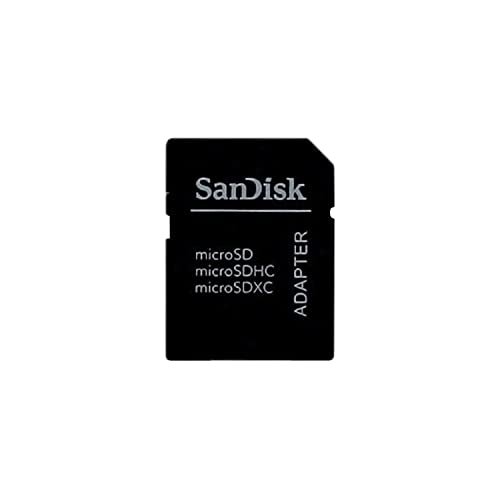
1. SanDisk MicroSD to SD Memory Card Adapter, Black
Key specs
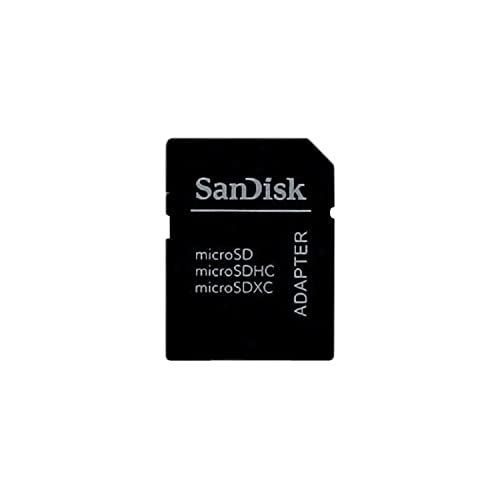
SanDisk MicroSD to SD memory card adapter, black. A sleeve that turns a microSD card into a full-size SD card.
Strengths
- It is the reference sleeve, made by the same company that makes the cards, so the fit and the contacts are right.
- With no electronics inside, there is nothing to fail, no driver to install and no speed of its own to limit the card.
- It costs very little and weighs nothing, so it lives in the camera bag and is always there when it is needed.
Trade-offs
- It only adapts microSD to SD: it cannot connect a card to a computer on its own, and it needs a slot or a reader.
- A single sleeve means one card at a time, and a second card needs a second sleeve.
- It is easy to lose, being small and black, so it belongs in a case rather than loose in a pocket.
Who it fits
Anyone who shoots on microSD and needs the card to fit a full-size SD slot in a camera or a laptop.
Best for: Using microSD cards in cameras and laptops that only take full-size SD.
Not suited for: Anyone with no SD slot at all, who should take one of the USB readers below.
In daily use
The SanDisk sleeve is the simplest thing in this guide, and that is its strength. Slide the microSD card in until it clicks, slide the sleeve into the camera or the laptop, and the computer sees the card as if it were a full-size SD card all along. Keep it in the card case, because a sleeve that is lost in a pocket is a sleeve that is not in the bag when the shoot starts.
The SanDisk sleeve is the default pick: the microSD adaptor that every camera bag should carry.
Check price on Amazon: SanDisk MicroSD to SD Memory Card Adapter, Black

2. Kingston Micro SD to SD Adapter
Key specs
Kingston Micro SD to SD adapter. A sleeve that turns a microSD card into a full-size SD card.
Strengths
- Kingston is a memory maker in its own right, so the sleeve is built to the same dimensions as its cards.
- Like the SanDisk, it has no electronics, so it cannot slow the card down or fail on its own.
- It is the sleeve to buy when the SanDisk is out of stock, with the same job and the same simplicity.
Trade-offs
- It is a sleeve only, and it needs a slot or a reader to connect the card to a computer.
- It adapts one card at a time, and it does nothing for a card that is already full-size.
- It is small and easy to misplace, like every sleeve, so it needs a home in the card case.
Who it fits
Anyone who wants a second sleeve, or who trusts the Kingston name for memory accessories.
Best for: A spare sleeve in the bag, so a second microSD card can be used in a full-size slot.
Not suited for: Anyone who needs to read a card on a computer with no SD slot, who should take a USB reader instead.
In daily use
The Kingston sleeve does exactly what the SanDisk does, and the choice between them is a matter of which is at hand. Keep one in the camera bag and one in the laptop bag, and the problem of a microSD card that does not fit simply stops happening. The sleeve is the cheapest solution in this guide, and for many photographers it is the only adaptor they ever need.
The Kingston sleeve is the spare pick: the same simple adaptor, from another memory maker.
Check price on Amazon: Kingston Micro SD to SD Adapter

3. GIGASTONE UHS-II MicroSD to SD Memory Card Adapter, 2-Pack
Key specs
GIGASTONE UHS-II MicroSD to SD memory card adapter, Camera Ultimate UHS-II adapter, 2-pack. Two sleeves that keep UHS-II speed.
Strengths
- The UHS-II support matters: a fast microSD card keeps its speed through this sleeve, which a plain sleeve cannot promise.
- Two sleeves in the pack mean two cards can be adapted at once, which suits a photographer with a spare card in the bag.
- The Camera Ultimate wording marks it for camera use, where the card is swapped often and the sleeve has to survive it.
Trade-offs
- It is still a sleeve, and it needs a slot or a reader to reach a computer.
- A UHS-II sleeve only shows its advantage with a UHS-II card; with an ordinary card it behaves like any other sleeve.
- Two sleeves are two small things to keep track of, and they still belong in a case.
Who it fits
Photographers with fast UHS-II microSD cards who want the speed to survive the adaptor.
Best for: High-speed camera work where the card's speed is part of the setup.
Not suited for: Anyone with ordinary microSD cards and no UHS-II reader, for whom the SanDisk sleeve is enough.
In daily use
The GIGASTONE is the sleeve for fast cards. A UHS-II card in a plain sleeve is a fast card throttled by its adaptor, and this two-pack is the fix: the sleeve passes the card's speed through, and the second sleeve means the spare card is ready too. For a photographer shooting bursts or video, that speed is the difference between a card that keeps up and a card that makes the camera wait.
The GIGASTONE is the speed pick: the UHS-II sleeve for fast microSD cards.
Check price on Amazon: GIGASTONE UHS-II MicroSD to SD Memory Card Adapter, 2-Pack
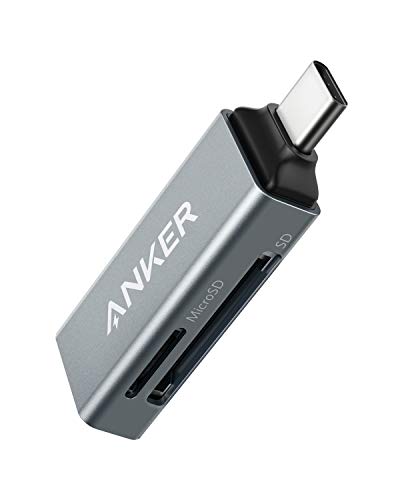
4. Anker SD Card Reader USB C, Dual Slots
Key specs
Anker SD card reader USB C, dual slots USB Type C to micro SD card adapter, for iPhone and laptops, card viewer with dual slots for SDXC, SDHC, SD, micro SDXC, microSD and micro SDHC, UHS-I cards.
Strengths
- Dual slots read an SD card and a microSD card, which covers the two sizes a photographer actually carries.
- USB-C fits modern laptops, tablets and iPhones, so one reader works across the devices a photographer owns.
- Anker is an established accessory maker, and the UHS-I support keeps the reader fast enough for ordinary cards.
Trade-offs
- UHS-I is the speed limit here, so a UHS-II card will run at UHS-I speed in this reader.
- It needs a USB-C port, and an older computer with only USB-A needs an adapter of its own.
- Two slots means two cards, but the reader reads them one at a time in practice, not both at full speed together.
Who it fits
Anyone with a USB-C laptop, tablet or iPhone who moves photos off SD cards regularly.
Best for: Field work, where the card goes from the camera to the phone or the laptop.
Not suited for: Anyone with only USB-A ports, who should take the Anker USB-A reader or the BENFEI below.
In daily use
The Anker USB-C reader is the reader to carry. Plug it into the laptop or the phone, slide the card in, and the files are there to copy, with no app and no driver. The dual slots mean the microSD from the drone and the SD from the camera both fit, and the UHS-I speed is enough for the cards most people own.
The Anker USB-C reader is the carry-everywhere pick: the dual-slot reader for modern devices.
Check price on Amazon: Anker SD Card Reader USB C, Dual Slots

5. UGREEN SD Card Reader USB C, USB 3.0
Key specs
UGREEN SD card reader USB C, USB 3.0 micro SD card reader, 2-in-1 memory card reader for MicroSD, SDHC and SDXC, compatible with PC, computer, MacBook, laptop, iPad and iPhone 17, 16 and 15 Pro and Pro Max.
Strengths
- USB 3.0 gives the reader real speed, so a full card copies far faster than it would over USB 2.0.
- The compatibility list is wide, covering PC, MacBook, iPad and the recent iPhones, so one reader serves the whole desk.
- The 2-in-1 design reads SD and microSD, which are the two sizes that matter.
Trade-offs
- It is a USB-C reader, so an older USB-A-only computer needs an adapter.
- The listing names iPhone 17, 16 and 15 models, and older phones should be checked before ordering.
- It reads one card type at a time, so two cards mean two passes.
Who it fits
Anyone with a USB-C computer or tablet who wants a fast, simple reader.
Best for: Copying large photo and video files, where USB 3.0 speed saves real time.
Not suited for: Anyone with only USB-A ports, who should take the BENFEI 4-in-1 below.
In daily use
The UGREEN reader is the speed pick among the USB-C readers. USB 3.0 is the difference between a card that copies while the coffee brews and a card that copies while lunch is eaten, and the wide compatibility list means the same reader works on the laptop, the tablet and the phone. Keep it on the desk, plugged into the laptop's USB-C port, and the card never waits for a cable.
The UGREEN reader is the fast pick: the USB 3.0 reader for big file transfers.
Check price on Amazon: UGREEN SD Card Reader USB C, USB 3.0

6. uni SD Card Reader, High Speed USB C to Micro SD
Key specs
uni SD card reader, high speed USB C to micro SD memory card adapter, USB 3.0, dual slots, memory card reader for SD, micro SD, SDHC, SDXC and MMC, for MacBook Pro and Air, Chromebook and Android Galaxy.
Strengths
- USB 3.0 and dual slots give both speed and flexibility, reading SD and microSD in one small reader.
- The compatibility list covers MacBook Pro and Air, Chromebook and Android Galaxy, so it suits a mixed household of devices.
- The high-speed wording is backed by USB 3.0, which is the version that makes the difference.
Trade-offs
- It is USB-C only, so a USB-A computer needs an adapter.
- MMC support is a bonus for old cards, but few buyers still own MMC cards.
- The small size makes it easy to carry and easy to lose, so it belongs in a pouch rather than loose.
Who it fits
Anyone with a MacBook, Chromebook or Android phone who needs a fast dual-slot reader.
Best for: A mixed-device household, where one reader has to serve several machines.
Not suited for: Anyone with only USB-A ports, who should take the BENFEI below.
In daily use
The uni reader is the flexible pick. Dual slots, USB 3.0, and a compatibility list that covers the MacBook, the Chromebook and the Android phone in the same house, which is the reality of most households. Plug it in, slide the card in, and copy: the reader does not ask for drivers, and it does not ask which computer it is plugged into.
The uni reader is the flexible pick: the dual-slot USB 3.0 reader for mixed devices.
Check price on Amazon: uni SD Card Reader, High Speed USB C to Micro SD
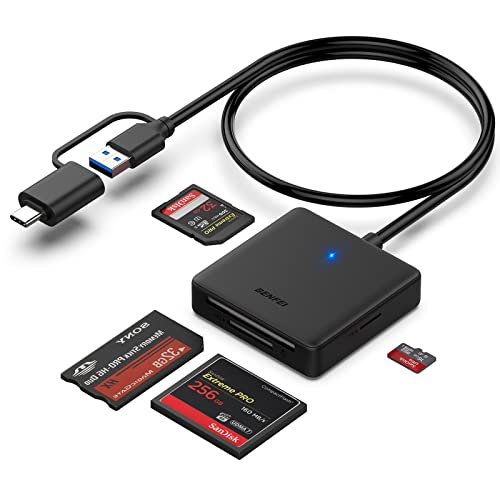
7. BENFEI 4-in-1 USB 3.0 and USB-C Card Reader Adapter
Key specs
Memory card reader, BENFEI 4-in-1 USB 3.0 and USB-C to SD, micro SD, MS and CF card reader adapter, 4 cards simultaneously read and write, compatible with iPhone 15 series, MacBook Pro and Air 2023, and more.
Strengths
- Four slots read SD, microSD, MS and CF cards, which covers current cameras and the older cameras that still use CF and MS.
- Both USB 3.0 and USB-C are included, so the reader works on old and new computers alike.
- Four cards can be read and written at once, which suits a photographer emptying several cards after a shoot.
Trade-offs
- Four slots make it the largest reader in this guide, so it is a desk reader rather than a pocket one.
- MS and CF support matters only to owners of older cameras, and most buyers will use the SD slots alone.
- Reading four cards at once shares the USB bandwidth, so each card runs slower than it would alone.
Who it fits
Photographers with several cards, including older CF and MS cards, who empty them all at the desk.
Best for: A desk setup where the reader stays plugged in and several cards are copied after a shoot.
Not suited for: Anyone who wants the smallest reader to carry, who should take the Anker or the UGREEN above.
In daily use
The BENFEI is the desk pick. Four slots, two USB connectors, and the MS and CF support that keeps an older camera's cards readable long after the camera's own reader has been forgotten. Plug it into the desk computer, leave it there, and after a shoot the cards go in four at a time instead of one at a time.
The BENFEI 4-in-1 is the desk pick: the reader that takes every card at once.
Check price on Amazon: BENFEI 4-in-1 USB 3.0 and USB-C Card Reader Adapter
Buying guide: best data adaptor for sd cards
Sleeve vs reader: which kind of adaptor do you need
A sleeve turns a microSD card into a full-size SD card, and it needs a slot or a reader to reach the computer. A reader plugs into a USB port and reads the card directly, on any computer, phone or tablet with the right port. If the laptop has an SD slot, a sleeve is enough. If it has no slot, a reader is needed. Many photographers own both: a sleeve in the camera bag for the camera's slot, and a reader on the desk for the computer.
UHS-I vs UHS-II: the speed letters on the card
SD cards carry speed classes, and UHS-II is the faster of the two common ones, with a second row of contacts on the card. A UHS-II card only runs at full speed in a UHS-II reader or sleeve, and in a UHS-I reader it falls back to UHS-I speed. The GIGASTONE sleeve in this guide is the UHS-II pick, and the Anker reader is UHS-I. Check the card's own marking before choosing, because a fast card in a slow reader is money wasted.
USB 3.0 vs USB 2.0: the version that decides the wait
A USB 3.0 reader moves files several times faster than a USB 2.0 reader, and the difference shows on a full card of photos or video. Every reader in this guide is USB 3.0, and the guide says so because a reader that does not state its USB version is usually USB 2.0. The port matters too: a USB 3.0 reader in a USB 2.0 port runs at USB 2.0 speed, so the fastest port on the computer is the one to use.
USB-C vs USB-A: match the port on your computer
Modern laptops, tablets and phones use USB-C, and older computers use USB-A. The Anker, UGREEN and uni readers in this guide are USB-C, and the BENFEI carries both USB 3.0 and USB-C, so it works on old and new machines alike. Check the ports on the computer before ordering, because a USB-C reader and a USB-A-only laptop need an adapter between them, and that adapter is another thing to lose.
SD, SDHC, SDXC and microSD: the sizes and the capacities
SD is the original size, SDHC covers cards up to 32GB, and SDXC covers larger cards. MicroSD is the small size used in phones, drones and action cameras, and microSDHC and microSDXC are its capacity versions. Every pick in this guide reads the sizes its listing names, and the sleeves accept microSD, microSDHC and microSDXC. The capacity of the card does not change which adaptor fits, but an old reader may not recognise a very large SDXC card, so the reader's compatibility list is worth checking.
CF and MS cards: the older formats still in use
CompactFlash and Memory Stick are older card formats, still used by older professional cameras and by Sony cameras of a certain age. The BENFEI 4-in-1 in this guide reads both, along with SD and microSD, which is why it earns its place for photographers with older gear. If no CF or MS card is in the house, the other readers in this guide cover everything needed, and the extra slots are simply unused.
Using an adaptor with a phone or a tablet
A USB-C reader works on modern phones and tablets, and the Anker and BENFEI listings name iPhone compatibility. On a phone, the card appears in the files app, and photos can be copied or imported directly, which is how photographers back up in the field without a laptop. The phone needs to supply enough power for the reader, and a card that draws more than the phone can give will simply not appear, so a short, direct connection works better than a long cable with a hub in between.
What to do when the computer does not see the card
If the card does not appear, the fault is usually the connection, not the card. Push the card fully into the adaptor until it clicks, push the adaptor fully into the slot or port, and try a different port. A sleeve that is not fully seated is the most common cause, and a reader in a tired USB port is the second. If the card still does not appear, try it in another device: a card that appears nowhere has a problem of its own, and a card that appears in one device and not another points at the adaptor or the port.
Usage and care
Use an adaptor the same way every time: push the card in until it clicks, wait for the computer to recognise it, copy the files, and eject the card properly before removing it. Ejecting matters, because pulling a card out while the computer is still writing to it corrupts the files that were being written, and the corruption only shows when the photo is opened later. Copy the files to the computer first, check that they open, and only then format the card in the camera for the next shoot.
Keep sleeves in the card case, not loose in a pocket, because a sleeve that is lost is a card that cannot be used. Keep readers in a pouch with their cable, if they have one, and keep the reader's slots free of dust, because dust in a slot is the most common reason a reader starts dropping connections. A reader that is left plugged into a laptop in a bag will snap at the connector, so unplug it before the laptop goes in the bag.
Look after the cards themselves, too. A card should be formatted in the camera it will be used in, not in the computer, because the camera writes the file system it expects. A card that has been formatted in a computer sometimes behaves oddly in a camera, and the fix is to format it again in the camera. Keep cards in their cases, away from heat and magnets, and replace a card that has started showing errors rather than trusting it with irreplaceable photos.
Common mistakes
The most common mistake is buying an adaptor for the wrong size: a full-size SD sleeve for a card that is already full-size, or a microSD sleeve for a card that needs a reader. The second mistake is buying a USB 2.0 reader and wondering why a full card takes an hour to copy. The third is pulling the card out without ejecting it, which corrupts files silently, and the damage only appears when the photo is opened.
The second group of mistakes is about speed. A UHS-II card in a UHS-I reader runs at UHS-I speed, and a USB 3.0 reader in a USB 2.0 port runs at USB 2.0 speed, and in both cases the buyer blames the card or the reader for a limit that belongs to the connection. Match the card, the reader and the port, and the speed the listing promises is the speed that arrives. Mismatch any one of them, and the slowest part decides.
The third mistake is treating the adaptor as storage. An adaptor is a bridge, not a drive: the files live on the card, and the card should be copied to the computer and backed up, not left in the reader as if the reader were a safe place. A card left in a reader in a bag is a card that can be lost, bent or snapped, and the files go with it. Copy, check, back up, and then format the card for the next shoot.
How to move files from a camera without a computer
A USB-C reader and a phone are enough to move files in the field. Plug the reader into the phone, slide the card in, and the files app shows the card's contents. Photos can be imported into the phone's library or copied to cloud storage, which is the backup that matters when the card is the only copy. The phone's battery will drain faster while the reader is attached, so a charged phone and a short transfer are the practical limits.
Sleeves, readers and the drone bag
Drone and action-camera pilots live on microSD cards, and the sleeve is their adaptor: the card flies in the drone as microSD, and lands in the laptop as SD through the sleeve. A reader is the backup for the laptop with no SD slot. The GIGASTONE UHS-II sleeve in this guide is the pick for drone video, because the card's speed survives the sleeve, and a slow sleeve is what makes a drone's video stutter on playback.
Final recommendation
If one adaptor has to lead this guide, it is the Anker USB-C reader, because dual slots, USB-C and UHS-I cover the most common case: a photographer with a modern laptop and two sizes of card. For the simplest job, the SanDisk sleeve is the answer, a piece of plastic that solves the problem for almost nothing. And for the desk, the BENFEI 4-in-1 is the pick, because it reads every card in the house at once.
The choice that matters most is the kind of adaptor, not the brand. A laptop with an SD slot needs a sleeve; a laptop without one needs a reader; a photographer with fast UHS-II cards needs a UHS-II sleeve or reader to keep the speed. Match the adaptor to the card and to the port, and the files move quickly. Mismatch them, and the slowest part decides the wait. It is also worth owning two adaptors rather than one: a sleeve lives in the camera bag and a reader lives on the desk, so the card can be read wherever it is, and a lost sleeve never stops a shoot. The cost of a second adaptor is small, and the cost of a card that cannot be read on the day it matters is not.
Start with the slot on the computer. If it takes SD cards, buy a sleeve, and the SanDisk is the default. If it does not, buy a reader, and the Anker is the default. Keep the sleeve in the card case and the reader in a pouch, eject the card before removing it, and copy the files before formatting the card. The adaptor is the smallest thing in the camera bag, and it is the thing that decides whether the photos ever reach the computer. Buy the adaptor before the shoot that needs it, not after, because the adaptor bought in a hurry is the one that turns out to be the wrong size, the wrong port, or the wrong speed.
Frequently asked questions
What is a data adaptor for SD cards?
A data adaptor for SD cards is the hardware that connects a memory card to a computer. A microSD-to-SD sleeve turns a tiny microSD card into a full-size SD card so it fits a camera or a laptop slot. A USB card reader plugs into a USB port and reads the card directly, on any computer, phone or tablet with the right port.
Do I need a sleeve or a card reader?
If the laptop or camera has a full-size SD slot, a sleeve is enough to use a microSD card in it. If the computer has no SD slot, a USB card reader is needed. Many photographers own both: a sleeve in the camera bag, and a reader on the desk for the computer.
Will a sleeve slow down my fast SD card?
A plain sleeve contains no electronics, so it cannot slow a card down, but it also cannot pass UHS-II speed unless it is built for it. The GIGASTONE UHS-II sleeve in this guide is the pick for fast UHS-II cards. A UHS-II card in a UHS-I reader runs at UHS-I speed, so the reader matters as much as the sleeve.
Why is my card reader so slow?
The usual reason is the USB version: a USB 2.0 reader, or a USB 3.0 reader in a USB 2.0 port, runs at USB 2.0 speed. Use a USB 3.0 reader in a USB 3.0 port, and the copy runs several times faster. A UHS-II card in a UHS-I reader is the other common limit.
Can I use an SD card reader with my iPhone?
Yes, with a USB-C reader on a modern iPhone. The Anker and BENFEI readers in this guide list iPhone compatibility, and the card appears in the phone's files app for copying or importing photos. The phone needs to supply power to the reader, so a short direct connection works best.
Should I eject the card before removing it?
Yes, always. Pulling a card out while the computer is still writing to it corrupts the files being written, and the damage only shows when the photo is opened later. Eject the card in the operating system, wait for the confirmation, and then remove it. Copy the files first, check that they open, and only then format the card in the camera.
More from ilcastellomenu.com
Micro SD cards for phones: small cards for mobile storage