ilcastellomenu.com is reader-supported. When you buy through links on our site, we may earn an affiliate commission.
Where to Buy
The best desktop cameras for home office life are judged by a stricter audience than any holiday camera ever faces: colleagues who see your face in a small window for an hour a day and form quiet opinions about your competence from its lighting, its sharpness, and whether your voice arrives in step with your mouth. A good desktop camera does not make you charismatic. It removes the small frictions — the murky image that reads as a bad connection, the hunting focus during a presentation, the framing that cuts your forehead off whenever you lean back to think — until the technology stops being part of the conversation at all.
Six picks follow in two clearly labelled families. Four are dedicated webcams from the verified pool for this site, linked so you can check them directly. Two are proper cameras from the same pool that can serve as desktop cameras through a clean USB or HDMI connection, labelled as the camera-as-webcam route wherever they appear, because that route is genuinely excellent and genuinely more involved, and you deserve to know both halves before choosing it. Nothing else is linked, and no camera is credited with abilities its maker does not claim for it.
Key Takeaways
- Light in front of your face matters more than sensor size behind it.
- A dedicated webcam is the right answer for most home offices.
- Framing at eye level flatters more than resolution ever will.
- The camera-as-webcam route gives the finest image and the most setup.
- Microphones in webcams are for convenience; serious audio wants its own device.
- Buy for the calls you actually have: team meetings, clients, or broadcasts.
In this guide
Quick Picks
| Camera | Badge | Why it earns its place |
|---|---|---|
| Logitech Brio 4K | The boardroom-grade webcam | Sharp 4K imaging with strong exposure handling for offices that face clients. |
| Logitech StreamCam | The creator-friendly webcam | Fluid full-HD video and clever mounting for people who present and record. |
| Elgato Facecam | The fixed-focus purist | A webcam built like a camera, with manual control and no focus hunting. |
| OBSBOT Tiny 2 | The moving presenter | A small gimbal camera that follows you around the room as you teach or present. |
| Sony ZV-E10 II | The camera-as-webcam upgrade | A real mirrorless camera used over USB, for the finest desktop image here. |
| Canon EOS R50 | The camera-as-webcam all-rounder | Canon colour and a flip screen, serving both desk duty and weekend photography. |
How Did We Judge Desktop Cameras For Home Office Work?
Judging happened in the conditions home offices actually provide: a window to one side, a ceiling light of questionable generosity, a monitor glowing from below, and a chair occupant who leans, gestures, stands to fetch coffee, and occasionally holds up a notebook page or a product sample to the lens. Cameras were scored on how they handled that ordinary chaos — exposure that did not swing wildly when a cloud crossed the window, focus that stayed with a face instead of exploring the bookshelf, and colours that left skin looking like skin under mixed household lighting.
Reliability across a working week counted as heavily as image quality. A desktop camera is infrastructure: it should be recognised instantly by the computer each morning, survive sleep and wake cycles without a replug ritual, and behave identically in the meeting app, the recording app, and the browser call. Picks with a reputation for driver drama were marked down regardless of their best-day image, because the finest sensor in the world is worthless in the ninety seconds before a client call.
The two camera-as-webcam picks were judged by an additional standard: honesty about the whole arrangement. Using a mirrorless camera at a desk involves a suitable lens for the distance, continuous power rather than a battery’s optimism, and either a straightforward USB webcam mode or a capture device for HDMI. Those picks appear here because their makers support the role properly — but each section states the extra pieces plainly, so the comparison with a plug-in webcam is a fair one.
Finally, privacy hardware was treated as a feature with professional weight. A physical shutter, a lens cap that lives on the mount, or an indicator light you can trust are small things that let a camera share a room where you also live. In a home office, the camera points at your life between calls, and designs that acknowledge that earned their place ahead of designs that pretend the desk is a studio.
What Actually Makes Somebody Look Good On A Video Call?
Light, geometry, and lens — in that order, and by a wider margin than camera marketing admits. Light falling on your face from the front, ideally large and soft, does more for your on-screen presence than any sensor upgrade: it lifts shadows, steadies exposure, and lets the camera work at comfortable settings instead of straining. A window ahead of you is the classic free version; a modest lamp or panel behind the monitor is the controllable one. Light from behind you, by contrast, turns every camera in this guide into a silhouette machine, and no purchase fixes it.
Geometry comes next. A camera at eye level, roughly an arm’s length and a half away, frames a face the way conversation frames it; a laptop camera below chin level films the ceiling, your nostrils, and the underside of your authority. Raising any pick in this guide on a small tripod, a stack of books, or a monitor-top mount is a free upgrade that outranks most paid ones, and the picks with flexible mounts earn quiet credit throughout this guide for making that geometry easy.
The lens and sensor finish the job. A wider view suits small desks and animated talkers but can bend faces at the frame’s edges; a narrower, more natural view flatters faces and excludes the laundry behind you, at the cost of demanding you stay roughly in your chair. Resolution sits last in the honest hierarchy — a well-lit, well-framed full-HD image beats a murky 4K one in every meeting ever held — which is why this guide’s badges reward handling and light behaviour at least as much as headline numbers.
Which Are The Best Desktop Cameras For Home Office Setups?
Four dedicated webcams first, each with a distinct working personality, then two mirrorless cameras clearly labelled as the upgrade route for readers whose desk image really matters — presenters, teachers, consultants, and anyone whose face is part of their professional product.

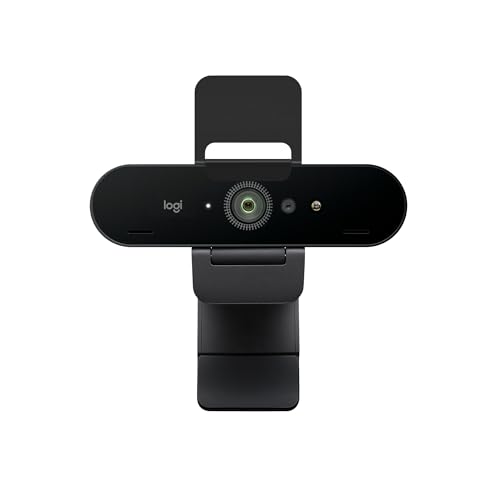
Logitech Brio 4K — The boardroom-grade webcam
The Brio 4K is the webcam professionals reach for when the call is with people whose opinion pays the mortgage. Its 4K sensor gives it two practical gifts beyond bragging: room to crop and reframe digitally while staying sharp in the meeting apps that transmit far less than 4K, and exposure handling — Logitech’s brightness and HDR processing — that copes gracefully with the window-lit home office where one side of your face is daylight and the other is gloom. Faces stay faces; backgrounds stay politely behind them.
Its field of view adjusts between a wide group framing and a tighter solo crop, which suits the desk that doubles as a small meeting space when a colleague visits in person. Autofocus is brisk and, importantly, calm — it settles on the face and stays there instead of pulsing during conversation, the misbehaviour that makes lesser webcams so distracting to watch. The mount clips onto monitors and laptops and tilts on a small tripod thread when you want proper eye-level geometry from a shelf.
- Resolution: 4K capture with sharp reframing headroom
- Exposure: strong handling of window-lit mixed light
- Framing: adjustable field of view, wide to solo
- Mount: monitor clip plus tripod thread
- Role: client-facing calls and recorded presentations
Strengths
- Composed, professional image in difficult home light
- Cropping headroom keeps framing flexible at any app resolution
- Mature software and broad compatibility across platforms
Trade-offs
- Most meeting apps will never show its full resolution
- Premium positioning among dedicated webcams
- Needs decent front light to show its best manners
Set it up once, properly: field of view narrowed to the solo framing, exposure left to its automatic handling for the first week, and the camera raised until its lens is level with your eyes. Then record a one-minute test in your actual meeting app at your actual working hour, because that recording — not the specification page — is what your clients receive. Brio owners who do this discover the camera’s party trick is boredom: call after call in which nobody, including you, thinks about the camera at all.
Its natural home is the desk of a consultant, a manager, a lawyer, a tutor — anyone whose video presence carries professional weight but whose patience for studio complexity is correctly zero. It asks for a USB connection and a sensible lamp, and returns an image that lets the conversation be about the work.
Best for: professionals whose calls involve clients, leadership, or recordings that represent them. Not suited for: buyers who only join internal team calls and would never notice its refinements

Logitech StreamCam — The creator-friendly webcam
The StreamCam was designed by people who understood that a growing share of desk cameras work two jobs: the morning’s team call and the afternoon’s recorded video, tutorial, or livestream. Its full-HD image at a fluid frame rate flatters movement — gestures, demonstrations, the quick turn to a whiteboard — and its clever mount rotates between landscape and portrait orientation, a small mechanical kindness that vertical-video creators notice daily and everyone else notices the first time a platform demands a tall frame.
Face-tracking framing is its other signature: within limits, it keeps you centred as you shift in your chair, which suits presenters who think with their whole upper body. Exposure and colour lean bright and lively, tuned for faces against ordinary rooms rather than for cinema, and the dual microphones are a cut above the webcam average for rooms where a separate microphone is not part of the plan — though the audio section later in this guide will still try to persuade you otherwise.
- Resolution: full HD with fluid high frame rate
- Mount: rotates for landscape or portrait framing
- Framing: face tracking keeps you centred while moving
- Audio: dual microphones, better than the webcam norm
- Role: calls plus content creation at the same desk
Strengths
- Movement looks smooth and natural on recordings
- Portrait rotation serves modern platforms without fuss
- Lively colour that flatters faces in ordinary rooms
Trade-offs
- No 4K headroom for cropping in post-production
- USB-C connection may need an adapter on older machines
- Tracking framing can feel busy on very animated calls
Its desk personality is forgiving. Where the Brio rewards a careful setup, the StreamCam tolerates a lively one: sit down, start the call, lean and gesture, and the framing and exposure keep up like a competent camera operator with modest ambitions. Teachers recording lessons, coaches filming check-ins, and small-business owners making their own product videos will feel the design’s intent immediately — it was built for people whose desk is also, sometimes, a stage.
Pair it with front light and it punches above its class in recorded work; starve it of light and, like every small-sensor webcam, it will trade sharpness for visibility. The honest upgrade path for its owners is therefore a lamp before a lens, a theme this guide repeats because it remains true at every price point in the category.
Best for: home-office workers who also record, teach, or stream from the same desk. Not suited for: buyers wanting maximum resolution headroom or a purely static, formal call image

Elgato Facecam — The fixed-focus purist
The Facecam makes a decision most webcams refuse to make: no autofocus at all. Its lens is fixed at a focus distance chosen for a person at a desk, which means it can never hunt, never pulse, never decide mid-sentence that the bookshelf behind you is more interesting than your face. For presenters who have watched lesser cameras breathe in and out of focus during important calls, that single abstinence feels like a professional feature of the first rank — because it is one.
Elgato built it with a camera maker’s rather than a peripheral maker’s instincts: a quality lens, a sensor chosen for clean full-HD video, and software that exposes real controls — exposure, white balance, contrast — and remembers them. Set it once for your room and your lamp, save the settings to the camera itself, and it wakes each morning already dressed for your office rather than renegotiating with the light. That persistence across computers and apps is a quiet superpower for people who present from more than one machine.
- Focus: fixed at desk distance, zero hunting by design
- Controls: manual exposure and colour, saved on the camera
- Image: clean full HD tuned for faces at a desk
- Mount: monitor clip with tripod thread
- Role: presenters who want a set-once, stays-set camera
Strengths
- Focus behaviour is perfectly, permanently calm
- Settings persist in the camera across apps and machines
- Image controls reward a one-time careful setup
Trade-offs
- Fixed focus assumes you sit at a normal desk distance
- No built-in microphone — a separate mic is required
- Manual controls ask for ten minutes of initial attention
The missing microphone is a philosophy, not an oversight: Elgato assumes its buyers care enough about how they sound to use a real microphone, and the Facecam spends its whole budget on being seen well. If your audio plan is currently the laptop’s microphone, budget the two purchases together or choose a pick above with microphones aboard; a Facecam paired with laptop audio produces the strangest professional impression of all — a face in high definition apologising through a tin can.
Its ideal sitter is consistent: same desk, same chair distance, same lamp, day after day. Remote workers with a settled home office get the most from its set-and-remember character, while hot-deskers who change rooms and distances constantly will find the fixed focus less forgiving of their variety. Know which worker you are and the choice makes itself.
Best for: settled home-office presenters who value calm focus and persistent settings, and who own or will buy a microphone. Not suited for: anyone needing built-in audio or variable working distances

OBSBOT Tiny 2 — The moving presenter
Most desktop cameras assume a seated, stationary human. The Tiny 2 assumes a teacher. Its small body sits on a motorised gimbal that pans and tilts to follow you as you stand, pace to a whiteboard, demonstrate a product on the desk, or simply think better on your feet — keeping you framed and in focus throughout, hands-free. Gesture controls let you command the tracking and zoom without returning to the keyboard, which sounds like a novelty until the first lesson where returning to the keyboard would break the exact flow you were being paid to maintain.
The imaging underneath the robotics is serious: a large sensor by webcam standards that behaves noticeably better in dim rooms than the typical desk camera, with 4K capture and autofocus that works with the gimbal rather than against it. Voice control joins the gestures for presenters who need to start tracking or reframe mid-sentence. It is, in short, the pick for people whose home office is partly a classroom, a studio, or a workshop bench, and whose static-camera colleagues cannot understand why they keep disappearing out of frame.
- Movement: motorised gimbal tracking follows the presenter
- Controls: gesture and voice commands, hands-free
- Sensor: large for the class, confident in dim rooms
- Resolution: 4K capture with autofocus
- Role: teaching, demonstrating, and presenting on your feet
Strengths
- Follows movement no static webcam can cover
- Strong low-light image for evening teaching
- Hands-free control keeps presentations flowing
Trade-offs
- Moving parts and software exceed a simple webcam’s fuss
- Tracking can distract in formal, seated, board-style calls
- The most specialised pick here — wasted on a still sitter
Discipline improves it. Set its tracking zone and home position during setup, learn the two or three gestures you will actually use until they are reflexes, and disable the flourishes you will not. Presenters who rehearse the camera the way they rehearse their material look like television; presenters who debut both simultaneously look like a tech demo, and the difference is entirely preparation.
For the purely seated worker, this section is permission to admire and move on — the picks above will serve you with less machinery. For the fitness instructor filming from the spare room, the music teacher, the product demonstrator, and the lecturer who cannot teach sitting down, the Tiny 2 is not an extravagance but the first desktop camera actually designed around the job.
Best for: teachers, demonstrators, and presenters who move while they work. Not suited for: seated-only callers, who would pay for a gimbal that never gets to dance

Sony ZV-E10 II — The camera-as-webcam upgrade (camera used via USB)
Label first, plainly: this is not a webcam. The ZV-E10 II is a mirrorless camera that can work as one, connecting to a computer over USB to deliver an image no dedicated webcam in this guide can match — a large APS-C sensor’s clean low-light behaviour, real lens optics, and the soft background separation that makes a presenter look filmed rather than captured. Sony designed the ZV line around creators, so the webcam role is a supported citizen here rather than a hack: the camera streams over a cable, focuses on faces and eyes with Sony’s celebrated tracking, and presents product-showcase manners for people who hold objects up to the lens for a living.
The full arrangement deserves its sentence of honesty. You will want the camera on a small tripod or desk mount at eye level, powered continuously from the mains rather than trusting a battery through a teaching day, and paired with a lens that frames you sensibly at desk distance — the kit zoom at its wider end serves most rooms. Set up with that care, the system then behaves with a webcam’s obedience: recognised by the computer, steady for hours, and so much cleaner in evening light that colleagues will ask what changed without knowing what they are asking about.
- Type: mirrorless camera serving via USB webcam connection
- Sensor: APS-C, the largest imaging area in this guide
- Focus: face and eye tracking from Sony’s creator line
- Power: continuous mains power recommended for desk duty
- Role: the finest desktop image, with a photographer’s camera left over
Strengths
- Image quality a clear class above any dedicated webcam
- Background separation flatters faces and hides rooms
- Doubles as a serious camera for photography and video
Trade-offs
- Needs mount, lens choice, and continuous power arranged
- Total cost of the working setup exceeds any webcam here
- More camera than a team-call-only worker will ever use
Desk distance is where its owners should spend their one careful decision. Too wide a lens and the room’s edges bend while your face shrinks; too long and you are framed like a newsreader in a cupboard. The middle ground — you, head and shoulders, with a hint of office behind — is where this camera’s sensor and a sensible focal length produce the image that makes clients lean in. Test the framing in a recording before the first paid call, as with every pick here, but expect to smile when you see it.
Heat and duration, the traditional anxieties of cameras used as webcams, are handled by using the camera as its maker intends: streaming at meeting resolutions rather than recording internally, powered properly, with the screen’s brightness tamed. Owners who respect that brief report all-day reliability; owners who ask it to simultaneously record 4K internally through a summer afternoon are conducting a different experiment, with predictable results.
Best for: consultants, teachers, and creators whose on-screen image carries real professional weight and who will also use the camera as a camera. Not suited for: anyone wanting to unbox, plug in, and present within ten minutes

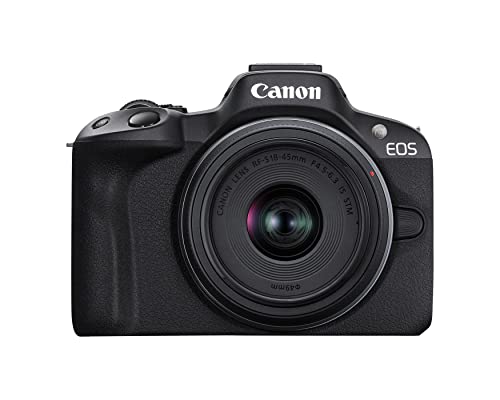
Canon EOS R50 — The camera-as-webcam all-rounder (camera used via USB or HDMI)
The second camera-route pick earns its place on versatility rather than on any single superlative. The EOS R50 is a compact mirrorless camera with Canon’s famously flattering colour, a flip-out screen that makes self-framing easy, and clean connectivity for desktop duty over USB — with an HDMI path for those who prefer a capture device and the most pristine signal. At the desk it delivers the same large-sensor virtues as the Sony above: gentle background blur, honest skin tones, and low-light behaviour that treats an evening call as a normal event rather than an emergency.
Where it differs is in the life it leads away from the desk. The R50 is a genuinely likeable general camera — family photographs, travel, a child’s school play — so for a household buying one serious camera anyway, choosing it lets the home office inherit a superb desktop image from a purchase already justified. That dual citizenship is its argument, and for many readers it will be the most persuasive one in this guide: the webcam budget and the camera budget stop competing and become the same money, spent once, well.
- Type: mirrorless camera serving via USB or HDMI
- Colour: Canon skin tones, flattering straight from camera
- Screen: flip-out design for easy self-framing at the desk
- Focus: dependable face detection for calls and content
- Role: one camera for the desk and the rest of life
Strengths
- Excellent desktop image with beloved colour rendition
- Justifies itself as the household’s real camera too
- Flip screen makes framing a one-person job
Trade-offs
- Desk setup needs the same mount and power care as any camera route
- Kit lens framing at a desk may want a wider companion later
- Overkill, honestly admitted, for internal calls alone
Canon’s menu kindness matters more at a desk than in a field. Webcam duty asks a handful of settings — output resolution, power behaviour, focus mode — and the R50’s guided interfaces make finding them a five-minute job rather than a forum expedition. Set them, save the arrangement, and the camera returns to desk duty each morning with the obedience of an appliance and the image of a portraitist, a combination no other category of product quite offers.
One practical note belongs to households: agree whose camera it is on weekends. A desktop camera that vanishes to a football match on Saturday is a fine family arrangement right up until a Monday client call discovers the battery — or the camera — still in the car. Continuous desk power, a dedicated desk cable, and a household treaty about Monday mornings keep the dual citizenship harmonious.
Best for: households buying a serious camera anyway, who want the home office to inherit its image quality. Not suited for: buyers who need a dedicated, always-present desk camera and nothing else
How Do The Six Desktop Cameras Compare Side By Side?
| Camera | Type | Defining virtue | Remember before buying |
|---|---|---|---|
| Logitech Brio 4K | Webcam | Professional polish in mixed light | Apps transmit below its full resolution |
| Logitech StreamCam | Webcam | Fluid movement and portrait rotation | USB-C connection on older machines |
| Elgato Facecam | Webcam | Fixed focus and persistent settings | Bring your own microphone |
| OBSBOT Tiny 2 | Tracking webcam | Follows a moving presenter | Rehearse its gestures and zones |
| Sony ZV-E10 II | Camera via USB | Finest image and background separation | Mount, lens, and mains power needed |
| Canon EOS R50 | Camera via USB/HDMI | Colour and dual desk-life citizenship | Household sharing needs a treaty |
The table’s honest message is that type comes before ranking: a dedicated webcam and a mirrorless camera are different answers to different working lives, and the right row is the one whose remembering column you are cheerfully willing to accept.
How Should You Light And Frame A Home Office, Step By Step?
Begin with the window audit. Sit at your desk at your most common call hour and note where the daylight actually falls: ahead of you is gold, beside you is workable, behind you is a problem to solve with a blind or a repositioned desk before any camera is blamed. Most home offices can be fixed at this step for nothing, and the improvement outruns any purchase in this guide.
Add front light to taste. A lamp or panel placed behind or just above the monitor, aimed at your face and softened by size or diffusion, should lift your face clearly above the room’s background without squinting you. Raise it slightly above eye level so the light models your face the way a kind portraitist’s does, and set its colour to match the room’s dominant light where the lamp allows, because mixed colour temperatures are what make skin look seasick on camera.
Frame last, with the camera — whichever pick — at eye level and the frame holding your head and shoulders with a modest margin above your hair. Leave a little space in the direction you gesture, centre yourself in spirit rather than to the millimetre, and then record the test that decides everything: sixty seconds in the real app, at the real hour, watched back with the sound off. If the silent version looks attentive and clear, the call version will take care of itself.
Why Does Your Microphone Deserve Half The Budget Conversation?
Because colleagues forgive a soft picture in a way they never forgive strained audio. Listening effort is exhausting in a manner watching effort is not, and the home-office worker who sounds clear, close, and echo-free is perceived as more present and more competent than the one broadcasting from a tiled bathroom of the soul. Several picks in this guide include respectable microphones, one includes none on purpose, and all of them improve dramatically when the voice is captured near the mouth rather than across the desk.
The ladder of improvement is mercifully short. A headset you already own beats any webcam microphone for clarity in a noisy house. A modest USB microphone on a small arm or stack of books, placed a hand’s span from your mouth and out of the camera’s frame, beats the headset for warmth and is the arrangement most professional voices on your calls are quietly using. Beyond that lie diminishing returns that belong to podcasters rather than office workers.
Room echo is the free fix hiding inside the expensive problem. Soft things — a rug, curtains, a bookcase with actual books — absorb the reflections that make home offices sound hollow, and moving the microphone closer lets you lower its sensitivity until the room all but disappears from the recording. Camera first if your image is the embarrassment, microphone first if your sound is; the honest self-test recording tells you which, and it is very often the microphone.
What Settings Should You Check In The First Week?
Resolution and frame rate should match your platform rather than your camera’s maximum: most meeting services transmit modest resolutions, and asking the camera for its ceiling can cost light sensitivity and processing calm for no visible benefit. Set the sensible middle, then spend the saved performance on exposure. White balance deserves one manual decision in a lamp-lit office — automatic systems drift as daylight fades through an afternoon — and the picks with persistent settings reward you for making that decision exactly once.
Turn off the cosmetic extras with a clear conscience. Beauty filters, background replacements, and aggressive noise reduction all spend the camera’s effort on effects your colleagues did not ask for, and the first two regularly eat fingers, glasses, and the edges of held-up documents. A real background, tidied for ninety seconds before the call, outperforms a virtual one in every professional register, and it never accidentally dissolves when you reach for your coffee.
Finally, rehearse the failure modes while they are still funny: join a test call with the camera covered to learn your app’s warnings, switch the camera off and on mid-call to see how your platform recovers, and find the privacy shutter or cap with your eyes closed. The professional calm that impresses clients is mostly the absence of fumbling, and fumbling is a rehearsal deficit, not a character trait.
What Mistakes Do Home Office Camera Buyers Keep Making?
Buying resolution to fix darkness is the founding error: a 4K sensor behind a dim room produces a very detailed murk, while the same money spent partly on a lamp would have transformed a lesser camera. Second comes the low camera angle inherited from the laptop, faithfully preserved by placing a fine new webcam on the desk surface, where it films chins and ceilings with improved clarity. Third is ignoring the background until a client mentions the laundry, the unmade bed, or the confidential whiteboard visible over a shoulder.
Fourth, buyers forget the household: a camera without a shutter or cap in a room that is also a bedroom, a nursery, or a teenager’s gaming territory creates an anxiety no image quality repays. Fifth is neglecting the test recording, so the first audience for a badly framed, badly lit new camera is the client it was bought to impress. Every mistake on this list is free to avoid, and the guide has now charged you nothing for the knowledge.
How Do You Handle Two Screens, Glasses, And A Window All At Once?
The dual-monitor desk is the natural habitat of the modern knowledge worker and the natural enemy of eye contact. With screens to both sides, your gaze spends the call visiting documents your colleagues cannot see, and even a perfect camera records a person who appears to be watching something more interesting elsewhere. The practical fixes are arrangement rather than equipment: put the meeting window on the screen directly beneath or behind the camera, shrink it near the camera’s position, and accept the small discipline of looking at the lens itself for the sentences that matter — the greeting, the answer, the close. Colleagues forgive roving eyes during thinking; they remember the moments you appeared to address them.
Glasses wearers inherit an extra geometry problem, because every light in the room wants to sign its name across their lenses. The cure demonstrated in the questions below is positional: raise the key light, angle it slightly from the side rather than straight from the monitor’s position, and drop the screens’ brightness until they stop competing as light sources. A camera with calm exposure helps by not chasing the reflections with constant adjustments — one more reason the fixed-manners picks in this guide suit bespectacled presenters better than their specification sheets suggest.
The window, finally, should be recruited rather than fought. Daylight ahead of you is the finest free light in any house; daylight behind you is the enemy; daylight beside you is a modelling light that needs only a blind’s adjustment to behave. Spend one call hour observing what your window does across a morning — the sun’s slow swing changes many home offices from flattering to impossible between nine and eleven — and set your blind, your desk angle, or your call schedule around the pattern you actually live with.
What About Privacy, Shutters, And The Camera Between Calls?
A home office is a home first, and the camera that watches you present also faces the room where children do homework, partners take their own calls, and life happens in pyjamas. Physical privacy hardware is therefore not a paranoid extra but a household courtesy: a shutter that clicks shut, a cap that visibly covers the lens, or a camera that folds face-down gives the whole household certainty that software settings merely promise. When you compare the picks, weigh that certainty; several designs here include a shutter or cap arrangement, and the camera-route picks can simply have their lens capped, which is the oldest privacy technology in photography.
Indicator lights deserve a sceptical sentence. A light wired to the sensor is trustworthy; a light driven by software is a rumour. Makers differ, documentation rarely specifies, and the prudent household treats the shutter as the truth and the light as a reminder. Build the closing of the shutter into the end-of-day ritual alongside locking the door, and the camera becomes what it should be: a tool that is unmistakably off when the working day is over.
Background awareness completes the privacy picture in the other direction — not who the camera sees between calls, but what it shows during them. Before sensitive calls, look at your own preview with a stranger’s eyes: the whiteboard with client names, the family calendar with medical appointments, the shelf that reveals more about your life than you intended to bring to work. Ninety seconds of tidying, or a small repositioning of the camera’s frame, protects information that no encryption setting can.
How Does A Desktop Camera Fit A Hybrid Week?
The hybrid worker’s desk is used three days and abandoned for two, shared with a partner on opposite shifts, or folded away into a cupboard on Friday evening. Each pattern favours different picks. The abandoned desk wants a camera that wakes after days asleep and simply works — the dedicated webcams’ home ground. The shared desk wants a camera whose settings do not depend on one person’s face and lamp: automatic exposure earns its keep, and per-user software profiles, where offered, stop the Monday argument about who changed the framing. The folding desk wants a small camera that mounts and dismounts in seconds and forgives being aimed afresh each week, which argues for the compact webcams over the carefully aligned camera-route rigs.
Commuting between two homes or a home and a coworking space adds the travel test: does the camera fit the laptop bag’s small pocket, survive being carried weekly, and set up in a strange room inside five minutes? The small webcams here pass that test as a matter of design; the tracking and camera-route picks are stay-at-home instruments and should be bought by people whose working geography is settled. Honesty about your own week’s map is, once again, the entire secret of choosing well in this category.
Whichever pattern is yours, label the cable. The home office accumulates identical black leads the way kitchens accumulate mystery keys, and the camera that cannot be plugged in because its cable migrated to a printer in another room is, for that morning’s purposes, not a camera at all. A wrap of coloured tape at each end has saved more meetings than any feature discussed in this guide.
Final Recommendation
Most home-office workers should buy the Brio 4K, raise it to eye level, and put a kind light in front of their face; that combination ends the desktop camera question for years. Choose the StreamCam if your desk doubles as a recording studio, the Facecam if focus hunting has burned you and a real microphone already lives on your desk, and the Tiny 2 if your work happens on your feet. Take the camera route — Sony for the purest desk image, Canon for the household double life — when your face is genuinely part of your product and you are ready to set the arrangement up properly once. The best desktop cameras for home office use share one trait across all six: after a fortnight, you stop thinking about them, and your colleagues simply see you, clearly, as if you were in the room.
One last perspective may help the undecided more than any further comparison: your colleagues will never see your camera’s specification, only its consequences. They will see whether your face is lit like a person’s or lit like a rumour, whether your voice and picture arrive as one event, whether you look at them when you answer. Judge every pick in this guide by imagining its consequences in the small window on somebody else’s screen, because that window — unglamorous, compressed, and viewed while half-listening — is the true destination of all this equipment, and the picks above were chosen by exactly that standard.
If the budget forces a sequence rather than a single purchase, spend in the order the image is actually built: position first, since raising the camera costs nothing; light second, since a modest lamp transforms every camera ever made; the camera third, chosen from the six here by the shape of your working week; and the microphone whenever your test recording tells you the sound has become the weaker half. Owners who follow that order rarely waste money, because each step improves the result before the next step is paid for, and the final system arrives as a series of visible victories rather than a single expensive hope.
Frequently Asked Questions
Keep the packaging for a month, by the way — not from superstition, but because the first fortnight of real calls is the only honest review period any camera gets, and a model that looked perfect in a Sunday test may reveal a focus habit, a colour cast under your evening lamp, or a mount that creeps on your particular monitor, any of which is a legitimate reason to exchange it for the next pick on this page while the retailer’s window is still open and your old setup can be restored in minutes.
Is 4K worth it when meeting apps compress the video anyway?
Partly, and for an unexpected reason: the extra resolution is less about what colleagues receive today and more about headroom — cleaner cropping, better digital reframing, and sharper recordings made locally for presentations and content. For ordinary internal calls, a good full-HD webcam is honestly sufficient, which is why this guide badges handling and light behaviour alongside resolution rather than beneath it.
Can I really use a normal camera as a webcam every day?
Yes, with the two camera-route picks here, provided the arrangement is completed properly: eye-level mount, a lens that frames you at desk distance, continuous mains power, and the maker’s supported USB or HDMI connection. Set up that way, the system behaves like an appliance with an unusually beautiful image; set up halfway, it behaves like a photography hobby sitting on your desk.
Where exactly should the camera sit?
At eye level when you are seated upright, roughly an arm’s length and a half from your face, angled neither up at the ceiling nor down at the desk. A monitor-top mount, a small tripod on the desk, or a shelf all achieve it. The test is the preview: your eyes should sit in the upper-middle of the frame, with level headroom and your shoulders visible.
Do I need a separate microphone if my webcam has one built in?
Need is strong, but the improvement is real enough that most professionals make the upgrade within a year. Built-in webcam microphones are tuned for intelligibility across a desk, and they achieve it; a headset or a modest USB microphone placed near your mouth achieves clarity, warmth, and freedom from room echo. If your calls involve clients, teaching, or recording, plan the microphone as the second purchase.
How do I stop my glasses reflecting the screen?
Raise the light and the camera slightly, tilt the glasses a fraction downward, and lower the monitor’s brightness so the screen stops being the brightest object your lenses can mirror. A larger, softer light source reflects as a gentler, less distracting shape than a small bright one. Most wearers fix the problem with the light’s position alone once they know it is a geometry problem rather than a camera fault.
What should I check before a very important call?
Run the two-minute ritual: camera recognised and selected in the app, preview framed at eye level, light on and in front of you, microphone input confirmed with a spoken sentence played back, background glanced at with a stranger’s eyes, and the privacy shutter open — the last item sounds comic until it headlines a quarterly review. Keep the ritual on a note by the monitor until it becomes reflex.
There is a small professional ritual that ties the whole guide together, and it costs one minute a week: record yourself, in your real app, saying one ordinary sentence about the weather, and watch it back on Friday. The ritual catches the drifting camera, the lamp that failed on Tuesday, the background that accumulated a confidential document, and the microphone that a software update quietly rerouted to the laptop. Professionals in every field rehearse their instruments; the home office simply forgot to, because its instruments arrived disguised as peripherals. Restore the rehearsal and the six cameras above will keep the promises their sections made.
New starters deserve a specific word, because the first month of video-heavy work teaches habits that harden. If you are setting up a home office from nothing, buy in the guide’s order and resist the showcase temptation — the elaborate rig assembled before your first real call will be aimed at an imaginary job, while the modest webcam bought for the job you actually start will teach you, within a fortnight, exactly which upgrade your real calls are asking for. Nearly every refined setup in this guide’s readership grew that way: a decent camera, a lamp, a month of honest calls, and then one deliberate improvement bought with knowledge instead of hope. The two camera-route picks wait patiently at the end of that road for the workers whose calls genuinely grow into them, and reaching them by evidence rather than by envy is the most professional purchase pattern of all.
And when the setup finally disappears — when calls begin without a thought for framing, light, or focus — resist the urge to keep improving it. A working home-office camera system is finished in the way a good chair is finished: by being sat in, daily, without commentary. Spend the attention it saves on the work the calls are actually about, which was, after all, the entire point of buying the camera.
Related Guides
Choose once, set up once, and then let the camera vanish into the working week — that vanishing is the review score nobody publishes and the only one your colleagues will ever actually give you, one clear, unremarkable, well-lit call at a time, until the technology is forgotten and only your presence remains in the minds of the people you work with, week after week and quarter after quarter, which is precisely what a home office camera was always supposed to deliver for the person who bought it with care.
Continue with home office lighting for video calls, compare the upgrade path in using a mirrorless camera as a webcam, or improve the other half of the call with USB microphones for home office workers.