This article contains affiliate links, and when you buy through them we may earn an affiliate commission at no extra cost to you. Every extender below was chosen on specs, standards support and real-world home use cases rather than marketing claims, and none of the picks has been verified against the site’s own product listings yet, so treat this as a research-first shortlist to confirm at checkout.
In this guide
Quick picks: best home wifi range extenders
| # | Product | Where to buy |
|---|---|---|
| 1 | ASUS RP-AX58 | Check on Amazon |
| 2 | Netgear EAX15 | Check on Amazon |
| 3 | TP-Link RE605X | Check on Amazon |
| 4 | Linksys RE9000 | Check on Amazon |
| 5 | TP-Link RE813XE | Check on Amazon |
Why One Room in Every House Seems to Hate Wi-Fi
Almost every home has one. The router sits in the living room or a hallway closet, streaming works beautifully on the couch, and then you walk into the back bedroom, the garage or the far end of the kitchen and the signal falls apart. Video calls freeze mid-sentence. A smart TV buffers through the best part of a film. A teenager doing homework at the far end of the house gets dropped from an online class for the third time in an hour. This pattern is so common that it is rarely the fault of your internet plan. It is geometry.
Wi-Fi is radio, and radio weakens with distance and with every obstacle it has to pass through. Drywall costs a little signal. Brick, concrete, stone fireplaces, metal ductwork, mirrors and even a full aquarium cost a lot. By the time the signal from a single router crosses three walls, a floor slab and a water heater, the device at the other end is working with a fraction of the original strength, and weak signal does not just mean slow downloads. It means dropped connections, lag spikes in games, doorbell cameras that miss events, and laptops that quietly fall back to a congested band and crawl.
A range extender attacks exactly this problem. It listens to your existing router’s signal partway across the house and rebroadcasts it into the area the router cannot reach well on its own. It does not create new internet, it does not speed up your plan, and it cannot fix a router that is already too old or too weak for the home. What it can do, placed correctly, is turn one or two problem rooms into perfectly usable rooms for streaming, browsing, video calls, homework and smart home gadgets, without rewiring anything and without replacing your whole network.
This guide is written for homes, not offices or warehouses. The five extenders below were picked for the situations houses actually present: a far bedroom that needs a stable signal for a student, a garage workshop that needs enough coverage for a radio stream and a security camera, a backyard where phones drop off the network the moment you sit down outside, and multi-storey homes where the router lives on the ground floor and everyone sleeps upstairs. Each pick is followed by honest trade-offs, because extenders are a category where expectations matter as much as hardware.
One thing to understand before you buy anything: an extender can only repeat the signal it receives. Put it somewhere the router’s signal is already terrible and it will faithfully rebroadcast a terrible signal. Put it at the edge of the router’s good coverage, along the path toward the dead zone, and it can work remarkably well. Placement is half the product, which is why this guide spends as much time on where these devices go as on which one to choose.
What to Look for in a Home Wi-Fi Range Extender
Wi-Fi standard and speed class
Extenders are sold with speed labels like AX1500, AX1800 or AX3000. These numbers are theoretical maximums summed across bands under laboratory conditions, and no home device will ever see them in practice. What actually matters is the underlying standard. A Wi-Fi 6 (802.11ax) extender pairs best with a Wi-Fi 6 router and handles many simultaneous devices more gracefully than older Wi-Fi 5 hardware, which matters in a house full of phones, tablets, TVs and smart bulbs all asking for attention at once. If your router is Wi-Fi 5, a Wi-Fi 5 extender can still do the job for a couple of rooms, but if you expect to keep the extender through your next router upgrade, buying Wi-Fi 6 now is the sensible move.
Dual-band is the minimum, and backhaul decides quality
Every extender worth buying is at least dual-band, receiving and repeating on both 2.4 GHz and 5 GHz. The 2.4 GHz band travels farther and passes through walls better, which is why it reaches the garage at all, while 5 GHz is faster but shorter-ranged. The catch is how the extender talks back to the router, a link called the backhaul. A basic dual-band extender shares its bands between talking to the router and talking to your devices, which can cut the speed available in the extended room roughly in half. That is still plenty for streaming and homework. Tri-band extenders add a third, dedicated radio just for the backhaul, so your devices keep more of the speed. If the far room hosts a gaming PC or a 4K TV, a dedicated backhaul is worth prioritising.
Same network name, or a separate one
Older extenders create a second network name, something like your home network with an extension tacked on, and your phone clings to the weak original signal until it gives up entirely. Better extenders support seamless roaming features, often tied to a brand ecosystem such as TP-Link OneMesh, ASUS AiMesh or Netgear’s mesh extender mode, where the extender shares your main network name and devices are steered to whichever signal is stronger as you move around the house. If your router supports one of these ecosystems, buying the matching extender is one of the easiest wins in this category. If it does not, a universal extender still works, but expect a small amount of manual network switching in the worst rooms.
Antennas, form factor and the humble wall socket
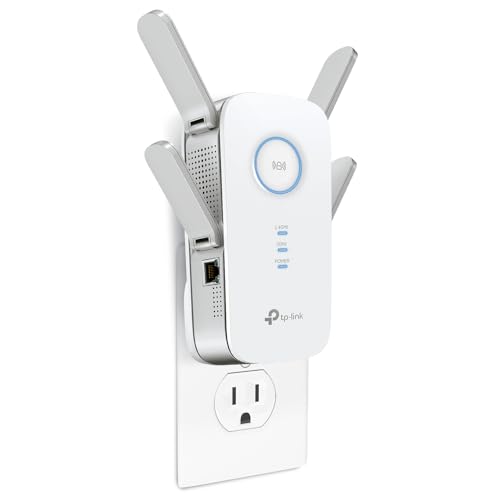
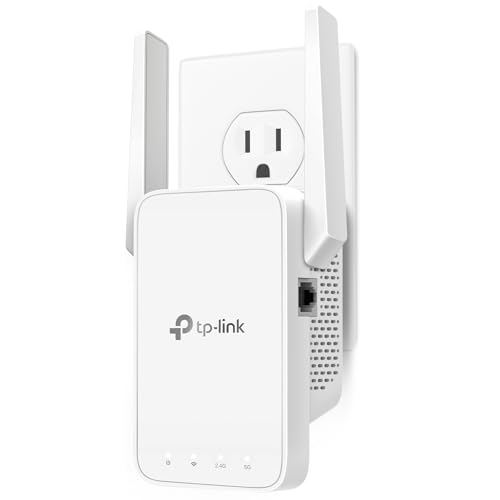
Most home extenders plug directly into a wall outlet, which sounds trivial until you realise the best position for one might be a hallway socket already occupied by a night light, or a landing socket behind furniture. External adjustable antennas genuinely help in awkward houses because you can angle them to push signal along a corridor rather than into a wall. Compact plug-in designs are neater but give you less control. Some extenders also include a pass-through socket so you do not lose the outlet, and an Ethernet port, which is more useful than it sounds: wiring a TV, desktop or game console into the extender removes that device from the wireless queue entirely and is often the single biggest stability upgrade for a work-from-home desk.
Coverage ratings are a rough guide, not a promise
Manufacturers quote coverage in square feet or square metres, measured in open space. Your house is not open space. Treat those numbers as a way to compare models within a brand, not as a guarantee that one unit will cover your whole home. A modest extender honestly placed halfway to one dead room will outperform a flagship extender shoved into the dead room itself, every single time. Buy for the rooms you actually need to fix, and be suspicious of any product page that promises whole-mansion coverage from a single plug.
Realistic range indoors: what the numbers on the box leave out
Box copy measures range in open air, and houses are not open air. Indoors, expect a healthy extender-to-device bubble of roughly one to two rooms in any direction through ordinary stud walls, shrinking to a single room when brick or concrete intervenes. This is not a defect; it is physics, and it is why the halfway placement rule matters so much. The extender does not need to shout across the whole house. It needs to receive a clean signal from the router and then speak clearly into the one or two rooms the router could not serve. Judge every model in this guide by that modest, achievable job, and be wary of any product that promises to blanket a large home from a single socket, because that promise survives contact with real walls about as well as the signal does.
Setup and app quality matter more than you think
You will probably set this device up once, but that once can be painless or miserable. The better brands offer a phone app that shows the extender’s connection quality to the router and tells you, in plain language, whether the spot you chose is too far, too close or just right. That signal-strength feedback is the difference between guessing and knowing. WPS push-button setup is faster but gives you no insight and weaker security defaults; take the extra few minutes to use the app or web interface, set a strong admin password, and check for a firmware update before you declare the job done.
The Five Best Home Wi-Fi Range Extenders
The picks below are ordered by the kind of home problem they solve best rather than by raw specifications. All five are dual-band or better, all five support modern security standards, and each one earns its place for a different reason. Read the trade-offs as carefully as the strengths; in this category, the right extender is the one whose weaknesses do not overlap with your house.

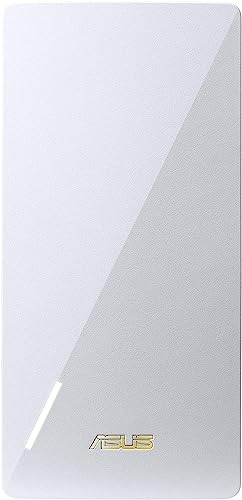
ASUS RP-AX58
The ASUS RP-AX58 is the pick for homes that already run an ASUS router, because it slots into ASUS’s AiMesh ecosystem and behaves less like a bolt-on repeater and more like a proper extension of the network. Inside AiMesh, the RP-AX58 shares your main network name, participates in roaming decisions, and can be managed from the same app as the router itself, so there is one place to check when something feels slow. It is a Wi-Fi 6 dual-band unit with a tidy wall-plug design and a signal-strength indicator that helps you find the socket where it can still hear the router clearly.
Strengths. The AiMesh integration is the headline: seamless roaming means a phone walking from the living room to the far bedroom hands over between router and extender without the awkward pause-and-reconnect dance. Setup through the ASUS Router app is genuinely beginner-friendly, the indicator LED gives honest feedback about placement, and the unit supports AiMesh’s backhaul optimisation, which squeezes more usable speed out of the link back to the router. It also works as a standalone extender with non-ASUS routers, so it is not a dead end if you change router brands later.
Trade-offs. You pay a small premium for the ecosystem features, and if your router is not ASUS, much of that premium buys you nothing a cheaper universal extender would not do. It is dual-band without a dedicated backhaul radio, so heavy simultaneous use in the extended room, a gaming session plus a 4K stream plus a video call, will show its limits sooner than a tri-band model. The plug-in body is also fairly wide and can crowd a double socket.
Who it suits. Households with an ASUS router and one or two weak rooms, especially upstairs bedrooms in a two-storey home where the router sits downstairs. If you want the extended network to feel invisible, same name, same password, no babysitting, this is the natural first choice, so check price on Amazon.
Check price on Amazon: ASUS RP-AX58

Netgear EAX15
Netgear’s EAX15 is a Wi-Fi 6 mesh extender built around a simple promise: one network name for the whole house, with the extender quietly steering devices to the best connection. Netgear calls this its mesh extender approach, and unlike the old days of manually hopping between networks, the EAX15 clones your router’s name and password and roams clients across as they move. It is a dual-band AX1800-class unit in a wall-plug body with internal antennas, a single Ethernet port, and setup handled through the Nighthawk app.
Strengths. The roaming behaviour is the reason to buy it. In a home where the far bedroom, the kitchen and the living room all see both the router and the extender at different strengths, the EAX15 keeps devices attached to whichever is healthier instead of letting a phone cling to a fading signal from two rooms away. The Ethernet port is a quiet hero for a work-from-home desk: plug a laptop dock or a desktop straight in and that machine gets the extender’s full attention without competing for airtime. Netgear’s app-based placement guidance is clear about when the unit is too far from the router.
Trade-offs. Internal antennas mean less ability to fine-tune direction than models with adjustable external aerials, which can matter in long, thin houses. Like the ASUS, it is dual-band, so the backhaul shares bandwidth with your devices and speeds in the far room will be a step down from the router’s room. Netgear also reserves some of its slickest management features for its own subscription services, which is mildly irritating on hardware you already own.
Who it suits. Families in single-storey homes with a long floor plan, where the dead zone is a bedroom at the opposite end of the house from the router, and where people move around with phones and tablets all day. For a fit-and-forget extension of an existing network, check price on Amazon.
Check price on Amazon: Netgear EAX15

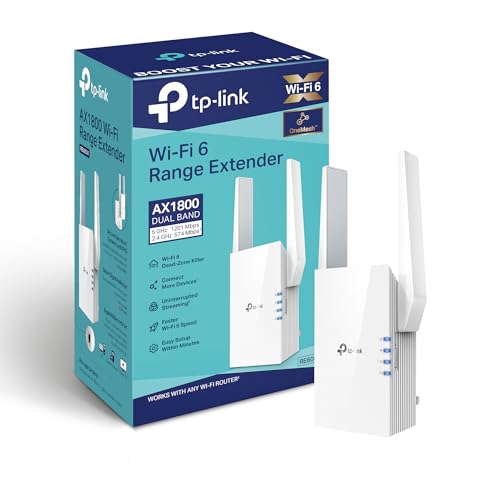
TP-Link RE605X
The TP-Link RE605X is the straightforward, good-value Wi-Fi 6 extender for homes that want the dead zone fixed without a lecture. It is an AX1800 dual-band wall-plug unit with two adjustable external antennas, an Ethernet port, and TP-Link’s Tether app for setup and placement feedback. Its party trick is OneMesh support: pair it with a compatible TP-Link router and it joins a proper mesh network with one name and roaming, and paired with anything else it still works as a competent universal extender.
Strengths. The adjustable antennas are genuinely useful in real houses. Angle them along a hallway and the signal follows the corridor into the rooms off it, instead of soaking into the wall behind the unit. The Tether app’s signal indicator makes the placement experiment quick: try a socket, read the result, move if needed. The Ethernet port supports access-point mode too, so if you ever run a cable to that end of the house, the same hardware becomes a wired access point and performs even better. For the money this class usually costs, the feature list is complete.
Trade-offs. The body is chunky and the antennas make it visually obvious; in a hallway that matters to you, a sleeker internal-antenna model may appeal more. Dual-band sharing applies here as well, so expect the extended room to get a healthy portion of your speed rather than all of it. OneMesh only works within TP-Link’s router range, so the roaming benefit depends on what router you already own.
Who it suits. Renters and first-time extender buyers who want a capable, forgiving unit for a flat or a small house, and anyone whose dead zone sits at the end of a corridor the antennas can aim down. It is the easiest recommendation on this list to live with day to day, so check price on Amazon.
Check price on Amazon: TP-Link RE605X

Linksys RE9000
The Linksys RE9000 is the heavy lifter of this group, a tri-band extender built for the homes where a basic repeater is simply not enough. Its third radio is dedicated entirely to the link back to the router, which means the two bands your devices use are not being shared with backhaul traffic. It is a desktop-style unit rather than a wall plug, with four external antennas, multiple Ethernet ports on the back, and MU-MIMO support for serving several devices at once. It is older Wi-Fi 5 technology rather than Wi-Fi 6, which sounds like a step back until you see what the dedicated backhaul does for real throughput in a far room.
Strengths. For a back bedroom that has become a gaming den or a home cinema, this is the extender that keeps speeds respectable at distance. The dedicated backhaul means a console downloading a game does not strangle a video call in the same room. Four Ethernet ports turn it into a wireless bridge for an entire desk or entertainment unit: TV, console, streaming box and PC can all wire in. Spot Finder setup guidance helps place it, and the four antennas give plenty of adjustment for awkward room shapes.
Trade-offs. It needs a shelf or surface near an outlet rather than plugging flat into the wall, and it is the bulkiest device here by a wide margin. Wi-Fi 5 means it lacks Wi-Fi 6’s efficiency improvements with many small smart-home devices, and its price sits at the top of the extender category, close enough to entry-level mesh kits that the comparison becomes real. If your dead zone is just one room needing basic coverage, this is more machine than the problem requires.
Who it suits. Larger or multi-storey homes where the far room does heavy work, gaming, 4K streaming, a wired desk setup, and where running Ethernet is not an option. When the extended room needs to behave almost like the router’s room, check price on Amazon.
Check price on Amazon: Linksys RE9000
TP-Link RE813XE
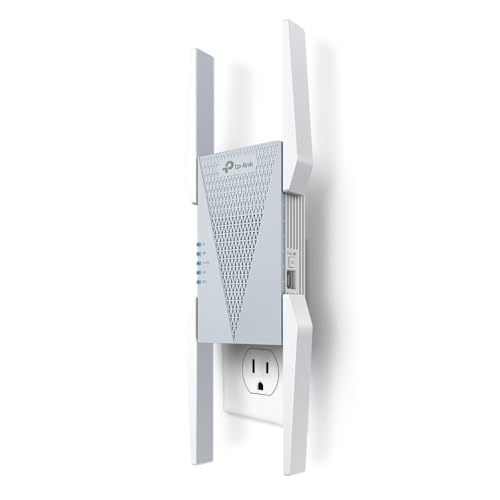
The TP-Link RE813XE is the future-facing pick, one of the first extenders built on Wi-Fi 6E, which adds the 6 GHz band to the familiar 2.4 and 5 GHz pair. That extra band is the interesting part: 6 GHz is fast, wide and, for now, uncrowded, and the RE813XE can use it as a dedicated backhaul to a Wi-Fi 6E router, leaving the lower bands entirely for your devices. It is a substantial wall-plug unit with four external antennas, an Ethernet port, and OneMesh support for TP-Link’s ecosystem.
Strengths. With a Wi-Fi 6E router, the 6 GHz backhaul is the cleanest solution on this list to the extender’s oldest problem, repeating no longer costs you half your speed, because the conversation with the router happens on a band your phones and laptops are not sharing. The 5 GHz and 2.4 GHz radios then serve the extended room at full strength, which makes this the strongest option here for a far room that does serious work. It remains fully backwards compatible, working as a dual-band extender with older routers, so it can grow with your next router purchase.
Trade-offs. The 6 GHz band has shorter range and weaker wall penetration than 5 GHz, so the backhaul advantage depends on the extender sitting within a reasonable, fairly open path of the router, which limits placement freedom in sprawling or masonry-heavy homes. If your router is Wi-Fi 6 or older, you are paying for a headline feature you cannot use yet. The unit is also large for a wall plug and the four antennas give it a distinctly technical look.
Who it suits. Homes that already own, or are about to buy, a Wi-Fi 6E router, and want the extended room, a study, a gaming setup, a media room, to perform as close to the main network as physics allows. For buyers thinking two purchases ahead, check price on Amazon.
Check price on Amazon: TP-Link RE813XE
Quick Comparison: The Five Extenders at a Glance
| Extender | Standard | Bands | Best for | Standout trait |
|---|---|---|---|---|
| ASUS RP-AX58 | Wi-Fi 6 | Dual-band | ASUS router homes | AiMesh seamless roaming |
| Netgear EAX15 | Wi-Fi 6 | Dual-band | Long single-storey homes | One network name, smart roaming |
| TP-Link RE605X | Wi-Fi 6 | Dual-band | Flats and small houses | Adjustable antennas, OneMesh option |
| Linksys RE9000 | Wi-Fi 5 | Tri-band | Gaming and media rooms | Dedicated backhaul, four Ethernet ports |
| TP-Link RE813XE | Wi-Fi 6E | Tri-band | Wi-Fi 6E router homes | 6 GHz dedicated backhaul |
Read the table as a map of intentions rather than a league ranking. The right choice is the one whose design matches your router brand, your floor plan and the workload of the room you are rescuing.
Placement: Where the Extender Goes Decides Everything
If you take one idea from this guide, take this one: an extender belongs halfway between the router and the dead zone, at the edge of where the router’s signal is still strong, not inside the dead zone itself. The classic mistake is plugging the extender into the far bedroom where the signal is already one bar, and then wondering why the extended network is also slow and unstable. The extender cannot invent signal. It can only relay what it hears, and in the dead zone it hears a whisper.
In practice, placement in a home is a small experiment. Start with a socket roughly midway along the path, ideally in a hallway or landing with a reasonably open line back toward the router. Use the extender’s app or signal indicator to check the quality of its link to the router; most apps describe this in plain terms, and you want the reading that means strong or good, not fair. Then check the dead room itself with the device you actually use there, a video call, a streaming episode, a class session, at the time of day the house is busiest. If it struggles, move the extender one socket closer to the router and check again. Counter-intuitively, moving the extender nearer the router often makes the far room faster, because the quality of the relay matters more than the raw distance covered.
Think in terms of the home’s axis. Houses are usually organised along a corridor or a central stairwell, and signal travels happily along those open spines while struggling to punch sideways through stacked walls. An extender on the landing at the top of the stairs can feed every upstairs bedroom through their doorways, because doorways are holes in walls and radio loves holes. The same logic applies downstairs: a hallway socket aligned with the kitchen door often beats a socket inside the kitchen surrounded by appliances. Keep the extender out in the open where possible, at roughly the height of a normal socket or higher, and away from the signal-hostile objects every home has: large mirrors, metal filing cabinets, fish tanks, thick chimney breasts and the microwave, which leaks interference on the same 2.4 GHz band your far devices depend on.
Wall materials set the ceiling on what any extender can achieve. Modern stud-and-plasterboard walls are comparatively kind. Brick internal walls halve your margin. Reinforced concrete floors between storeys are the hardest case in domestic Wi-Fi, and in a home with concrete slabs, the winning move is often an extender near the stairwell, where the signal can travel up through the open stair void rather than through the slab at all. Foil-backed insulation, increasingly common in renovated homes, is another quiet signal killer, and underfloor heating mats and large tiled wet-room walls deserve the same suspicion. None of this means an extender will not work in your house; it means the halfway rule should be interpreted generously, and the extender placed closer to the router than your first instinct suggests.
For the garage and the backyard, the same rules bend slightly. A garage extender usually does best on the house wall nearest the garage, or just inside the garage door if the construction is light, because the goal is a modest bubble of coverage for a camera, a smart opener and a phone, not full-speed downloads. For a backyard, place the extender on the inside of the exterior wall facing the garden, near a window if possible, since glass is far kinder to radio than brick. Sitting outside with a laptop for an afternoon of work is a realistic goal; expecting the far corner of a long garden to stream flawlessly is where expectations should soften.
One more placement habit separates good results from great ones: revisit the position after a week of living with it. Houses change through the day and across the seasons. A door that stood open during your Saturday setup spends the working week closed; a spare room becomes a nursery; a metal-framed sofa bed arrives in exactly the wrong spot. The extender that was perfectly placed for the house as it was may be merely adequate for the house as it is, and because moving it costs nothing but ten minutes, treat the first position as a strong draft rather than a final answer. The households that end up delighted with an extender are almost always the ones that moved it once.
When You Should Skip the Extender and Buy Mesh Instead
Honesty section, because extenders are not always the answer. A mesh system replaces your router with two or three cooperating nodes designed from the start to hand devices between them, share one network name and manage their own backhaul links. If your home has dead zones in several directions, if it is large or spread over three floors, or if your router is old enough that it struggles even in its own room, money spent on a strong extender is often better put toward a mesh kit that solves the whole problem at once.
Choose an extender when the home is basically fine except for one or two rooms, when your router is modern and you are happy with it, and when your budget or your tenancy says a single device is the right scale of intervention. Renters in particular should note that an extender involves no wiring, no drilling and no permission from anyone, and it leaves with you when you move. Choose mesh when you are renovating, when the router is due for replacement anyway, or when the household’s patience with network quirks is already exhausted and the fix needs to be total rather than targeted.
There is also a middle path worth knowing about. Several picks in this guide, the ASUS, TP-Link and D-Link models, can join their brand’s mesh ecosystem today and can later serve as satellite nodes if you buy into that ecosystem’s routers or mesh kits. That softens the either-or decision: an extender bought this year does not necessarily become e-waste when you upgrade the network next year, provided you stay within the same brand family.
Working From Home and Online Classes: Stability Beats Speed
The far bedroom in many houses is no longer a spare room; it is an office, a classroom or both on alternate hours. The good news is that video calls and online lessons are not actually demanding in raw speed. A clear video call needs only a modest, steady slice of bandwidth. What it cannot tolerate is instability: a signal that fades whenever someone runs the microwave, a connection that drops when the user shifts in their chair, latency that spikes because the extender is relaying through two weak hops. For work and school, your goal is a boringly consistent connection, and that changes how you should set things up.
Start by wiring whatever can be wired. If the desk in the far room can reach the extender’s Ethernet port with a cable, plug the laptop or dock in. That single cable removes the most important device from the wireless contention entirely and leaves the airwaves free for phones and tablets. If the extender only has one port and both a desktop and a TV live in that room, the desktop wins the cable; the TV can buffer, the meeting cannot. Keep the extender’s firmware updated, because vendors quietly fix roaming and stability bugs in these releases, and if your extender lets you choose, prefer the 5 GHz band for the work device when the room is within reasonable range, since it is less crowded and less prone to interference from household appliances, falling back to the longer reach of 2.4 GHz only when 5 GHz cannot hold on.
Finally, check the setup the way it will actually be used, at the actual hour. A house at ten in the morning, with one person on a call, is a different network from the same house at seven in the evening, when a console is downloading an update, a TV is streaming in high definition and three phones are scrolling. If the far room holds up through the evening peak, it will hold up for the school day and the working week. If it only fails at peak, the honest fixes are moving the extender closer to the router, wiring the hungriest device, or stepping up to a tri-band model with a dedicated backhaul rather than endlessly restarting the one you have.
Security standards and why WPA3 matters
An extender becomes part of your network’s front door, so its security support deserves a glance before you buy. Look for WPA3 support, or at minimum WPA2 with no reliance on the old WPS push-button method as the only setup route. WPS is convenient and historically leaky; use it, if at all, only during the first setup and then disable it in the settings. Set a unique admin password for the extender itself, because a device left on its factory password is a soft target sitting inside your home network. Finally, check that the manufacturer still publishes firmware updates for the model. Networking hardware is only as safe as its last update, and a bargain extender from a brand that has stopped supporting it is a false economy.
How many devices can it really handle
Spec sheets advertise connection counts that assume most devices are idle, which, to be fair, describes a real house most of the day. The strain arrives in the evening peak, when streaming, gaming, calls and downloads overlap. Wi-Fi 6 extenders cope better here because the standard was designed for households dense with devices, handling many small conversations more efficiently than Wi-Fi 5. If the room you are extending is a teenager’s headquarters or a shared study, treat the headline speed class as secondary and the standard itself, plus a dedicated backhaul if you can get one, as the real capacity features.
Setting Up Your Extender: A Calm Walkthrough
Setup day goes best with a little patience and a phone in hand. Start by plugging the extender into a socket in the same room as the router, not in its final position. Let it boot fully, then connect using the manufacturer’s app or the web address printed on the device or its quick-start card. Choose your home network from the list it finds, enter your router’s Wi-Fi password, and decide on network names: if the extender supports seamless roaming with your router, let it clone the main name; if it creates a separate extended name, keep it anyway for the first day, because a distinct name makes troubleshooting far easier, since you always know which device you are connected to.
Update the firmware now, while the extender is next to the router and the connection is perfect. Updates routinely improve stability and roaming behaviour, and doing this step first avoids diagnosing problems that a patch already solved. Change the admin password from its default. Then unplug the extender and carry it to your chosen halfway socket, the hallway or landing you identified along the path to the dead zone. Give it a minute to reconnect and read its signal indicator or app report. You are looking for the verdict that means a strong link to the router. Too far, and you move it one socket closer. Too close is rarely a problem worth fixing; a slightly conservative placement with an excellent backhaul almost always beats an ambitious one with a fragile link.
Now check it the way a resident would, not the way a technician would, with the rooms in ordinary use. Stand in the dead room with the device that matters, a laptop for the study, a phone for the bedroom, the TV itself for the media corner, and do the real task at the real time of day. Run the video call. Stream the episode. Join the class. Walk slowly toward the router and back and notice whether the connection hands over gracefully or clings and stutters. If a particular device misbehaves while others thrive, the fix is often on the device side: forget the network and rejoin so it learns the extended layout, or, for a fixed device like a desktop, use the Ethernet port and remove it from the wireless equation altogether. Only after a full evening of normal use should you consider the job finished and tidy the cables away.
Matching the Extender to Your Floor Plan
The long single-storey home. Ranches, bungalows and long flats share one geometry: the router at one end, bedrooms at the other, and a corridor between them. This is the extender’s home turf. One dual-band unit on the corridor axis, antennas angled along the hall, will usually lift every room off that corridor. The RE605X and EAX15 profiles fit this house well, and the main discipline is resisting the urge to push the extender too deep into the far end.
The two-storey house. Here the enemy is the floor slab, and the ally is the stairwell. Place the extender on the landing or in an upstairs room directly fed by the stair void, where signal travels through open air rather than through the floor. In homes with timber floors, a ground-floor hallway position directly beneath the target bedroom can also work. Expect to try two or three sockets in turn before the link settles; upstairs-downstairs links are the least predictable in domestic Wi-Fi, and the app’s signal reading is worth more than any rule of thumb.
The apartment. Flats have the opposite problem: distances are short, but the air is crowded with dozens of neighbouring networks, and walls between flats are often solid. An extender still helps for a far bedroom or a balcony, but placement should favour the 5 GHz band, which suffers less congestion, and expectations should centre on reliability rather than raw speed. A compact extender suits this scale, and in a small flat it is worth asking honestly whether repositioning the router itself to a central spot solves the problem for free.
The house with an annex, garage or garden room. Detached and semi-detached workspaces are the hardest ask, because the signal must leave the house, cross open air or a driveway, and enter another structure. An extender inside the main house on the wall facing the outbuilding is the first attempt; if the gap is large or the outbuilding is metal-clad, be aware that this is the scenario where extenders most often disappoint, and a mesh node in the outbuilding with a strong line back, or a wired solution, becomes the honest recommendation. Set the extender up for the modest, real goal, cameras, music, messages and light browsing, and it will usually deliver exactly that.
Troubleshooting: When the Extended Network Misbehaves
The extended network is slower than the old weak signal. This almost always means the extender is too far from the router and is relaying a poor link very efficiently. Move it closer, one socket at a time, checking as you go. Also check that your device is actually connected to the extender and not clinging to the distant router; a quick toggle of the device’s Wi-Fi forces a fresh choice.
Connections drop at the same time every evening. Evening drops usually mean congestion or interference rather than failing hardware. The microwave oven, neighbouring networks coming alive after work, and a console downloading updates all peak together. Wiring the hungriest fixed device into the extender, shifting the work device to 5 GHz, and confirming the firmware is current resolves most evening patterns.
One room works, the next room over does not. Signal does not spread evenly; it funnels through doorways and dies against masonry, mirrors and metal. A socket a metre to the left, aligned with a doorway instead of a chimney breast, can transform a stubborn room. Treat placement as a per-room experiment rather than a one-time decision, and let the app’s link-quality reading arbitrate.
The extender keeps disappearing from the network. Intermittent vanishing points to power or heat more often than to Wi-Fi itself. Make sure the unit is not behind a heavy curtain or inside a closed cabinet, try a different socket on a different circuit if the house wiring is old, and check for a firmware update. If the behaviour survives all three, the honest answer is that the unit and your router may simply be poor partners, and a model from the router’s own ecosystem is the reliable path.
Extenders Versus the Alternatives: Powerline and Wired Access Points
An extender is not the only way to reach a stubborn room, and a fair guide should name the rivals. Powerline adapters send networking through your home’s electrical wiring, with one unit at the router and another in the far room, where it can feed a device by cable or broadcast a small Wi-Fi network of its own. In houses with modern, simple wiring, powerline can be steadier than a wireless relay, because it sidesteps walls entirely. In houses with old wiring, multiple fuse boxes or circuits that cross between distribution boards, its performance can collapse without warning, and it rarely matches a good extender for whole-room wireless coverage. It is a reasonable experiment for one wired desk, and a gamble as a whole-home strategy.
The gold standard remains a cable. If you can run Ethernet, during a renovation, along a skirting board, through a loft, to the far end of the house, a wired access point there will outperform every extender in this guide, permanently and without negotiation. Several extenders above can even serve as that access point later, which is worth remembering if building work is on your horizon. Until then, the extender’s virtue is that it asks nothing of the house: no drilling, no wiring, no landlord’s permission, and it can be repositioned in an afternoon when the furniture, or the family, rearranges itself.
A Note for Smart Homes: The Far Rooms Are Full of Radios
The dead zone rarely contains just people. It contains the doorbell camera that uploads motion clips, the smart plug on the workshop tools, the voice speaker in the spare room, the robot vacuum that maps from its dock in the utility corner. These devices mostly live on the 2.4 GHz band, speak quietly, and are far less forgiving of a marginal signal than a phone, which can buffer and retry invisibly. When a camera misses events or a smart lock reports itself offline, the cause is frequently a signal that looks adequate on a phone’s display but is not adequate for a tiny radio behind a metal door.
This is where an extender quietly earns its keep even in homes whose human users were coping. A unit placed for the garage or the front-of-house wall gives those small devices a nearby, strong 2.4 GHz signal to hold onto, and their reliability improves out of proportion to the modest bandwidth they use. When you check placement, include them: check the camera’s live view, ask the speaker a question, confirm the vacuum still reports to its app. A network that keeps the house’s smallest radios happy will feel dependable in ways a speed reading never shows.
Frequently Asked Questions
Will a range extender slow down my whole network?
The extended room will usually see lower speeds than the room with the router, because a basic extender spends part of its capacity relaying traffic back and forth. The rest of your network, devices connected directly to the router, is unaffected. Tri-band extenders with a dedicated backhaul shrink the penalty considerably, which is why they are recommended for gaming and heavy streaming rooms.
Can one extender fix both an upstairs bedroom and the garage?
Only if both happen to lie in the same direction from the router and within the extender’s comfortable reach, which is uncommon. Extenders radiate outward from where they sit, so one unit placed for the upstairs landing will rarely help a garage on the opposite side of the house. Two modest extenders, each placed for its own zone, usually beat one powerful unit asked to cover everything.
Does the extender need to match my router’s brand?
No. Any extender here will repeat any router’s signal. Matching brands only matters for the seamless-roaming ecosystems, AiMesh, OneMesh and similar systems, which need a compatible router to enable single-name roaming and unified management. Without them you may get a second network name and occasional manual switching, which is a nuisance rather than a failure.
Why does the extended network still feel weak even with full bars?
Full bars describe the strength of the signal between your device and the extender, not between the extender and the router. If the extender itself is sitting in a weak spot, it will broadcast a strong local signal carrying a poor connection. Move the extender closer to the router until its own link quality reads strong, then re-check the room. This single adjustment fixes the majority of disappointing extender experiences.
Is an extender safe to leave plugged in all the time?
Yes. Extenders are designed for continuous use, draw very little power, and are meant to be set up once and forgotten. Use the admin password you set during setup rather than the default, keep the firmware current, and the device can be treated like any other always-on household appliance.
Whatever your floor plan throws at the signal, the fix is rarely a faster plan or a bigger router; it is a well-placed relay on the path to the room that needs it, and one of these five, matched to your router and your walls, will turn that one frustrating room back into part of the house.