The best Mac compatible printers are the ones that never make a Mac owner think about drivers, because printing from a Mac should be the easiest thing a printer does. A Mac finds the printer on the network, the print dialogue shows the right options, and the page comes out as it looked on screen. That is the whole job, and it is surprising how many printers fail at it, because the manufacturer stopped updating the macOS software, or because the printer needs a driver that no longer exists. A printer that is Mac compatible in name only is worse than no printer at all, because it wastes an afternoon before it wastes the money.
This guide looks at eight printers that work with a Mac in practice, and every one of them is a real printer sold today. The Canon MegaTank G3270 is a refillable tank all-in-one for a home that prints a lot and wants cheap ink. The Canon PIXMA TS6520 is a compact photo-friendly all-in-one with a small OLED display. The HP Envy 6155 is a straightforward home all-in-one with duplex printing, and the HP OfficeJet Pro 8125 adds a document feeder for a home office. The Canon PIXMA TR4720 is a small home all-in-one with a fax and a feeder, the Brother HL-L2405W is a compact monochrome laser, the Brother MFC-L3780CDW is a colour laser all-in-one, and the Canon PIXMA TR8620a is a home-office all-in-one with AirPrint in its listing.
A word on what Mac compatible means here, because it matters more than the brand on the box. The simplest route is AirPrint, the driverless printing built into macOS: the Mac sees the printer on the same network and prints, with no software to install. Six of the eight picks were returned by the site's own AirPrint searches. The other two, the Canon TR4720 and the Brother MFC-L3780CDW, come from the Mac-compatibility searches and are described through mobile printing and the manufacturer's macOS support, with a note to confirm AirPrint on the listing. Either way, the test is the same: the printer must work with a Mac as it ships, without a hunt for drivers.
In this guide
Quick picks: best mac compatible printers
| # | Product | Where to buy |
|---|---|---|
| 1 | Canon MegaTank G3270 | Check on Amazon |
| 2 | Canon PIXMA TS6520 | Check on Amazon |
| 3 | HP Envy 6155 | Check on Amazon |
| 4 | HP OfficeJet Pro 8125 | Check on Amazon |
| 5 | Canon PIXMA TR4720 | Check on Amazon |
| 6 | Brother HL-L2405W | Check on Amazon |
| 7 | Brother MFC-L3780CDW | Check on Amazon |
| 8 | Canon PIXMA TR8620a | Check on Amazon |
How the picks were chosen
The picks were chosen from the site's own product listings, and only genuine printers made the list. Label printers, receipt printers, 3D printers and portable thermal printers were all left out, because none of them is a Mac printer for a home or a home office. Each pick was checked for a real printer that prints on paper, for wireless printing a Mac can use, and for a model name that matches the listing exactly.
Mac compatibility was the first test, and it was applied to the listing, not to the brand. Canon, HP and Brother all make printers that work with a Mac and printers that do not, and the brand on the box says nothing by itself. The picks were found through searches for Mac compatible printers, best printers for Mac, AirPrint printers and Mac printers with Wi-Fi, then a second round aimed specifically at AirPrint. A printer that only appeared in a generic search, with no Mac or AirPrint connection, did not make the list.
The second test was the type of printer, because a Mac compatible printer still has to be the right printer for the job. The guide covers the two types a home or home office needs: inkjet all-in-ones for colour, photos and occasional printing, and laser all-in-ones for black and white documents and heavier daily use. There is one single-function printer, the Brother laser, because it does one thing well and cheaply. The comparison table calls out the type of each pick, so the choice between inkjet and laser is easy.
Quick comparison
| Product | Standout detail |
|---|---|
| Canon MegaTank G3270 | Canon MegaTank G3270, refillable tank, all-in-one |
| Canon PIXMA TS6520 | Canon PIXMA TS6520, 1.42-inch OLED display, all-in-one |
| HP Envy 6155 | HP Envy 6155, duplex printing, all-in-one |
| HP OfficeJet Pro 8125 | HP OfficeJet Pro 8125, ADF, home office all-in-one |
| Canon PIXMA TR4720 | Canon PIXMA TR4720, ADF and fax, home all-in-one |
| Brother HL-L2405W | Brother HL-L2405W, monochrome laser, single function |
| Brother MFC-L3780CDW | Brother MFC-L3780CDW, colour laser, 31 ppm, all-in-one |
| Canon PIXMA TR8620a | Canon PIXMA TR8620a, AirPrint in listing, home office all-in-one |

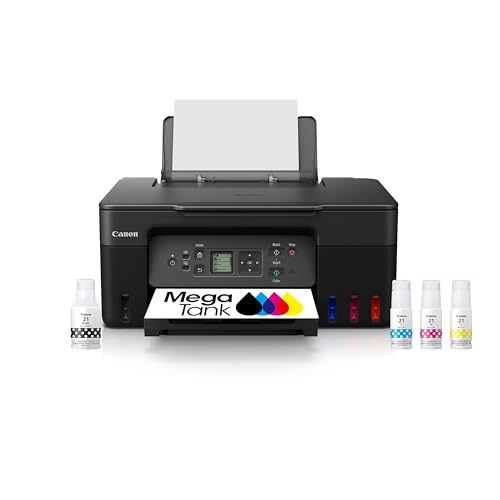
1. Canon MegaTank G3270
Key specs
All-in-one wireless colour printer with a refillable MegaTank ink system, print, copy and scan, in a compact desktop design.
Strengths
- Refillable tanks hold far more ink than cartridges, so a household that prints often refills less often and spends less per page.
- Wireless printing works with a Mac on the same network, and the all-in-one covers printing, copying and scanning in one box.
- The compact desktop design fits on a desk or a shelf without taking over the room, which matters in a small home office.
Trade-offs
- Inkjet printing is slower than laser for long black and white documents, so a household that prints hundreds of pages a week should look at the lasers in this guide.
- Refillable tanks need the bottles to be handled carefully, because spilled ink stains hands, clothes and desks.
- The compact design means a smaller paper tray, so the tray needs refilling more often during a long print run.
Who it fits
A household that prints regularly in colour, from school work to photos to everyday documents, and wants the ink to last.
Best for: a household that prints a lot in colour and wants refillable ink
Not suited for: a home that prints only a page or two a month, where a laser would be cheaper to own
In daily use
In daily use, the G3270 sits quietly until it is needed, then prints without a fuss. The tanks are filled from bottles and the level is visible, so the ink never runs out by surprise. Printing from a Mac means choosing the printer in the print dialogue, and the wireless connection holds once set up. Keep it on and connected, and it stays ready.
Check price on Amazon: Canon MegaTank G3270

2. Canon PIXMA TS6520
Key specs
Wireless colour inkjet printer with a 1.42-inch OLED display, print, scan and copy, in white, with an OLED screen for settings and status.
Strengths
- The 1.42-inch OLED display makes the printer easy to use without a computer, because settings, ink levels and status are visible on the printer itself.
- Wireless colour printing works with a Mac on the same network, and the all-in-one covers printing, scanning and copying.
- The white finish and compact shape suit a desk in a living room or a bedroom, where a black office box would look out of place.
Trade-offs
- This is a home inkjet, not an office workhorse, so long document runs are slower than on the lasers in this guide.
- The paper tray is sized for home use, so a large print job needs the tray to be topped up partway through.
- Ink cartridges cost more per page than the refillable tanks of the G3270, so heavy printers should compare the two.
Who it fits
A home that wants a good-looking colour all-in-one for documents and photos, with a display that makes the printer easy to run.
Best for: a home that wants a compact colour all-in-one with a display
Not suited for: a busy home office that prints hundreds of pages a week
In daily use
In daily use, the TS6520 is for the person who prints a few pages a day and a photo now and then. The OLED display shows what the printer is doing, which helps when the printer is across the room. Printing from a Mac works over the wireless network, and scanning to the Mac is done from the computer. Keep spare cartridges on hand, because an inkjet that runs dry mid-photo wastes paper as well as ink.
Check price on Amazon: Canon PIXMA TS6520

3. HP Envy 6155
Key specs
Wireless all-in-one colour inkjet printer with print, scan and copy, duplex printing, and a trial period of the ink delivery service in the listing.
Strengths
- Duplex printing saves paper on every two-sided document, and it is built in rather than added on, so it works from the Mac print dialogue.
- Wireless all-in-one printing covers the three jobs a home needs, printing, scanning and copying, in a single machine.
- The Envy range is aimed squarely at home users, so the setup is simple and the printer is designed to be left on and ready.
Trade-offs
- This is a home printer, so it is slower than the office lasers in this guide on long black and white runs.
- Ink cartridges are the running cost, and a household that prints heavily should compare the per-page cost with the refillable G3270.
- The listing mentions a trial of the ink delivery service, which is a subscription to think about rather than a feature to assume.
Who it fits
A home that wants a simple colour all-in-one with two-sided printing, and does not want to think about the printer at all.
Best for: a home that wants a simple all-in-one with duplex printing
Not suited for: a home office that prints hundreds of black and white pages a week
In daily use
In daily use, the Envy 6155 gets out of the way. It sits on the desk, stays connected to the wireless network, and prints when the Mac asks it to. Duplex printing is the feature that earns its keep, because two-sided school work and documents use half the paper. The scanner lid lifts for books and thick originals, and the copy function works from the printer itself.
Check price on Amazon: HP Envy 6155

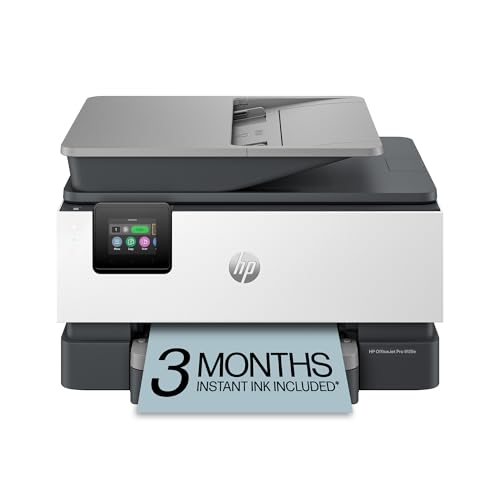
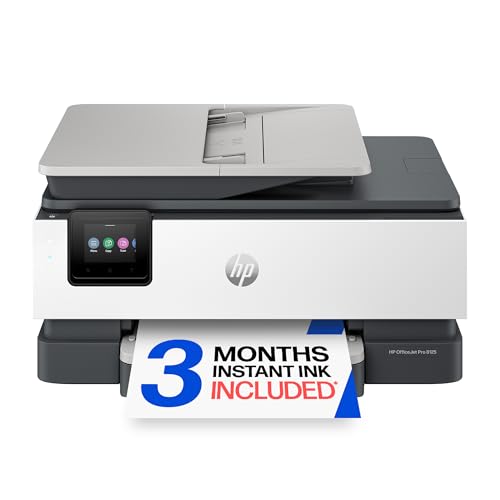
4. HP OfficeJet Pro 8125
Key specs
Wireless all-in-one colour inkjet printer with print, scan and copy, an automatic document feeder, and duplex printing, aimed at home office use.
Strengths
- The automatic document feeder scans and copies multi-page documents without the pages being placed on the glass one at a time.
- Duplex printing is built in, so two-sided documents come out finished rather than half done.
- Wireless printing works with a Mac on the same network, and the OfficeJet Pro range is built for a home office that prints every day.
Trade-offs
- An inkjet is slower than a laser on long black and white runs, so a very heavy document load belongs on the Brother lasers in this guide.
- The OfficeJet Pro is bigger than the home all-in-ones, so it needs a proper desk or a printer stand rather than a shelf.
- Ink cartridges are the running cost, and heavy use should be costed against the refillable tank and laser options.
Who it fits
A home office that prints, scans and copies every day, and needs a document feeder for multi-page paperwork.
Best for: a home office that needs an all-in-one with a document feeder
Not suited for: a household that prints only a few pages a month
In daily use
In daily use, the OfficeJet Pro 8125 earns its desk space. The document feeder changes the routine: a stack of pages goes in, and the scan or copy comes out without the lid being lifted for every page. Printing from a Mac works over the wireless network, and duplex printing is chosen in the print dialogue. Keep the feeder rollers clean and the paper dry, and the machine will feed reliably for years.
Check price on Amazon: HP OfficeJet Pro 8125

5. Canon PIXMA TR4720
Key specs
All-in-one wireless printer for home use, with an auto document feeder, mobile printing and a built-in fax, in black.
Strengths
- The auto document feeder handles multi-page scans and copies, which is rare in a printer this small and this inexpensive.
- A built-in fax is still useful for the households and small offices that need one, and it is here without a separate machine.
- Mobile printing and wireless printing make it easy to print from a phone as well as from a Mac, which suits a household with more than one device.
Trade-offs
- This is a small home all-in-one, so it is slower than the office machines in this guide, and the paper tray is sized for home use.
- The listing describes mobile printing rather than naming AirPrint, so confirm AirPrint support on the listing before ordering if driverless Mac printing is the reason for buying.
- The fax needs a phone line, which many homes no longer have, so the feature is only useful if the line is already there.
Who it fits
A small home that wants an inexpensive all-in-one with a document feeder and a fax, and prints a few pages a day.
Best for: a small home that wants a cheap all-in-one with a feeder and fax
Not suited for: a busy home office that prints hundreds of pages a week
In daily use
In daily use, the TR4720 is for the household that prints a little of everything. A few pages of school work, a copied form, a faxed document, and a scan for the records, all from one small box. The document feeder takes the tedium out of multi-page copies, and the wireless connection means the printer can sit where it fits rather than next to the computer. Check the listing for AirPrint before ordering, and keep the paper tray filled, because a small tray empties quickly.
Check price on Amazon: Canon PIXMA TR4720

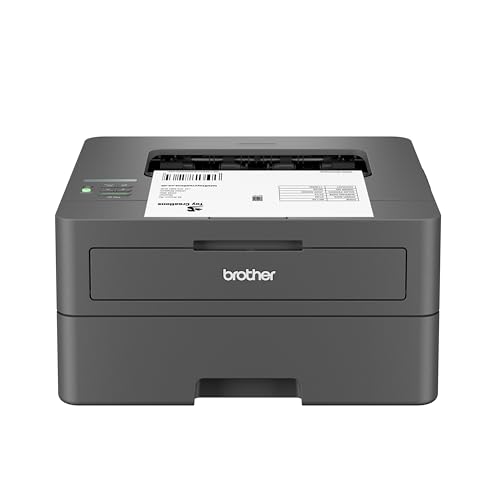
6. Brother HL-L2405W
Key specs
Wireless compact monochrome laser printer with mobile printing, black and white output, in a small desktop design.
Strengths
- Laser printing is fast and cheap per page for black and white documents, which is most of what a home or office actually prints.
- A laser printer does not dry out, so it is the right choice for a household that prints a few pages a week and leaves the printer idle in between.
- The compact design fits on a desk or a shelf, and the wireless connection means it can sit where it fits rather than next to the computer.
Trade-offs
- This printer prints black and white only, so colour documents and photos need one of the inkjets in this guide.
- It is a single-function printer, so scanning and copying need a separate scanner or one of the all-in-ones here.
- The paper tray is sized for home use, so a long print run needs the tray to be topped up.
Who it fits
A home or small office that prints mostly black and white documents, and wants a fast, cheap, reliable laser.
Best for: a home that prints mostly black and white and wants a laser
Not suited for: anyone who needs colour printing or scanning
In daily use
In daily use, the HL-L2405W is always ready. Laser toner does not dry out, so a printer that sits unused for a month still prints perfectly on the first page, which is the great advantage over an inkjet for light users. Printing from a Mac works over the wireless network, and the pages come out crisp and dry, ready to file. Keep a spare toner cartridge, because the one in the box is a starter, and it will run out sooner than expected.
Check price on Amazon: Brother HL-L2405W

7. Brother MFC-L3780CDW
Key specs
Wireless digital colour all-in-one laser printer, a 31 ppm laser colour printer with single-pass duplex copy and scan, for a home office.
Strengths
- A colour laser prints fast in both black and white and colour, and the 31 ppm figure in the listing is the speed of an office machine, not a home inkjet.
- Single-pass duplex copy and scan handles two-sided originals in one pass, which saves real time on multi-page paperwork.
- Laser toner does not dry out, so the printer is ready after weeks idle, and the all-in-one covers printing, copying and scanning.
Trade-offs
- A colour laser costs more to buy than an inkjet all-in-one, so it only pays for itself in a home office that prints regularly.
- Colour laser output is excellent for documents and charts, but it is not a photo printer, and photos belong on the inkjets in this guide.
- The listing describes a wireless digital colour all-in-one rather than naming AirPrint, so confirm AirPrint support on the listing before ordering if driverless Mac printing is the reason for buying.
Who it fits
A busy home office that prints a lot in black and white and colour, and wants a fast laser all-in-one.
Best for: a busy home office that wants a fast colour laser all-in-one
Not suited for: a household that prints only a few pages a month
In daily use
In daily use, the MFC-L3780CDW is the workhorse of this guide. It prints quickly, it copies two-sided originals in a single pass, and it does not complain about a long document run. The wireless connection means it can sit on a printer stand rather than on the desk, and printing from a Mac works over the network. Keep the toner cartridges in mind as the running cost, and keep the paper tray full, because a fast printer empties a small tray quickly.
Check price on Amazon: Brother MFC-L3780CDW

8. Canon PIXMA TR8620a
Key specs
All-in-one printer for home office use, with copier, scanner, fax and auto document feeder, for photo and document printing, with AirPrint in the listing.
Strengths
- AirPrint is named in the listing itself, which is the clearest sign that this printer is aimed at Apple users and prints driverless from a Mac.
- The auto document feeder and the fax make this a complete home-office machine, covering printing, copying, scanning and faxing.
- Photo and document printing in one machine suits a home office that prints reports in the morning and photos in the evening.
Trade-offs
- This is an inkjet, so it is slower than the lasers in this guide on long black and white runs, and the ink is the running cost.
- A home-office all-in-one is bigger than the compact home printers, so it needs a proper desk or a printer stand.
- The photo printing is good, but a dedicated photo printer would do better for a household that prints photos every day.
Who it fits
A home office that wants one machine for documents, photos, scanning, copying and faxing, with AirPrint named in the listing.
Best for: a home office that wants a complete all-in-one with AirPrint
Not suited for: a household that prints only black and white documents
In daily use
In daily use, the TR8620a does everything a home office asks of it. The document feeder takes multi-page scans, the fax is there when it is needed, and the photo printing is good enough for prints that go on the wall rather than in a drawer. AirPrint is named in the listing, so printing from a Mac is driverless, and the wireless connection holds once it is set up. Keep the ink topped up and the paper dry, and the machine will do its job without being noticed.
Check price on Amazon: Canon PIXMA TR8620a
Buying guide: best mac compatible printers
AirPrint first: the easiest way to print from a Mac
The other two, the Canon TR4720 and the Brother MFC-L3780CDW, are Mac-compatible through mobile printing and macOS support; confirm AirPrint on their listings before ordering. If driverless printing matters, buy the printer that names AirPrint.
Inkjet or laser: the choice that decides the running cost
The choice between an inkjet and a laser decides what the printer costs to own. An inkjet prints in colour and handles photos well, and the refillable tank of the Canon G3270 makes the ink cheap, but the ink dries out if the printer sits unused. A laser prints fast in black and white, the toner never dries out, and the cost per page is low, but a colour laser is not a photo printer. A household that prints a few pages a week should buy a laser. A household that prints colour and photos should buy an inkjet. A home office that prints a lot of both should look at the Brother MFC-L3780CDW, and keep an inkjet for photos.
The all-in-one question: scanning and copying matter more than they seem
Seven of the eight printers here are all-in-ones, and that is not an accident. A printer that only prints is a poor fit for a home, because the second thing anyone needs after printing is scanning, whether it is a form, a receipt, a drawing, or a page from a book. The only single-function printer here is the Brother HL-L2405W, and it earns its place by being cheap, fast and reliable at the one thing it does. If the desk has room for one machine, buy an all-in-one. If the desk already has a scanner, or the budget is tight, the Brother laser is the honest choice.
The document feeder: a small feature that changes the routine
An automatic document feeder is a small feature that changes the daily routine more than any other, because it turns a multi-page scan or copy from a chore into a button press. The HP OfficeJet Pro 8125, the Canon TR4720 and the Canon TR8620a all have one, and the Brother MFC-L3780CDW goes further with single-pass duplex copying, which handles two-sided originals in one pass. A household that scans a page at a time will never miss a feeder. A home office that scans stacks of paper will wonder how it managed without one.
Wireless setup: put the printer where it fits, not where the cable reaches
Every printer in this guide prints over a wireless network, and that matters more than it sounds, because a printer that needs a cable has to sit next to the computer, while a printer on the network can sit where it fits. The setup is the same for all eight: join the printer to the wireless network, and the Mac will find it. The common mistake is to set the printer up from a phone and never check that the Mac can see it, so print a test page from the Mac before the return window closes.
Size and noise: the printer lives in the room, not in the listing
A printer lives in a room, and its size and its noise matter every day. The compact printers here, the Canon G3270, the Canon TS6520 and the Brother HL-L2405W, fit on a desk or a shelf, while the office machines, the HP OfficeJet Pro 8125, the Brother MFC-L3780CDW and the Canon TR8620a, need a proper desk or a printer stand. Laser printers are louder than inkjets when they print, and they warm up before the first page, while inkjets are quieter but slower. Measure the desk before ordering, and think about who sleeps near the printer.
Usage and care
Use the printer regularly, and it will last longer than one that sits idle. An inkjet that prints every week keeps its heads clear, while one that sits for a month may need a cleaning cycle first. A laser does not have this problem, and it can sit for months without attention, which is why the Brother lasers suit light users. Whatever the type, keep the printer on and connected.
Keep the paper dry and the printer clean, and most printing problems never happen. Damp paper jams, curls and feeds badly, so store it in the packet until it is needed. Dust builds up inside a printer, and a soft brush or a wipe around the paper path once in a while keeps the feed reliable. The scanner glass should be wiped with a soft, dry cloth, because a mark on the glass appears on every scan and copy.
Check the ink or toner level before a big print job, not during it. A printer that runs out of ink halfway through a document wastes paper and time, and the second half will not match the first. The Canon TS6520 shows the level on its OLED display, the others show it on the computer, and a quick check before a long job is a habit worth forming. Keep a spare cartridge or bottle of ink, because the day the printer runs dry is always the day something needs printing.
Common mistakes
The most common mistake is buying a printer for the price and forgetting the cost of the ink. A cheap printer with expensive cartridges costs more in a year than an expensive printer with cheap ink, and the refillable Canon G3270 and the Brother lasers exist precisely because of that. Compare cartridge costs before ordering, because the printer is the cheap part and the ink is the expensive part.
Another common mistake is buying a printer that is not Mac compatible and discovering it after the return window has closed. The test is simple: print a test page from the Mac on the first day, scan a page to the Mac on the first day, and check that the Mac sees the printer without any software being installed. If the printer needs a driver download, or the Mac cannot see it on the network, send it back while that is still possible.
The third mistake is buying the wrong type of printer for the job. A household that prints photos and buys a monochrome laser will be disappointed, and a household that prints hundreds of black and white pages and buys a small inkjet will be disappointed more slowly, as the ink runs out. The choice is simple: colour and photos mean inkjet, black and white documents mean laser, and a lot of both means a colour laser plus an inkjet for photos.
Printers as furniture: the printer moves out of the office
A printer used to live in an office, and now it lives in a home, which changes what matters about it. A printer that sits in a living room needs to look reasonable and print quietly, and the white Canon TS6520 and the compact Brother laser are the clearest examples of printers that fit a room rather than an office. A printer in a home office can be bigger and louder, and the office machines here are built for that.
What comes next: printing without a computer at all
The printers in this guide point in one direction worth watching: printing without a computer at all. AirPrint already lets a phone or a tablet print directly, and the wireless connection already lets the printer sit anywhere in the house. The next step is a printer that needs no setup at all, that appears on the network and prints from whatever device is in hand. The eight printers here are already most of the way there. Buy the printer that works today, and it will keep working as the rest of the house catches up.
Final recommendation
If one printer has to win this guide, it is the Canon PIXMA TR8620a, because it does everything a home office asks of it and names AirPrint in its own listing. The Canon MegaTank G3270 is the best choice for a household that prints a lot in colour, the Brother MFC-L3780CDW is the best choice for a busy home office that prints a lot of everything, and the Brother HL-L2405W is the best choice for a home that prints mostly black and white. The HP OfficeJet Pro 8125 is the best all-rounder with a feeder, the Canon TS6520 is the best-looking compact all-in-one, and the HP Envy 6155 is the simplest home all-in-one.
For most buyers, the choice comes down to what gets printed. Colour and photos mean an inkjet, and the Canon G3270 or the Canon TS6520 will do the job. Black and white documents mean a laser, and the Brother HL-L2405W will do it cheaply. A home office that prints every day means the Brother MFC-L3780CDW or the HP OfficeJet Pro 8125, and a home office that wants one machine for everything means the Canon TR8620a. Print a test page from the Mac on the first day, and keep spare ink or toner on hand.
Whatever printer is chosen, set it up on the wireless network on the first day, print a test page from the Mac, and check the ink or toner level before the first big job. A printer that works with a Mac on day one will work with it for years, and a printer that needs a driver hunt on day one will need it again after every macOS update. The eight printers here all do the job; the right one matches the printing that actually happens in the house.
Frequently asked questions
Do all printers work with a Mac?
No. A printer works with a Mac if it supports AirPrint, the driverless printing built into macOS, or if the manufacturer still provides macOS software for it. A printer with neither will not print from a Mac, however well it prints from Windows. All eight printers here were found through Mac-compatibility and AirPrint searches, and the Canon TR8620a names AirPrint in its own listing.
What is AirPrint, and why does it matter?
AirPrint is the driverless printing built into macOS and iOS. A printer with AirPrint appears in the Mac print dialogue as soon as it is on the same network, with no software to install and nothing to update when macOS changes. It is the simplest and most reliable way to print from a Mac; a printer without it depends on the manufacturer keeping its macOS software up to date.
Should I buy an inkjet or a laser printer for a Mac?
Buy an inkjet if the printing is mostly colour and photos, and a laser if it is mostly black and white documents. An inkjet prints colour and photos well, but the ink dries out if the printer sits unused. A laser prints fast in black and white, the toner never dries out, and the cost per page is low, but a colour laser is not a photo printer.
How do I set up a printer with a Mac?
Join the printer to the wireless network, and the Mac will find it. Open the print dialogue in any application, choose the printer, and print a test page. If the printer supports AirPrint, nothing else needs to be installed. If the Mac cannot see the printer, check that both are on the same network, and print the test page before the return window closes.
Why does my printer work with Windows but not with my Mac?
Because the printer relies on Windows software that has no macOS equivalent, or because the manufacturer stopped updating the macOS software. This is the most common reason a printer fails with a Mac, and it is why this guide only lists current models whose manufacturers still list macOS support. Buying a current model with AirPrint avoids the problem entirely.
Is a refillable tank printer cheaper than a cartridge printer?
Yes, for a household that prints regularly in colour. A refillable tank printer such as the Canon MegaTank G3270 uses bottles of ink that hold far more than a cartridge, so the cost per page is lower and the ink lasts longer. A household that prints only a few pages a month will not save enough to notice, and a laser would be cheaper to own.
Do I need a document feeder?
A document feeder matters if multi-page scanning or copying is part of the week. The HP OfficeJet Pro 8125, the Canon TR4720 and the Canon TR8620a all have one, and the Brother MFC-L3780CDW copies two-sided originals in a single pass. A household that scans a page at a time will never miss a feeder, and a home office that scans stacks of paper will wonder how it managed without one.
Will these printers work with the next version of macOS?
A printer with AirPrint will keep working, because AirPrint is built into macOS and does not depend on the manufacturer's software. A printer that depends on a driver may stop working after a macOS update if the manufacturer does not update the driver. All eight printers in this guide are current models, and the manufacturers still list macOS support for them.
More from ilcastellomenu.com
Printers for Mac OS X 10.6: older Mac printing picks