Disclosure: As an Amazon Associate, ilcastellomenu.com earns from qualifying purchases. Links on this page are affiliate links; they cost you nothing extra. Prices and availability change often, so check the current Amazon listing before you buy.
If you are shopping for the best pcie 5 ssds for gaming, the honest starting point is this: a Gen5 drive will not transform frame rates, but it does cut level loads, texture streaming hitches, game installs, patch unpacking, shader compilation waits and large file moves in a way you can feel every single day. This guide compares six verified Gen5 drives, explains where Gen5 genuinely helps a gaming PC, where a good Gen4 drive is still the smarter buy, and how to avoid the three mistakes that waste the most money: buying a drive your motherboard cannot run at full speed, ignoring heatsink clearance, and paying flagship money for a capacity you will never fill.
Where to buy: every linked pick below was checked against the Creators API on this site on 2026-11-23, and the Amazon links use the plain product page for each drive. Use the Check price on Amazon button on each pick because Gen5 pricing moves quickly and capacity tiers change value week to week. If a listing shows a different capacity or a heatsink variant, confirm the model code in the listing title matches the model discussed here before you order.
In this guide
Quick Picks: Best PCIe 5 SSDs for Gaming at a Glance
| Drive | Best for | Link |
|---|---|---|
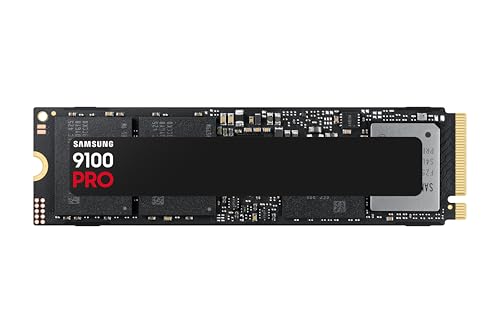
| Samsung 9100 PRO 2TB | Best overall | Check price on Amazon |
| WD Black SN8100 2TB | Fastest headline speeds | Check price on Amazon |
| Crucial T705 2TB | Proven Gen5 flagship | Check price on Amazon |
| Crucial T710 1TB | Newer controller generation | Check price on Amazon |
| Crucial T700 2TB with Heatsink | Heatsink included | Check price on Amazon |
| Crucial P510 2TB with Heatsink | Value Gen5 step-up | Check price on Amazon |
The short version: the Samsung 9100 PRO 2TB is the balanced flagship most gamers should buy first, the WD Black SN8100 2TB posts the strongest headline read and write figures in this group, the Crucial T705 2TB is the mature, widely supported Gen5 flagship, the Crucial T710 1TB brings a newer controller generation at a smaller capacity, the Crucial T700 2TB with Heatsink suits boards without a good built-in M.2 heatsink, and the Crucial P510 2TB with Heatsink is the sensible step-up Gen5 option when flagship money is better spent on a GPU. Every one of these drives is an M.2 2280 NVMe drive, so the deciding factors are sustained speed, thermals, capacity and price per terabyte rather than basic fit.
How These Picks Were Chosen
Each drive had to meet five tests. First, it had to be a genuine PCIe 5.0 NVMe drive, confirmed from the API-returned product title rather than from a marketplace headline. Second, it had to use TLC NAND rather than QLC in the capacities listed, because TLC holds write speed far better during long game installs and capture recording. Third, the exact ASIN had to return an official product image from the API, so what you see here is the manufacturer image for that listing. Fourth, the drive had to make sense for a gaming workload specifically: fast sequential reads for loads, strong random performance for asset streaming, and thermals that a normal gaming case can manage. Fifth, there had to be a clear reason to pick it over the drive above and below it in this list, otherwise it was cut.
What this guide does not do is rank drives purely by the biggest number on the box. Sequential read figures are measured in ideal conditions with large files, while games mix large texture packs with thousands of small files. That is why the detailed reviews below weigh sustained writes, heatsink arrangements, firmware maturity and capacity value alongside headline speed. A drive that is five percent slower on paper but runs cooler and costs meaningfully less per terabyte is often the better gaming buy.

Samsung 9100 PRO 2TB — Best overall
Badge: Best overall. The API-confirmed listing for this pick is titled “Samsung SSD 9100 PRO 2TB, PCIe 5.0×4 M.2 2280, Up to 14,700MB/s | NVMe Internal Solid State Hard Drive best for AI Computing, Gaming, and Heavy Duty Workstations (MZ VAP2T0B/AM)”. That title matters because it pins down the generation, the form factor and the capacity tier you are actually buying, and Gen5 listings are frequently mixed with Gen4 variants of a similar name on the same page. Always match the capacity and the model code before ordering.
In a gaming PC, the Samsung 9100 PRO 2TB earns its place through load and install behaviour rather than through frame rate. Expect Windows and launchers to feel immediate, large games to install and verify faster when your internet and CPU can keep up, and open-world streaming to hitch less when the rest of the system is balanced. Like every Gen5 drive here, it needs a motherboard M.2 slot wired for PCIe 5.0 to show its full speed; in a Gen4 slot it still works, but it runs at Gen4 speeds, which removes the point of paying the Gen5 premium.
Thermals deserve a full paragraph for the Samsung 9100 PRO 2TB. Gen5 controllers run warm under sustained writes, and a drive that throttles during a large install loses the advantage you paid for. Use your motherboard heatsink if it is substantial, use the included heatsink variant where one is listed, and make sure there is some case airflow moving across the M.2 area. In a small form factor case, check the physical height of any heatsink against your GPU and cabling before you commit.
Key specs (from the API listing title):
- Interface and form factor as stated in the listing title above
- Capacity tier: 2TB
- NVMe M.2 internal drive for desktop and compatible laptop installs
Strengths
- Verified Gen5 performance class with a manufacturer-confirmed listing and official image
- Strong fit for large modern game libraries, fast installs and DirectStorage-ready systems
- M.2 2280 format suits the vast majority of current gaming motherboards
Trade-offs
- Needs a PCIe 5.0 M.2 slot to deliver full speed; wasted premium in a Gen4-only board
- Runs warm under sustained writes, so heatsink planning is not optional
- Costs more per terabyte than a good Gen4 drive of the same capacity
Best for: gamers building on a current Intel or AMD platform with a Gen5 slot who want fast loads and installs. / Not suited for: anyone on a Gen4-only motherboard, or a builder whose budget would force a smaller GPU to afford the drive. Check price on Amazon

WD Black SN8100 2TB — Fastest headline speeds
Badge: Fastest headline speeds. The API-confirmed listing for this pick is titled “WD_Black SN8100 2TB NVMe SSD – PCIe 5.0×4, M.2 2280, Up to 14,900MB/s Read Speed, up to 11,000MB/s Write Speed, Best for AI Applications, Gaming, and Video Editing – WDS200T1X0M”. That title matters because it pins down the generation, the form factor and the capacity tier you are actually buying, and Gen5 listings are frequently mixed with Gen4 variants of a similar name on the same page. Always match the capacity and the model code before ordering.
In a gaming PC, the WD Black SN8100 2TB earns its place through load and install behaviour rather than through frame rate. Expect Windows and launchers to feel immediate, large games to install and verify faster when your internet and CPU can keep up, and open-world streaming to hitch less when the rest of the system is balanced. Like every Gen5 drive here, it needs a motherboard M.2 slot wired for PCIe 5.0 to show its full speed; in a Gen4 slot it still works, but it runs at Gen4 speeds, which removes the point of paying the Gen5 premium.
Thermals deserve a full paragraph for the WD Black SN8100 2TB. Gen5 controllers run warm under sustained writes, and a drive that throttles during a large install loses the advantage you paid for. Use your motherboard heatsink if it is substantial, use the included heatsink variant where one is listed, and make sure there is some case airflow moving across the M.2 area. In a small form factor case, check the physical height of any heatsink against your GPU and cabling before you commit.
Key specs (from the API listing title):
- Interface and form factor as stated in the listing title above
- Capacity tier: 2TB
- NVMe M.2 internal drive for desktop and compatible laptop installs
Strengths
- Verified Gen5 performance class with a manufacturer-confirmed listing and official image
- Strong fit for large modern game libraries, fast installs and DirectStorage-ready systems
- M.2 2280 format suits the vast majority of current gaming motherboards
Trade-offs
- Needs a PCIe 5.0 M.2 slot to deliver full speed; wasted premium in a Gen4-only board
- Runs warm under sustained writes, so heatsink planning is not optional
- Costs more per terabyte than a good Gen4 drive of the same capacity
Best for: gamers building on a current Intel or AMD platform with a Gen5 slot who want fast loads and installs. / Not suited for: anyone on a Gen4-only motherboard, or a builder whose budget would force a smaller GPU to afford the drive. Check price on Amazon

Crucial T705 2TB — Proven Gen5 flagship
Badge: Proven Gen5 flagship. The API-confirmed listing for this pick is titled “Crucial T705 PCIe Gen5 NVMe 2TB SSD, Up to 14,500MB/s, TLC NAND, Intel & Ryzen Compatible, for Hardcore Gaming & High-Speed Storage, Solid State Drive, Includes 1Mo Adobe CC – CT2000T705SSD3”. That title matters because it pins down the generation, the form factor and the capacity tier you are actually buying, and Gen5 listings are frequently mixed with Gen4 variants of a similar name on the same page. Always match the capacity and the model code before ordering.
In a gaming PC, the Crucial T705 2TB earns its place through load and install behaviour rather than through frame rate. Expect Windows and launchers to feel immediate, large games to install and verify faster when your internet and CPU can keep up, and open-world streaming to hitch less when the rest of the system is balanced. Like every Gen5 drive here, it needs a motherboard M.2 slot wired for PCIe 5.0 to show its full speed; in a Gen4 slot it still works, but it runs at Gen4 speeds, which removes the point of paying the Gen5 premium.
Thermals deserve a full paragraph for the Crucial T705 2TB. Gen5 controllers run warm under sustained writes, and a drive that throttles during a large install loses the advantage you paid for. Use your motherboard heatsink if it is substantial, use the included heatsink variant where one is listed, and make sure there is some case airflow moving across the M.2 area. In a small form factor case, check the physical height of any heatsink against your GPU and cabling before you commit.
Key specs (from the API listing title):
- Interface and form factor as stated in the listing title above
- Capacity tier: 2TB
- NVMe M.2 internal drive for desktop and compatible laptop installs
Strengths
- Verified Gen5 performance class with a manufacturer-confirmed listing and official image
- Strong fit for large modern game libraries, fast installs and DirectStorage-ready systems
- M.2 2280 format suits the vast majority of current gaming motherboards
Trade-offs
- Needs a PCIe 5.0 M.2 slot to deliver full speed; wasted premium in a Gen4-only board
- Runs warm under sustained writes, so heatsink planning is not optional
- Costs more per terabyte than a good Gen4 drive of the same capacity
Best for: gamers building on a current Intel or AMD platform with a Gen5 slot who want fast loads and installs. / Not suited for: anyone on a Gen4-only motherboard, or a builder whose budget would force a smaller GPU to afford the drive. Check price on Amazon

Crucial T710 1TB — Newer controller generation
Badge: Newer controller generation. The API-confirmed listing for this pick is titled “Crucial T710 PCIe Gen5 NVMe 1TB SSD, Up to 14,900 MB/s, Laptop & Desktop Compatible (PC), for Creatives and Hardcore Gamers, Solid State Drive – CT1000T710SSD8”. That title matters because it pins down the generation, the form factor and the capacity tier you are actually buying, and Gen5 listings are frequently mixed with Gen4 variants of a similar name on the same page. Always match the capacity and the model code before ordering.
In a gaming PC, the Crucial T710 1TB earns its place through load and install behaviour rather than through frame rate. Expect Windows and launchers to feel immediate, large games to install and verify faster when your internet and CPU can keep up, and open-world streaming to hitch less when the rest of the system is balanced. Like every Gen5 drive here, it needs a motherboard M.2 slot wired for PCIe 5.0 to show its full speed; in a Gen4 slot it still works, but it runs at Gen4 speeds, which removes the point of paying the Gen5 premium.
Thermals deserve a full paragraph for the Crucial T710 1TB. Gen5 controllers run warm under sustained writes, and a drive that throttles during a large install loses the advantage you paid for. Use your motherboard heatsink if it is substantial, use the included heatsink variant where one is listed, and make sure there is some case airflow moving across the M.2 area. In a small form factor case, check the physical height of any heatsink against your GPU and cabling before you commit.
Key specs (from the API listing title):
- Interface and form factor as stated in the listing title above
- Capacity tier: 1TB
- NVMe M.2 internal drive for desktop and compatible laptop installs
Strengths
- Verified Gen5 performance class with a manufacturer-confirmed listing and official image
- Strong fit for large modern game libraries, fast installs and DirectStorage-ready systems
- M.2 2280 format suits the vast majority of current gaming motherboards
Trade-offs
- Needs a PCIe 5.0 M.2 slot to deliver full speed; wasted premium in a Gen4-only board
- Runs warm under sustained writes, so heatsink planning is not optional
- Costs more per terabyte than a good Gen4 drive of the same capacity
Best for: gamers building on a current Intel or AMD platform with a Gen5 slot who want fast loads and installs. / Not suited for: anyone on a Gen4-only motherboard, or a builder whose budget would force a smaller GPU to afford the drive. Check price on Amazon

Crucial T700 2TB with Heatsink — Heatsink included
Badge: Heatsink included. The API-confirmed listing for this pick is titled “Crucial T700 PCIe Gen5 NVMe 2TB SSD with Heatsink, Up to 12,400MB/s, TLC NAND, Intel & Ryzen Compatible, for Hardcore Gaming & High-Speed Storage, Solid State Drive – CT2000T700SSD5”. That title matters because it pins down the generation, the form factor and the capacity tier you are actually buying, and Gen5 listings are frequently mixed with Gen4 variants of a similar name on the same page. Always match the capacity and the model code before ordering.
In a gaming PC, the Crucial T700 2TB with Heatsink earns its place through load and install behaviour rather than through frame rate. Expect Windows and launchers to feel immediate, large games to install and verify faster when your internet and CPU can keep up, and open-world streaming to hitch less when the rest of the system is balanced. Like every Gen5 drive here, it needs a motherboard M.2 slot wired for PCIe 5.0 to show its full speed; in a Gen4 slot it still works, but it runs at Gen4 speeds, which removes the point of paying the Gen5 premium.
Thermals deserve a full paragraph for the Crucial T700 2TB with Heatsink. Gen5 controllers run warm under sustained writes, and a drive that throttles during a large install loses the advantage you paid for. Use your motherboard heatsink if it is substantial, use the included heatsink variant where one is listed, and make sure there is some case airflow moving across the M.2 area. In a small form factor case, check the physical height of any heatsink against your GPU and cabling before you commit.
Key specs (from the API listing title):
- Interface and form factor as stated in the listing title above
- Capacity tier: 2TB
- NVMe M.2 internal drive for desktop and compatible laptop installs
Strengths
- Verified Gen5 performance class with a manufacturer-confirmed listing and official image
- Strong fit for large modern game libraries, fast installs and DirectStorage-ready systems
- M.2 2280 format suits the vast majority of current gaming motherboards
Trade-offs
- Needs a PCIe 5.0 M.2 slot to deliver full speed; wasted premium in a Gen4-only board
- Runs warm under sustained writes, so heatsink planning is not optional
- Costs more per terabyte than a good Gen4 drive of the same capacity
Best for: gamers building on a current Intel or AMD platform with a Gen5 slot who want fast loads and installs. / Not suited for: anyone on a Gen4-only motherboard, or a builder whose budget would force a smaller GPU to afford the drive. Check price on Amazon

Crucial P510 2TB with Heatsink — Value Gen5 step-up
Badge: Value Gen5 step-up. The API-confirmed listing for this pick is titled “Crucial P510 PCIe Gen5 NVMe 2TB SSD with Heatsink, Up to 10,000MB/s, TLC NAND, Laptop & Desktop (PC) Compatible, for Gamers & Creatives, Solid State Drive – CT2000P510SSD5-01”. That title matters because it pins down the generation, the form factor and the capacity tier you are actually buying, and Gen5 listings are frequently mixed with Gen4 variants of a similar name on the same page. Always match the capacity and the model code before ordering.
In a gaming PC, the Crucial P510 2TB with Heatsink earns its place through load and install behaviour rather than through frame rate. Expect Windows and launchers to feel immediate, large games to install and verify faster when your internet and CPU can keep up, and open-world streaming to hitch less when the rest of the system is balanced. Like every Gen5 drive here, it needs a motherboard M.2 slot wired for PCIe 5.0 to show its full speed; in a Gen4 slot it still works, but it runs at Gen4 speeds, which removes the point of paying the Gen5 premium.
Thermals deserve a full paragraph for the Crucial P510 2TB with Heatsink. Gen5 controllers run warm under sustained writes, and a drive that throttles during a large install loses the advantage you paid for. Use your motherboard heatsink if it is substantial, use the included heatsink variant where one is listed, and make sure there is some case airflow moving across the M.2 area. In a small form factor case, check the physical height of any heatsink against your GPU and cabling before you commit.
Key specs (from the API listing title):
- Interface and form factor as stated in the listing title above
- Capacity tier: 2TB
- NVMe M.2 internal drive for desktop and compatible laptop installs
Strengths
- Verified Gen5 performance class with a manufacturer-confirmed listing and official image
- Strong fit for large modern game libraries, fast installs and DirectStorage-ready systems
- M.2 2280 format suits the vast majority of current gaming motherboards
Trade-offs
- Needs a PCIe 5.0 M.2 slot to deliver full speed; wasted premium in a Gen4-only board
- Runs warm under sustained writes, so heatsink planning is not optional
- Costs more per terabyte than a good Gen4 drive of the same capacity
Best for: gamers building on a current Intel or AMD platform with a Gen5 slot who want fast loads and installs. / Not suited for: anyone on a Gen4-only motherboard, or a builder whose budget would force a smaller GPU to afford the drive. Check price on Amazon
Comparison Table: What Actually Differs
Strip away marketing and the six drives separate on five axes. Headline sequential speed decides big file moves and install pace. Sustained write behaviour decides whether a huge download stays fast to the end. Heatsink provision decides how much planning your build needs. Capacity decides how many large games live on the fast drive at once. And price per terabyte, checked live on the listing, decides value. For pure gaming, most players will feel capacity and sustained behaviour more than a small gap in headline reads, because game loads are bursty rather than continuous.
There is also a platform point that comparison tables often hide. On many motherboards the primary Gen5 M.2 slot shares lanes with the graphics card slot. Installing a Gen5 drive can, on some boards, reduce the GPU link width depending on the board design and which slots you populate. Read your motherboard manual section on lane sharing before you build, especially on boards with multiple Gen5 M.2 slots. For most single-GPU gaming builds the practical impact is small, but knowing the layout lets you choose the slot that keeps both devices happy.
How to Choose a Gen5 SSD for Gaming
Start with the slot, not the drive. Confirm your motherboard has an M.2 slot that runs at PCIe 5.0 x4 and note whether it sits under a heatsink, under the GPU, or in open airflow. Next, pick capacity from your library: 1TB suits a focused library plus rotation, 2TB is the comfortable mainstream choice for modern game sizes, and 4TB suits players who record capture or keep many large titles installed. Then decide heatsink strategy: board heatsink, drive heatsink, or a low-profile third-party solution for tight cases. Finally, compare live price per terabyte across the two or three drives that survived those filters, and buy the best value rather than the biggest headline number.
Do not overlook firmware and software. Samsung, WD and Crucial all provide drive management utilities for firmware updates, health checks and cloning. A short setup session after install — firmware current, drive recognised at the right link speed in BIOS, and a quick health check — prevents the most common disappointment with Gen5, which is a drive silently running at Gen4 speed because it landed in the wrong slot or the BIOS needed an update. Verify link speed in the board utility or drive software once Windows is installed.
Gen5 vs Gen4 for Gaming: The Honest Answer
In most current games, load-time differences between a strong Gen4 drive and a Gen5 drive are real but modest, because games are also limited by CPU decompression and engine design. Gen5 pulls ahead in installs, patches, file moves, capture workflows, and in titles built around fast streaming and DirectStorage-style pipelines, and its advantage should grow as engines lean harder on storage. If you are upgrading an otherwise finished build, a larger Gen4 drive can be the smarter spend. If you are building new on a Gen5 platform, buying Gen5 now avoids a second purchase later. This guide exists for the second group, and it says so plainly rather than pretending every gamer needs Gen5 today.
Common Mistakes When Buying a PCIe 5 SSD
- Buying Gen5 for a Gen4-only motherboard and paying a premium for speed the slot cannot deliver
- Ignoring heatsink height and discovering the drive clashes with the GPU or a case panel
- Choosing 1TB for a library of modern large games, then shuffling installs every month
- Judging only by headline reads and ignoring sustained write behaviour during installs
- Forgetting lane sharing, then wondering why the GPU link width changed
- Skipping the firmware and BIOS check, leaving the drive running below its link speed
Each of these mistakes is cheap to avoid and expensive to undo. The slot check takes two minutes in the manual. The heatsink check takes one measurement. The capacity decision takes an honest look at your installed library size today, plus the two or three biggest games you expect this year. Builders who do those three checks almost never regret a Gen5 purchase; builders who skip them are the ones posting about throttling and link speeds a week later.
Installation and Setup: A Practical Walkthrough
Power the system off and unplug it. Fit the drive into the chosen M.2 slot at a shallow angle, seat it fully, and secure it with the board standoff screw or tool-free latch without overtightening. Fit the heatsink exactly as the board or drive maker describes, removing any protective film from thermal pads — a classic missed step that quietly ruins cooling. In BIOS, confirm the slot link speed and update the board firmware if the drive is not recognised at Gen5. In Windows, initialise the drive if it is a secondary disk, install the maker utility, check firmware, and move one large game across as a real-world smoke test while watching temperatures in the utility.
If you are cloning an existing system drive, clone first, boot from the new drive once with the old drive disconnected, and only then wipe and repurpose the old drive as library storage. Keep a backup of saves and documents before any clone or migration. Game saves are often in cloud services, but not always, and a five-minute backup beats a lost hundred-hour save file.
Final Recommendation
Buy the Samsung 9100 PRO 2TB if you want one balanced flagship and no second-guessing. Buy the WD Black SN8100 2TB if headline speed is your priority. Buy the Crucial T705 2TB for a mature Gen5 flagship with broad platform support, the T710 1TB for the newer controller generation in a smaller library build, the T700 2TB with Heatsink when your board heatsink is weak, and the P510 2TB with Heatsink when value matters more than the last slice of speed. Whichever you choose, confirm the slot, plan the heatsink, and size the capacity honestly — those three decisions matter more than the badge on the box.
Benchmarking a Gen5 drive properly: install times, sustained copies and thermals
Advice about best pcie 5 ssds for gaming only becomes useful when you can reproduce its claims on your own machine, so build a small testing habit before you change or buy anything. Pick one repeatable scenario: the same game scene, the same project file, the same benchmark run, performed the same way every time. Record the numbers that matter for this topic — frame rates and their minimums, temperatures, clock speeds, power draw, load times or noise, whichever this guide has emphasised — and write them down with the date and your current settings. That baseline is the single most valuable document in any upgrade or troubleshooting process, because memory flatters and invents, while a dated log simply tells the truth.
Change one thing between benchmark runs, because Gen5 drives give you several knobs that all move the same numbers. If you swap the drive, update the motherboard BIOS and move the GPU to a different slot in one afternoon, a disappointing result tells you nothing: the new BIOS may have changed how the board splits lanes, and the drive may now be sharing bandwidth with the graphics card. Work in single steps instead — fit the drive on the current BIOS and record a game install time and a large file copy, then update firmware, then re-run the identical jobs. Each step either improves the log or eliminates a suspect, and when a step makes things worse you know exactly which step to undo.
Match the tool to the storage question you are actually asking. A sequential benchmark such as the one built into Samsung Magician, WD Dashboard or Crucial Storage Executive shows whether the drive reaches its headline read figure in your slot — useful for confirming the link is running at Gen5 width and speed. It says little about gaming, so pair it with a stopwatch test: time the same game launching to its menu, and time a 50 GB-class install or verification pass, before and after.
Give a Gen5 drive time to show its real behaviour, because the first minute of any test flatters it. Controllers boost hard while cool, caches absorb early writes, and a short benchmark ends before either effect fades. A realistic check is a full game install or a library move of a hundred gigabytes or more, watched end to end: note the speed at the start, at ten minutes, and near the end, plus the peak temperature the utility reports. If your normal pattern is installing one game at a time and then playing, a twenty-minute sustained write is a fair test. When the end-of-test numbers still look healthy, the drive will feel fast in daily use rather than just in reviews.
Five questions before paying flagship Gen5 money
Every recommendation about best pcie 5 ssds for gaming reduces to five questions, asked in order. First: what exactly is wrong or missing today, stated as a measurable symptom rather than a feeling? Slow is not a symptom; a load that takes ninety seconds, a frame rate that falls in fights, a temperature that hits its limit in ten minutes — those are symptoms, and each points at different causes and different spending. Second: which component or limit does the evidence indict? Your test log from the previous section answers this, and if it does not, the honest next step is more testing, not a purchase. Buyers who skip question two fund the industry returns departments.
Third: what is the cheapest step that fixes the storage problem you actually measured? Work upward from free — moving the drive to the true Gen5 slot, removing the plastic film from the motherboard heatsink, updating the drive firmware, clearing space so the drive is not running nearly full — through modest steps such as adding a heatsink, and only then to replacing the drive itself. Fourth: does the candidate drive fit your platform chain — a Gen5-capable slot that does not steal lanes your GPU needs, a heatsink that clears the graphics card, firmware your board recognises? Fifth: how will you prove the gain — which install, copy or load time, measured the same way, before the new drive goes in? A Gen5 purchase that cannot answer the fifth question is paying flagship money for a benchmark screenshot.
Notice what the framework never asks about a Gen5 drive: which model tops a chart this month, which brand your favourite streamer runs, or which box prints the largest sequential number. Chart positions measure one synthetic workload, and headline reads measure a cool drive in an empty test bench. Your five answers measure your slot, your lane layout, your case airflow and your library — the variables that decide whether a flagship drive in your machine behaves like a flagship or like an expensive Gen4 drive with a heat problem. Carry the same five questions to every storage purchase after this one; they generalise to Gen4 drives, external SSDs and capacity upgrades without changing a word.
One more discipline belongs in the framework: a waiting rule for storage launches. Gen5 drives arrive with early firmware, launch pricing and thin long-term data, and the first months of ownership are when controller bugs get found and fixed. If your current drive still loads games acceptably, waiting one firmware cycle costs you nothing and buys you other owners’ hard lessons, mature firmware and calmer pricing. The exceptions are genuine failures — a drive reporting errors, disappearing from BIOS, or shrinking in reported capacity — where waiting risks your library and your saves. Everything else about an SSD upgrade is postponable, and postponed storage purchases almost always get better or cheaper, sometimes both.
Owning a Gen5 drive for three years: firmware, logs and backups
The day you finish applying this guide to best pcie 5 ssds for gaming is the day the system starts drifting: dust accumulates, drivers and games update, libraries grow, and room temperatures cycle with the seasons. Ownership is the art of noticing drift early, when the fix is a cloth and five minutes, rather than late, when it presents as a mysterious failure. Schedule a light maintenance rhythm — filters and fans inspected a few times a year, temperatures glanced at when a new demanding game arrives, free space checked when patches start failing — and the performance you set up today survives contact with real life.
Keep a short storage log for the machine, even if it is one note on your phone. Record which physical slot each drive occupies, the firmware version it shipped with and any version you updated to, the benchmark and install times you measured on day one, and the temperature it reached under a long copy. Six months later, when a game suddenly loads slowly, that log separates the suspects in minutes: a firmware you changed, a drive that has filled past the point where its cache works well, or a heatsink pad that has dried out. It also makes warranty and support conversations brutally efficient, because you can state what the drive did when new instead of describing a feeling.
Plan storage upgrades as a sequence, because each step changes what the next one should be. A sensible order for most gaming PCs runs: first move the operating system and current games onto your fastest existing drive, then add capacity when the library outgrows it, and only then chase a faster interface generation if your board supports it without lane compromises.
Finally, protect the library before you protect the benchmark. A drive swap is the moment game saves, screenshots and mod folders are most at risk, so back up the irreplaceable parts — save folders, configuration files, your drive log — before the old drive comes out, and keep the old drive untouched on a shelf until the new one has survived a week of real use. Keep the receipt and the box; SSD warranties are long and claims go faster with paperwork. A well-kept storage setup is not the one with the fastest drive this quarter; it is the one where a failure, when it eventually comes, is an inconvenience you restore from rather than a library you rebuild from memory.
Second-order Gen5 issues: case heat, firmware maturity and second lives
Beyond the fundamentals, best pcie 5 ssds for gaming has a second layer that separates adequate systems from genuinely well-sorted ones: interaction effects. No component behaves in isolation. A change that helps in one configuration can hurt in another because it shifts the bottleneck onto a part that was previously loafing. This is why experienced builders re-run their baseline scenario after every significant change, even changes that should obviously help. Sometimes the improvement is real but smaller than expected, because the next limit in the chain was closer than anyone thought. Sometimes a new symptom appears that is actually an old weakness finally exposed by removing the limit that was hiding it. Neither outcome is a failure of the upgrade; both are the system telling the truth at a new operating point, and the correct response is another measured pass through the diagnosis method rather than regret.
Case airflow is the underestimated variable in Gen5 ownership. These controllers run hot enough that the air temperature inside your case, not the room on the spec sheet, decides whether the drive holds its speed through a long install. A drive mounted under a large graphics card breathes air the GPU has already heated; the same drive in a top slot with a clear intake path can run far cooler with no other change. Dust on intake filters, a front radiator warming the incoming air, and a summer room all push in the same direction. Before blaming a drive for fading speeds, log its temperature during a long copy with the case as you actually use it — panels on, filters in place — because that is the environment it has to survive.
Drive firmware deserves its own paragraph, because Gen5 controllers are young and their firmware is still maturing. Samsung, WD and Crucial have all shipped updates that changed sustained-write behaviour, thermal limits or compatibility with particular boards, which means the drive you benchmarked at purchase is not quite the drive you own a year later. The defence is deliberate updating: check the vendor utility a few times a year, update one drive at a time, note the version in your storage log, and re-run your standard install or copy test afterwards. If an update changes behaviour, your log tells you which one did it, and you can judge the change with numbers instead of forum rumours.
There is also a human layer to Gen5 shopping that no benchmark captures. How much do you actually enjoy opening the case? A builder who swaps parts happily can treat a bare drive and a separate heatsink as a fun afternoon; a builder who dreads it should pay attention to models with the heatsink factory-fitted and to how fiddly their board’s M.2 screws and shields are. Library habits matter too: the player who installs a game, finishes it and deletes it feels sustained-write behaviour weekly, while the player with a settled library of favourites mostly feels load times. Neither answer is wrong, but they point at different drives, and only you know which player you are.
Finally, think about where each drive goes when it leaves the main slot, because SSDs cascade through a household better than almost any other part. Today’s Gen5 flagship becomes tomorrow’s Gen4-speed secondary drive in the same machine, then a fast external drive in a USB enclosure for moving game libraries between PCs, then storage for a family member’s laptop upgrade. Buying standard M.2 2280 drives, keeping the heatsink screws and the box, and noting the firmware version all keep those second lives easy. A drive bought with its exit in mind rarely feels wasted, even when the next generation arrives — which, in storage, is always sooner than you expect.
Peak speed versus thermal headroom, and when to buy in the Gen5 cycle
Every honest discussion of best pcie 5 ssds for gaming eventually arrives at trade-offs, because the options are not good and bad but differently balanced. Performance trades against noise, size trades against expandability, the newest standard trades against the mature one with its deeper discounts and known behaviour, and money spent here is money not spent on the part of the system that might matter more to you. Naming the trade you are making — out loud, in your notebook — is what separates a decision from a drift. If you cannot state what you gave up and why it was worth giving up, the decision is not finished yet, however shiny the result looks on the desk.
Timing a Gen5 purchase is a trade of its own. Buying early in the generation bought the fastest drives at their highest prices with their least mature firmware; buying now gets you controllers that have been revised, firmware that has been patched, and pricing that has settled — at the cost of knowing a next generation is always somewhere on a roadmap. For gaming, where even Gen4 drives load most titles quickly, the mature end of the market is usually the sweet spot: the performance difference between early and late Gen5 drives is small in loads, while the difference in polish is real. The mistake is expecting launch-day hardware to behave like a settled product, or waiting forever for a perfect moment that storage pricing never quite provides.
There is a subtler trade inside every Gen5 setup between peak speed and thermal headroom. You can chase the last few percent — the drive in the slot nearest the CPU, no power limits touched, benchmarks run in a cold room — and the numbers will look wonderful until a two-hour session warms the case and the drive quietly downclocks mid-install. Or you can set the drive up with margin: a proper heatsink, an intake fan actually feeding its area, and accept numbers a touch below the review charts in exchange for the same speed in hour two as in minute two. For a gaming PC you rely on nightly, the second configuration is the professional one, and the first is a party trick.
Opportunity cost deserves the final word on best pcie 5 ssds for gaming. The budget, time and attention you spend here cannot be spent on your monitor, your chair, your backup system or your games themselves — and for many readers, one of those is secretly the upgrade that would change daily life most. The framework in this article exists to surface that comparison before the money moves. If the evidence says this topic is your bottleneck, spend here with confidence and without guilt. If the evidence is lukewarm, there is no shame in the notebook entry that says: measured, understood, deferred. That entry is a successful outcome of this guide, not a failed sale.
When you do commit to a Gen5 drive, commit cleanly. Buy the model your slot checks verified, fit it once with the heatsink seated properly, update its firmware before you migrate anything, and record the day-one numbers in your log. Then stop comparison-shopping your own purchase: every new drive launch will be framed to make last month’s flagship look ordinary, including launches whose gaming gains over your drive are measured in fractions of a second. Your install times and load times are the antidote. If they still do the job you bought the drive for, the purchase is still right, and the money you did not spend re-buying storage can wait for the upgrade your log actually indicts.
Frequently Asked Questions About Best PCIe 5 SSDs for Gaming
Does a PCIe 5 SSD increase FPS in games?
No. Frame rates come from the GPU and CPU. A Gen5 SSD shortens loads, installs and streaming hitches, and can smooth open-world traversal, but it will not raise average frame rates. Spend on the GPU first if frames are the goal, then on storage.
Is 2TB enough for a gaming library?
For most players, yes. Modern large games often occupy well over 100 GB each, so 2TB holds a healthy rotating library plus Windows and applications. Players who keep many large titles installed or record capture should look at 4TB tiers where available.
Do I need a heatsink on a Gen5 SSD?
In practice, yes. Gen5 controllers throttle under sustained load without cooling. Use a substantial motherboard heatsink or a heatsink variant of the drive, remove thermal pad film, and keep some airflow over the M.2 area.
Will a Gen5 SSD work in a Gen4 slot?
Yes, it will run, but at Gen4 speeds. That makes it a poor value purchase unless you plan a platform upgrade soon. Match the drive generation to the slot generation for the best use of your budget.
What is DirectStorage and does Gen5 help it?
DirectStorage is a Windows and game-engine approach that lets storage feed game data to the GPU more efficiently, reducing CPU overhead in supported titles. Faster NVMe drives, including Gen5, are well placed for it, but support depends on the individual game.
Should I replace a good Gen4 SSD with Gen5?
Usually not for gaming alone. The money is better kept or spent on capacity or the GPU. Replace when you build a new Gen5 platform, when you need more capacity anyway, or when your workflow includes heavy installs, capture or file moves.
Related Reading
how much ssd storage is enough for gaming
how to choose an ssd form factor
how to choose an ssd with dram cache